








In the dynamic world of logistics and transportation, precision and efficiency in package tracking and shipment processing are paramount. The Aquaforest PDF Connector for Power Automateintroduces the “Get Barcode Value” action, providing a robust solution to streamline these operations. This user guide delves into a compelling use case, offering a step-by-step guide for logistics professionals aiming to enhance package tracking processes.
Meet Alex, a logistics coordinator responsible for managing the tracking and processing of incoming and outgoing shipments. Alex faces the challenge of handling a high volume of packages daily, each with its unique barcode for tracking. The manual process of extracting barcode values and updating the tracking system is time-consuming and prone to errors.
Challenges
Benefits
Alex sets up a Power Automate workflow triggered by the arrival of a new shipment. As packages are received, the “Get Barcode Value” action is invoked to extract barcode data.
Step 1: Configure Aquaforest PDF Connector.
Add the Aquaforest PDF Connector to your Power Automate workflow. First you choose the type of the flow and the trigger.
Choose to create “Automated cloud flow” and set a trigger “When a file is created or modified (properties only)”. Then add the action “Get file content”. In the “File Identifier” field, add dynamic content “Identifier”.
Click on the + button to add a new action, and in the search bar type “Get barcode value” action.
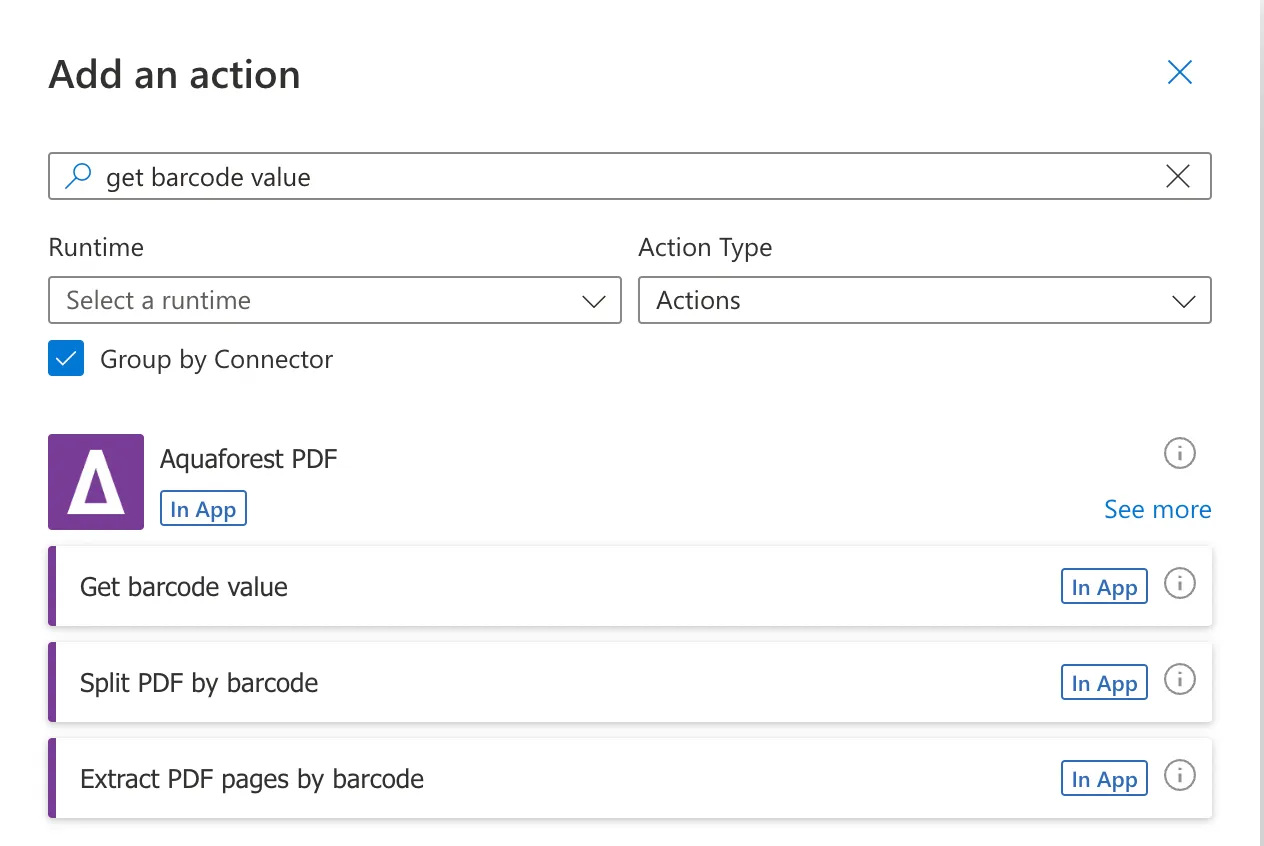
As a next step, you will be asked for a Connection Name and an API Key. Give your connection a name and use the primary key generated upon signing up for PDF Connector. If you need assistance, read the getting started guide, particularly Generate API key section.
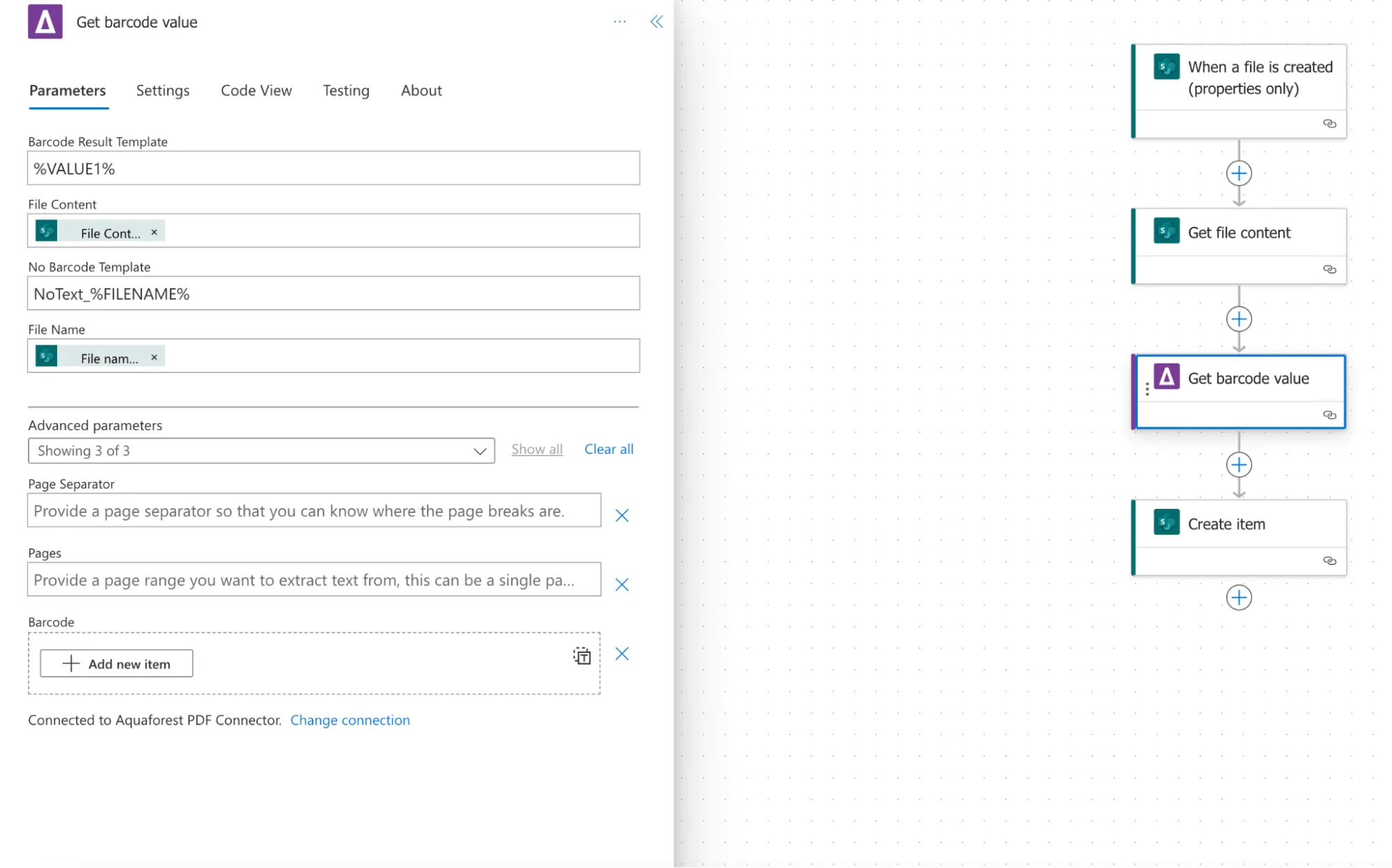
Step 2: Input Parameters.
When you activate the connector and add an action, the next step would be to fill in the required fields. Enter the source file name, file content, and define barcode result template.
Step 3: Configure Optional Parameters.
Step 4. Create item action.
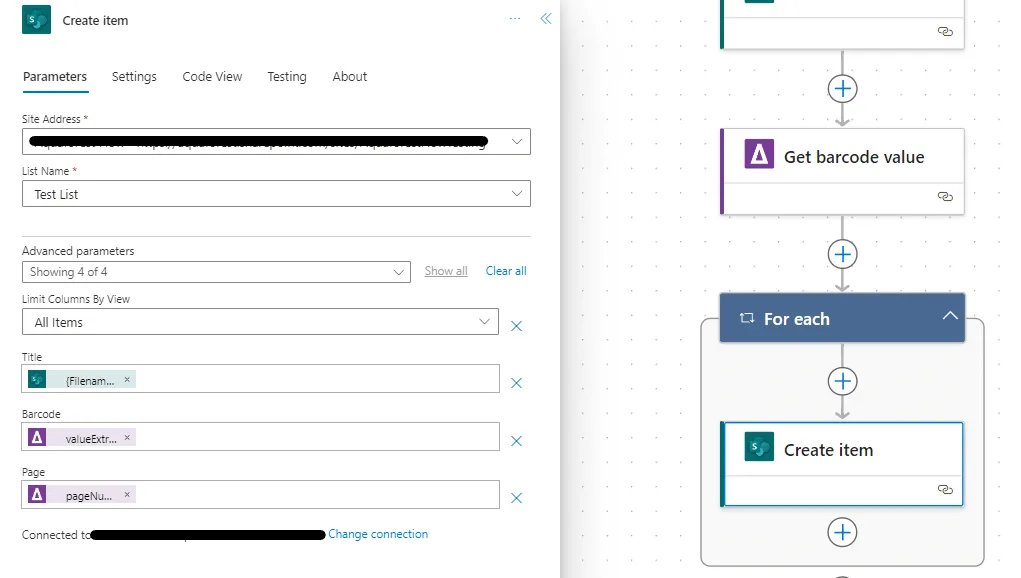
Add the create item action and configure following the details below:
Site address: The URL of your SharePoint site.
Folder path: The location of your SharePoint library where the input file is stored.
List item: The name of the list that you want to get barcode value from.
You can also check other output parameters:
Step 5: Execute the Action.
Click on the Save button and run the Power Automate workflow to trigger the “Get Barcode Value” action.
Step 6: Real-time Tracking Updates.
As the “Get Barcode Value” action executes, the tracking system of Alex’s logistics company is automatically updated with the extracted barcode values.
By incorporating the Aquaforest PDF Connector’s “Get Barcode Value” action into the logistics workflow, professionals like Alex can streamline package tracking, reduce manual effort, and ensure real-time updates in the shipment processing pipeline. Embrace automation to enhance efficiency and accuracy in logistics operations.
此内容由惯性聚合(RSS阅读器)自动聚合整理,仅供阅读参考。 原文来自 — 版权归原作者所有。