








Table of contents

Summary
Explore the eight most common types of PDF annotations and how they enhance document interaction using Nutrient’s professional PDF annotation library. From text markup and drawing tools, to multimedia and widget annotations, this guide covers essential features for document collaboration and review. Learn how to implement these annotation types programmatically and understand their practical applications across different industries.
In today’s digital world, PDF annotations have become essential for a wide range of industries, from education and legal services, to business and design. Nutrient Web SDK, a leading PDF annotation library, offers a robust and customizable toolkit to help developers and users create, edit, and manage annotations on PDF documents with ease.
This post will walk through the main types of annotations you can add to a PDF using Nutrient and explain how they enhance collaboration, communication, and document clarity.
What are PDF annotations?
PDF annotations are objects that can be added to PDF pages to mark up content, add multimedia, or even make forms interactive. Unlike other edits, annotations don’t alter the underlying document content, which enables users to layer comments, highlights, or visuals without permanently changing the original document.
Types of annotations available in Nutrient
Nutrient supports 17 primary annotation types. These can be broadly classified into two categories: markup annotations and non-markup annotations. Below are some of the most commonly used annotation types in Nutrient. Our PDF markup tool supports all these annotation types with an intuitive interface.
Text markup annotations
Text markup annotations let users highlight or draw attention to specific sections of text. Nutrient supports:
- Highlight — Draws attention to key points by highlighting text.
- Underline — Emphasizes important text passages.
- Strikeout — Visually crosses out unwanted text.
With Nutrient, users can customize colors, line thickness, and other styles for these annotations, providing flexibility in how they mark up documents.
Adding a highlight annotation
Highlight annotations are useful for marking specific text or sections of a document to draw attention to important content. Nutrient lets you add customizable highlight annotations with the ability to set the color, style, and thickness of the highlight:
const highlightRects = PSPDFKit.Immutable.List([
new PSPDFKit.Geometry.Rect({
left: 10,
top: 10,
width: 200,
height: 10,
}),
new PSPDFKit.Geometry.Rect({
left: 10,
top: 25,
width: 200,
height: 10,
}),
]);
const highlightAnnotation = new PSPDFKit.Annotations.HighlightAnnotation({
pageIndex: 0,
rects: highlightRects,
boundingBox: PSPDFKit.Geometry.Rect.union(highlightRects),
});
instance.create(highlightAnnotation);
In the example above, the highlight annotation is added to a specific area of a PDF. You can specify the rectangular regions to highlight using Rect objects and customize the bounding box to fit the highlighted area.

Adding underline, strikeout, and squiggle
Nutrient also supports underlining, striking out, or adding a squiggle to text. The underline annotation is perfect for emphasizing key sections of text by drawing a line underneath it. You can adjust the color and thickness of the line for visual appeal:
// Underline
const rects = PSPDFKit.Immutable.List([
new PSPDFKit.Geometry.Rect({
left: 10,
top: 10,
width: 200,
height: 10,
}),
new PSPDFKit.Geometry.Rect({
left: 10,
top: 25,
width: 200,
height: 10,
}),
]);
const underlineAnnotation = new PSPDFKit.Annotations.UnderlineAnnotation({
pageIndex: 0,
rects: rects,
boundingBox: PSPDFKit.Geometry.Rect.union(rects),
});
instance.create(underlineAnnotation);
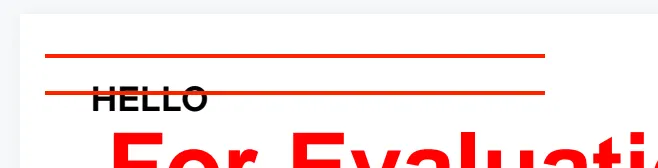
The code above creates an underline annotation, marking specific areas of text on the PDF.
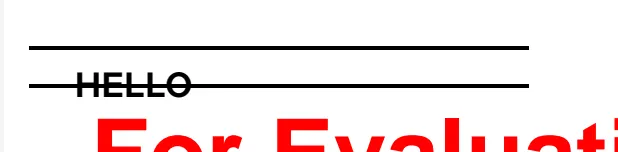
Strikeout annotations are used to visually indicate that text should be removed or is no longer relevant. This is useful for marking outdated or obsolete text:
// StrikeOut
const strikeOutAnnotation = new PSPDFKit.Annotations.StrikeOutAnnotation({
pageIndex: 0,
rects: rects,
boundingBox: PSPDFKit.Geometry.Rect.union(rects),
});
instance.create(strikeOutAnnotation);
The code above demonstrates how to create a strikeout annotation, which is applied to specific areas of the document.
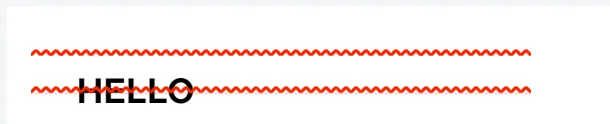
Squiggle annotations are useful for creating a more informal, visually distinct mark on text. They’re often used for highlighting or emphasizing text in a playful or personal way:
// Squiggle
const squiggleAnnotation = new PSPDFKit.Annotations.SquiggleAnnotation({
pageIndex: 0,
rects: rects,
boundingBox: PSPDFKit.Geometry.Rect.union(rects),
});
instance.create(squiggleAnnotation);
This code snippet adds a squiggle annotation to a selected part of the document.
Drawing annotations
Drawing annotations are essential for adding visual elements or diagrams to PDFs. Nutrient offers the following drawing annotations:
- Line — Simple straight lines, great for underlining or dividing sections.
- Square and circle — Used for drawing rectangular or circular shapes.
- Polygon and polyline — Enables more complex, multisided shapes.
- Ink — Freehand drawing tool for sketching or writing notes by hand.
All drawing annotations can be customized with color, line styles (dotted, dashed), and fill options, making them versatile for both personal and collaborative use.
Drawing a line annotation
Line annotations are used to draw straight lines on a page.
Line annotations are only selectable around their visible line. This means you can create a page full of line annotations, and annotations behind the line annotation that are visible will remain selectable.
Right now, line annotations are implemented using SVG images:
const lineAnnotation = new PSPDFKit.Annotations.LineAnnotation({
pageIndex: 0,
startPoint: new PSPDFKit.Geometry.Point({ x: 50, y: 100 }), // Starting point.
endPoint: new PSPDFKit.Geometry.Point({ x: 200, y: 300 }), // Farther ending. point to make the line longer
strokeColor: PSPDFKit.Color.BLUE,
lineWidth: 6,
boundingBox: new PSPDFKit.Geometry.Rect({
left: 50,
top: 90,
width: 200,
height: 200,
}),
});
instance.create(lineAnnotation);
The code above draws a line starting from point (50, 100) to (200, 300) with a blue stroke of width 6. The bounding box defines the area in which the line annotation is placed. This is just one of many annotation types supported by our JavaScript image annotation library.

Adding a rectangle annotation
Rectangle annotations are ideal for highlighting specific areas on a page or creating boxes around content:
const rectAnnotation = new PSPDFKit.Annotations.RectangleAnnotation({
pageIndex: 0,
boundingBox: new PSPDFKit.Geometry.Rect({
left: 100,
top: 100,
width: 200,
height: 100,
}),
strokeColor: PSPDFKit.Color.BLUE,
lineWidth: 2,
});
instance.create(rectAnnotation);
The code above creates a blue rectangle with a width of 2, positioned on the first page. The bounding box specifies the position and size.

Creating an ellipse annotation
Ellipses are similar to rectangles but have a circular shape, which can be used for emphasis or decorative elements:
const ellipseAnnotation = new PSPDFKit.Annotations.EllipseAnnotation({
pageIndex: 0,
boundingBox: new PSPDFKit.Geometry.Rect({
left: 150,
top: 150,
width: 200,
height: 100,
}),
cloudyBorderIntensity: 2,
cloudyBorderInset: new PSPDFKit.Geometry.Inset({
left: 9,
top: 9,
right: 9,
bottom: 9,
}),
});
instance.create(ellipseAnnotation);
The code above creates an ellipse annotation with a cloudy border effect, ideal for highlighting certain sections.

Drawing with ink (freehand)
Ink annotations let users draw freely on a document. They’re useful for freehand notes, sketches, or signatures:
const inkAnnotation = new PSPDFKit.Annotations.InkAnnotation({
pageIndex: 0,
lines: PSPDFKit.Immutable.List([
PSPDFKit.Immutable.List([
new PSPDFKit.Geometry.DrawingPoint({ x: 5, y: 5 }),
new PSPDFKit.Geometry.DrawingPoint({ x: 95, y: 95 }),
]),
PSPDFKit.Immutable.List([
new PSPDFKit.Geometry.DrawingPoint({ x: 95, y: 5 }),
new PSPDFKit.Geometry.DrawingPoint({ x: 5, y: 95 }),
]),
]),
boundingBox: new PSPDFKit.Geometry.Rect({
left: 0,
top: 0,
width: 100,
height: 100,
}),
});
instance.create(inkAnnotation);
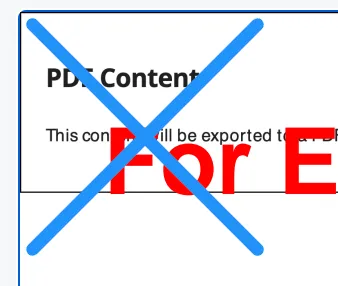
The code above draws two crossed lines, providing a simple example of a freehand drawing.
Adding a polygon
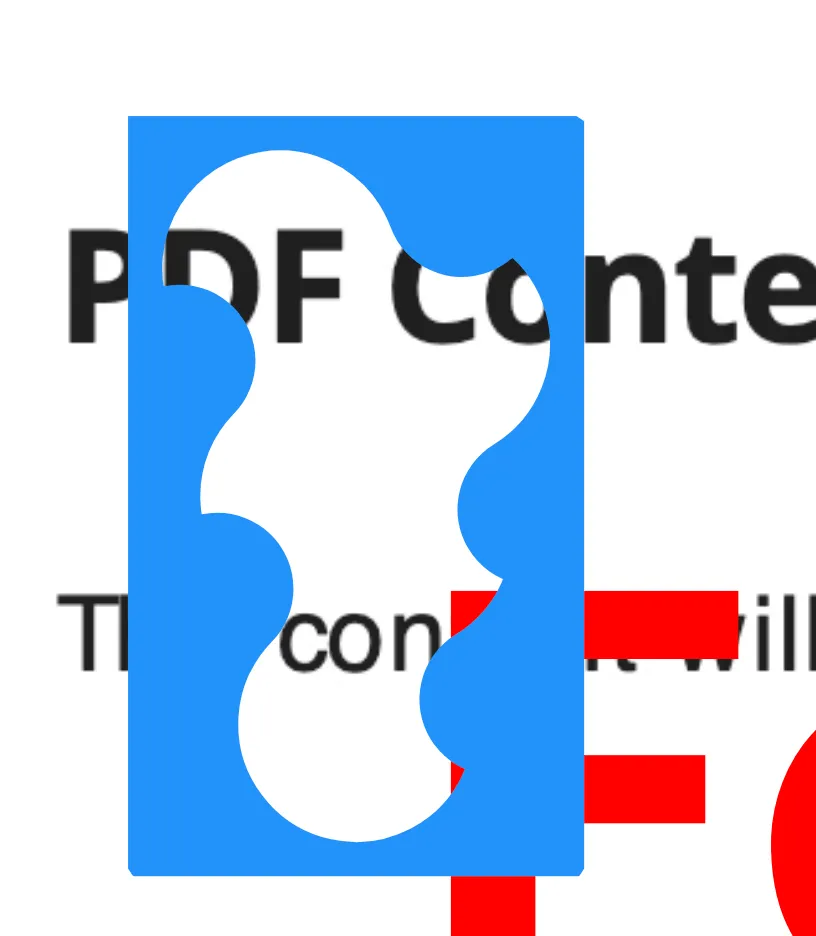
Need more complex shapes? Polygons let you create multipoint shapes, which are useful for marking areas with complex boundaries:
const polygonAnnotation = new PSPDFKit.Annotations.PolygonAnnotation({
pageIndex: 0,
points: PSPDFKit.Immutable.List([
new PSPDFKit.Geometry.Point({ x: 25, y: 25 }),
new PSPDFKit.Geometry.Point({ x: 35, y: 30 }),
new PSPDFKit.Geometry.Point({ x: 30, y: 55 }),
]),
strokeWidth: 10,
boundingBox: new PSPDFKit.Geometry.Rect({
left: 20,
top: 20,
width: 20,
height: 40,
}),
cloudyBorderIntensity: 3,
});
instance.create(polygonAnnotation);
The example above creates a triangular polygon with custom border intensity, adding a more complex shape to the document.
Drawing a polyline
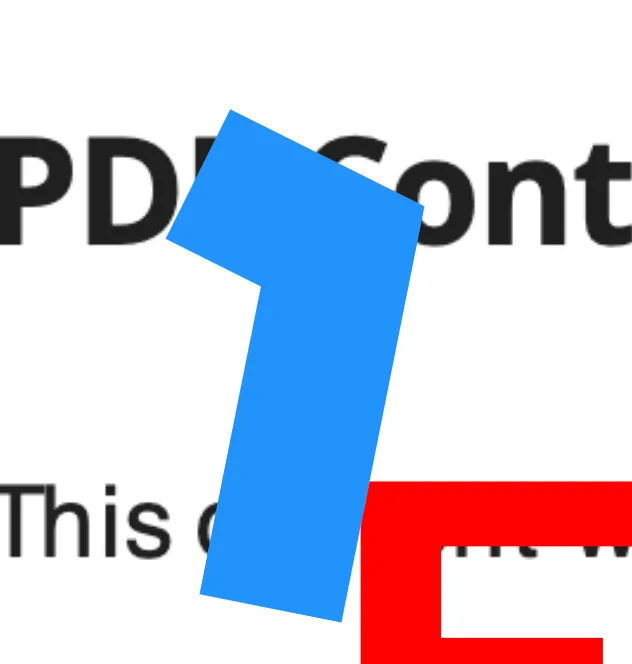
A polyline connects multiple points with continuous lines. This is ideal for depicting paths or routes:
const polylineAnnotation = new PSPDFKit.Annotations.PolylineAnnotation({
pageIndex: 0,
points: PSPDFKit.Immutable.List([
new PSPDFKit.Geometry.Point({ x: 25, y: 25 }),
new PSPDFKit.Geometry.Point({ x: 35, y: 30 }),
new PSPDFKit.Geometry.Point({ x: 30, y: 55 }),
]),
strokeWidth: 10,
boundingBox: new PSPDFKit.Geometry.Rect({
left: 20,
top: 20,
width: 20,
height: 40,
}),
});
instance.create(polylineAnnotation);
The code above creates a polyline annotation, which could represent a drawn path.
Stamp annotations
Stamp annotations provide a way to add standard symbols or custom images — such as “Approved” or “Confidential” marks — to PDFs. Nutrient’s stamp tool supports:
- Custom stamps — Create unique stamps with custom text, dates, or even images.
- Standard stamps — Use predefined stamps for commonly used terms like “Draft” or “Reviewed.”
Stamps can be saved locally in the browser, allowing frequent use without the need to recreate them each time.
Adding a custom stamp
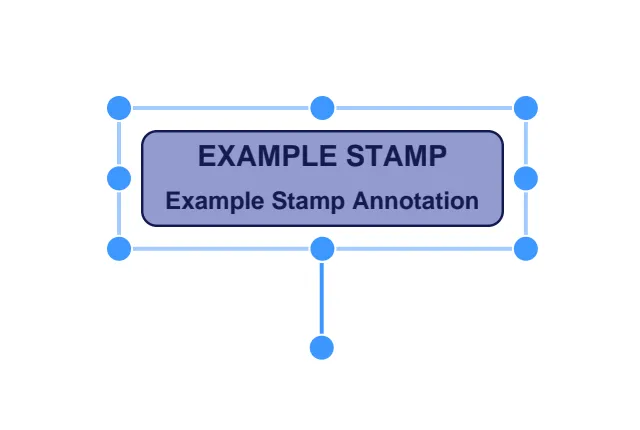
To add a custom stamp, use the following code:
const stampAnnotation = new PSPDFKit.Annotations.StampAnnotation({
pageIndex: 0,
stampType: 'Custom'
title: 'Example Stamp',
subtitle: 'Example Stamp Annotation',
color: new Color({ r: 0, g: 51, b: 79 }),
boundingBox: new PSPDFKit.Geometry.Rect({ left: 10, top: 20, width: 150, height: 40 }),
});
instance.create(stampAnnotation);
This example creates a custom stamp annotation with the title “Example Stamp.”
Text annotations
Nutrient’s text annotations enable users to leave detailed comments and insights directly on a PDF:
- Sticky note — Add small, movable notes to specific document areas.
- Free text — Insert custom text boxes anywhere on the page, complete with rich formatting options (fonts, text alignment, and rotation).
These tools make it easy to communicate ideas, feedback, or clarifications directly on a document.
Adding text annotations
You can add a text annotation to leave comments or notes on a PDF:
const textAnnotation = new PSPDFKit.Annotations.TextAnnotation({
pageIndex: 0,
text: { format: "plain", value: "Welcome to Nutrient" },
font: "Helvetica",
isBold: true,
horizontalAlign: "center",
boundingBox: new PSPDFKit.Geometry.Rect({
left: 10,
top: 100,
width: 200,
height: 40,
}),
fontColor: PSPDFKit.Color.GREEN,
});
instance.create(textAnnotation);
The code above adds a bold, green text annotation in the center of the page.

Adding a sticky note
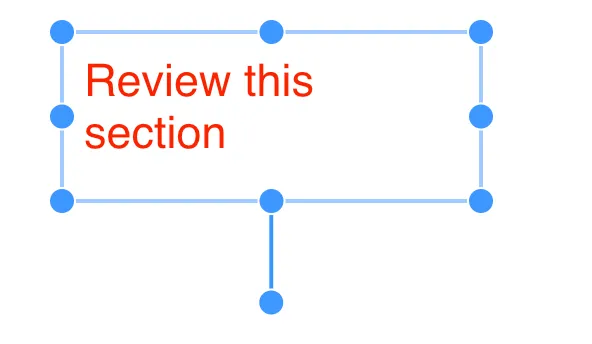
To add a sticky note, use the following code:
const textAnnotation = new PSPDFKit.Annotations.TextAnnotation({
pageIndex: 0,
text: { format: "plain", value: "Review this section" },
boundingBox: new PSPDFKit.Geometry.Rect({
left: 100,
top: 100,
width: 150,
height: 50,
}),
fontColor: PSPDFKit.Color.RED,
});
instance.create(textAnnotation);
The code above adds a sticky note annotation in red.
Note annotations
Note annotations are “sticky notes” attached to a point in a PDF document. These annotations are displayed as markers (typically an icon), and their text content is revealed upon selection:
const noteAnnotation = new PSPDFKit.Annotations.NoteAnnotation({
pageIndex: 0,
text: { format: "plain", value: "Remember the milk" },
boundingBox: new PSPDFKit.Geometry.Rect({
left: 10,
top: 20,
width: 30,
height: 40,
}),
});
instance.create(noteAnnotation);
The annotation above is a quick reminder, displayed as an icon on a PDF page.
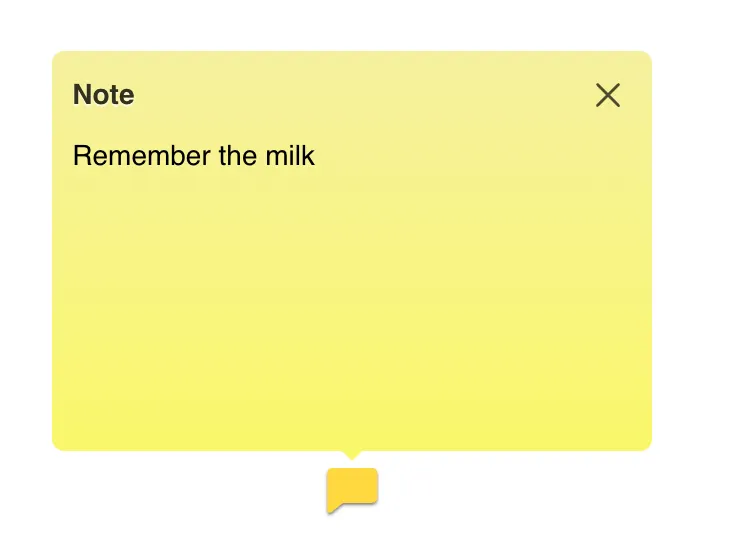
Note annotations are a great way to leave quick reminders or instructions within a document, enhancing the overall collaboration experience.
Nutrient also allows for the integration of multimedia content into PDFs, including:
- Audio and video annotations — Embed audio clips or video links to enrich the content.
- 3D model annotations — Add interactive 3D models for educational or technical documents.
These multimedia elements create an engaging reading experience and are particularly useful in training or instructional materials.
Adding a video annotation
Currently, Nutrient supports displaying and deleting media annotations such as videos and audio clips, but creating them programmatically isn’t supported.
Widget annotations are integral for creating interactive forms directly within PDFs. They include:
- Buttons — Add interactive buttons to trigger actions.
- Checkboxes and radio buttons — Ideal for surveys or checklists.
- Text fields — Enable users to enter responses or data.
With Nutrient’s advanced form capabilities, you can create fully interactive documents that capture user input and export it for processing.
Adding a text field
You can add a text field to your PDF using widget annotations. Here’s a simple example:
const widget = new PSPDFKit.Annotations.WidgetAnnotation({
id: PSPDFKit.generateInstantId(), // Unique ID for the widget.
pageIndex: 0, // Page number where the widget is placed.
formFieldName: "MyFormField", // Name of the associated form field.
boundingBox: new PSPDFKit.Geometry.Rect({
left: 100, // X-coordinate.
top: 75, // Y-coordinate.
width: 200, // Width of the widget.
height: 80, // Height of the widget.
}),
additionalActions: {
onFocus: new PSPDFKit.Actions.JavaScriptAction({
script: "alert('onFocus')", // Action triggered when the widget gains focus.
}),
},
});
// Define the form field linked to the widget.
const form = new PSPDFKit.FormFields.TextFormField({
name: "MyFormField", // Name of the form field
annotationIds: new PSPDFKit.Immutable.List([widget.id]), // Link the widget
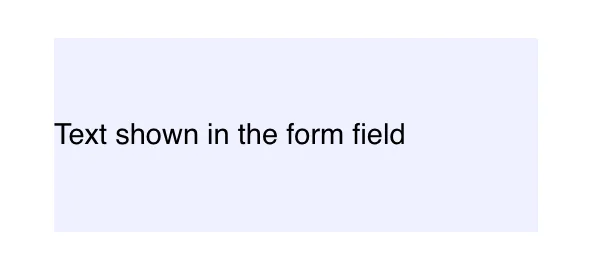
value: "Text shown in the form field", // Default text.
});
// Add the widget and form to the document.
instance.create([widget, form]);
The code above creates a text field that triggers an action (an alert) when it gains focus. The WidgetAnnotation defines the visible area, and the TextFormField links the form field to the widget.
Advantages of widget annotations
- Interactivity — Engage users with dynamic content.
- Data collection — Simplify gathering and exporting user input.
- Customization — Adjust properties such as color, font, and size for a tailored experience.
Widget annotations are powerful tools for enhancing the functionality of PDFs. With Nutrient, you can design forms that meet your specific needs while maintaining high performance and usability.
Adding a link annotation
Want to create a clickable link? The link annotation lets you link to other pages or external URLs:
const action = new PSPDFKit.Actions.GoToAction({ pageIndex: 1 });
const linkAnnotation = new PSPDFKit.Annotations.LinkAnnotation({
pageIndex: 0,
boundingBox: new PSPDFKit.Geometry.Rect({
left: 10,
top: 20,
width: 30,
height: 40,
}),
action: action,
borderColor: PSPDFKit.Color.RED,
borderStyle: PSPDFKit.BorderStyle.solid,
borderWidth: 2,
});
instance.create(linkAnnotation);
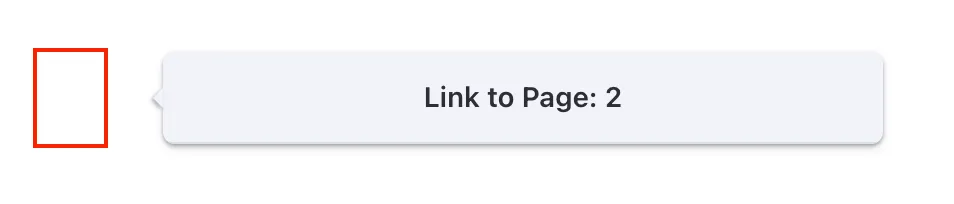
Image annotations
Image annotations in Nutrient allow you to attach images directly to a PDF, creating a more interactive and visually rich document. These annotations are ideal for adding diagrams, charts, logos, and other image-based content that can enhance a document’s readability and engagement:
const request = await fetch("https://example.com/image.jpg");
const blob = await request.blob();
const imageAttachmentId = await instance.createAttachment(blob);
const annotation = new PSPDFKit.Annotations.ImageAnnotation({
pageIndex: 0,
contentType: "image/jpeg",
imageAttachmentId,
description: "Example Image Annotation",
boundingBox: new PSPDFKit.Geometry.Rect({
left: 10,
top: 20,
width: 150,
height: 150,
}),
});
instance.create(annotation);

In the example above, an image is fetched from a URL, turned into a blob, and then uploaded as an attachment. The image is then placed on a PDF page as an image annotation.
Importing PDF pages as image annotations
It’s also possible to import the first page of a PDF as an image annotation by setting the appropriate contentType. However, note that when importing a PDF page as an image, the annotations won’t be included unless they’ve been flattened in advance.
Use cases for image annotations
- Incorporating visual aids — Diagrams, charts, and illustrations can be added to enhance understanding of complex topics.
- Branding — Logos, watermarks, and other branding images can be placed within a document.
- Documentation — Screenshots, photos, or scanned documents can be inserted directly into a PDF for better context.
Image annotations offer a powerful way to integrate images into PDF documents, providing a richer and more engaging user experience.
Wrapping up
With the variety of annotation types supported by Nutrient, users can transform static PDFs into interactive, collaborative documents that meet their specific needs. From highlighting text to embedding videos, each annotation type enhances the reader’s experience, providing context, clarity, and functionality.
With Nutrient, you can build a versatile PDF annotation experience directly in your web applications. Whether you’re highlighting text and drawing shapes or adding multimedia and form fields, Nutrient offers a comprehensive set of tools for document markup, making it invaluable for applications in legal, educational, and business settings. Embrace PDF annotations to foster collaboration, streamline communication, and create interactive documents that meet today’s digital demands.
If you have any questions about Nutrient or want to learn more about customizing annotations, check out the Nutrient documentation for in-depth details. For licensing inquiries or to get started with a license, feel free to contact our Sales team to discuss how Nutrient can fit your needs.
FAQ
PDF annotations are used to mark up, comment on, or add elements like highlights and shapes to PDF documents without altering the original content.
The main types include text markup (e.g. highlight, underline), drawing (e.g. lines, shapes), and interactive elements like forms and stamps.
Yes, annotations like highlights, shapes, and lines can be customized with different colors, styles, and sizes.
Annotations made with Nutrient Web SDK are cross-platform and can be viewed and edited on any PDF viewer supporting annotations.
Developers can use tools like Nutrient Web SDK, which provides APIs to programmatically create and manage annotations in JavaScript.