







Table of contents
This tutorial shows you how to build a Python workflow using the Nutrient AI redaction API. You'll upload documents, apply permanent redactions, and verify the results.
TL;DR
- Build a Python workflow for automated PDF redaction using Nutrient’s AI-powered API. Sign up and get 50 free credits(opens in a new tab) to test right away.
- Learn the difference between staging and applying permanent redactions.
- Handle both HTTP requests and Python client approaches with complete examples.
- Implement error handling and verification workflows for production use.
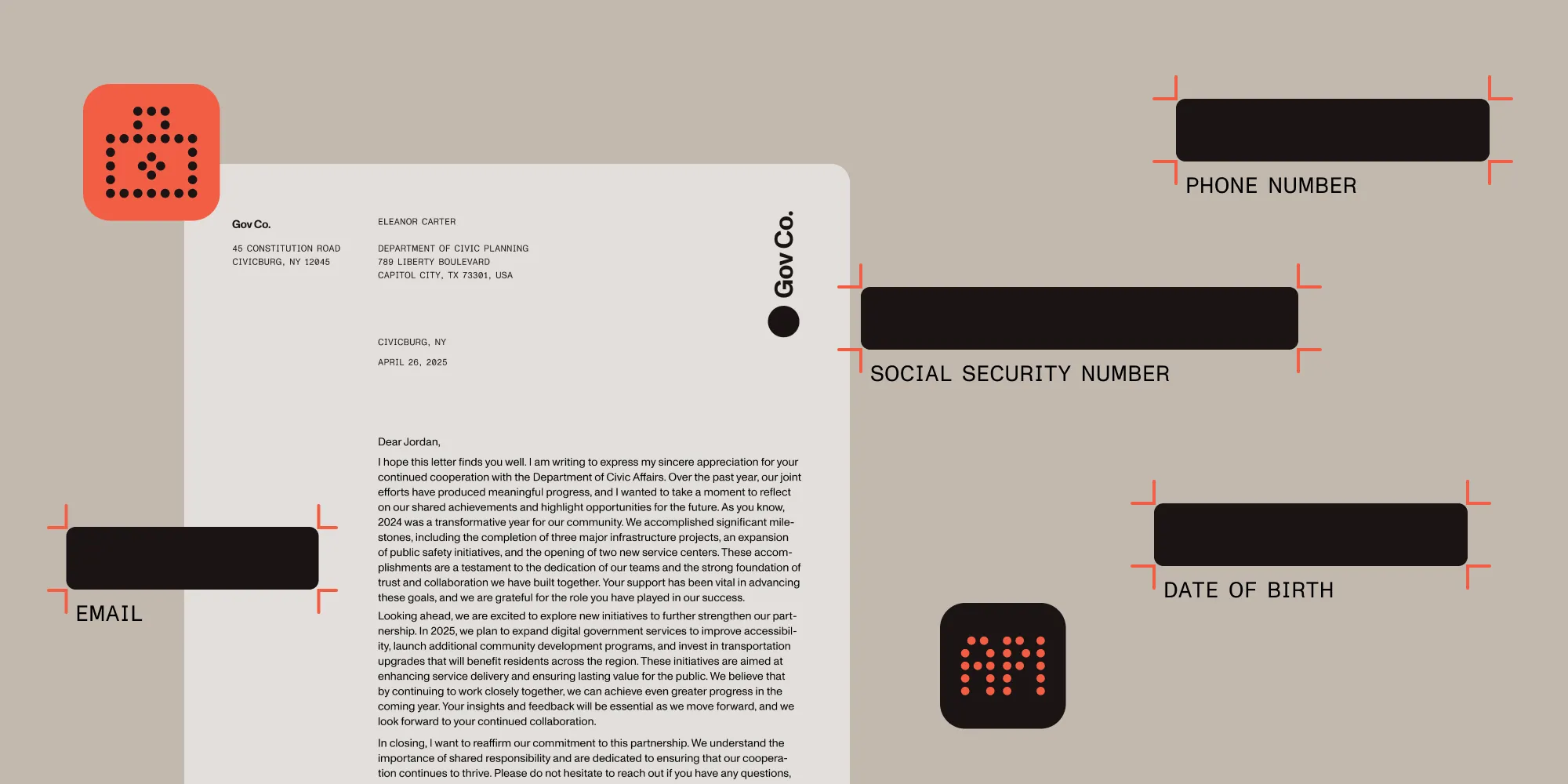
Data breaches cost organizations millions. Legal contracts, healthcare records, and financial documents contain PII(opens in a new tab) that needs redaction for compliance.
Nutrient’s AI redaction API uses AI to understand context, not just keywords. It distinguishes Social Security numbers (SSNs) from case numbers and birthdates from contract dates. The API processes thousands of documents per hour.
Traditional redaction uses keyword matching. AI-powered redaction works differently — it handles thousands of documents at once, which is critical for legal discovery deadlines.
What you’ll learn
In this tutorial, you’ll learn:
- How to upload PDF documents to the Nutrient AI redaction API
- How to apply permanent, irreversible redaction to sensitive content
- The difference between staging and applying redactions
- How to process API responses and download redacted files
- How to verify that sensitive data has been removed
- Best practices for handling scanned documents and minimizing false positives
Prerequisites
Before you begin, make sure you have:
- Python 3.7 or higher — You need Python installed on your system.
- A Nutrient API key — Sign up for a free trial(opens in a new tab) to get started.
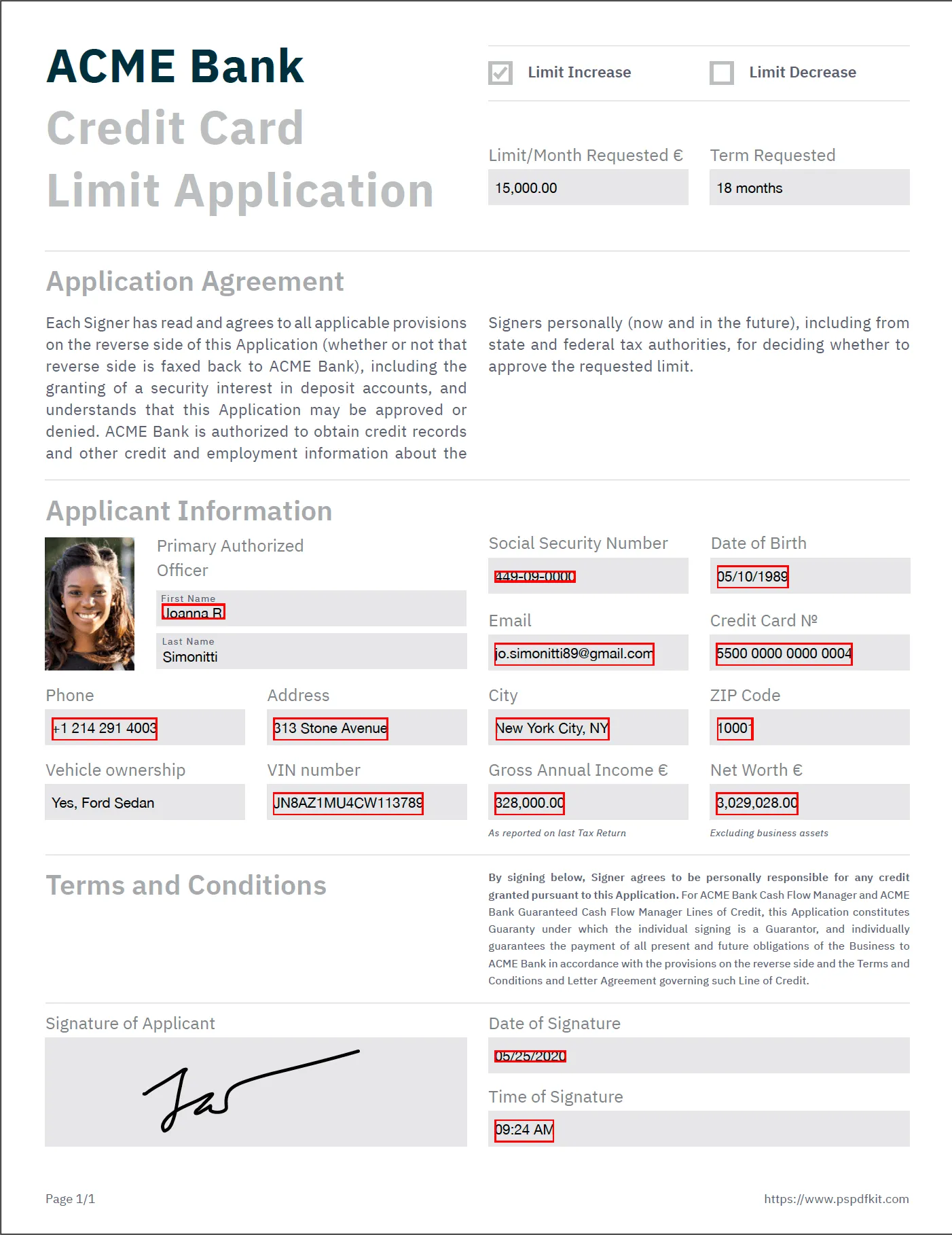
- A sample PDF — You need a PDF containing sensitive data. You can download our example document or use your own.
- Basic Python knowledge — You should be familiar with requests and JSON handling, as well as async/await for the Python client.
Step 1: Set up your environment
Set up your Python environment and install the required dependencies:
# Create a new project directory.
mkdir nutrient-redaction-tutorial
cd nutrient-redaction-tutorial
# (Optional) Create and activate a virtual environment.
python -m venv venv
source venv/bin/activate # On Windows: venv\Scripts\activate
# Install dependencies.
# For HTTP requests approach:
pip install requests python-dotenv
Store your API key securely in an .env file:
# .env file
NUTRIENT_API_KEY=your_api_key_here
After you sign up, find your API key in the Nutrient Dashboard(opens in a new tab).
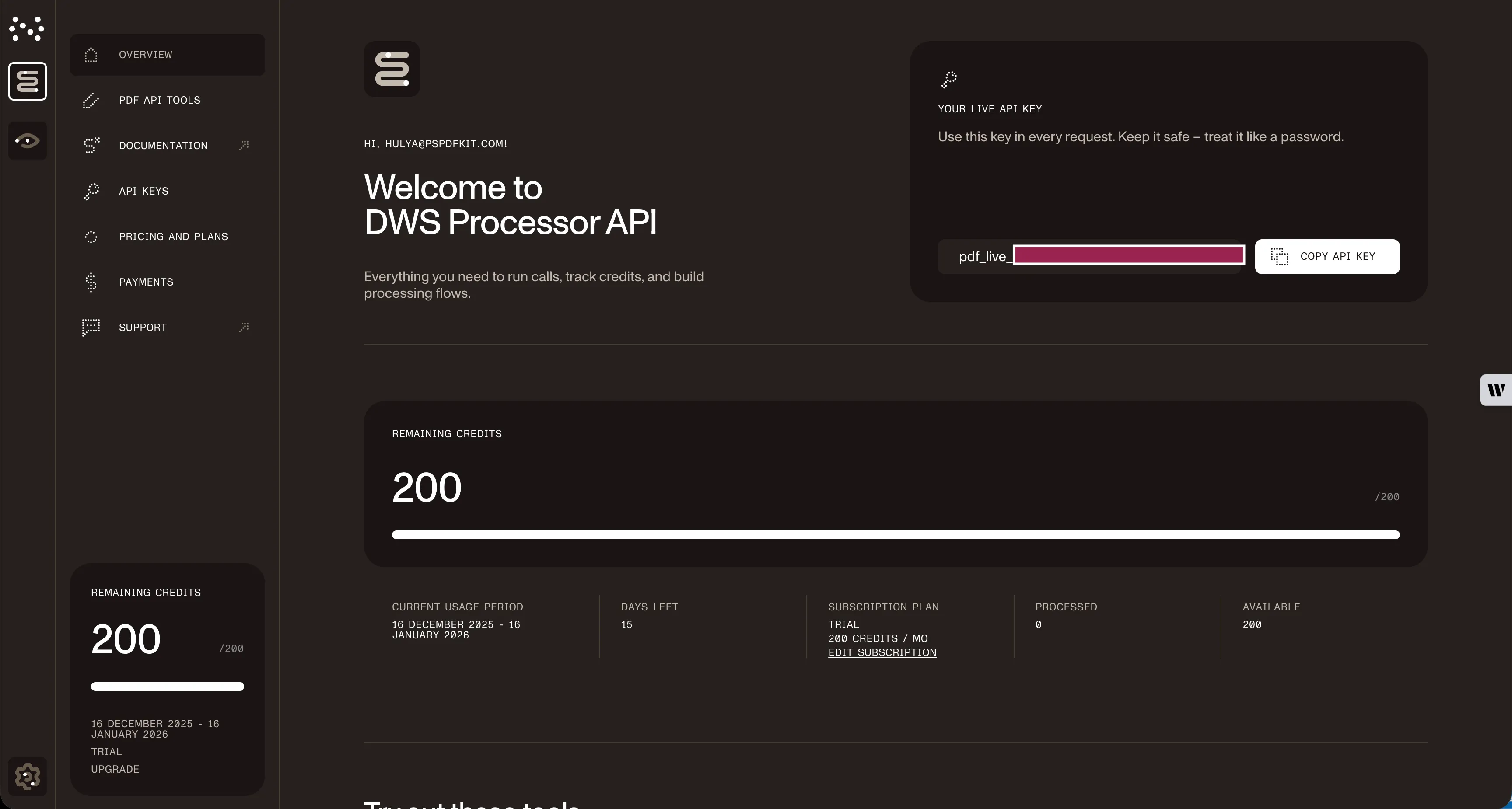
Tip: Never commit your API key to version control. Add .env to your .gitignore.
Step 2: Write the redaction code
Create a Python script (for example, redaction_tutorial.py) to redact your PDF using the Nutrient API:
import os
import requests
import json
from dotenv import load_dotenv
load_dotenv()
API_KEY = os.getenv("NUTRIENT_API_KEY")
url = "https://api.nutrient.io/ai/redact"
headers = {
"Authorization": f"Bearer {API_KEY}"
}
files = {
"file1": open("redaction.pdf", "rb")
}
data = {
"data": json.dumps({
"documents": [{"documentId": "file1"}],
"criteria": "All personally identifiable information",
"redaction_state": "apply" # or "stage" for review
})
}
response = requests.post(url, headers=headers, files=files, data=data, stream=True)
if response.ok:
with open("result.pdf", "wb") as fd:
for chunk in response.iter_content(chunk_size=8096):
fd.write(chunk)
print("Redacted PDF saved as result.pdf")
else:
print("Error:", response.text)
exit()
This script uploads your document, instructs the API to redact PII per your criteria, and saves the output locally.
Stage vs. apply (how redactions are finalized)
Nutrient supports two modes:
"redaction_state": "stage"— Creates redaction annotations for review. The text remains in the file (you’ll see colored boxes, and text may still be selectable)."redaction_state": "apply"— Permanently removes the underlying content (burn-in). Copy/paste and text search over redacted regions will return nothing.
Minimal payload difference:
{
"documents": [{ "documentId": "file1" }],
"criteria": "All personally identifiable information",
"redaction_state": "stage" // review annotations (non-destructive)
}
{
"documents": [{ "documentId": "file1" }],
"criteria": "All personally identifiable information",
"redaction_state": "apply" // burn-in (permanent, content removed)
}
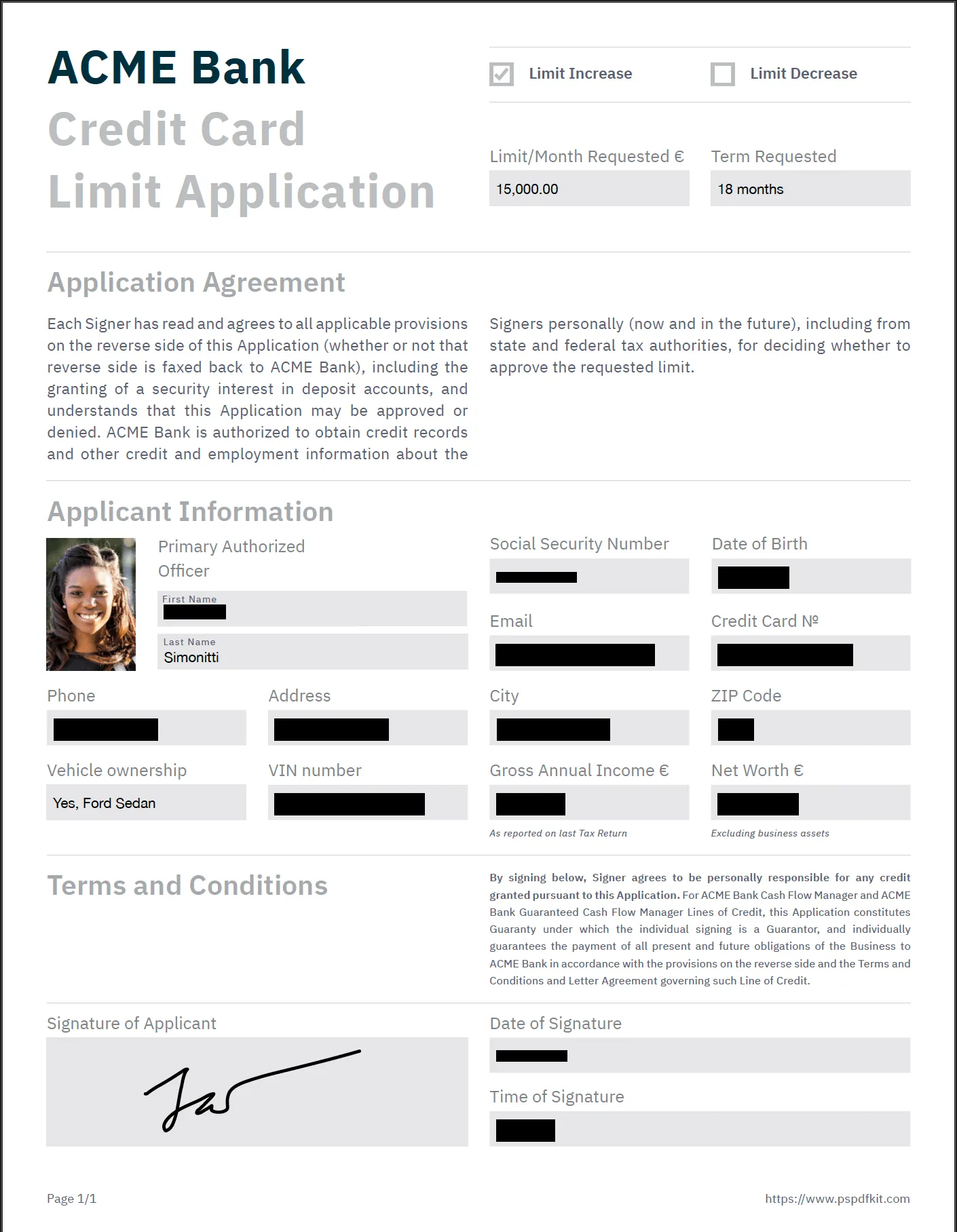
Important: Redactions are finalized based on the
redaction_stateyou send. Use"apply"to permanently remove content, or"stage"to create reviewable annotations. For clarity and consistency, always setredaction_stateexplicitly.
Step 3: Customizing redaction criteria
You can specify the types of sensitive information to redact by changing the criteria field. For example, to target a broader set of data:
"criteria": "All personally identifiable information, financial data, and medical information"
Adjust criteria based on your compliance requirements.
Step 4: Download and verify results
After processing, open result.pdf in a PDF viewer to confirm sensitive data is removed. For additional verification, reupload the redacted file to check for remaining content, or add automated checks like searching for known test values.
Step 5: Processing multiple documents
For organizations processing multiple documents, you’ll need to handle files in batches. Since the /ai/redact endpoint processes one document per request, you can loop through your files sequentially or in parallel.
Here’s a production-ready script that processes multiple PDFs:
"""
Process PDFs with Nutrient AI Redaction
This script loads the API key from .env (NUTRIENT_API_KEY) and saves each result next to the input as <name>.redacted.pdf (or .stage.pdf).
"""
import os
import json
import requests
from pathlib import Path
from dotenv import load_dotenv
# --- Config ---
API_URL = "https://api.nutrient.io/ai/redact"
REDACTION_STATE = "apply" # "stage" or "apply"
CRITERIA = "All personally identifiable information"
INPUT_FILES = ["docs_in/contract1.pdf", "docs_in/contract2.pdf", "docs_in/contract3.pdf"] # sample files
CHUNK = 8192
TIMEOUT = 300
def out_path_for(input_path: Path, state: str) -> Path:
suffix = ".stage.pdf" if state == "stage" else ".redacted.pdf"
return input_path.with_suffix("").with_name(input_path.stem + suffix)
def redact_file(api_key: str, in_path: Path, state: str) -> Path:
if not in_path.exists():
raise FileNotFoundError(f"Missing file: {in_path}")
files = {"file1": (in_path.name, open(in_path, "rb"), "application/pdf")}
data = {
"data": json.dumps({
"documents": [{"documentId": "file1"}],
"criteria": CRITERIA,
"redaction_state": state
})
}
40 collapsed lines
try:
resp = requests.post(
API_URL,
headers={"Authorization": f"Bearer {api_key}"},
files=files,
data=data,
stream=True,
timeout=TIMEOUT
)
finally:
files["file1"][1].close()
if not resp.ok:
raise RuntimeError(f"{in_path.name}: {resp.status_code} {resp.reason}\n{resp.text}")
out_path = out_path_for(in_path, state)
with open(out_path, "wb") as fd:
for chunk in resp.iter_content(chunk_size=CHUNK):
if chunk:
fd.write(chunk)
return out_path
def main():
load_dotenv()
api_key = os.getenv("NUTRIENT_API_KEY", "").strip()
if not api_key:
raise SystemExit("Missing API key. Set NUTRIENT_API_KEY in .env")
for f in INPUT_FILES:
p = Path(f)
try:
outp = redact_file(api_key, p, REDACTION_STATE)
print(f"OK {p.name} → {outp.name}")
except Exception as e:
print(f"ERR {p.name} → {e}")
if __name__ == "__main__":
main()
Setup instructions:
- Create an
.envfile with your API key:NUTRIENT_API_KEY=pdf_live_... - Set
REDACTION_STATEto"stage"(reviewable annotations) or"apply"(permanent) - Update
INPUT_FILESwith your document paths - Run:
python redact_batch.py
The script outputs files like contract1.redacted.pdf (or contract1.stage.pdf in stage mode).
Troubleshooting batch processing:
- 401 Unauthorized — Check that your API key is correct and loaded from
.env - File not found — Verify that paths in
INPUT_FILESexist - Rate limiting — Add delays between requests or implement exponential backoff
Alternative: Using the Python client
You can also use Nutrient’s official Python client(opens in a new tab) library for a more streamlined experience. The Python client provides a cleaner API and handles authentication, error handling, and async operations automatically.
pip install nutrient-dws python-dotenv
Here’s the same redaction using the Python client:
import asyncio
import os
from dotenv import load_dotenv
from nutrient_dws import NutrientClient
async def redact_with_client():
load_dotenv()
client = NutrientClient(api_key=os.getenv('NUTRIENT_API_KEY'))
# Simple AI redaction (applies redactions by default).
result = await client.create_redactions_ai(
'./redaction.pdf',
'All personally identifiable information',
'apply' # Apply redactions immediately.
)
# Save the redacted file.
with open('result.pdf', 'wb') as f:
f.write(result['buffer'])
print("Redacted PDF saved as result.pdf")
# Run the async function.
asyncio.run(redact_with_client())
Use 'stage' while tuning criteria, and then switch to 'apply' to burn in redactions once you’re satisfied.
Benefits of the Python client:
- Cleaner, more Pythonic API — Simplified method calls and intuitive structure
- Automatic error handling and retries — Built-in resilience for production use
- Built-in async support — Better performance for high-volume processing
- Type hints and IDE support — Enhanced developer experience
- Simplified authentication management — Secure credential handling
Troubleshooting common issues
This section helps you identify and resolve common challenges when using the AI redaction API, including handling false positives and negatives, addressing scanned document OCR limitations, and managing errors or configuration issues in both single- and batch-processing workflows.
False positives (over-redaction)
When the API redacts content that shouldn’t be removed, use more specific criteria:
def handle_false_positives(self, file_path):
"""Use more specific criteria to reduce false positives."""
# Instead of broad criteria like "All personally identifiable information"
# Use specific, targeted criteria.
specific_criteria = "Social Security Numbers and credit card numbers only"
# Always stage first to review results.
return self.upload_document(
file_path=file_path,
criteria=specific_criteria,
redaction_state="stage"
)
False negatives (missed content)
When sensitive content isn’t detected, try broader criteria or use staging mode for manual review:
def handle_false_negatives(self, file_path):
"""Use broader criteria and manual review for missed content."""
# Use broader criteria that might catch more content.
broad_criteria = "All personally identifiable information including names, addresses, phone numbers, and identification numbers"
# Always use staging mode for manual review.
return self.upload_document(
file_path=file_path,
criteria=broad_criteria,
redaction_state="stage" # Review before applying
)
Scanned document issues
The API includes OCR for scanned PDFs and images. OCR accuracy depends on scan quality and document layout. Test with your actual documents and use high-quality scans. Poor scan quality reduces text extraction accuracy.
Key considerations for production use
When deploying redaction workflows in production:
1. Security
- Store API keys securely — for example, environment variables or a key management system.
- All API requests use HTTPS/TLS for secure data transmission.
- Never log or expose sensitive document content.
- There’s no document retention; Nutrient DWS Processor API doesn’t store documents; they’re permanently deleted after each operation.
2. Rate limiting
- The API enforces rate limits, so use retry logic with exponential backoff.
- For high-volume processing, batch documents and introduce delays between requests.
- Monitor your credit usage to avoid interruptions.
3. Error handling
- Use try-except blocks for all API interactions.
- Implement retries for transient errors.
- Log errors for diagnostics, but never log document content.
- Use staging mode for sensitive or critical documents to enable manual review.
4. Monitoring and compliance
- Log redaction activities (excluding document content) for audit trails.
- Track API usage and monitor for false positives and false negatives.
- Establish review processes for edge cases and compliance requirements.
Next steps and advanced usage
You’ve built a PDF redaction workflow. Below are ways to extend it.
1. Integration ideas
- Document management systems — Integrate with SharePoint or Google Drive to redact documents directly from cloud storage.
- Workflow automation — Use Zapier or Power Automate to build no-code redaction pipelines.
- Batch processing systems — Build high-volume document redaction workflows for enterprise use.
- Cloud storage — Leverage AWS S3 or Azure Blob Storage for scalable workflows.
- Deterministic redaction — Use regex and preset patterns via the redaction API for rule-based redaction.
2. Industry-specific applications
Healthcare (HIPAA compliance)
Automatically redact patient names, medical record numbers, Social Security numbers, and dates of birth from clinical notes, insurance forms, and research documents.
Legal discovery
Process thousands of legal documents to remove attorney-client privileged information. AI distinguishes between contexts (for example, a judge’s name in a caption versus a witness name in testimony). Learn more about transforming legal discovery workflows.
Financial services (PCI DSS)
Remove credit card numbers, account information, and financial identifiers from loan applications, transaction records, and compliance reports.
Government and FOIA
Comply with Freedom of Information Act requests by redacting sensitive information while preserving document integrity for public release.
For comprehensive redaction solutions across different platforms, explore our redaction solutions.
Conclusion
You can now use the Nutrient AI redaction API to protect sensitive information in PDFs. The AI-powered approach offers these advantages over traditional methods:
- Permanent removal — This isn’t just overlays; sensitive text is completely deleted.
- Context awareness — The API finds entities that simple patterns can miss.
- Scalable processing — The API handles large document volumes efficiently.
- Flexible styles — The API fits different review and presentation needs.
- Auditability — The API supports compliance requirements.
Ready to get started?
- Sign up for a free Nutrient API trial(opens in a new tab) and get 50 credits to test with your own documents.
- Explore the AI redaction API documentation for advanced features and scaling strategies.
- Contact us for enterprise deployment planning.
FAQ
AI redaction leverages context rather than keywords. For sensitive workflows, start in stage mode to review, and then switch to apply.
Nutrient DWS Processor API doesn’t store documents — they’re permanently deleted after each operation. All processing occurs over secure HTTPS/TLS connections, and document retention follows your account configuration.
Yes. AI distinguishes between different contexts (for example, a judge’s name in a caption versus a witness name in testimony). Specialized document types may still require human review.
Most organizations see ROI quickly. AI processes thousands of documents in the time needed for manual review of just a few. Read more about the business impact of AI redaction.
Staging mode creates redaction annotations for review before permanent changes. This provides human oversight for sensitive documents while automating detection.
You’re likely viewing a staged result. "redaction_state": "stage" creates reviewable annotations without deleting content. To permanently remove the text, set "redaction_state": "apply" and rerun.