









Ensure Your Documents are Fully Text Searchable with Aquaforest Searchlight
So you have just spent half an hour searching for an important document that you know was stored in SharePoint. Or maybe your colleague asked you to find a contract in O365, but you just cannot find it?
Yep, we’ve been there - and so have countless others. There are estimated to be trillions of PDF files currently in existence and many of them are important documents that reside in SharePoint collections.
Worryingly, we estimate that in a typical organization, some 20% of PDF documents cannot be located by SharePoint text search for a variety of reasons. Many types of documents are not searchable without special processing. For example:
As well as being pretty annoying, if you cannot identify these unsearchable documents, you cannot take corrective action. This eBook will share the most common reasons why you “can’t find that PDF” in SharePoint or O365 whilst also showing you how you can.
PDFs that originated as scanned documents, faxes or other images will be Image-Only and not contain any text for the SharePoint indexer to index unless they have been through an OCR process and a text layer added to the image. To check whether a particular PDF is Image-Only you can try to select and copy what appears to be text, or try searching for text - if you cannot do this then you are looking at an image PDF.
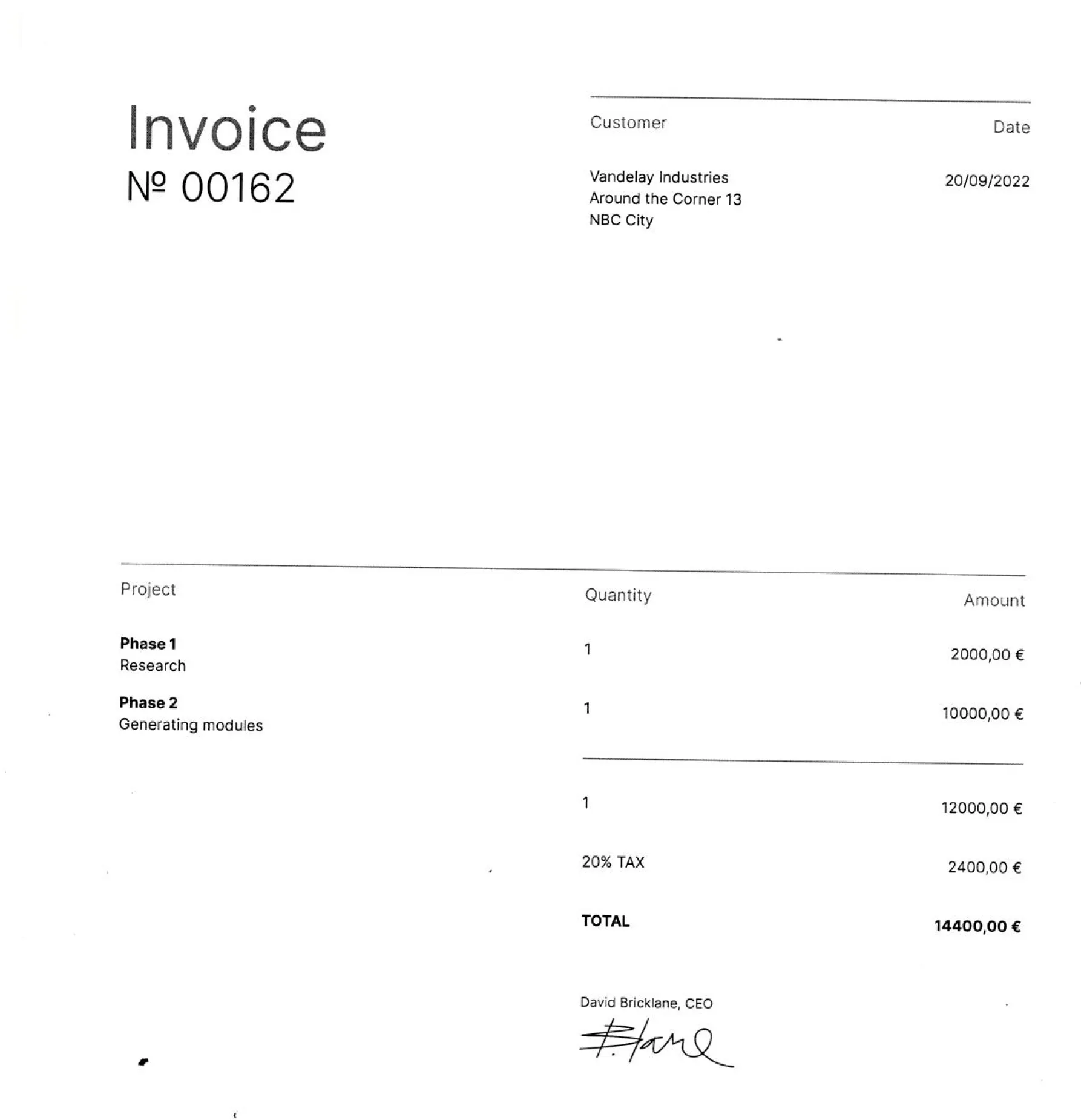
To make things more complex, some PDFs may be partially Image-Only ie. they have non-searchable sections that are purely images along with some text area.
Surprisingly, password protected PDFs often make their way into SharePoint. As the indexer cannot open the document to extract it isn?t possible for the contents to be added to the search index.
Be wary with documents that run into many hundreds of pages ? SharePoint indexing does have limits. Our tests on O365 showed that O365 will index less than 2MB of text. In our test case this corresponded to around 400 pages of text.
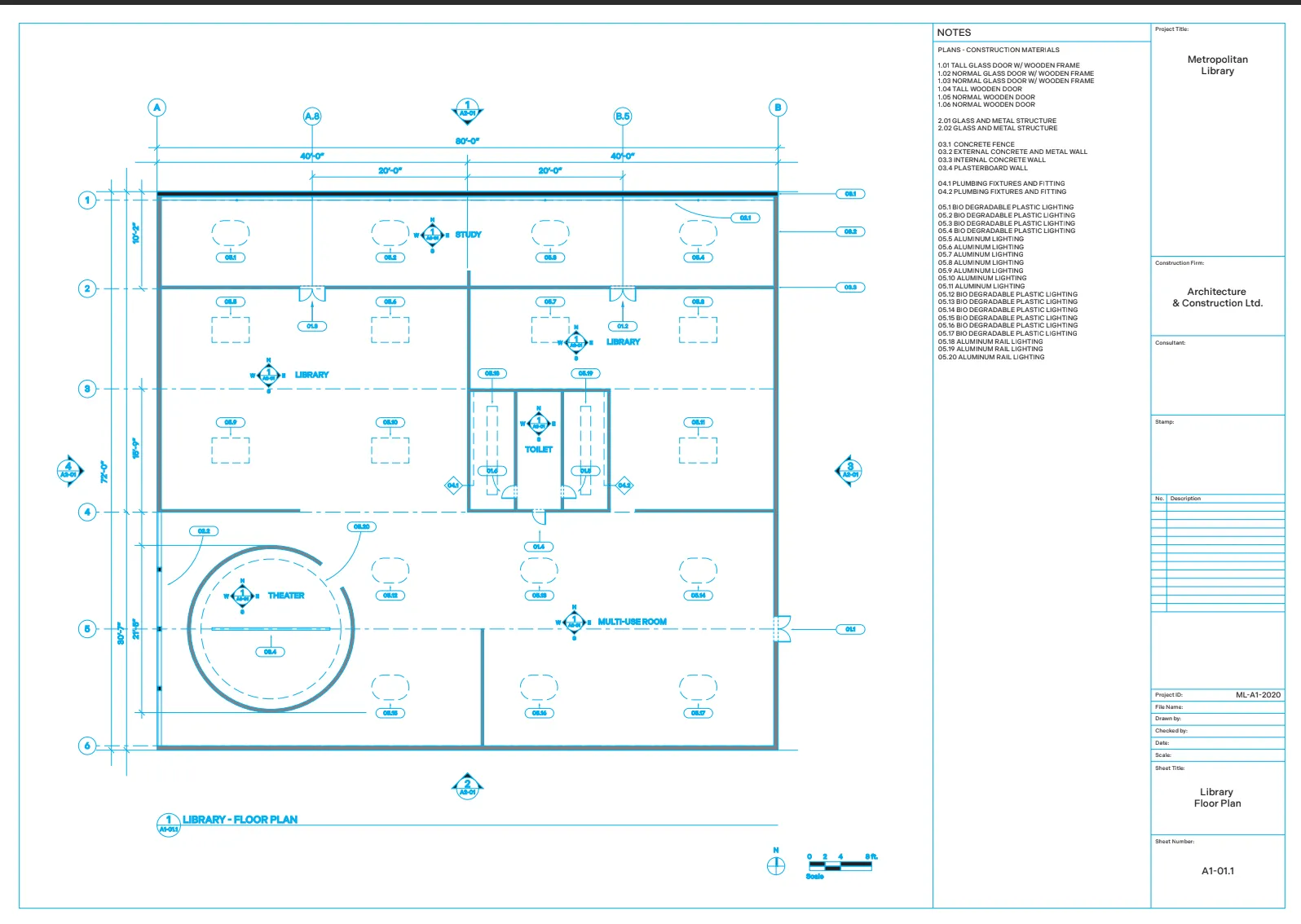
Some PDFs such as the one shown may appear to contain text but in fact the ?text? is rendered by drawing lines so the document actually contains no searchable text. This is common in architectural diagrams.
Now you have a clearer idea of why you can?t find that PDF, it is also good to have an understanding of the cost of having unsearchable documents and they are often not realised until it?s already caused a massive problem. This leads to a number of worrying legal, decision-making and employee impacts.
We have outlined the main ones our customers are faced with; which ones could apply to you?
Compliance audits, freedom of information requests, and legal discovery mandates require organisations to recover all of the relevant electronically stored information, information that is often required at short notice.
Can you be sure that you can retrieve all of the relevant documents in time, and then do you even know if you have retrieved them all. Could there be vital documents that are not searchable and thus cannot be found. Is it a risk you are willing to take?
Business decisions are a daily occurrence, some are small but some have more vital implications on company operations. The majority of more important decisions will need to be thoroughly researched and backed up by documentation usually stored in SharePoint or O365.
If you had not seen that document about X when searching about the X case and made a decision ? was this a fully informed decision? This is a massive risk with huge implications.
You have already spent half an hour looking for that PDF, but what about your 400 colleagues in your building? How long have they spent? Maybe longer. Some may have even had to spend time recreating documents because they cannot find the one they were looking for. The presents a massive opportunity cost of your and their time, not to mention the financial cost to the business.
Good news. There is a solution that will provide both corrective and preventative action to these business issues.
Without manually opening these PDFs one by one and reading them, it is virtually impossible to determine which documents are fully searchable without an automated tool. To make these documents text searchable, they need to be transformed into a format that can be searched and indexed by the SharePoint crawler.
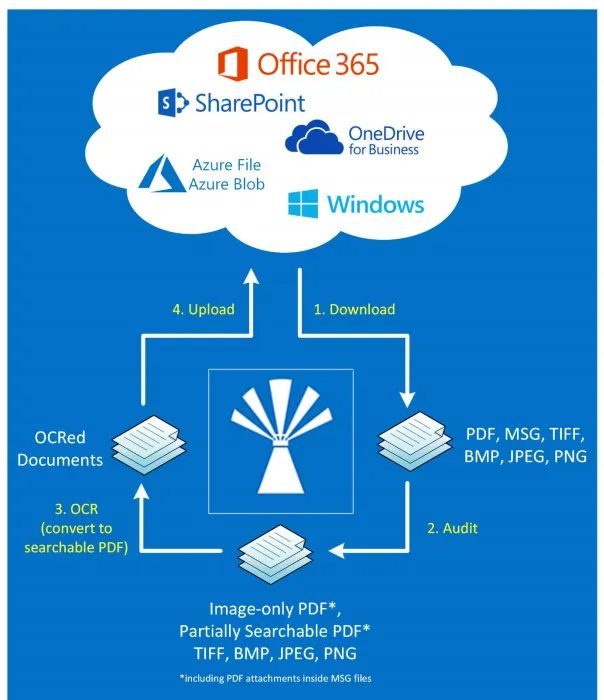
This is where Aquaforest Searchlight comes in. Aquaforest Searchlight is able to audit SharePoint document stores, identify image-only PDFs and turn them into searchable PDFs using optical character recognition (OCR), thus allowing the SharePoint crawler to index them.
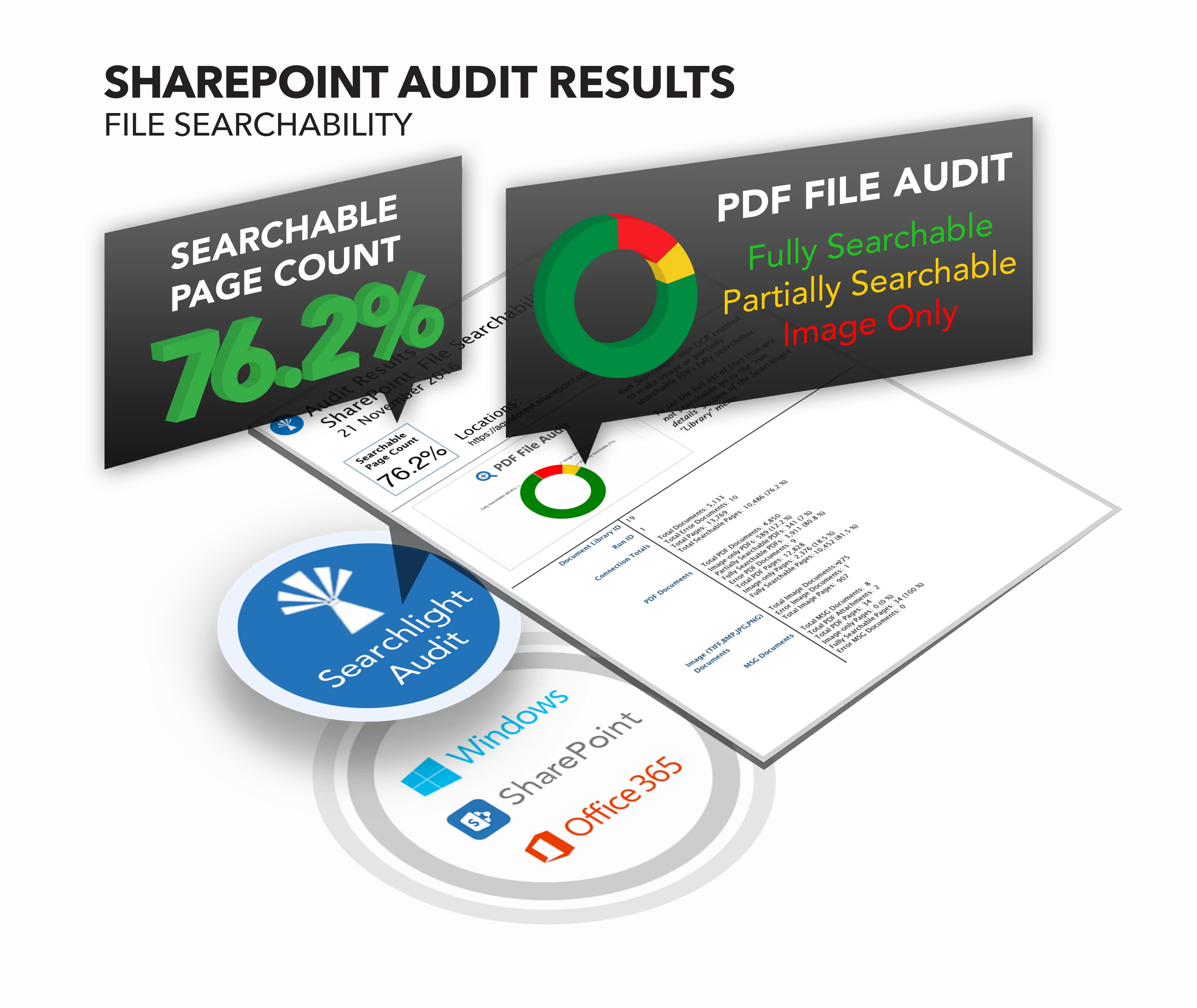
Before it is possible to transform a document library to searchable, it is necessary to identify the unsearchable PDFs.
Aquaforest Searchlight will perform an Audit on the document library in order to determine which documents are candidates for processing by examining each document?s searchability status and the document library?s processing settings.
Searchlight identifies how many of your documents are:
The searchability status determines the process method used due to the conversion rules. The reasons as to why you cannot find the PDF mentioned earlier, each have a different conversion role, meaning the process method will be different for a partially searchable or error.
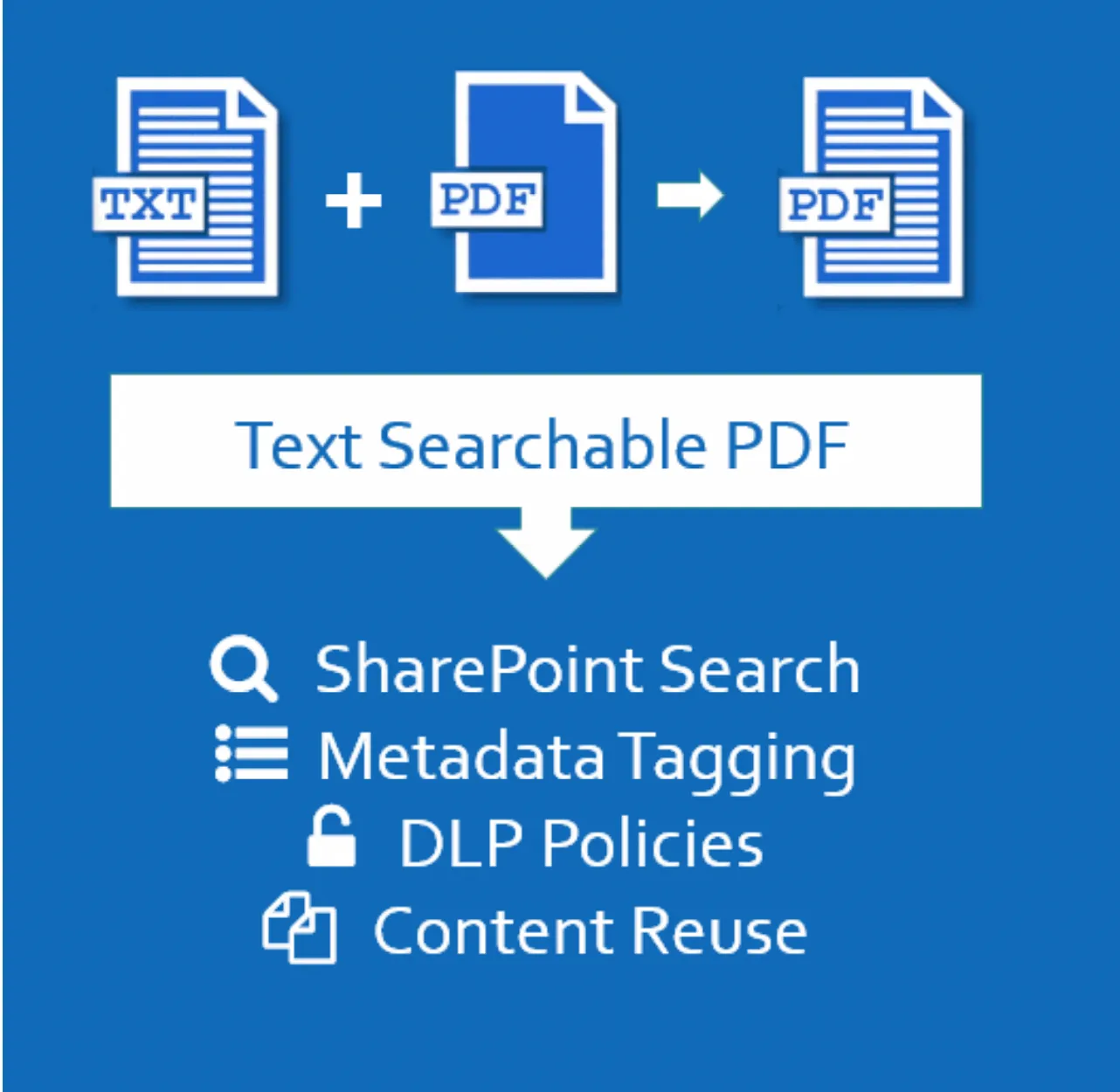
Once the document library has been audited and the unsearchable documents have been identified, Searchlight’s optical character recognition (OCR) technology will create a text version of the file contents.
This allows a searchable PDF to be created by merging the original page images with a hidden text layer.
Unsearchable documents will be consistently added to your SharePoint or O365, meaning that there is not a “one time” solution.
Therefore, Searchlight ensures that document stores are automatically monitored to deal with new and updated documents.
The service controls the execution of all job runs in Aquaforest Searchlight. It is used by the scheduler and enables the monitoring and processing of document libraries at regular time intervals without interfering with other work being performed on the machine it is installed.
Aquaforest was established in 2001 to provide High Performance PDF, OCR and Sharepoint products to a world-wide market. Aquaforest are experts in Searchable PDFs. Thousands of organizations rely on Aquaforest solutions as part of their document workflow processes.
As a Company we are passionate about what we do, the software and solutions that we provide. Our teams are dedicated to delivering high quality products backed up by outstanding support and customer service.
此内容由惯性聚合(RSS阅读器)自动聚合整理,仅供阅读参考。 原文来自 — 版权归原作者所有。