







Table of contents
Nutrient’s OCR API converts scanned PDFs into searchable, editable documents. This guide covers JavaScript OCR, Python, PHP, and Java implementations with complete code examples.
TL;DR
Nutrient’s OCR API converts scanned PDFs and images (JPG, PNG) to searchable text in JavaScript, Python, PHP, and Java. Each OCR operation costs two credits.
Create a free account(opens in a new tab) for 50 free credits and your API key.
What is OCR PDF?
Optical character recognition (OCR(opens in a new tab)) converts scanned documents and images into searchable, editable PDFs. An OCR engine extracts text from images or scanned files for search, copy-paste, and accessibility.
Without OCR, scanned PDFs are just images — dead ends where you can’t search, copy, or extract anything useful. OCR transforms these image-only PDFs into fully functional documents with selectable, searchable text layers.
Legal, healthcare, finance, and education sectors use OCR to convert scanned documents into searchable archives. Implement OCR with JavaScript in browsers or Node.js. Deploy anywhere, integrate everywhere.
Nutrient OCR API overview
Nutrient’s OCR API is one of 30+ PDF API tools. The OCR engine converts scanned documents using text recognition. Combine it with merging, splitting, or redacting for complete document workflows.
API features
- RESTful architecture — Simple HTTP POST requests with multipart form data
- Multilanguage support — 80+ languages, including English, Spanish, French, German, Chinese, and Japanese
- Format flexibility — Accepts PDFs and images (JPG, PNG), and returns searchable PDF output
- Scalable processing — Cloud-based with no server infrastructure required
- Security — HTTPS encryption, with files deleted after processing
- Layout preservation — Maintains original document formatting and embedded fonts
Technical specifications
- Endpoint —
https://api.nutrient.io/processor/ocr - Method — POST with multipart/form-data
- Authentication — Bearer token in authorization header
- Input formats — PDF, JPG, PNG
- Output format — Searchable PDF with embedded text layer
- Pricing — Two credits per OCR operation
Obtaining your API key
After creating your account(opens in a new tab), get your API key from the dashboard. Select API keys from the left menu and copy the live API key.
How to OCR a PDF with JavaScript
JavaScript OCR works both client-side in browsers and server-side with Node.js. This section covers Node.js implementation.
Install the required packages:
- axios(opens in a new tab) — For REST API calls
- Form-Data(opens in a new tab) — For creating form data
Install both packages:
npm install axios
npm install form-data
Setting up files and folders
Create a folder called ocr_pdf and open it in VS Code. Inside ocr_pdf, create two folders: input_documents and processed_documents. Copy your PDF to input_documents and rename it document.pdf.
In the root folder, create processor.js for your code.
Writing the code
Add the following code to processor.js:
// This code requires Node.js. Do not run this code directly in a web browser.
const axios = require("axios");
const FormData = require("form-data");
const fs = require("fs");
const formData = new FormData();
formData.append(
"data",
JSON.stringify({
language: "english",
}),
);
formData.append(
"file",
fs.createReadStream("input_documents/document.pdf"),
);
(async () => {
try {
const response = await axios.post(
"https://api.nutrient.io/processor/ocr",
formData,
{
headers: formData.getHeaders({
Authorization: "Bearer your_api_key_here",
}),
responseType: "stream",
},
);
response.data.pipe(fs.createWriteStream("processed_documents/result.pdf"));
} catch (e) {
const errorString = await streamToString(e.response.data);
console.log(errorString);
}
})();
function streamToString(stream) {
const chunks = [];
return new Promise((resolve, reject) => {
stream.on("data", (chunk) => chunks.push(Buffer.from(chunk)));
stream.on("error", (err) => reject(err));
stream.on("end", () => resolve(Buffer.concat(chunks).toString("utf8")));
});
}
Code explanation
This code creates a FormData request with language configuration and the PDF file. It reads the input PDF using createReadStream, posts to the /processor/ocr endpoint via axios, and saves the searchable PDF to processed_documents.
Replace your_api_key_here with your API key.
Output
Run the code:
The OCR engine saves result.pdf to the processed_documents folder.
How to OCR a PDF in Python
Requirements:
- A free account with your API key
- Python installed (download Python here(opens in a new tab))
Setting up files and folders
Install the dependencies:
python -m pip install requests
Create a folder called ocr_pdf and open it in VS Code. Create two folders inside: input_documents and processed_documents.
In the root folder, create processor.py for your code.
Writing the code
Add the following code to processor.py:
import requests
import json
response = requests.request(
'POST',
'https://api.nutrient.io/processor/ocr',
headers = {
'Authorization': 'Bearer your_api_key_here'
},
files = {
'file': open('input_documents/document.pdf', 'rb')
},
data = {
'data': json.dumps({
'language': 'english'
})
},
stream = True
)
if response.ok:
with open('processed_documents/result.pdf', 'wb') as fd:
for chunk in response.iter_content(chunk_size=8096):
fd.write(chunk)
else:
print(response.text)
exit()
Code explanation
The code imports requests and json, and then makes a POST request to /processor/ocr with the PDF and language configuration. Using stream=True enables response streaming. On success, it saves the OCR-processed PDF to processed_documents.
Replace your_api_key_here with your API key.
Output
Execute the code:
This creates result.pdf in the processed_documents folder.
How to OCR a PDF in PHP
Requirements:
- A free account with your API key
- PHP installed (download PHP here(opens in a new tab))
Setting up files and folders
Create a folder called ocr_pdf and open it in VS Code. Create two folders inside: input_documents and processed_documents. Copy your PDF to input_documents and rename it document.pdf.
In the root folder, create processor.php for your code.
Writing the code
Add the following code to processor.php:
<?php
$curl = curl_init();
curl_setopt_array($curl, array(
CURLOPT_URL => 'https://api.nutrient.io/processor/ocr',
CURLOPT_CUSTOMREQUEST => 'POST',
CURLOPT_RETURNTRANSFER => true,
CURLOPT_ENCODING => '',
CURLOPT_POSTFIELDS => array(
'data' => '{
"language": "english"
}',
'file' => new CURLFILE('input_documents/document.pdf')
),
CURLOPT_HTTPHEADER => array(
'Authorization: Bearer your_api_key_here'
),
));
$response = curl_exec($curl);
curl_close($curl);
if ($response !== false) {
file_put_contents('processed_documents/result.pdf', $response);
}
Code explanation
The code configures cURL with the /processor/ocr endpoint, language configuration, and input PDF. With CURLOPT_RETURNTRANSFER set to true, curl_exec() returns the response as a string. The response is then saved to a file using file_put_contents().
Replace your_api_key_here with your API key.
Output
Execute the code:
This creates result.pdf in the processed_documents folder.
How to OCR PDFs in Java
Java implementation requires dependency installation after file setup.
Setting up files and folders
Use IntelliJ IDEA to create a new project called ocr_pdf with the settings shown below.
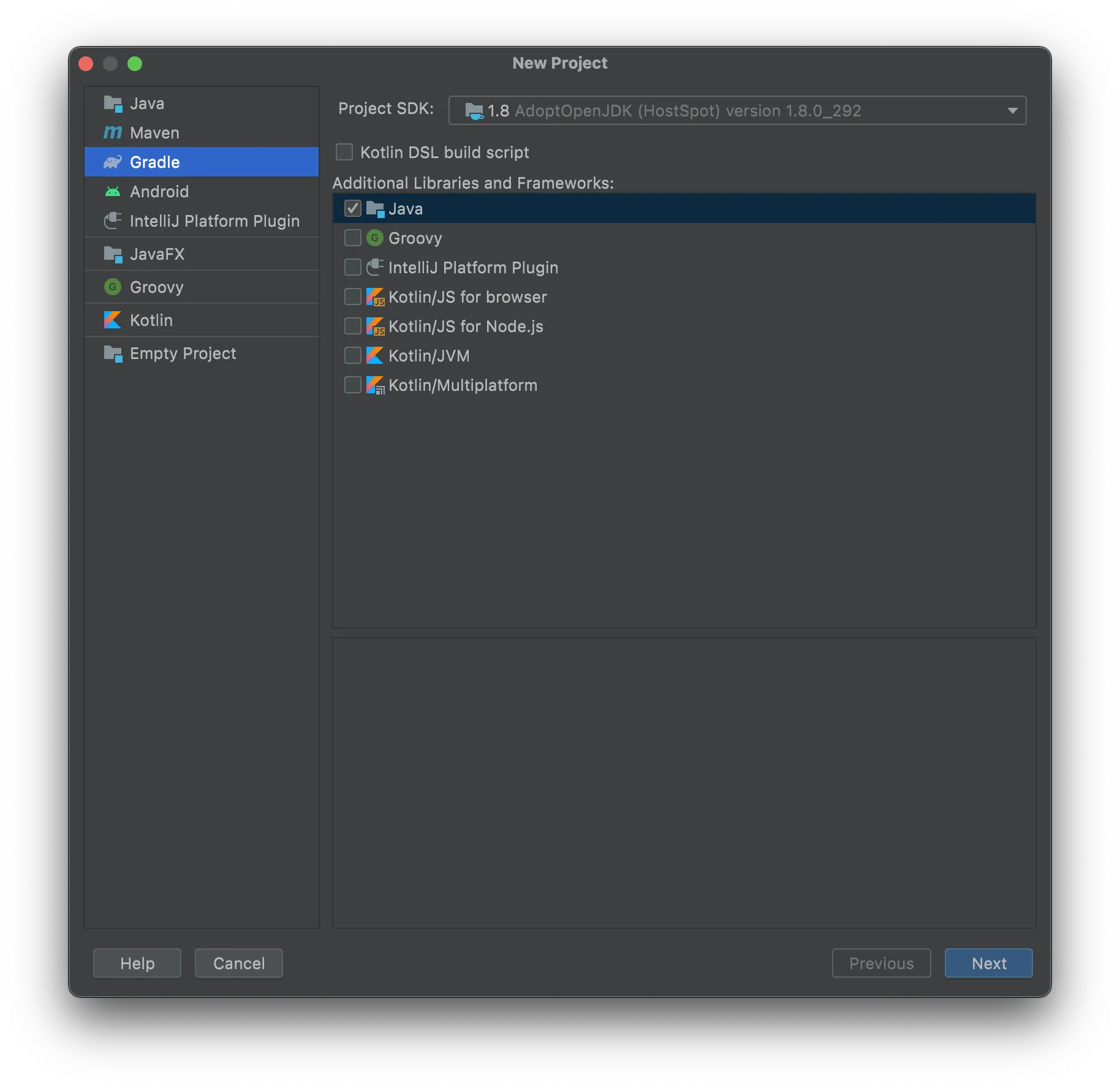
Set Java as the language and Gradle as the build system.
Right-click your project and select New > Directory. Choose src/main/java. Create NutrientExample.java inside src/main/java, plus two folders: input_documents and processed_documents.
Add your PDF to the input_documents folder.
Installing the dependencies
Install these libraries:
- OkHttp — For API requests
- JSON — For parsing JSON payloads
Add these dependencies to build.gradle:
dependencies {
implementation 'com.squareup.okhttp3:okhttp:4.9.2'
implementation 'org.json:json:20210307'
}
Writing the code
Add the following code to processor.java:
package com.example.pspdfkit;
import java.io.File;
import java.io.IOException;
import java.nio.file.FileSystems;
import java.nio.file.Files;
import java.nio.file.StandardCopyOption;
import org.json.JSONObject;
import okhttp3.MediaType;
import okhttp3.MultipartBody;
import okhttp3.OkHttpClient;
import okhttp3.Request;
import okhttp3.RequestBody;
import okhttp3.Response;
public final class NutrientExample {
public static void main(final String[] args) throws IOException {
final RequestBody body = new MultipartBody.Builder()
.setType(MultipartBody.FORM)
.addFormDataPart(
"file",
"document.pdf",
RequestBody.create(
MediaType.parse("application/pdf"),
new File("input_documents/document.pdf")
)
)
.addFormDataPart(
"data",
new JSONObject()
.put("language", "english").toString()
)
.build();
final Request request = new Request.Builder()
.url("https://api.nutrient.io/processor/ocr")
.method("POST", body)
.addHeader("Authorization", "Bearer your_api_key_here")
.build();
final OkHttpClient client = new OkHttpClient()
.newBuilder()
.build();
final Response response = client.newCall(request).execute();
if (response.isSuccessful()) {
Files.copy(
response.body().byteStream(),
FileSystems.getDefault().getPath("processed_documents/result.pdf"),
StandardCopyOption.REPLACE_EXISTING
);
} else {
// Handle the error.
throw new IOException(response.body().string());
}
}
}
Code explanation
The NutrientExample class creates a multipart request with the PDF file and language configuration, posts to /processor/ocr, and streams the processed PDF to processed_documents on success.
Replace your_api_key_here with your API key.
Output
Click the run button to execute the code.
This creates the OCR-processed PDF in the processed_documents folder.
How to OCR a PDF with open source (OCRmyPDF)
If you’d rather self-host, OCRmyPDF(opens in a new tab) is an open source (MPL-2.0) tool that adds a searchable text layer to a PDF using the Tesseract(opens in a new tab) OCR engine. It runs entirely on your own machine — no API key, no per-operation cost — in exchange for installing and maintaining the OCR stack yourself.
Installing the dependencies
OCRmyPDF is a Python package, but it relies on two external programs: Tesseract (the OCR engine) and Ghostscript (PDF processing). On most platforms, a single command pulls in all three.
macOS (Homebrew):
Debian/Ubuntu:
sudo apt install ocrmypdf
Alternatively, install the system dependencies and the Python package separately:
brew install tesseract ghostscript
pip install ocrmypdf
English ships with Tesseract by default. For other languages, install the matching language pack — for example, tesseract-ocr-spa (Debian/Ubuntu) for Spanish — and pass its three-letter code with -l.
Writing the code
The quickest path is the command line. Point it at your input PDF and an output path:
ocrmypdf -l eng input_documents/document.pdf processed_documents/result.pdf
To run OCR programmatically, use the Python API. Create processor_oss.py:
import ocrmypdf
from ocrmypdf import OcrOptions
if __name__ == "__main__":
options = OcrOptions(
input_file="input_documents/document.pdf",
output_file="processed_documents/result.pdf",
languages=["eng"],
)
ocrmypdf.ocr(options)
Code explanation
ocrmypdf.ocr() rasterizes each page, runs Tesseract to recognize the text, and writes a new PDF with an invisible, searchable text layer over the original image. The languages list maps to installed Tesseract language packs. The if __name__ == "__main__" guard ensures correct behavior on Windows and macOS.
By default, OCRmyPDF skips pages that already contain text. To re-OCR every page, pass --force-ocr on the command line or force_ocr=True in OcrOptions.
Output
Run the script:
This writes result.pdf with a searchable text layer to the processed_documents folder.
Open source fits one-off jobs and self-hosted pipelines where you control the infrastructure. The hosted OCR API is the better choice when you need consistent results at scale without provisioning Tesseract and Ghostscript, want to chain OCR with other operations (merging, redaction, conversion) in a single request, or need predictable performance under load.
OCR accuracy and quality factors
OCR accuracy depends on several document characteristics, outlined below.
Image quality requirements
- Minimum DPI — 300 DPI for standard text, 400+ DPI for small fonts
- Color depth — Grayscale or color documents work better than pure black and white
- Contrast — High contrast between text and background improves recognition
- Noise — Clean scans without artifacts, dust, or watermarks produce better results
Document factors
- Font size — Text smaller than 8pt may reduce accuracy
- Font type — Standard fonts (Times, Arial, Helvetica) work best; decorative fonts may fail
- Text orientation — Straight, horizontal text works best; skewed text reduces accuracy
- Language — Specify the correct language parameter to improve recognition
Best practices for optimal results
- Scan documents at 300 DPI or higher
- Use color or grayscale, not binary black/white
- Ensure pages are straight and properly aligned
- Remove noise, dust, or background artifacts before OCR
- Use clean originals instead of photocopies when possible
Common use cases
Legal and compliance
- Convert case files and contracts to searchable archives
- Extract text from discovery documents
- Make legal briefs and filings searchable
- Digitize historical legal records
Healthcare and medical
- Digitize patient records and medical histories
- Extract data from insurance forms
- Convert prescription records to searchable text
- Archive medical imaging reports
Financial services
- Process scanned invoices and receipts
- Extract data from bank statements
- Digitize loan applications and forms
- Archive financial reports
Education
- Convert textbooks and course materials
- Digitize library archives
- Make research papers searchable
- Archive student records
Troubleshooting common issues
Authentication errors
Check that your API key is valid and properly formatted. The authorization header should be Bearer your_api_key_here.
Large file processing
For very large PDF files or documents with many pages:
- Split the PDF into smaller chunks
- Process each chunk separately
- Merge the results using the Nutrient merge API
Poor OCR results
If text recognition is inaccurate:
- Verify the scan quality meets minimum 300 DPI
- Check that the correct language is specified
- Ensure text is horizontal and not skewed
- Remove background noise or watermarks
Timeout errors
Large documents may take longer to process. If you encounter timeout errors:
- Increase timeout values in your HTTP client configuration
- Consider splitting large documents into smaller batches
- Implement retry logic for failed requests
- Process documents asynchronously to avoid blocking operations
Language support
The Nutrient OCR API supports 80+ languages with 100+ language code variants. Specify the language parameter for better accuracy.
Common languages
english— Englishspanish— Spanishfrench— Frenchgerman— Germanitalian— Italianportuguese— Portuguesedutch— Dutchrussian— Russianchi_sim— Simplified Chinesejapanese— Japanesearabic— Arabic
Language code formats
You can use full language names (lowercase):
Alternatively, use ISO 639-2 codes:
For documents with multiple languages, specify the primary language. The OCR engine handles mixed-language documents but works best when the primary language is identified.
Next steps
After implementing basic OCR, consider the following advanced workflows.
Combine with other PDF operations
- OCR + redaction — Extract text, and then redact sensitive information
- OCR + merging — Combine multiple scanned documents into one searchable PDF
Build automated pipelines
- Monitor folders for new scanned documents
- Automatically OCR incoming files
- Extract and index text for search systems
- Archive processed documents
Integrate with existing systems
- Connect to document management systems
- Feed OCR results to search engines
- Extract data for business intelligence
- Automate data entry from scanned forms
Refer to the Nutrient API documentation for additional operations you can combine with OCR.
Conclusion
You now know how to implement Nutrient’s OCR API in JavaScript, Python, PHP, and Java. Choose the language that fits your stack and create your free account(opens in a new tab) to start with 50 free credits.
FAQ
Create a free account(opens in a new tab) for your API key. Follow the code examples in this guide to integrate the OCR API with JavaScript, Python, PHP, or Java.
OCR makes PDFs searchable, editable, and accessible. It’s essential for legal, healthcare, and finance sectors that require document management and text retrieval.
The free plan includes 50 credits. Each OCR operation costs 2 credits, so you can process up to 25 documents.
Yes. Combine the OCR API with other Nutrient tools like merging, splitting, or redacting PDFs to build complete document processing workflows.
The OCR engine supports 80+ languages with 100+ language code variants, including English, Spanish, French, German, Chinese, Japanese, Arabic, and Russian. Specify the language parameter in your API request for better accuracy.
The OCR engine accuracy depends on scan quality, resolution, and document clarity. For best results, use 300+ DPI scans with high contrast and minimal noise.
Yes. It works with JavaScript in Node.js for server-side processing or from browsers for client-side workflows. The OCR API supports both environments.