









Table of contents
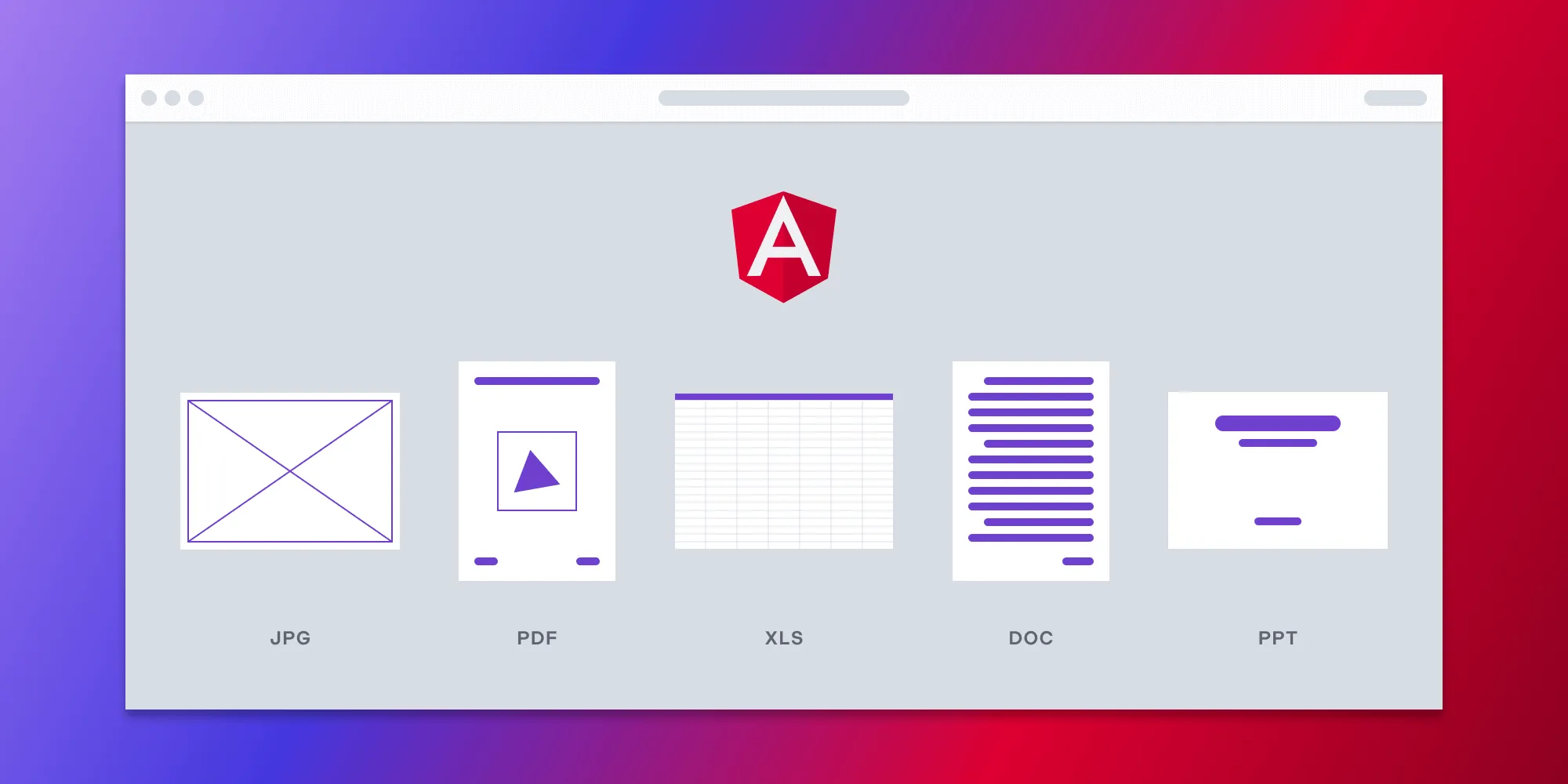
In this blog post, you’ll learn how to build an Angular file viewer using the Nutrient Web SDK. You’ll open and view PDF, image, and Office files directly in your web browser using client-side processing (no server required).
You can check out the demo to see it in action.
Opening and rendering multiple file formats in the browser
Nutrient Web SDK brings support for PDF, image, and Office formats to your application, without you or your users needing any MS Office software, MS Office licenses, or third-party open source software. The technology works by converting an image (JPG, PNG, and TIFF) or Office document (Word, Excel, and PowerPoint) to PDF directly in the browser using our Office-to-PDF conversion engine. The file is then rendered in our JavaScript viewer.
Unlocking more capabilities
By converting an image or Office document to PDF using client-side JavaScript, you have the option to support a rich array of additional document functionality, such as:
- Text editing — Edit text directly in the displayed document.
- Page manipulation — Organize documents by adding, removing, or rearranging pages.
- Annotations — Boost collaboration by adding text highlights, comments, or stamps.
- Adding signatures — Draw, type, or upload a signature directly to a document.
Creating a new Angular project
Now you’ll see how to integrate Nutrient into your Angular project.
First, create a new Angular project for the Nutrient integration:
ng new pspdfkit-word-example
This will ask some configuration questions. Choose No for routing and CSS for the stylesheet. Now, change your directory to this project:
Adding Nutrient
Install pspdfkit as a dependency with npm or yarn:
Now, add the following to your angular.json file. Angular will copy the Nutrient library assets to the assets directory before running your app:
"assets": [
"src/favicon.ico",
"src/assets",
{
"glob": "**/*",
"input": "./node_modules/pspdfkit/dist/pspdfkit-lib/",
"output": "./assets/pspdfkit-lib/"
}
]
Displaying a document
Nutrient supports the following file formats:
- PDF, PDF/A (1, 2, 3)
- DOCX, DOC, DOTX, DOCM
- XLSX, XLS, XLSM
- PPTX, PPT, PPTM
- TIFF, TIF (including multipage)
- PNG, JPEG, JPG
Add your document to the
src/assetsdirectory. You can use our demo document as an example.Replace the contents of
app.component.htmlwith the following:<div class="app">
<div class="toolbar">
<img class="logo" src="/favicon.ico" height="32" />
Nutrient Angular Application
</div>
<!-- We'll mount the Nutrient UI to this element. -->
<div class="pspdfkit-container"></div>
</div>
Replace the contents of
app.component.tswith the following:
import { Component } from "@angular/core";
import PSPDFKit from 'pspdfkit';
@Component({
selector: 'app-root',
standalone: true,
templateUrl: './app.component.html',
styleUrls: ['app.component.css'],
})
export class AppComponent {
title = 'Nutrient Web SDK Angular Example';
ngAfterViewInit(): void {
PSPDFKit.load({
// Use the assets directory URL as a base URL. Nutrient will download its library assets from here.
baseUrl: location.protocol + '//' + location.host + '/assets/',
document: '/assets/document.docx',
container: '.pspdfkit-container',
licenseKey: 'YOUR_LICENSE_KEY_GOES_HERE', // Optional license key.
Optional license key.
}).then((instance) => {
// For the sake of this demo, store the Nutrient Web SDK instance
// on the global object so that you can open the dev tools and
// play with the Nutrient API.
(<any>window).instance = instance;
});
}
}
The license key is optional; however, you may see a watermark on your images without a key. To get a key, contact Sales.
If you try to run your project, you may get an error stating the mounting container has no height. To fix this issue, add the following styles to the src/app/app.component.css file:
:host {
height: 100%;
}
.app {
position: fixed;
width: 100%;
height: 100%;
top: 0;
right: 0;
bottom: 0;
left: 0;
}
.toolbar {
position: relative;
display: flex;
align-items: center;
height: 64px;
width: 100%;
padding: 0 24px;
box-shadow: 0 1px 0 rgba(0, 0, 0, 0.1);
font-family: sans-serif;
font-size: 20px;
font-weight: 500;
color: rgba(0, 0, 0, 0.8);
}
.logo {
margin-right: 20px;
}
.pspdfkit-container {
height: calc(100% - 64px);
}
Start the app and open it in your default browser:
A note about fonts
In client-side web applications for Microsoft Office-to-PDF conversion, Nutrient addresses font licensing constraints through font substitutions, typically replacing unavailable fonts with their equivalents — like Arial with Noto. For precise font matching, you can provide your own fonts, embed them into source files, or designate paths to your .ttf fonts for custom solutions.
Adding even more capabilities
Once you’ve deployed your viewer, you can start customizing it to meet your specific requirements or easily add more capabilities. To help you get started, here are some of our most popular Angular guides:
- Instant synchronization
- Document assembly
- Page manipulation
- Editor
- Forms
- Signatures
- Redaction
- Document security
Conclusion
In this blog post, you learned how to create an Angular file viewer using Nutrient Web SDK. It enables opening and viewing PDF, image, and Office files directly in the browser using client-side processing; no server is required.
If you’re looking for a way to render your documents in your web application, then Nutrient Web SDK is a great option. It’s a powerful and flexible library that can help you to provide your users with a seamless and enjoyable experience.
To see a list of all web frameworks, start your free trial. Or, launch our demo to see our viewer in action.
- How to build a PowerPoint viewer in JavaScript — Display PPT/PPTX files in the browser with Nutrient
- Open Excel files in the browser using JavaScript — Handle XLS and XLSX files without MS Office
- How to build a React Word viewer — Display DOC/DOCX files in React applications
- Top five document viewers for developers — Compare DOCX and PDF viewer libraries side by side
FAQ
Yes, using Nutrient’s client-side processing, you can view PDFs, images, and Office files directly in the browser without server dependency.
Nutrient supports PDF, DOCX, XLSX, PPTX, TIFF, PNG, and JPEG formats, among others.
Yes, including a license key will remove the watermark, but testing without one is possible.
Yes, you can include custom fonts by embedding .ttf fonts directly in the application.
Yes, it supports features like text editing, page manipulation, annotations, and adding signatures.