





Table of contents
Summary
This tutorial demonstrates how to add PDF export functionality to React applications using jsPDF for basic client-side PDF generation from content and text. The guide covers setting up a Remix project, creating PDF export functions, and triggering downloads with customizable styling options. It also introduces Document Engine as an advanced solution for enterprise-grade PDF generation with HTML and CSS templates, offering greater design flexibility and control over document layouts.
This blog post will guide you through adding PDF export functionality to your React applications. You’ll learn how to set up your project and choose between jsPDF for basic PDF generation and Nutrient for advanced PDF solutions.
Why export to PDF in React?
Exporting content to PDF in a React application has a wide range of use cases:
- Reports and invoices — Generate printable invoices and detailed reports for users.
- Data visualization — Create PDFs of charts, graphs, and dashboards for presentations or sharing insights.
- Document management — Allow users to save and share web content as PDFs for documentation purposes.
- Resume builder — Let users generate a professional-looking resume from their online profiles.
- Content archiving — Archive web pages, articles, and blog posts as PDFs for offline reading.
Now that you understand the importance of PDF export in React, it’s time to dive into the implementation.
Requirements
Before beginning, make sure you have the following installed:
- Node.js(opens in a new tab) v18.0.0 or higher and npm(opens in a new tab) (Node Package Manager)
- A text editor of your choice
Step 1 — Initializing a Remix project
To set up a Remix(opens in a new tab) project, you’ll need to initialize a new project.
Install the Remix CLI globally (if you haven’t already):
npm install -g create-remix
Use the Remix CLI(opens in a new tab) to create a new Remix project:
Follow the prompts to set up your Remix project. You can choose the default options.
Step 2 — Choosing a PDF generation library
To export content to PDF in React, you’ll need a PDF generation library. One popular choice is jsPDF(opens in a new tab). Install it in your project by running the following:
Step 3 — Creating a PDF export function
Now you can create a function that generates a PDF from the content you want to export. Here’s a simple example using jsPDF:
// In case `src` directory is not created by default, manually create it
// using `src/utils/exportToPDF.js`.
import jsPDF from "jspdf";
export const exportToPDF = (content) => {
const doc = new jsPDF();
doc.text(content, 10, 10); // Add content to the PDF.
doc.save("exported-content.pdf"); // Save the PDF with a file name.
};
This code sets up a basic PDF document and adds the content you pass to it. You can customize the layout, styling, and formatting to fit your needs.
Step 4 — Triggering PDF export
Now, integrate the PDF export function into your existing Remix component(s) where you want to trigger the PDF export. You’ll use the app/routes/_index.tsx file as your root route:
import { exportToPDF } from '../../src/utils/exportToPDF';
const Index: React.FC = () => {
const handleExport = () => {
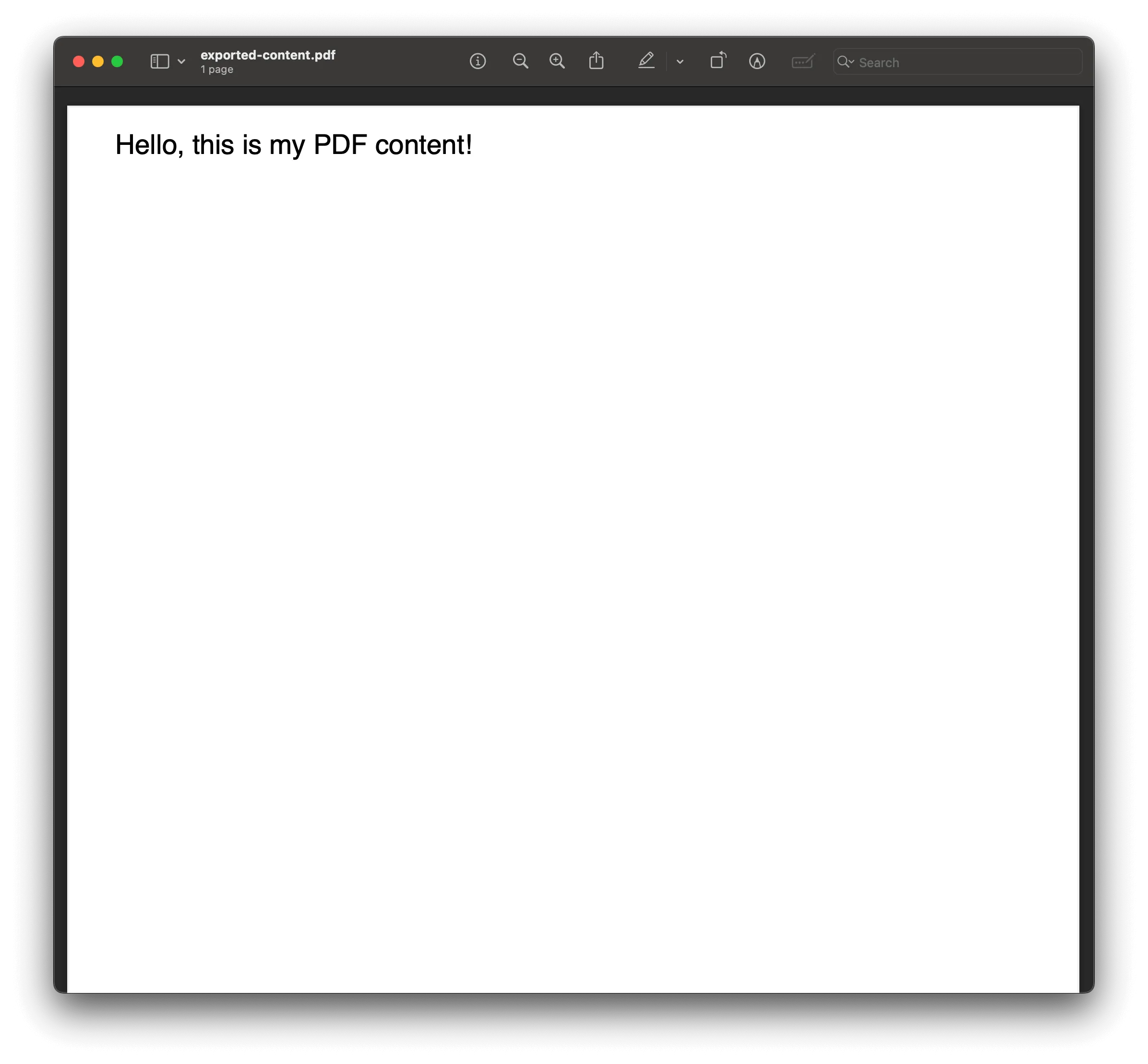
exportToPDF('Hello, this is my PDF content!'); // Replace with your content.
};
return (
<div>
<h1>Welcome to Remix PDF Export</h1>
<button onClick={handleExport}>Export to PDF</button>
</div>
);
};
export default Index;
Step 5 — Starting the Remix development server
To start the Remix development server, run the following command:
This will launch your Remix application locally, and you can access it in your web browser.
Visit the root URL (e.g. http://localhost:3000/) to test your Remix application. When you click the Export to PDF button, the PDF will be generated and downloaded to your device.
Step 6 — Adding styling and customization
You can further enhance your PDF by styling it and adding images, headers, and footers. Be sure to refer to the jsPDF documentation(opens in a new tab) for more advanced customization options.
Using Nutrient for PDF generation
Nutrient offers two robust products that cater to your PDF generation requirements. These products provide versatile solutions for creating and customizing PDF documents from HTML and CSS templates, making them valuable assets for developers looking to enhance their PDF generation capabilities.
Nutrient PDF Generation API
Nutrient offers a PDF Generator API that enables developers to generate PDF documents from HTML and CSS templates. This API is a powerful and versatile solution for creating high-quality PDFs tailored to your specific needs. Key features and advantages of the Nutrient PDF Generation API include:
- Security — Nutrient is SOC 2 compliant, ensuring the security of your document data. It doesn’t store any document data, and all API endpoints are served through encrypted connections.
- Easy integration — The API provides well-documented endpoints and code samples that simplify integration into your existing workflows, allowing you to get up and running quickly.
- Versatility — With access to more than 30 tools, you can perform multiple actions on a single document. These actions include conversion, OCR, rotation, watermarking, and more, all in one API call.
- Transparent pricing — You only pay for the number of documents you process, without the need to consider factors like file size or different API actions being called.
To get started with the Nutrient PDF Generation API, sign up for a free trial(opens in a new tab) that provides you with 50 credits at no cost. The API also includes detailed documentation and customization options for structuring your HTML files effectively.
Document Engine PDF Generation
Document Engine offers a PDF Generation component that allows you to design PDFs from scratch. It leverages HTML and CSS to create highly flexible and context-customized PDFs for your users. This component is designed for advanced users who need precise control over a PDF’s layout and content. Key features include:
- Design flexibility — Create PDFs from scratch using HTML and CSS to achieve custom layouts.
- Layout control — You have granular control over various aspects of a document’s layout and how HTML files and assets are passed.
- Advanced topics — Document Engine provides guides on advanced topics like form support, template design, creating PDFs from images, and more.
Whether you choose to use the Nutrient PDF Generation API or Document Engine PDF Server, you’ll have access to a powerful set of tools for generating PDF documents tailored to your unique requirements.
Conclusion
Exporting content to PDF in React can enhance user experiences. We’ve explored two approaches: jsPDF for simplicity, and Nutrient for advanced capabilities. Choose the best fit for your project — whether it’s basic PDF generation with jsPDF or the advanced features of Nutrient — and empower your users with the ability to export content to PDF.
To get started with Nutrient, you can either:
- Start your free trial to test out the library and see how it works in your application.
- Launch our demo to see the viewer in action.