


Table of contents
In this blog post, you’ll learn how to build an Angular Excel viewer using Nutrient Web SDK. You’ll open and view XLS and XLSX files directly in your web browser using client-side processing (no server required).
The image below shows what you’ll be building.
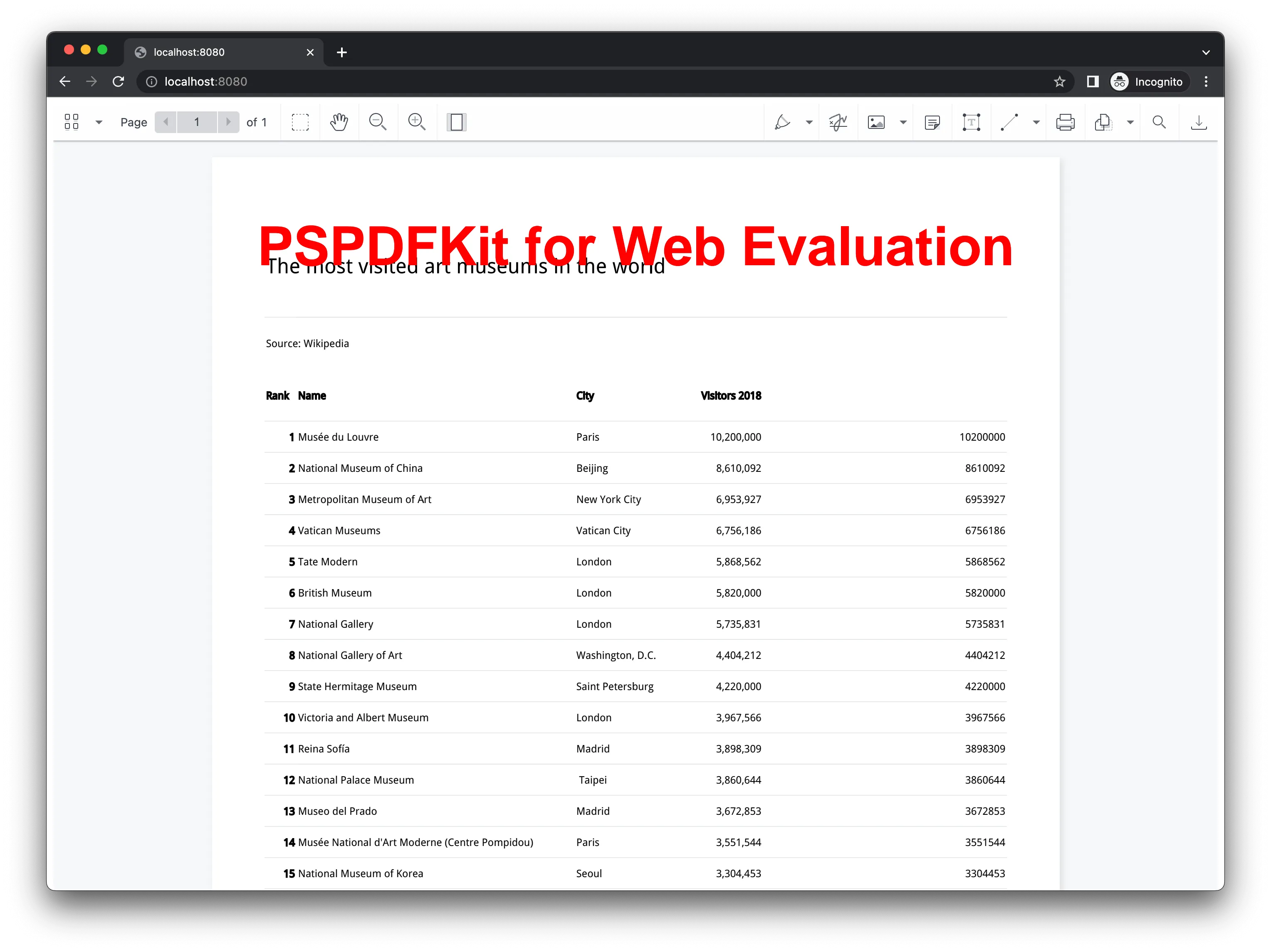
You can see a demo of this feature in action.
Opening and rendering Office documents in the browser
Nutrient Web SDK brings support for Word, Excel, and PowerPoint formats to your application, without you or your users needing any MS Office software, MS Office licenses, or third-party open source software. The technology works by converting an Office document to PDF directly in the browser, and the document is then rendered in our JavaScript viewer.
Unlocking more capabilities with Office-to-PDF conversion
By converting an Office document to PDF using client-side JavaScript, you have the option to support a rich array of additional Office document functionality, such as:
- Text editing — Edit text directly in the displayed Office document.
- Page manipulation — Organize documents by adding, removing, or rearranging pages.
- Annotations — Boost collaboration by adding text highlights, comments, or stamps.
- Adding signatures — Draw, type, or upload a signature directly to an Office document.
Installation
Add the Nutrient Web SDK dependency to your Angular project:
yarn add @nutrient-sdk/viewer
# or
npm install @nutrient-sdk/viewer
# or
pnpm add @nutrient-sdk/viewer
In your angular.json file, add the SDK assets under the assets array so Angular can serve them correctly:
"assets": [
"src/assets",
{
"glob": "**/*",
"input": "./node_modules/@nutrient-sdk/viewer/dist/nutrient-viewer-lib/",
"output": "./assets/nutrient-viewer-lib/"
}
]
This ensures the SDK’s required resources are bundled with your app.
Render an Excel file
- Add the Excel (XLS, XLSX) document you want to display to the
src/assetsdirectory. You can use our demo document as an example. - Generate a viewer component:
ng generate component excel-viewer
- Replace the contents of
src/app/excel-viewer/excel-viewer.component.htmlwith:
<div class="excel-viewer">
<div id="nutrient-container" style="width: 100%; height: 100vh"></div>
</div>
- Replace the contents of
src/app/excel-viewer/excel-viewer.component.tswith:
import { Component, OnInit } from "@angular/core";
import NutrientViewer from "@nutrient-sdk/viewer";
@Component({
selector: "excel-viewer",
templateUrl: "./excel-viewer.component.html",
styleUrls: ["./excel-viewer.component.css"],
standalone: true,
})
export class ExcelViewerComponent implements OnInit {
ngOnInit(): void {
NutrientViewer.load({
baseUrl: `${location.protocol}//${location.host}/assets/`,
document: "/assets/chart.xlsx",
container: "#nutrient-container",
}).then((instance) => {
(window as any).instance = instance;
});
}
}
- Then, register and render the component in
src/app/app.component.ts:
import { Component } from "@angular/core";
import { ExcelViewerComponent } from "./excel-viewer/excel-viewer.component";
@Component({
selector: "app-root",
standalone: true,
imports: [ExcelViewerComponent],
templateUrl: "./app.component.html",
styleUrls: ["./app.component.css"],
})
export class AppComponent {
title = "angular-excel-viewer";
}
- Update
src/app/app.component.html:
<excel-viewer></excel-viewer>
Start the app
Run the Angular development server:
yarn start
# or
npm start
# or
pnpm start
Visit http://localhost:4200(opens in a new tab) — you’ll see your Excel file rendered in the Nutrient Web SDK viewer.
A note about fonts
When you convert an Office document with custom fonts to a PDF, Nutrient Web SDK might not have access to these fonts due to licensing constraints. In this case, Nutrient typically replaces unavailable fonts with their equivalents — like Arial with Noto.
Adding even more capabilities
Once you’ve deployed your viewer, you can start customizing it to meet your specific requirements or easily add more capabilities. To help you get started, here are some of our most popular Angular guides:
- Instant synchronization
- Document assembly
- Page manipulation
- Editor
- Forms
- Signatures
- Redaction
- Document security
Conclusion
In this blog post, you learned how to build an Excel viewer using Angular with the Nutrient Web SDK. It also discussed the benefits of using Nutrient Web SDK to render Office documents in the browser. If you hit any snags, don’t hesitate to reach out to our Support team for help.
You can also integrate our Angular Excel viewer using web frameworks like Vue.js and React.js. To see a list of all web frameworks, start your free trial. Or, launch our demo to see our viewer in action.