










Documentation is an extremely important part of many software projects. It not only helps developers understand how to use your APIs, but it also serves as a reference guide for maintaining and extending your codebase. With the introduction of Apple’s DocC(opens in a new tab) documentation compiler, generating comprehensive API documentation has become more streamlined and efficient when developing projects on Apple platforms.
We recently shipped our new API documentation for Nutrient iOS SDK based on DocC. In this blog post, we’ll dive into some of the most interesting problems we had to solve to get our desired outcome: using DocC to generate combined documentation pages for our four frameworks.
For more on this topic, check out our Creating interactive tutorials using DocC post.
DocC is a tool provided by Apple that allows developers to generate documentation directly from source code. It extracts information from Swift and Objective-C code and compiles it into a well-formatted documentation structure. This documentation can be hosted on a website and imported to view in Xcode, making it easier for developers to understand the purpose and usage of various components within a framework or library. DocC is shipped within Xcode, but fortunately, DocC is open source(opens in a new tab), so we can follow its development, report bugs more easily, and even try out builds that are newer than what’s shipped with Xcode.
DocC uses symbol graphs, which include details about symbols — like classes, methods, properties, and more — as an intermediate format to extract information from source code and create documentation pages from it. You can create documentation for your app or SDK directly within Xcode by selecting Product > Build Documentation, or by using the command-line tool via the xcrun docc command.
Our iOS SDK ships with four distinct frameworks — PSPDFKit, PSPDFKitUI, Instant, and PSPDFKitOCR — with some of them depending on others. Our goal was to ship a combined API reference for documenting all frameworks in a single place. This is because they use symbols from each other, and therefore, cross-referencing and linking between symbols from different frameworks within the documentation pages was important for us.
With high-level usage, DocC currently only supports creating documentation for a single target. There are plans for making it easier to create combined documentation for multiple targets(opens in a new tab), but for now, we have to figure out how to do this ourselves. Luckily, we talked to engineers working on DocC during labs at WWDC 2022 and 2023, and they gave us hints and encouragement on how to approach solving this particular problem.
Generating documentation with DocC is actually a two-step process: First, you need to generate symbol graphs from source code using the Swift compiler or clang. Then, you need to create the actual documentation with the docc tool.
We took a look at the docc command, which you can run via xcrun docc if you have Xcode installed. What we want to do is generate documentation, so we can use the convert subcommand.
Looking at the help via xcrun docc convert --help, we can find --additional-symbol-graph-dir, where symbol graphs are used as input files to create a documentation archive.
We can provide a path to a directory that contains multiple symbol graph files, which we can use to generate the documentation. Contrary to the argument name, symbol graphs don’t need to be additional, as they can be the only input files for docc to create a documentation archive.
Symbol graphs are the main input files for DocC. These files contain all type information, documentation comments, etc. that are needed to create a fully fledged documentation output. Xcode creates these behind the scenes when building the documentation for your product, so you might not even be aware that they’re used. DocC supports creating a documentation archive from multiple symbol graphs, which is used by Xcode when you select Build Documentation. This means that building a single documentation for Swift and Objective-C symbols works, as the symbol graphs for Swift code and Objective-C code are generated individually.
We can reverse engineer how building documentation with DocC works in Xcode to replicate some of this and adapt it to our needs in a custom script. Let’s see what Xcode does when choosing Build Documentation by looking in the build logs.
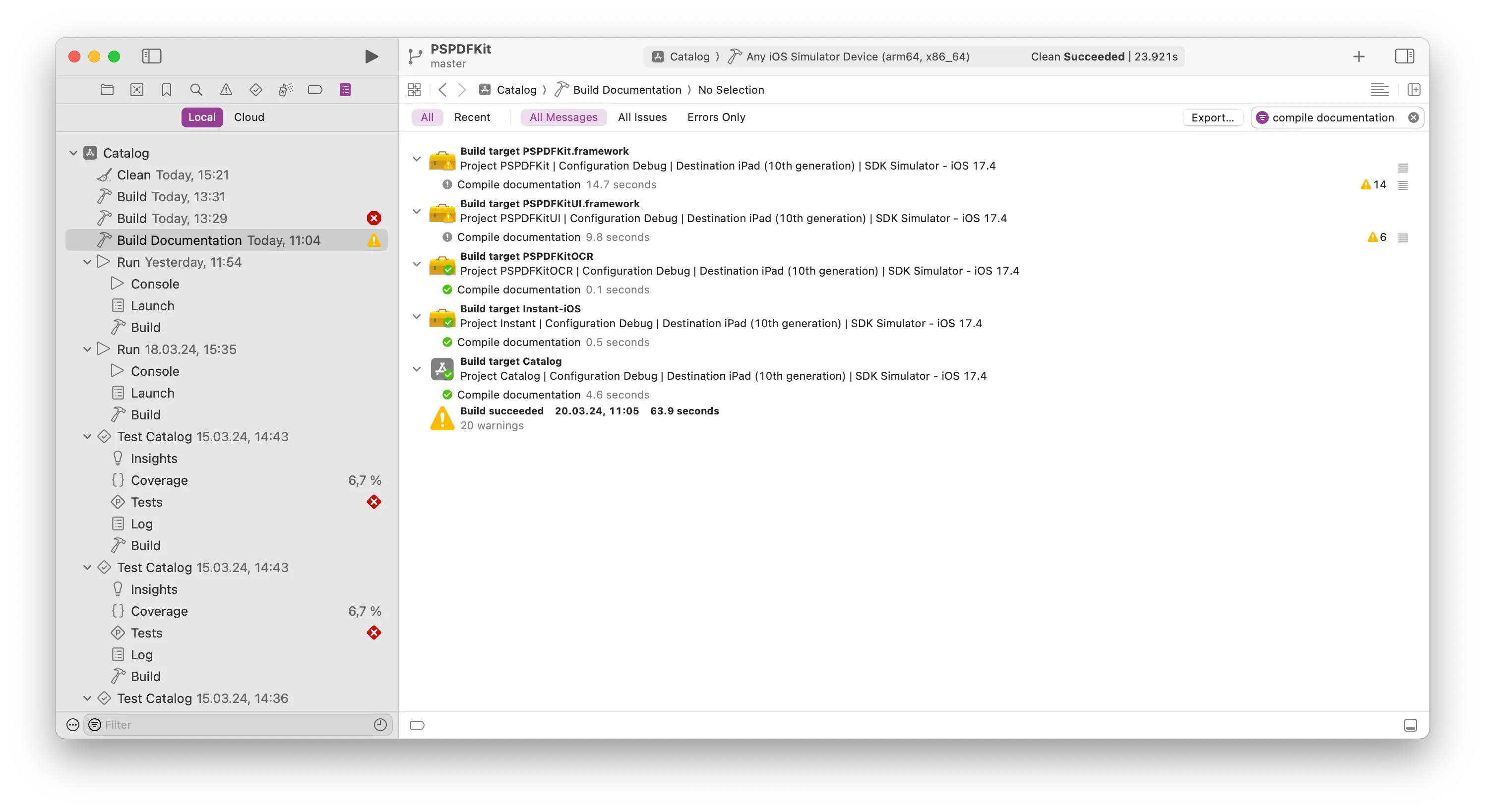
Looking more specifically into the build steps, in the screenshot below, we see that clang is used to build a symbol graph, which uses a .symbols.json extension. This is saved in the DerivedData folder — more specifically, in this case, at .../Build/Intermediates.noindex/PSPDFKit.build/Debug-iphonesimulator/PSPDFKit.framework.build/symbol-graph/clang/arm64-apple-ios15.0-simulator/PSPDFKit.symbols.json.

Then we find the Compile PSPDFKit step, where we see the following arguments in the build command: -emit-symbol-graph -emit-symbol-graph-dir .../Build/Intermediates.noindex/PSPDFKit.build/Debug-iphonesimulator/PSPDFKit.framework.build/symbol-graph/swift/arm64-apple-ios-simulator.

Finally, we see the Compile documentation build step, which now uses docc convert to create a documentation archive — which is a .doccarchive directory — for a given target. The command uses an option for setting the input symbol graphs: --additional-symbol-graph-dir .../Build/Intermediates.noindex/PSPDFKit.build/Debug-iphonesimulator/PSPDFKit.framework.build/symbol-graph.

So we see multiple references to the symbol-graph folder, with files being generated in subfolders for clang and swift. If we navigate to the symbol-graph folder, we can see the symbol graph files for our target and see that the folder contains information about our symbols and their documentation comments.
If the selected scheme contains multiple frameworks to build, we can see all of the above steps multiple times in the build logs, which means that multiple separate documentation archives are being generated by DocC.
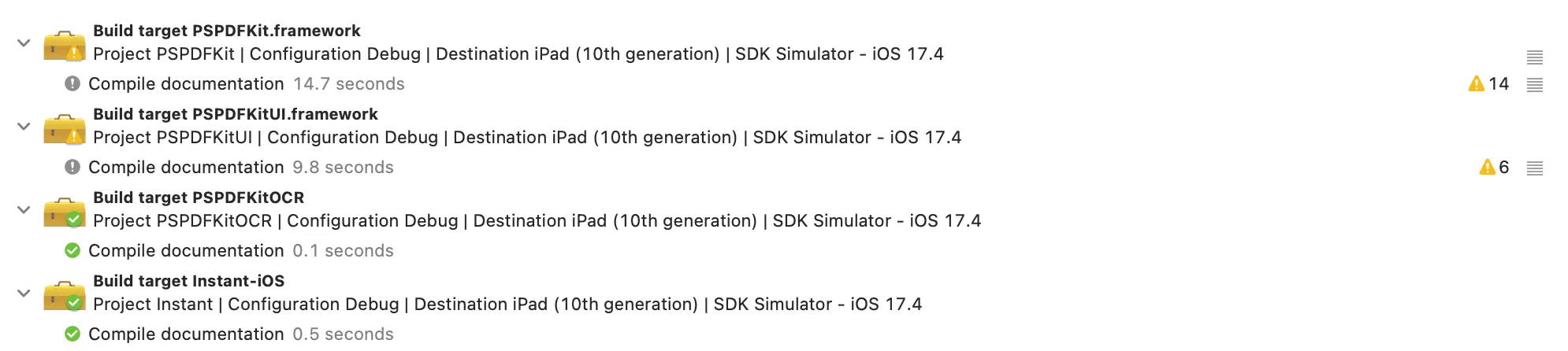
This is the part we want to change: We want to have a single documentation archive for all frameworks combined.
We can see that Xcode uses the --additional-symbol-graph-dir option for docc to create combined documentation for Objective-C and Swift APIs from a single target. But using different symbol graphs for different languages isn’t the only supported option; providing symbol graphs for multiple targets in a single call to docc convert also works. We can use this to our advantage to generate combined documentation consisting of multiple frameworks.
Let’s give this a try. We’ll copy all the symbol graphs for each target from DerivedData to a common folder, and then we’ll run the docc command-line tool to create the documentation from these files:
cp -r ~/Library/Developer/Xcode/DerivedData/PSPDFKit-dzthlwwmacmlcwcxdmzuxhyezbpr/Build/Intermediates.noindex/*.build/Debug-iphonesimulator/*.build/symbol-graph/ ~/Documents/combined-symbol-graphs/
xcrun docc convert --fallback-display-name PSPDFKit --fallback-bundle-identifier com.pspdfkit.sdk --fallback-bundle-version 1 --output-dir ~/Documents/PSPDFKit.doccarchive --additional-symbol-graph-dir ~/Documents/combined-symbol-graphs/
This creates a PSPDFKit.doccarchive, just as expected. If we now replace convert with preview, DocC will both create the documentation archive and host a local web server so we can directly preview the generated documentation:
========================================
Starting Local Preview Server
Address: http://localhost:8080/documentation/instant
http://localhost:8080/documentation/pspdfkit
http://localhost:8080/documentation/pspdfkitocr
http://localhost:8080/documentation/pspdfkitui
========================================
The documentation is still distributed between four different links, one for each framework, which is fine. However, we can see that a symbol from PSPDFKitUI now links to the correct page in the PSPDFKit documentation. In this case, we’re looking at an initializer of PDFViewController from the PSPDFKitUI framework. Clicking Document will show the documentation for Document from the PSPDFKit (model) framework.
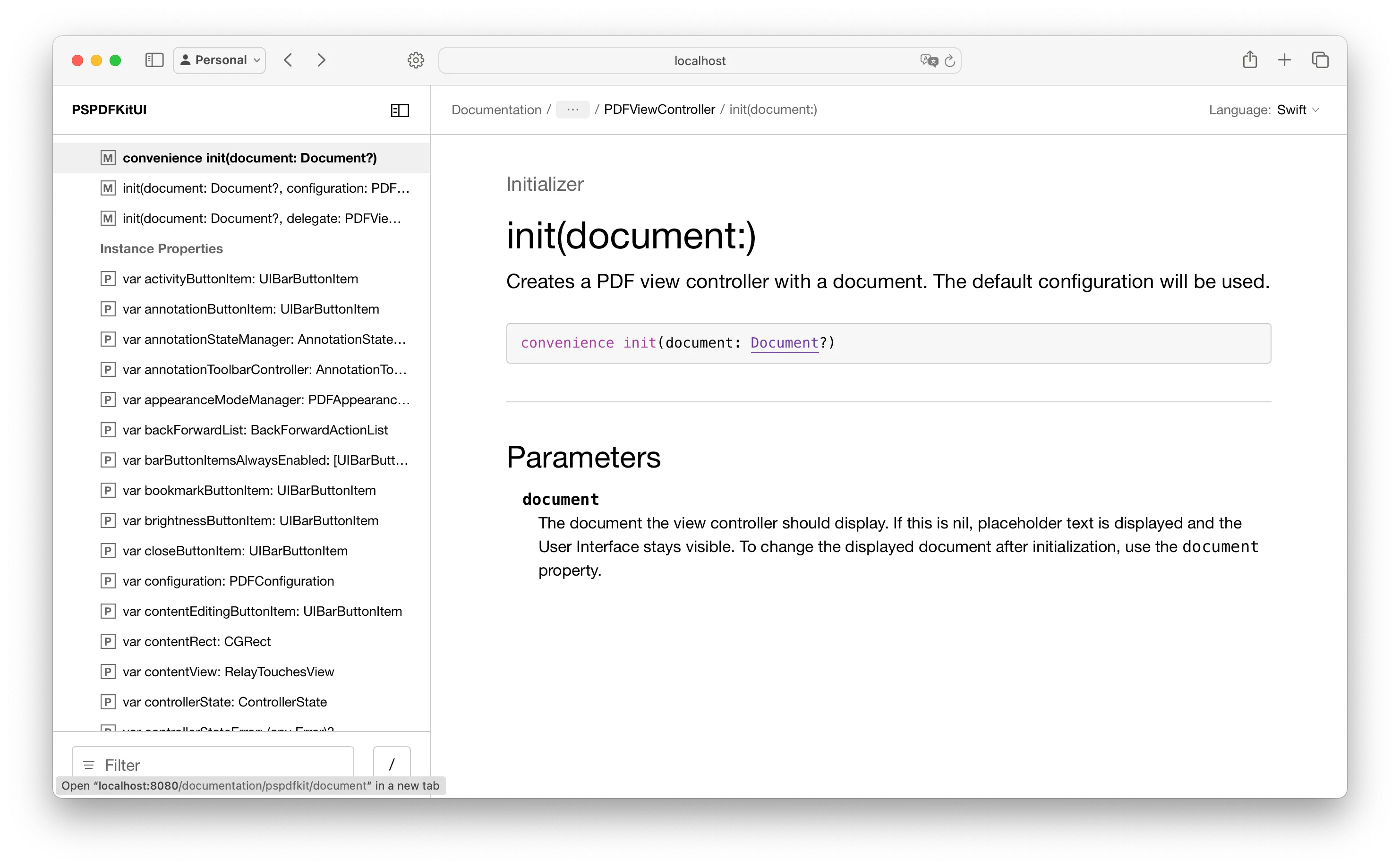
This is great! It means that linking to symbols in other frameworks is working. The main part of what we were trying to achieve has been done successfully. We can now extract these steps into a script so we can run the script to generate the documentation instead of needing to choose Build Documentation in Xcode and copying symbol graphs from DerivedData manually.
Let’s create a script that combines all of the manual steps above. Where we used Build Documentation in Xcode before, we now use xcodebuild docbuild to generate symbol graphs.
We combine the symbol graphs from all our targets and build a documentation archive using the following bash script:
WORKSPACE_PATH="PSPDFKit.xcworkspace"
SCHEME="AllFrameworks"
DERIVED_DATA_DIR="~/Documents/docc-derived-data"
SYMBOL_GRAPHS_DIR="~/Documents/combined-symbol-graphs"
xcodebuild docbuild -destination 'generic/platform=iOS' \
-workspace "${WORKSPACE_PATH}" \
-scheme "${SCHEME}" \
-derivedDataPath "${DERIVED_DATA_DIR}"
mkdir -p "${SYMBOL_GRAPHS_DIR}"
cp -r "${DERIVED_DATA_DIR}/Build/Intermediates.noindex/*.build/Debug-iphoneos/*.build/symbol-graph/" "${SYMBOL_GRAPHS_DIR}"
xcrun docc preview \
--fallback-display-name PSPDFKit --fallback-bundle-identifier com.pspdfkit.sdk --fallback-bundle-version 1 \
--output-dir ~/Documents/PSPDFKit.doccarchive \
--additional-symbol-graph-dir "${SYMBOL_GRAPHS_DIR}"
By using this script, we got functional documentation for multiple targets working. However, we can still improve the experience for the combined API documentation.
Currently, each framework is showing only the symbols it contains in the sidebar, with no way to browse the API available for the other frameworks. Since the sidebar and the search use the same index, this also means you can only search for symbols inside the framework you’re currently viewing. Searching for symbols in another framework requires you to manually navigate to that framework using the /documentation/{framework-name} URL and start a search from there.
Since we want a combined documentation of all our frameworks, it should be possible to easily browse all symbols from all frameworks, navigate between those frameworks, and search symbols from any framework no matter the current page. By default, showing multiple modules in the sidebar when combining the symbol graphs isn’t supported, and only the symbols of a single framework are shown.
To improve this behavior, we’ll add a documentation catalog(opens in a new tab). A documentation catalog can contain supplemental content that isn’t available in the documentation you add to your API directly in the source code. A documentation catalog is just a regular folder with contents inside, so we can create a Documentation.docc folder.
DocC supports manual ordering of symbols. We can use the topics group(opens in a new tab) to do that.
We can also add another top-level page in addition to the module pages via @TechnologyRoot(opens in a new tab). This will act as our landing page and our collection of listing all frameworks.
If you add links to modules in the topics group of a page marked with @TechnologyRoot, these modules — and all the symbols inside them — show up in the sidebar.
So let’s add a markdown file called Overview.md to the Documentation.docc folder with the following contents:
# PSPDFKit Documentation
@Metadata {
@TechnologyRoot
}
## Topics
- `/PSPDFKit`
- `/PSPDFKitUI`
- `/Instant`
- `/PSPDFKitOCR`
Then we add the Documentation.docc catalog as an input file to our docc command:
xcrun docc preview "./Documentation.docc" \
--fallback-display-name PSPDFKit --fallback-bundle-identifier com.pspdfkit.sdk --fallback-bundle-version 1 \
--output-dir PSPDFKit.doccarchive \
--additional-symbol-graph-dir "${SYMBOL_GRAPHS_DIR}"
Adding the technology root with the topics group will add a /documentation/overview page showing all of the modules in expandable sections in the sidebar, just as we wanted.
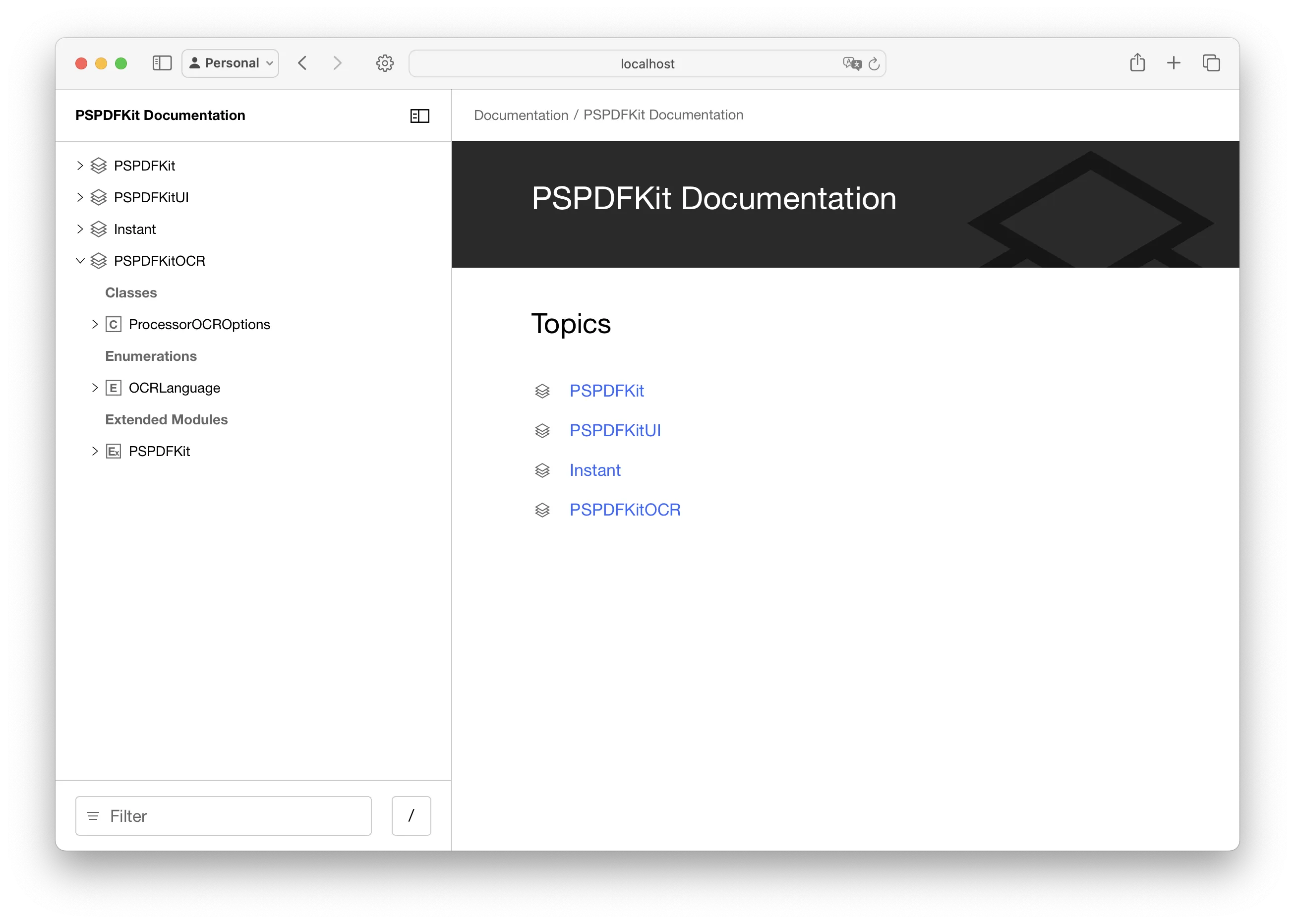
And searching symbols across frameworks from the overview page is now also supported.
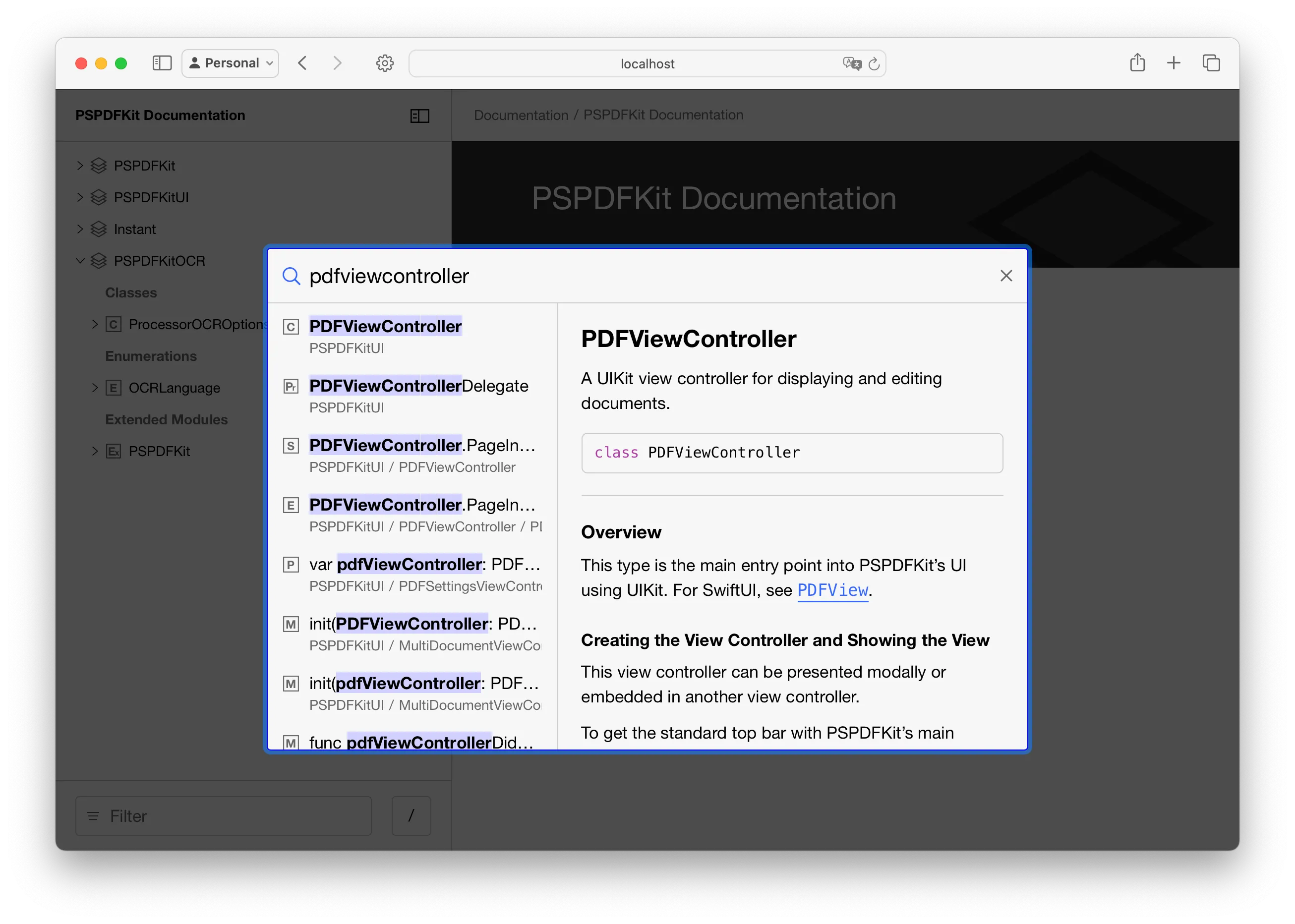
However, when navigating to the pages inside these modules, the sidebar doesn’t contain any content.
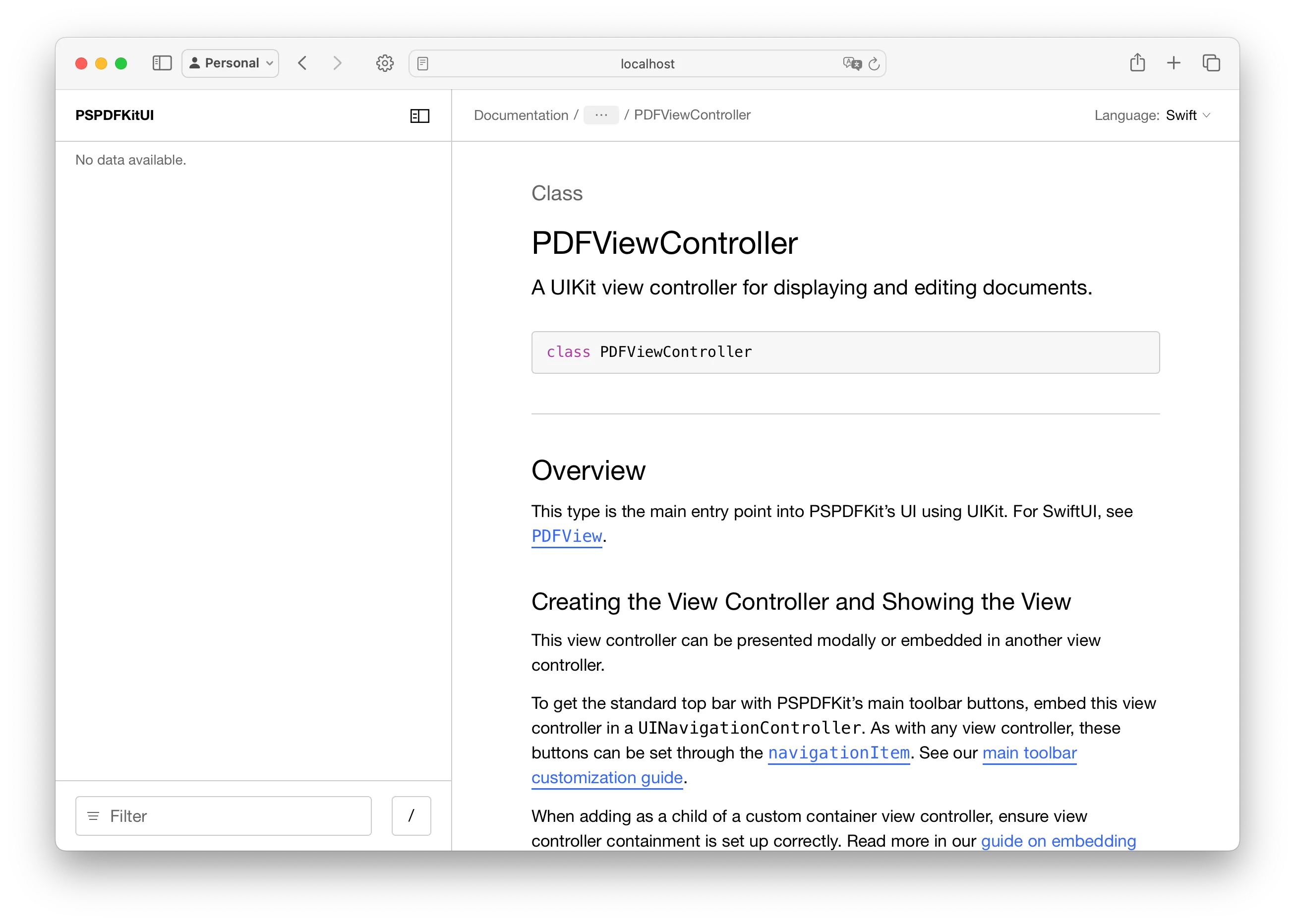
This behavior is slightly different when using DocC from the open source repo, at least when using the main branch at the time of writing from this commit(opens in a new tab). The sidebar is correctly populated in Swift, even for pages inside modules. However, as soon as you switch to Objective-C, the sidebar still shows Swift symbol names, which breaks search for Objective-C names. We filed an issue on the Swift-DocC repo(opens in a new tab) to potentially get this issue fixed in a future build, but for now, let’s find a workaround.
To fix this, we need to figure out where the sidebar actually gets its content from. I found that the sidebar is using the /index/index.json file in the generated documentation archive as its source.
When inspecting this file, we see a JSON hierarchy that looks like this:
{
"interfaceLanguages": {
"occ": [],
"swift": [{
"children": [{
"children": [...],
"path": "/documentation/pspdfkit",
"title": "PSPDFKit",
"type": "module"
}, {
"children": [...],
"path": "/documentation/pspdfkitui",
"title": "PSPDFKitUI",
"type": "module"
}, {
"children": [...],
"path": "/documentation/instant",
"title": "Instant",
"type": "module"
}, {
"children": [...],
"path": "/documentation/pspdfkitocr",
"title": "PSPDFKitOCR",
"type": "module"
}
],
"path": "/documentation/overview",
"title": "PSPDFKit Documentation",
"type": "module"
}]
},
"schemaVersion": { "major": 0, "minor": 1, "patch": 1 }
}
The entries in occ, which refers to Objective-C, are empty. Therefore, the sidebar would be empty when switching to Objective-C in the language switcher. And swift contains only one entry for the /documentation/overview page.
As a workaround for the Objective-C entry being empty, we add another technology root page, this time making it Objective-C-only by specifying @SupportedLanguage(objc):
# PSPDFKit Documentation
@Metadata {
@TechnologyRoot
@SupportedLanguage(objc)
}
## Topics
- ``/PSPDFKit``
- ``/PSPDFKitUI``
- ``/Instant``
- ``/PSPDFKitOCR``
This will ensure occ is also populated in the index file.
Then we can add the following Ruby script to modify the index.json file to add entries for our other frameworks, copying the same children data that the overview pages use:
json_file_path = '~/Documents/PSPDFKit.doccarchive/index/index.json'
data = JSON.parse(File.read(json_file_path))
def add_toplevel_objects(language_root_object)
language_object = language_root_object[0]
frameworks_to_add = [
{ 'path' => '/documentation/pspdfkit', 'type' => 'module' },
{ 'path' => '/documentation/pspdfkitui', 'type' => 'module' },
{ 'path' => '/documentation/instant', 'type' => 'module' },
{ 'path' => '/documentation/pspdfkitocr', 'type' => 'module' }
]
frameworks_to_add.each do |framework|
new_object = Marshal.load(Marshal.dump(language_object))
new_object['path'] = framework['path']
new_object['type'] = framework['type']
language_root_object << new_object
end
end
occ_object = data['interfaceLanguages']['occ']
add_toplevel_objects(occ_object)
swift_object = data['interfaceLanguages']['swift']
add_toplevel_objects(swift_object)
File.write(json_file_path, JSON.pretty_generate(data))
We’re modifying files in the .doccarchive, so after we build our documentation archive using docc, we need to execute this script.
This change now enables the sidebar to be shown with all symbols from all frameworks on every page in the API documentation, enabling easy browsing between symbols of different frameworks.
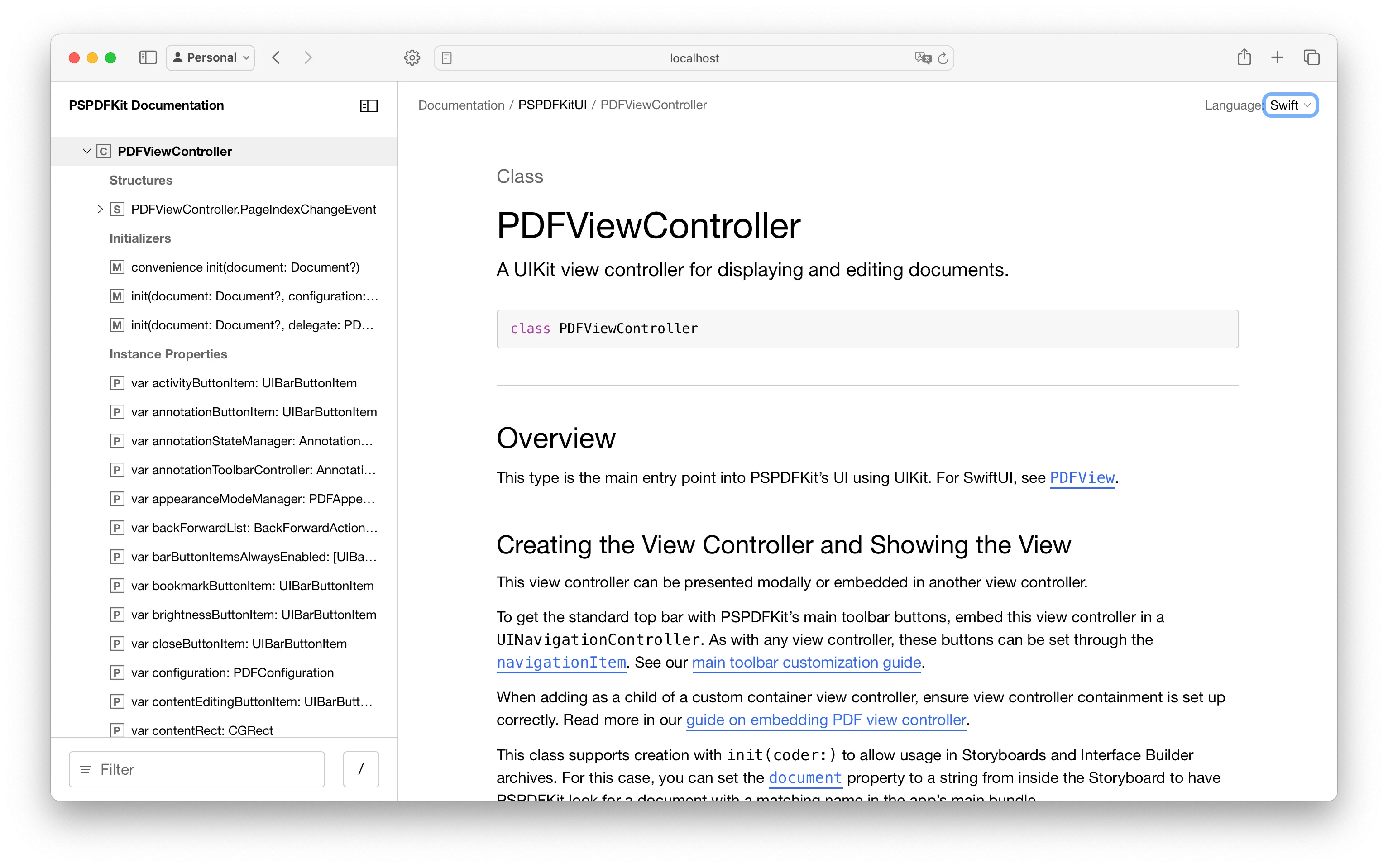
Since the sidebar and the search feature use the same index file, you can now also search for any symbols using the built-in search (by pressing /) across all of the modules without first navigating to the specific module page.
DocC offers a range of advanced features that allow you to create and customize your documentation in powerful ways. Here are some advanced topics to explore:
By exploring these advanced features, you can produce rich API reference documentation that not only informs but also engages and educates your users.
While navigating DocC’s current limitation of supporting documentation for only a single target, we dove deeper to consolidate documentation for all our frameworks into a single archive. By combining the documentation for different frameworks, we enhanced the user experience of our API documentation, enabling seamless navigation and search capabilities across all frameworks. With the help of scripts like the one discussed in this post, developers can effortlessly generate and deploy high-quality documentation for their projects, enhancing the overall developer experience.
DocC is Apple’s documentation compiler that creates structured API documentation from Swift and Objective-C code, supporting both website and Xcode hosting.
Yes. By manually combining symbol graphs, DocC can generate unified API documentation for multiple frameworks.
You generate symbol graphs for each framework and combine them using the --additional-symbol-graph-dir option to create a single documentation archive.
By using custom documentation catalogs and topic groups, you can organize frameworks in the sidebar for easier navigation and unified search.
Switching between Swift and Objective-C documentation may cause navigation issues, which can be mitigated by adding a dedicated technology root page for Objective-C symbols.
此内容由惯性聚合(RSS阅读器)自动聚合整理,仅供阅读参考。 原文来自 — 版权归原作者所有。