






Table of contents
Summary
This tutorial demonstrates how to implement PDF printing functionality in C# applications using Nutrient’s .NET PDF SDK. The guide walks through project setup in Visual Studio, integration of the GdPicture.NET library, and implementation of PDF and image printing capabilities with customizable printer settings. The solution provides a straightforward approach to programmatic PDF printing without requiring external dependencies.
In this post, you’ll learn how to use Nutrient’s .NET PDF SDK to print PDFs for your C# application.
To get started, you’ll set up a new C# project and open a project in Visual Studio. Then, you’ll learn how to print a PDF using the Nutrient GdPicture.NET library in your project.
Nutrient’s C# .NET PDF library
Nutrient’s GdPicture.NET library is a complete SDK that supports:
- OCR
- Data extraction
- Barcode scanning
- Document conversion
- PDF generation
- Many more image and document-related tasks
GdPicture.NET also supports more than 100 file formats and abstracts all of its powerful features behind a rich, cross-platform, and easy-to-use API to maximize developer productivity.
Requirements
To get started, you’ll need the following:
- Visual studio — The official integrated development environment for C# .NET.
Getting started with Nutrient
The next sections will provide you with information on how to first create a new project and then prepare a PDF for printing using C#.
Creating a new project
- Open Visual Studio and create a new project. Then specify your project requirements.
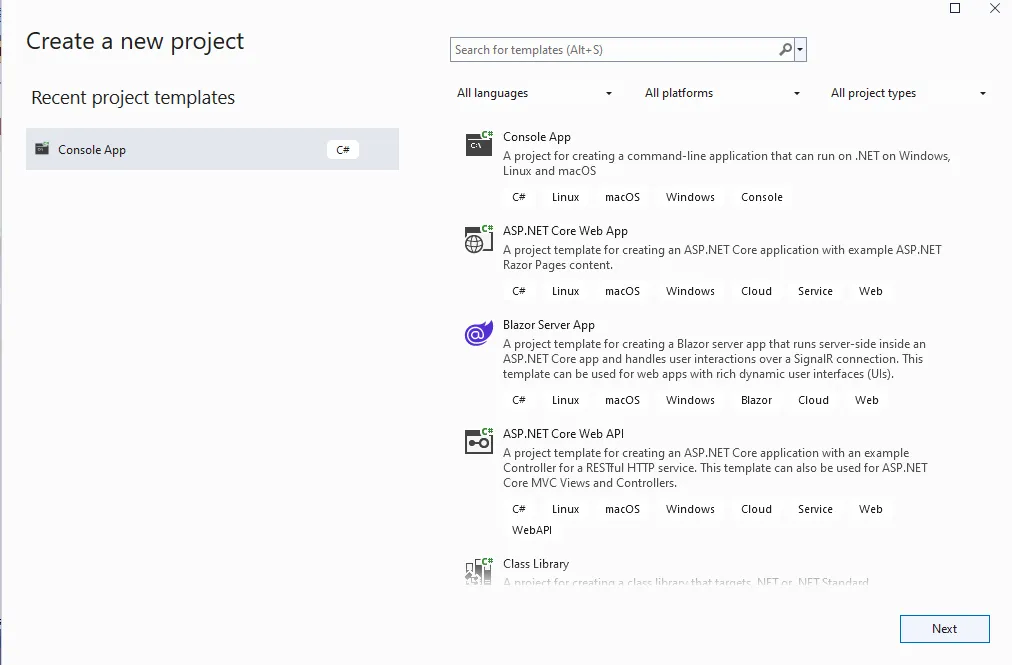
- Choose the correct template for your project. For this example, you’ll use Console App.
- When prompted, choose your project name (Nutrient PDF Demo), select the location where you want to save the project, and press Next. Then select the target .NET framework.
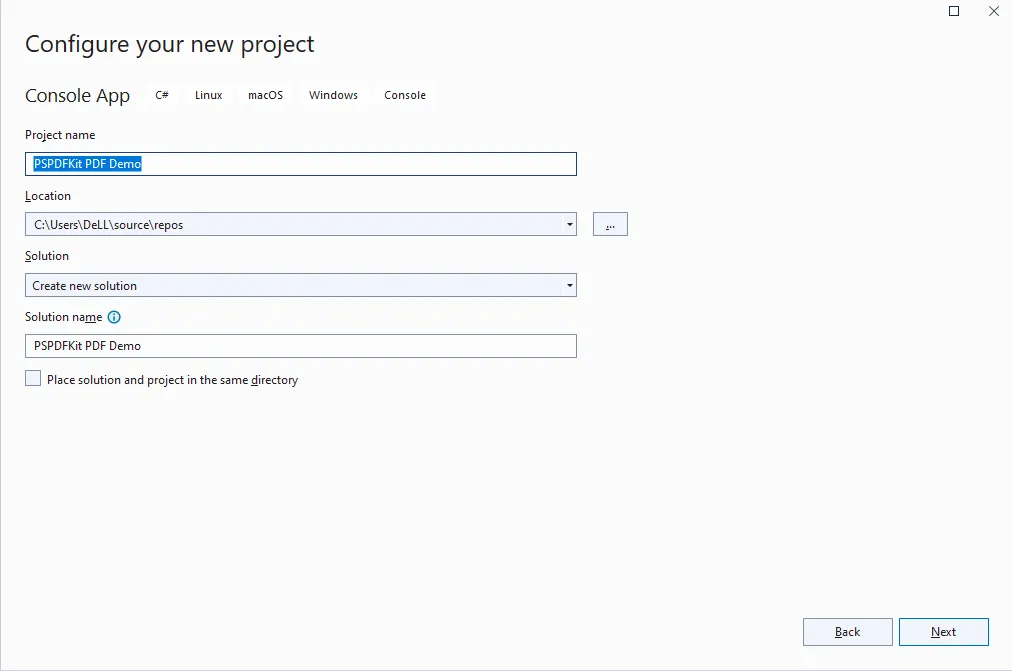
- Click Create to create your project at your preferred save location.
Adding Nutrient’s PDF library to your project
- Add the Nutrient GdPicture library from the NuGet solution manager. Select the project and install that library into the project.
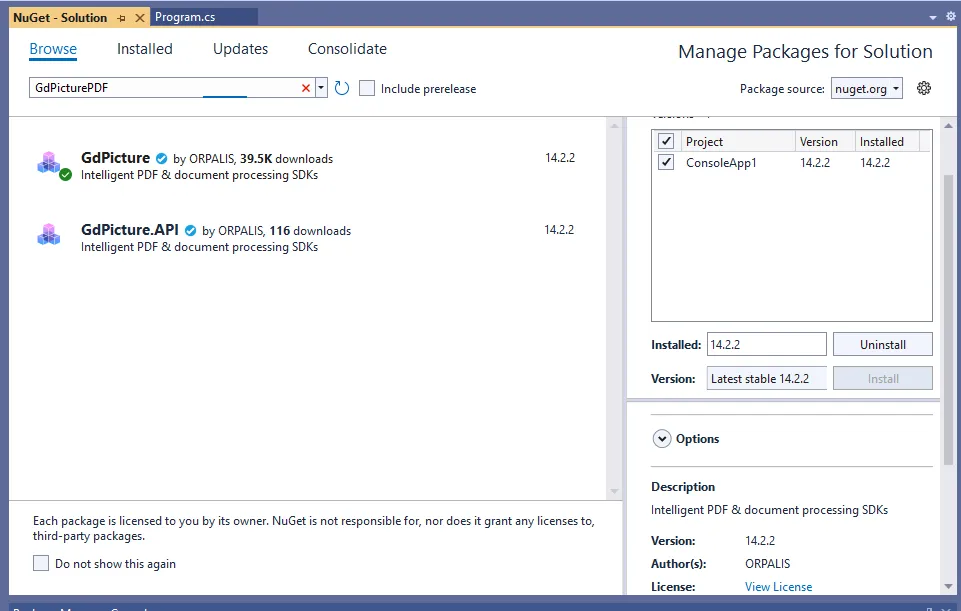
- Add the Nutrient dependency in the
Program.csfile using GdPicture14.
Building the project
Once you’ve added the libraries mentioned above into the project and added the library reference into the current file, build the project and ensure that all solutions build successfully.
Printing a PDF document
Next, you’ll open a PDF file from the device’s local storage using the following code:
using GdPicturePDF gdpicturePDF = new GdPicturePDF();
// Load the source document.
gdpicturePDF.LoadFromFile(@"C:\temp\source.pdf");
// Store the handle of the active window in a variable.
IntPtr WINDOW_HANDLE = IntPtr.Zero;
// Enable the printer settings dialog.
gdpicturePDF.PrintShowPrinterSettingsDialog(WINDOW_HANDLE);
// Print the document.
gdpicturePDF.Print();
// Release unnecessary resources.
gdpicturePDF.CloseDocument();
The code above will first create the GdPicturePDF object, and based on that, the file will be opened. If the file is opened successfully, the active window will be handled in the WINDOW_HANDLE variable. Then, call the PrintShowPrinterSettingsDialog function using the GdPicturePDF object.
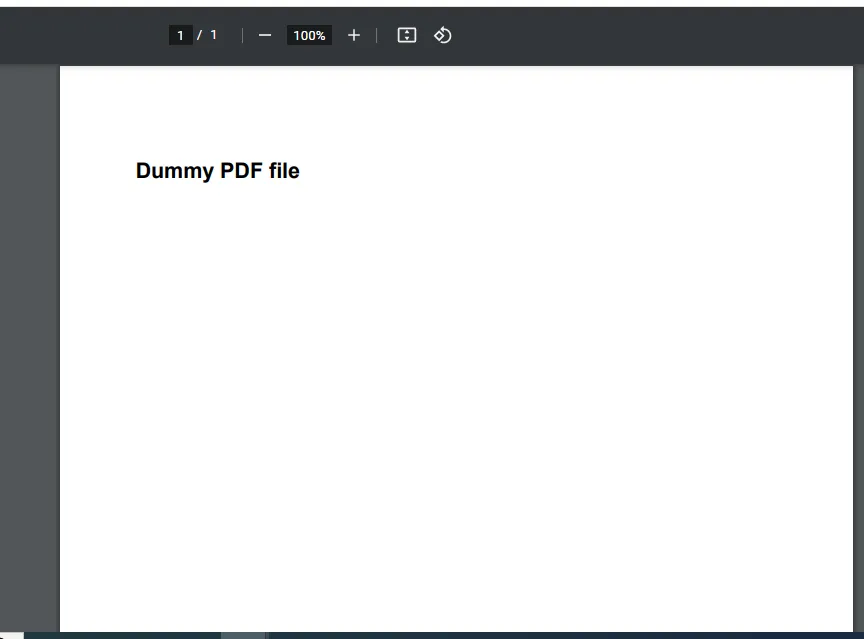
Afterward, call the print function to print the loaded PDF to the PDF viewer tool or browser. The output of the code above is shown in the following image.
Printing an image
The GdPictureImaging class will display the images and then print for you. Below is the code for viewing the file using the GdPictureImaging class:
using GdPictureImaging gdpictureImaging = new GdPictureImaging();
// Load the source image.
int imageId = gdpictureImaging.CreateGdPictureImageFromFile(@"C:\temp\source.png");
// Store the handle of the active window in a variable.
IntPtr WINDOW_HANDLE = IntPtr.Zero;
// Enable the printer settings dialog.
gdpictureImaging.PrintShowPrinterSettingsDialog(WINDOW_HANDLE);
// Print the image.
gdpictureImaging.Print(imageId);
// Release unnecessary resources.
gdpictureImaging.ReleaseGdPictureImage(imageId);
Conclusion
This post demonstrated how to print a PDF in C# using Nutrient’s GdPicture.NET library. If you hit any snags, don’t hesitate to reach out to our Support team for help.
At Nutrient, we offer a commercial, feature-rich, and completely customizable web PDF library that’s easy to integrate and comes with well-documented APIs to handle advanced use cases. Try it for free, or visit our demo to see it in action.