


Table of contents
TL;DR
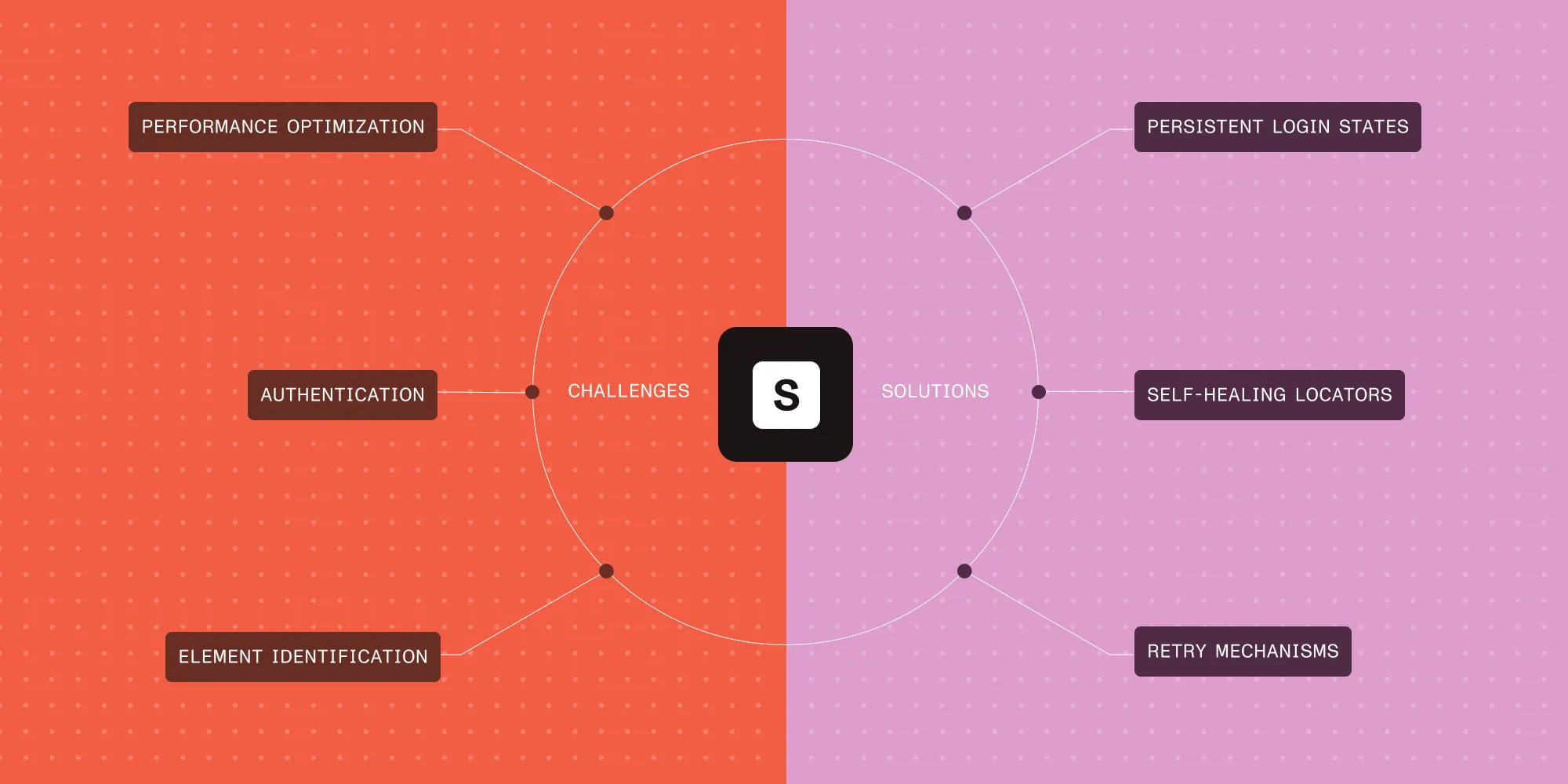
- SharePoint automation requires specialized approaches due to complex security and dynamic content.
- Key challenges include authentication, element identification, and performance optimization.
- Solutions include persistent login states, self-healing locators, and retry mechanisms.
- Strategic test tagging and environment configuration enable scalable automation.
If you’ve ever automated SharePoint, you know the frustration: authentication timeouts, flaky test scripts, and elements that disappear when you need them most. Unlike other platforms that work smoothly with standard automation tools, SharePoint adds layers of security, dynamic content, and shifting DOM structures that can break scripts unexpectedly.
This guide helps you understand these challenges and provides practical solutions that make automation reliable in real-world SharePoint environments.
Before implementing solutions, it helps to understand the core challenges that make SharePoint automation tricky. Knowing these pain points will make it easier to apply the right techniques for your workflow.
1. Authentication and security complexities
Challenge
SharePoint environments often implement multiple layers of security, including multi-factor authentication (MFA), single sign-on (SSO), and complex permission structures. These security measures can make automated testing difficult to implement and maintain.
Impact
- Test scripts fail due to authentication timeouts
- Inability to access protected resources during automated runs
- Complex setup requirements for different environments
Solution
- Implement persistent login state storage with username preservation
- Use service account authentication for testing environments (recommended)
- Store authentication state in JSON files for reuse across test sessions
- Handle OTP/MFA programmatically with proper token generation
// Enhanced login setup with state persistence and username storage.
class LoginSetup {
private async saveLoginState(): Promise<void> {
if (this.loginStatePath) {
try {
// Get authentication state.
const storageState = await this.page.context().storageState();
// Get username using existing method.
const username = await this.getUserNameOfLoggedInUser();
// Combine authentication state and username for reuse.
const enhancedState = {
...storageState,
username: username,
};
// Save combined data to JSON file.
await fs.promises.writeFile(
this.loginStatePath,
JSON.stringify(enhancedState, null, 2)
);
console.log(`Login state and username saved to ${this.loginStatePath}`);
} catch (error) {
console.error("Failed to save login state:", error);
// Fallback to basic storage state.
await this.page.context().storageState({ path: this.loginStatePath });
}
}
}
async getUserNameOfLoggedInUser(): Promise<string | null> {
try {
await this.accountHeader.waitFor({ state: "visible", timeout: TIMEOUT_MS });
await this.accountHeader.click();
await this.currentUserName.waitFor({ state: "visible", timeout: TIMEOUT_MS });
const userName = await this.currentUserName.textContent();
console.log("Logged in user name is: " + userName);
return userName;
} catch (error) {
console.error("Failed to get logged-in user name:", error);
return null;
}
}
}
// Usage: Reuse saved authentication state.
test.use({
storageState: './src/data/user1Storage.json' // Contains cookies, localStorage, and username
});
// The saved JSON includes both authentication cookies and user context:
{
"cookies": [...],
"origins": [...],
"username": "john.doe@company.com"
}
Authentication best practices
- Save complete login state, including cookies,
localStorage, and username - Implement separate storage files for different users (admin, user1, user2)
- Handle MFA/OTP programmatically using libraries like
otpauth - Create reusable login utilities that preserve session state across test runs
2. Dynamic content and loading issues
Challenge
SharePoint pages often load content dynamically, making it difficult to determine when elements are ready for interaction. This is particularly challenging with SharePoint Framework (SPFx) web parts and modern SharePoint pages.
Impact
- Flaky tests due to timing issues
- Elements not found errors
- Inconsistent test results across different environments
Solution
- Always use explicit
waitForcommands for reliable element interactions - Implement intelligent wait strategies for SharePoint-specific loading patterns
- Create safe interaction methods that handle unexpected popups
// `SafeClick` function to handle SharePoint popups and loading issues.
export async function safeClick(
page: Page,
locator: Locator,
description: string,
options: { timeout?: number; force?: boolean } = {}
) {
const timeout = options.timeout ?? 3000;
try {
// Wait explicitly for element to be attached and visible.
await locator.waitFor({ state: "attached", timeout });
await locator.scrollIntoViewIfNeeded();
await locator.click({ timeout });
} catch (e) {
console.warn(`Initial click failed on ${description}. Trying fallback...`);
try {
// Handle common SharePoint popups and overlays.
await page.keyboard.press("Escape");
await page.mouse.move(0, 0);
await locator.click({ force: true });
} catch (forceError) {
console.error(`Force click failed on ${description}`);
throw forceError;
}
}
}
// Usage example with proper waiting.
await element.waitFor({ state: "visible", timeout: TIMEOUT_MS });
await safeClick(page, editorButton, "PDF Editor Button");
Key points
- Never assume elements are ready — always use
waitForexplicitly - SharePoint popups can interfere with clicks — use
safeClickfor critical interactions - Implement fallback strategies for SharePoint’s unpredictable loading behavior
3. Complex DOM structure and element identification
Challenge
SharePoint generates complex HTML structures with dynamically generated IDs and class names, making element selection unreliable across different versions and configurations.
Impact
- Broken selectors when SharePoint updates
- Difficulty maintaining test scripts
- Inconsistent element identification across environments
Solution:
- Prioritize
data-automation-idattributes over class names for stable selectors - Use aria labels and roles when available
- Implement self-healing element detection with multiple fallback locators
- Create wrapper functions for common SharePoint elements
// Self-healing utility with multiple locator fallbacks.
export default async function findValidElement(
page: Page,
locators: string[]
): Promise<Locator | null> {
let validElement: Locator | null = null;
const TIMEOUT_MS = 2000;
for (const locator of locators) {
try {
const element = page.locator(locator);
await element.waitFor({ state: "attached", timeout: TIMEOUT_MS });
const isVisible = await element.isVisible();
if (!isVisible) {
logger.warn(`Element found but hidden: ${locator}`);
continue;
}
validElement = element;
logger.info(`Found valid element with locator: ${locator}`);
break;
} catch (error) {
logger.error(`Invalid locator: ${locator}`);
}
}
if (!validElement) {
throw new Error('Failed to find element with any provided locator');
}
return validElement;
}
// Usage with multiple fallback selectors.
const editorButtonLocators = [
'[data-automation-id="edit-button"]', // Primary: data-automation-id
'[aria-label="Edit with Nutrient Editor"]', // Secondary: aria-label
'text="Open in PDF Editor"', // Tertiary: text content
'.ms-Button--action[title*="Edit"]' // Last resort: class + partial match
];
const editorButton = await findValidElement(page, editorButtonLocators);
Best practices for SharePoint selectors
- Always prefer
data-automation-idattributes over class names - Use
[role="gridcell"],[aria-label], and other semantic attributes - Implement multiple locator strategies in order of stability
- Avoid relying on auto-generated class names like
.ms-Button-12345
4. File upload and download operations
Challenge
SharePoint file operations are complex due to browser security restrictions, dynamic upload interfaces, and varying download behaviors across different SharePoint configurations.
Impact
- Upload operations fail due to dynamic SharePoint interfaces
- Download handling varies between browsers and SharePoint versions
- File operations time out in slow SharePoint environments
Solution
- Implement robust file upload utilities with proper wait strategies
- Handle browser download events programmatically
- Create reusable file operation classes for consistent behavior
// Upload utility with proper SharePoint handling.
export default class uploadFileUtil {
private uploadFileBtn: Locator;
private downloadFolder: string;
async uploadFile(filePath: string) {
await this.uploadFileBtn.waitFor({ state: "visible" });
await this.page.setInputFiles('input[type="file"]', filePath);
// Wait for SharePoint upload completion.
await this.page.waitForSelector('.upload-success', { timeout: TIMEOUT_MS });
}
async downloadFile(fileName: string) {
const downloadPromise = this.page.waitForEvent('download');
await this.downloadBtn.click();
const download = await downloadPromise;
const downloadPath = path.join(this.downloadFolder, fileName);
await download.saveAs(downloadPath);
return downloadPath;
}
}
5. Environment configuration management
Challenge
SharePoint automation needs to work across different environments (development, staging, production) with varying URLs, editor configurations, and test data files.
Impact
- Hardcoded values break when switching environments
- Different editor types require separate test configurations
- Test file management becomes complex across environments
Solution
- Parameterize environment-specific settings using
.envfiles - Create flexible configuration for different editor types and SharePoint URLs
- Implement environment-aware test data management
// playwright.config.ts — Environment-aware configuration.
const envFilePath = process.env.NODE_ENV
? `${__dirname}/src/config/.env.${process.env.NODE_ENV}`
: `${__dirname}/src/config/.env`;
dotenv.config({ path: envFilePath });
// Override with local development settings.
const localEnvFilePath = `${__dirname}/src/config/.env.local`;
if (fs.existsSync(localEnvFilePath)) {
dotenv.config({ path: localEnvFilePath, override: true });
}
# `.env` — Environment configuration (create `.env.local` for local development and add to `.gitignore`).
DOCU_LIB_URL = 'https://yourcompany.sharepoint.com/path/'
EDITOR_TYPE = your-editor-type
PDF_EDITOR_VERSION = 'version-number'
# Test file configurations.
textAnnotationInputFile = YourTestFile.pdf
calloutAnnotationInputFile = AnotherTestFile.pdf
formSubmitRedirectURL = 'https://your-redirect-url.com/'
# Multiple editor types can be configured for different test scenarios.
Benefits
Seamless environment switching, secure configuration management, and flexible editor testing across different SharePoint setups.
6. Performance and scalability issues
Challenge
SharePoint environments can be slow to respond, especially in large organizations with complex configurations. This affects automation execution time and reliability.
Impact
- Long test execution times
- Timeout failures in production environments
- Resource consumption issues during parallel test execution
Solution
- Implement comprehensive retry mechanisms for critical operations
- Use strategic test tagging for optimal execution planning
- Optimize test data and cleanup procedures
- Implement parallel execution strategies carefully (limit to two workers in configuration to avoid resource allocation issues)
- Create lightweight test environments when possible
Retry mechanism implementation
Critical SharePoint operations require retry logic due to intermittent failures:
// Essential retry pattern for SharePoint operations.
async openEditorAsPerType() {
let retryCount = 0;
const maxRetries = 4;
while (retryCount < maxRetries) {
try {
await this.openInPDFEditor.waitFor({ state: "visible", timeout: TIMEOUT_MS });
await this.openInPDFEditor.click();
break; // Success — exit retry loop.
} catch (error) {
retryCount++;
console.log(`Attempt ${retryCount} failed. Retrying...`);
// Reload page and retry.
await this.page.reload();
await this.selectFileToBeEdited();
}
}
if (retryCount >= maxRetries) {
throw new Error('Maximum retry attempts reached for opening the editor.');
}
}
Strategic test tagging for performance
Implement test categorization to optimize execution based on priority and scope:
// Sanity tests — core functionality, fast execution.
test("Add text annotation, reopen and verify @sanity", async () => {
// Essential functionality test
});
// Regression tests — comprehensive coverage, slower execution.
test("Add callout annotation, reopen and verify @regression", async () => {
// Detailed scenario testing
});
// Permission tests — multiuser scenarios, resource intensive.
test("Verify coauthoring with different permissions @permission", async () => {
// Multi-context, multiuser testing.
});
Execution commands:
# Fast feedback — run only critical tests.
npx playwright test --grep "@sanity"
# Full regression suite.
npx playwright test --grep "@regression"
# Permission-specific testing.
npx playwright test --grep "@permission"
Benefits
@sanity tests provide quick feedback (5–10 minutes), @regression ensures full coverage (30–60 minutes), and selective execution reduces CI/CD pipeline time by 60–80 percent.
With the fundamentals in place, you can tackle more advanced scenarios. These examples show how to handle multiuser testing, permission-based workflows, and context-aware strategies for real-world SharePoint use.
Multiuser testing and coauthoring
Challenge
SharePoint’s collaborative features like coauthoring, document checkout, and concurrent user interactions require sophisticated test strategies that simulate real-world usage patterns.
Implementation strategy
// Multiuser setup with separate browser contexts.
test.beforeEach(async ({ browser }) => {
// Admin user context.
context1 = await browser.newContext({
storageState: `./src/data/${process.env.ADMIN_LOGIN_TYPE!}`
});
page1 = await context1.newPage();
commonObj1 = new common(page1);
// End user context.
context2 = await browser.newContext({
storageState: `./src/data/${process.env.USER1_LOGIN_TYPE!}`
});
page2 = await context2.newPage();
commonObj2 = new common(page2);
});
// Coauthoring test scenario.
test('Verify coauthoring with real-time changes', async () => {
// User 1 opens document and adds annotation.
const [newtab1] = await Promise.all([
page1.waitForEvent('popup'),
commonObj1.openEditorAsPerType(),
]);
let textannotationObj1 = new textAnnotation(newtab1);
await textannotationObj1.addTextAndCallOutAnnotation("text", "User1 annotation");
// User 2 opens same document.
const [newtab2] = await Promise.all([
page2.waitForEvent('popup'),
commonObj2.openEditorAsPerType(),
]);
let textannotationObj2 = new textAnnotation(newtab2);
await textannotationObj2.addTextAndCallOutAnnotation("callout", "User2 annotation");
// Save from User 1 and verify reload message in User 2.
await textannotationObj1.saveDocument();
await textannotationObj2.verifyReloadMessageandReloadChanged('Reload Changes.png');
// Verify both annotations are visible.
submittedByList = [submittedByAdmin, submittedByUser1];
await textannotationObj2.verifyTextAnnotationadded(
["User1 annotation", "User2 annotation"],
submittedByList
);
});
Permission-based testing with site collections
Challenge
SharePoint permissions are complex and need to be tested across different user roles, site collections, and document libraries.
Solution
Use dynamic site collection setup:
// Create dedicated test site collection with specific permissions.
test("Create Site Collection with granular permissions", async () => {
const newSiteName = "anewtestpermission";
const adminBaseURL = fullURL.replace(
/^https:\/\/([^.]+)\.sharepoint\.com.*$/,
"https://$1-admin.sharepoint.com",
);
await commonObj.OpenaDocumentLibrary(adminBaseURL);
await commonObj.gotoActiveSites();
// Check if site exists, create if not.
const siteUrlResult = await commonObj.isSiteAvailable(newSiteName);
if (typeof siteUrlResult === "string") {
sharedSiteUrl = siteUrlResult;
} else {
await commonObj.createSiteCollection(newSiteName, adminUser, [
user1WithEditPermission,
]);
}
// Configure read-only permissions for specific user.
await commonObj.giveReadPermissionToUser(
newSiteName,
user2WithReadPermission,
);
});
// Test checkout functionality with different user permissions.
test("Verify checkout restrictions across users", async () => {
// Admin checks out document
await commonObj.checkOutDocument("checkout");
// User 1 tries to edit checked out document.
const [newtab] = await Promise.all([
page2.waitForEvent("popup"),
commonObj2.openEditorAsPerType(),
]);
let annotationObj = new inkAnnotations(newtab);
await annotationObj.verifyAndCloseErrorMessage(
`The document is currently checked out by ${adminUser}. The viewer will open in read-only mode.`,
60000,
"CheckOut User1",
);
await annotationObj.verifyDocumentIsNotEditable();
});
Username extraction and context management
Key implementation details
// Extract usernames from saved authentication states for verification.
test.beforeAll(async () => {
const adminState = JSON.parse(
fs.readFileSync(`./src/data/${process.env.ADMIN_LOGIN_TYPE!}`, 'utf8')
);
const user1State = JSON.parse(
fs.readFileSync(`./src/data/${process.env.USER1_LOGIN_TYPE!}`, 'utf8')
);
submittedByAdmin = adminState.username || 'Unknown User';
submittedByUser1 = user1State.username || 'Unknown User';
console.log(`Admin user: ${submittedByAdmin}`);
console.log(`Test user: ${submittedByUser1}`);
});
// Verify user-specific comment ownership
await commentObj1.verifyUserCannotEditOthersComments('multiple', submittedByAdmin);
After exploring common challenges and advanced scenarios, you can apply these best practices to make your SharePoint automation more reliable, maintainable, and scalable.
1. Environment management
- Create dedicated site collections for testing with specific permission matrices.
- Configure proper user roles — e.g. Owner, Member, Reader — for comprehensive testing.
2. Multiuser test design patterns
- Use separate browser contexts for each user to maintain isolated sessions.
- Store username information in authentication state files for verification.
- Implement serial test execution for checkout/coauthoring scenarios.
- Create reusable utilities for site collection management.
3. Permission testing strategy
- Test across different SharePoint permission levels (Full Control, Edit, Read)
- Verify checkout/checkin functionality with multiple users.
- Test form submission with varying permission levels.
- Validate coauthoring scenarios with real-time conflict resolution.
4. Test reporting and logging
- Configure Playwright HTML reporter for detailed test execution reports.
- Implement console logging for debugging SharePoint-specific operations.
- Use list reporter for CI/CD pipeline integration.
- Add contextual logging for retry attempts and editor type detection.
// `playwright.config.ts` — Reporter configuration.
reporter: [
["html", { open: "always" }],
["list"], // Add list reporter for CI
],
SharePoint automation challenges are solvable with the right strategies. These proven approaches have transformed complex, unreliable test suites into robust automation frameworks:
Essential solutions
- Authentication persistence — Store login states with usernames for reliable session management
- Self-healing locators — Multiple fallback selectors that adapt to SharePoint changes
- Intelligent retry mechanisms — Handle SharePoint’s intermittent failures gracefully
- Strategic test categorization — Optimize execution with
@sanity,@regression, and@permissiontags
Implementing these patterns reduces maintenance overhead while improving test reliability. Teams typically see significant reduction in test execution time and fewer false failures.
The path from SharePoint automation chaos to reliable, maintainable testing isn’t just possible — it’s inevitable when you apply these proven strategies:
- Audit your current setup — Identify which authentication headaches and flaky tests are costing you the most time.
- Build your testing foundation — Set up dedicated environments with proper permissions.
- Start small, win big — Begin with one critical workflow and nail it before expanding.
- Monitor and iterate — Build in observability from day one, because SharePoint will surprise you.
With these strategies in place, moving from SharePoint automation headaches to reliable, maintainable testing becomes not only possible, but predictable. Every development team deserves automation they can rely on — and the confidence to focus on building solutions rather than troubleshooting flaky workflows.
Have your own SharePoint automation wins or lessons learned? We’d love to hear how you’ve navigated its unique challenges.