







Table of contents

Retailers face the constant challenge of managing diverse inventories efficiently. Barcode scanning has become a cornerstone in this pursuit, enabling quick and accurate identification of products. Our barcode scanner SDK coupled with Power Automate empowers retailers to automate the extraction of barcode values, enhancing inventory management processes.
Use Case: Automating Inventory Management
Challenges
- Time-Consuming Manual Processes: Traditional inventory management involves manually scanning and recording barcode values, consuming valuable time.
- Error-Prone Operations: Manual data entry increases the risk of errors in inventory records, impacting order fulfillment and customer satisfaction.
- Limited Scalability: As retail businesses grow, the manual approach becomes increasingly impractical and prone to inefficiencies.
Benefits
- Efficiency Gains: Automation accelerates the barcode extraction process, reducing the time and effort required for inventory management.
- Accuracy Improvement: Automated barcode extraction minimizes the risk of human errors, ensuring precise inventory records.
- Scalable Solution: Power Automate provides a scalable solution, adapting to the growing demands of expanding retail operations.
Aquaforest PDF Connector: “Get Barcode Value” Action in Power Automate
Step 1: Configure Aquaforest PDF Connector.
Add the Aquaforest PDF Connector to your Power Automate workflow. First you choose the type of the flow and the trigger.
Choose to create “Automated cloud flow” and set a trigger “When a file is created or modified (properties only)”. Then add the action “Get file content”. In the “File Identifier” field, add dynamic content “Identifier”.
Click on the + button to add a new action, and in the search bar type “Get barcode value” action.
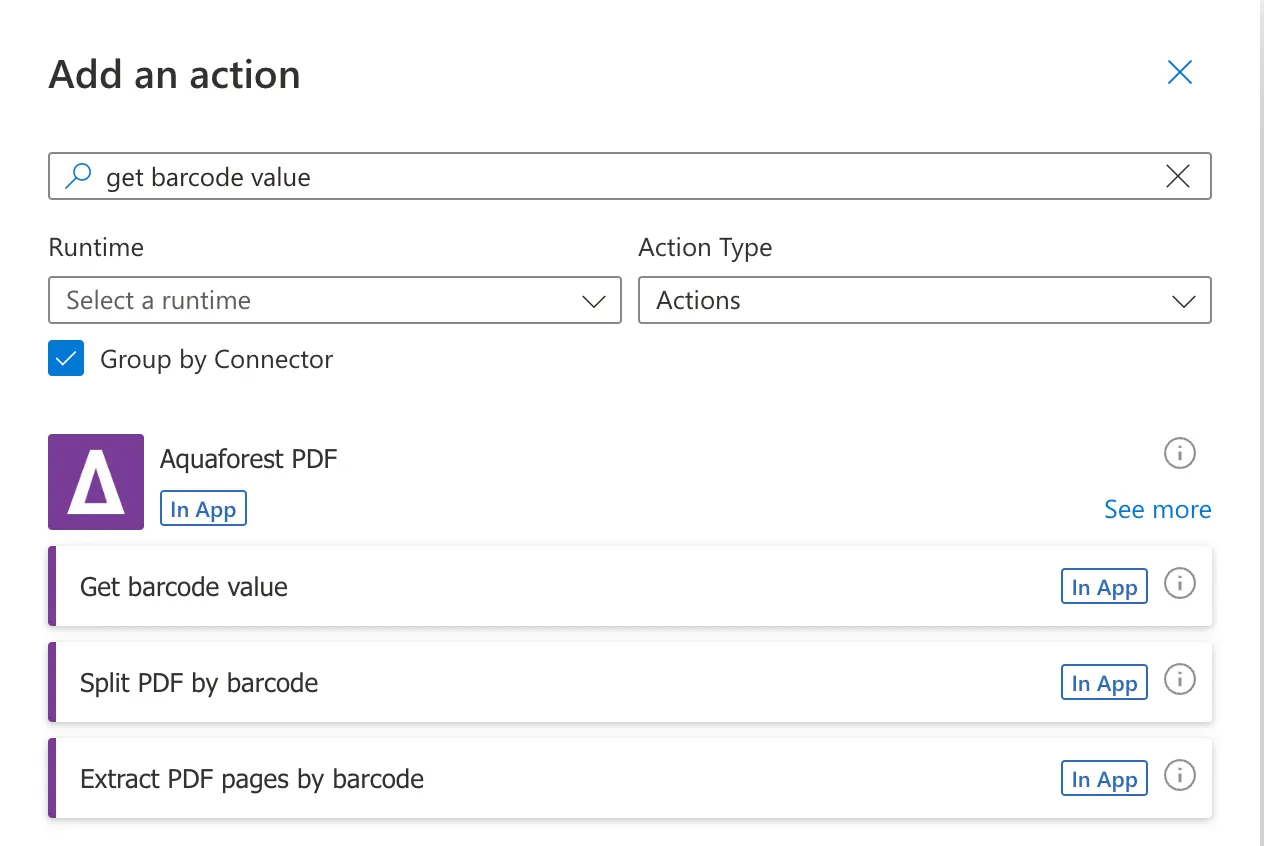
As a next step, you will be asked for a Connection Name and an API Key. Give your connection a name and use the primary key generated upon signing up for PDF Connector(opens in a new tab). If you need assistance, read the getting started guide, particularly Generate API key section.
Step 2: Provide Input Parameters.
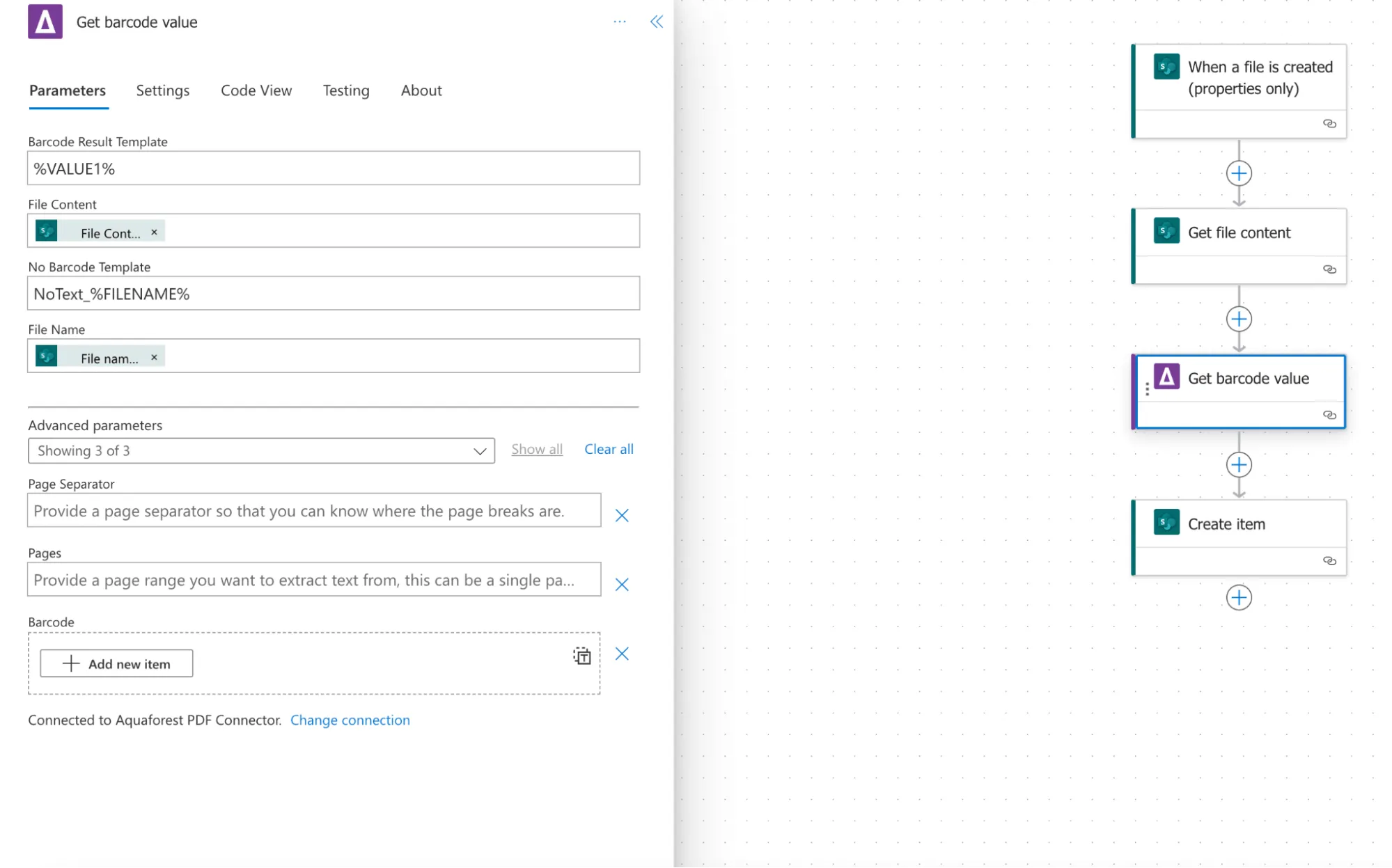
When you activate the connector and add an action, the next step would be to fill in the parameters.
- Barcode Result Template: Define the output text template for found barcodes.
- File Content: Add “File content” from Dynamic list.
- File Name: Add “File name with extension” from Dynamic list.
- No Barcode Template: Set the output text template for cases where no barcode is found.
Step 3: Configure Optional Parameters.
- Page Separator: Define a separator for page breaks.
- Pages: Specify the page range for extracting barcode values.
- Add a new barcode.
Step 4. Create item action.
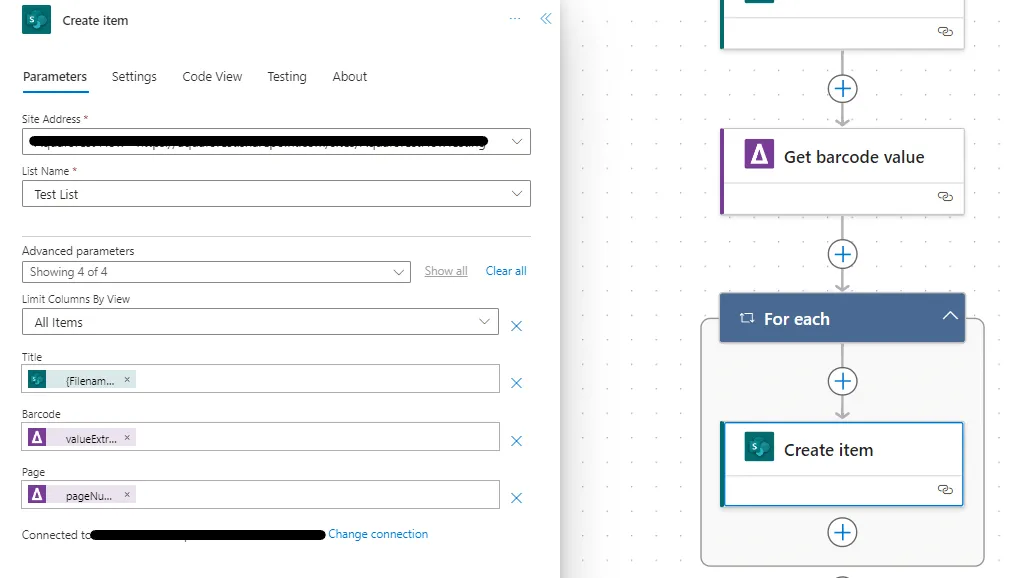
Add the create item action and configure following the details below:
Site address: The URL of your SharePoint site.
Folder path: The location of your SharePoint library where the input file is stored.
List name: The name of the list that you want to get barcode value from.
You can also check other output parameters:
- Barcode: The generated string from the extracted text applied to the file template.
- Barcode Results: An array with pages and their corresponding extracted barcode values.
- Page Number: The page where the barcode was found.
- Page Barcode: The generated string from the extracted barcode value applied to the Barcode Result Template.
- Zone Values: An array containing the barcode extracted from each zone.
- Is Successful: A boolean value indicating the success of the operation.
- License Info: Information about your API subscription key.
- Error: If any, contains the error message returned by the operation.
Step 5: Execute the Action.
Click on the Save button and run the Power Automate workflow to trigger the “Get Barcode Value” action.
Step 6: Review Output.
Check the output for successfully extracted barcode values, along with detailed information about each page.
Conclusion
Automating inventory management in retail with the Aquaforest PDF Connector(opens in a new tab)’s “Get Barcode Value” action through Power Automate marks a significant step toward efficiency, accuracy, and scalability. Embrace the power of automation to streamline retail operations, reduce manual effort, and stay ahead in today’s competitive market.