











Redacting a PDF and proving a PDF was properly redacted are two different compliance problems. This guide covers both, including how permanent removal actually works under the hood, how to verify it at three levels of confidence, and how to generate the audit trail your compliance team will need.
Summary
Visual redaction checks aren’t sufficient for compliance. Permanent removal means the content is gone from a PDF’s underlying data structure — not just hidden behind a black box. Verifying redaction requires three levels of confirmation: visual inspection, technical extraction testing, and an API-generated audit trail. For GDPR, HIPAA, FOIA, and legal discovery, the audit trail is what regulators and courts actually ask for.
Your legal team has signed off on the redaction workflow. Engineering has integrated the API. The PDFs look correct in the viewer. Then your enterprise prospect’s security team asks for proof that the data is permanently gone — and you have nothing to hand them.
That’s where most redaction workflows break down. Implementing redaction and proving redaction are related but distinct problems. We’ve worked through this with teams in healthcare, legal, and financial services, and the same pattern shows up: The technical removal is straightforward; the documentation isn’t. This guide covers both, using Nutrient DWS Processor API as the reference for the audit trail workflow.
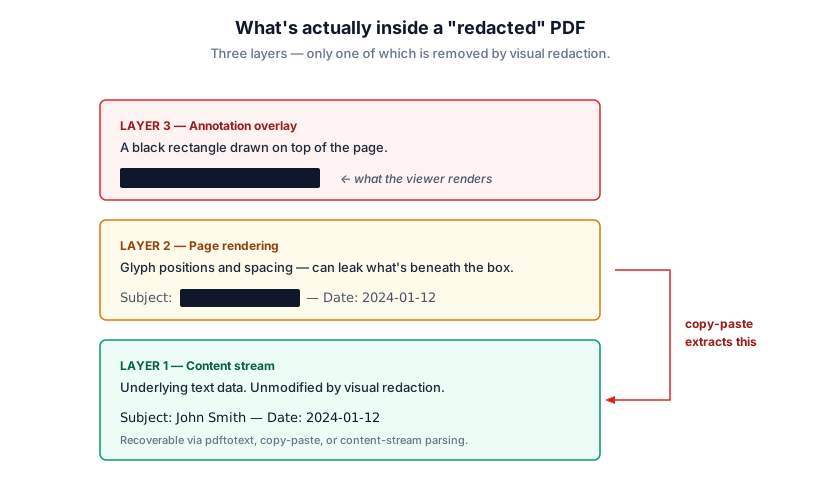
A black rectangle drawn over text in a PDF viewer is a rendering decision, not a data deletion. The PDF specification(opens in a new tab) supports multiple layers of content — visible text, hidden text, annotations, metadata, and content streams — and a naive “redaction” that draws an opaque shape over sensitive data leaves that data intact in the underlying file structure.
The TSA hit this in 2009 when a screening manual posted online(opens in a new tab) with thick black redactions turned out to have all sensitive text accessible via copy-paste. The black shapes were annotations sitting on top of unmodified content streams.
Academic research has pushed the failure mode further. The 2022 paper Story Beyond the Eye: Glyph Positions Break PDF Text Redaction(opens in a new tab) showed that the position and spacing of glyphs around a redaction box can leak the identity of the redacted text — even when the visible content is masked. The authors evaluated 11 popular redaction tools (Adobe Acrobat included) and successfully de-redacted hundreds of real-world documents, including OIG investigation reports and FOIA responses.
Permanent redaction removes content from a PDF’s content streams — the internal representation of text and graphics that the viewer renders. After this step, there’s nothing to extract, infer, or recover because the data no longer exists in the file.
One quieter failure mode: detection gaps. Regex catches 123-45-6789 but misses SSN: 123 45 6789. Manual review catches what a reviewer notices on a given day. If your detection step has gaps, your extraction test still passes — because the missed content was never marked in the first place. A passing verification means what was marked got removed, not that everything sensitive got marked.
Verifying redaction in a way that holds up under audit means stacking three different checks. Together, they catch what any one alone would miss: Visual inspection covers the obvious misses, extraction testing confirms the content is actually gone, and an audit trail proves who removed it under what authority.
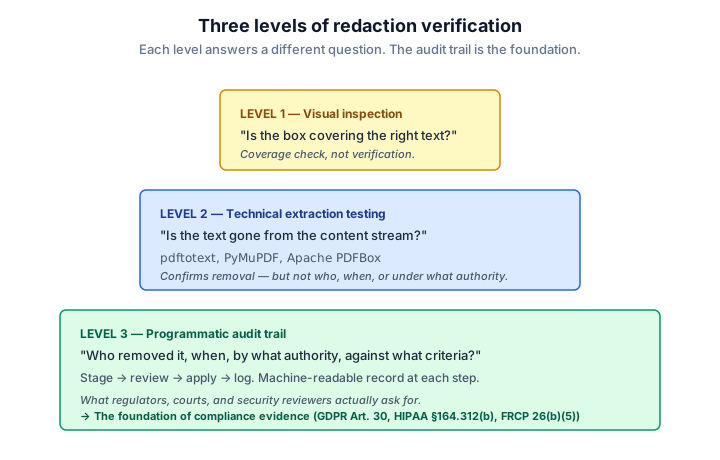
Open the redacted PDF and confirm the black boxes cover the intended content. This catches obvious misses — a skipped page, a wrong paragraph — but tells you nothing about whether the underlying data was removed. Treat it as a coverage check, not verification.
After applying redactions, attempt to extract the text content from the resulting PDF using a text extraction tool. If redaction was applied correctly, the previously sensitive content won’t appear in the output.
# Using pdftotext (poppler-utils)
pdftotext redacted-document.pdf - | grep -i "John Smith"
# Using Python with PyMuPDF
python3 -c "
import fitz # pip install PyMuPDF
doc = fitz.open('redacted-document.pdf')
for page in doc:
text = page.get_text()
if 'John Smith' in text:
print(f'Found on page {page.number + 1}')
else:
print(f'Page {page.number + 1}: clean')
"
If sensitive content appears in the extraction output, redaction was staged but not applied — the black box exists visually, but the text is still in the content stream. The Nutrient AI redaction API makes this distinction explicit at the request level: redaction_state: "stage" creates annotations without touching the content stream; redaction_state: "apply" performs the actual removal. There’s no guessing about which step ran.
What to check beyond text: Verify that document metadata (author, title, subject, and custom properties) doesn’t contain sensitive values. PDF metadata survives many redaction operations because it lives outside the page content streams.
# Check metadata with exiftool (https://exiftool.org)
exiftool redacted-document.pdf | grep -E "Author|Title|Subject|Creator"
Important: Text extraction testing confirms the absence of content, but it can’t confirm that redaction was applied rather than that the content was never present. For compliance purposes, you need a programmatic audit trail (level 3 below) to prove what was removed and when.
Technical extraction proves the content is gone. It doesn’t prove who removed it, when, under what authority, or against what criteria. Regulators and courts ask for a machine-readable record of the full operation, not just the output file. Nutrient’s redaction API has two states — stage and apply — and the surrounding stage-review-apply-log workflow produces that chain-of-custody record, which is covered below.
Different regulatory contexts have different evidentiary standards.
In every case, the evidentiary burden falls on whoever performed the redaction. “We used a tool” doesn’t hold up. “We used this tool, at this time, on these documents, with these settings, and here’s the log” does.
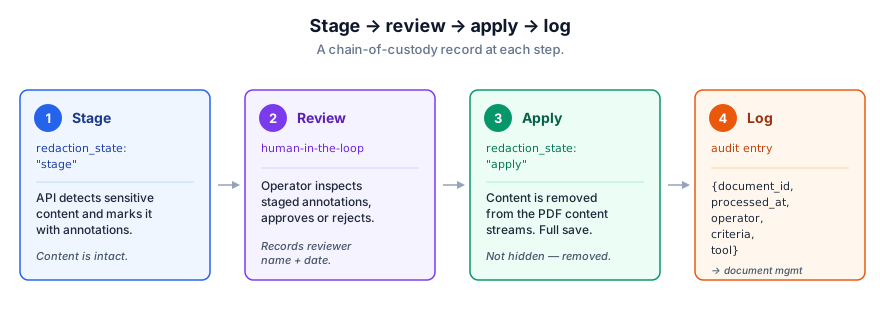
Nutrient’s DWS Processor API exposes two redaction states — stage and apply — that anchor the chain-of-custody workflow described below.
Setting redaction_state: "stage" instructs the API to detect sensitive content and mark it without removing it. The response identifies what was found before you commit to applying.
curl -X POST https://api.nutrient.io/ai/redact \
-H "Authorization: Bearer $NUTRIENT_KEY" \
-H "Content-Type: multipart/form-data" \
-F 'data={
"documents":[{"documentId":"file1"}],
"criteria":"All personally identifiable information (PII)",
"redaction_state":"stage"
}' \
-F 'file1=@contract.pdf' \
-o staged-for-review.pdf
The returned document contains redaction annotations showing what the AI detected, with the underlying content still intact. A human reviewer can inspect this document, confirm coverage, add missed items, or remove false positives before the apply step.
This staged document and the review record form the first part of your audit trail.
Once review is complete, apply the staged redactions. Content is removed — not hidden — from the PDF’s content streams at this step.
curl -X POST https://api.nutrient.io/ai/redact \
-H "Authorization: Bearer $NUTRIENT_KEY" \
-H "Content-Type: multipart/form-data" \
-F 'data={
"documents":[{"documentId":"file1"}],
"criteria":"All personally identifiable information (PII)",
"redaction_state":"apply"
}' \
-F 'file1=@staged-for-review.pdf' \
-o final-redacted.pdf
After each apply operation, write an audit log entry combining data from the API response and your application layer. At minimum, capture:
{
"document_id": "contract-2026-001",
"processed_at": "2026-04-15T10:23:44Z",
"operator": "redaction-service@yourcompany.com",
"redaction_criteria": "All personally identifiable information (PII)",
"redaction_state": "apply",
"tool": "Nutrient DWS Processor API"
}
Store this entry in your document management system, linked to the redacted output file. For HIPAA-covered entities, it satisfies part of the audit controls required under §164.312(b). For GDPR, it supports your Article 30 records of processing.
Auditors regularly ask one more question when cloud APIs are in the chain: Did the service store the document? Nutrient DWS Processor API doesn’t — files are permanently deleted from the processing environment after each request. Include that fact in your audit log entry. We’ve seen it come up in every HIPAA and GDPR review we’ve worked on involving third-party processors.
Use this checklist when preparing redacted documents for regulatory review, discovery responses, or third-party disclosure.
Before redaction
Document the redaction criteria (for example: "all PII as defined under GDPR Article 4(1)" or "SSNs, account numbers, and PHI").
Record the document identifier, version, and date received.
Identify the regulatory basis for each redaction category.
During redaction
Use redaction_state: "stage" for an initial AI-assisted detection pass via the Nutrient DWS Processor API.
Conduct human review of staged annotations before applying.
Document the reviewer’s name and review date.
Note any manual additions or removals from the AI-detected set.
After redaction
Run text extraction verification (level 2 above) and confirm absence of redacted content.
Check document metadata fields for residual sensitive data.
Store the API response log alongside the output document.
Retain the staged (pre-apply) document for reference if review is challenged.
Record the final operator, apply timestamp, and tool version.
For legal discovery specifically
Prepare a privilege log entry for each redacted document: document description, date, author, redaction basis, and exemption claimed.
Confirm the ESI protocol in the litigation hold covers redaction logging requirements.
Redaction addresses visible content. Complete document sanitization also requires the removal of metadata, annotations, embedded files, and revision history that survive the redaction step.
Redacted PDFs commonly carry these metadata exposure risks:
Run a metadata sanitization step after applying redactions. Nutrient Web SDK supports both operations in a single workflow.
Nutrient’s AI-assisted redaction assigns a confidence score to every detection. High-confidence hits — like a Social Security number in a form field labeled “SSN” — are candidates for automated application. Lower-confidence detections, where the model flagged something potentially sensitive depending on context, belong in a human review queue.
Log those scores. Set explicit thresholds (auto-apply above this, flag for review below) and record the thresholds alongside each decision. For GDPR, that threshold policy and its per-document results belong in your Article 30(opens in a new tab) records of processing. For HIPAA, they strengthen §164.312(b)(opens in a new tab) audit controls by showing not just what was removed, but why the system classified it as sensitive in the first place.
Most redaction failures aren’t technical; the content gets removed. The failure is documentation: The team can’t show when it happened, who authorized it, or what criteria were applied. That missing record is what turns a routine compliance review into a problem.
The stage-review-apply-log workflow adds minimal overhead compared to running automatic redaction without staging. The difference is what you have at the end: a record to hand an auditor, a regulator, or opposing counsel.
Explore Nutrient’s redaction solutions or contact our solutions engineers for help mapping the workflow to your specific compliance requirements.
Staging marks content for redaction without removing it — the black box appears visually but the text is still in the PDF’s content stream and can be extracted. Applying is the permanent step: The content is removed from the stream entirely. The distinction matters for compliance because only applied redactions constitute actual data removal. A staged-but-not-applied document is still a data exposure risk.
Run a text extraction tool against the output file. pdftotext(opens in a new tab), PyMuPDF(opens in a new tab), and Apache PDFBox(opens in a new tab) all work. If the sensitive content appears in the extraction output, the redaction was never applied — only staged. Also check document metadata separately, since metadata fields live outside the page content streams and won’t show up in a text extraction test. If you’re using the Nutrient AI redaction API, the request itself records whether you called "stage" or "apply", so your audit log makes this distinction unambiguous.
The minimum under Articles 17 and 30: document identifier, processing timestamp, legal basis for the erasure, redaction criteria used, and the operator or system that performed it. Article 30 requires this as part of your records of processing activities, and if you’re responding to a subject erasure request under Article 17, you’ll also need to be able to show that the request was fulfilled and when.
No. Text extraction tells you the PHI is absent from the output file, but HIPAA’s audit controls standard (§164.312(b)(opens in a new tab)) also requires a log of who accessed or modified the record and when. The technical check plus an operator-and-timestamp log together cover the requirement. The check alone doesn’t.
In US civil litigation, Federal Rule of Civil Procedure 26(b)(5)(opens in a new tab) requires you to expressly claim any privilege you assert and to describe the withheld or redacted material in enough detail for opposing counsel to assess the claim — typically attorney-client, work product, or other privilege. In practice, this means a privilege log entry for each redacted or withheld item, specific enough that the privilege claim can be evaluated. Your redaction workflow’s audit record is what makes that log possible to produce quickly and accurately.
No. PDF redaction operates on page content streams. The document metadata (author, title, subject, creation date, and custom fields) is stored separately and untouched by redaction. Run a dedicated sanitization pass to clear it. Nutrient Web SDK handles both operations — redaction and metadata removal — in a single workflow, so you don’t need separate tools. For documents going to external parties, treating redaction and metadata removal as two separate checklist items is the safer approach regardless of tooling.
Yes. The value isn’t just in the score itself — it’s in having a documented, consistent threshold policy. If you can show that your workflow auto-applied detections above a defined confidence level and routed everything below it for human review, that’s a defensible process. An auditor asking “how did you decide what to redact?” gets a clear answer. Without logged thresholds, that question is more difficult to answer.
此内容由惯性聚合(RSS阅读器)自动聚合整理,仅供阅读参考。 原文来自 — 版权归原作者所有。