








Table of contents
This article explores the various aspects of using Tesseract OCR with Python, covering everything from basic setup and configuration, to advanced techniques such as image preprocessing, multilingual text recognition, and performance optimization. By the end, you’ll have a comprehensive understanding of how to effectively leverage Tesseract OCR in your projects.
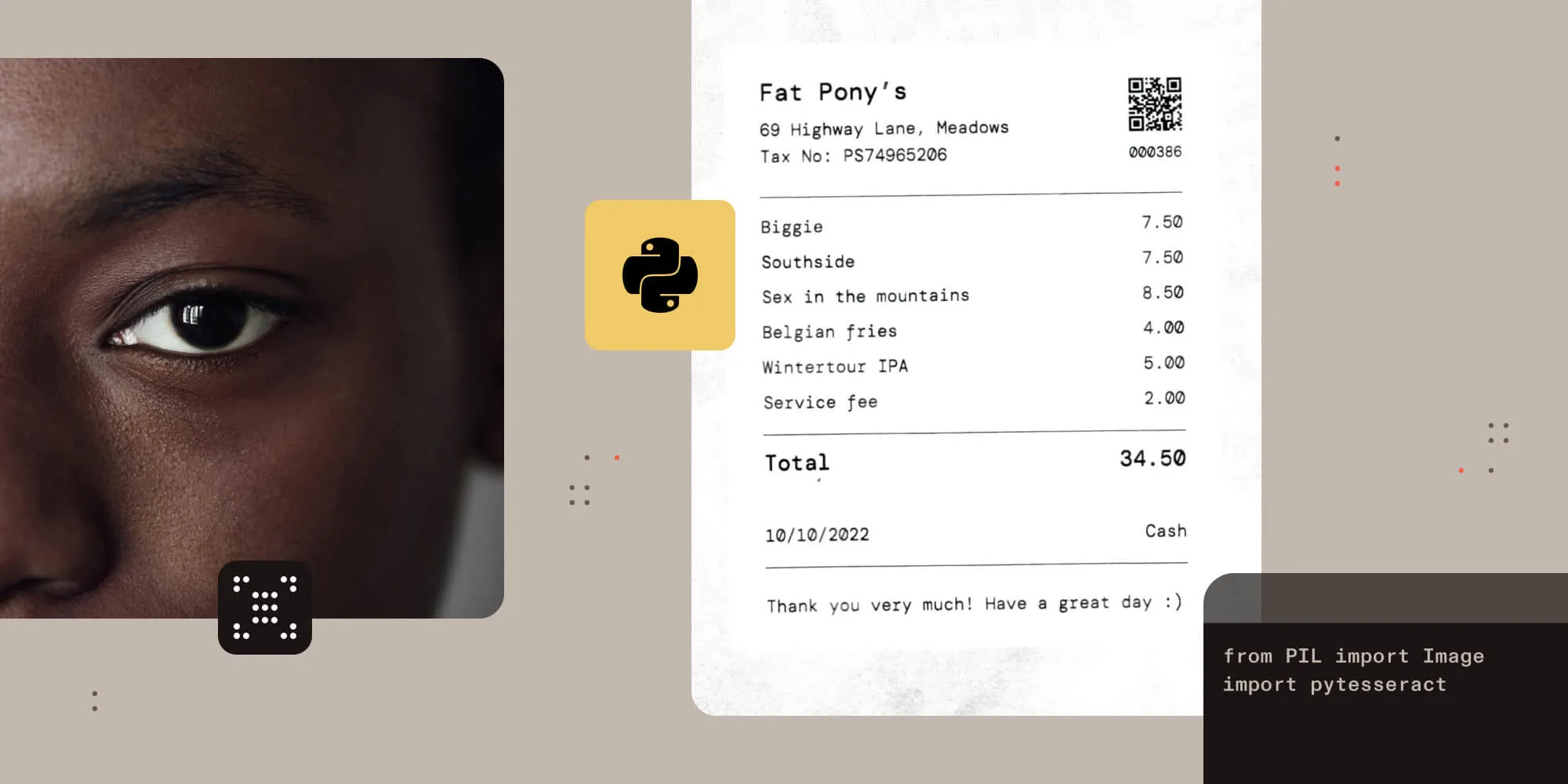
Tesseract OCR(opens in a new tab) is widely regarded as one of the most powerful open source optical character recognition (OCR) engines available today. When integrated with Python, it becomes a versatile tool that enables developers to extract text from images with remarkable accuracy.
What is Tesseract?
Originally developed by HP and maintained by Google since 2006, Tesseract recognizes more than 100 languages. It’s highly flexible, allowing users to extract text from scanned documents, images, and PDFs. With the right tools, you can integrate Tesseract into your Python projects to automate data extraction and streamline workflows.
Prerequisites
Before diving into the implementation of Tesseract OCR with Python, ensure you have the following prerequisites:
- Installation of Python environment — Install Python on your system. You can download it from the official Python website(opens in a new tab).
- Pip package manager — If you don’t have pip installed, follow these steps:
- Windows — Pip comes bundled with Python. If it’s missing, download
get-pip.py(opens in a new tab) and run:
- Windows — Pip comes bundled with Python. If it’s missing, download
- macOS/Linux — Open a terminal and run:
sudo apt install python3-pip # For Debian-based Linux
sudo dnf install python3-pip # For Fedora-based Linux
brew install python # For macOS (via Homebrew)
- OpenCV library — This is required for image preprocessing tasks such as grayscale conversion, thresholding, and noise removal. Install it using:
pip install opencv-python
- NumPy library — Used for handling numerical operations on image data. Install it using:
- Pillow — This is a fork of the Python Imaging Library (PIL), which you’ll need to open image files:
Setting up Tesseract with Python
Installation
To get started with Tesseract OCR in Python, you must first install both the Tesseract OCR engine and the pytesseract(opens in a new tab) library, which acts as a wrapper for interfacing with Tesseract from within Python scripts.
Installing Tesseract
- Windows — Download the Windows installer from Tesseract’s official repository(opens in a new tab) and follow the installation instructions provided.
- macOS — Install Tesseract using Homebrew, a package manager for macOS, by executing the following command:
- Linux — Most Linux distributions include Tesseract in their package repositories, so you can install it using APT with the following command:
sudo apt install tesseract-ocr
- For Fedora-based distributions, use:
sudo dnf install tesseract
After installation, make sure Tesseract is available in your system’s PATH, or provide the direct path in your code.
Installing pytesseract
Once Tesseract is installed on your system, install the pytesseract(opens in a new tab) library using Python’s package manager, pip:
Verifying installation
To ensure Tesseract has been installed correctly, open a terminal or command prompt and run the following command:
If the installation was successful, the terminal will display the version number of Tesseract, along with other relevant details.
How to use Tesseract with Python
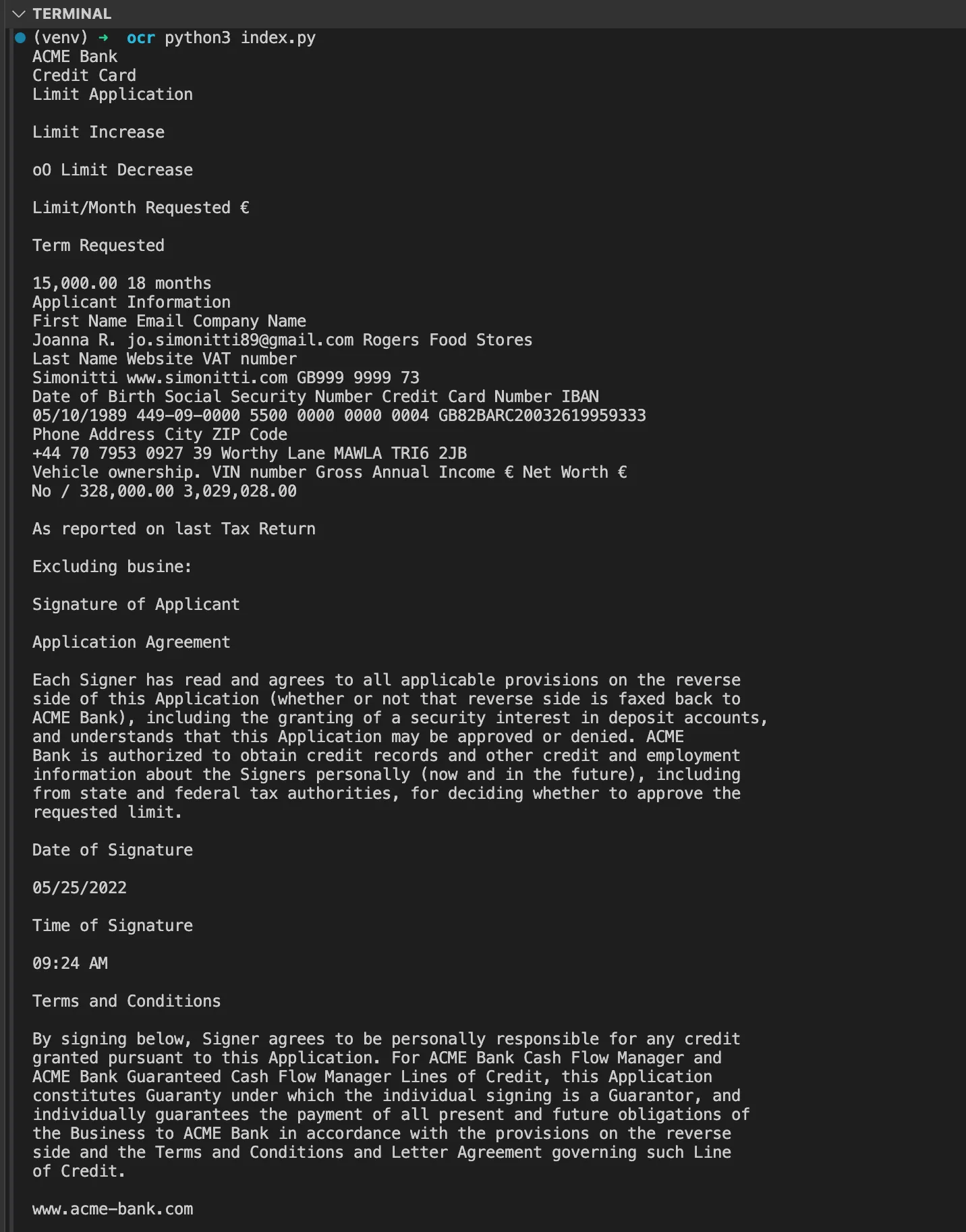
To demonstrate how Tesseract extracts text from an image, this example uses a sample image containing some printed text.
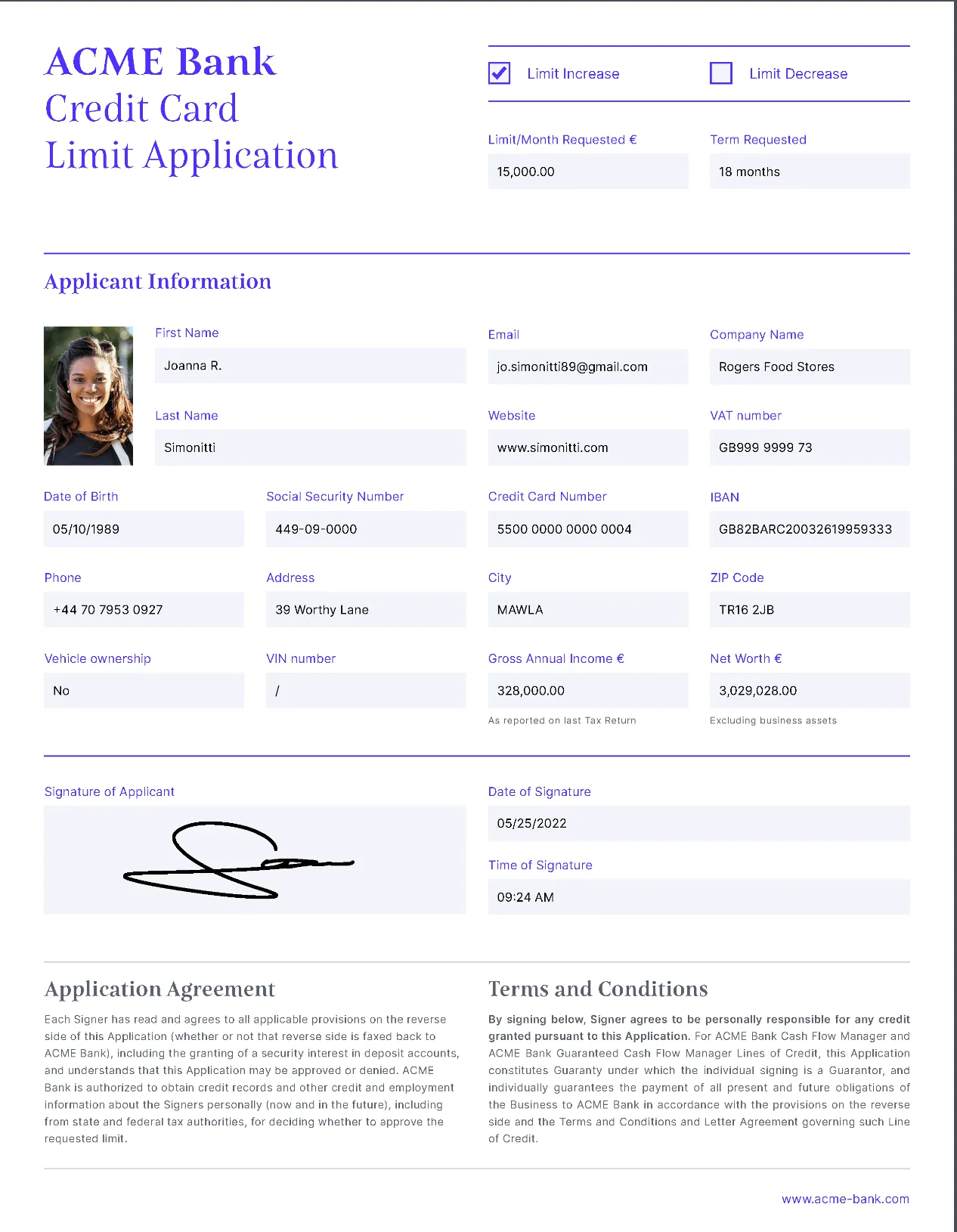
Use this code to get started with OCR using Tesseract and Python:
from PIL import Image
import pytesseract
# Open an image file.
image = Image.open('example.png')
# Use pytesseract to do OCR on the image.
text = pytesseract.image_to_string(image)
# Print the extracted text.
print(text)
In this example:
- Open an image file using Pillow.
- Pass the image to
pytesseract.image_to_string()to extract the text.
Understanding OpenCV (cv2)
Before working with image preprocessing, it’s essential to understand OpenCV(opens in a new tab), which is commonly used with Tesseract OCR. OpenCV is an open source computer vision library that allows image and video processing in Python. The cv2 module, which is part of OpenCV, provides various functions to manipulate and enhance images before passing them to the OCR engine.
Key features of OpenCV (cv2)
- Reading and writing images — OpenCV enables loading, displaying, and saving images using functions like
cv2.imread()andcv2.imwrite(). - Image preprocessing — It provides various image enhancement techniques, such as grayscale conversion, thresholding, noise removal, and edge detection.
- Geometric transformations — Functions like rotation, resizing, and deskewing help in improving OCR accuracy.
- Object and text detection — OpenCV supports contour detection, which is useful for extracting regions of interest in images containing text.
Image preprocessing for better OCR accuracy
The accuracy of Tesseract OCR is highly dependent on the quality of the input images. Poorly processed images can lead to misinterpretation of characters, reducing the reliability of the extracted text. To mitigate these issues, various image preprocessing techniques can be applied before passing an image to Tesseract for text recognition.
Grayscale conversion
Converting an image to grayscale reduces the complexity of the image by eliminating unnecessary color information, making it easier for Tesseract to focus on text detection:
import cv2
image = cv2.imread('image.png')
gray = cv2.cvtColor(image, cv2.COLOR_BGR2GRAY)
cv2.imwrite('gray_image.png', gray)
Thresholding
Thresholding(opens in a new tab) is a technique that helps separate text from a background by converting an image into a binary format where pixels are either black or white:
thresh = cv2.threshold(gray, 0, 255, cv2.THRESH_BINARY + cv2.THRESH_OTSU)[1]
cv2.imwrite('thresholded_image.png', thresh)
The code above applies Otsu’s thresholding(opens in a new tab) to a grayscale image, converting it into a binary image where pixels are either black or white. The thresholded result is then saved as thresholded_image.png.
Noise removal
Noise, such as small speckles or distortions, can interfere with OCR. The following code, broken down into steps, applies image processing techniques to remove noise and improve text clarity.
Step 1
Load and convert to grayscale:
import cv2
import numpy as np
image = cv2.imread('fax.jpg')
gray = cv2.cvtColor(image, cv2.COLOR_BGR2GRAY)
cv2.imwrite('gray_image.png', gray)
- Loads the image and converts it to grayscale for simpler processing.
Step 2
Apply a bilateral filter:
denoised = cv2.bilateralFilter(gray, 9, 75, 75)
- Reduces noise while preserving edges using a bilateral filter.
Step 3
Sharpen the image:
kernel = np.array([[0, -1, 0], [-1, 5, -1], [0, -1, 0]])
sharpened = cv2.filter2D(denoised, -1, kernel)
- Sharpens the image by enhancing edges with a kernel filter.
Step 4
Save the processed image:
cv2.imwrite('denoised_image.png', sharpened)
- Saves the final sharpened and denoised image.
Why does this matter for OCR?
- Reduces noise, making text more readable.
- Preserves important details while removing unwanted distortions.
- Improves OCR accuracy, as clearer text leads to better recognition.
Deskewing for better OCR accuracy
After applying thresholding, some scanned documents may have tilted text, affecting OCR accuracy. Deskewing corrects this misalignment, ensuring Tesseract processes the text properly:
coords = np.column_stack(np.where(thresh > 0)) # Find non-zero pixel coordinates.
angle = cv2.minAreaRect(coords)[-1] # Calculate the skew angle
# Adjust the angle for the correct rotation.
if angle < -45:
angle = -(90 + angle)
else:
angle = -angle
# Rotate the image to correct the skew.
(h, w) = thresh.shape[:2]
center = (w // 2, h // 2)
M = cv2.getRotationMatrix2D(center, angle, 1.0)
deskewed = cv2.warpAffine(thresh, M, (w, h), flags=cv2.INTER_CUBIC, borderMode=cv2.BORDER_REPLICATE)
cv2.imwrite('deskewed_image.png', deskewed)
By detecting the text angle and rotating the image, this method straightens skewed text, improving OCR results.
Multilingual text recognition
Tesseract supports multiple languages, making it a valuable tool for extracting text in different scripts and dialects. To enable multilingual OCR, the required language data files must be correctly installed and configured.
Language data files
Tesseract provides language data files that can be downloaded from Tesseract’s language repository(opens in a new tab) and placed in the tessdata directory of the Tesseract installation.
Configuring language in pytesseract
To instruct Tesseract to recognize multiple languages in an image, specify the desired languages in the lang parameter of pytesseract.image_to_string():
import pytesseract
text = pytesseract.image_to_string(image, lang='eng+fra')
print(text)
Advanced configuration options
Page segmentation modes (PSM)
Tesseract offers various page segmentation modes (PSM)(opens in a new tab) that determine how text is segmented within an image. For example:
text = pytesseract.image_to_string(image, config='--psm 6')
Common PSM modes include:
- 3 — Fully automatic page segmentation.
- 6 — Assumes a single uniform block of text.
- 11 — Sparse text with no predefined order.
OCR engine modes (OEM)
Tesseract supports multiple OCR engine modes (OEM), which define the underlying text recognition approach:
text = pytesseract.image_to_string(image, config='--oem 1')
Common OEM modes include:
- 0 — Uses the legacy OCR engine only.
- 1 — Uses the LSTM-based OCR engine.
- 3 — Uses a combination of the legacy and LSTM engines.
Allowed and disallowed characters
To improve accuracy, Tesseract allows restricting recognition to specific characters:
custom_config = r'--psm 6 -c tessedit_char_whitelist=ABCDEFGHIJKLMNOPQRSTUVWXYZ0123456789'
text = pytesseract.image_to_string(image, config=custom_config)
Tesseract can extract text from PDFs by converting them to images. Ensure you have Poppler(opens in a new tab) installed first.
Installing Poppler
First, install Poppler:
- macOS —
brew install poppler - Ubuntu —
sudo apt-get install poppler-utils - Windows — Download Poppler(opens in a new tab) and add it to your
PATH.
Then, use this code:
import pytesseract
from pdf2image import convert_from_path
# Convert PDF to images.
images = convert_from_path('example.pdf')
# Extract text from the first page.
text = pytesseract.image_to_string(images[0])
print(text)
You’ll need to install pdf2image using:
Tips for improving OCR accuracy
- Use higher-quality images — The better the quality of the image, the more accurate the OCR.
- Preprocess images — Use techniques such as thresholding, contrast adjustment, and noise removal to enhance the text’s visibility.
- Use Tesseract configuration options — Tesseract provides several configuration options for fine-tuning the OCR process. For example:
custom_config = r'--oem 3 --psm 6'
text = pytesseract.image_to_string(image, config=custom_config)
--oem 3tells Tesseract to use the default OCR engine mode.--psm 6sets the page segmentation mode for better layout analysis.
Common OCR challenges and how to solve them
1. Low-quality images
To deal with blurry or noisy images, apply preprocessing steps like:
- Denoising —
cv2.fastNlMeansDenoising() - Binarization —
cv2.threshold()
2. Text in different fonts or styles
Tesseract may struggle with complex fonts or distorted text. In such cases, try training Tesseract on custom fonts, or use additional image processing to make the text clearer.
3. Non-standard characters
If Tesseract isn’t recognizing special characters or symbols, ensure you have the correct language data and adjust the OCR engine settings for better accuracy.
Nutrient OCR solutions and features
Nutrient provides advanced OCR capabilities across multiple platforms, enabling text extraction from scanned PDFs and images. These features help make documents searchable, editable, and more accessible.
Nutrient products supporting OCR
- Web SDK — Supports OCR when used with Document Engine in server-backed mode.
- .NET SDK — Provides OCR functionality for Windows applications.
- iOS SDK — Enables text recognition in iOS apps.
- Android SDK — Offers OCR capabilities for Android applications.
- Mac Catalyst — Supports OCR for macOS development.
- React Native SDK — Allows OCR integration in cross-platform mobile apps.
- Flutter SDK — Provides OCR features for Flutter-based applications.
- Java SDK — Includes robust OCR support for Java applications.
- Document Converter — Adds OCR functionality for SharePoint and server-based conversions (available from version 7.1).
- Nutrient API for OCR — Check out our Using Tesseract OCR with Python for image text extraction blog post for implementation details.
Key features of Nutrient OCR products
- Multi-language support — Recognizes text in multiple languages for global usability.
- Searchable PDFs — Converts scanned documents into searchable and selectable text.
- High accuracy — Uses advanced text recognition algorithms for precise extraction.
- Layout retention — Preserves document structure, including tables and columns.
- Batch processing — Processes multiple pages and documents efficiently.
- Integration with AI/ML — Enhances text extraction with AI-powered features.
- Cross-platform compatibility — Supports various platforms, including Web, .NET, iOS, Android, React Native, Flutter, Java, and macOS.
- SharePoint and server support — Available in Document Converter for server-based and SharePoint OCR workflows.
OCR may require an additional license component. For more details, visit Nutrient OCR solutions or contact Sales.
Conclusion
Tesseract OCR, when combined with Python, provides an efficient and highly customizable solution for text recognition. By applying proper image preprocessing techniques, configuring Tesseract effectively, and optimizing performance, developers can achieve exceptional OCR accuracy. Whether your goal is automating data entry, digitizing historical documents, or developing real-time text recognition applications, Tesseract Python offers the necessary flexibility and power to handle a wide range of OCR tasks.
For those seeking even more advanced OCR solutions, Nutrient offers a suite of robust, multi-platform products that enhance and extend OCR capabilities. With features like searchable PDFs, batch processing, AI/ML integration, and cross-platform compatibility, Nutrient products provide an ideal complement to Tesseract. To discover how Nutrient can transform your OCR workflows and address your specific needs, contact Sales for more information.
Related Python guides
- Watermark PDFs with Python
- Generate PDF invoices with Python
- Convert HTML to PDF with Python
- Extract text from PDF with Python
OCR and document processing
- Combine OCR with redaction in Java
- Barcode OCR
- Document searchability best practices
- AI-powered redaction
FAQ
Tesseract OCR leverages advanced image processing and recognition algorithms to extract text from images. When combined with Python libraries like pytesseract, it provides a streamlined process for converting images and scanned documents into editable text.
Enhancing Tesseract OCR accuracy involves using high-quality images and applying preprocessing techniques such as grayscale conversion, thresholding, and noise removal. Additionally, fine-tuning configurations like page segmentation modes (PSM) and OCR engine modes (OEM) can lead to significantly improved results.
Nutrient provides a suite of OCR products that extend the capabilities of Tesseract by integrating advanced features like batch processing, AI-powered text recognition, and seamless multi-platform support. These enhancements simplify document management and boost overall processing efficiency.
Nutrient Web SDK is tailored for web-based OCR applications. It integrates smoothly with Tesseract OCR through our robust Document Engine, offering a user-friendly interface and reliable performance for extracting text from web-delivered documents and images.
The Nutrient API for OCR offers a scalable and flexible solution for automating text extraction. It supports multiple platforms, simplifies complex document workflows, and provides advanced configuration options that allow businesses to optimize their OCR processes.