





Table of contents
Want to build a PDF editor that responds to natural language commands? This guide shows you how to add Nutrient AI Assistant to a Nutrient Web SDK PDF viewer. You’ll learn how to set up the AI backend, configure secure JWT authentication, and create a local development environment where users can summarize, translate, redact, or ask questions about any PDF just by typing a prompt.
TL;DR
This tutorial walks you through adding AI features like summarization, translation, redaction, and Q&A to your PDF viewer using Nutrient Web SDK. You’ll set up the AI Assistant backend and JWT-based authentication and embed a chat assistant directly in the viewer. Want to see it in action? Clone the full demo from GitHub(opens in a new tab).
Introduction
Nutrient AI Assistant brings intelligent document processing (IDP) directly to your browser. Legal professionals can quickly summarize contracts, educators can translate materials for multilingual classrooms, and finance teams can redact sensitive data before sharing. By letting users interact with PDFs naturally, AI Assistant streamlines workflows and saves hours of manual work.
What AI Assistant does
Traditional document editing is often repetitive and manual. Nutrient AI Assistant improves this by enabling natural language interactions directly inside the viewer. Once integrated, users can:
Ask context-aware questions e.g. “What’s the deadline in this contract?”
Summarize long documents or specific pages e.g. “Summarize this agreement in three bullet points.”
Redact personally identifiable information (PII) or sensitive data semantically e.g. “Redact all phone numbers and email addresses.”
Toggle the assistant UI on/off Optional UI integration; non-blocking for workflows.
These capabilities make the assistant suitable for document-heavy apps in legal tech, enterprise productivity, education, and finance.
Overview
By following along with this article, you’ll build:
- A web PDF viewer using Nutrient Web SDK
- A running AI Assistant backend (via Docker)
- A secure Express server issuing JSON Web Tokens (JWTs) for authentication
- AI features that enable you to summarize, translate, redact, and ask questions/get answers
You’ll end up with a fully functional AI PDF editor that works locally, with real document input and AI-powered commands.
Prerequisites
- Docker and Docker Compose installed — Install Docker(opens in a new tab) and Docker Compose(opens in a new tab)
- Node.js + npm installed — Install Node.js 20+(opens in a new tab)
- An OpenAI API key — Get an API key(opens in a new tab)
- Git and a terminal
This guide is intended for developers familiar with Node.js and basic Docker usage. If you’re new to these technologies, refer to the linked resources for setup instructions before proceeding.
Clone the demo project (fastest way)
If you want to skip the manual setup and see a full working example, run:
git clone https://github.com/PSPDFKit/ai-assistant-demo.git
cd ai-assistant-demo
Then, run the following commands in your terminal:
export OPENAI_API_KEY="your-openai-api-key"
docker compose up -d
Once AI Assistant is ready, you’ll see this message in the ai-assistant container logs:
info: AI Assistant started
After that, start the sample web application by running:
Visit the URL shown in your terminal. You’ll see a PDF loaded in Nutrient Web SDK. Click the AI Assistant icon in the toolbar to start interacting with your document using natural language.
To build it from scratch, continue to the next steps.
Set up the AI Assistant backend with Docker
Docker Compose(opens in a new tab) orchestrates the AI backend, Document Engine, and database, ensuring all services communicate securely and reliably.
Create a docker-compose.yml file
This file defines three services:
ai-assistant— The AI-processing backend service that handles AI requests and communicates with LLM providers.document_engine— The document processing and collaboration service that manages document storage and access.db— A PostgreSQL instance using the [pgvector][] extension for vector storage.
version: "3.8"
services:
ai-assistant:
image: pspdfkit/ai-assistant:1.3.0
environment:
OPENAI_API_KEY: <your-openai-api-key>
DE_URL: http://document_engine:5000
DE_API_AUTH_TOKEN: secret
PGUSER: db-user
PGPASSWORD: password
PGDATABASE: ai_assistant
PGHOST: db
PGPORT: 5432
API_AUTH_TOKEN: secret
JWT_PUBLIC_KEY: |
-----BEGIN PUBLIC KEY-----
MIIBIjANBgkqhkiG9w0BAQEFAAOCAQ8AMIIBCgKCAQEA2gzhmJ9TDanEzWdP1WG+
0Ecwbe7f3bv6e5UUpvcT5q68IQJKP47AQdBAnSlFVi4X9SaurbWoXdS6jpmPpk24
QvitzLNFphHdwjFBelTAOa6taZrSusoFvrtK9x5xsW4zzt/bkpUraNx82Z8MwLwr
t6HlY7dgO9+xBAabj4t1d2t+0HS8O/ed3CB6T2lj6S8AbLDSEFc9ScO6Uc1XJlSo
rgyJJSPCpNhSq3AubEZ1wMS1iEtgAzTPRDsQv50qWIbn634HLWxTP/UH6YNJBwzt
3O6q29kTtjXlMGXCvin37PyX4Jy1IiPFwJm45aWJGKSfVGMDojTJbuUtM+8P9Rrn
AwIDAQAB
-----END PUBLIC KEY-----
JWT_ALGORITHM: RS256
DASHBOARD_USERNAME: dashboard
DASHBOARD_PASSWORD: secret
SECRET_KEY_BASE: secret-key-base
ports:
- 4000:4000
depends_on:
document_engine:
condition: service_started
db:
condition: service_healthy
document_engine:
image: pspdfkit/document-engine:1.9.0
environment:
PGUSER: db-user
PGPASSWORD: password
PGDATABASE: pspdfkit
PGHOST: db
PGPORT: 5432
API_AUTH_TOKEN: secret
SECRET_KEY_BASE: secret-key-base
JWT_PUBLIC_KEY: |
-----BEGIN PUBLIC KEY-----
MIIBIjANBgkqhkiG9w0BAQEFAAOCAQ8AMIIBCgKCAQEA2gzhmJ9TDanEzWdP1WG+
0Ecwbe7f3bv6e5UUpvcT5q68IQJKP47AQdBAnSlFVi4X9SaurbWoXdS6jpmPpk24
QvitzLNFphHdwjFBelTAOa6taZrSusoFvrtK9x5xsW4zzt/bkpUraNx82Z8MwLwr
t6HlY7dgO9+xBAabj4t1d2t+0HS8O/ed3CB6T2lj6S8AbLDSEFc9ScO6Uc1XJlSo
rgyJJSPCpNhSq3AubEZ1wMS1iEtgAzTPRDsQv50qWIbn634HLWxTP/UH6YNJBwzt
3O6q29kTtjXlMGXCvin37PyX4Jy1IiPFwJm45aWJGKSfVGMDojTJbuUtM+8P9Rrn
AwIDAQAB
-----END PUBLIC KEY-----
JWT_ALGORITHM: RS256
DASHBOARD_USERNAME: dashboard
DASHBOARD_PASSWORD: secret
ports:
- 5000:5000
depends_on:
- db
db:
image: pgvector/pgvector:pg16
healthcheck:
test: ["CMD-SHELL", "pg_isready -U db-user"]
interval: 3s
timeout: 3s
retries: 10
environment:
POSTGRES_USER: db-user
POSTGRES_PASSWORD: password
POSTGRES_DB: ai_assistant
POSTGRES_INITDB_ARGS: --data-checksums
PGDATA: /var/lib/postgresql/data/pgdata
volumes:
- pgdata:/var/lib/postgresql/data
volumes:
pgdata:
The table below shows a breakdown of the key environment variables.
| Variable | Description |
|---|---|
OPENAI_API_KEY | Your OpenAI API key for AI processing (can be configured to use other providers via service-config.yml) |
DE_URL | URL for the Document Engine service |
DE_API_AUTH_TOKEN | Secret for authenticating AI Assistant with Document Engine |
PGUSER/PGPASSWORD | Database credentials for PostgreSQL |
JWT_PUBLIC_KEY | Public key for verifying JWTs |
DASHBOARD_USERNAME | Login for the Document Engine dashboard |
Replace <your-openai-api-key> with your actual OpenAI API key.
While this tutorial uses OpenAI for simplicity, AI Assistant supports multiple LLM providers, including AWS Bedrock, Azure, and locally hosted models. You can configure alternative providers using a service-config.yml file. See the AI configuration guides for details.
Then run:
Wait until you see:
`ai_assistant | info: AI Assistant started`
This indicates the AI Assistant backend is running and ready to accept requests.
Upload a document to Document Engine
Open
http://localhost:5000/dashboardin your browser. This is the Document Engine dashboard where you can manage documents.Log in with:
- Username:
dashboard - Password:
secret
- Username:
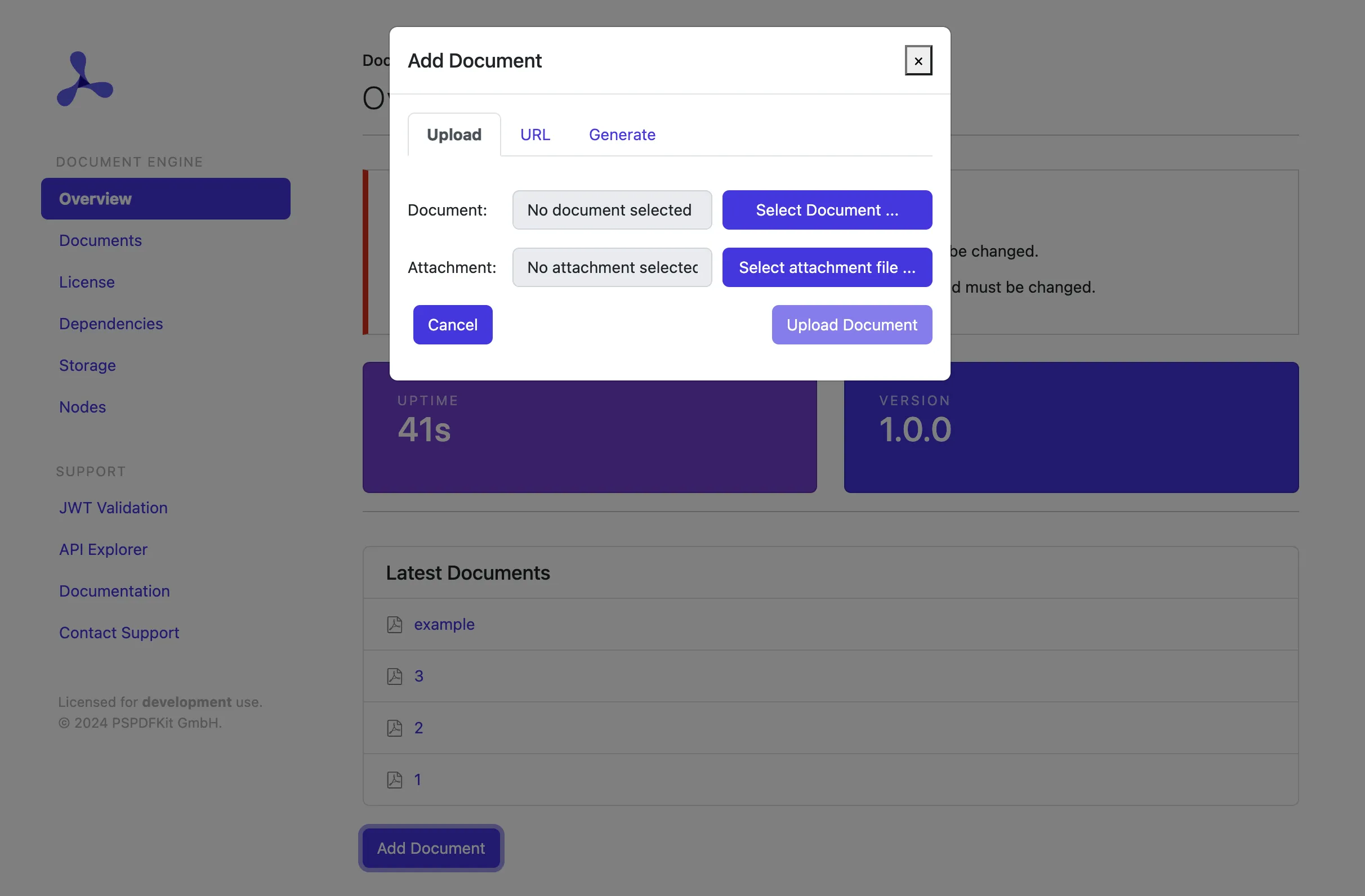
Click Add Document to upload a file. After uploading the document, go to
http://localhost:5000/dashboard/documentsto view the list of available documents. Each document is assigned a unique ID. Make sure to remember the ID of the document you just uploaded, as you’ll need it soon.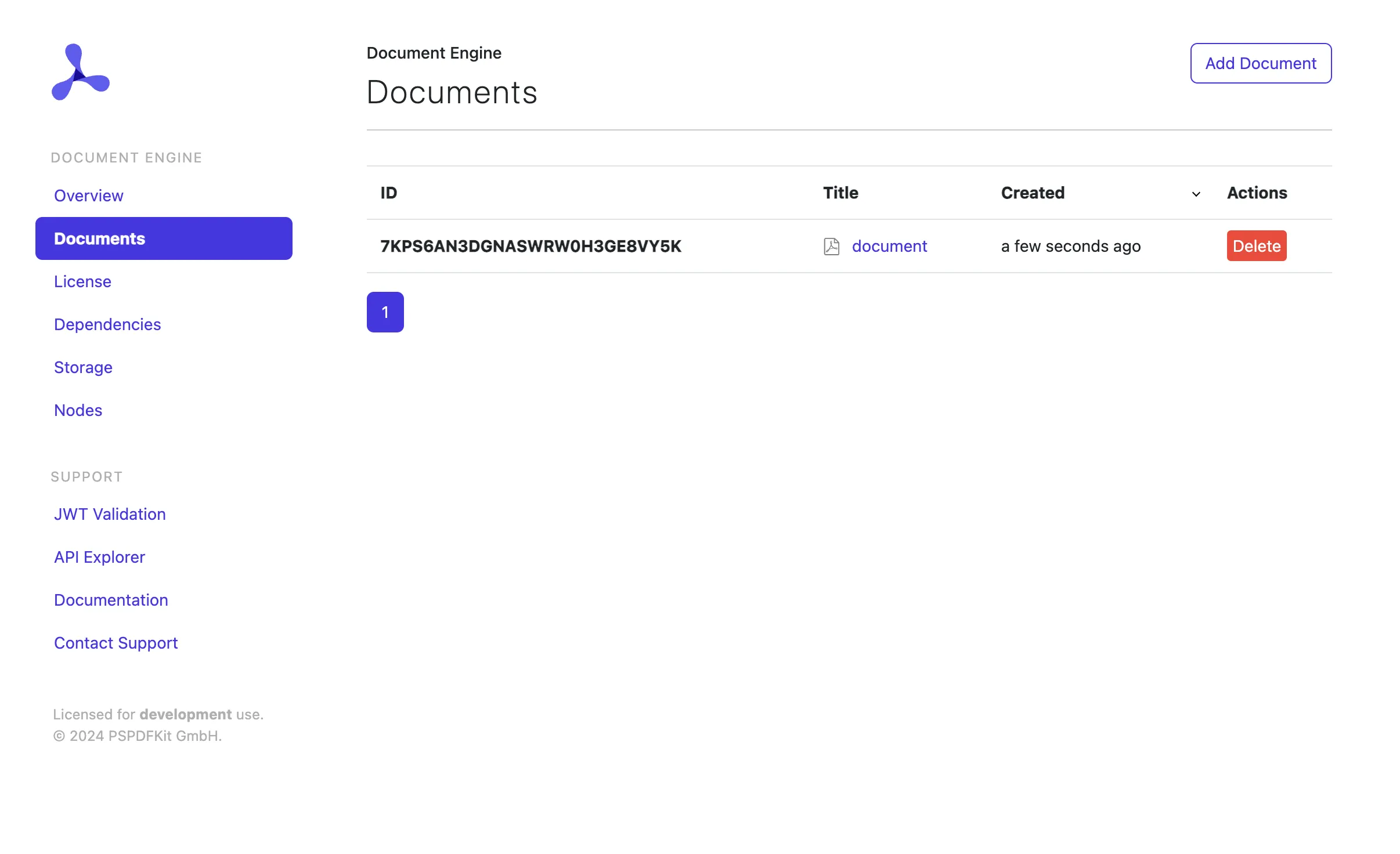
Set up the web viewer using Node.js
You’ll be using Express(opens in a new tab), a popular Node.js web framework. To quickly set up a new Express app, you can use the official Express generator:
npx express-generator nutrient_example --view=ejs
cd nutrient_example
npm install
Add document viewer routes
Next, you need to create a page that displays a document stored in Document Engine.
This page should be accessible at the URL pattern http://localhost:3000/documents/:id, where :id corresponds to the document ID assigned by Document Engine during upload.
To implement this, create a new route to handle document display, and integrate it into your Express app.
Create a new file at
./routes/documents.jswith the following content:var express = require("express");
var router = express.Router();
router.get("/:documentId", function (req, res, next) {
res.render("documents/show", { documentId: req.params.documentId });
});
module.exports = router;
This route captures the
documentIdfrom the URL and passes it to the view for rendering.Create a view template at
./views/documents/show.ejswith minimal HTML to display the document ID:<h1>Show document <%= documentId %></h1>
This view will display the document ID passed from the route handler. Later, you’ll enhance this page to load and display the actual document using Nutrient Web SDK.
In your
./app.jsfile, import and register the new route:const indexRouter = require("./routes/index");
const usersRouter = require("./routes/users");
const documentsRouter = require("./routes/documents");
// ...
app.use("/", indexRouter);
app.use("/users", usersRouter);
app.use("/documents", documentsRouter);
This ensures that any request to
/documents/:idis handled by your new route.Stop and restart your Express server to apply the changes. Now, you can visit:
http://localhost:3000/documents/:your-document-id
Replace your-document-id with an actual document ID from Document Engine. You’ll see a simple page that says:
Show document your-document-id
Secure viewer with JWT
JSON Web Tokens(opens in a new tab) (JWTs) authenticate viewer sessions and enforce permissions, ensuring only authorized users can access or modify documents.
To ensure only authorized users can view or edit documents, Nutrient Web SDK uses JWTs for authentication. When a user opens a document, your Express backend generates a JWT containing their permissions and the document ID. This token is signed with your private RSA key and verified by Document Engine using the public key you configured in Docker Compose. This approach provides secure, stateless authentication for every viewer session.
First, install the
jsonwebtokenpackage:Then stop and restart the Express server.
You need a private-public RSA key pair for signing and verifying JWTs.
Use the private key in your Express app to sign tokens. The public key is configured in Document Engine’s
docker-compose.ymlfile using theJWT_PUBLIC_KEYenvironment variable.For a quick out-of-the-box experience, you can use the demo keys from the AI Assistant demo repository(opens in a new tab). Create a file named
jwt.peminside./config/pspdfkit/and copy the private key:mkdir -p config/pspdfkit
curl -o config/pspdfkit/jwt.pem https://raw.githubusercontent.com/PSPDFKit/ai-assistant-demo/master/frontend/config/pspdfkit/jwt.pem
The private key should look like this:
-----BEGIN RSA PRIVATE KEY-----
MIIEpQIBAAKCAQEA2gzhmJ9TDanEzWdP1WG+0Ecwbe7f3bv6e5UUpvcT5q68IQJK
P47AQdBAnSlFVi4X9SaurbWoXdS6jpmPpk24QvitzLNFphHdwjFBelTAOa6taZrS
usoFvrtK9x5xsW4zzt/bkpUraNx82Z8MwLwrt6HlY7dgO9+xBAabj4t1d2t+0HS8
O/ed3CB6T2lj6S8AbLDSEFc9ScO6Uc1XJlSorgyJJSPCpNhSq3AubEZ1wMS1iEtg
AzTPRDsQv50qWIbn634HLWxTP/UH6YNJBwzt3O6q29kTtjXlMGXCvin37PyX4Jy1
IiPFwJm45aWJGKSfVGMDojTJbuUtM+8P9RrnAwIDAQABAoIBAQDSKxhGw0qKINhQ
IwQP5+bDWdqUG2orjsQf2dHOHNhRwJoUNuDZ4f3tcYzV7rGmH0d4Q5CaXj2qMyCd
0eVjpgW0h3z9kM3RA+d7BX7XKlkdQABliZUT9SUUcfIPvohXPKEzBRHed2kf6WVt
XKAuJTD+Dk3LjzRygWldOAE4mnLeZjU61kxPYriynyre+44Gpsgy37Tj25MAmVCY
Flotr/1WZx6bg3HIyFRGxnoJ1zU1MkGxwS4IsrQwOpWEHBiD5nvo54hF5I00NHj/
ccz+MwpgGdjyl02IGCy1fF+Q5SYyH86DG52Mgn8VI9dseGmanLGcgNvrdJFILoJR
SZW7gQoBAoGBAP+D6ZmRF7EqPNMypEHQ5qHHDMvil3mhNQJyIC5rhhl/nn063wnm
zhg96109hVh4zUAj3Rmjb9WqPiW7KBMJJdnEPjmZ/NOXKmgjs2BF+c8oiLQyTQml
xB7LnptvBDi8MnEd3uemfxNuZc+2siuSzgditshNru8xPG2Sn99JC271AoGBANp2
xj5EfdlqNLd11paLOtJ7dfREgc+8FxQCiKSxbaOlVXNk0DW1w4+zLnFohj2m/wRr
bBIzSL+eufoQ9y4BT/AA+ln4qxOpC0isOGK5SxwIjB6OHhCuP8L3anj1IFYM+NX0
Xr1/qdZHKulgbS49cq+TDpB74WyKLLnsvQFyINMXAoGABR5+cp4ujFUdTNnp4out
4zXasscCY+Rv7HGe5W8wC5i78yRXzZn7LQ8ohQCziDc7XXqadmYI2o4DmrvqLJ91
S6yb1omYQCD6L4XvlREx1Q2p13pegr/4cul/bvvFaOGUXSHNEnUKfLgsgAHYBfl1
+T3oDZFI3O/ulv9mBpIvEXUCgYEApeRnqcUM49o4ac/7wZm8czT5XyHeiUbFJ5a8
+IMbRJc6CkRVr1N1S1u/OrMqrQpwwIRqLm/vIEOB6hiT+sVYVGIJueSQ1H8baHYO
4zjdhk4fSNyWjAgltwF2Qp+xjGaRVrcYckHNUD/+n/VvMxvKSPUcrC7GAUvzpsPU
ypJFxsUCgYEA6GuP6M2zIhCYYeB2iLRD4ZHw92RfjikaYmB0++T0y2TVrStlzXHl
c8H6tJWNchtHH30nfLCj9WIMb/cODpm/DrzlSigHffo3+5XUpD/2nSrcFKESw4Xs
a4GXoAxqU44w4Mckg2E19b2MrcNkV9eWAyTACbEO4oFcZcSZOCKj8Fw=
-----END RSA PRIVATE KEY-----
Update
./routes/documents.jsto generate a JWT with document permissions:const express = require("express");
const router = express.Router();
const fs = require("fs");
const path = require("path");
const jwt = require("jsonwebtoken");
const jwtKey = fs.readFileSync(
path.resolve(__dirname, "../config/pspdfkit/jwt.pem"),
);
// Define the JWT preparation function first
const prepareJwt = function (documentId) {
const claims = {
document_id: documentId,
permissions: ["read-document", "write", "download"],
};
return jwt.sign(claims, jwtKey, {
algorithm: "RS256",
expiresIn: 60 * 60, // 1 hour
allowInsecureKeySizes: true,
});
};
router.get("/:documentId", function (req, res) {
const token = prepareJwt(req.params.documentId);
res.render("documents/show", {
documentId: req.params.documentId,
jwt: token,
});
});
module.exports = router;
Update your EJS view to show the JWT (for testing):
<h1>Show document <%= documentId %></h1>
<h2>JWT: <%= jwt %></h2>
How JWT authentication works
When a user requests a document, the Express backend generates a JWT containing their permissions and document ID.
This token is signed with your private RSA key.
Document Engine verifies the token using the public key, ensuring only valid sessions can access or modify documents.
This setup enables secure, stateless authentication across services.
Load the viewer with JWT
Still in show.ejs, add the following script to load Nutrient Web SDK and initialize the viewer with the token:
<script src="https://cdn.cloud.pspdfkit.com/pspdfkit-web@1.3.0/nutrient-viewer.js"></script>
<div id="nutrient" style="width: 100%; max-width: 800px; height: 480px;"></div>
<script>
NutrientViewer.load({
serverUrl: "http://localhost:5000/",
container: "#nutrient",
documentId: "<%= documentId %>",
authPayload: { jwt: "<%= jwt %>" },
instant: true,
})
.then(function (instance) {
console.log("Nutrient loaded", instance);
})
.catch(function (error) {
console.error(error.message);
});
</script>
Enable AI Assistant
If you want to use AI Assistant, generate an additional JWT and pass it to the SDK.
Update your route:
var express = require("express");
var router = express.Router();
var fs = require("fs");
var path = require("path");
var jwt = require("jsonwebtoken");
var jwtKey = fs.readFileSync(
path.resolve(__dirname, "../config/pspdfkit/jwt.pem"),
);
router.get("/:documentId", function (req, res, next) {
var jwt = prepareJwt(req.params.documentId);
var aiJwt = prepareAIAssistantJwt(req.params.documentId);
res.render("documents/show", {
documentId: req.params.documentId,
jwt: jwt,
aiJwt: aiJwt,
});
});
var prepareJwt = function (documentId) {
var claims = {
document_id: documentId,
permissions: ["read-document", "write", "download"],
};
return jwt.sign(claims, jwtKey, {
algorithm: "RS256",
expiresIn: 3 * 24 * 60 * 60, // 3 days
allowInsecureKeySizes: true,
});
};
const prepareAIAssistantJwt = function (documentId) {
var claims = {
document_ids: [documentId],
};
return jwt.sign(claims, jwtKey, {
algorithm: "RS256",
expiresIn: 60 * 60, // 1hr, this will set the `exp` claim for us.
allowInsecureKeySizes: true,
});
};
module.exports = router;
Then in your view, pass the AI configuration when initializing the viewer:
<script>
NutrientViewer.load({
serverUrl: "http://localhost:5000/",
container: "#nutrient",
documentId: "<%= documentId %>",
authPayload: { jwt: "<%= jwt %>" },
instant: false,
toolbarItems: [...PSPDFKit.defaultToolbarItems, { type: "ai-assistant" }],
aiAssistant: {
sessionId: "my-random-session-id",
jwt: "<%= aiJwt %>",
backendUrl: 'http://localhost:4000/',
},
})
.then(function(instance) {
console.log("Nutrient loaded", instance);
})
.catch(function(error) {
console.error(error.message);
});
</script>
Now your Express app securely signs JWTs that allow users to view, annotate, and interact with documents using Nutrient Web SDK.
Example prompts to try
- “Summarize this page”
- “Redact all phone numbers”
Or, click one of the suggested questions that appear in the chat session.
Troubleshooting
- If you can’t access the Document Engine dashboard, ensure Docker is running and ports aren’t blocked by firewalls.
- If JWT authentication fails, double-check that your public/private key pair matches and is correctly referenced in both the Express app and Docker Compose file.
- For AI Assistant errors, verify your OpenAI API key and network connectivity.
Nutrient AI Assistant architecture overview
Nutrient AI Assistant maintains a clear separation of concerns between the frontend and the backend, giving you full control over data handling and AI integration.
Frontend
Nutrient Web SDK renders both the document viewer and the AI Assistant user interface (UI). When users submit prompts (e.g. “Summarize this page”), the SDK sends the command up to AI Assistant, where all the AI-related operations are run.
Backend services
The AI Assistant backend service is responsible for:
- Receiving and interpreting user prompts from the frontend
- Communicating with Document Engine to access document content when needed
- Forwarding requests to configurable LLM providers (e.g. OpenAI, AWS Bedrock, Azure, or locally hosted models)
- Returning structured JSON responses (e.g. summaries, translations, redaction instructions)
- Enforcing business logic, filtering unsafe input, and applying access controls
Document Engine handles:
- Document storage, processing, and collaboration features
- Providing document content to the AI Assistant service when requested
- Managing document permissions and access control
Your backend handles:
- Serving the frontend application
- Generation of secure JWTs for authentication
- Any additional business logic you may require for your application
In summary: The viewer manages UI and context, the AI Assistant service handles all AI processing and logic, and Document Engine manages document storage and access. You just handle the authentication for your users.
+--------------------------+
| Your backend | ← Serves the frontend and generates JWTs
|--------------------------|
| - Serves the web app |
| - Generates JWTs |
| - Provides SDK config |
+-----------+--------------+
|
| HTML + JS + JWT tokens
v
+--------------------------+
| Nutrient Web SDK | ← Viewer + AI UI
|--------------------------|
| - Loads the document |
| - Displays chat sidebar |
| - Captures prompt input |
+-----------+--------------+
|
| Prompt + context (e.g. page text, selection)
v
+--------------------------+
| AI Assistant service | ← Dedicated AI backend
|--------------------------|
| - Verifies the JWT |
| - Parses the prompt |
| - Requests doc content | ←──→ Document Engine
| - Sends request to LLM | (when needed)
| - Applies business logic |
| - Returns structured |
| JSON to frontend |
+-----------+--------------+
|
| JSON result (e.g. “redact these spans”)
v
+--------------------------+
| Nutrient Web SDK |
|--------------------------|
| - Applies redactions |
| - Displays AI response |
+--------------------------+
Mobile support (iOS and Android)
Nutrient also supports the same AI Assistant UI and workflow on:
- iOS — Via
AIAssistantConfiguration - Android — Via
AiAssistant
The API shape and architecture are consistent across platforms.
Conclusion
By adding Nutrient AI Assistant to your PDF viewer, you’ll enable users to interact with documents using natural language — summarizing, translating, redacting, and more — directly in the UI. This architecture keeps your data private, your backend flexible, and your UI lightweight.
Need help deploying your AI PDF editor to production or customizing prompts? Contact us for support or integration services.
Further resources
- AI Assistant backend repository(opens in a new tab)
- Web SDK + AI documentation
- iOS integration guide
- Android integration guide
FAQ
Yes. AI Assistant supports multiple LLM providers, including AWS Bedrock, Azure OpenAI, and locally hosted models. You can configure alternative providers using a service-config.yml file. See the AI configuration guides for detailed setup instructions.
Not automatically. The Nutrient SDK sends prompts and document context to the AI Assistant service. The AI Assistant service determines what document content to include in LLM requests based on the prompt and configuration.
Yes — with proper adjustments. This tutorial focuses on local development, but the architecture is production-ready. For production, secure JWT management, HTTPS, monitoring, and scaling practices are essential, and we can help with that!
When a user submits a prompt (e.g. “Redact all phone numbers”), the SDK sends relevant context to the AI Assistant service. The AI Assistant service processes the request in collaboration with the LLM and sends back the content to be redacted. The SDK then applies this output in the viewer. This allows the user full control.
Yes. The AI Assistant service provides built-in rate limiting and content filtering. You can also implement additional controls in your application’s JWT generation to limit access or add custom business logic.
Yes, indirectly. You can convert DOCX or HTML to PDF using Nutrient’s conversion tools, and then load the result into the Web SDK for AI-assisted interaction.
If you follow the step-by-step guide using the Docker and Node.js setup, you can have a working AI PDF editor running locally in less than an hour.
- What is intelligent document processing? — Complete guide to IDP technology and use cases
- Elevate your document experience with AI — AI Assistant features for document chat and editing
- Enterprise PDF SDKs — How developer-first platforms compare to specialized tools
Learn more about our document AI capabilities.