





Starting a construction project is like solving a puzzle with lots of detailed plans. But this post will show you how easy it is to sign and add notes to PDF files in SharePoint using Document Editor. More specifically, it’ll demonstrate how our editor makes managing papers in construction projects a breeze.
Construction projects are notorious for their intricate documentation requirements, often involving large-scale blueprints and numerous stakeholders. Traditional methods of annotating and obtaining signatures on these crucial documents present substantial challenges. Version control issues, delays in approvals, and difficulties in maintaining the integrity of annotations across various platforms are among the hurdles faced by construction teams. The need for a streamlined, collaborative, and secure solution becomes paramount to ensure the accuracy and efficiency of project documentation.
Document Editor empowers construction professionals to annotate blueprints collaboratively in real time, ensuring all stakeholders are on the same page, both figuratively and literally. Electronic signatures seamlessly replace the cumbersome process of manual signatures, reducing approval timelines significantly. Version control becomes a thing of the past, as the SharePoint editor facilitates a centralized platform where annotations and signatures are securely stored and easily accessible.
Document Editor for SharePoint lets you add eSignatures to your PDFs directly in SharePoint Online or on-premises. To sign a PDF in SharePoint, open your document in SharePoint and draw, type, or upload an image of your signature. There’s no need to download documents from SharePoint to your local environment or open a third-party eSignature tool.
Select a PDF from the SharePoint library and right-click the three dots menu. Click Edit with PDF Editor.
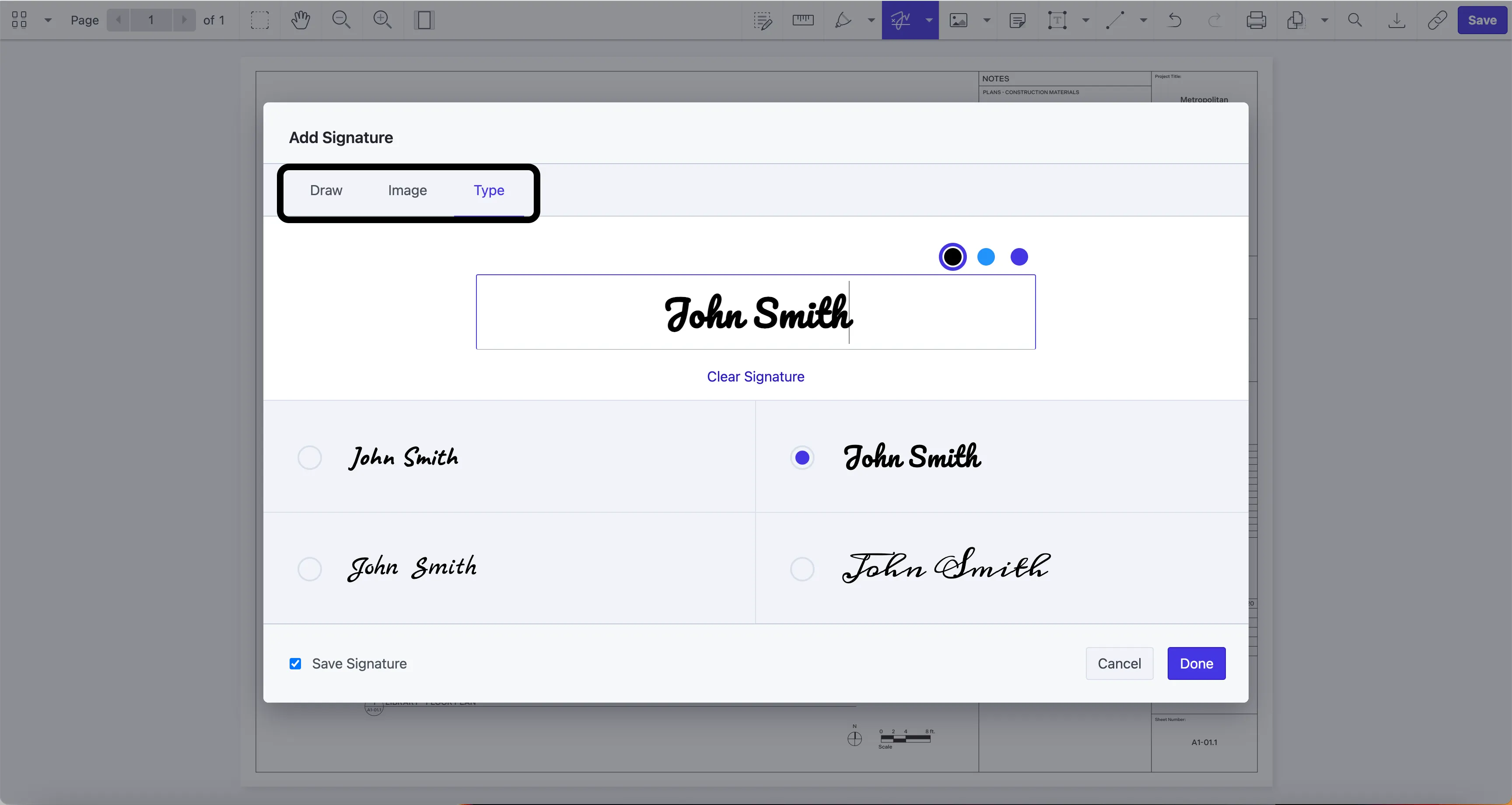
Select the Sign icon in the main toolbar of Document Editor to sign a PDF in SharePoint. Signing a PDF document in SharePoint with Document Editor can be done in three different ways: by drawing a signature, typing a signature, or adding an image of an electronic signature.
Using the Draw option requires drawing your signature by pulling the cursor in the right direction.
Click Type to quickly generate a signature in a PDF. Choose the style and the color of the font, type your name, and click Done.
To insert an image of a signature into a PDF, click Image and upload an image file from your computer. To confirm, click Done.
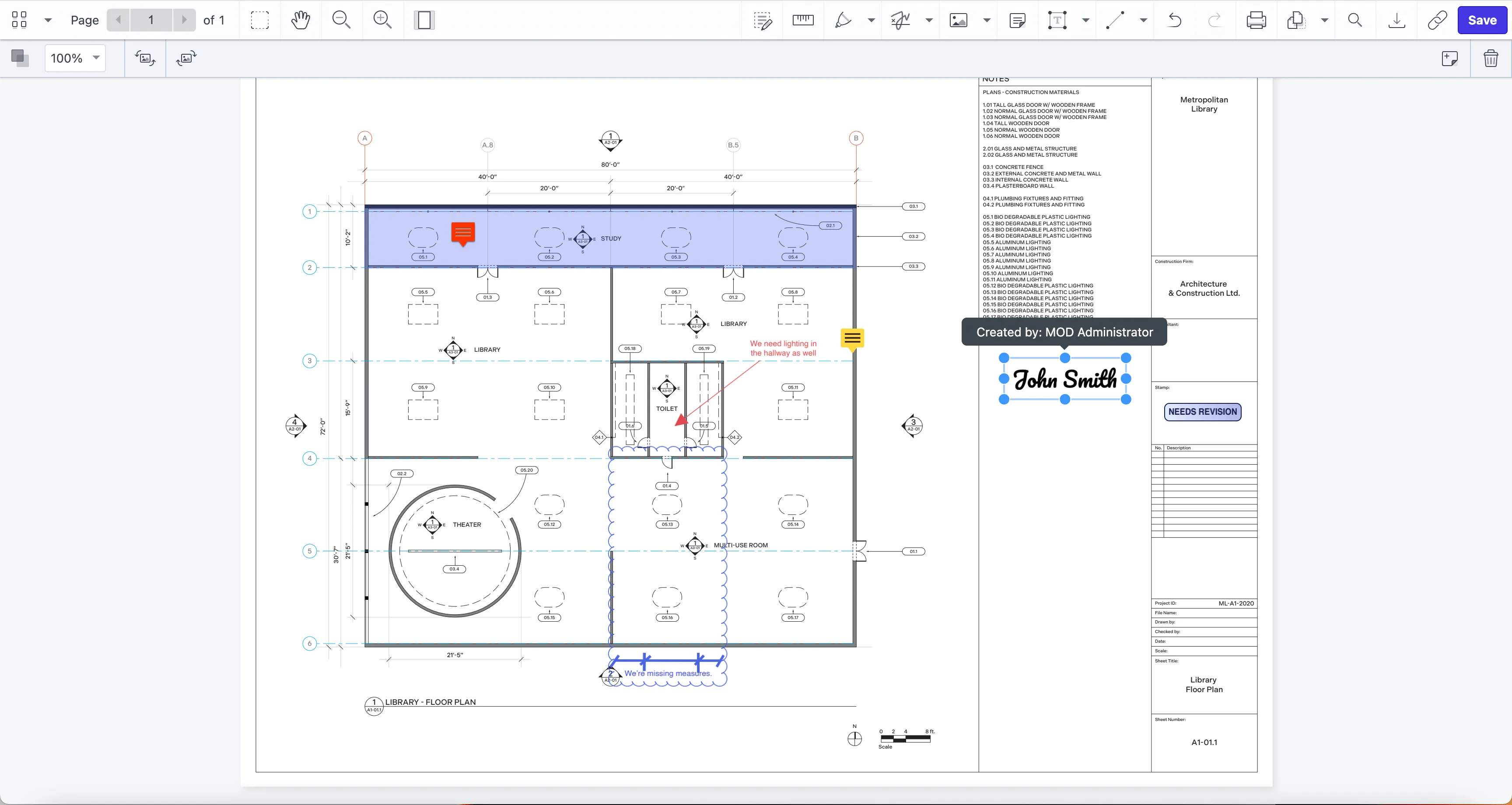
Once you create a signature, it will show up in the PDF document. You can move it and place it where you want, and you can also resize it by adjusting the edges of the signature borders.
Document Editor for SharePoint lets you annotate and collaborate on documents in SharePoint Online and on-premises. Add sticky notes, comments, shapes, highlights, underlines, strikethroughs, and stamps. Customize the color, opacity, and thickness of your annotations. Automatically add user information for each new annotation to help track feedback in documents.
Start by adding your comment to a specific location in your document, and then customize its colors to make it stand out. Comments can also include a user’s name to help you identify who left specific feedback on a document after multiple users have added comments.
Select a PDF from the SharePoint library and right-click the three dots menu. Click Edit with PDF Editor.
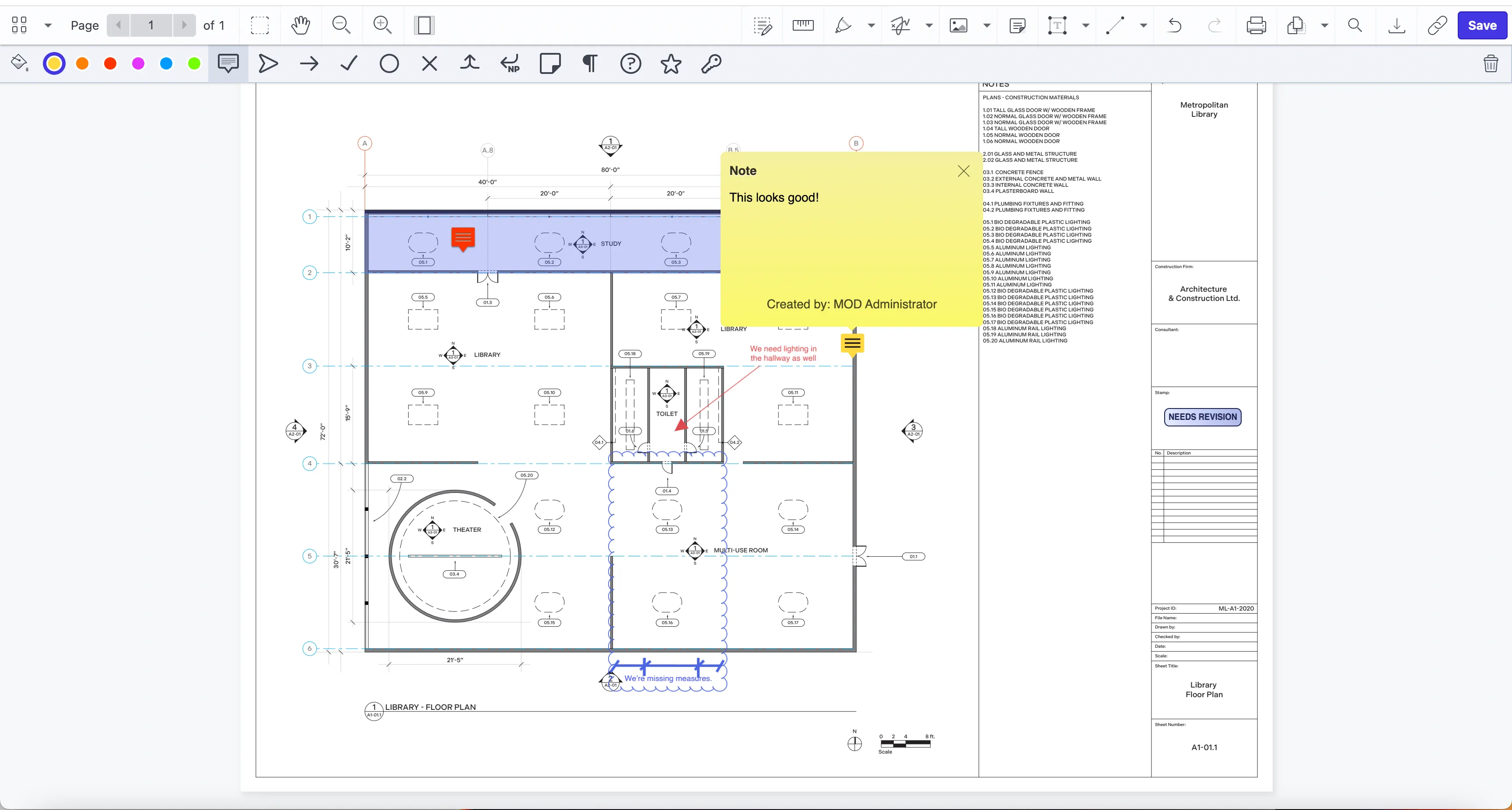
Open the PDF annotation tool by clicking the Note icon.
Select the exact area in the PDF document where you want to add comments and click to open the note field. Type the comment and close the dialog. The PDF annotation will be saved, and you can drag it to another place within the document.
In the top-left corner of the screen, there’s a wide range of options to change the look of your annotations. The default color of the note field is yellow, but there are five other colors to choose from. You can also change the look of the icon of the closed annotation, depending on the type of comment added to the PDF document.
To delete annotations in a PDF, click the recycle bin icon in the top-right corner. Click Save to save the changes to your PDF document.
Construction paperwork challenges are simplified with Document Editor for SharePoint. From streamlining real-time collaboration and decision-making, to expediting approval workflows through electronic signatures, this tool offers an efficient and secure document management solution. Get instant access to Document Editor for SharePoint by downloading it directly from Microsoft AppSource(opens in a new tab). See how you can easily edit, sign, redact, and annotate PDF files in SharePoint.
此内容由惯性聚合(RSS阅读器)自动聚合整理,仅供阅读参考。 原文来自 — 版权归原作者所有。