





Table of contents
Linearized PDFs — also referred to as Fast Web View or web-optimized PDFs — are specially structured to load the first page instantly in a browser, even before the full file downloads. In this article, you’ll first learn what PDF linearization is and why it matters for web and mobile performance. Then you’ll dive into how to create these optimized files using open source tools like Ghostscript, as well as commercial solutions like the Nutrient Document Web Services API and Document Engine.

TL;DR
PDF linearization (Fast Web View) reorders a document so its first page streams instantly in browsers, boosting load performance. This article defines how linearization works, explains why it matters for web and mobile users, and walks through creating linearized PDFs with Ghostscript, Adobe Acrobat, the dedicated Nutrient PDF linearization API (built on the broader Nutrient DWS API), and Document Engine.
Unlike traditional PDFs, which require an entire file to load before displaying content, linearized PDFs use a streaming-friendly format to deliver pages sequentially. This significantly improves user experience, particularly for large documents and mobile or low-bandwidth users.
What is a linearized PDF?
A linearized PDF is a PDF file that has been restructured so the first page loads immediately, before the rest of the document finishes downloading. The format is also called Fast Web View. A standard PDF requires the entire file to download before any content is displayed. A linearized PDF places the first page and a lookup table at the beginning of the file so a viewer can render page one while retrieving the remaining pages in sequential byte ranges over HTTP.
The presence of a linearization dictionary at the start of the file — visible as /Linearized 1 in the file header — identifies a linearized PDF. The dictionary includes offsets for each page, hint tables that describe the file layout, and the total file size. This structure allows HTTP servers to satisfy byte-range requests and deliver only the data a viewer needs for the current page.
Linearized PDFs can be created using Nutrient Document Engine, the Nutrient DWS API, or open source tools such as Ghostscript.
How linearization works
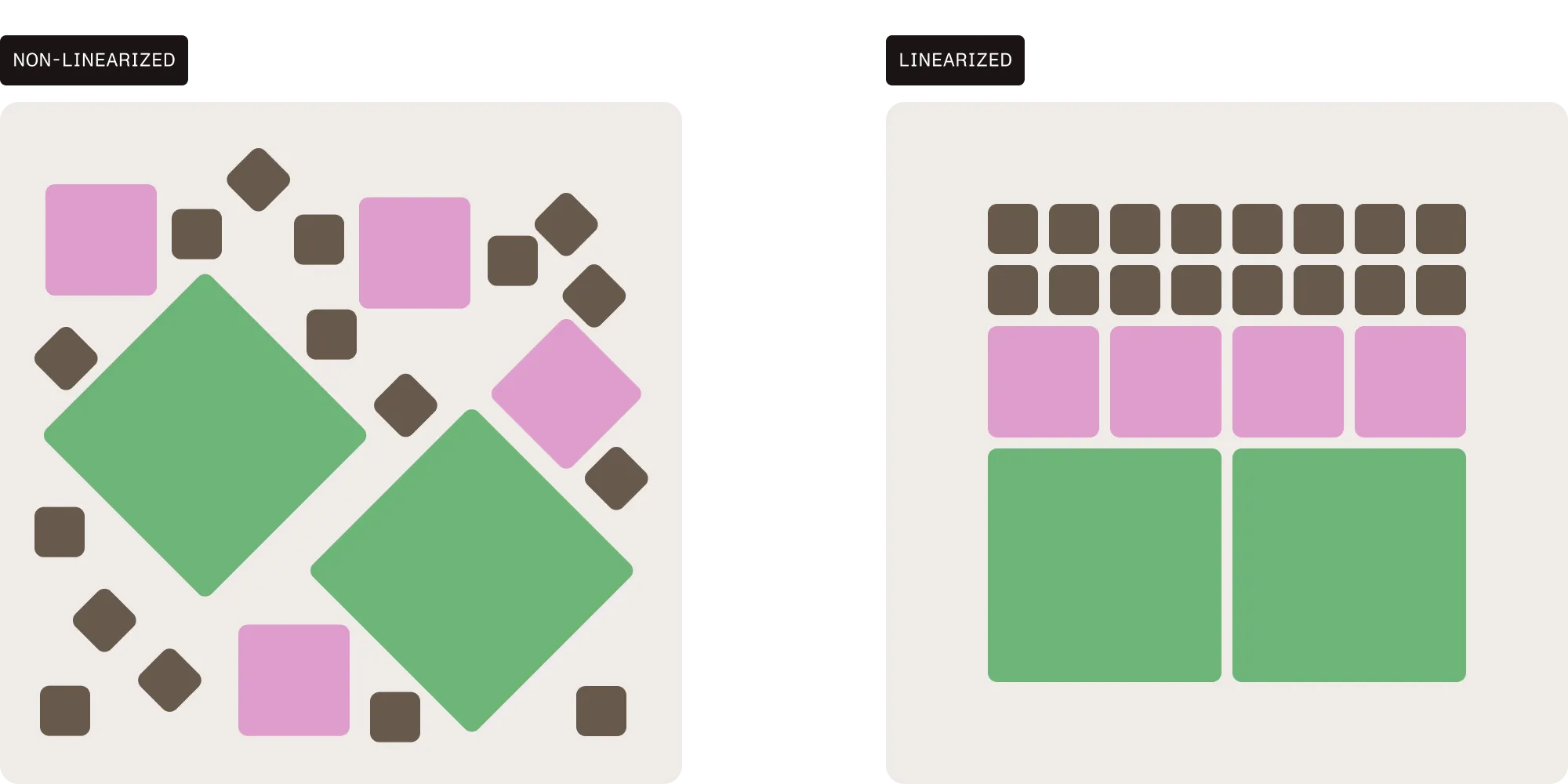
PDF linearization restructures a file so the first page and essential lookup tables (dictionary and hint tables) appear at the beginning, enabling viewers to fetch that page immediately and load subsequent pages in sequential chunks. This streaming-friendly layout varies from standard PDFs, which scatter content and require full download before rendering.
Key elements of a linearized PDF:
- Linearization dictionary placed at the front, indicating offsets for each page.
- Hint tables that guide the viewer on where to request byte ranges for pages and objects.
- Sequential page storage allowing browsers to progressively load content without waiting for the entire file.
Understanding the importance of linearized PDFs
The primary benefit of linearizing a PDF is its ability to optimize web viewing by enabling the document to be streamed directly to the user. This is similar to how media platforms like YouTube stream videos by loading the initial part first while buffering the rest. This capability offers several advantages:
- Faster document loading — Linearized PDFs load the first page instantly, reducing waiting times significantly.
- Improved user experience — Especially crucial when accessing large files over networks with limited bandwidth.
- Resilient to network interruptions — Since pages are streamed individually, interruptions in the network don’t require restarting the document download.
- Optimized for mobile devices — Reduces memory usage and improves the viewing experience on mobile devices with limited storage or processing power.
Use cases for linearized PDFs
Linearized PDFs are especially beneficial in scenarios where speed and accessibility are critical. Common use cases include:
- Cloud-based PDF viewers — Improve load times for users accessing documents via web applications, particularly in environments with variable network speeds or limited bandwidth.
- Mobile viewing — Enhance performance on smartphones and tablets by reducing memory usage and enabling instant first-page display.
- Large document repositories — Enable quicker access to extensive technical manuals, ebooks, or scanned archives without requiring users to download entire files.
- Streaming document portals — Power web-based reading experiences that mimic streaming platforms (e.g. first-page loads while others buffer), ideal for digital publishing or customer portals.
By implementing linearized PDFs in these scenarios, you ensure a smoother and more efficient user experience, regardless of device or connection quality.
Linearized PDF vs. standard PDF: Performance comparison
The practical difference between a standard PDF and a linearized one shows up the moment a user opens a large document over the network:
| Scenario | Standard PDF | Linearized PDF |
|---|---|---|
| Large file (10 MB+) | Full file must download before page 1 renders | Page 1 renders in under a second; remaining pages stream in the background |
| Mobile/3G connection | Long blank screen, often a timeout | Instant first paint, progressive load |
| Network interruption | Restart entire download | Resume from byte range, no full reload |
| Cloud viewer integration | Server must serve full file per session | Server serves byte-range requests as needed |
| Memory footprint | Full file held in viewer memory | Only the requested pages are loaded |
For Nutrient Web SDK users specifically, fast linearized downloads take advantage of this format to render the first page while the rest of the document streams in.
How to create a linearized PDF
There are several ways to create a linearized PDF, depending on your needs:
- Open source CLI tool — Use Ghostscript if you prefer a free, command-line-based approach.
- Adobe Acrobat (desktop UI) — Useful for one-off conversions when you don’t need automation.
- Cloud API — Use Nutrient DWS API (or the dedicated PDF linearization API) for quick integration into SaaS or web platforms.
- On-premises backend service — Use Nutrient Document Engine for enterprise-grade automation and infrastructure integration.
- .NET backend — For C#/.NET teams, see the C# linearization guide.
The following sections detail how each option works.
Using Ghostscript to linearize PDFs
Ghostscript enables you to linearize PDFs using the -dFastWebView flag. Here’s how to install and use it.
Step 1 — Installation of Ghostscript
For macOS (using Homebrew(opens in a new tab)):
For Ubuntu/Debian:
sudo apt update
sudo apt install ghostscript
For Windows:
- Download the Ghostscript installer from Artifex’s official website(opens in a new tab).
- Run the installer and follow the installation instructions.
- Add Ghostscript to the system’s
PATHto allow access from the command line.
Once installed, you can verify the installation by running the following command in the terminal:
Step 2 — Linearizing a PDF with Ghostscript
To linearize a PDF, use the following Ghostscript command:
gs -dNOPAUSE -dBATCH -sDEVICE=pdfwrite -dFastWebView=true -sOutputFile=output.pdf input.pdf
-dNOPAUSE— Tells Ghostscript to process all pages without pausing between them (no user interaction).-dBATCH— Ensures the process runs in batch mode, meaning Ghostscript exits after the job is complete.-sDEVICE=pdfwrite— Specifies that the output format should be PDF.-dFastWebView=true— Enables linearization, which is required for Fast Web View.-sOutputFile=output.pdf— Specifies the name of the output file (in this case,output.pdf).input.pdf— Your original PDF file.
Step 3 — Checking the linearized PDF
Open the linearized PDF in a text editor (like Notepad, TextEdit, or VS Code) and check the header:
%PDF-1.7
%«Ïè¢
%%Invocation: gs -dNOPAUSE -dBATCH -sDEVICE=pdfwrite -dFastWebView=true -sOutputFile=? ?
4 0 obj
<</Linearized 1/L 4107/H[ 805 135]/O 6/E 805/N 1/T 3986>>
The key part to look for is /Linearized 1, which indicates the PDF has been linearized.
Limitations of Ghostscript for linearization
- Partial support for PDF specification
- Warnings like “We don’t support XRefStm with FastWebView (Linearized PDF)” and “We don’t support ObjStms with FastWebView (Linearized PDF)” indicate that Ghostscript doesn’t fully support handling cross-reference streams (
XRefStm) and object streams (ObjStms) as per the PDF specification for linearization. - While Ghostscript still produces a linearized PDF, these limitations may affect compatibility with certain systems.
- Warnings like “We don’t support XRefStm with FastWebView (Linearized PDF)” and “We don’t support ObjStms with FastWebView (Linearized PDF)” indicate that Ghostscript doesn’t fully support handling cross-reference streams (
- Compatibility level
- Ghostscript often processes PDFs at a default of
-dCompatibilityLevel=1.4, which ensures compatibility with older PDF readers but might not meet requirements for modern or advanced workflows.
- Ghostscript often processes PDFs at a default of
- Testing required
- While no critical errors typically occur during linearization, testing the output file is essential to ensure it behaves as expected in real-world scenarios, especially with tools that rely on strict adherence to the PDF specification.
Additional considerations
- Performance — Large PDFs may take longer to process with Ghostscript compared to some commercial tools.
- Licensing — Ghostscript is free under the AGPL for open source projects, but proprietary use requires a commercial license.
Despite these drawbacks, Ghostscript is a free and viable option for projects relying on open source tools. For more robust linearization, consider using Nutrient DWS API or Document Engine, both of which are designed for advanced workflows.
Using Adobe Acrobat to linearize a PDF
For one-off conversions where automation isn’t needed, Adobe Acrobat’s desktop application can save a PDF as Fast Web View:
- Open the PDF in Adobe Acrobat (Pro or Standard).
- Go to File → Save As Other → Optimized PDF.
- In the PDF Optimizer dialog, ensure Fast Web View is enabled (under the Settings panel, this is the same as linearization).
- Click OK and save the file.
You can verify the result the same way as with any other linearized PDF — open the file in a text editor and look for /Linearized 1 near the top.
This method is fine for occasional use, but it doesn’t scale: Every file requires a manual export. For a server-side or batch workflow, use one of the API-based options below.
Creating linearized PDFs with Nutrient PDF linearization API
Nutrient offers a dedicated PDF linearization API (built on top of the broader Nutrient DWS API) that linearizes PDFs with a single HTTP request — no infrastructure, no PDF library, no Ghostscript install required. Here’s how.
Step 1 — Preparing the prerequisites
Before making an API call, make sure you have the following:
- API key — You’ll need an API key for authentication. Sign up for a free account(opens in a new tab) to receive 50 credits, but note that a free trial entails a watermark on the output documents. These credits are used for API requests, and different operations consume varying amounts of credits.
- PDF document — Choose the PDF document you wish to linearize. Ensure the file is accessible on your local machine or server.
- API testing tool — Use tools like cURL(opens in a new tab) or Postman(opens in a new tab) for testing the API requests.
Step 2 — Making the API request
Once you have your API key and PDF document ready, make a simple API request to linearize the PDF. Here’s the cURL command:
curl -X POST https://api.nutrient.io/build \
-H "Authorization: Bearer your_api_key_here" \
-o result.pdf \
-F document=@example-document.pdf \
-F instructions='{
"parts": [
{
"file": "document"
}
],
"output": {
"type": "pdf",
"optimize": {
"linearize": true
}
}
}'
- Authorization — Replace
your_api_key_herewith your actual Nutrient DWS API key to authenticate the request. - Document — Replace
example-document.pdfwith the file path of the PDF you wish to linearize. Ensure the file exists at the specified path. - Linearize — Setting the
linearizeparameter totrueensures the output will be a linearized PDF, optimized for faster web viewing and streaming.
Step 3 — Executing the request
- Run the cURL command or use Postman to send the request.
- The API will process the document and return a linearized PDF, saved as
result.pdfin your specified directory.
After the API call is complete, open the resulting result.pdf file in any PDF viewer, including web browsers. Notice how the first page loads almost instantly, even if the document is large.
Why choose the Nutrient PDF linearization API?
The PDF linearization API runs on Nutrient DWS API, so you get a comprehensive and scalable platform for document processing alongside one-call linearization. Here are some reasons to consider it for your linearization needs:
- Ease of use — Detailed documentation and clear instructions make it easy to integrate the API into your workflows quickly.
- Scalability — Whether you’re working with a few PDFs or handling high-volume document processing, Nutrient’s API is built to scale with your needs.
- Flexibility — The API supports a wide range of document manipulation tools — from PDF conversion and file optimization, to watermarking, and more.
- Transparent pricing — The credit-based pricing model ensures you only pay for what you use, allowing for cost-effective and predictable billing.
Extending your workflows with Nutrient DWS API
Because the PDF linearization API is part of Nutrient DWS API, the same key unlocks a wider toolset for document workflows beyond linearization:
- Digital signatures — Create secure digital signatures with a trusted certificate, all within a single interface.
- PDF generator — Convert HTML documents into fully formatted PDF files with our generation API.
- PDF editor — Merge, split, delete, flatten, and duplicate PDF documents effortlessly with our editing API.
- Converter API — Easily convert popular file formats such as DOCX, PPTX, and images into PDFs and other image formats like JPG, PNG, and TIFF.
- Watermark — Add custom text or image watermarks to your PDF documents for branding or security.
- Optical character recognition (OCR) — Convert scanned documents into searchable, editable PDFs with our OCR API.
- Data extraction — Extract valuable data from your documents, including text, key values, and tables.
- PDF annotations — Add comments, highlights, and other annotations to PDFs to facilitate collaboration and markup.
- PDF form filling — Automatically fill PDF forms with data from your application workflows.
These additional tools, alongside PDF linearization, enable you to create more efficient and customized document processing workflows tailored to your business needs.
Nutrient Document Engine
Nutrient Document Engine lets you linearize PDFs as part of a customizable API request. The full reference is in our server-side linearization guide. A sample is below.
How to linearize a PDF using Document Engine
Document Engine makes linearizing PDFs straightforward with the following API request. Use the curl command below to linearize a PDF file:
curl -X POST http://localhost:5000/api/build \
-H "Authorization: Token token=<API token>" \
-F document=@/path/to/example-document.pdf \
-F instructions='{
"parts": [
{
"file": "document"
}
],
"output": {
"type": "pdf",
"optimize": {
"linearize": true
}
}
}' \
-o result.pdf
- Endpoint — Replace
http://localhost:5000with the URL where Document Engine is hosted, if necessary. Authorization— Replace<API token>with your actual API token to authenticate the request.document— Replace/path/to/example-document.pdfwith the file path to the PDF you want to linearize.instructions— This field specifies the processing instructions. The key part here is"linearize": true, which indicates the PDF should be linearized.output— The final output will be saved asresult.pdf, a linearized PDF.
Licensing considerations for PDF linearization
To use the linearization feature in Document Engine, you must have it included in your license. If this feature isn’t already part of your license, contact Nutrient’s Sales team to add it. After adding the feature, be sure to update your license or activation keys in your configuration.
Combining linearization with PDF compression
You can also combine linearization with other PDF optimizations, like compression. If your license includes both linearization and compression features, you can apply them simultaneously in a single API request:
{
"parts": [
{
"file": "document"
}
],
"output": {
"type": "pdf",
"optimize": {
"grayscaleText": true,
"grayscaleGraphics": true,
"grayscaleFormFields": true,
"grayscaleAnnotations": true,
"disableImages": true,
"mrcCompression": true,
"imageOptimizationQuality": 2,
"linearize": true
}
}
}
In the instructions above, multiple optimization features are specified, such as:
- Grayscale optimization — Reduces the size of the PDF by converting text, graphics, and form fields to grayscale.
- Image optimization — Compresses images to improve load times.
- MRC compression — Applies mixed raster content (MRC) compression for further file size reduction.
To learn more about the various compression methods supported by Document Engine, refer to our PDF compression guide.
To help you choose the right tool for your use case, here’s a quick comparison of Ghostscript, the Nutrient PDF linearization API, and Nutrient Document Engine.
| Feature | Ghostscript | Nutrient PDF linearization API | Nutrient Document Engine |
|---|---|---|---|
| Linearization support | ✅ | ✅ | ✅ |
| Open source | ✅ | ❌ | ❌ |
| API integration | ❌ | ✅ | ✅ |
| Enterprise scalability | ❌ | ✅ | ✅ |
| UI-free CLI option | ✅ | ✅ | ✅ |
| Licensing flexibility | AGPL/Commercial | Freemium | Enterprise only |
Best practices for working with linearized PDFs
- Choose reliable tools — Use trusted software that fully supports PDF linearization and adheres to the PDF specification, such as Ghostscript, Nutrient DWS API, or Document Engine.
- Optimize before linearizing — Reduce image sizes, remove unused content, and simplify complex elements to ensure efficient rendering.
- Combine with compression — Apply grayscale conversion, image optimization, or MRC compression alongside linearization to improve both speed and file size.
- Test across platforms — Verify performance in various browsers, devices, and network conditions to ensure smooth streaming and rendering.
- Avoid incremental saves — Save PDFs as complete files instead of using incremental updates, which can interfere with linearization integrity.
- Limit embedded fonts — When possible, use standard fonts instead of embedding custom ones to keep file sizes low and ensure faster load times.
Conclusion
This article explored Ghostscript(opens in a new tab), the Nutrient PDF linearization API, and Document Engine for creating linearized PDFs. Whether you’re optimizing a handful of files or scaling enterprise workflows, these tools help you deliver fast, efficient, and accessible PDF experiences.
Sign up for a free trial to use the PDF linearization API — or contact our Sales team for Document Engine licensing options.
FAQ
A linearized PDF is a PDF file restructured so the first page is accessible before the full file finishes downloading. A linearization dictionary at the start of the file stores offsets for each page, enabling a viewer to request and render individual pages over HTTP using byte-range requests. Linearized PDFs are also referred to as Fast Web View PDFs.
A linearized PDF is a file that has been reorganized so that the data for the first page, along with hint tables describing the file layout, appear at the beginning of the file. This organization allows a viewer to display page one while the rest of the document is still downloading. The term is interchangeable with Fast Web View.
A linearised PDF is the same as a linearized PDF — a PDF file formatted for progressive delivery, where the first page loads before the full document has been downloaded. The underlying file structure is identical; linearised is the British and Australian English spelling of the same term.
A linearized PDF allows the first page to load immediately, while a standard PDF requires the entire document to download before displaying any content.
Open the PDF in a text editor and look for /Linearized 1 in the header, which indicates the PDF has been linearized.
Yes. Ghostscript enables creating linearized PDFs using the -dFastWebView flag. However, for more scalable workflows, Nutrient’s DWS API or Document Engine are better suited for automation and integration.
You can linearize PDFs with Nutrient Document Engine by making an API request that includes the linearize parameter set to true, which optimizes the document for faster web viewing.
Ghostscript lacks a dedicated API for programming languages, making it less suitable for integration into automated workflows compared to commercial solutions.
Yes. DWS API is designed to scale efficiently, handling high-volume document processing for enterprise-level workflows.
Not directly. Linearization improves load performance by reordering file structure, but you can combine it with compression (e.g. MRC, grayscale) to reduce file size.