










Table of contents
This tutorial shows you how to automatically add a blank page to PDF files using the Nutrient Document Web Services API on Zapier. You’ll trigger the workflow when a PDF is uploaded to a Google Drive folder, insert a blank page at a specific position, and save the new PDF back to your drive.
What is Zapier?
Zapier(opens in a new tab) is an automation platform that connects your favorite apps and services with no code required. You can build “Zaps” to automate repetitive tasks by setting up triggers and actions between apps like Google Drive, Slack, Gmail, and more.
In this tutorial, you’ll learn how to use Zapier to add pages to PDFs using the Nutrient DWS Processor API.
What is the Nutrient DWS Processor API?
Nutrient Document Web Services API is a powerful platform for document automation. With your free account(opens in a new tab), you get 50 credits, which you can use to perform various document operations. Each tool (e.g. conversion, signing, flattening) consumes a different amount of credits depending on complexity.
Nutrient offers more than 30 tools with the ability to:
- Convert images and documents to PDF
- Merge, split, or reorder pages
- Add digital signatures, watermarks, or annotations
- Run OCR, redact, flatten, and more
All you need is an API key from a free account to get started(opens in a new tab). You can chain these tools together in Zapier to build powerful, automated PDF workflows.
What you’ll need
- A Zapier(opens in a new tab) account (a pro plan is necessary for multistep Zaps)
- A Google Drive account
- A PDF file uploaded to a Google Drive folder
- A Nutrient Document Web Services API key — sign up here(opens in a new tab)
Step 1 — Trigger a new file in a Google Drive folder
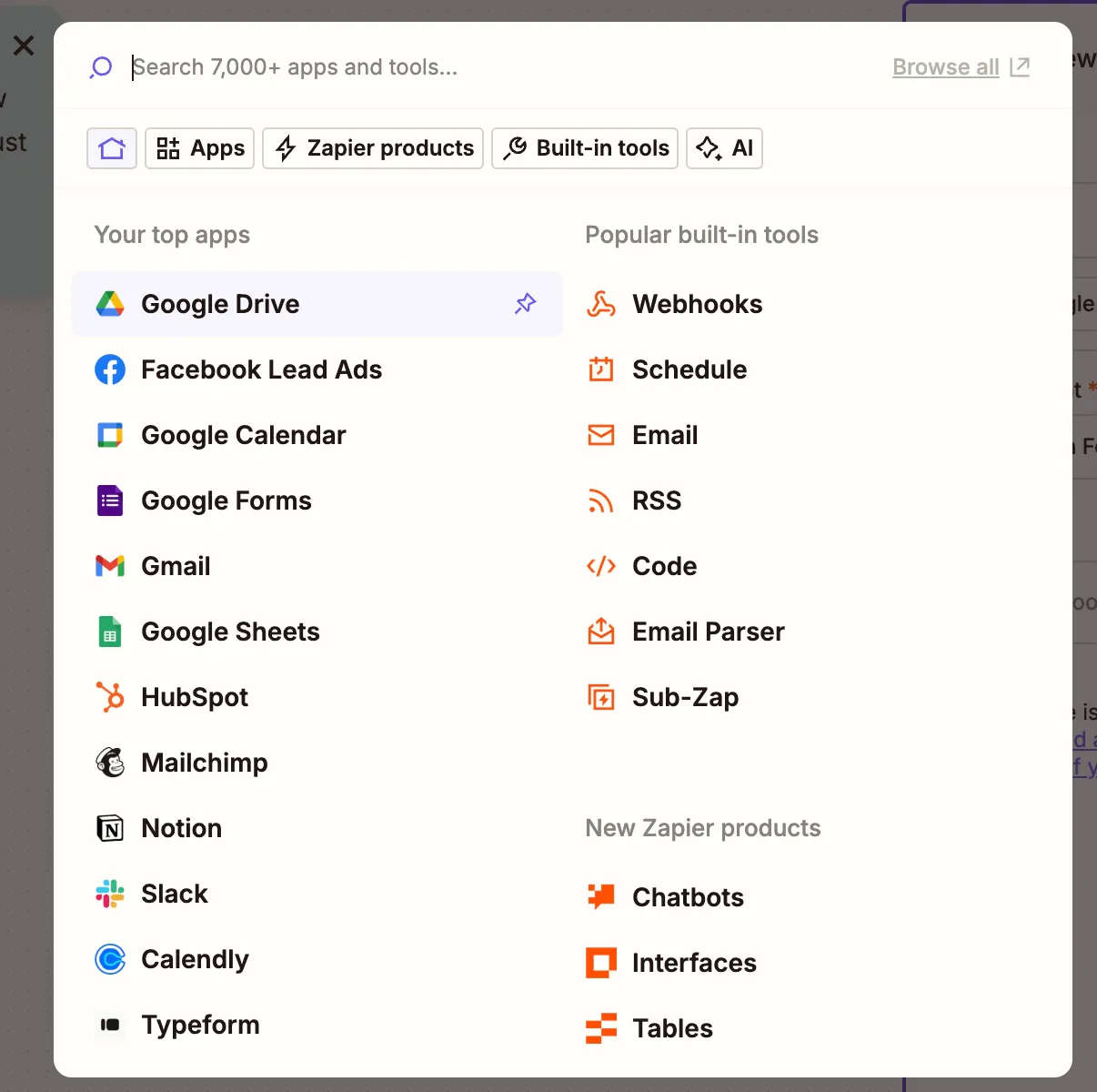
- Select Google Drive as the trigger app.
- Choose the New File in Folder trigger event.
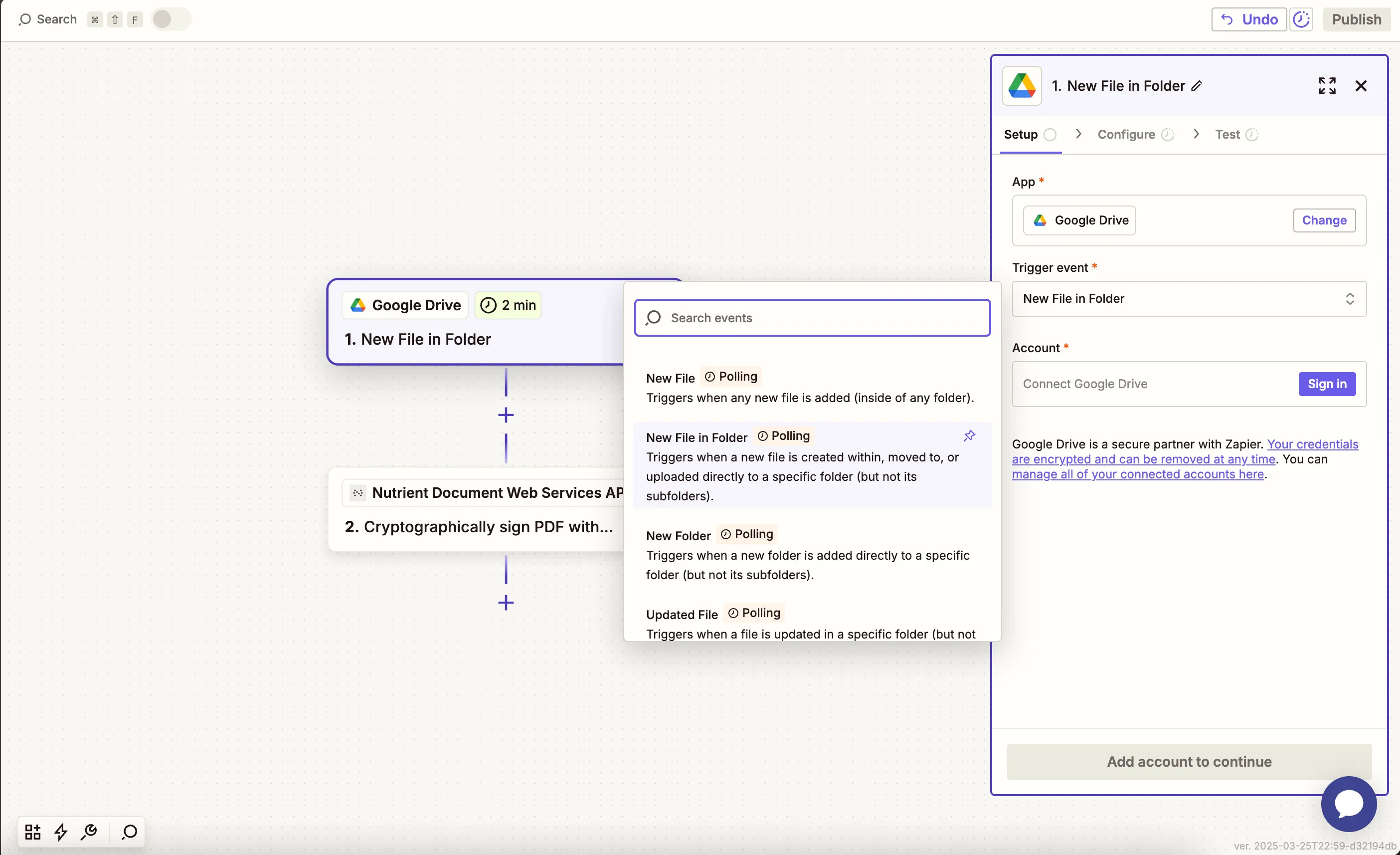
- Connect your Google Drive account.
- Configure the trigger:
- In the Drive field, select your Google Drive.
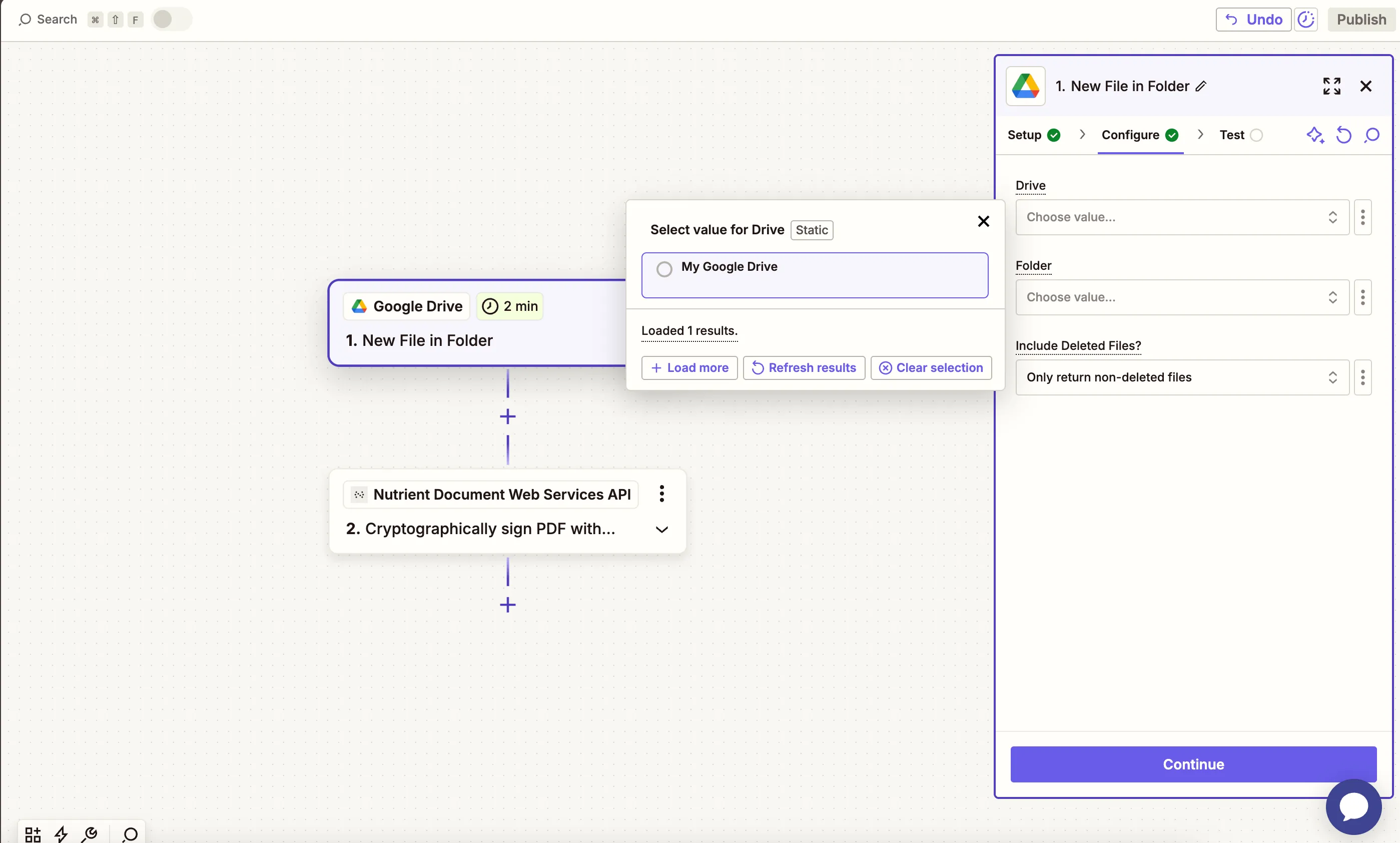
- In the Folder field, select or create a folder (e.g.
nutrient).
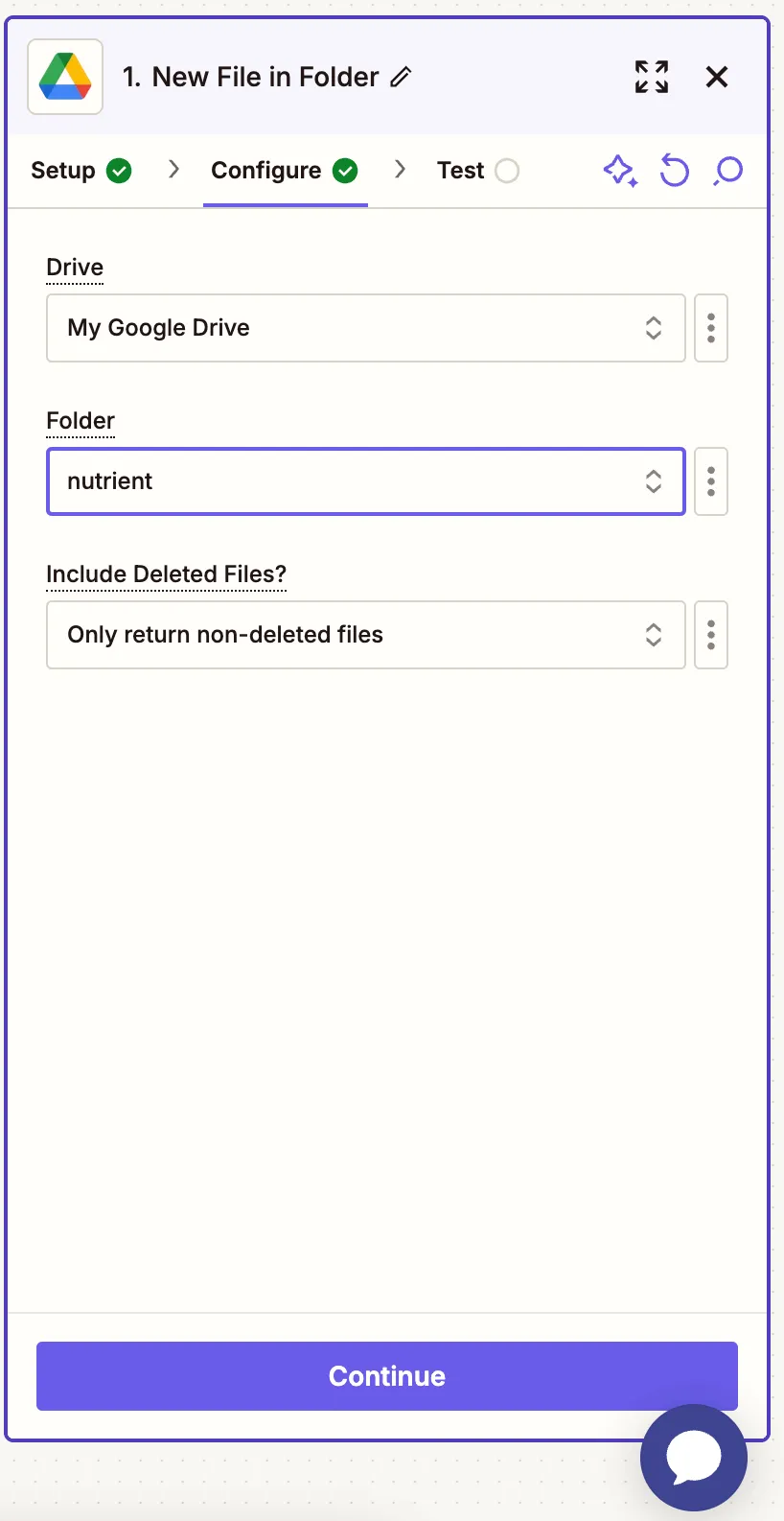
- Ensure that the option for Include Deleted Files? is set to Only return non-deleted files.
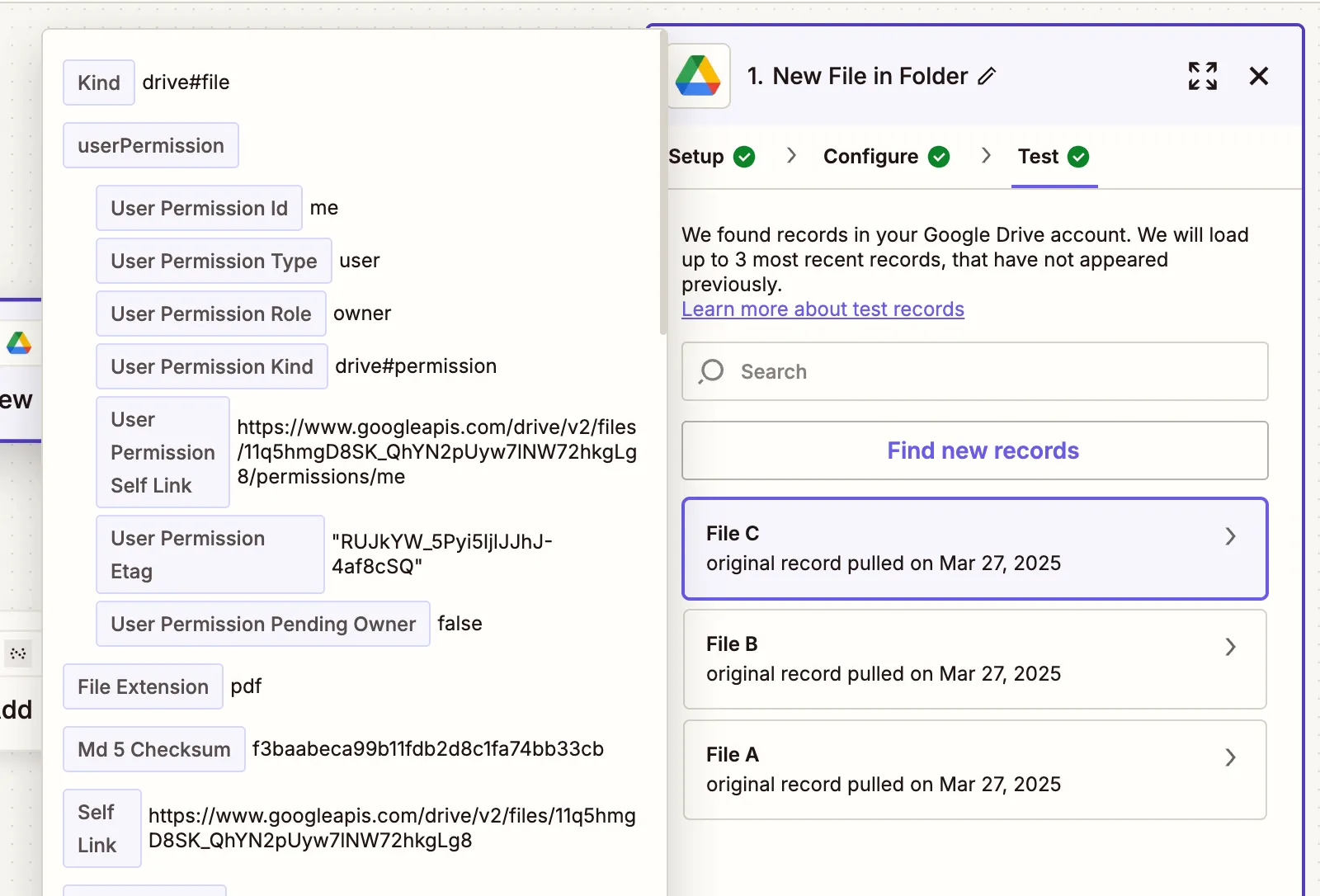
- Once configured, test the trigger by selecting a sample PDF file from the folder to confirm it’s being pulled into the Zap correctly.
Step 2 — Add page to PDF action (Nutrient DWS Processor API)
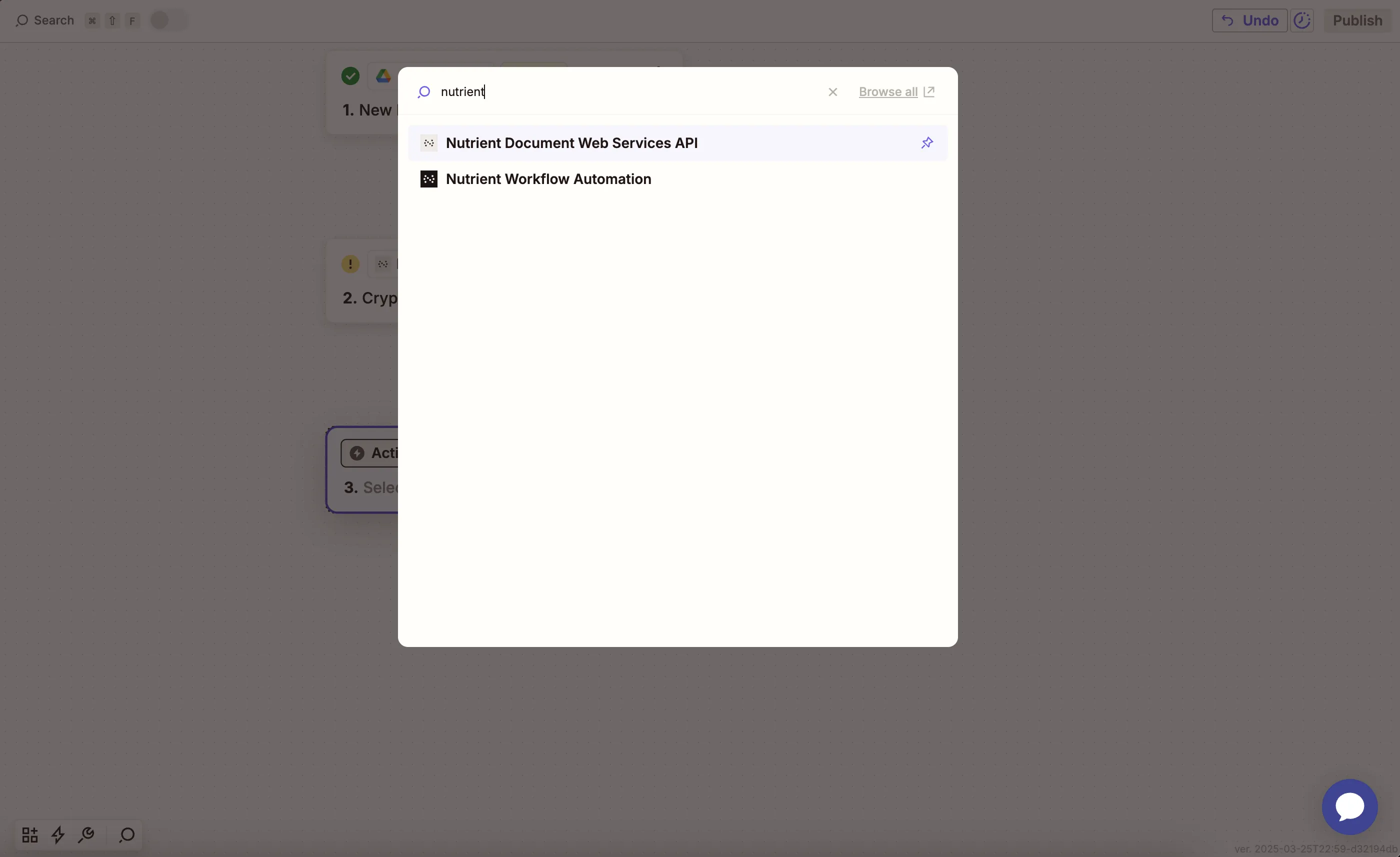
- Next, select Nutrient Document Web Services API as the app.
- Choose the Add Page to PDF action.
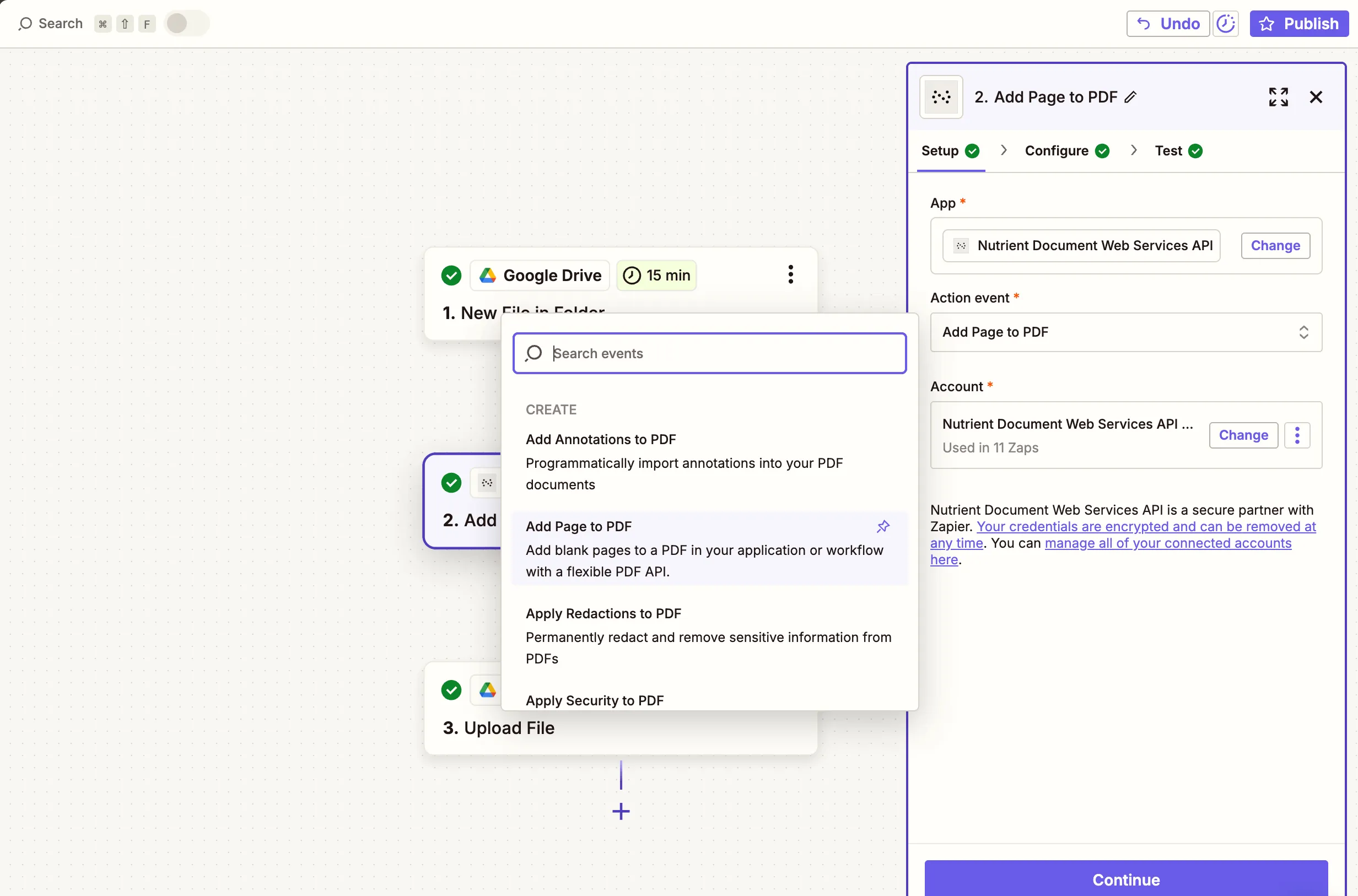
- Connect your Nutrient DWS Processor API account by entering your API key.
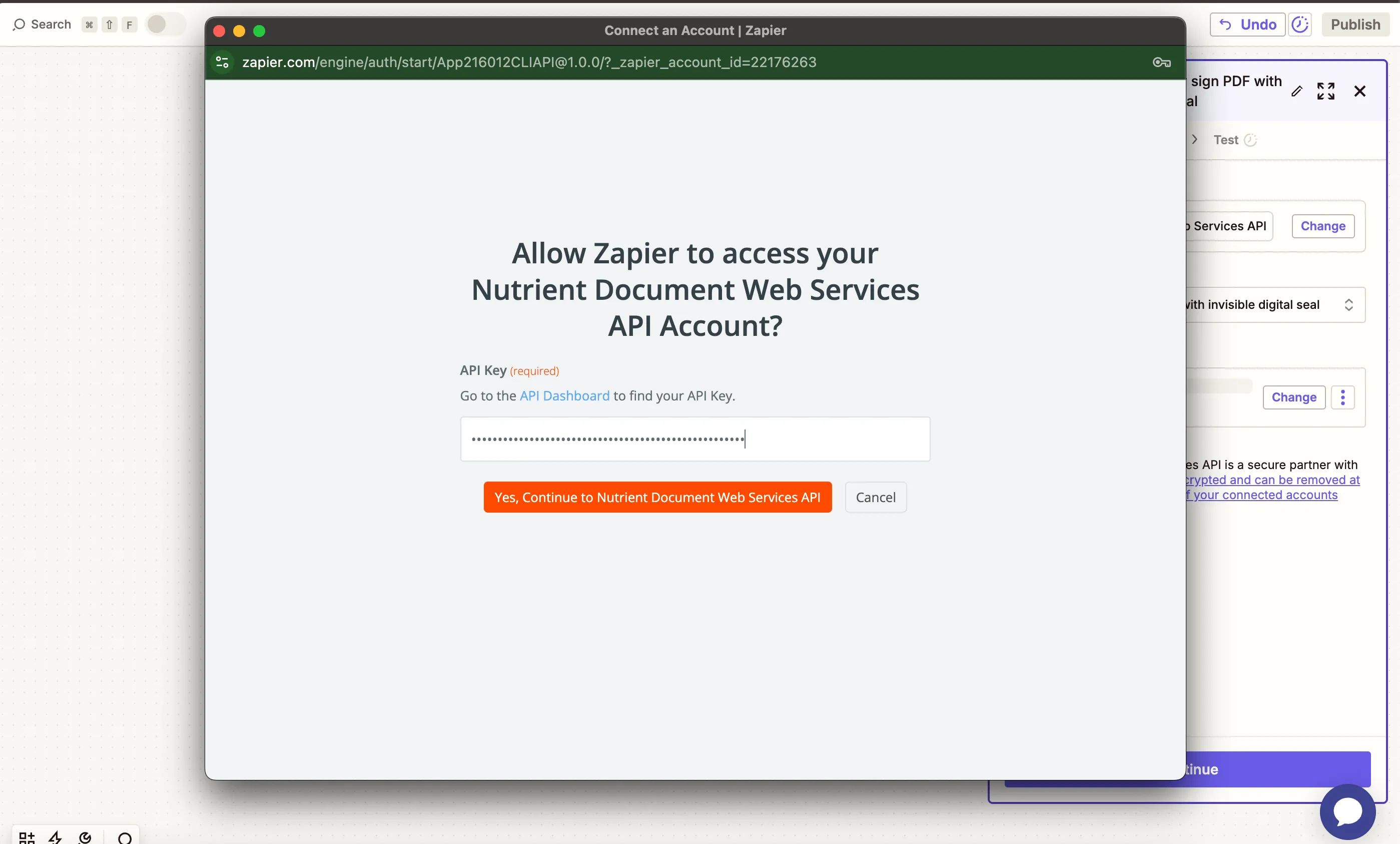
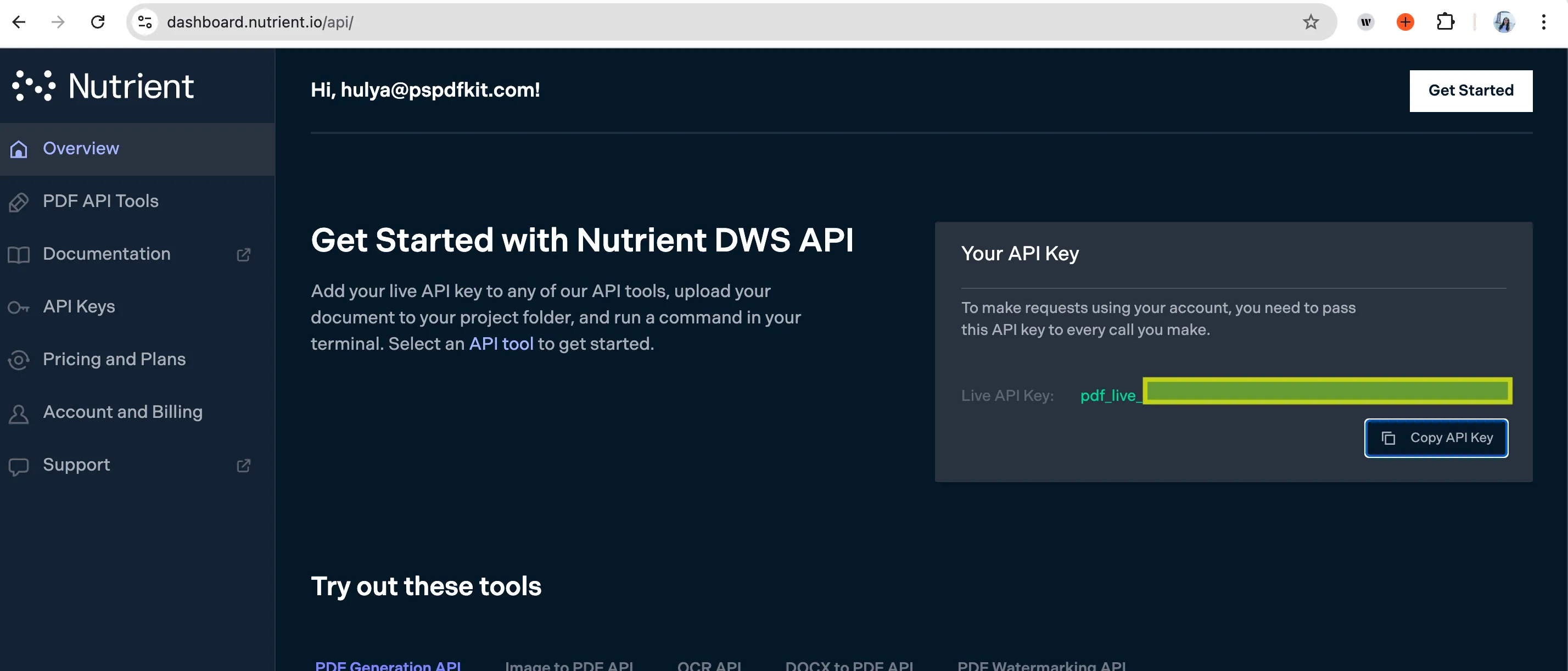
You can find your API key in the Nutrient dashboard(opens in a new tab).
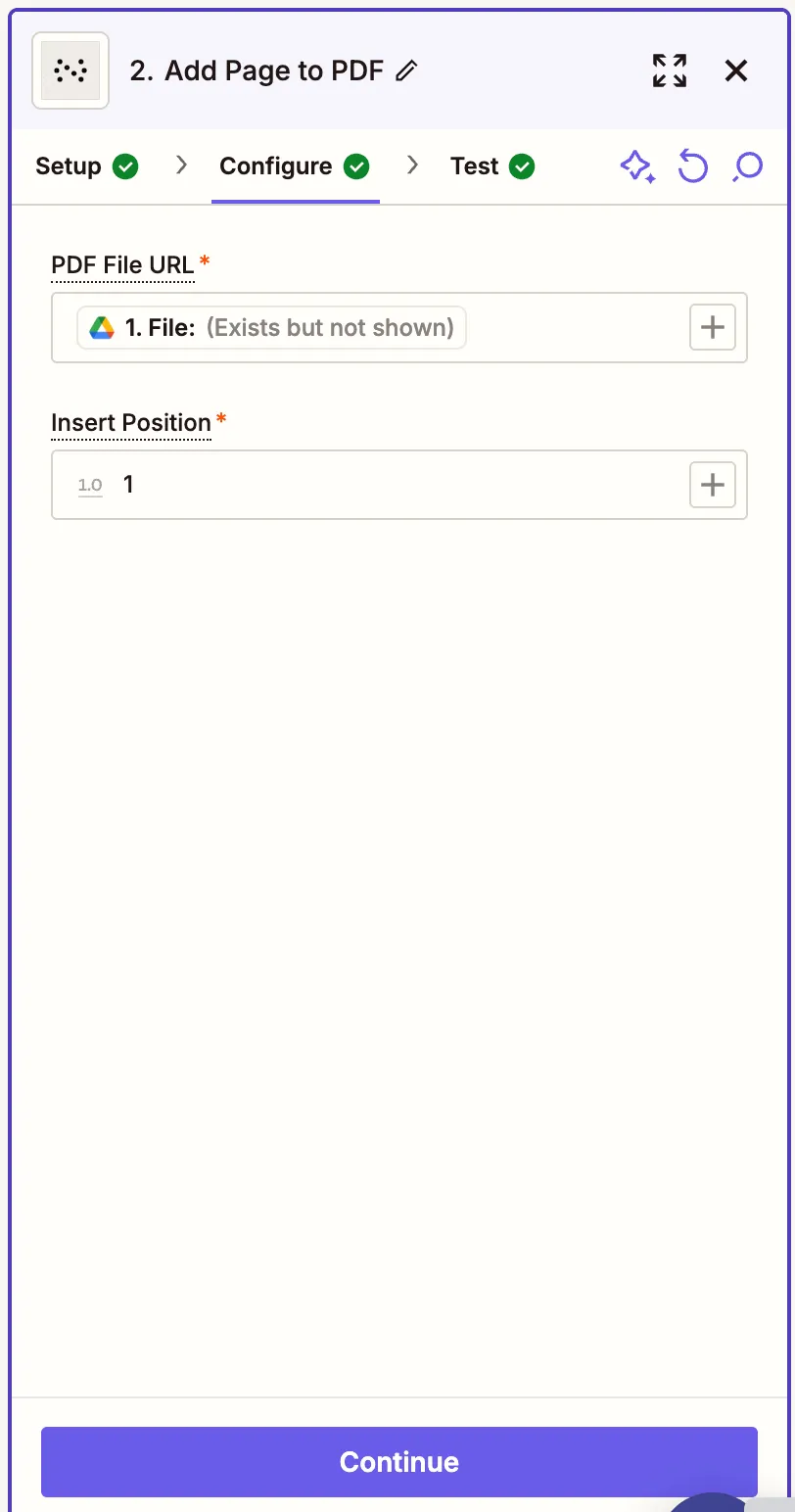
- In the configuration fields, map the PDF File URL from the Google Drive trigger step. Set the Insert Position (e.g. 1 to insert a page after the first page). Optionally, provide a custom output file name like
updated_file.pdf.
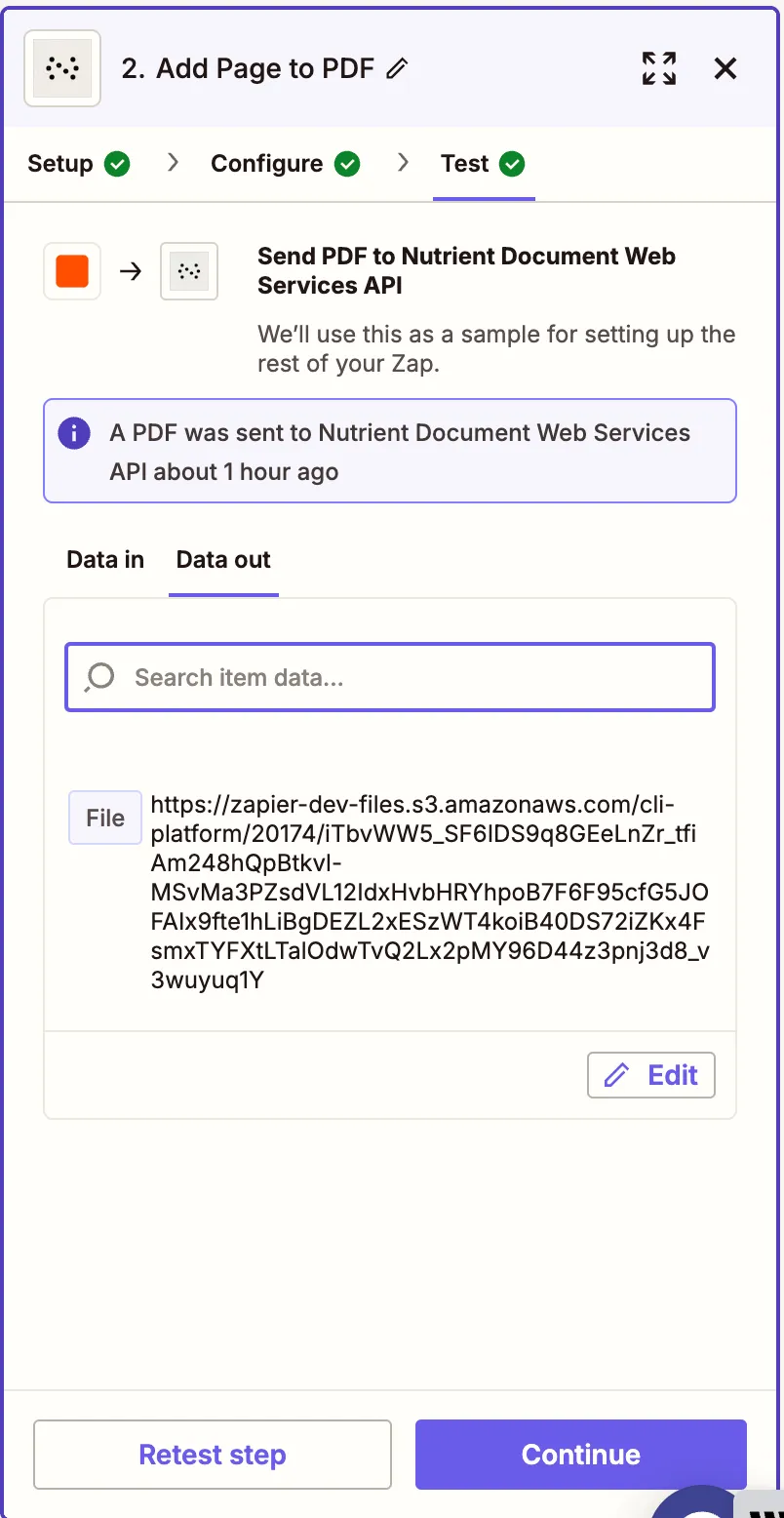
The file must be accessible via a public URL or direct download link (Zapier will handle this if sourced from Google Drive).
- Test this step to confirm a blank page is successfully inserted into a PDF.
Step 3 — Upload the updated PDF to Google Drive
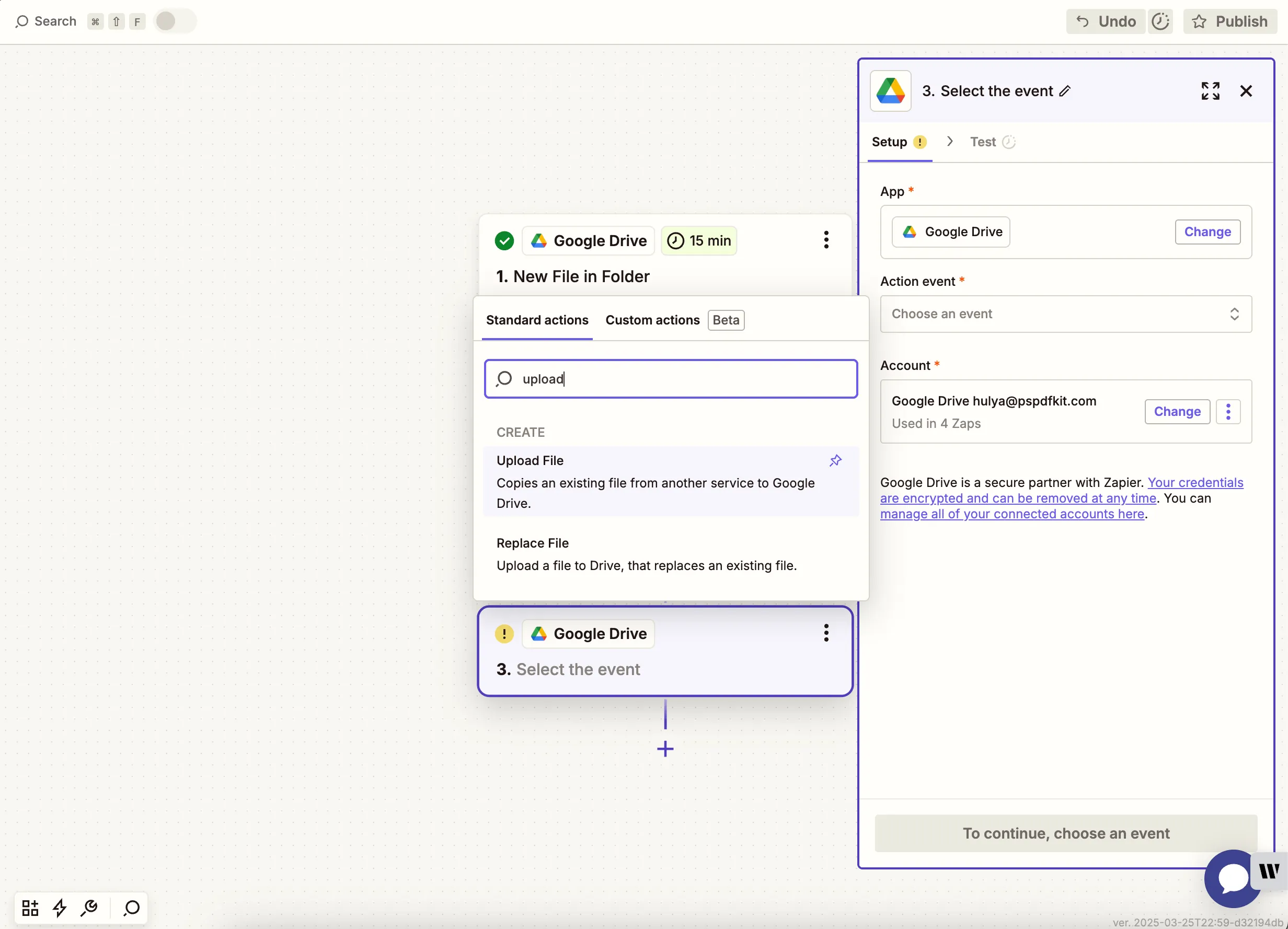
- Now, add another step by selecting Google Drive as the app and Upload File as the action event. Connect your Google Drive account if needed.
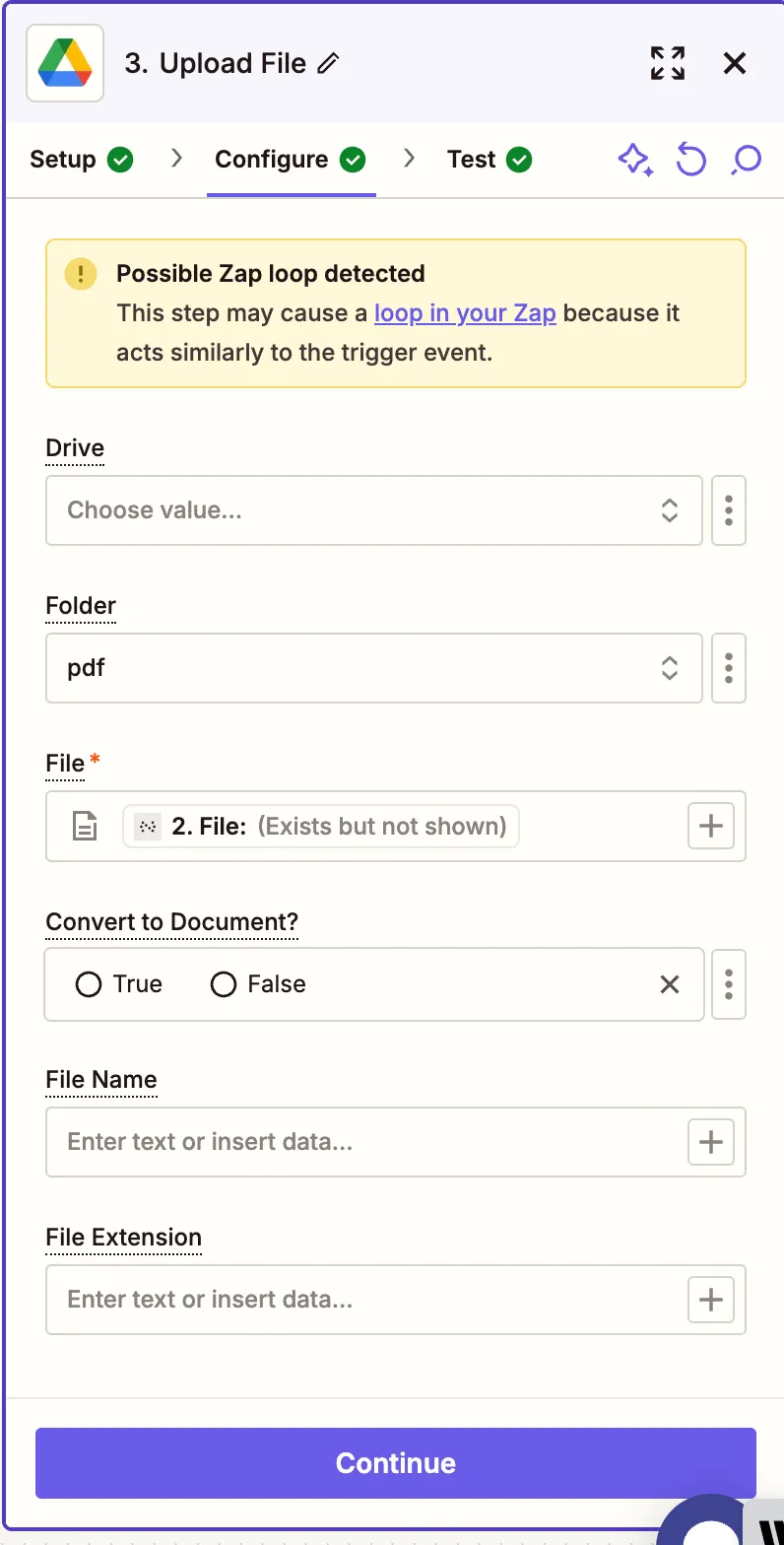
- Select your drive and the folder where the updated PDF should be saved. In the File field, use the output from the Nutrient DWS Processor API step. Optionally, set a custom file name or extension to keep things consistent and organized.
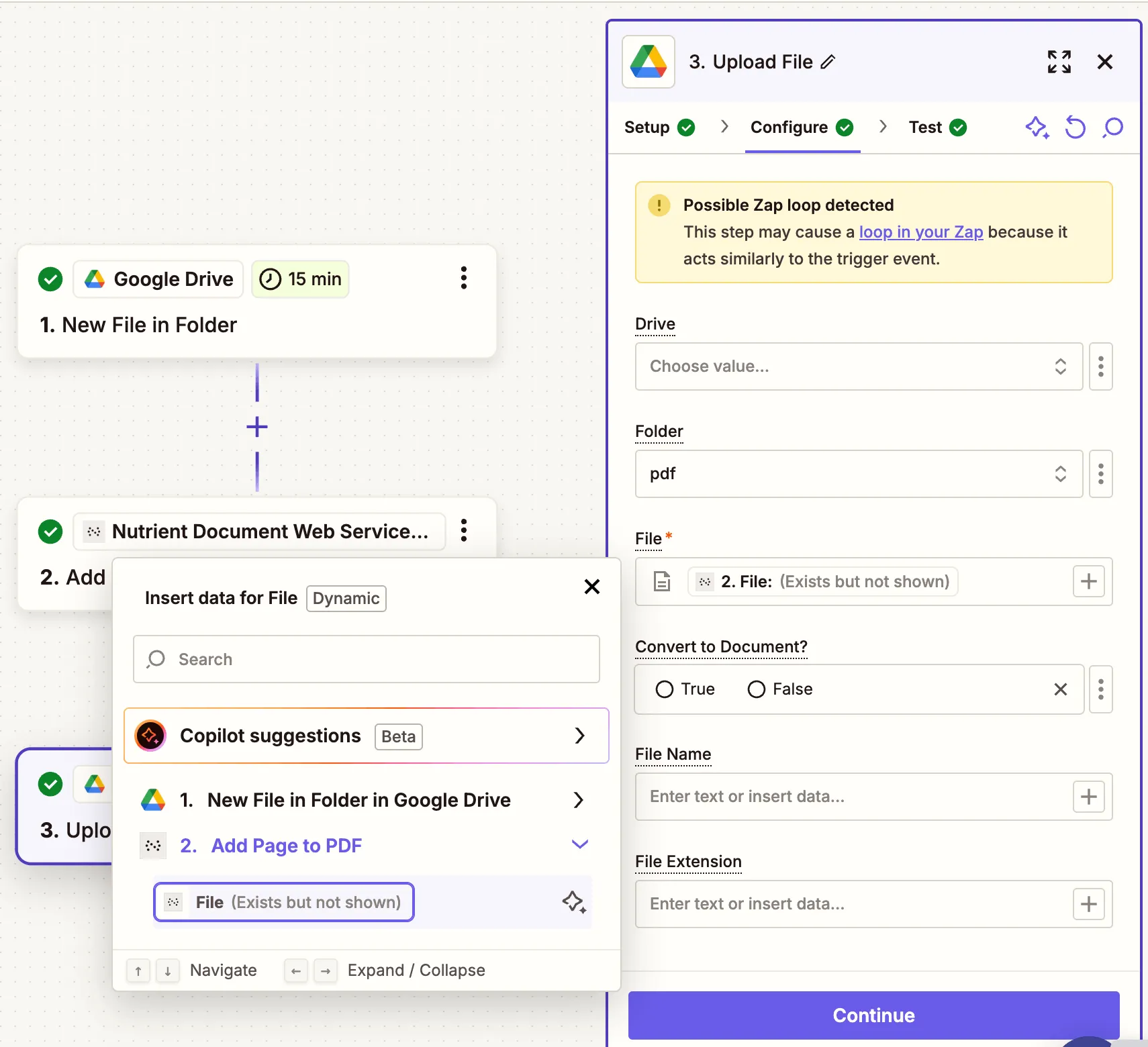
Zapier may warn you about a potential Zap loop if you use the same folder for the input and the output. You can avoid this by uploading the updated file to a different folder.
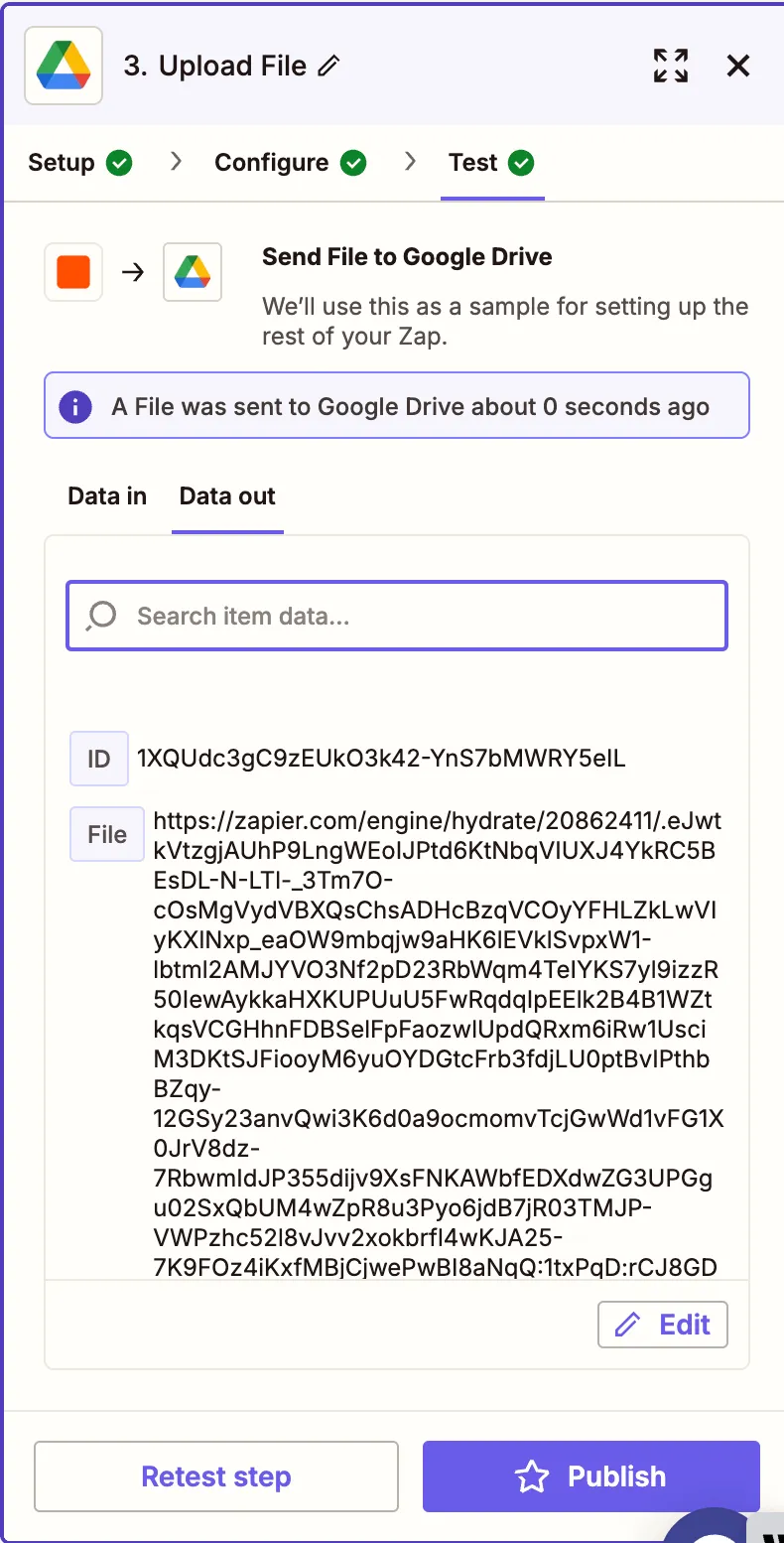
- Run a test in Zapier to ensure the blank page is correctly inserted and the updated file is saved to your target folder. If everything looks good, click Publish to activate your Zap and automate the process going forward!
Tip for Insert Position
The Insert Position field is zero-based. For example:
- 0 inserts a blank page at the beginning.
- 1 inserts after the first page.
- 999 will insert before the last page (if you don’t know the total count, it defaults to end).
Conclusion
With just a few simple steps, you’ve created an automated workflow that inserts a blank page into PDF files using Zapier and the Nutrient Document Web Services API(opens in a new tab). This setup is perfect for adding section breaks, placeholders, or formatting structure to documents without manual editing. By integrating Google Drive with Nutrient’s flexible PDF tools, you can streamline repetitive editing tasks and keep your documents workflow-ready.
Try expanding this workflow by adding steps like digital signing, merging PDFs, or running OCR — all available within Nutrient DWS Processor API.