


惯性聚合 高效追踪和阅读你感兴趣的博客、新闻、科技资讯
阅读原文 在惯性聚合中打开

推荐订阅源

爱范儿
爱范儿
P
Palo Alto Networks Blog
月光博客
月光博客
H
Hackread – Cybersecurity News, Data Breaches, AI and More
I
InfoQ
aimingoo的专栏
aimingoo的专栏
腾讯CDC
T
Threatpost
D
DataBreaches.Net
Vercel News
Vercel News
F
Fortinet All Blogs
Engineering at Meta
Engineering at Meta
C
Cybersecurity and Infrastructure Security Agency CISA
Forbes - Security
Forbes - Security
U
Unit 42
C
Check Point Blog
Blog — PlanetScale
Blog — PlanetScale
O
OpenAI News
量子位
TaoSecurity Blog
TaoSecurity Blog
Microsoft Azure Blog
cs.AI updates on arXiv.org
V
Visual Studio Blog
Recorded Future
Recorded Future
云风的 BLOG
云风的 BLOG
Security Archives - TechRepublic
The Last Watchdog
The Last Watchdog
S
Security Affairs
Attack and Defense Labs
罗磊的独立博客
Stack Overflow Blog
Stack Overflow Blog
Microsoft Security Blog
让小产品的独立变现更简单 - ezindie.com
V
V2EX
小众软件
小众软件
S
SegmentFault 最新的问题
www.infosecurity-magazine.com
W
WeLiveSecurity
AI
AI
Threat Intelligence Blog | Flashpoint
博客园 - 聂微东
I
Intezer
Know Your Adversary
Know Your Adversary
Exploit-DB.com RSS Feed
P
Proofpoint News Feed
freeCodeCamp Programming Tutorials: Python, JavaScript, Git & More
The Cloudflare Blog
博客园_首页
NISL@THU
NISL@THU
K
KPMG report finds enterprise disconnect between AI and its ROI | CIO

Inside Nutrient

A guide to the invisible work behind documents Introducing Nutrient Documents for Salesforce: Native document generation and signing Document AI vs. traditional OCR: Choosing between OCR, AI, and hybrid pipelines PDF SDK compliance and security evaluation checklist for enterprise teams (2026) Invariant Corp replaces paper processes with Nutrient Workflow and scales without limits What is process mapping? A complete guide Nutrient vs. Conga Composer for Salesforce document generation (2026) Document routing: How to automate document distribution The CTO’s AI playbook: Why accountability architecture beats orchestration Compliance workflow automation: Why built-in compliance is table stakes Workflow diagrams: Examples, symbols, and how to build one that actually runs Digital forms: Replace paper forms with automated workflows Approval workflow software: How to automate approvals Why document-centric automation is different The CEO’s AI playbook: Why decision architecture beats model selection Nutrient SDK product updates for Q1 2026 PDF redaction verification: How to prove sensitive data is permanently removed What is a VPAT? The complete guide to accessibility conformance reports What is PDF/UA? The accessible PDF standard explained Salesforce eSignatures: Generate, sign, and track documents in one flow Online document viewer: Options, tradeoffs, and how to embed one Document viewer for web apps: React, Vue, Angular (2026) Best document viewers in 2026: A buyer’s guide How to edit a PDF in Python: Add text, images, and annotations Nutrient advances Workflow platform with agentic AI for enterprise-grade speed and consistency in document-heavy operations How to create a Salesforce quote template from opportunity data The business case for accessibility: Five ways it drives enterprise value Python PDF library comparison (2026): 7 libraries for developers Why your AI agent hallucinates PDF table data PDF.js limitations: When to upgrade to a commercial PDF SDK How Subject scaled 5× with Nutrient’s PDF SDK without rebuilding its document layer I replaced our sales training with an AI coach that runs in Slack — here’s what broke Redirecting to: https://securitybuzz.com/cybersecurity-news/why-enterprise-permissions-are-ais-most-dangerous-inheritance/ Nutrient .NET SDK vs. iText Core: Complete comparison for .NET developers DocuVieware: Support’s most frequently asked setup questions Introducing Nutrient Workflow How to convert PDF to Word in C# (.NET) When email and spreadsheets stop working: Work order approval workflows for field teams on the move Compliance with confidence: Why document-centric automation is the foundation of your mission Nutrient expands AI Assistant, automating multistep document workflows inside any application What is document generation? A developer’s guide to PDF generation Document Converter data flow and how real-time watermarks skip the queue PDF/UA compliance guide: Requirements, standards, and best practices Computers still can’t understand you How Athena Intelligence built AI agents for regulated enterprises with Nutrient’s document infrastructure How to convert HTML to PDF (2026): 4 methods from browser print to SDK How to build a document extraction pipeline with Nutrient Vision API OCR vs. intelligent document processing: Choosing the right document extraction engine Beyond OCR: How document intelligence eliminates manual processing in regulated industries Nutrient vs. IronPDF: Complete comparison for .NET developers Nutrient vs. Aspose.PDF: Complete comparison for .NET developers Redirecting to: https://fortune.com/2026/02/19/openclaw-who-is-peter-steinberger-openai-sam-altman-anthropic-moltbook/ Lufthansa Systems uses Nutrient to deliver reliable, scalable PDF rendering for pilots worldwide Nutrient vs. Syncfusion: Complete comparison for .NET developers React’s useTransition: The hook you’re probably using wrong First City Monument Bank streamlines banking processes with Nutrient Workflow Redirecting to: https://www.sdcexec.com/warehousing/automation/article/22957364/nutrient-workflow-automation-the-missing-link-in-supply-chain-efficiency The complete guide to digital signatures: PAdES, CAdES, and XAdES explained Nutrient Python SDK: Production-grade document processing for Python Introducing agentic document editing for web applications with AI Assistant Nutrient vs. QuestPDF: Complete comparison for .NET developers How we fixed the GdPicture license expiration (and what to do if you’re affected) Red team security testing with agentic AI The future of healthcare document automation Best healthcare workflow software compared Nutrient SDK product updates for Q4 2025 How Harvey scaled legal document workflows 50 percent MoM without rebuilding infrastructure HIPAA-compliant document management in hospitals How we optimized rendering performance while handling thousands of annotations in React — Part 2 Automated PII removal with Nutrient API Redirecting to: https://www.devopsdigest.com/2026-low-code-no-code-predictions Redirecting to: https://www.kmworld.com/Articles/Editorial/ViewPoints/Leaders-predict-AI-to-continue-permeating-all-aspects-of-KM-in-2026-172594.aspx What are deep agents and how do they solve complex problems? Whipping up document magic: Your easy-bake recipe for Vue and Nutrient Web SDK 🧁 What I’ve learned about product iteration planning while building SDKs Passwordless document signing: Three-layer security guide New zip folder functionality streamlines file management in Document Automation Server The keyboard shortcuts playbook: Taking control of keyboard events in Nutrient Web SDK From experienced engineer to AI beginner: My unexpected journey AI-assisted manual testing: Handling Safari’s PDF rendering and UI quirks How to keep a 20-year-old SDK up to date How we optimized rendering performance while handling thousands of annotations in React — Part 1 Nutrient announces new executive hires to accelerate next phase of growth High performance UI using web workers Automate document conversion at scale with Python and Nutrient DCS From curiosity to PLG (and AI): My journey to understanding product-led growth Prost to progress: One year as Nutrient Pigeon usage at Nutrient: Bridging native SDKs to Flutter Modernizing CI build servers: How to migrate from Chef to Ansible Unix man pages: AI-friendly documentation since 1971 Consistent hashing for even load distribution Best AI redaction APIs: Complete comparison guide for 2025 Why AI document redaction matters for modern security From coding to coordinating: How AI transformed my workflow What is intelligent document processing (IDP)? A complete guide Enterprise PDF SDKs: Best PSPDFKit (now Nutrient) alternatives Nutrient SDK product updates for Q3 2025 GdPicture support best practices Redacting sensitive data with Nutrient AI redaction API How AI is transforming the customer experience at Nutrient: From instant answers to intelligent support
Parse PDFs with Python: Step-by-step text extraction tutorial
Oghenerukevwe Henrietta Kofi · 2024-06-06 · via Inside Nutrient

Table of contents

    Extracting content from PDF files might seem like a small task, but it’s a powerful part of automating real-world document workflows in Python. Whether you’re analyzing invoices, converting academic papers, or processing reports at scale, this guide shows you how to handle PDFs with confidence.

    Parse PDFs with Python: Step-by-step text extraction tutorial

    TL;DR

    Parsing PDFs in Python is easy with the right tools. This tutorial walks you through extracting text from PDFs using PyPDF(opens in a new tab) for basic, selectable text, and the Nutrient Processor API for more advanced use cases like OCR, encrypted documents, and structured JSON output.

    In this tutorial, you’ll learn how to parse PDF files in Python using:

    Before you begin, it’s crucial to know what type of text you’re trying to extract:

    • Selectable (digital) text — Text you can highlight in a PDF viewer. This is straightforward to parse.
    • Scanned (image-based) text — Text stored as images, requiring optical character recognition (OCR).

    This tutorial covers both — but it’ll start with digital PDFs and then show how to handle OCR using the Nutrient API. It will focus on extracting text that’s already selectable.

    Why Python is perfect for parsing PDFs

    Python is beloved in the data world for a reason. When it comes to PDF parsing, Python offers:

    • A mature ecosystem — Libraries like PyPDF make simple jobs easy, while APIs like Nutrient handle complex cases.
    • Great integration — Python scripts fit smoothly into broader automation and ETL pipelines.
    • Vibrant community — Endless tutorials, packages, and support channels are at your fingertips.

    Read on to get started with your first extraction.

    Requirements

    This tutorial will make use of Python version 3.12.3, but it should work with most 3.x Python versions. Create a new folder and a Python file to store all the code from this tutorial:

    mkdir text_extract_pdf

    cd text_extract_pdf

    touch app.py

    You’ll also need to install PyPDF(opens in a new tab). You’ll rely on this library to read a PDF file and extract data from it. It can be installed using PIP:

    Use these two test PDFs:

    Just make sure to save the PDF file next to the app.py file and replace the file names in the rest of this tutorial appropriately.

    PyPDF is a pure Python library to read PDFs. Here’s how to extract text from each page:

    from pypdf import PdfReader

    reader = PdfReader("compressed.tracemonkey-pldi-09.pdf")

    for page in reader.pages:

    print(page.extract_text())

    When you save and run the code, it’ll print all the text from the PDF file in the terminal. The code creates a PdfReader(opens in a new tab) object. Then it loops over all the pages in the PDF using the .pages(opens in a new tab) property and prints the text from each page using the .extract_text(opens in a new tab) method.

    Skipping headers and footers with PyPDF

    PyPDF allows you to use visitor functions that get called with each operator or text fragment. The visitor function receives five arguments: the text, the current transformation matrix, the text matrix, the font dictionary, and the font size. You can make use of the text matrix to figure out the x/y coordinates of the text fragment and decide if you want to skip it or extract it.

    In the following example, PyPDF will skip the header and footer of this PDF document(opens in a new tab), as they fall outside of the acceptable y-coordinate range:

    from pypdf import PdfReader

    reader = PdfReader("GeoBase_NHNC1_Data_Model_UML_EN.pdf")

    page = reader.pages[3]

    parts = []

    def visitor_body(text, cm, tm, fontDict, fontSize):

    y = tm[5]

    if y > 50 and y < 720:

    parts.append(text)

    page.extract_text(visitor_text=visitor_body)

    print("".join(parts))

    Decrypting and extracting text from encrypted PDFs in Python

    The PDF files you’re working with may be encrypted. Luckily, you don’t have to look anywhere else for a solution, as PyPDF supports encryption and decryption of PDF files as well.

    To work with encrypted documents, you’ll need to install the cryptography package:

    Use the .decrypt method to decrypt a PDF file before extracting text from it:

    from pypdf import PdfReader

    reader = PdfReader("encrypted-pdf.pdf")

    if reader.is_encrypted:

    reader.decrypt("password")

    # extract text from all pages

    for page in reader.pages:

    print(page.extract_text())

    Method 2: Parse text with Nutrient Processor API (with OCR)

    For more advanced use cases — like OCR, table detection, or layout-preserving JSON — use the Nutrient Processor API.

    Step 1: Sign up and get your API key

    Create a free account(opens in a new tab) at Nutrient Processor API. After verifying your email, copy your API key from the dashboard.

    After you’ve verified your email, you’ll have access to your API key. Navigate to the Overview page to get started, or go to API keys to retrieve your key.
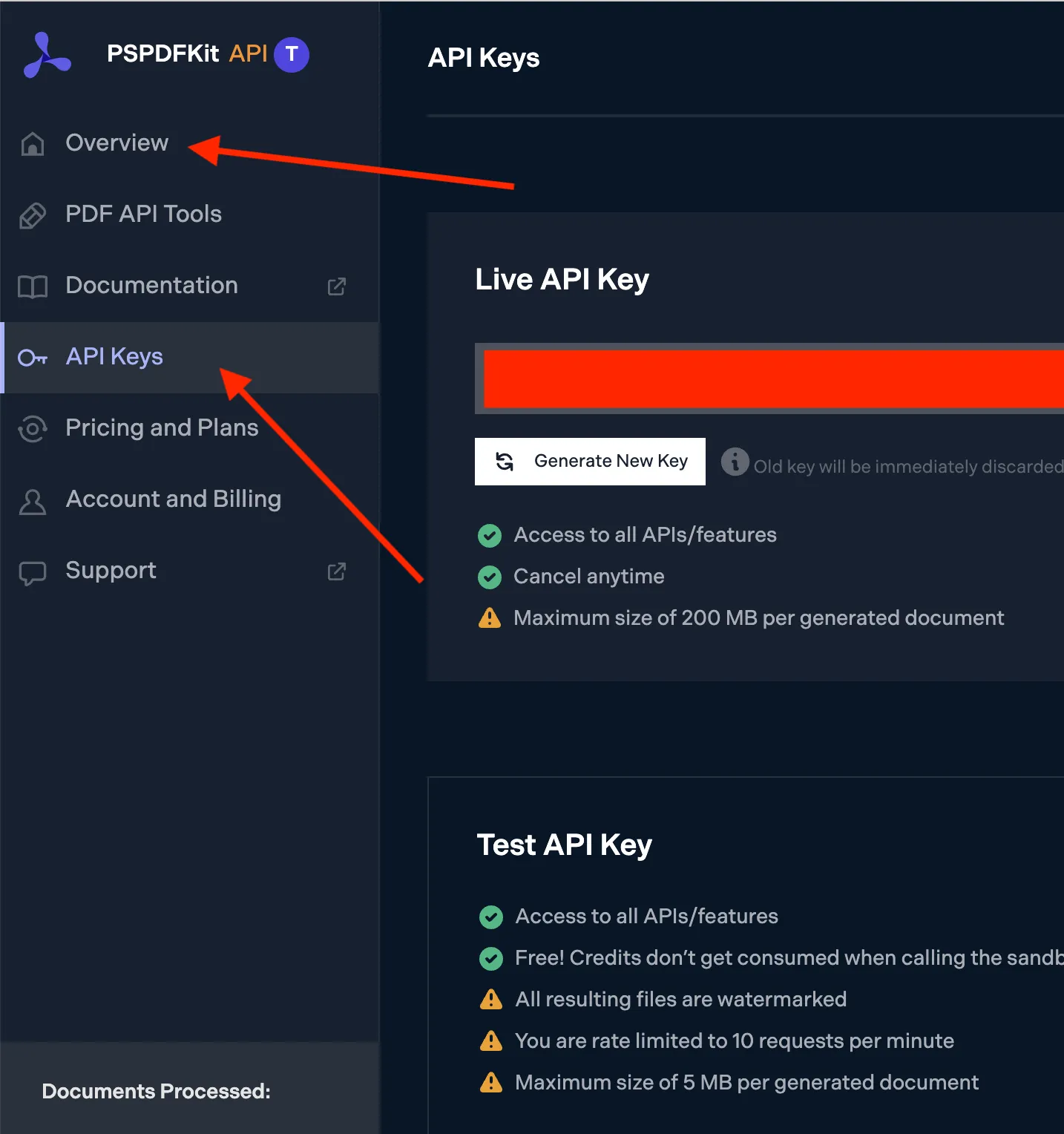
    Image showing navigation to API keys on Nutrient API’s dashboard

    Step 2: Upload and extract text

    To work with Nutrient Processor API, you’ll need to install the requests package:

    After installing the package, you can create a Python script to perform text extraction using the API’s /build endpoint:

    import json

    import requests

    file = "./example.pdf"

    url = "https://api.nutrient.io/build"

    payload= {

    "instructions": json.dumps({

    "parts": [

    {

    "file": "file"

    }

    ],

    "output": {

    "type": "json-content",

    "plainText": True,

    "structuredText": True,

    }

    })}

    files=[

    ('file',('file.pdf',open(file,'rb'),'application/pdf')),

    ]

    headers = {

    'Authorization': 'Bearer <API-KEY>'

    }

    response = requests.post(url, headers = headers, data = payload, files = files)

    if response.status_code == 200:

    print(response.content)

    else:

    print(

    f"Request to Nutrient API failed with status code {response.status_code}: '{response.text}'."

    )

    Be sure to replace <API-KEY> in the code above with your key from the Nutrient API dashboard. Also ensure that an actual PDF file is present at the path specified by the file variable on line 4.

    The JSON response includes both plainText and structuredText. The API will automatically:

    • OCR scanned PDFs
    • Preserve reading order and layout
    • Normalize encoding issues
    • Return structured JSON for downstream parsing

    You can perform many operations using Nutrient Processor API, including text extraction, Office conversion, and OCR. Learn more by reading our documentation.

    Comparing PyPDF and Nutrient API for text extraction

    When it comes to extracting text from PDF files, both PyPDF and Nutrient Processor API are powerful tools, but they serve different needs.

    PyPDF

    • Open source — PyPDF is an open source library, making it a cost-effective choice for developers working on projects with budget constraints.
    • Lightweight and easy to use — PyPDF is simple to integrate into Python projects and works well for basic text extraction tasks.
    • Community-driven — As an open source project, PyPDF benefits from community contributions and updates, but it might lack the advanced features of commercial tools.

    Nutrient Processor API

    • Advanced features — Nutrient is a commercial API that offers advanced features like high-fidelity text extraction, handling of complex PDFs, and support for encrypted documents.
    • Security and compliance — Nutrient provides SOC 2-compliant security, making it a suitable choice for enterprise applications where data security is a priority.
    • Comprehensive support — With Nutrient, users benefit from professional support and regular updates, ensuring reliability and performance in production environments.

    In summary, PyPDF is ideal for simpler, budget-conscious projects, while Nutrient is the go-to solution for enterprise-level applications requiring advanced capabilities and security.

    Conclusion

    This tutorial covered the basics of extracting text from a PDF file using Python and PyPDF. It also showed how to extract text from an encrypted PDF file.

    The second part of the tutorial introduced Nutrient Processor API as an alternative solution for extracting text from a PDF. Leveraging the power of Nutrient API, you can efficiently extract meaningful text from PDF files while ensuring high extraction speed and quality.

    FAQ

    Yes! If your PDF contains digital (selectable) text, you can extract it using PyPDF without OCR. This works best for PDFs exported from Word, LaTeX, or similar tools.

    You’ll need OCR to extract text from image-based PDFs. PyPDF doesn’t support this, but the Nutrient Processor API automatically applies OCR during processing.

    Absolutely. The Nutrient Processor API returns both plain text and structured JSON with text order and hierarchy, making it ideal for NLP or analysis pipelines.

    Not always. PyPDF is great for simple tasks, but for large-scale, secure, or OCR-heavy workflows, a robust API like Nutrient’s is better suited.

    Yes. There’s a generous free tier for developers to test text extraction, OCR, and more — no credit card required.

    Explore related topics

    Try for free Ready to get started?

    Related SDK articles

    Explore more