



惯性聚合 高效追踪和阅读你感兴趣的博客、新闻、科技资讯
阅读原文 在惯性聚合中打开

推荐订阅源

Apple Machine Learning Research
Y
Y Combinator Blog
博客园 - 【当耐特】
V
Visual Studio Blog
GbyAI
GbyAI
V
V2EX
P
Proofpoint News Feed
Microsoft Azure Blog
Microsoft Security Blog
D
DataBreaches.Net
Hugging Face - Blog
Hugging Face - Blog
A
About on SuperTechFans
The Cloudflare Blog
阮一峰的网络日志
阮一峰的网络日志
Cyber Security Advisories - MS-ISAC
N
Netflix TechBlog - Medium
aimingoo的专栏
aimingoo的专栏
B
Blog RSS Feed
量子位
MongoDB | Blog
MongoDB | Blog
有赞技术团队
有赞技术团队
人人都是产品经理
人人都是产品经理
Stack Overflow Blog
Stack Overflow Blog
小众软件
小众软件

Inside Nutrient

A guide to the invisible work behind documents Introducing Nutrient Documents for Salesforce: Native document generation and signing Document AI vs. traditional OCR: Choosing between OCR, AI, and hybrid pipelines PDF SDK compliance and security evaluation checklist for enterprise teams (2026) Invariant Corp replaces paper processes with Nutrient Workflow and scales without limits What is process mapping? A complete guide Nutrient vs. Conga Composer for Salesforce document generation (2026) Document routing: How to automate document distribution The CTO’s AI playbook: Why accountability architecture beats orchestration Compliance workflow automation: Why built-in compliance is table stakes Workflow diagrams: Examples, symbols, and how to build one that actually runs Digital forms: Replace paper forms with automated workflows Approval workflow software: How to automate approvals Why document-centric automation is different The CEO’s AI playbook: Why decision architecture beats model selection Nutrient SDK product updates for Q1 2026 PDF redaction verification: How to prove sensitive data is permanently removed What is a VPAT? The complete guide to accessibility conformance reports What is PDF/UA? The accessible PDF standard explained Salesforce eSignatures: Generate, sign, and track documents in one flow Online document viewer: Options, tradeoffs, and how to embed one Document viewer for web apps: React, Vue, Angular (2026) Best document viewers in 2026: A buyer’s guide How to edit a PDF in Python: Add text, images, and annotations Nutrient advances Workflow platform with agentic AI for enterprise-grade speed and consistency in document-heavy operations How to create a Salesforce quote template from opportunity data The business case for accessibility: Five ways it drives enterprise value Python PDF library comparison (2026): 7 libraries for developers Why your AI agent hallucinates PDF table data PDF.js limitations: When to upgrade to a commercial PDF SDK
How to build a KVP data extraction workflow using Autobah...
Marija Trpkovic · 2024-01-03 · via Inside Nutrient

Table of contents

    How to build a KVP data extraction workflow using Autobahn DX

    Our no-code OCR server, Autobahn DX, allows users to set up and customize workflows with ease and run them automatically. It also works well when processing large volumes of documents, thanks to an AI-powered OCR engine. The KVP step extracts important information from PDF files in pairs. It effectively extracts key-value pairs (KVPs) from unstructured documents or images. Leveraging AI, ML, and adaptive layout understanding, you can automatically label and extract information such as phone numbers, IBANs, credit cards, names, and email addresses.

    The engine can handle scenarios like text recognition in noisy documents, recognition of dotted lines, handling touching and broken characters, text on colored backgrounds, underlined text, skewed text, and text in graphics and tables. Follow this guide to learn how to extract data from PDFs by using intelligent document processing. 
    1. Create a new job

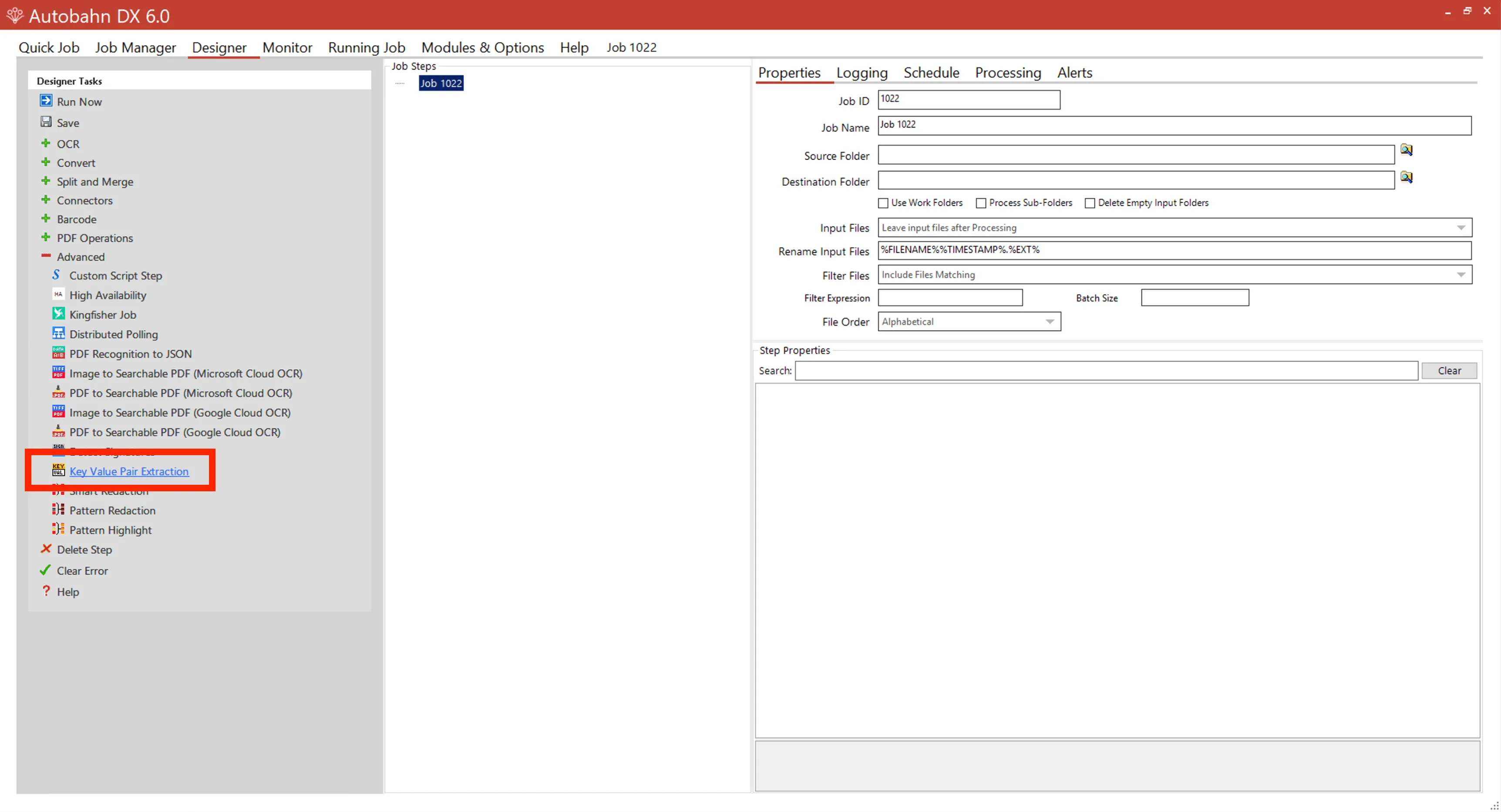
    Click Create New. Fill in the Source Folder and Destination Folder fields by clicking the magnifying glass to the right of these fields. The source (input) folder is where all the files you want to extract would go. The destination (output) folder will initially be empty, but it’s where all the processed files will end up.

    In the left-side navigation, you will find the KVP step in the Advanced menu. For this step, you need to set up the expected keys and the synonym. See the example below.
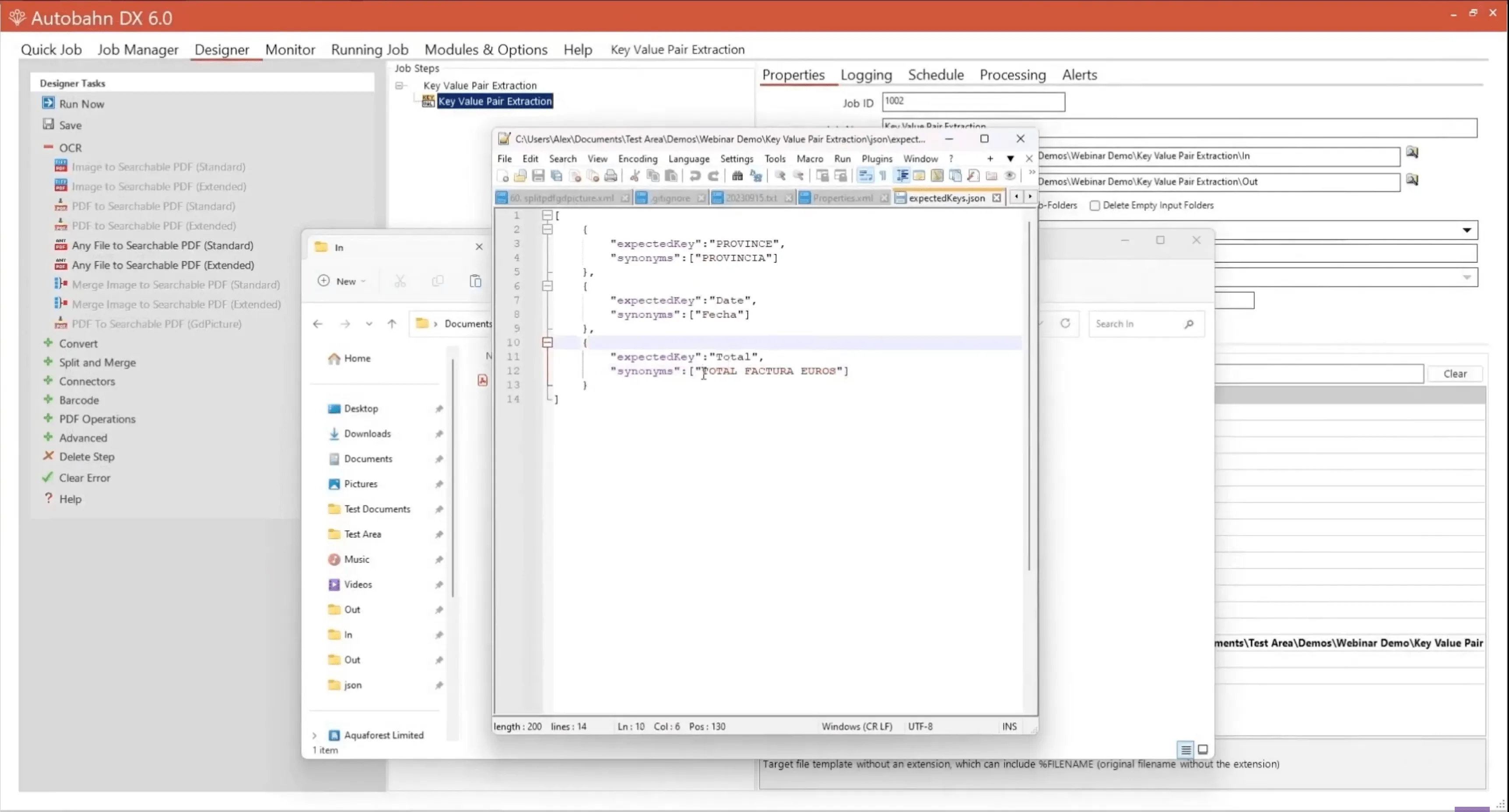
    So if the key-value pair extraction finds this, then it will give a value and output it paired with the total instead.

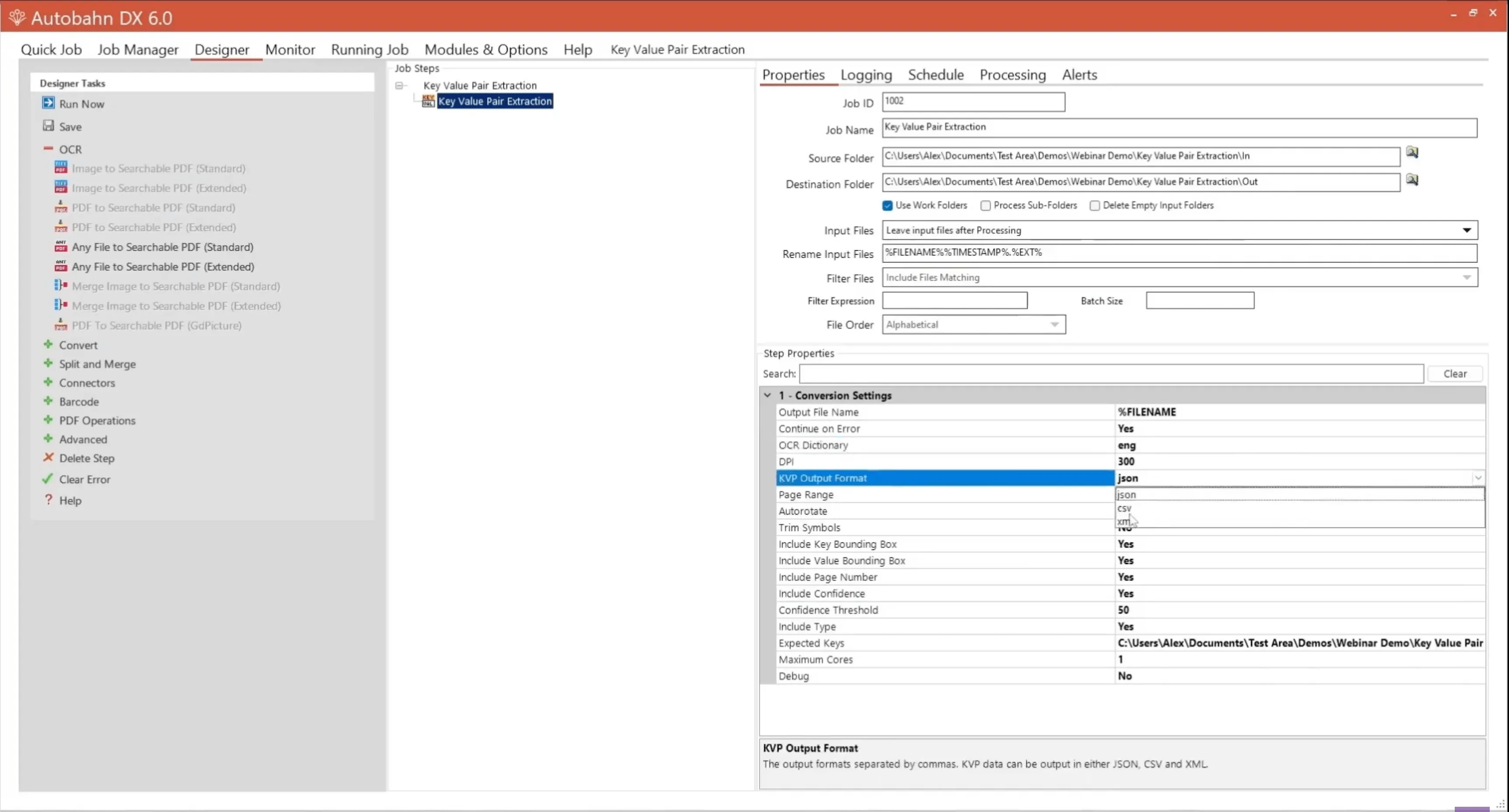
    If you just want to get all the data, then you don’t need to use and expect the keys and there’s more information that you can extract.

    In this example, we set up the JSON as the output, but you can also choose CSV or XML.
    If you want to try these steps yourself, download the free trial of Autobahn DX and make your documents searchable. Or, if you prefer to see these steps in action, check out our video tutorial below.

    Explore related topics

    Try for free Ready to get started?

    Related Low-Code articles

    Explore more