


惯性聚合 高效追踪和阅读你感兴趣的博客、新闻、科技资讯
阅读原文 在惯性聚合中打开

推荐订阅源

L
LINUX DO - 最新话题
C
Cyber Attacks, Cyber Crime and Cyber Security
G
GRAHAM CLULEY
T
Tenable Blog
T
Threatpost
C
CXSECURITY Database RSS Feed - CXSecurity.com
I
Intezer
cs.CL updates on arXiv.org
D
Darknet – Hacking Tools, Hacker News & Cyber Security
K
Kaspersky official blog
Security Latest
Security Latest
P
Privacy & Cybersecurity Law Blog
Google Online Security Blog
SecWiki News
SecWiki News
P
Palo Alto Networks Blog
TaoSecurity Blog
TaoSecurity Blog
Webroot Blog
Webroot Blog
Spread Privacy
Spread Privacy
O
OpenAI News
The Last Watchdog
The Last Watchdog
P
Proofpoint News Feed
C
Check Point Blog
cs.CV updates on arXiv.org
人人都是产品经理
人人都是产品经理
S
Security @ Cisco Blogs
Scott Helme
Scott Helme
OSCHINA 社区最新新闻
OSCHINA 社区最新新闻
cs.AI updates on arXiv.org
月光博客
月光博客
S
Securelist
酷 壳 – CoolShell
酷 壳 – CoolShell
V
V2EX
T
Troy Hunt's Blog
W
WeLiveSecurity
GbyAI
GbyAI
N
News | PayPal Newsroom
Y
Y Combinator Blog
C
Cisco Blogs
H
Help Net Security
The GitHub Blog
The GitHub Blog
Threat Intelligence Blog | Flashpoint
博客园 - 【当耐特】
Jina AI
Jina AI
MongoDB | Blog
MongoDB | Blog
P
Proofpoint News Feed
让小产品的独立变现更简单 - ezindie.com
CTFtime.org: upcoming CTF events
云风的 BLOG
云风的 BLOG
小众软件
小众软件
N
News and Events Feed by Topic

Inside Nutrient

A guide to the invisible work behind documents Introducing Nutrient Documents for Salesforce: Native document generation and signing Document AI vs. traditional OCR: Choosing between OCR, AI, and hybrid pipelines PDF SDK compliance and security evaluation checklist for enterprise teams (2026) Invariant Corp replaces paper processes with Nutrient Workflow and scales without limits What is process mapping? A complete guide Nutrient vs. Conga Composer for Salesforce document generation (2026) Document routing: How to automate document distribution The CTO’s AI playbook: Why accountability architecture beats orchestration Compliance workflow automation: Why built-in compliance is table stakes Workflow diagrams: Examples, symbols, and how to build one that actually runs Digital forms: Replace paper forms with automated workflows Approval workflow software: How to automate approvals Why document-centric automation is different The CEO’s AI playbook: Why decision architecture beats model selection Nutrient SDK product updates for Q1 2026 PDF redaction verification: How to prove sensitive data is permanently removed What is a VPAT? The complete guide to accessibility conformance reports What is PDF/UA? The accessible PDF standard explained Salesforce eSignatures: Generate, sign, and track documents in one flow Online document viewer: Options, tradeoffs, and how to embed one Document viewer for web apps: React, Vue, Angular (2026) Best document viewers in 2026: A buyer’s guide How to edit a PDF in Python: Add text, images, and annotations Nutrient advances Workflow platform with agentic AI for enterprise-grade speed and consistency in document-heavy operations How to create a Salesforce quote template from opportunity data The business case for accessibility: Five ways it drives enterprise value Python PDF library comparison (2026): 7 libraries for developers Why your AI agent hallucinates PDF table data PDF.js limitations: When to upgrade to a commercial PDF SDK How Subject scaled 5× with Nutrient’s PDF SDK without rebuilding its document layer I replaced our sales training with an AI coach that runs in Slack — here’s what broke Redirecting to: https://securitybuzz.com/cybersecurity-news/why-enterprise-permissions-are-ais-most-dangerous-inheritance/ Nutrient .NET SDK vs. iText Core: Complete comparison for .NET developers DocuVieware: Support’s most frequently asked setup questions Introducing Nutrient Workflow How to convert PDF to Word in C# (.NET) When email and spreadsheets stop working: Work order approval workflows for field teams on the move Compliance with confidence: Why document-centric automation is the foundation of your mission Nutrient expands AI Assistant, automating multistep document workflows inside any application What is document generation? A developer’s guide to PDF generation Document Converter data flow and how real-time watermarks skip the queue PDF/UA compliance guide: Requirements, standards, and best practices Computers still can’t understand you How Athena Intelligence built AI agents for regulated enterprises with Nutrient’s document infrastructure How to convert HTML to PDF (2026): 4 methods from browser print to SDK How to build a document extraction pipeline with Nutrient Vision API OCR vs. intelligent document processing: Choosing the right document extraction engine Beyond OCR: How document intelligence eliminates manual processing in regulated industries Nutrient vs. IronPDF: Complete comparison for .NET developers Nutrient vs. Aspose.PDF: Complete comparison for .NET developers Redirecting to: https://fortune.com/2026/02/19/openclaw-who-is-peter-steinberger-openai-sam-altman-anthropic-moltbook/ Lufthansa Systems uses Nutrient to deliver reliable, scalable PDF rendering for pilots worldwide Nutrient vs. Syncfusion: Complete comparison for .NET developers React’s useTransition: The hook you’re probably using wrong First City Monument Bank streamlines banking processes with Nutrient Workflow Redirecting to: https://www.sdcexec.com/warehousing/automation/article/22957364/nutrient-workflow-automation-the-missing-link-in-supply-chain-efficiency The complete guide to digital signatures: PAdES, CAdES, and XAdES explained Nutrient Python SDK: Production-grade document processing for Python Introducing agentic document editing for web applications with AI Assistant Nutrient vs. QuestPDF: Complete comparison for .NET developers How we fixed the GdPicture license expiration (and what to do if you’re affected) Red team security testing with agentic AI The future of healthcare document automation Best healthcare workflow software compared Nutrient SDK product updates for Q4 2025 How Harvey scaled legal document workflows 50 percent MoM without rebuilding infrastructure HIPAA-compliant document management in hospitals How we optimized rendering performance while handling thousands of annotations in React — Part 2 Automated PII removal with Nutrient API Redirecting to: https://www.devopsdigest.com/2026-low-code-no-code-predictions Redirecting to: https://www.kmworld.com/Articles/Editorial/ViewPoints/Leaders-predict-AI-to-continue-permeating-all-aspects-of-KM-in-2026-172594.aspx What are deep agents and how do they solve complex problems? Whipping up document magic: Your easy-bake recipe for Vue and Nutrient Web SDK 🧁 What I’ve learned about product iteration planning while building SDKs Passwordless document signing: Three-layer security guide New zip folder functionality streamlines file management in Document Automation Server The keyboard shortcuts playbook: Taking control of keyboard events in Nutrient Web SDK From experienced engineer to AI beginner: My unexpected journey AI-assisted manual testing: Handling Safari’s PDF rendering and UI quirks How to keep a 20-year-old SDK up to date How we optimized rendering performance while handling thousands of annotations in React — Part 1 Nutrient announces new executive hires to accelerate next phase of growth High performance UI using web workers Automate document conversion at scale with Python and Nutrient DCS From curiosity to PLG (and AI): My journey to understanding product-led growth Prost to progress: One year as Nutrient Pigeon usage at Nutrient: Bridging native SDKs to Flutter Modernizing CI build servers: How to migrate from Chef to Ansible Unix man pages: AI-friendly documentation since 1971 Consistent hashing for even load distribution Best AI redaction APIs: Complete comparison guide for 2025 Why AI document redaction matters for modern security From coding to coordinating: How AI transformed my workflow What is intelligent document processing (IDP)? A complete guide Enterprise PDF SDKs: Best PSPDFKit (now Nutrient) alternatives Nutrient SDK product updates for Q3 2025 GdPicture support best practices Redacting sensitive data with Nutrient AI redaction API How AI is transforming the customer experience at Nutrient: From instant answers to intelligent support
OCR for receipt recognition and expense tracking
Marija Trpkovic · 2024-02-16 · via Inside Nutrient

In today’s fast-paced business environment, managing expenses and tracking receipts can be a tedious task. This user guide explores how optical character recognition (OCR) technology, specifically the Aquaforest PDF Connector for Power Automate’s “OCR PDF or images” action, can simplify expense tracking by automating the extraction of information from scanned receipts.

Use Case Story: Automated Receipt Recognition

John’s Expense Woes
Meet John, a busy professional who often finds himself drowning in a sea of paper receipts. Manually entering data for expense tracking not only consumes a significant amount of his time but also introduces the risk of errors.

OCR Receipt Recognition for Expense Tracking
John discovers the power of OCR in Power Automate through the Aquaforest PDF Connector. By implementing the “OCR PDF or images” action, he can now automate the extraction of vital information from scanned receipts.

Benefits of OCR for Expense Tracking

Time Efficiency: OCR eliminates the need for manual data entry, saving time and allowing professionals like John to focus on more strategic tasks.
Accuracy Improvement: Automated receipt recognition reduces the risk of errors associated with manual data entry, ensuring accurate expense tracking.
Streamlined Processes: OCR technology streamlines the entire expense tracking process, from receipt scanning to data extraction, enhancing overall workflow efficiency.
Real-time Accessibility : Digitized data from OCR becomes instantly accessible, enabling quick retrieval and reference for reimbursement processes.

How to Simplify Expense Tracking with OCR using Power Automate

Follow these step-by-step instructions to implement the “OCR PDF or images” action for expense tracking:

Step 1. Configure Aquaforest PDF Connector.

Add the Aquaforest PDF Connector to your Power Automate workflow. First you choose the type of the flow and the trigger.

For this example, we will choose the “Automated cloud flow” and set a trigger “When a file is created (properties only)”. This trigger is activated when an item is created, or modified in a library. As it returns only the properties stored in the library columns you need to add a “Get file content” step and use the “Identifier” property returned by this action to get to the contents of the file.

Click on the + button to add a new action, and in the search bar type “OCR PDF or images” action.
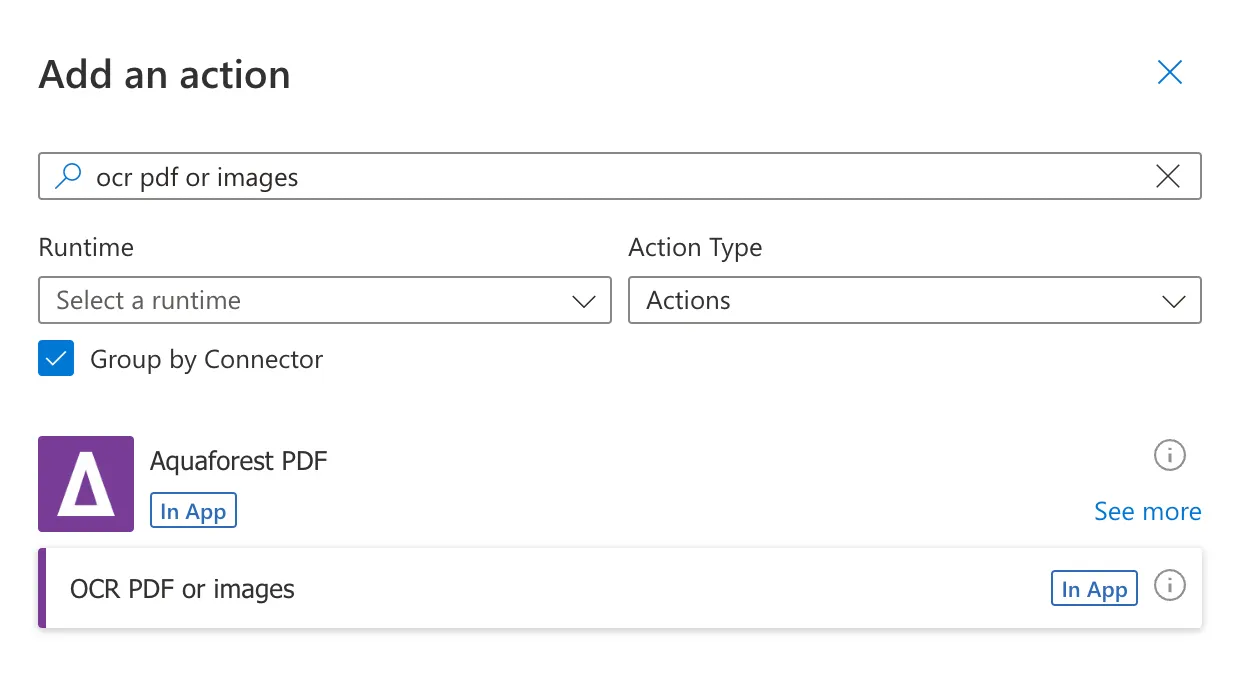
ocr receipts with power automate

As a next step, you will be asked for a Connection Name and an API Key. Give your connection a name and use the primary key generated upon signing up for PDF Connector(opens in a new tab). If you need assistance, read the getting started guide, particularly Generate API key section.
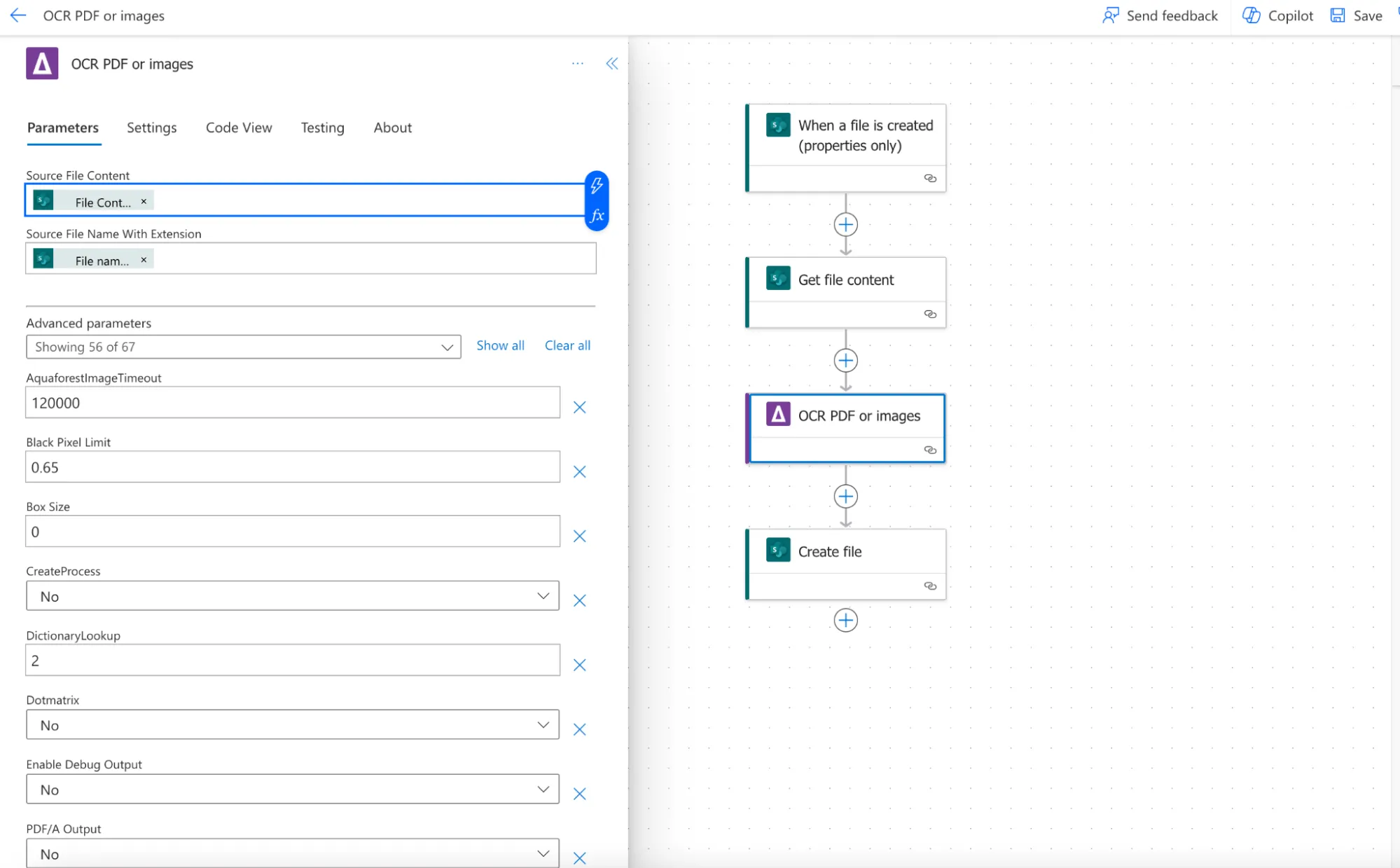
Step 2. Provide Input Parameters.

ocr power automate

Enter the source file content for the scanned receipt.

  • Source File Content: Content of the file to OCR. Click on the thunder sign and type File content to find the proper value.
  • Source File Name with Extension: The source file name with extension or just the extension (with a leading period ‘.’). Click on the thunder sign and type “File name with extension”, then click Add.

Step 3. Configure OCR Settings.

The two parameters above are mandatory but there are many other optional parameters. Check out here for more details. Define OCR settings, such as language preferences, auto-rotate, binarize, and more.
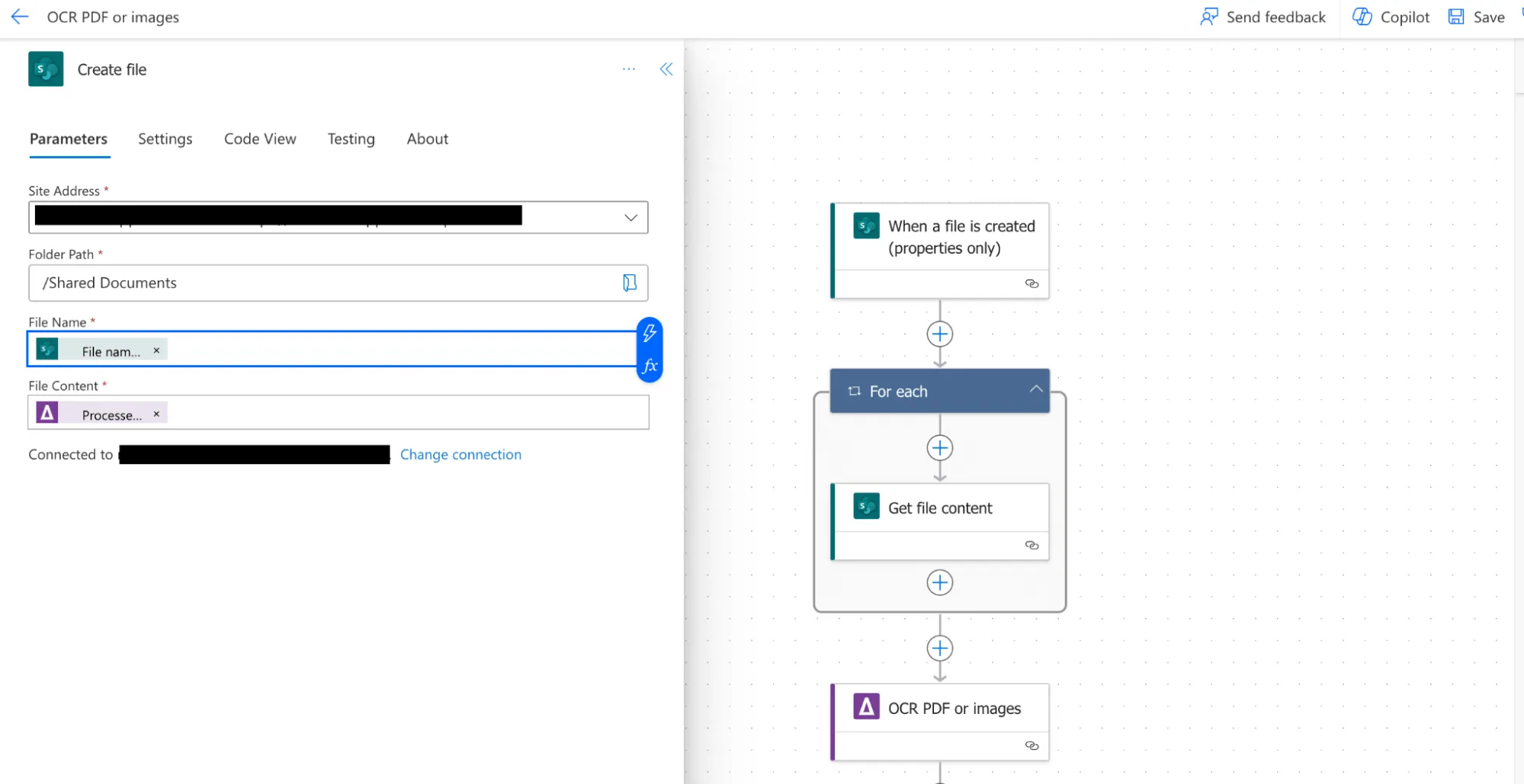
Step 4. Create file action.

ocr receipt recognition

Add the create file action and configure following the details below:

Site address: The URL of your SharePoint site.

Folder path: The location of your SharePoint library where the output file will be stored. You need to store the OCRed PDF file into a different folder, or otherwise it will create an indefinite loop and the flow will be running all the time.

File name: The name of the OCRed PDF file. Click on the thunder sign and open Dynamic content. Type “File name with extension” in the search bar and click on Add.

File content: Click on the thunder sign and open Dynamic content. Click on See More to show all the output parameters and then click on Processed file content and confirm by clicking on the Add button.

  • Processed File Content: The PDF file generated by the Aquaforest PDF Connector.

You can also check other output parameters:

  • Log File Content: The log contents of the operation.
  • Error Message: Error message returned by the operation.
  • Is Successful: Whether the operation was successful or not.
  • License Info: Information about your API subscription key, including LicenseType, CallsRemaining, CallsMade, and RenewalDate.

Step 5. Execute the Action.

Click on the Save button and run the Power Automate workflow to execute the “OCR PDF or Images” action.

Step 6. Review Output.

Check the output for the OCR-processed data extracted from the scanned receipt.

Conclusion

By incorporating the Aquaforest PDF Connector(opens in a new tab)’s “OCR PDF or Images” action into expense tracking workflows, professionals can simplify their processes, reduce manual effort, and ensure accurate reimbursement. This user guide provides a comprehensive walkthrough, empowering users like John to leverage OCR for efficient expense management.