


Ghost CMS is a platform designed to provide comprehensive settings for content creation and optimization. The aim of this guide is to help you understand these settings and utilize them to their full potential for enhancing your content's search engine optimization.
These settings are crucial in fine-tuning your posts to make them more discoverable and readable by search engines. Each setting has a unique role in contributing to your content's SEO. From customizing your post URL to setting up optimized metadata, we'll explore the available options.
Understanding how to navigate these settings is the first step:
- Login to your Ghost CMS admin panel.
- Navigate to the Posts section.
- Select and open a post.
- Click the Settings icon located on the top right corner to open the Post Settings sidebar.
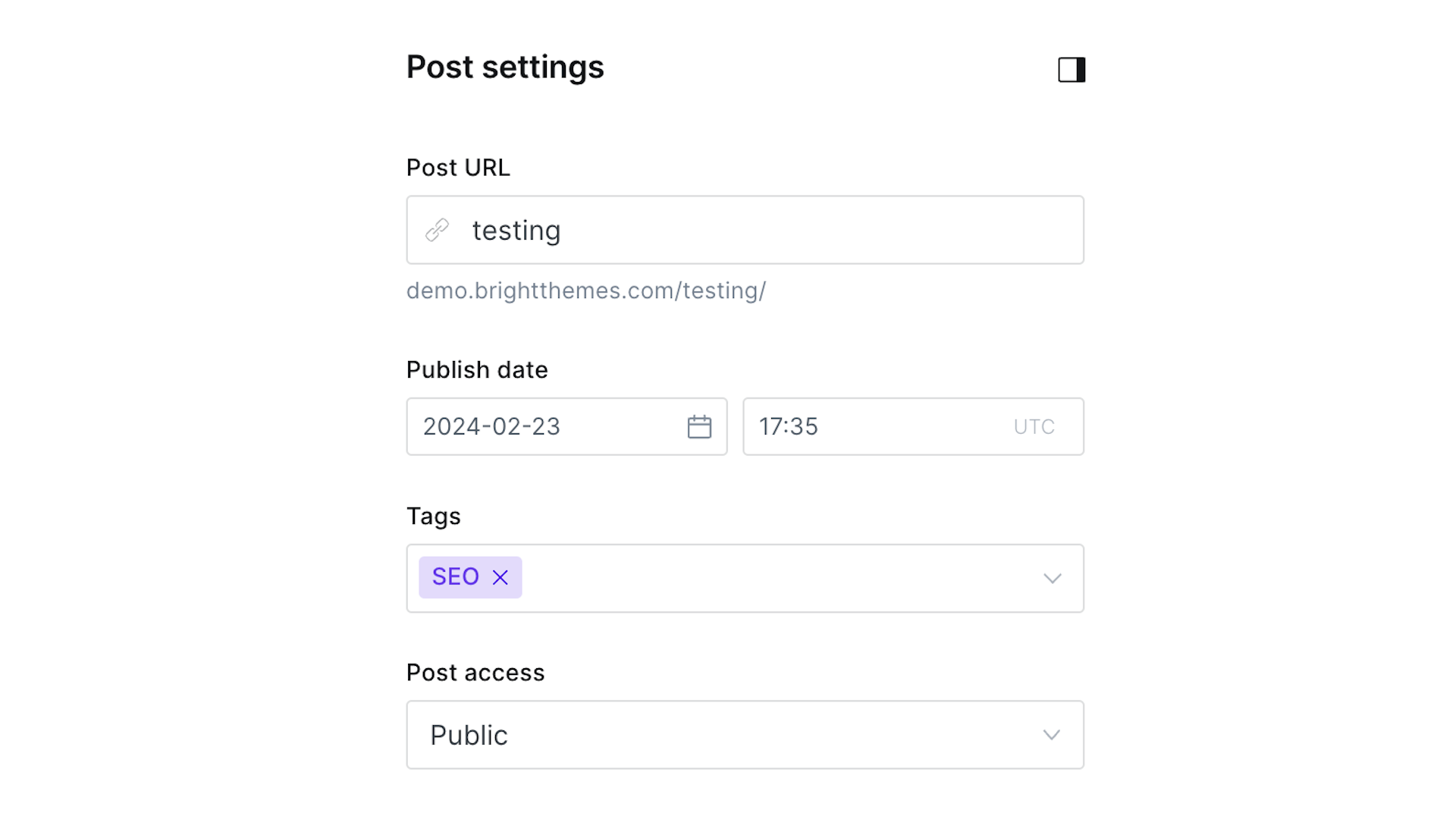
Now that you're in, let's explore each post setting.
Post URL
The Post URL is the digital address of your content. In Ghost CMS, you have the flexibility to customize it for SEO benefits. Keep it concise, eliminate unnecessary words, and include relevant keywords. A well-optimized URL not only improves user experience but also helps search engines understand the content of your post.
Tip
Ensure your URL is readable and reflects the topic of your post. Use hyphens to separate words for better readability.
Publish date
The Publish Date is crucial for both readers and search engines. It provides context to your content's freshness, a factor often considered by search algorithms. Ghost can schedule posts to be published at specific times, helping you maintain a regular posting schedule and consistently fresh content.
However, it's not just about posting new content. It's also crucial to revisit and update your older posts. Updating older posts with fresh information and republishing them can boost their visibility and attract more traffic. This practice is particularly effective for evergreen content, where the information remains relevant over time.
Tip
Regularly update and republish evergreen content to signal freshness to search engines.
Tags in Ghost CMS play an essential role in organizing your content and enhancing its discoverability. They serve as a tool to categorize your content effectively, making it easier for users and search engines to find related posts. Using relevant keywords as tags can significantly boost your post's visibility and SEO.
Ghost CMS allows you to easily add and manage tags, which facilitates effective categorization of your content. Regular review and updating of your tags help ensure they continue to align with your content and audience interests. The platform even allows for the creation of tag archives - a dedicated page for each tag, which can further enhance your SEO.
Tip
Research and include popular and niche keywords as tags to broaden your content's reach.
Post Access
The Post Access setting allows you to control who can view your content. Whether it's a public post or accessible to specific members, this setting makes it easy to execute your content strategy and SEO goals.
The following options are available:
- Public - All site visitors, no login necessary
- Members only - All logged in members
- Paying members only - Only logged-in members with an active Stripe subscription
- Specific tiers - Members with any of the selected tiers
The default option can be set from Settings > Access > Default post access.
Tip
Consider creating members-only content to encourage user registration and engagement, potentially boosting SEO.
Excerpt
The excerpt field is limited to 300 characters, and it's usually used by Ghost themes
on post cards.
Crafting a compelling Excerpt serves a dual purpose – enticing readers and optimizing for search engines. Use this field to summarize your post concisely and include relevant keywords. A well-crafted excerpt can significantly improve your click-through rates from search engine results pages (SERPs).
Tip
Aim for a concise yet informative excerpt that sparks curiosity and includes key search terms.
The Authors setting field in Ghost CMS is a multi-select field, you can assign any number of authors, this adds depth and authenticity to your content. By highlighting the authors, you provide valuable information about the individuals behind the content to both readers and search engines. This feature can add credibility to your posts and contribute positively to your SEO.
Authors are staff members and their info can be edited from Settings > Staff. Authorship also plays a role in search engine ranking. Search engines like Google appreciate content that's associated with a credible author, especially when the author has a demonstrated authority in the topic at hand. This can improve the trustworthiness of your content and boost its visibility in search results.
Tip
Encourage authors to create author profiles with relevant information and links to social profiles for enhanced visibility.
Template
The template field is only visible if you have custom templates.
If you do, the Default value will mean your post will use the post.hbs template.
Custom templates can change the appearance of your post with based on custom Ghost CMS templates. Depending on the theme you use, you can have different layouts available.
Choose a template that complements your content and enhances user experience. A well-designed and responsive template contributes to a positive SEO impact.
Tip
Opt for mobile-friendly templates to cater to the increasing number of mobile users, positively affecting your search rankings.
Feature this post
The flag allows you to highlight important content by featuring it prominently on your site. The implementation depends on your theme, some have sliders, others dedicated section. In general, the "Feature this post" setting allows you to showcase selected posts, increasing their visibility and potentially improving their search engine rankings.
Tip
Feature high-performing and evergreen content to keep it in the spotlight, driving sustained organic traffic.
Post history
Ghost CMS keeps track of your post history, providing a safety net for content creators. This feature allows you to revert to previous versions if needed, ensuring that accidental changes don't negatively impact SEO.
The post history feature can be particularly useful when multiple people are working on the same post. It allows you to track changes made by different contributors, ensuring the final post aligns with your content and SEO strategy.
Tip
Regularly check and compare post versions to identify and rectify unintentional SEO-unfriendly changes.
Code injection
For advanced users, the Code Injection setting allows you to add custom code to your posts. This can be utilized for post specific styling, functionality, or additional SEO optimizations, such as schema markup or other technical enhancements.
There are two separate fields:
- Post header - for adding code in the
<head> - Post footer - for adding code in the
<body>
Remember, any code added via this setting will apply to the individual post only, giving you granular control over the custom code application. This can be particularly useful when you want to apply specific modifications to a single post without affecting the entire site.
Tip
Use Code Injection for advanced SEO strategies like structured data markup to provide more context to search engines.
Fine-tune your post's meta data, to optimize how your content appears in search engine results. You can set the following:
- Meta title
- Meta description
- Canonical URL
The meta title should accurately represent your content and include your target
keyword. It's the first thing users see in search results, so it should be compelling
and concise. Keep it under 60 characters to ensure it displays fully in SERPs.
The meta description offers a brief summary of your content. It should be engaging, provide context, and include relevant keywords. While it doesn't directly influence your search rankings, a well-written meta description can improve your click-through rate, which does impact your SEO.
By setting a canonical URL, you're informing search engines which version is the "main" one and should be prioritized in search results, ensure it's the most comprehensive and high-quality version of your content.
Tip
Include target keywords naturally in your meta tags to improve relevancy and visibility in SERPs.
X card
Optimize social media sharing by configuring the Twitter card. These setting control how your content appears when shared on Twitter , enhancing the visual appeal and click-through rates.
Fields:
- X image
- X title
- X description
Facebook Card
Optimize social media sharing by configuring the Facebook card. These setting control how your content appears when shared on Facebook , enhancing the visual appeal and click-through rates.
Available fields:
- Facebook image
- Facebook title
- Facebook description
By understanding and applying these settings, you can improve your content's visibility, attract a broader audience, and establish a strong online presence.