
惯性聚合 高效追踪和阅读你感兴趣的博客、新闻、科技资讯
阅读原文 在惯性聚合中打开

推荐订阅源

人人都是产品经理
人人都是产品经理
MyScale Blog
MyScale Blog
Y
Y Combinator Blog
罗磊的独立博客
奇客Solidot–传递最新科技情报
奇客Solidot–传递最新科技情报
P
Proofpoint News Feed
Google DeepMind News
V
Vulnerabilities – Threatpost
T
The Blog of Author Tim Ferriss
云风的 BLOG
云风的 BLOG
Recorded Future
Recorded Future
N
News and Events Feed by Topic
B
Blog RSS Feed
阮一峰的网络日志
阮一峰的网络日志
博客园_首页
C
CXSECURITY Database RSS Feed - CXSecurity.com
博客园 - 【当耐特】
N
Netflix TechBlog - Medium
博客园 - 叶小钗
B
Blog
Vercel News
Vercel News
T
Tenable Blog
T
The Exploit Database - CXSecurity.com
Spread Privacy
Spread Privacy
T
Threat Research - Cisco Blogs
Cyber Security Advisories - MS-ISAC
Last Week in AI
Last Week in AI
F
Fortinet All Blogs
cs.CL updates on arXiv.org
Microsoft Security Blog
S
Securelist
Microsoft Azure Blog
钛媒体:引领未来商业与生活新知
钛媒体:引领未来商业与生活新知
P
Palo Alto Networks Blog
让小产品的独立变现更简单 - ezindie.com
D
DataBreaches.Net
Cyberwarzone
Cyberwarzone
Engineering at Meta
Engineering at Meta
Martin Fowler
Martin Fowler
G
GRAHAM CLULEY
Project Zero
Project Zero
Cisco Talos Blog
Cisco Talos Blog
A
Arctic Wolf
C
CERT Recently Published Vulnerability Notes
L
LangChain Blog
cs.AI updates on arXiv.org
C
Check Point Blog
A
About on SuperTechFans
W
WeLiveSecurity
The GitHub Blog
The GitHub Blog

Example blog

Ghost routing explained with routes.yaml examples — routes, collections & taxonomies Ghost redirects explained with practical redirects.yaml examples How to Serve JSON or XML Data in Ghost How to Change Your Default Post Template in Ghost Ghost Custom Theme Settings How to Configure Ghost with Mailgun Ghost Theme Structure & Organization How to Make Custom Templates in Ghost Themes How to Install Ghost CMS via Ghost-CLI How to Add Syntax Highlighting to Ghost The best Ghost CMS hosting platforms Ghost 6.0 — Social Web and Native Ghost Analytics Ghost CMS Social web beta, email 2FA and more author social links How to keep custom design settings when updating your Ghost theme How to use the public preview card in Ghost How to add members-specific sections in Ghost How to customize the default content CTA in Ghost How to build a custom homepage in Ghost An overview of Ghost editor cards and and how they work Ghost CMS News: One-time payments & collecting sales tax How to customize the private site access template in Ghost How to add custom fonts in Ghost themes Ghost CMS News: Additional payment methods & internal linking How to use Code Injection in Ghost How to set meta data of your custom routes & collections in Ghost Ghost CMS News: TK reminders, ActivityPub and improvements How to format dates and use the date helper in Ghost Ghost CMS internationalization, custom fonts & spam protection Understanding and optimizing post and page settings in Ghost CMS Trigger the Ghost Portal popup based on page scroll progress How to Deploy Your Ghost Theme with GitHub Actions How to create a custom recommendations page for your Ghost CMS theme Ghost CMS News: New editor, refreshed settings & recommendations Ghost CMS News: Source - the new default theme and native image editing How to Add Different Logos for Dark & Light Themes in Ghost Upgrade to Node v18 for Ghost CMS & common errors Ghost Snippets: Adding Schema markup in Ghost How to add a scroll-based progress bar to your Ghost CMS site How to Create a Custom Navigation Template in Ghost How to Segment Subscribers with Member Labels in Ghost The best way to create a contact page in Ghost How to Use the Ghost Subscription Forms in Your Theme & Posts How to update your Ghost site URL when self-hosting Ghost CMS News: Signup cards and better landing pages How to Add Breadcrumbs to Your Ghost Theme How to integrate the Applause Button into your Ghost theme How to Hide a Post From the Home Page in Ghost CMS Ghost CMS block and contentFor helper overview & tips How to add Image Lightbox to Ghost Themes Ghost CMS News: Signup form embed, new editor and bulk actions. Biron Themes becomes Bright Themes 🎉 How to Audit & Test a Ghost Theme How to Create Related Posts Section in Ghost How to Use Ghost Filter Expressions Ghost CMS newsletter settings and post analytics How to Update Your Ghost Theme When We Release New Versions Ghost CMS News: Automatic list cleaning & email troubleshooting How to Create a Featured Post Slider in Ghost How to Add Reading Time to Ghost Blog Posts How to Create a Post Archive for Your Ghost Theme Ghost CMS Price Helper Overview & Tips Self-Hosted Ghost CMS with DigitalOcean Ghost CMS News: Member Growth Sources & Audience Feedback How to Open External Links in a New Tab in Ghost How to Integrate Google Analytics with Ghost Ghost CMS News: History Log & Newsletter Analytics How to Automatically Add Member Labels From Referral Traffic in Ghost? Ghost CMS News: Free trials & email notifications Ghost CMS Match Helper Usage & Tips Ghost CMS News: Native Comments Ghost CMS News: Ghost Explore & Premium Newsletter Previews Ghost Snippets: Custom Progress Cards & Steps Ghost CMS News: Native Search The Best Ghost CMS Search Plugins & Libraries Ghost Snippets: Custom Stylish Tables How to Add a Scroll Top & Progress Indicator Button in Ghost Ghost Snippets: Accordions How to Add Tag Dropdown to Your Ghost Theme Ghost 5.0 released 🎉 Ghost Snippets: Custom Subscribe Forms Ghost Snippets: Custom Alert Boxes How to Show Post or Newsletter Issue Number in Ghost How to Self-Host Google Fonts in Ghost CMS Ghost CMS News: Membership, Tiers & Activity Feed Custom Pages in Ghost CMS Themes Ghost CMS Search Using Fuse.js Ghost CMS News: Offers and Discounts & New Cards Ghost CMS News: Membership tiers, email CTA & filters Ghost CMS News: Grammarly Support & Feature Image Captions. Ghost CMS News: Improved Member Accounts & Personalized Newsletter. Ghost 4.0 Launched With Native Newsletters & Membership Ghost CMS News: Cancellation Feedback & Newsletter Stats. Ghost CMS News: Improved Member Dashboard & Sidebar Views. Ghost CMS News: Google Pay support, email newsletters & secondary navigation Ghost CMS News: Member Support, Portal & Content Snippets. Ghost CMS News: Referral Programs & Responsive Images. Ghost Themes as Progressive Web Apps Ghost 3.0 is here with brand new features Ghost 2.0 is here with new features How to Add Search to Ghost Using ghostHunter
How to add Google Fonts to Ghost Themes
Bright Themes · 2026-03-27 · via Example blog

Google Fonts is one of the most popular services when it comes to adding custom fonts to websites. In fact, most of our Ghost Themes use Google Fonts.

In this post, you'll learn how to add Google Fonts to Ghost without hurting performance.

Choose the Font

Google Fonts offers a large library of fonts, and you can filter by:

  • Categories (Serif, Sans Serif, Display, Handwriting, Mono space)
  • Language (if you want to support language with special characters)
  • Font Properties (thickness, slant, width)
  • Variable Fonts

Variable Fonts can significantly reduce the size of your font files and make it possible for one font file to behave like multiple fonts, allowing you to adjust the weight, width and slant of type as you work. For more about Variable Fonts you can read this guide.

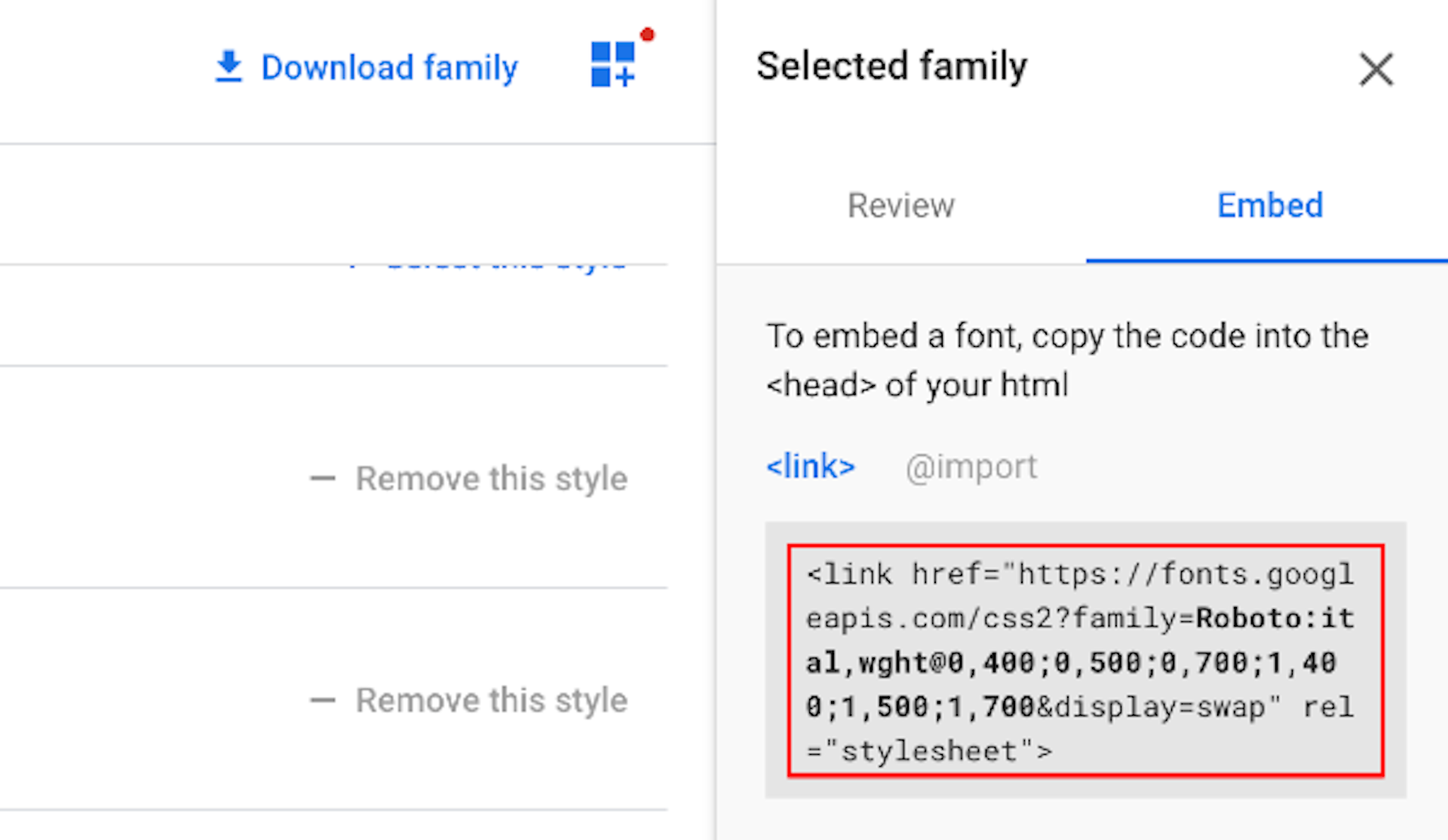
After you have selected the font with all the variants, weights and styles, in the Selected Family section you can press Embed and there you should find the code for embedding.
Google Fonts Embed
Google Fonts Embed

For Roboto with font weights 400, 500, 700 normal and italic the code looks like this:

<link
  href="https://fonts.googleapis.com/css2?family=Roboto:ital,wght@0,400;0,500;0,700;1,400;1,500;1,700&display=swap"
  rel="stylesheet"
/>

Besides the weight and style of the font, there is one additional property in the link, the display=swap. Font-display currently supports the following range of values auto | block | swap | fallback | optional.

  • auto - uses the browser default
  • block - font face has a short block period and an infinite swap period, meaning text is invisible at first (if font is not loaded) and swapped after. This value should only be used if rendering text in a particular typeface is required for the page to be useable.
  • swap - font face has a zero second block period and an infinite swap period meaning the browser draws text immediately with a fallback if the font face isn’t loaded, but swaps the font face in as soon as it loads.
  • fallback - gives the font face an extremely small block period and a short swap period, meaning the font face is rendered with a fallback at first if it’s not loaded, but the font is swapped as soon as it loads.
  • optional - gives the font face an extremely small block period and a zero second swap period

So display=swap makes sure text is shown immediately using a fallback font, then swapped once the webfont loads. This avoids "Ensure text remains visible during webfont load" warnings.

Ghost Head

Now that we have the embed code, we have to place that in the code. With Ghost CMS this is possible in two ways, we can place it in the default.hbs file of the Ghost Theme or adding it in Ghost Admin, in the Code Injection section.

In the default.hbs, the font link should be added within the <head> </head> section:

<head>
  <!-- Other tags... -->
  <link
    href="https://fonts.googleapis.com/css2?family=Roboto:ital,wght@0,400;0,500;0,700;1,400;1,500;1,700&display=swap"
    rel="stylesheet"
  />
</head>

This is the standard approach, but you can improve performance further by adding preconnect to speed up the initial connection.

<link rel="preconnect" href="https://fonts.googleapis.com" />
<link rel="preconnect" href="https://fonts.gstatic.com" crossorigin />

After that, include the stylesheet link as usual.

<link rel="preload"> serves as a "hint" to the browser that a given resource is going to be needed soon and it will trigger a request for the Webfont early in the critical rendering path, without having to wait for the CSSOM to be created.

Taking this into account the embed code should look like this:

<head>
  <!-- Other tags... -->
  <link
    rel="preload"
    href="https://fonts.googleapis.com/css2?family=Roboto:ital,wght@0,400;0,500;0,700;1,400;1,500;1,700&display=swap"
    as="font"
    onload="this.onload=null;this.rel='stylesheet'"
  />

  <noscript>
    <link
      rel="stylesheet"
      href="https://fonts.googleapis.com/css2?family=Roboto:ital,wght@0,400;0,500;0,700;1,400;1,500;1,700&display=swap"
    />
  </noscript>
</head>

First the tag for preloading is added, as well as the onload event, which means that as soon as this is loaded, it changes the rel to stylesheet.

The noscript tag is a fallback in case Javascript is not available or disabled by the user.

Setup CSS

Now that the font is ready and it is linked, we just have to use it. For this we need to adapt the CSS of the Ghost Theme.

We usually use CSS properties to set Fonts (as well as other things). Global css properties can be defined like this:

:root {
  --font-family-sans: 'Roboto', Arial, sans-serif;
}

With this property defined you can set it for your elements. To set it as the default font for the whole website:

html,
body {
  font-family: var(--font-family-sans);
}

Unless you have some more specific CSS, other elements will inherit this setting, and will use the fonts.

Your Ghost Theme should now have your selected Google Fonts. I hope you find this helpful.

If you're worried about privacy/GDPR and prefer to self-host your fonts, check out our guide about self-hosting Google Fonts in Ghost Themes.