1、插件安装
1
2
3
4
5
6
|
1、Manage Jenkins ---> Manage Plugins ---> Available 搜索框输入下面几款插件

2、插件安装以及插件的说明:
    1) HTML Publisher plugin    # 推送生成的html报告到jenkins
    2) Email Extension Plugin   # jenkins配置email的插件
    3) Groovy                   # 让jenkins可以识别css样式
|
PS:无法安装插件请点击跳转连接进行解决
2、jenkins全局配置
1
|
Manage Jenkins ---> Configure System
|
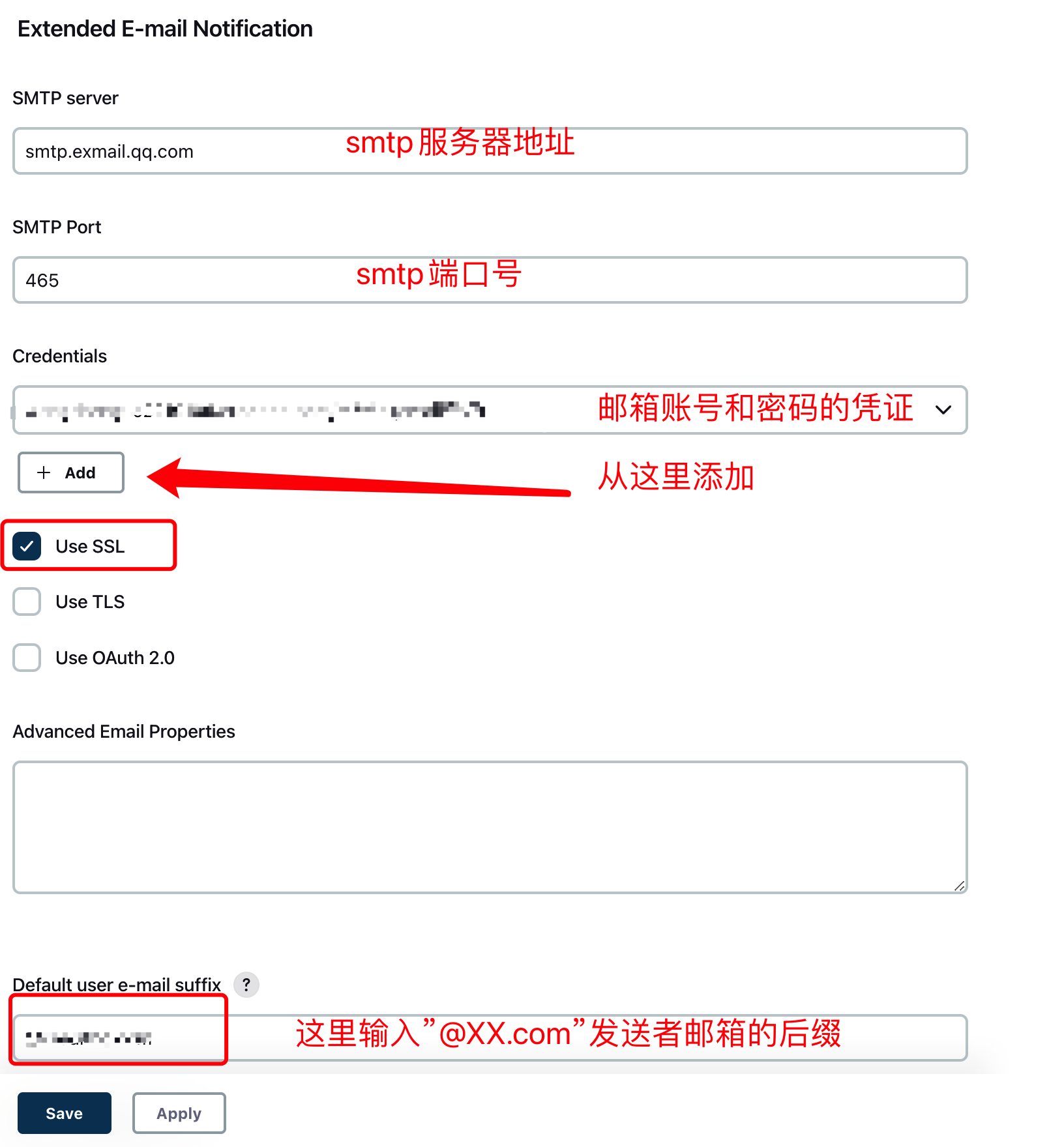
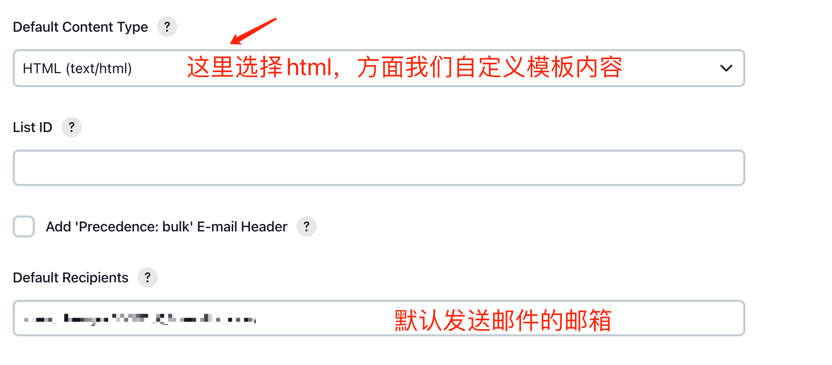
3、jenkins-job配置
1、添加识别css脚本【构建后】
1
|
System.setProperty("hudson.model.DirectoryBrowserSupport.CSP", "")
|
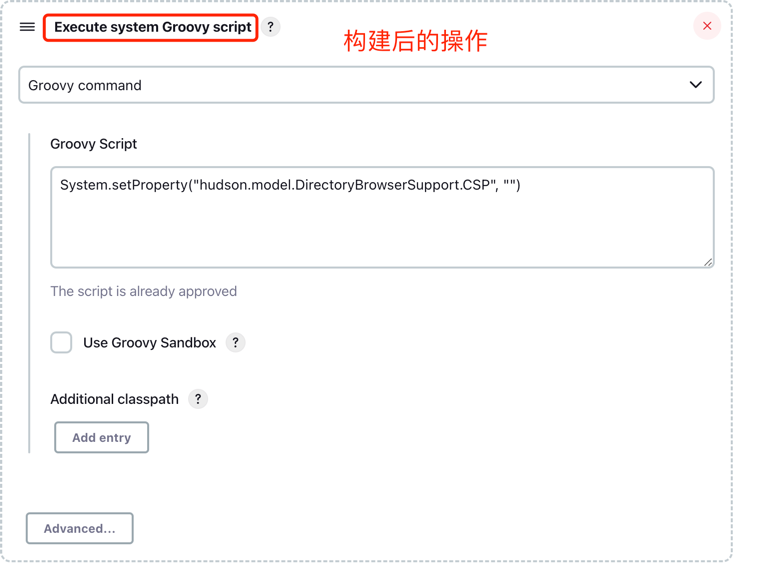
2、添加并配置email
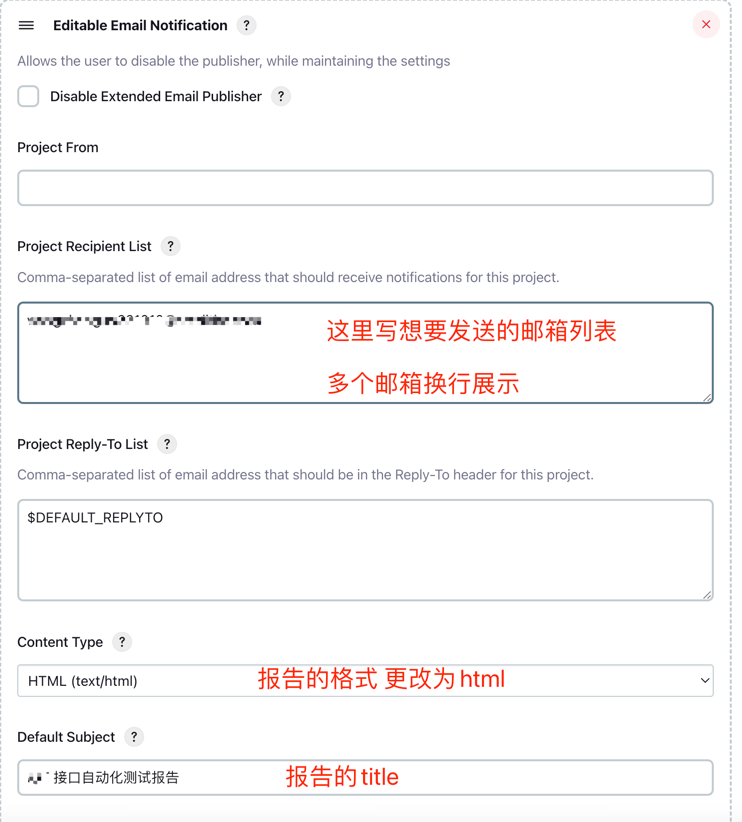
Default Content里添加html模板,模板如下,可以自行修改
 1
 2
 3
 4
 5
 6
 7
 8
 9
10
11
12
13
14
15
16
17
18
19
20
21
22
23
24
25
26
27
28
29
30
31
32
33
34
35
36
37
38
39
40
41
42
43
44
45
46
47
48
49
50
51
52
53
54
55
56
57
58
59
60
61
62
63
64
65
66
67
68
69
70
71
72
73
|
<!DOCTYPE html>
<html>
<head>
    <STYLE TYPE="text/css">
        BODY {
            background-image: URL(https://i.postimg.cc/GtTbW0P6/Wechat-IMG134.jpg);
            background-position: center;
            background-repeat: no-repeat;
            background-attachment: fixed;
            background-size: 100% 100%;
        }
    </STYLE>
    <meta charset="UTF-8">
    <title>${ENV, var="JOB_NAME"}-自动化测试报告结果</title>
</head>

<body leftmargin="8" marginwidth="0" topmargin="8" marginheight="4"
      offset="0">
<table width="95%" cellpadding="0" cellspacing="0"
       style="font-size: 11pt; font-family: Tahoma, Arial, Helvetica, sans-serif">
    <tr>
        (本邮件由系统自动发出,无需回复!)<br/>
        各位好,以下是${PROJECT_NAME}项目构建信息<br/>
        <td><font color="#CC0000">构建结果 - ${BUILD_STATUS} Tips:如需查看报告需要连接VPN查看噢</font></td>
    </tr>
    <tr>
        <td><br/>
            <b><font color="#0B610B">构建信息 - ${BUILD_STATUS}</font></b>
            <hr size="2" width="100%" align="center"/>
        </td>
    </tr>
    <tr>
        <td>
            <ul>
                <li>项目名称:${PROJECT_NAME}</li>
                <li>构建版本:1.0.0</li>
                <li>触发原因:${CAUSE}</li>
                <li>构建状态:${BUILD_STATUS}</li>
                <li>构建日志:<a href="${BUILD_URL}console">${BUILD_URL}console</a></li>
                <li>项目地址:<a href="${PROJECT_URL}">${PROJECT_URL}</a></li>
                <li>
                    <a href="http://10.150.31.54:9898/job/iot-auto/IOT_e68ea5_e58fa3_e887aa_e58aa8_e58c96_e6b58b_e8af95_e68aa5_e5918a/">查看测试报告</a>
                </li>
            </ul>

            <h4><font color="#0B610B">测试结果</font></h4>
            <hr size="2" width="100%"/>
            <div>
                本次测试共执行<b>${TEST_COUNTS,var="total"}</b>个用例,
                成功<b style="color: green">${TEST_COUNTS,var="pass"}</b>个,
                失败<b style="color: red">${TEST_COUNTS,var="fail"}</b>个,
                跳过<b style="color: #FFEB3B">${TEST_COUNTS,var="skip"}</b>个。
            </div>

            <h4><font color="#0B610B">失败用例</font></h4>
            <hr size="2" width="100%"/>
            $FAILED_TESTS<br/>

            <h4><font color="#0B610B">变更记录</font></h4>
            <hr size="2" width="100%"/>
            <!-- <ul>
            ${CHANGES_SINCE_LAST_SUCCESS,reverse=true,format="%c",changestFormat="%d[%a]%m"}
            </ul>
             -->变更明细:<a href="${PROJECT_URL}changes">${PROJECT_URL}changes</a><br/>


        </td>
    </tr>

</table>
</body>
</html>
|
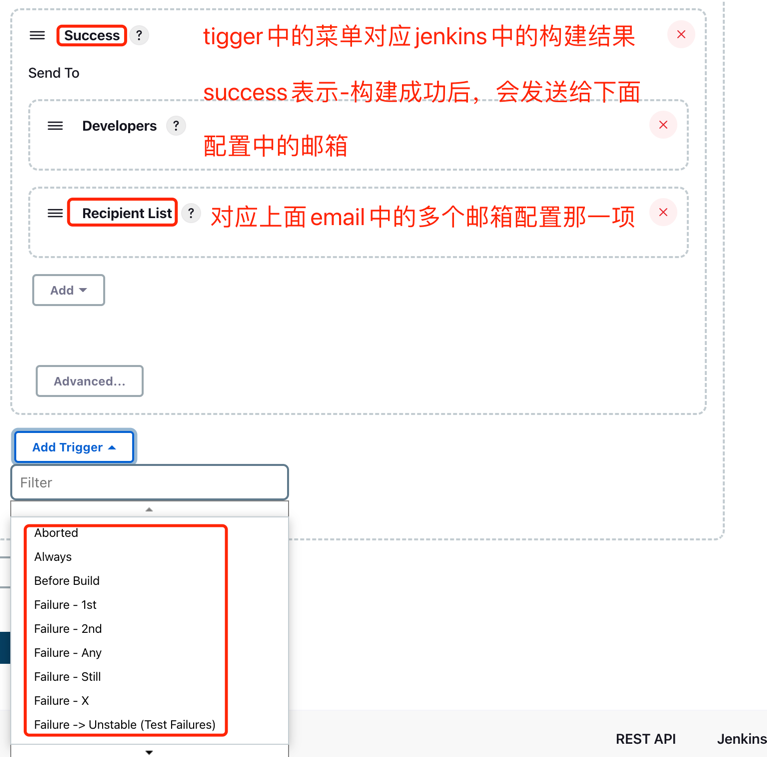
4、高级配置解析
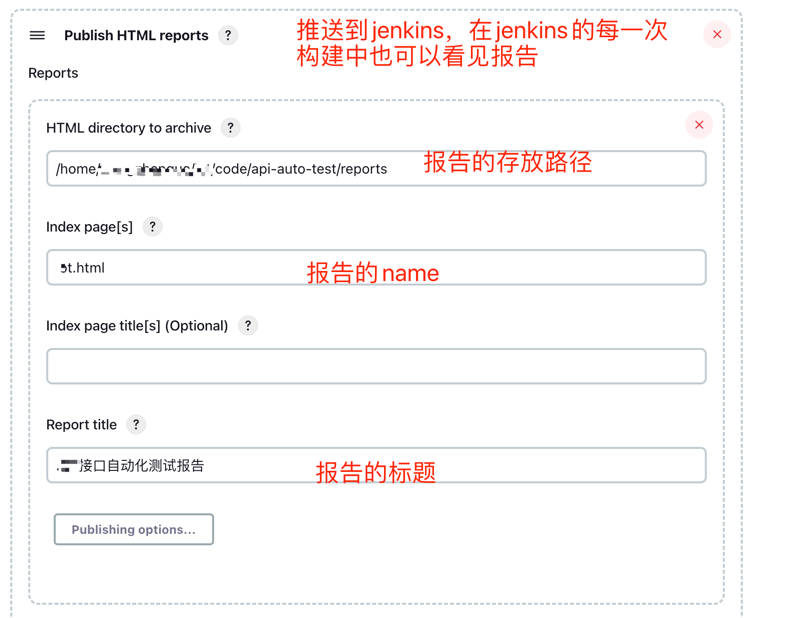
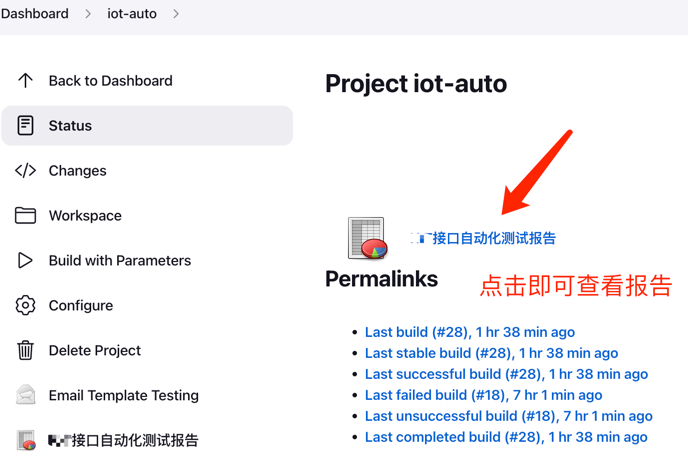
5、配置html推送报告
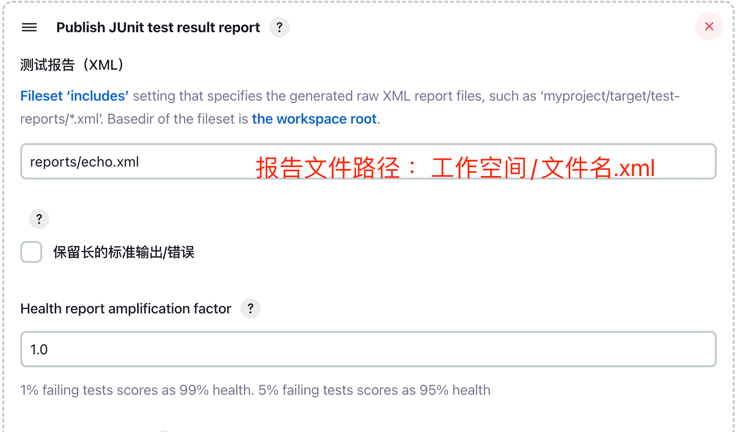
6、配置junit推送报告
这一条必须配置,如果不配置报告的用例条数无法读取
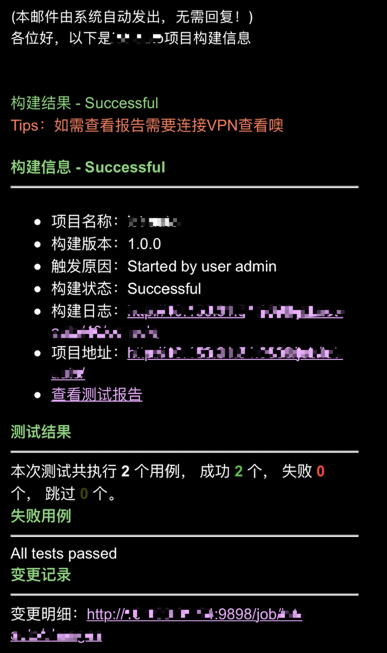
4、邮件效果展示
关注一下再走吧
 公众号
公众号
 小程序
小程序
赞赏支持
 微信打赏
微信打赏
 支付宝打赏
支付宝打赏



