



惯性聚合 高效追踪和阅读你感兴趣的博客、新闻、科技资讯
阅读原文 在惯性聚合中打开

推荐订阅源

C
Check Point Blog
美团技术团队
Jina AI
Jina AI
人人都是产品经理
人人都是产品经理
The Cloudflare Blog
V
Visual Studio Blog
Google DeepMind News
Hugging Face - Blog
Hugging Face - Blog
云风的 BLOG
云风的 BLOG
有赞技术团队
有赞技术团队
T
The Blog of Author Tim Ferriss
WordPress大学
WordPress大学
月光博客
月光博客
宝玉的分享
宝玉的分享
小众软件
小众软件
MongoDB | Blog
MongoDB | Blog
Apple Machine Learning Research
A
About on SuperTechFans
J
Java Code Geeks
博客园_首页
Cyber Security Advisories - MS-ISAC
N
Netflix TechBlog - Medium
Vercel News
Vercel News
博客园 - 聂微东

Donghai's Blog

使用DBeaver连接Dynamics 365 Dataverse | Donghai C# 技术备忘 - LINQ | Donghai 为Astro站点添加Google Analytics | Donghai C# 技术备忘 - LINQ - Donghai’s Blog 20260819 说些什么 | Donghai Dynamics 365 interview questions | Donghai C# 技术备忘 (1) | Donghai Dynamics 365 事件框架、事件执行管道 | Donghai 马拉松配速表 | Donghai 马拉松赛事分级 | Donghai 抖音创作日志(2026年) | Donghai 2026年跑步日志(5月开始) | Donghai 2FA | Donghai 初尝Github Actions | Donghai AstroPaper主题添加Waline评论 | Donghai Dynamics 365集中视图/聚焦视图/Focused View | Donghai AstroPaper主题添加GitHub风格的Markdown警告框 | Donghai AstroPaper主题自定义记录 | Donghai 我日常收藏的优质网站资源导航(持续更新) | Donghai 如何从归档页批量获取URL并提交到Bing Webmaster Tools | Donghai PaperMod 使用 Zeoseven 自定义网页字体 | Donghai 我常用的Prompt | Donghai Hugo默认时区导致本地预览文章不显示 | Donghai 通过手动提交工单解决Bing不收录网站问题 | Donghai 如何访问 Power BI 管理门户(Power BI Admin Portal) | Donghai 还在手敲时间戳?Win11输入法一个技巧,秒输当前时间戳 | Donghai 工作术语备忘录(持续更新) | Donghai 使用XrmToolBox导出安全角色表级权限到Excel | Donghai 24年的年终总结 | Donghai World笔记 | Donghai
使用Oh My Posh美化PowerShell | Donghai
Donghai · 2025-12-11 · via Donghai's Blog

我平时经常使用 Win Terminal + PowerShell,但在视觉体验上却略显单调(小黑窗),最近在看视频时偶然发现对方使用的也是 Win Terminal + PowerShell,而且看起来很美观

今晚搜了下相关教程,发现使用 Oh My Posh的主题就可以做到这种效果,下面是设置步骤。

Table of contents

Open Table of contents
  • 设置步骤
    • 1.安装 Terminal
    • 2.安装 Oh My Posh 主题
    • 3.安装 Meslo 字体
    • 4.设置 PowerShell 的字体和主题
    • 5.创建配置文件

设置步骤

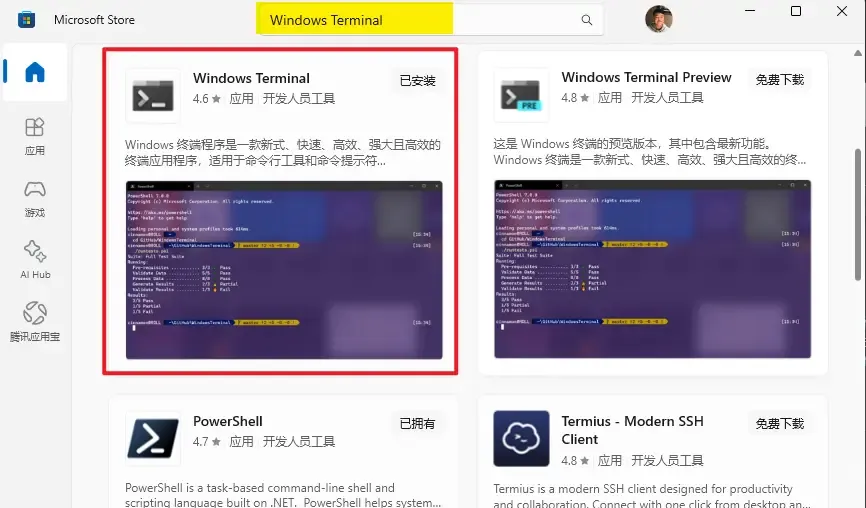
1.安装 Terminal

在微软商店搜索 Windows Terminal 进行安装即可 微软商店安装Terminal
2.安装 Oh My Posh 主题

同样地,在微软商店搜索 Oh My Posh 进行安装即可
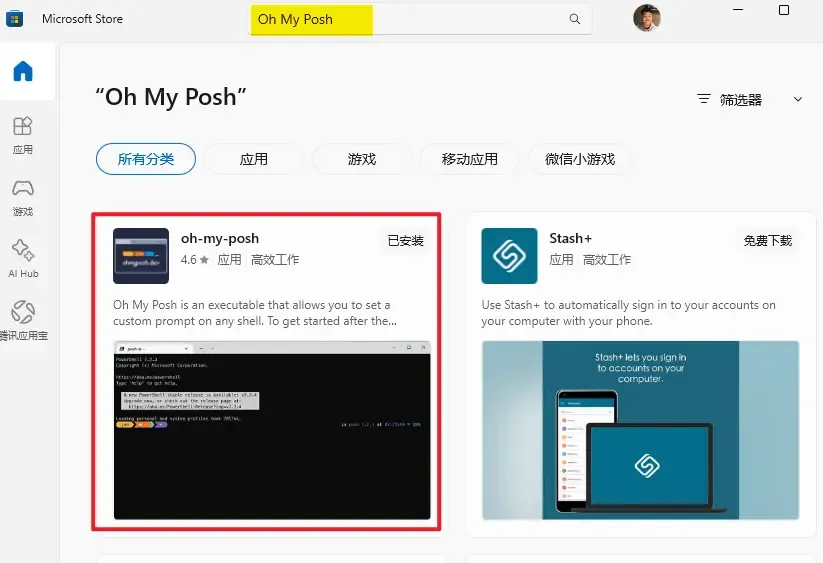
微软商店安装Oh My Posh

3.安装 Meslo 字体

为什么需要安装字体?→ 官方建议的,因为主题应用了各种图标,使用一般字体会显示异常。
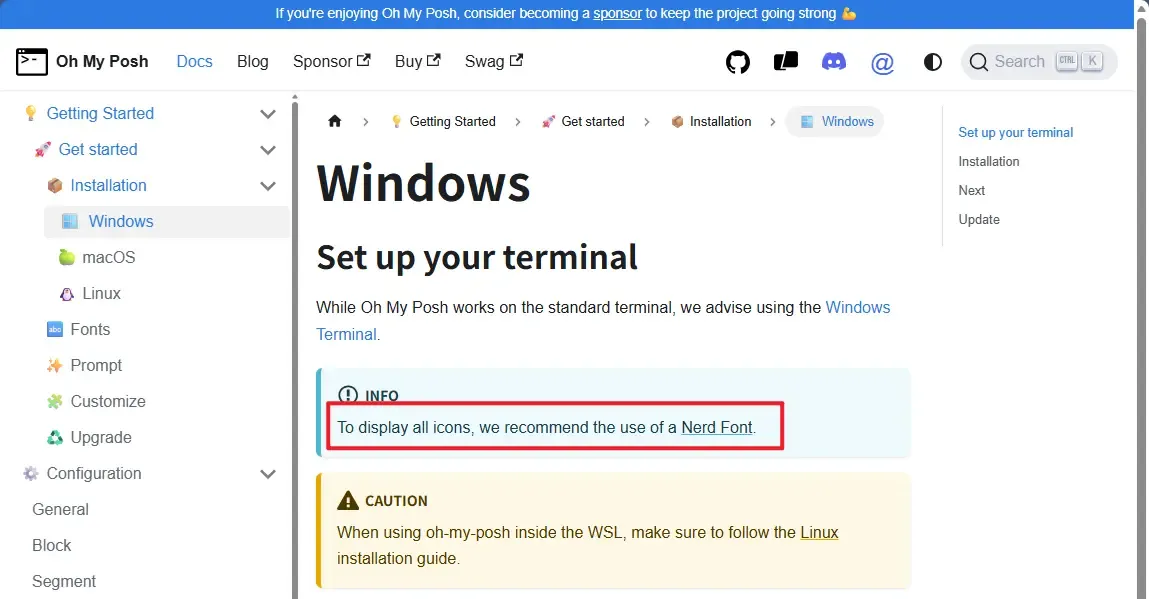
为什么安装字体

Meslo 字体的 Github 地址:Meslo-Font

访问后到 Releases 里面下载并解压,最好安装下面 4 种字体够了(双击 tff 文件,点击安装)

  • xxxxx Regular.ttf → 正常字体
  • xxxxx Bold.ttf → 加粗
  • xxxxx Italic.ttf → 斜体
  • xxxxx Bold Italic.ttf → 加粗斜体

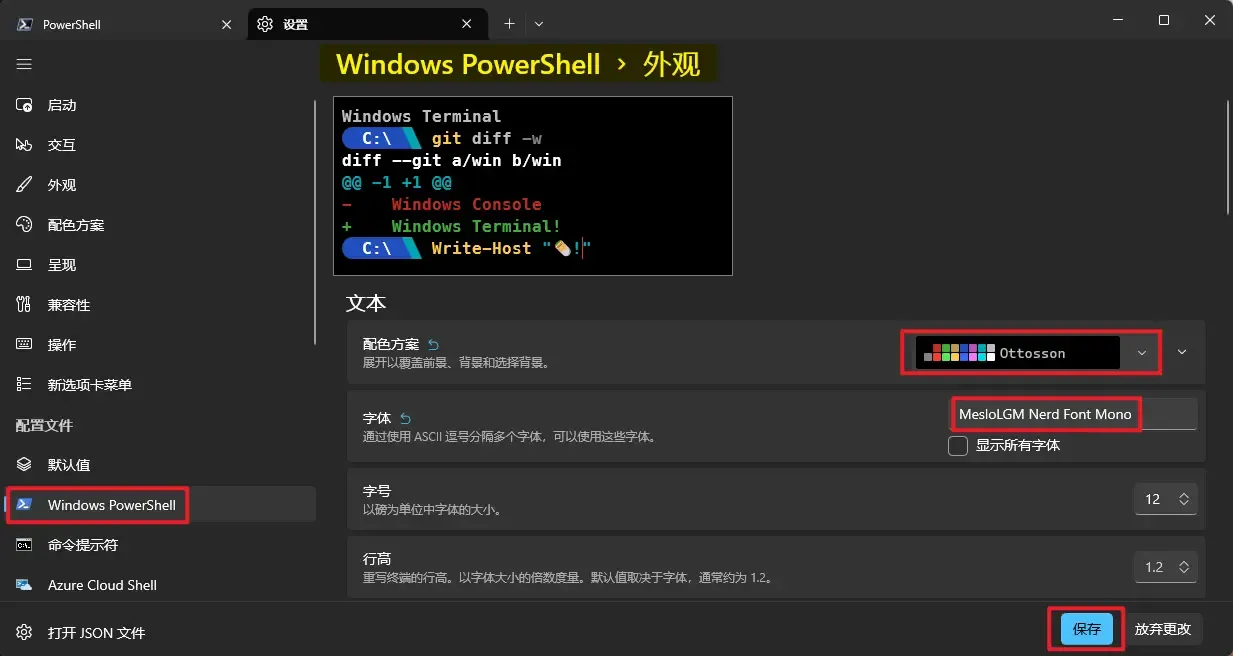
4.设置 PowerShell 的字体和主题

在 Terminal 设置 PowerShell 的字体和主题 在 Terminal 设置 PowerShell 的字体和主题
5.创建配置文件

在 PowerShell 输入命令:

# 检查配置文件是否存在,不存在则新建
if (-not (Test-Path $PROFILE)) {
    New-Item -Path $PROFILE -Type File -Force
}

输入命令,打开配置文件

notepad $PROFILE

输入 Oh my posh 的配置:

在这里挑选主题:https://ohmyposh.dev/docs/themes

下面是使用 cert 主题

oh-my-posh init pwsh --config "$env:POSH_THEMES_PATH/cert.omp.json" | Invoke-Expression

(完)

如果这篇文章刚好帮到了你,欢迎请我喝杯咖啡