






What are shortcodes? You’ve probably heard the term before, but likely assumed it was just a technical concept that the average WordPress user doesn’t need to understand.
Or, maybe you’ve used a shortcode or two before, but didn’t quite grasp exactly how they worked at a deeper level.
Either way, if you want to unlock the full potential of WooCommerce, you’ll definitely want to familiarize yourself with shortcodes.
Why? Because they power much of the plugin’s functionality, including all of the public-facing pages like Checkout, Cart, and Product Categories.
Most importantly, knowing how to use WooCommerce shortcodes allows you to create highly-customized sales pages, and an incredible sales funnel to build a powerful eCommerce site for any situation.
In this post, you’ll learn the following:
Let’s get started!
Table Of Contents
Put simply, shortcodes are tiny pieces of code that perform specific actions on your site.
When you place this code on a WordPress page, post, or widget area, something happens. What exactly happens depends on the shortcode. Some will load post content, while others will display a contact form. There are hundreds of different use cases.
Shortcodes are a WordPress-wide feature and so they all have the same format. The structure is simple: a short piece of text is placed in between two brackets, like this:
[shortcode]
Many different plugins and themes use shortcodes. As such, the shortcode will often be prefaced with the name of the plugin itself to differentiate it from others, like this:
[pluginname_shortcode]
However, this is not always the case. It depends on the particular plugin.
WooCommerce shortcodes are shortcodes designed for the WooCommerce plugin. There are dozens of shortcodes in WooCommerce and they are used to display most pages, so it’s important to understand how they work.
When you first install WooCommerce and go through the setup wizard, a number of pages are automatically created. If you go to edit one of these pages, you’ll notice that they contain a shortcode.
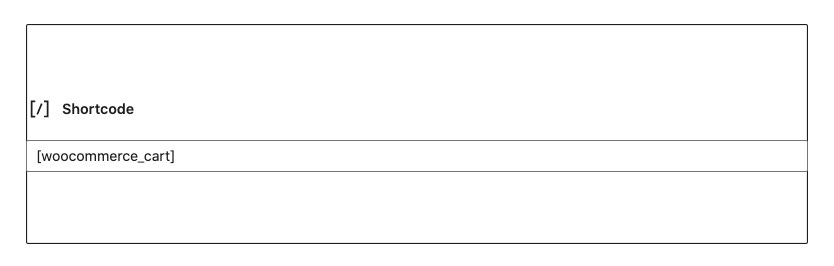
When the page is loaded, the shortcode loads the relevant content. For example, the [woocommerce_cart] shortcode will load the WooCommerce cart page.
Shortcodes are used to display the following WooCommerce pages:
Shortcodes are an easy way to customize your WooCommerce shop. By pasting a shortcode (and modifying some minor parameters), you can easily create any type of eCommerce site you like.
You can choose which products are displayed, how they’re ordered, and how many are shown per page. Plus, you can add Add to Cart buttons in opportune places, like at the end of your posts.
You also don’t need to know how to code. You only need to copy and paste a line or text or two. Pretty easy, right?
Now that you know what a shortcode is, let’s talk about adding them to your site.
With the Gutenberg editor, adding shortcodes is easy. Just press the plus sign to add a new block, type shortcode in the search bar, and select the Shortcode block.
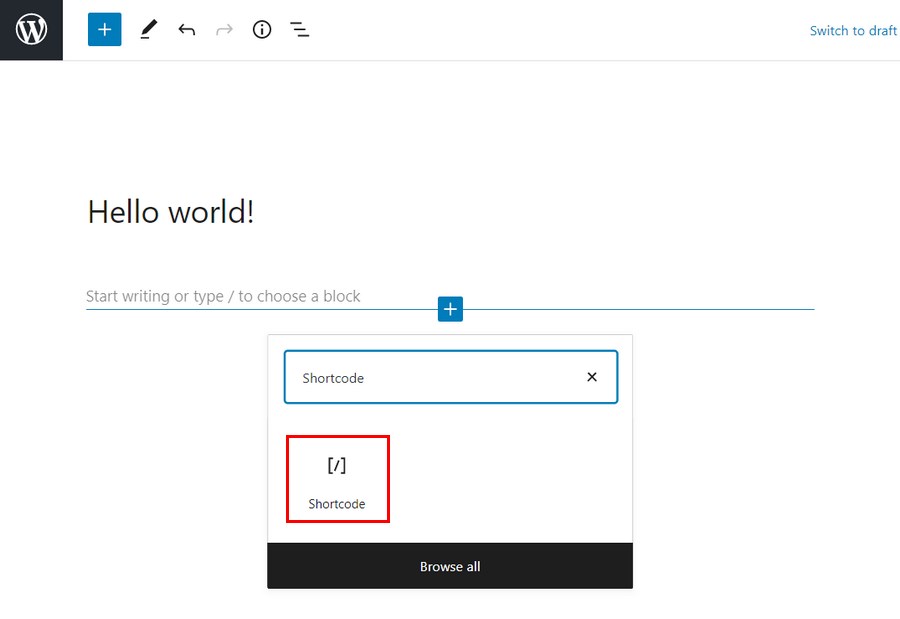
Then, type in your shortcode in the field.
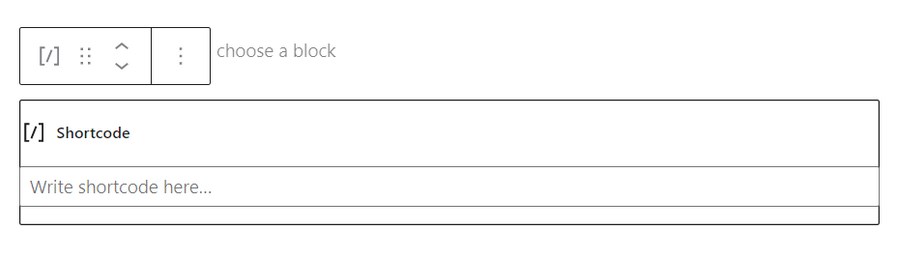
Save the page and view it. You’ll now see the results of your shortcode.
If you prefer using the Classic Editor, adding shortcodes is easy, too.
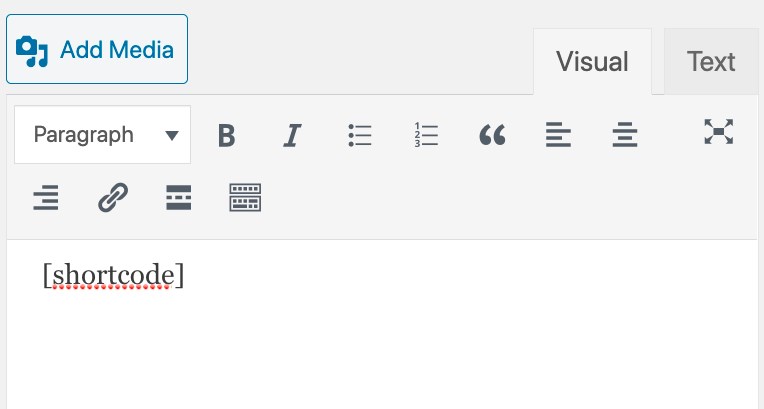
Simply add the shortcode, like above, making sure to include the brackets ([ and ]).
To add a shortcode to a widgetized area, just add a Text widget with the shortcode.
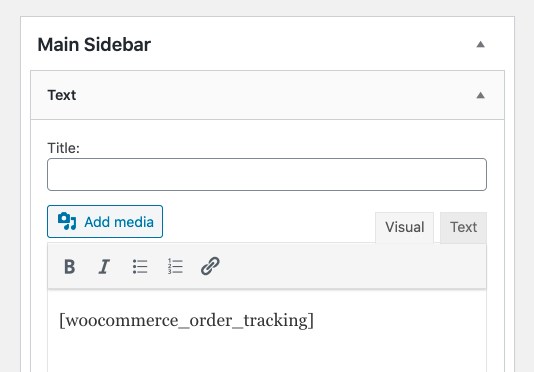
Then, load the page to see the shortcode’s content on your sidebar.
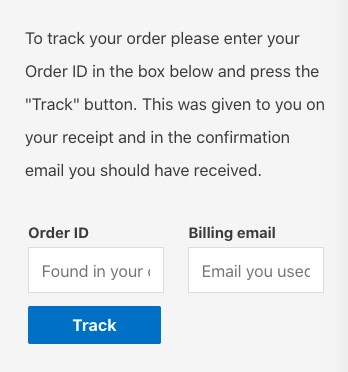
While they look simple, shortcodes are actually quite powerful! Let’s cover the different parts that make up a shortcode.
Shortcodes are a single word or set of words connected with underscores, like this:
While some shortcodes will function alone, others require some parameters.
Parameters, or arguments (called args in some of WooCommerce’s documentation), are extra lines that make the action of the shortcode more specific. Most, but not all, WooCommerce shortcodes use parameters.
For example, if you add on_sale=”true” to the [products s] shortcode, the only products displayed will be the ones on sale.
Now let’s go through some of the most useful WooCommerce shortcodes.
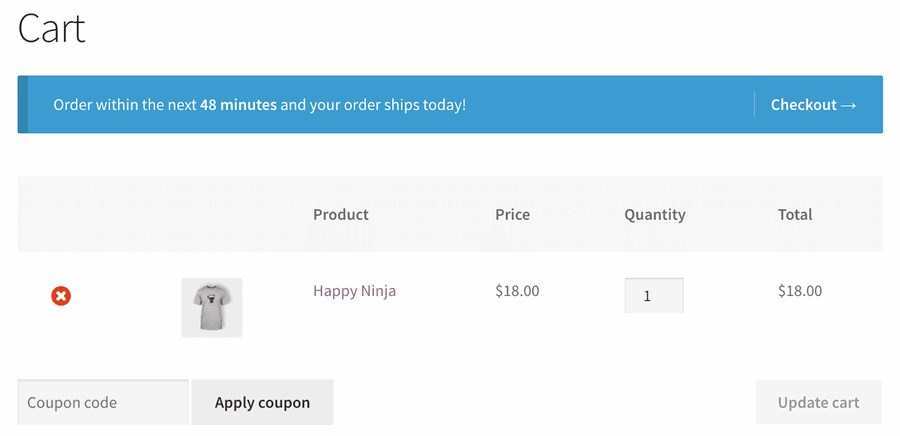
This shortcode adds the WooCommerce cart functionality to the page. In other words, it will display all of the products that the user has added to their cart. There are no parameters to add to this shortcode.
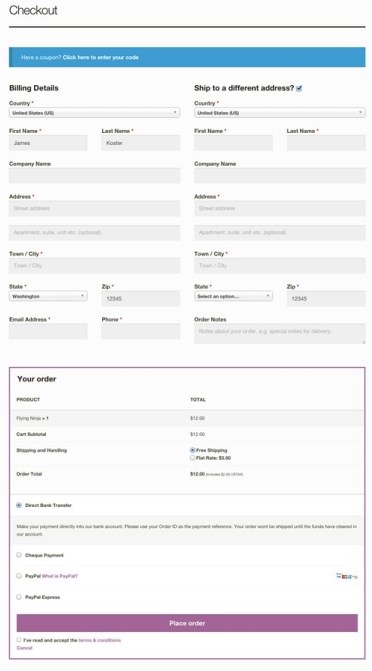
This shortcode displays the checkout page. Since it’s a critical aspect of your business, make sure that the page is set up correctly. After all, if a customer can’t find the checkout, they can’t buy anything. Additionally, with the flexibility of modern e-commerce platforms like WooCommerce, you now have the opportunity to customize your checkout page to align with your brand identity and enhance the user experience.
As above with [woocommerce_cart], there are no extra parameters for the checkout page.
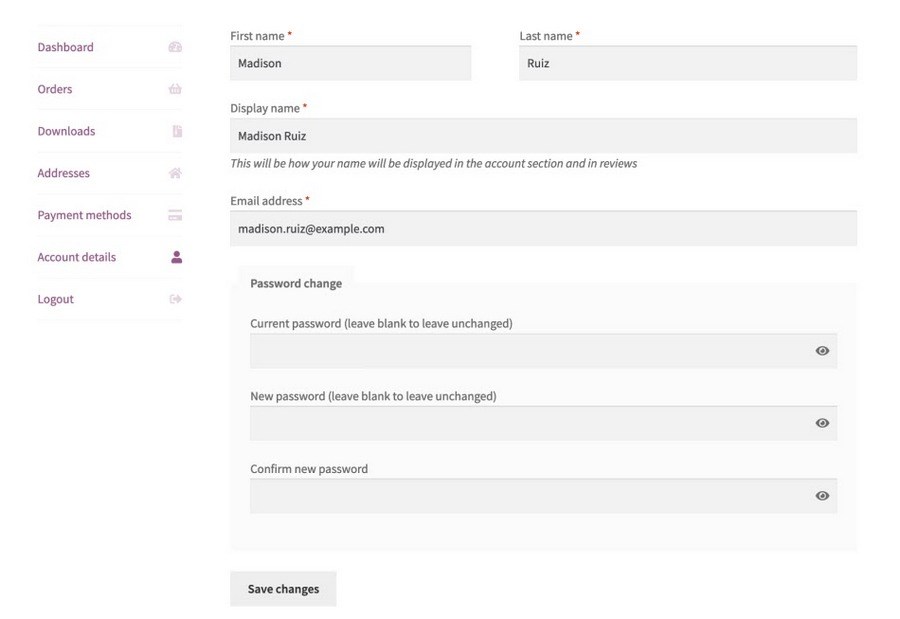
This one shows the My Account page, which contains all of the customer’s information, as well as their previous orders from your shop.
By default, the number of orders displayed is set to 15. You can change it to display all orders by making the number -1.
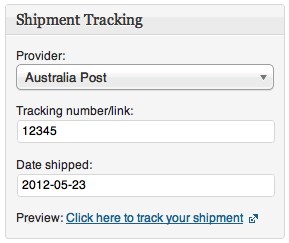
This shortcode creates a “order tracking” page, which allows customers to see the current status of their orders. There are no other parameters.
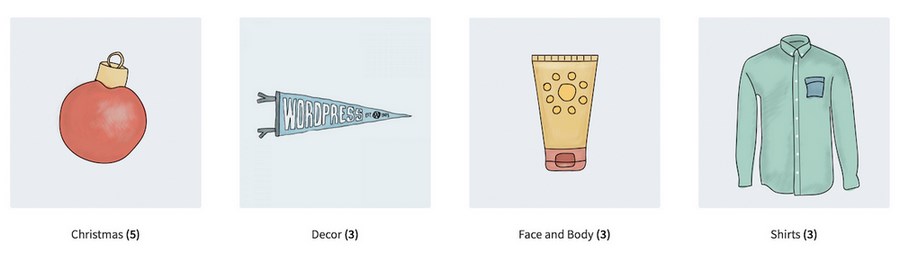
The [products] shortcode is one of the most powerful and widely used shortcodes in WooCommerce. As you probably guessed, it displays your products. There are a ton of parameters which allow you to customize the types and quantities of products displayed.
To add a parameter, simply write its name, followed by the equals sign and the desired value inside of quotation marks. Make sure this is inside of the [products] shortcode.
For example, to display 3 products from the shoes category, use this shortcode:
[products limit=”3” category=”shoes”]
To make it easier to understand, we’ve included a sample product shortcode with the parameter included below each one.
The limit parameter controls the number of products displayed. By default, it will be -1, which displays all products.
Example
[products limit=”3”]
The category parameter will display products that have a certain category slug. You can add more than one category by placing a comma in between them.
Example
[products category=”shoes, hats”]
There are a few parameters that help you control the layout of your product pages.
This parameter controls the number of columns. By default, it is set to 4, although this will usually collapse into a smaller number on mobile (depending on your theme.)
Example
[products columns=”3”]
This parameter will determine if your product result pages will be paginated. It only has two options: true or false. By default, it is set to false.
You will probably want to use the paginate parameter in conjunction with the limit parameter we mentioned above. Thus, the limit parameter will determine how many items are listed on each page.
Example
[products paginate=”true”]
This parameter has a number of options that allow you to customize how your products are ordered. By default, they will be ordered by the product’s title.
You’ll can add more than one option by separating them with a single space.
Example
[products orderby=”date”]
Based on the above orderby setting, this determines if the order will be ascending (ASC) or descending (DESC). By default, it is ASC.
Example
[products order=”ASC”]
SKU stands for Stock Keeping Unit. It is a system designed to keep track of products across different marketplaces. While they aren’t required by WooCommerce, they are highly recommended, especially if you plan on selling your products wholesale. You can use this plugin to automatically generate SKUs for all of your products.
This parameter lets you add specific SKUs, which should be separated by commas.
Example
[products skus=”tshirt-white-small, tshirt-white-medium”]
This lets you display products with a certain tag. You can add more than one tag by putting a comma in between them.
Example
[products tag=”blue, summer”]
This adds an HTML wrapper class around the element, which allows you to modify it with CSS.
Example
[products class=”custom-element”]
Want to display products that are marked as on sale? Use this parameter. The options are true or false. Be sure to not use it at the same time as best_selling or top_rated.
Example
[products on_sale=”true”]
This will display the best-selling products. Options are true and false. Make sure not to use it at the same time as on_sale or top_rated.
Example
[products best_selling=”true”]
The top_rated parameter will display the products that are the most highly-rated. The available options are true and false. Do not use it at the same time as on_sale or best_selling.
Example
[products top_rated=”true”]
These shortcodes can be used to display products based on their attributes. Attributes are elements that are shared across multiple products. For example, size or color.
This will display products with a certain attribute.
This must be used with attribute above. It will display products with certain terms that are linked to the attribute. For example, the Attribute may be size and the Terms are small, medium, or large.
These allow you to perform simple calculations to determine which terms will be included. Likewise, they must be used with attribute and terms.
The same as the term operator above, except for tags.
This displays products depending on their visibility on your site.
Cat stands for category. This allows you to perform simple calculations to determine which products will be included.
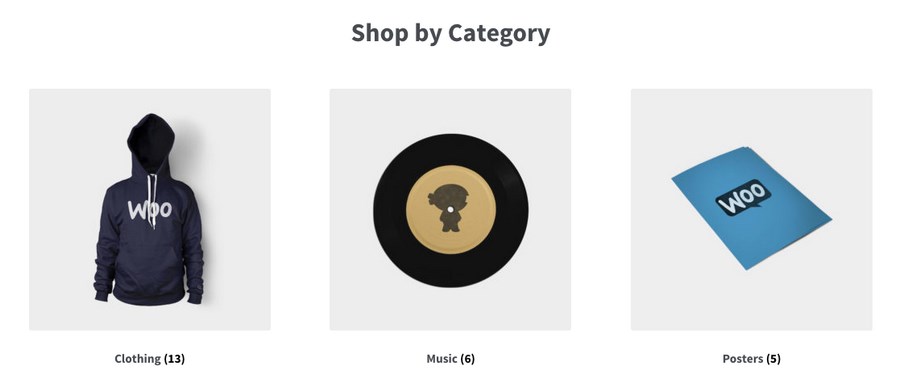
These two shortcodes allow you to display your product categories. As with products themselves, there are a large number customization options available.
Without any parameters, this shortcode will display all of your categories on a single page. If you want to add more than one category, you should also use this shortcode.
This is the generic shortcode for displaying a particular category. You’ll need to add a specific parameter, listed below, in order to actually display one (or more.)
Now let’s go through the parameters available for the product category shortcodes.
Display specific categories by their ids.
Example
[product_categories ids=”1,2”]
This determines the number of categories that will be displayed.
Example
[product_categories limit=”5”]
This parameter determines the number of columns. By default, it is set to 4.
Example
[product_categories limit=”5”]
This will hide empty categories. There are two options: “1” and “0”. “1” will hide empty categories, while “0” will show them. By default, it is set to “1.”
Example
[product_categories hide_empty=”1”]
This parameter will show the child categories of a specific parent category, which is targeted by id. For example, [parent=”3”] will display the child categories of the category whose id is 3.
If you set parent to “0”, only the top-level categories will be displayed.
Example
[product_categories parent=”0”]
This controls the order in which categories are displayed. By default, it will order them by name, but you can also change it to id, slug, or menu_order.
Example
[product_categories orderby=”id”]
Related to orderby, this parameter will either make ordering ascending (ASC) or descending (DESC.) By default, it is set to “ASC.”
Example
[product_categories order=”ASC”]
Now let’s take a look at some other useful shortcodes!
This shortcode lets you easily create an Add to Cart button for a specific product, which is targeted by id. There are quite a few parameters. As with other shortcodes, each should be placed within two quotation marks, “like this”.
Example
[add_to_cart id=”34” style=”border: 1px solid #111111;” show_price=”TRUE” quantity=”1” class=”example-cart-button”]
This shortcode will display the actual URL of a particular product. There are only two parameters:
Example
[add_to_cart_url id=”99″]
Want to display WooCommerce messages on non-WooCommerce pages? This shortcode will allow you to display notifications like “This product has been added to your cart” on any page with it.
WooCommerce also offers a way to display available coupons on any page. However, you’ll need to purchase their Smart Coupons add-on, which you can read more about here.
In the final section, let’s briefly cover some common issues that prevent shortcodes from working.
When adding a shortcode to a page, make sure that it is not between <pre> tags, which are designed to display (and not execute) code.
Another common error is if the quotation marks (used with parameters) are angled, or “curly” (like this: “) and not straight (like this: “). Parameters won’t work with curly quotation marks.
As you probably notice, there are a lot of shortcodes in WooCommerce! Hopefully this guide has been a useful resource for you in all of your eCommerce endeavors.
Although it may seem a little technical, the power and flexibility of shortcodes allows you to create virtually any type of eCommerce page that you can dream of.
If you’re using WooCommerce, have you utilized shortcodes? If so, in what way? And if not, is it because you find the process confusing? Let us know in the comments!

Sujay Pawar is the co-founder and CEO of Brainstorm Force. He brings a one-of-a-kind fusion of tech brilliance, business savvy and marketing mojo to the table. Sujay has consistently spearheaded the development of innovative products like Astra, CartFlows, ZipWP and many others that have become market leaders in their respective niches.
Disclosure: This blog may contain affiliate links. If you make a purchase through one of these links, we may receive a small commission. Read disclosure. Rest assured that we only recommend products that we have personally used and believe will add value to our readers. Thanks for your support!
Join 1,587,020 Subscribers
Get exclusive access to new tips, articles, guides, updates, and more.
此内容由惯性聚合(RSS阅读器)自动聚合整理,仅供阅读参考。 原文来自 — 版权归原作者所有。