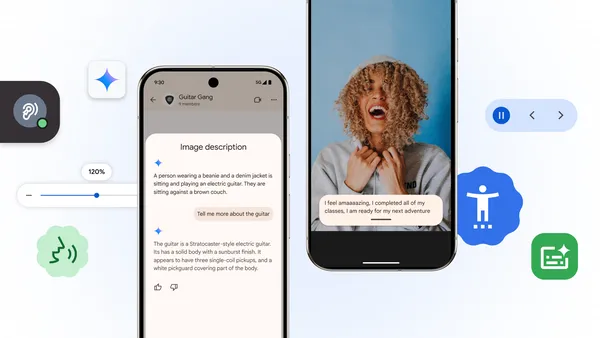
In recognition of Global Accessibility Awareness Day, we’re sharing Chromebook accessibility features that help build inclusive classrooms for all students.
Global Accessibility Awareness Day is an important reminder of the importance of digital accessibility across vision, mobility, cognitive, speech and hearing disabilities. As the mother of three neurodivergent kids who have accessed accommodations at school, I’ve seen firsthand how important accessibility features can be to help kids really shine. This year, we're highlighting our Chromebook accessibility features, which are designed to support inclusive classrooms and full student participation. When students with disabilities use accessibility features on the same devices as their peers, they can more comfortably and fully participate in class discussions and share their unique perspectives.
Here are some of the accessibility features on Chromebooks that are built into the operating system and can be found using the accessibility button on select Chromebook Plus devices, or via the accessibility menu in Settings. Plus, see how our partners, many of which can be found on the Google for Education App Hub, use ChromeOS accessibility tools to meet students’ needs.
- Navigate your Chromebook hands-free with Face control: Limited hand dexterity can make using a mouse, trackpad and keyboard difficult. Face control provides a hands-free alternative using facial movement and gestures for tasks like email or searching. We’re inspired by how students like Jacob Orellana use our tools to convert slides into digital flashcards, enhancing his learning and accessing information in personalized ways.
- Navigate your browser with your keyboard instead of your mouse with caret browsing: Especially helpful for individuals with visual impairments, caret browsing allows you to navigate and interact with web pages using your keyboard instead of a mouse. When enabled, it places a blinking text cursor, often called a "caret," on the webpage. You can then move this cursor around using the keyboard keys, such as the arrow keys, similar to how you would navigate text in a word processor.
- Read captions in braille with ChromeVox to access digital content: Designed to support individuals with visual impairments, ChromeVox is a built-in screen reader that vocalizes the text displayed on the screen. In the coming weeks, when connected to a braille display (via USB or Bluetooth), ChromeVox can output audio captions in braille for users to independently access.
- Reading mode supports student success on all reading levels: Reading mode in Chrome has a text-to-speech feature called read aloud, that uses natural sounding voices to allow students to simultaneously read and listen to web content. This is particularly valuable for students with reading differences. The natural sounding voices that are available on Chromebook can also be used with tools such as Select to Speak and ChromeVox.
- ChromeOS accessibility features for College Board Testing: College Board’s Bluebook testing app—where all students take the SAT Suite of Assessments and most Advanced Placement (AP) exams—gives Chromebook users access to Google’s built-in accessibility features, including ChromeVox screen reader and Dictation, along with its own digital testing tools. College Board is making the most of Google’s assistive technologies to help students own their future.
You can check out these accessibility features and more on our accessibility webpage.
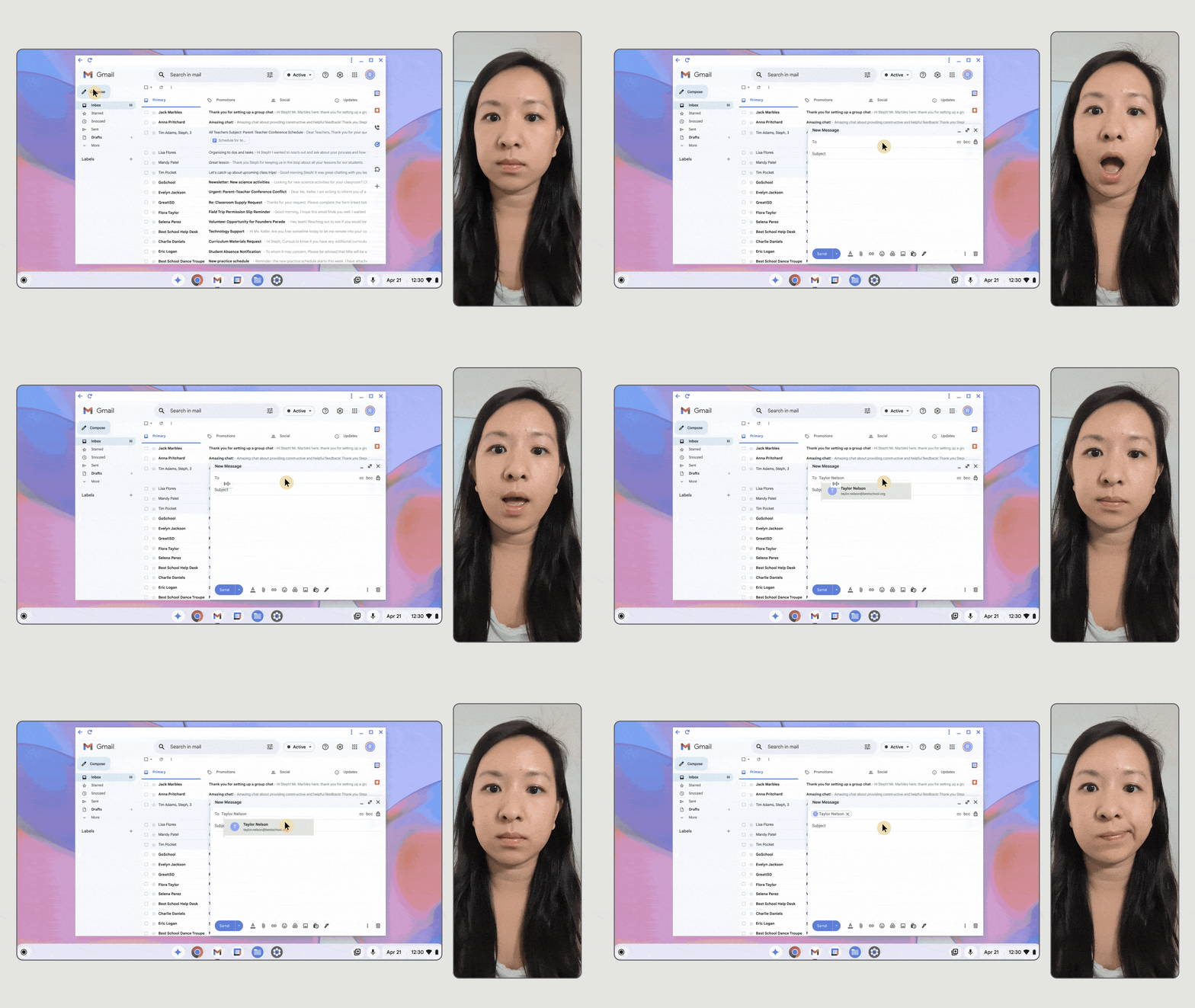
Amanda Lin Dietz, a software engineer on the Face control team, demonstrates how the feature can be used. Face control provides a hands-free alternative using facial movement and gestures for tasks like email or searching.
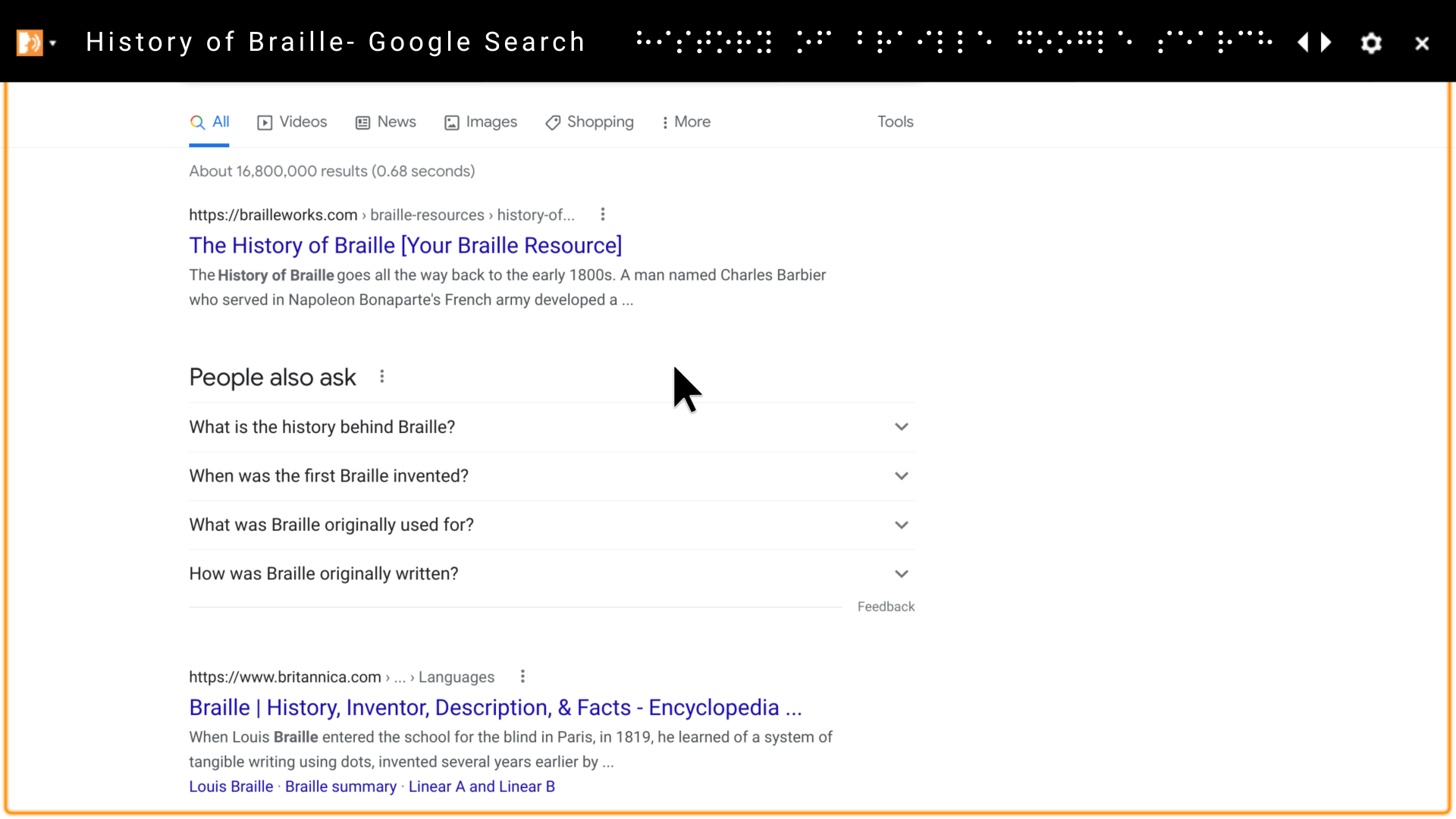
When connected to a braille display via USB or Bluetooth, ChromeVox can output audio captions in braille.
Reading mode in Chrome uses a text-to-speech feature that allows students to simultaneously read and listen to web content.

While taking a test, students can open the accessibility menu on College Board’s Bluebook app to use ChromeVox, Select-to-speak, and other tools.