惯性聚合 高效追踪和阅读你感兴趣的博客、新闻、科技资讯
阅读原文 在惯性聚合中打开

推荐订阅源

宝玉的分享
宝玉的分享
IT之家
IT之家
Stack Overflow Blog
Stack Overflow Blog
Application and Cybersecurity Blog
腾讯CDC
P
Palo Alto Networks Blog
Spread Privacy
Spread Privacy
S
Schneier on Security
NISL@THU
NISL@THU
WordPress大学
WordPress大学
酷 壳 – CoolShell
酷 壳 – CoolShell
P
Proofpoint News Feed
T
Threatpost
Scott Helme
Scott Helme
C
Cybersecurity and Infrastructure Security Agency CISA
T
The Exploit Database - CXSecurity.com
I
Intezer
C
Check Point Blog
D
Darknet – Hacking Tools, Hacker News & Cyber Security
C
CXSECURITY Database RSS Feed - CXSecurity.com
C
Cyber Attacks, Cyber Crime and Cyber Security
S
Securelist
Security Latest
Security Latest
大猫的无限游戏
大猫的无限游戏
cs.AI updates on arXiv.org
小众软件
小众软件
www.infosecurity-magazine.com
云风的 BLOG
云风的 BLOG
量子位
T
Tor Project blog
博客园 - 叶小钗
The Cloudflare Blog
Simon Willison's Weblog
T
Tailwind CSS Blog
W
WeLiveSecurity
Hacker News - Newest:
Hacker News - Newest: "LLM"
Attack and Defense Labs
S
Security Affairs
罗磊的独立博客
Know Your Adversary
Know Your Adversary
Engineering at Meta
Engineering at Meta
G
Google Developers Blog
Help Net Security
Help Net Security
美团技术团队
P
Privacy International News Feed
The Hacker News
The Hacker News
Hugging Face - Blog
Hugging Face - Blog
MongoDB | Blog
MongoDB | Blog
N
Netflix TechBlog - Medium
钛媒体:引领未来商业与生活新知
钛媒体:引领未来商业与生活新知

Hyde Blog

Hyde Blog Hyde Blog Hyde Blog Hyde Blog Hyde Blog Hyde Blog Hyde Blog Hyde Blog Hyde Blog Hyde Blog Hyde Blog Hyde Blog Hyde Blog Hyde Blog Hyde Blog Hyde Blog Hyde Blog Hyde Blog Hyde Blog Hyde Blog Hyde Blog Hyde Blog Hyde Blog Hyde Blog Hyde Blog Hyde Blog Hyde Blog Hyde Blog Hyde Blog Hyde Blog Hyde Blog Hyde Blog Hyde Blog Hyde Blog Hyde Blog Hyde Blog Hyde Blog Hyde Blog Hyde Blog Hyde Blog Hyde Blog Hyde Blog Hyde Blog Hyde Blog Hyde Blog Hyde Blog Hyde Blog Hyde Blog Hyde Blog Hyde Blog Hyde Blog Hyde Blog Hyde Blog Hyde Blog Hyde Blog Hyde Blog Hyde Blog Hyde Blog Hyde Blog Hyde Blog Hyde Blog Hyde Blog Hyde Blog Hyde Blog Hyde Blog Hyde Blog Hyde Blog Hyde Blog Hyde Blog Hyde Blog Hyde Blog Hyde Blog Hyde Blog Hyde Blog Hyde Blog Hyde Blog Hyde Blog Hyde Blog Hyde Blog Hyde Blog Hyde Blog Hyde Blog Hyde Blog Hyde Blog Hyde Blog Hyde Blog Hyde Blog Hyde Blog Hyde Blog Hyde Blog Hyde Blog 关于我 关于我 Hyde Blog Hyde Blog Hyde Blog Hyde Blog Hyde Blog Hyde Blog Hyde Blog
Hyde Blog
Hyde · 2025-10-05 · via Hyde Blog

rsync实现 windows与linux数据备份同步 ​

有些人可能对图床这个没什么概念,所谓图床,英文叫法应该叫:ImageHost,也就是储存图片的中枢,可以理解为:用户存储图片后,系统提供该图片的直接链接,用来通过网络访问显示该图片。

前言 ​

最近在搭建Nginx搭建私有图床需要对图片数据进行备份同步,因为图床数据都是储存在服务器的,一旦服务器不在续费或者更换其他服务器,需要把Linux某个目录数据同步到Windows的某个目录下

环境 ​

  • Linux服务器:centos 7 3.10.0-1160.119.1.el7.x86_64
  • rsync服务端: version 3.1.2
  • rsync客户端: version 3.2.7
  • Windows11:23H2

版权声明 ​

警告

本教程参考了One大佬作者的教程,并结合自身实际部署过程中积累的经验编写而成。原始教程链接为winodows到linux),感谢原作者提供的宝贵参考资料。

本教程仅供学习和交流使用,任何人不得将本教程的内容用于商业用途。如需引用或转载,请务必注明原作者及本文出处。如侵权之处,请联系博主进行删除,谢谢~

部分内容引用One大佬的教程,感谢大佬的贡献。

服务器端安装 ​

bash

# 检查是否安装了 rsync
rpm -qa|grep rsync

# 如果没有安装的话,进行安装
yum install rsync

# 将 rsync 设置成开启自启,并启动
systemctl enable rsyncd  #让服务在系统启动时自动运行
systemctl start rsyncd  #立即启动服务,适合初次配置或手动运行

systemctl restart rsyncd  #停止并重新启动服务,用于应用新的配置或排除故障

服务器端配置rsync ​

  • 创建rsyncd.conf文件

  • 填写rsyncd.conf文件配置

    bash

    # 进行通信的端口,如果 firewall 打开的话,需要将对应的端口添加进去
    port=8730
    # 日志文件
    log file=/var/log/rsync.log
    # rsync 的进程 id
    pid file=/var/run/rsync.pid
    # 要同步的模块,这里一般以项目名命名
    [images]
    # 同步的目标文件夹
    path=/images
    # rsync daemon 在传输前是否切换到指定的 path 目录下,并将其监禁在内,用于增加传输的安全性
    use chroot=no
    # 指定最大的连接数
    max connections=4
    # yes 表示只读本地文件无法同步到服务器
    read only=no
    # 客户端请求显示模块列表时,该模块是否显示出来
    list=true
    # 服务运行时的用户
    uid=root
    # 服务运行时的用户组
    gid=root
    # 进行验证时的用户名,必须是系统存在的用户
    auth users = root 
    # 连接用户时的密码
    secrets file=/etc/rsyncd.passwd
    # 允许的 ip
    hosts allow=*

    注意!

    bash

    # 同步的目标文件夹
    path=/images
    
    # 连接用户时的密码
    secrets file=/etc/rsyncd.passwd
  • 创建相应目录

    bash

    # 1、创建需同步目标的文件夹
    mkdir /images
    
    # 2、创建密码
    # 创建rsyncd.passwd文件
    vim /etc/rsyncd.passwd
    # 写入密码
    echo "root:123456" > /etc/rsyncd.passwd #这里写入你自己云服务器的密码就行!!!
    
    #更改文件权限
    chmod 600 /etc/rsyncd.passwd
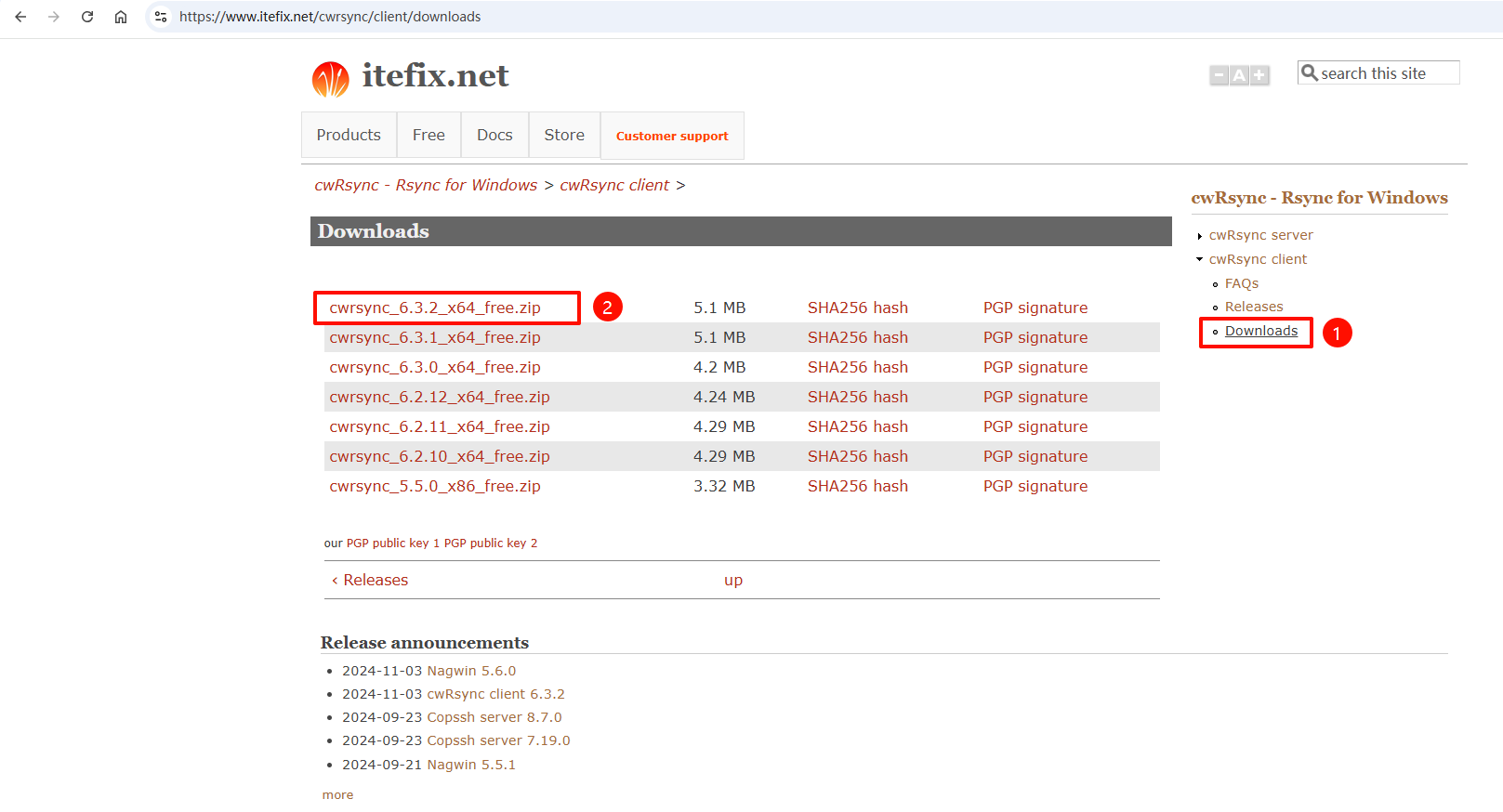
windows上配置rsync client端 ​

image-20241104174321763

  • 下载完成后解压文件,然后放在盘符目录,我这里是放在D:\cwrsync_6.2.12_x64_free

  • D:\cwrsync_6.2.12_x64_free\bin目录添加到自己PC端的环境变量里面
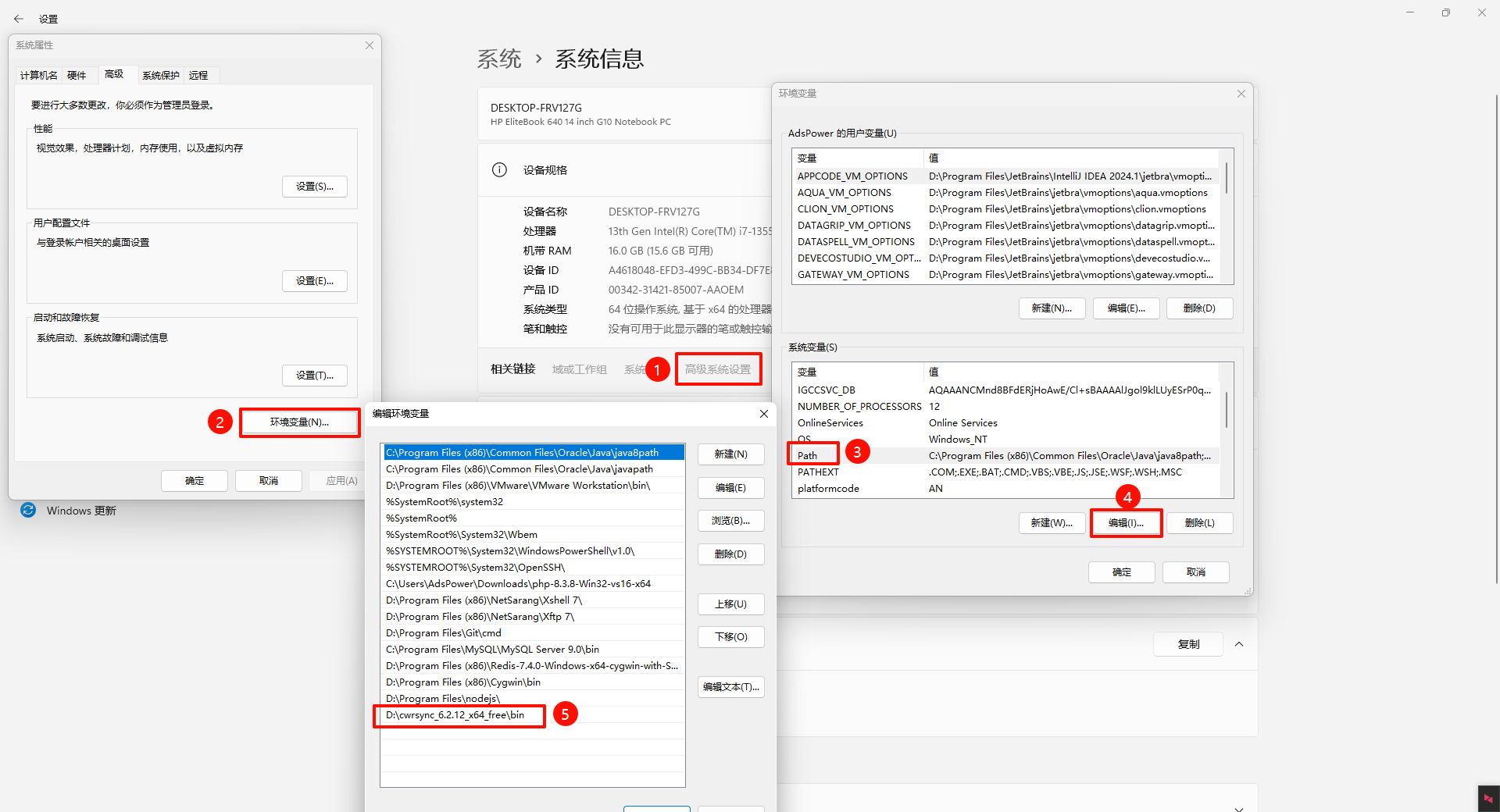
    image-20241104175314721

  • 在winodwsD盘下创建 password.txt创建密码文件,用于存放的是你服务器root密码。例如:123456

winodws同步命令 ​

  • 打开cmd控制台,执行如下命令:

bash

rsync.exe -avPzruh --delete --port 8730 --password-file=/cygdrive/D/password.txt root@服务器IP::cmi/ /cygdrive/D/Nginx_Images

bash

#选项参数解读:

-a:归档模式,用于保持文件的属性、权限、时间戳等。
-v:显示详细输出,让您了解文件同步的进度和操作。
-p:显示文件传输的进度条和实时速度。
-z:在传输过程中压缩数据,减少网络带宽的使用。
-r:递归复制目录及其内容。
-u:只复制源中更新或新增的文件到目标目录。    **注意:这个很有用的!!!
-h:可读性大小。
--delete:删除目标目录中不在源中存在的文件和目录。

# cmi_password.txt 密码文件 写入 Linux 端配置的密码即可
# cmi 指代模块,我们这边正好按照

配置winodws定时任务 ​

  • 新建D:\cwrsync_6.2.12_x64_free\Rsync synchronization.bat文件,填入以下内容

    bash

    rsync.exe -avPzruh --delete --port 8730 --password-file=/cygdrive/D/password.txt root@服务器IP::cmi/ /cygdrive/D/Nginx_Images

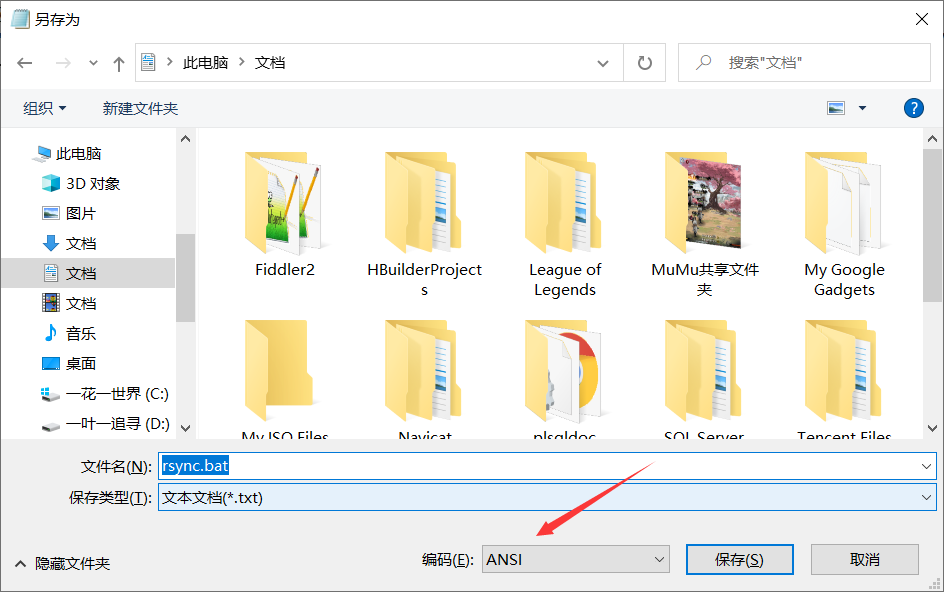
    将该文件另存为rysnc.bat文件,编码为ANSI。注意!如果编码为utf8,文本中的中文会出现乱码导致执行出错。
    img

  • 开启定时任务

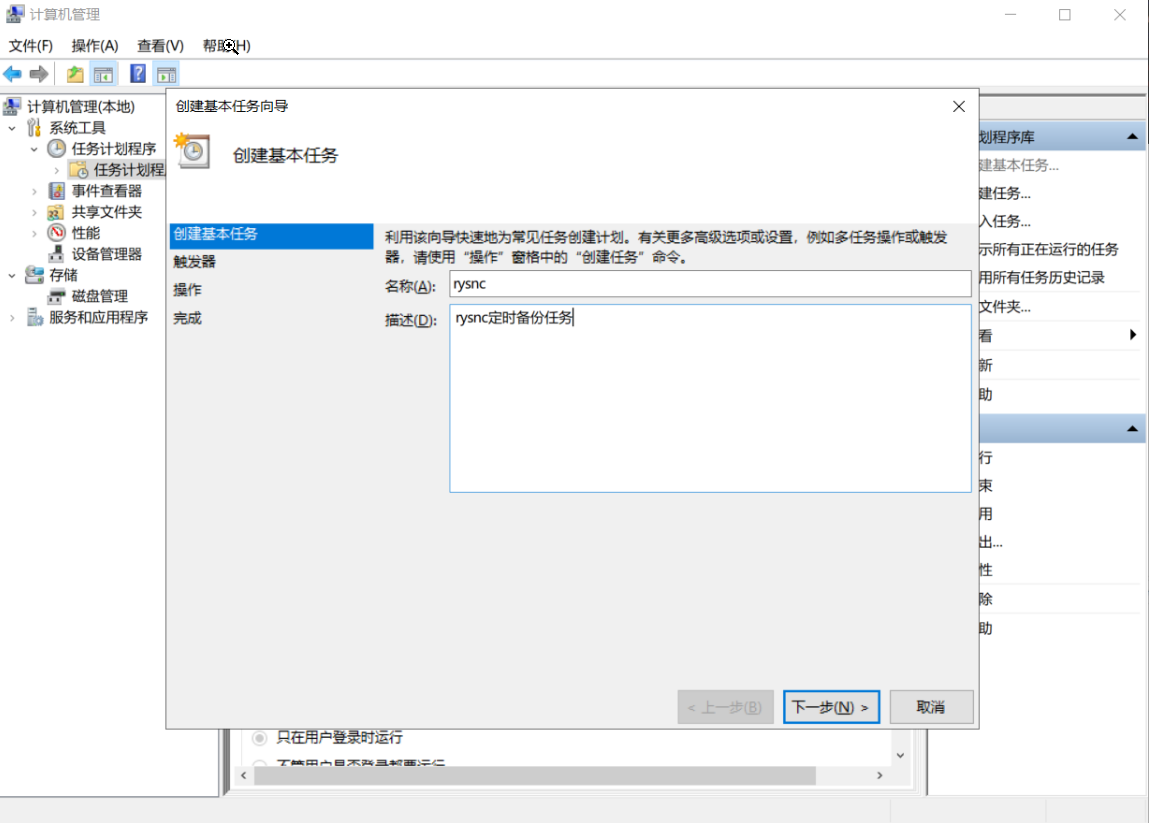
    批处理完成了,怎么来实现周期性的运行该脚本呢?windows自带了非常强大的定时任务功能。进入计算机管理(此电脑右键“管理”),在系统工具->任务计划程序->任务计划程序库中能看到你电脑所有的定时任务,右键可以创建基本任务。 (或者直接在cmd输入compmgmt.msc

    img

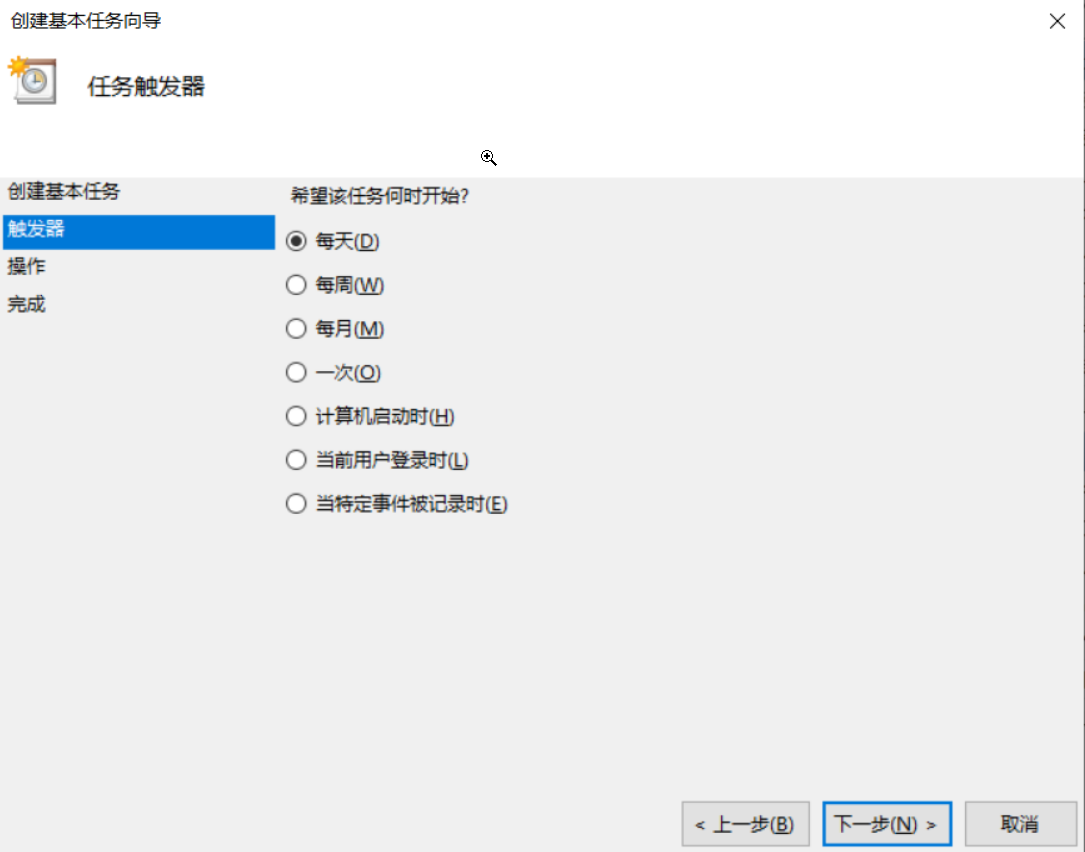
    按图中输入名称及描述,点击下一步设置触发器(任务触发时间)

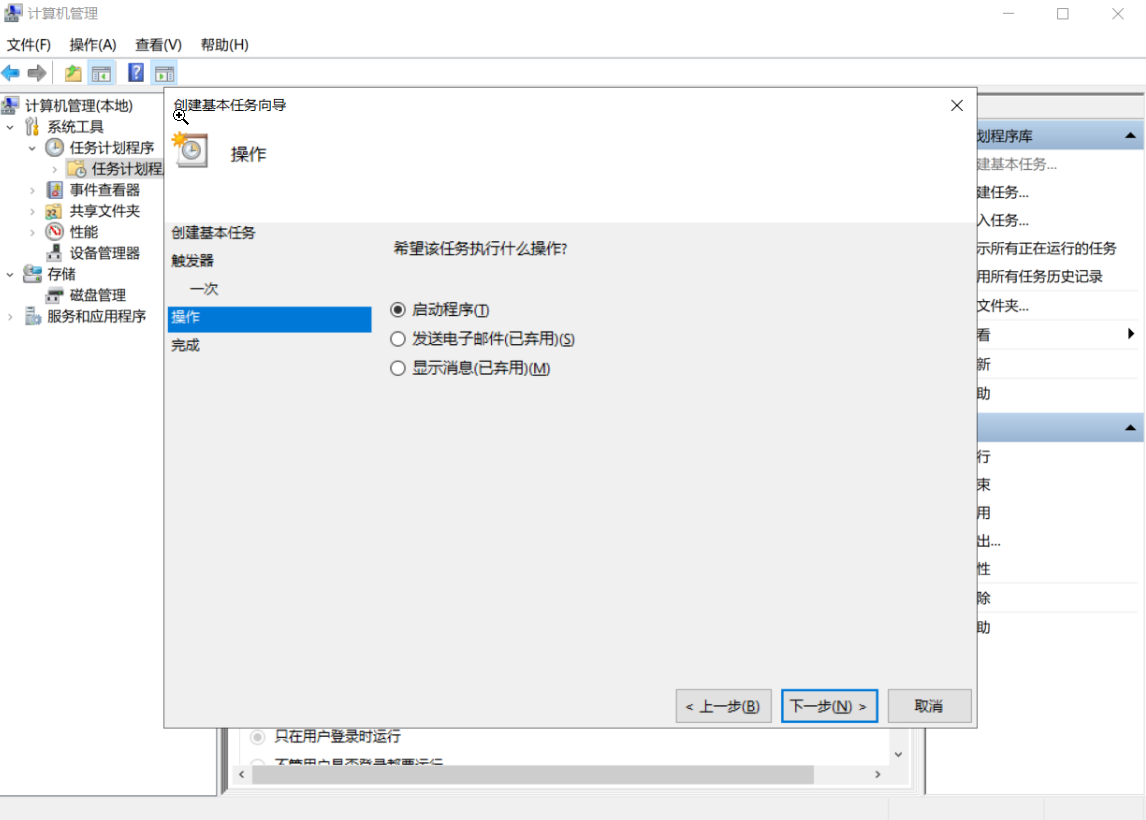
    img

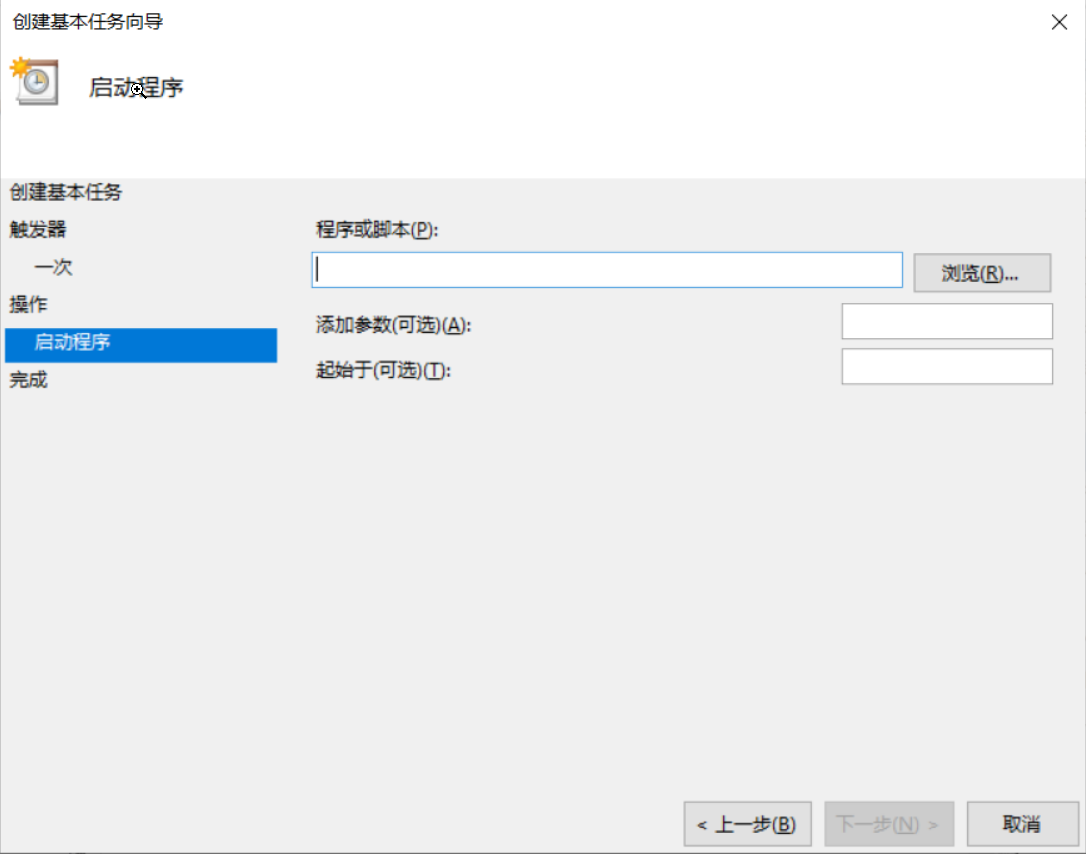
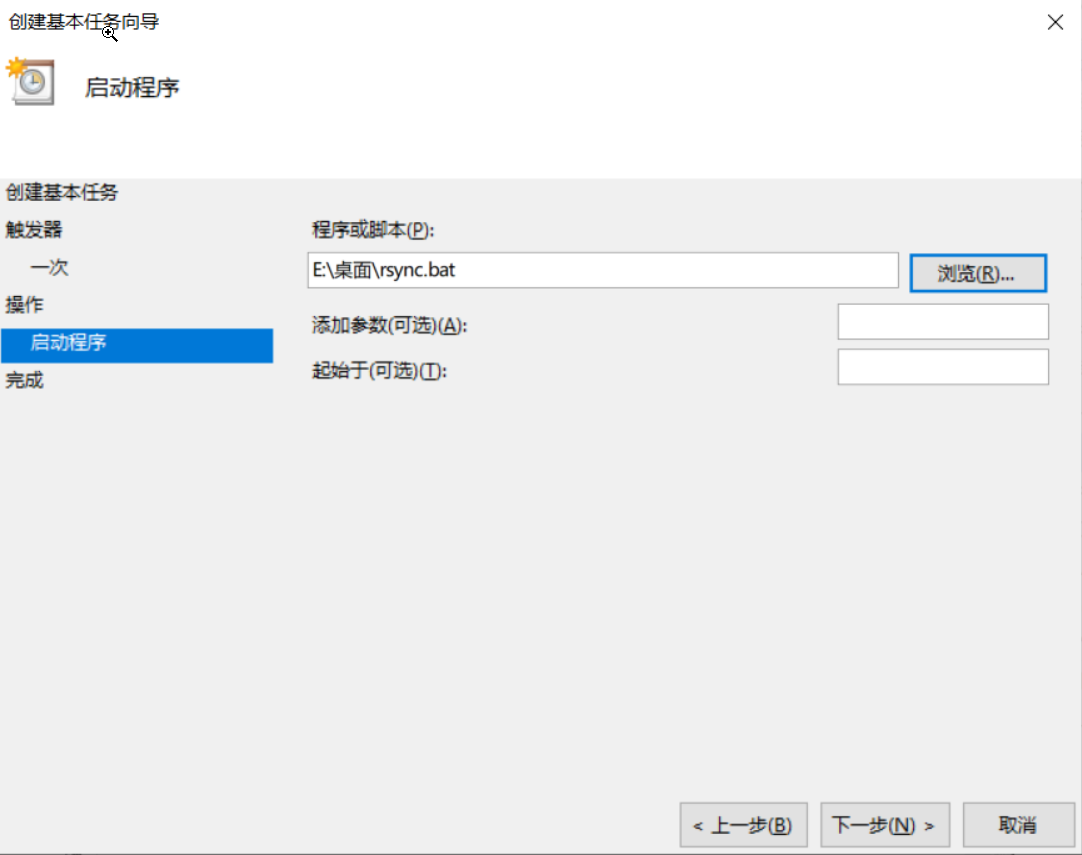
    点击下一步设置任务执行操作,这里选择启动程序

    img

    img

    选择刚才制作的bat脚本,点击下一步

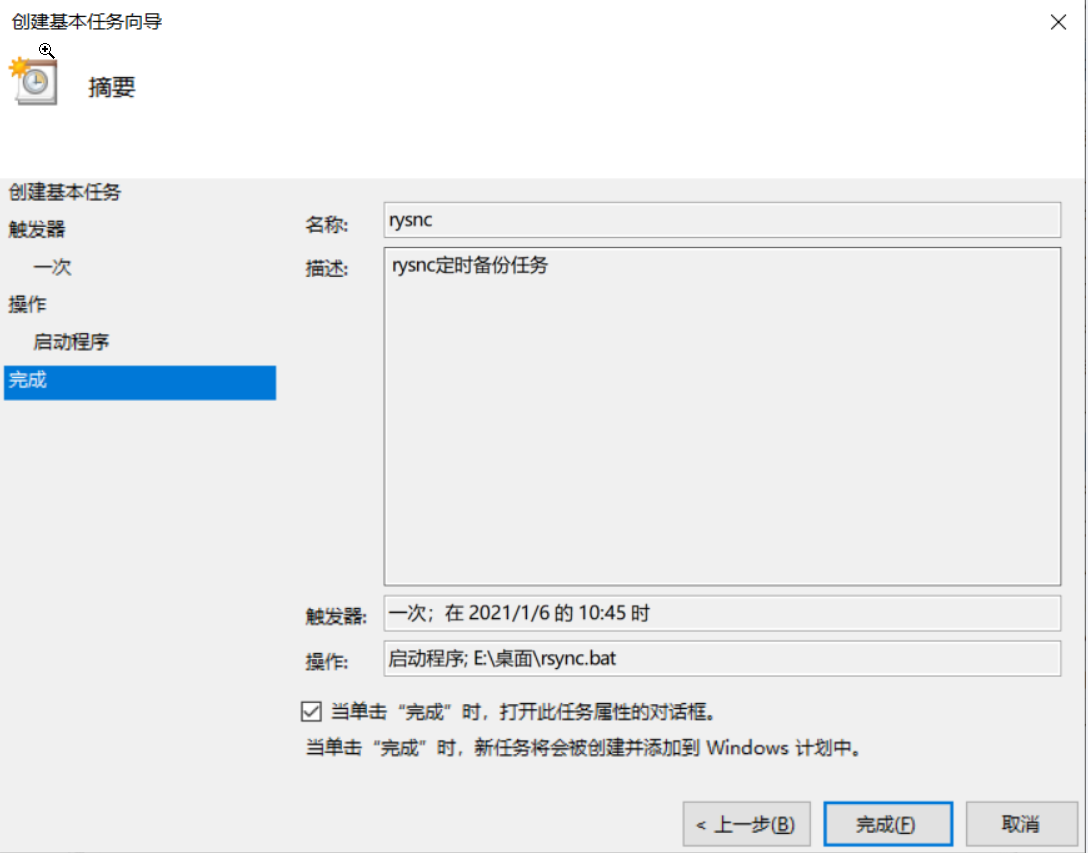
    img

    点击完成创建任务

    img

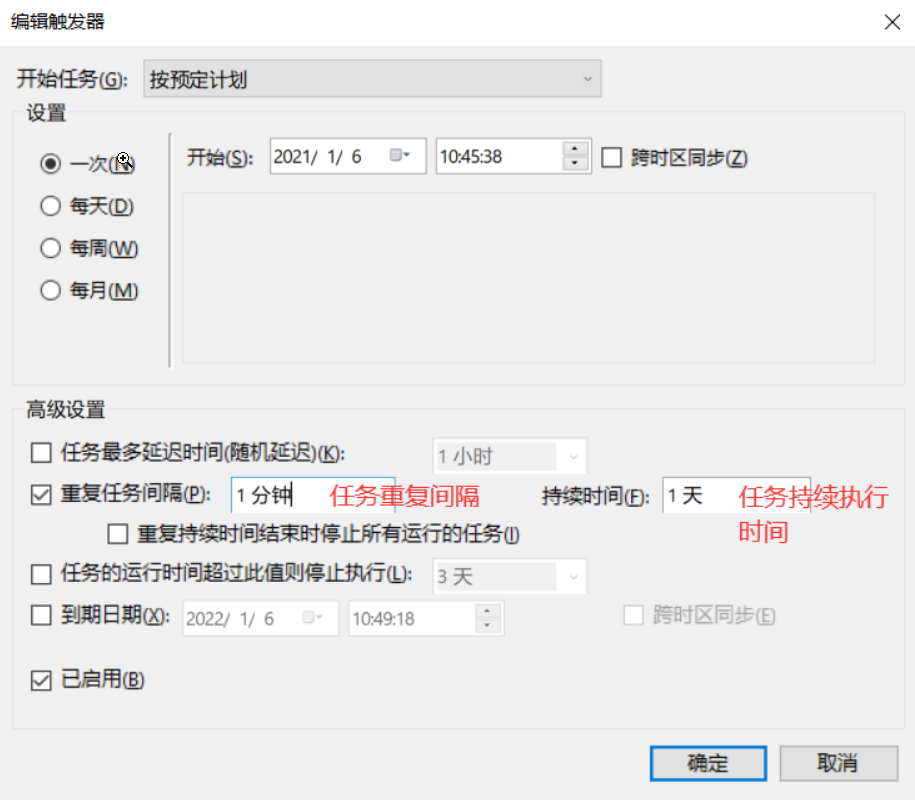
    选择刚创建的任务,右键点击属性打开属性对话框,点击触发器并双击已设置的触发器设置任务重复执行。自己的设置重复任务间隔取消勾选了
    img

    点击确定完成定时任务设置,右击任务启动任务。