





Published: February 21, 2020
Last updated: July 15, 2020
Local (formerly known as Local by Flywheel) is the go-to tool for developing WordPress websites—where else?—locally. It’s fast (especially the new ”lightning” release), incredibly easy to use, cross-platform, and completely free.
Full disclosure: I currently work for Flywheel, the software company behind Local. But I’m being 100% honest when I say there’s no other tool I’d consider using for building WordPress sites, period. Flywheel could fire me today and I’d still use Local tomorrow.
As amazing as Local is on its own, though, some of the biggest benefits of developing locally (automatic browser refreshing, for example) aren’t built in. That’s where CodeKit shines!
What is CodeKit?
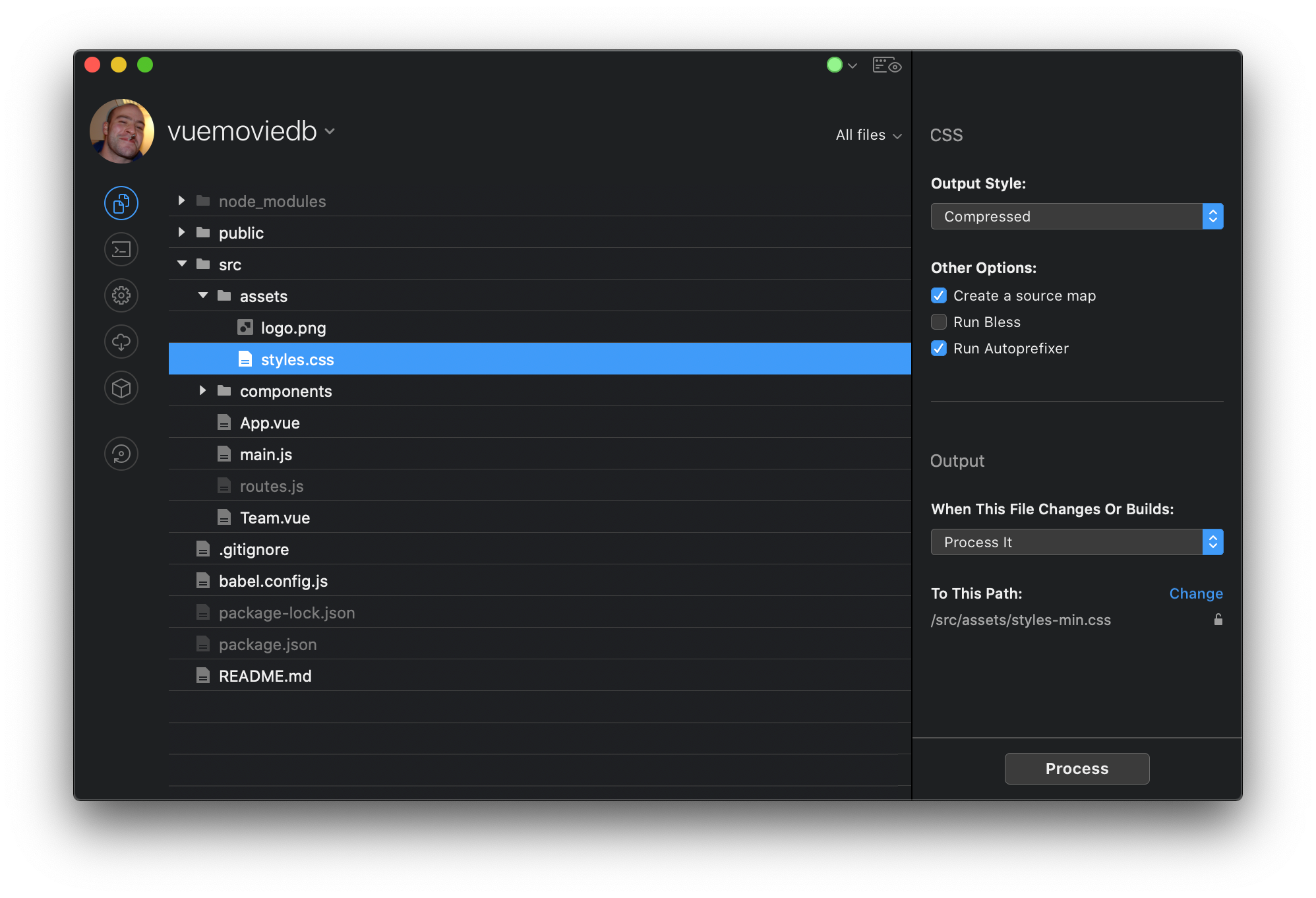
CodeKit is a Mac app that gives you an easy graphical interface to configure the kind of handy dev features that usually require a lot of technical setup. CodeKit makes it super easy to do all the nice things that you’d normally need to use terminal commands, package managers and config files to get otherwise.
Unlike Local, CodeKit is a paid app, but it comes with a free trial if you’d like to check it out. In my opinion and experience, it’s well worth the $~35 price tag if you prefer a nice visual app interface to the command line.
If you’re on Windows, you don’t have access to CodeKit (since it’s Mac only). But while I haven’t tried it myself, Prepros appears to be a equivalent app.
Some examples of what CodeKit provides:
- Automatic browser refreshing; the window changes each time you save your files as you’re working
- Automatic compilation, minification, source maps and cache busting. Save your sass files, and see your compiled CSS in the browser instantly. (Also works with JavaScript, and plus, CodeKit auto-generates source maps and does cache-busting)
- Test your code on other devices. CodeKit lets you load your local site on your phone, tablet, or wherever, and even make changes one place and see it reflected on every other screen
- Image optimization
- Build tools like Autoprefixer, Babel, Libsass, ESlint, and a lot more all built in and easily configurable
If you’re not sure about all of those features or only need a few, that’s ok too! CodeKit makes it easy to use what you need, and ignore what you don’t.
Local + CodeKit
It’s probably pretty easy to imagine the benefits of getting all that cool stuff within Local, available for your WordPress development needs. So let’s get it set up!
1. Create (or Pick) a Site in Local
First step: if you haven’t already, start by creating a site in Local. (If you’ve already got one you want to use, that’s fine too; just skip ahead.) The specific configuration options in Local don’t matter; any Local site will do!
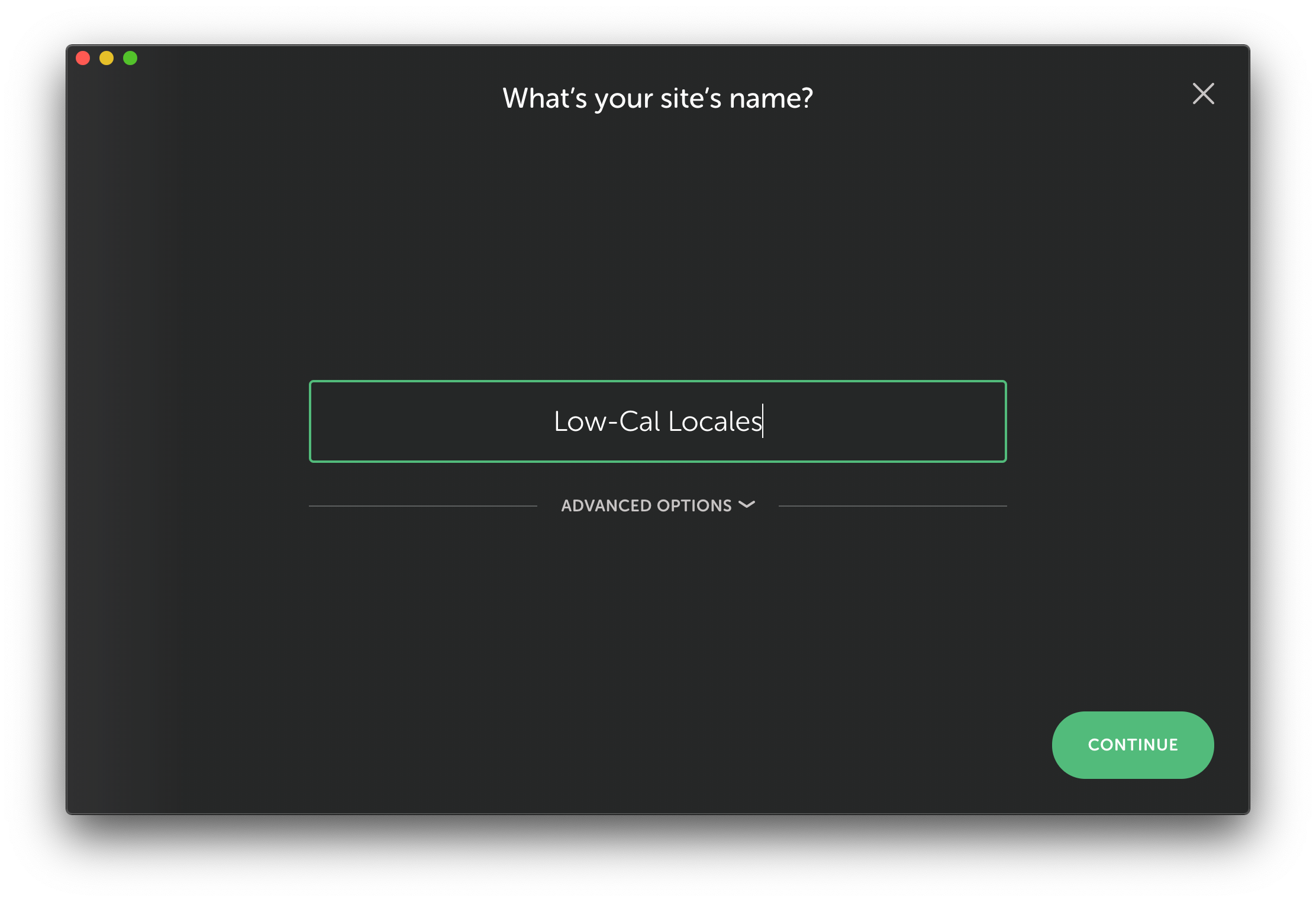
Create a new site in Local if you don’t have one, or just use one you already have.
(By the way: you’ve probably noticed from my screenshot that I like dark mode. That can be enabled in each app’s Preferences menu.)
You might see a warning about a port conflict in Local. If you do, just go ahead and click the button to fix the issue. You won’t be able to use a custom domain this way, but the CodeKit connection will still work. The site URL in the browser just won’t look as nice.

If you see a port conflict, just click the button to proceed. No big deal.
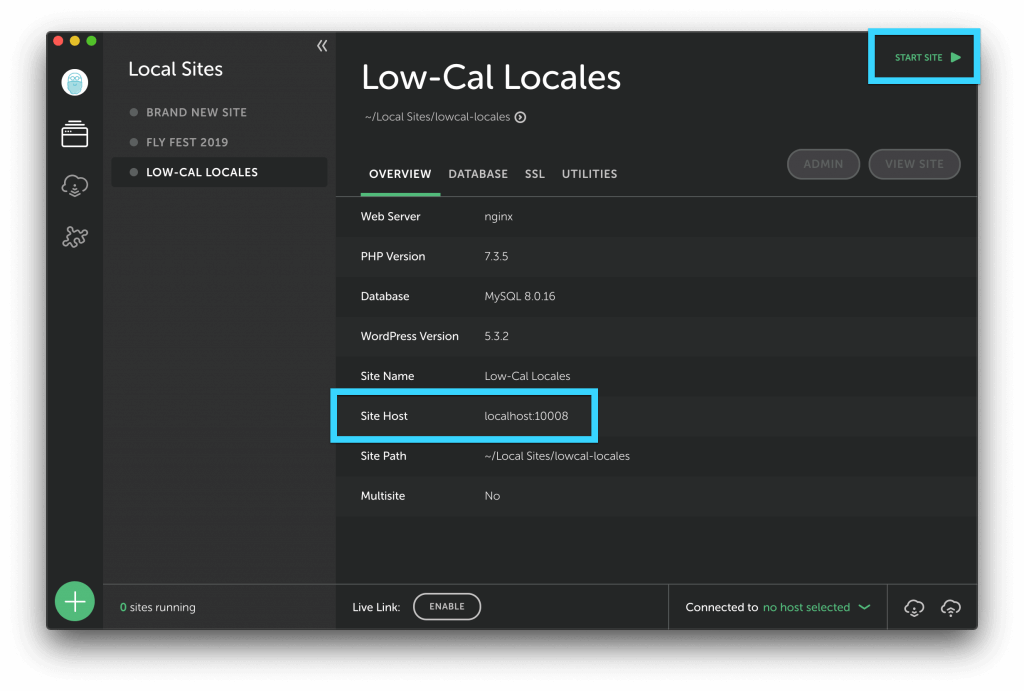
2. Start Your Local Site and Note its Site Host Setting
Again, the specific setup of the site doesn’t really matter. The only things to be sure of are:
- The site is running; and
- You note the Site Host (in the case of my screenshot,
localhost:10008, but yours might be a custom.localdomain instead)
3. Add Your Project to CodeKit
Head over to CodeKit now, and go to File > Add Project. Navigate to your Local site’s “public” directory, and choose it.
By default, Local places your sites inside of a “Local Sites” folder. So the path to your site’s “public” directory will most likely be something like this:
~/Local Sites/your-sites-name/app/public
The public folder is your Local WordPress site’s root directory. You’ll want to watch that directory so that any time something changes anywhere in the WordPress site, CodeKit will be aware of it and can react by compiling files, refreshing the browser, etc.
If you weren’t actually interested in using CodeKit for its live previews and auto-refreshing, and all you wanted was the code features, you could just add whatever directory you’re working in (the theme, for example) instead of adding the whole site.
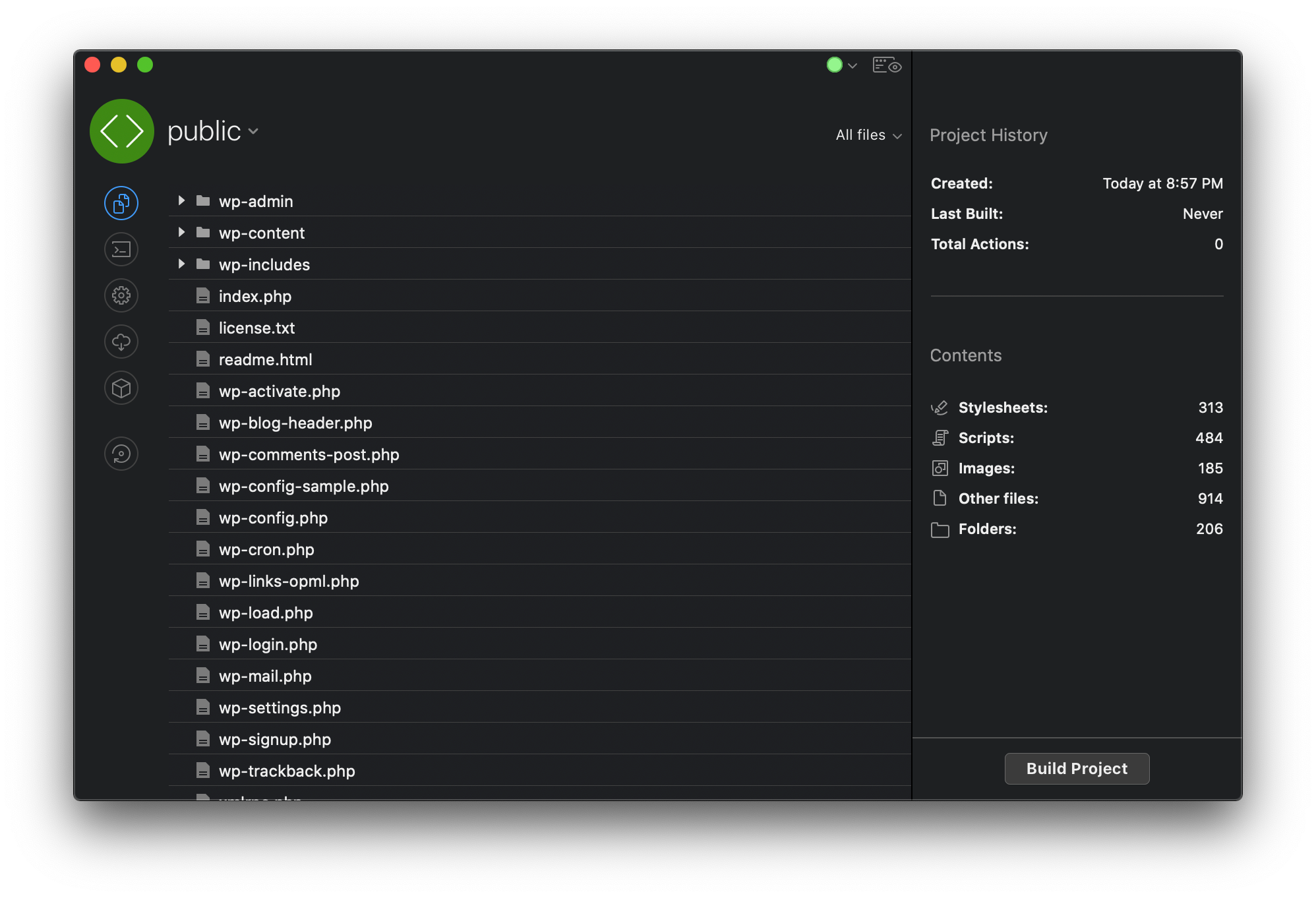
Once you’ve added your project, you’ll see CodeKit look something like this:
4. Configure the CodeKit Project’s Settings
Now that your project (site) has been added in CodeKit, head into Project Settings, either from View > Project Settings or from the gear icon on the left sidebar.
You can rename the project from here if you want—which you might want to do to make things easier if you’re working on multiple Local WordPress projects at once.
In Project Settings, head to Browser-Refreshing and scroll down to the External Server Options section.
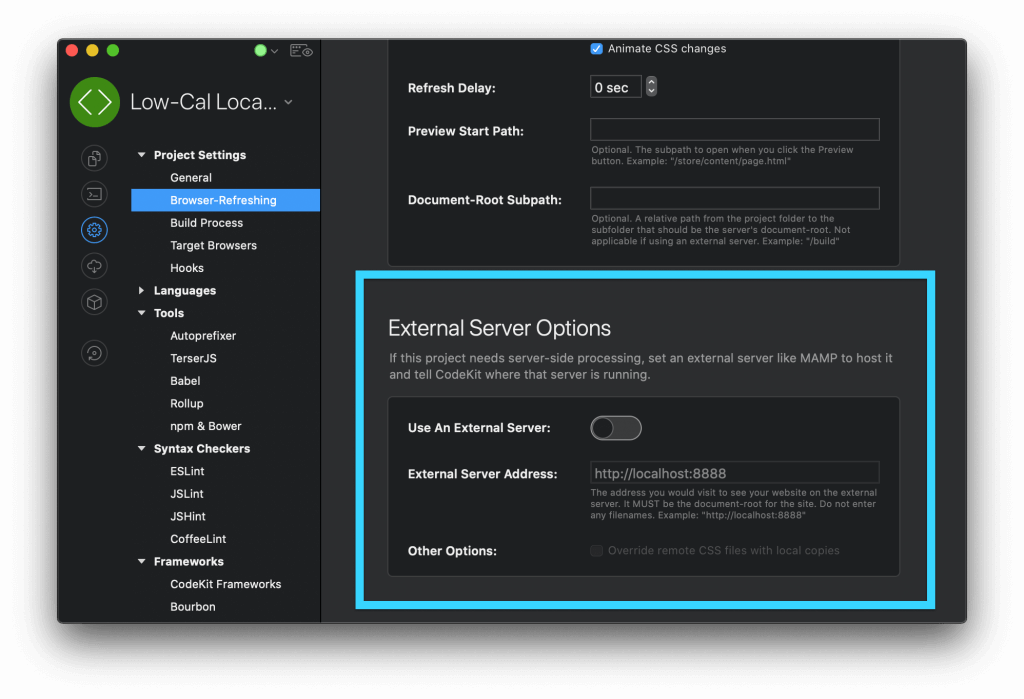
Here, you’ll take the two steps necessary to connect CodeKit with Local:
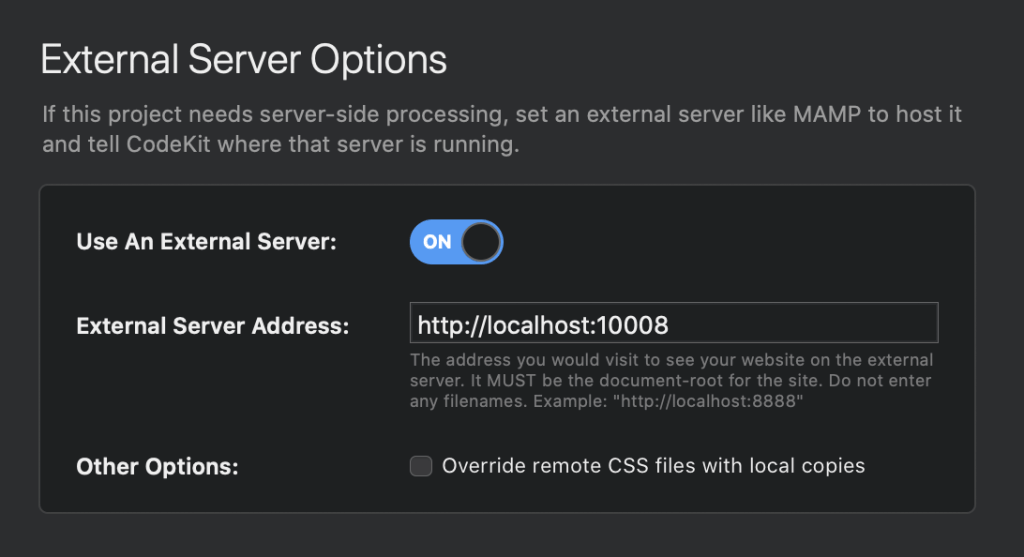
- Toggle on the Use An External Server button;
- Copy your Local site’s Site Host setting, and paste it into the External Server Address box in Codekit
5. Click the CodeKit Preview Link
That’s it! You’re connected! Now all you need to do is preview in CodeKit to see changes live in real time. You can either go to File > Preview in Browser…, or hit the preview button at the top of the CodeKit window:

(Note that the URL you see in your browser window may not match what you just entered from Local. That’s ok, as long as the page works.)
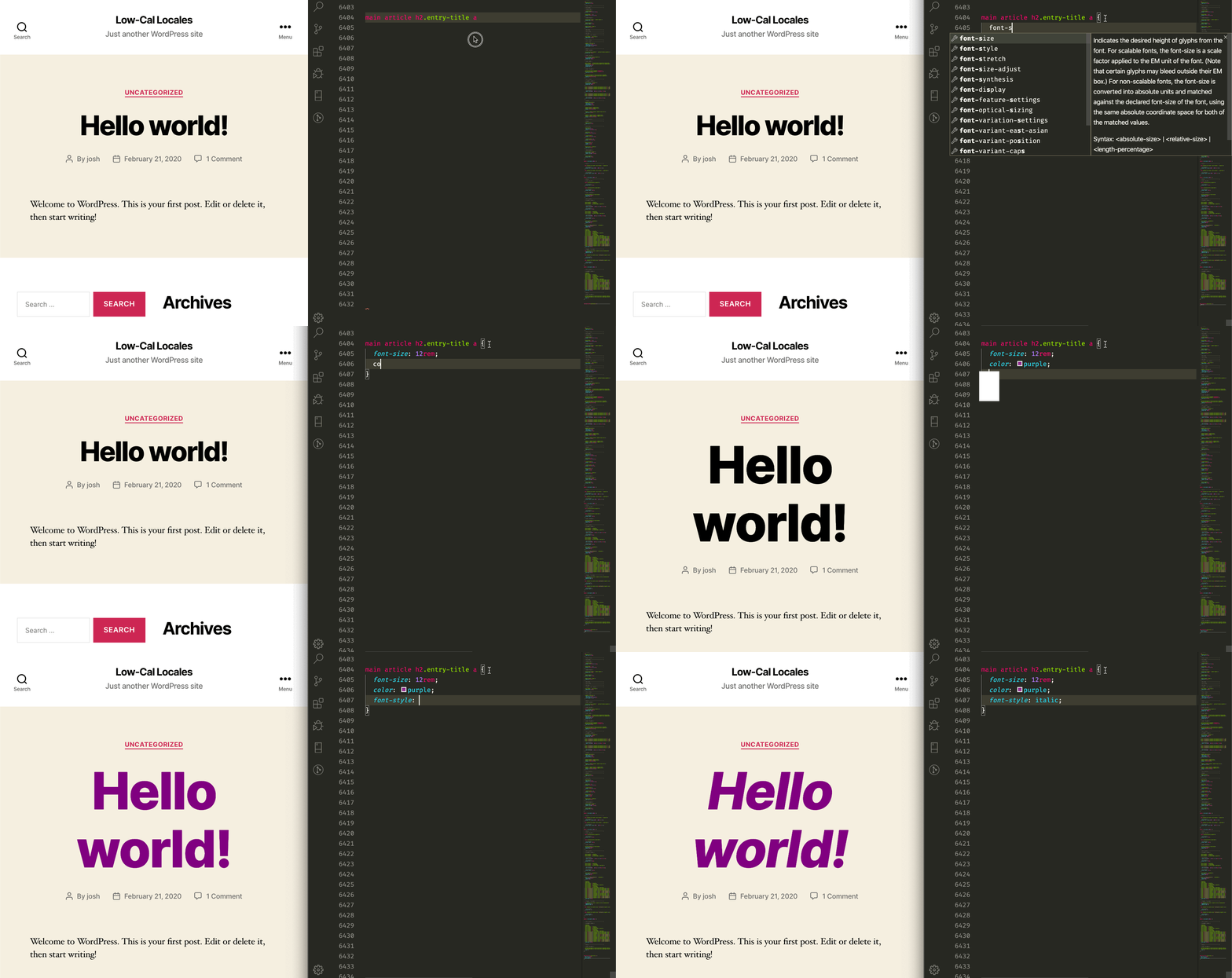
Now as you make changes in your code—for example, changing CSS files or editing the HTML on a page—your browser will just automatically refresh like magic! ✨
If you’re having issues: be sure that the site is running in Local, and that the protocol matches between the two (http or https; it should be the same both places. You might need to check or un-check the TLS box under Security Options and/or restart the server):
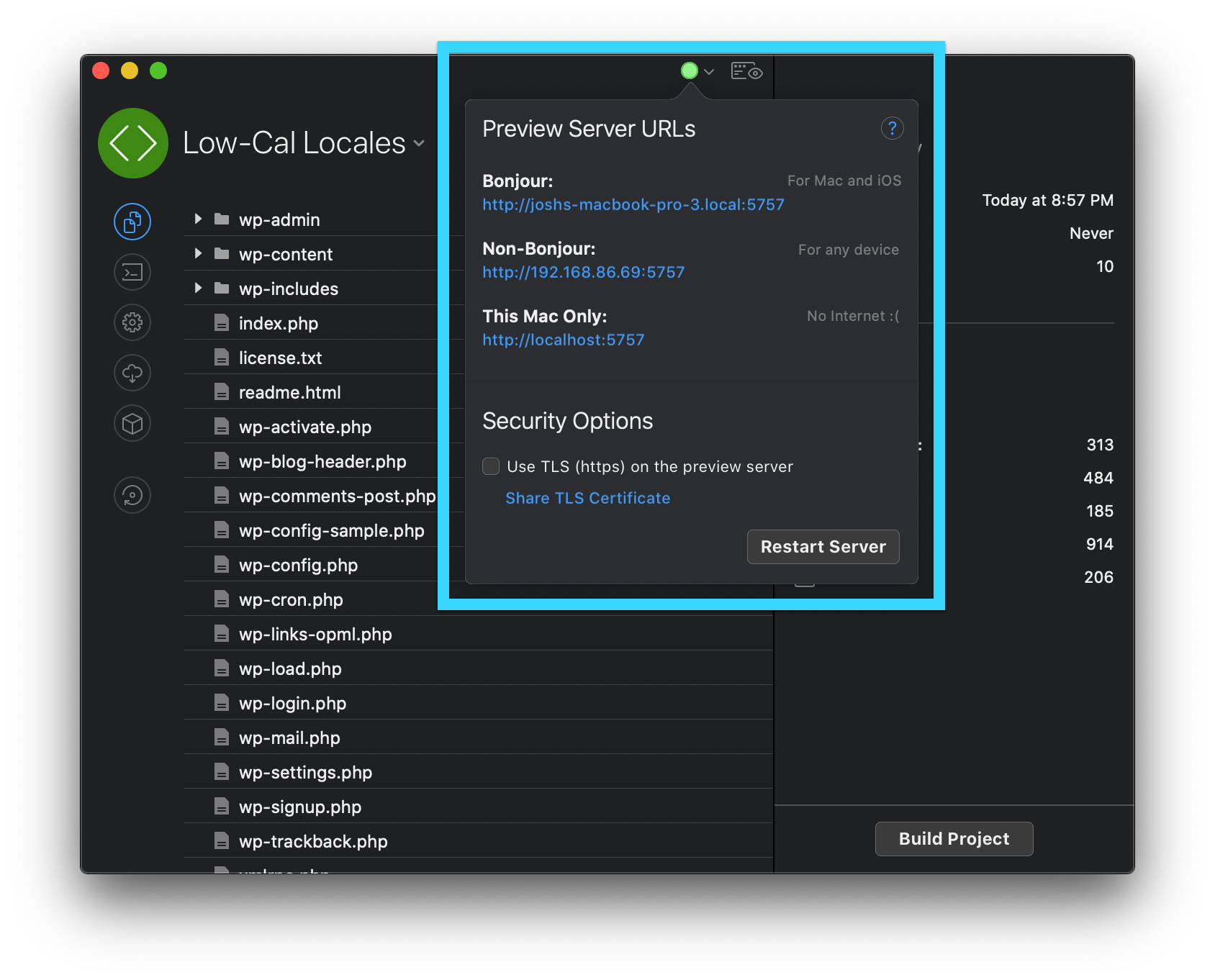
The Preview Server URLs box (shown above) is also where you’ll find the URLs you can use to view your Local site on other devices! Want to check out your site on your phone? It’s as simple as heading to the Bonjour URL (iPhone) or Non-Bonjour URL (anything else) in your device’s browser!
Bonus: Setting Up Sass in CodeKit
Just to provide an example of how easy CodeKit makes it to get set up with things like Sass, let’s explore CodeKit a little now that we have everything set up.
If you have a Sass file that you’d like to compile into CSS on the fly, find that file in Codekit and click to select it. You’ll immediately see a suite of options in the right sidebar:
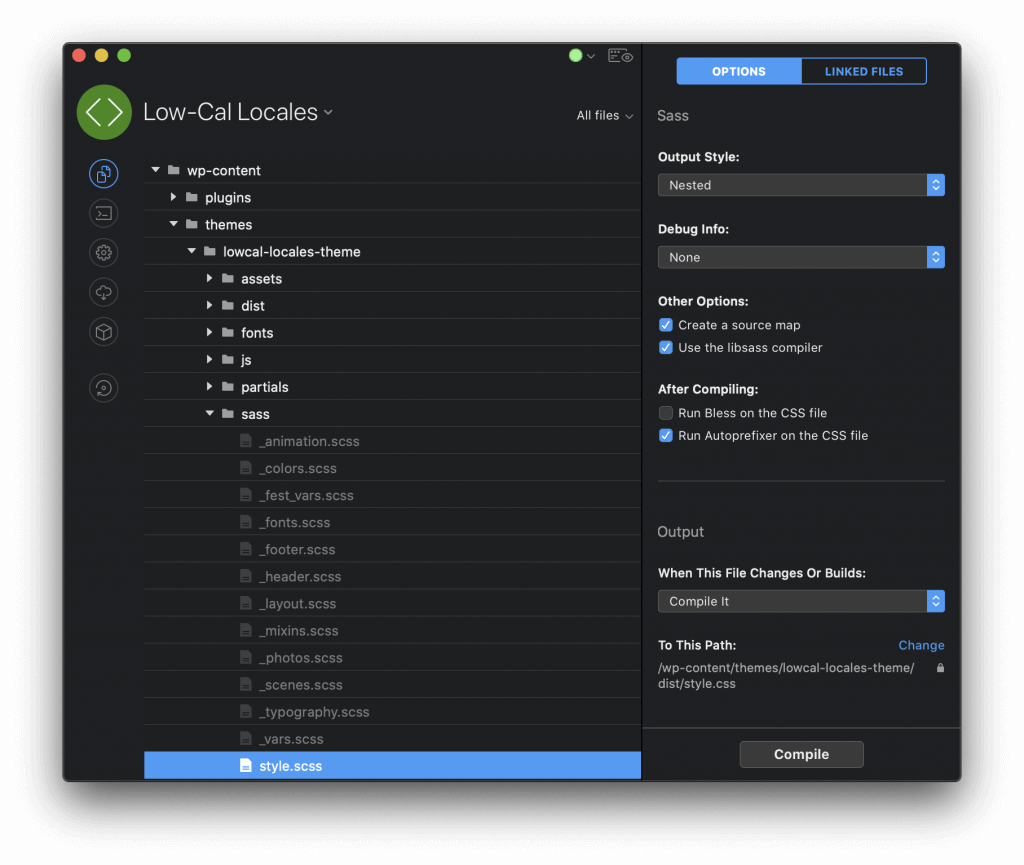
Making CodeKit compile your Sass is as simple as choosing the options you want, and the path where you want CodeKit to output the compiled CSS file!
As a bonus, if you have any errors in your Sass syntax (like here, where I forgot a semicolon at the end of a line), CodeKit will highlight those and let you know right away as soon as you save the file:
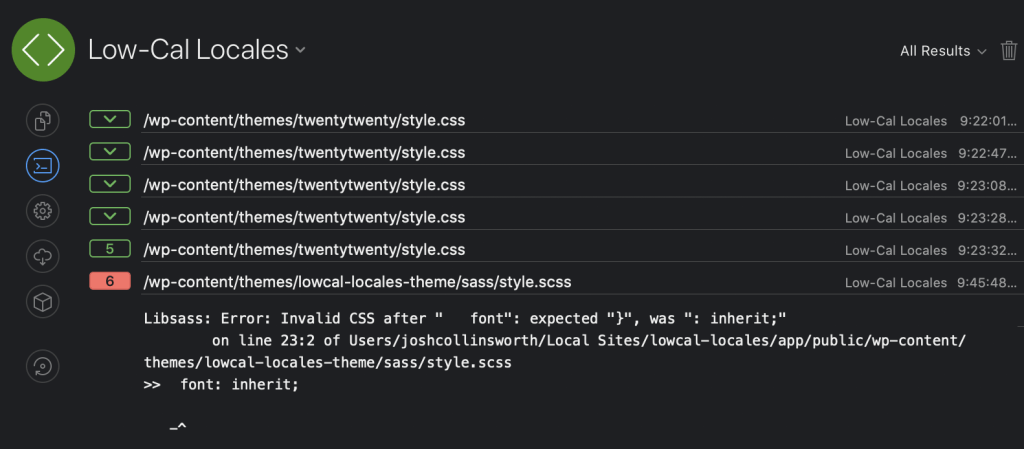
A similar set of options (minify, compile, generate source maps, etc.) is available with JavaScript files, plus many other file types.
Final Step: Enjoy!
That’s it! Enjoy all the convenience of easy local WordPress development with Local, plus build tools with CodeKit, without any of the tricky command line setup. 🎉