


2017-08-02 11:10 【当耐特】 阅读(2920) 评论() 收藏 举报
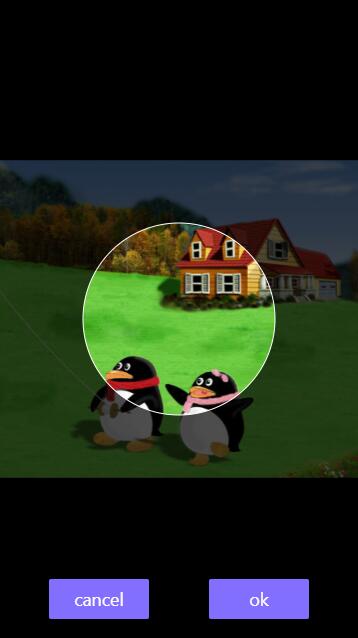
AlloyCrop 这个项目是8个月前发布的,作为AlloyFinger 的典型案例,发布之后被BAT等其他公司广泛使用。但是发布之后,有两个问题一直没有抽出时间去解决:
现在很高兴地告诉大家,AlloyCrop 已经完全搞定了上面两个问题,本文将解释新版本的变化和AlloyCrop背后的原理。当然AlloyFinger的原理这里就不再阐述,以前有分享过 超小Web手势库AlloyFinger原理
先看全新的API变化。
new AlloyCrop({
    image_src: "img src",
    circle: true, // optional parameters , the default value is false
    width: 200, // crop width
    height: 100, // crop height
    output: 2, // output resolution --> 400*200
    ok: function (base64, canvas) { },
    cancel: function () { },
    ok_text: "yes", // optional parameters , the default value is ok
    cancel_text: "no" // optional parameters , the default value is cancel
});
| 参数 | 是否必填 | 意义 |
|---|---|---|
| image_src | 必须 | 需要裁剪图片的src地址 |
| circle | 不必须,默认是false | 代表选取的是否是圆形还是矩形,默认是矩形,注意:圆形选取裁剪出来的也是正方形图片 |
| width | 必须 | 选区的宽 |
| height | 必须 | 选区的高 |
| output | 必须 | 输出的倍率。比如如果output为2,选区的宽300,选区的高100,输出的图像的分辨率为 (2×300,2×100) |
| ok | 必须 | 点击ok按钮的回调 |
| cancel | 必须 | 点击cancel按钮的回调 |
| ok_text | 不必须,默认是ok | ok按钮的文本 |
| cancel_text | 不必须,默认是cancel | cancel按钮的文本 |
与之前版本最主要的变化就是新增了 output 支持自定义倍率分辨率的图像输出。
crop: function () {
    this.calculateRect();
    this.ctx.drawImage(this.img, this.crop_rect[0], this.crop_rect[1], this.crop_rect[2], this.crop_rect[3], 0, 0, this.canvas.width, this.canvas.height);

},
其中 this.calculateRect() 是计算选取和图片重叠在一起的矩形区域,drawImage 是把裁剪的区域绘制到 canvas 上。注意 canvas 的宽高是多少?且看:
this.canvas.width = option.width * this.output;
this.canvas.height = option.height * this.output;
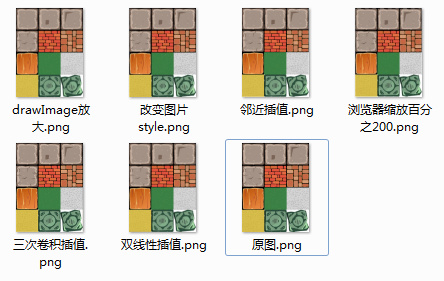
所以就达到了自定义倍率分辨率的目的。当然这里图片的失真又或者超分辨,都取决于 drawImage 插值过程。关于插值,以前特意对比过,使用三次卷积插值完爆了其他几个,但是三次卷积插值速度也是最慢,所以浏览器内核要权衡效率和插值结果去实现 drawImage。
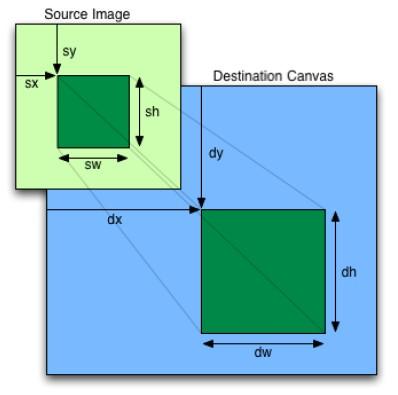
因为我们需要把图片的某个区域绘制到整个canvas上。所以drawImage的后四个参数为(0, 0, this.canvas.width, this.canvas.height),然后我们需要去计算图片裁剪的区域。
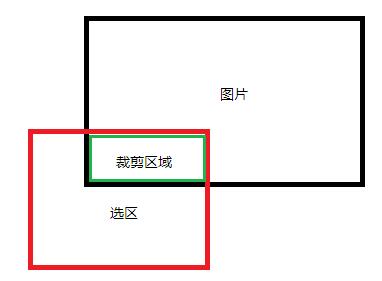
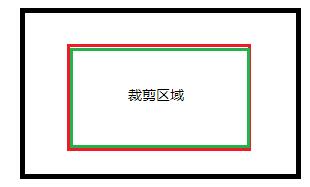
大概就分上面两种情况,一种是完全包含,一种部分相交。
因为图片会被放大或者缩小(scale),所以情况会变得稍微复杂一点点。求出相交的矩形区域后,要对图片scale进行校正,校正回到1的比例,才能用于drawImage。具体代码参见 https://github.com/AlloyTeam/AlloyCrop/blob/master/alloy-crop.js#L227-L255
使用AlloyCrop是可以放大或者缩小再进行裁剪,怎么基于 pinch 的两个手指的中间进行放大呢?所以的秘密都在这个multipointStart里。
 new AlloyFinger(this.croppingBox, {
	multipointStart: function (evt) {
	    //reset origin x and y
	    var centerX = (evt.touches[0].pageX + evt.touches[1].pageX) / 2;
	    var centerY = (evt.touches[0].pageY + evt.touches[1].pageY) / 2;
	    var cr = self.img.getBoundingClientRect();
	    var img_centerX = cr.left + cr.width / 2;
	    var img_centerY = cr.top + cr.height / 2;
	    var offX = centerX - img_centerX;
	    var offY = centerY - img_centerY;
	    var preOriginX = self.img.originX
	    var preOriginY = self.img.originY
	    self.img.originX = offX / self.img.scaleX;
	    self.img.originY = offY / self.img.scaleY;
	    //reset translateX and translateY
	    self.img.translateX += offX - preOriginX * self.img.scaleX;
	    self.img.translateY += offY - preOriginY * self.img.scaleX;
	    self.initScale = self.img.scaleX;
	},
	pinch: function (evt) {
	    self.img.scaleX = self.img.scaleY = self.initScale * evt.zoom;
	},
	pressMove: function (evt) {
	    self.img.translateX += evt.deltaX;
	    self.img.translateY += evt.deltaY;
	    evt.preventDefault();
	}
});

This content is released under the MIT License.
此内容由惯性聚合(RSS阅读器)自动聚合整理,仅供阅读参考。 原文来自 — 版权归原作者所有。