





小程序、小游戏以及 Web 通用 Canvas 渲染引擎
到 GitHub 下载 cax 自定义组件,然后小程序引入 cax 自定义组件:
└── cax
    ├── cax.js
    ├── cax.json
    ├── cax.wxml
    ├── cax.wxss
    └── index.js
在 page 或者 component 里声明依赖:
{
  "usingComponents": {
    "cax":"../cax/cax"
  }
}
在的 wxml 里引入 cax 标签:
<cax id="myCanvas"></cax>
在 js 里渲染逻辑:
import cax from '../cax/index'

Page({
  onLoad: function () {
    //比 web 里使用 cax 多传递 this,this 代表 Page 或 Component 的实例
    const stage = new cax.Stage(200, 200, 'myCanvas', this)
    const rect = new cax.Rect(100, 100, {
      fillStyle: 'black'
    })

    rect.originX = 50
    rect.originY = 50
    rect.x = 100
    rect.y = 100
    rect.rotation = 30

    rect.on('tap', () => {
      console.log('tap')
    })

    stage.add(rect)
    stage.update()
  }
})
效果如下所示:
除了 tap 事件,也可以帮 rect 绑定其他触摸事件:
rect.on('touchstart', () => {
  console.log('touchstart')
})

rect.on('touchmove', () => {
  console.log('touchmove')
})

rect.on('touchend', () => {
  console.log('touchend')
})
到 GitHub 下载 cax 小游戏示例,目录结构和运行效果如下:
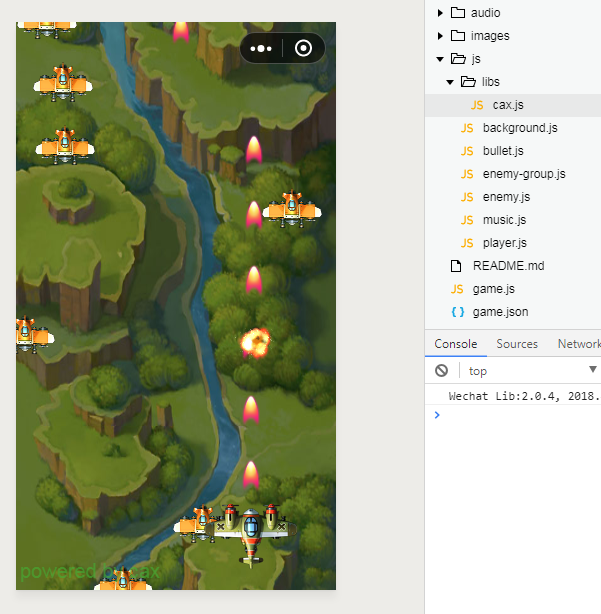
const stage = new cax.Stage()
和小程序以及 Web 不同的是,小游戏创建 Stage 不需要传任何参数。
通过 npm 或者 CDN 获取:
npm i cax
import cax from 'cax'

const stage = new cax.Stage(200, 200, '#renderTo')
const rect = new cax.Rect(100, 100, {
  fillStyle: 'black'
})

stage.add(rect)
stage.update()
除了 Stage 构造函数比小程序第四个参数 this,其他使用方式都一样。
用于分组, group 也可以嵌套 group,父容器的属性会叠加在子属性上, 比如:
const group = new cax.Group()
const rect = new cax.Rect(100, 100 {
  fillStyle: 'black'
})
group.add(rect)
stage.add(group)
stage.update()
group 拥有常用的 add 和 remove 方法进行元素的增加和删除。先 add 的会先绘制,所有后 add 的会盖在先 add 的上面。
const bitmap = new cax.Bitmap(img)
stage.add(bitmap)
stage.update()
如果只传 url 而不是 Image 对象的实例,需要这样:
const bitmap = new cax.Bitmap('./wepay.png', ()=>{
  stage.update()
})
stage.add(bitmap)
这里需要注意小程序需要配置 downloadFile 需要配置合法域名才能正常加载到图片。
可以设置图片裁剪显示区域,和其他 transform 属性:
bitmap.rect = [0, 0, 170, 140]
bitmap.x = 200
序列帧动画组件,可以把任意图片的任意区域组合成一串动画。
const sprite = new cax.Sprite({
    framerate: 7,
    imgs: ['./mario-sheet.png'],
    frames: [
        // x, y, width, height, originX, originY ,imageIndex
        [0, 0, 32, 32],
        [32 * 1, 0, 32, 32],
        [32 * 2, 0, 32, 32],
        [32 * 3, 0, 32, 32],
        [32 * 4, 0, 32, 32],
        [32 * 5, 0, 32, 32],
        [32 * 6, 0, 32, 32],
        [32 * 7, 0, 32, 32],
        [32 * 8, 0, 32, 32],
        [32 * 9, 0, 32, 32],
        [32 * 10, 0, 32, 32],
        [32 * 11, 0, 32, 32],
        [32 * 12, 0, 32, 32],
        [32 * 13, 0, 32, 32],
        [32 * 14, 0, 32, 32]
    ],
    animations: {
        walk: {
            frames: [0, 1]
        },
        happy: {
            frames: [5, 6, 7, 8, 9]
        },
        win: {
            frames: [12]
        }
    },
    playOnce: false,
    currentAnimation: "walk",
    animationEnd: function () {

    }
});
文本对象
const text = new cax.Text('Hello World', {
  font: '20px Arial',
  color: '#ff7700',
  baseline: 'top'
})
绘图对象,用于使用基本的连缀方式的 Canvas 指令绘制图形。
const graphics = new cax.Graphics()
graphics
    .beginPath()
    .arc(0, 0, 10, 0, Math.PI * 2)
    .closePath()
    .fillStyle('#f4862c')
    .fill()
    .strokeStyle('black')
    .stroke()

graphics.x = 100
graphics.y = 200

stage.add(graphics)
与 Graphics 不同的是, Shape 一般拥有有限的宽高,所以可以使用离屏 Canvas 进行缓存。下面这些属于 Shape。
const rect = new cax.Rect(200, 100, {
  fillStyle: 'black'
})
const circel = new cax.Circel(10)
const ellipse = new cax.Ellipse(10)
注意:从技术上小游戏和 Web 可以离屏 Canvas,小程序不行,因为小程序不支持动态创建离屏 Canvas。
Element 是多种元素的组合,如 Bitmap、Group、 Text、 Shape 等混合起来的图像。
const button = new cax.Button({
  width: 100,
  height: 40,
  text: "Click Me!"
})
| 属性名 | 描述 |
|---|---|
| x | 水平偏移 |
| y | 竖直偏移 |
| scaleX | 水平缩放 |
| scaleY | 竖直缩放 |
| rotation | 旋转 |
| skewX | 歪斜 X |
| skewY | 歪斜 Y |
| originX | 旋转基点 X |
| originY | 旋转基点 Y |
| 属性名 | 描述 |
|---|---|
| alpha | 元素的透明度 |
注意这里父子都设置了 alpha 会进行乘法叠加。
| 属性名 | 描述 |
|---|---|
| compositeOperation | 源图像绘制到目标图像上的叠加模式 |
注意这里如果自身没有定义 compositeOperation 会进行向上查找,找到最近的定义了 compositeOperation 的父容器作为自己的 compositeOperation。
| 属性名 | 描述 |
|---|---|
| cursor | 鼠标移上去的形状 |
| 事件名 | 描述 |
|---|---|
| tap | 手指触摸后马上离开 |
| touchstart | 手指触摸动作开始 |
| touchmove | 手指触摸后移动 |
| touchend | 手指触摸动作结束 |
| drag | 拖拽 |
| 事件名 | 描述 |
|---|---|
| click | 元素上发生点击时触发 |
| mousedown | 当元素上按下鼠标按钮时触发 |
| mousemove | 当鼠标指针移动到元素上时触发 |
| mouseup | 当在元素上释放鼠标按钮时触发 |
| mouseover | 当鼠标指针移动到元素上时触发 |
| mouseout | 当鼠标指针移出元素时触发 |
| tap | 手指触摸后马上离开 |
| touchstart | 手指触摸动作开始 |
| touchmove | 手指触摸后移动 |
| touchend | 手指触摸动作结束 |
| drag | 拖拽 |
自定义 Shape 继承自 cax.Shape:
class Sector extends cax.Shape {
  constructor (r, from, to, option) {
    super()

    this.option = option || {}
    this.r = r
    this.from = from
    this.to = to
  }

  draw () {
    this.beginPath()
      .moveTo(0, 0)
      .arc(0, 0, this.r, this.from, this.to)
      .closePath()
      .fillStyle(this.option.fillStyle)
      .fill()
      .strokeStyle(this.option.strokeStyle)
      .lineWidth(this.option.lineWidth)
      .stroke()
  }
}
使用 Shape:
const sector = new Sector(10, 0, Math.PI/6, {
  fillStyle: 'red'
  lineWidth: 2
})
stage.add(sector)
stage.update()
自定义 Element 继承自 cax.Group:
class Button extends cax.Group {
  constructor (option) {
    super()
    this.width = option.width
    this.roundedRect = new  cax.RoundedRect(option.width, option.height, option.r)
    this.text = new cax.Text(option.text, {
      font: option.font,
      color: option.color
    })

    this.text.x = option.width / 2 - this.text.getWidth() / 2 * this.text.scaleX
    this.text.y = option.height / 2 - 10 + 5 * this.text.scaleY
    this.add(this.roundedRect, this.text)
  }
}

export default Button
使用:
const button = new cax.Button({
  width: 100,
  height: 40,
  text: "Click Me!"
})
一般情况下,稍微复杂组合体都建议使用继承自 Group,这样利于扩展也方便管理自身内部的元件。
可以看到小游戏的 DEMO 里的 Player、Bullet、Enemy、Background 全都是继承自 Group。
MIT
此内容由惯性聚合(RSS阅读器)自动聚合整理,仅供阅读参考。 原文来自 — 版权归原作者所有。