








The best content ideas are already in your website data.
Connect your WordPress.com site to Claude to uncover what your audience is searching for—but you haven’t covered yet—and turn those insights into published posts.
In this guide, I’ll show you how to extract those insights, turn them into a clear plan, and generate ready-to-publish content.
Start by connecting your Claude account with your WordPress website. This is possible thanks to the Model Context Protocol (MCP) that creates a direct link between both platforms. It’s completely secure, optional to use, and available to every paid WordPress.com user.
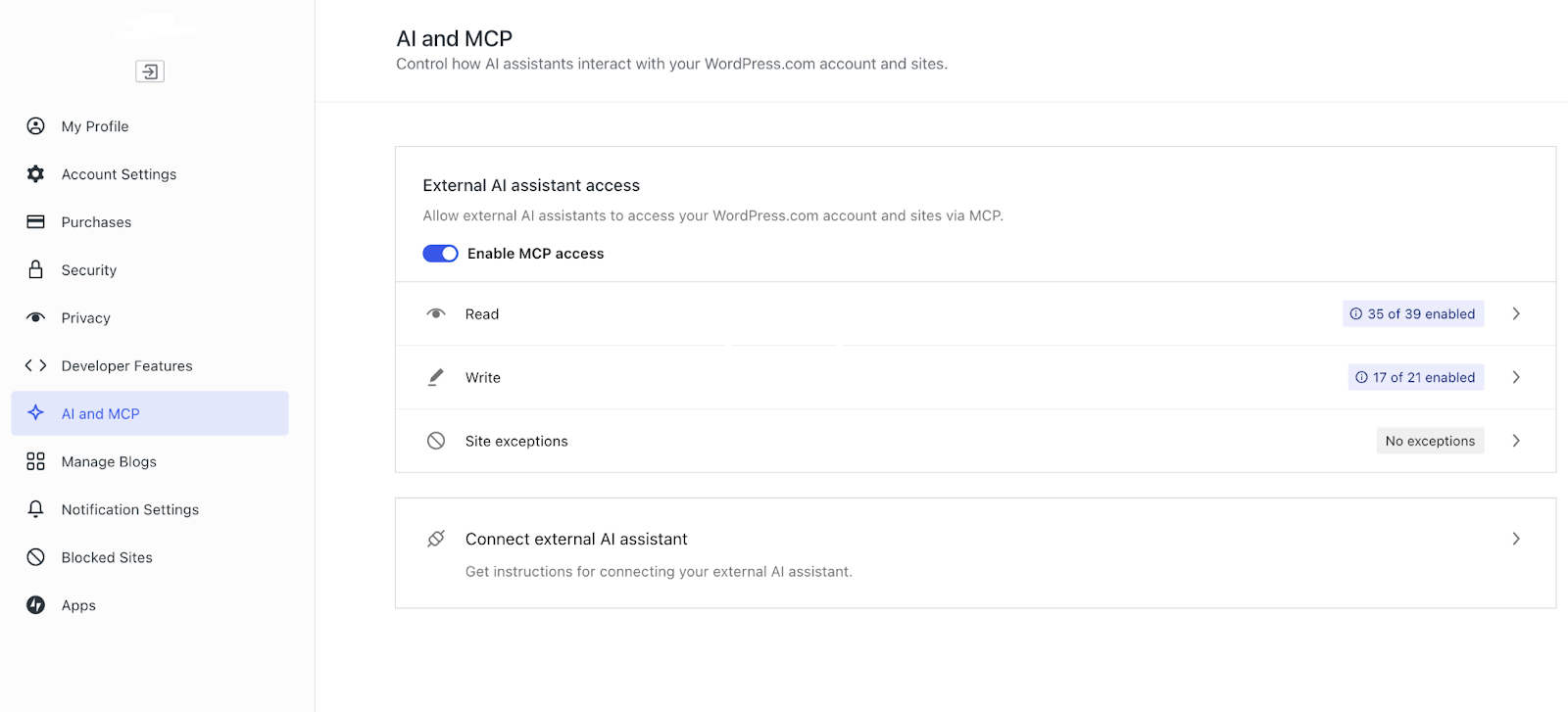
To enable MCP, head to your WordPress.com account → AI and MCP → Enable MCP Tool Access and toggle it on.
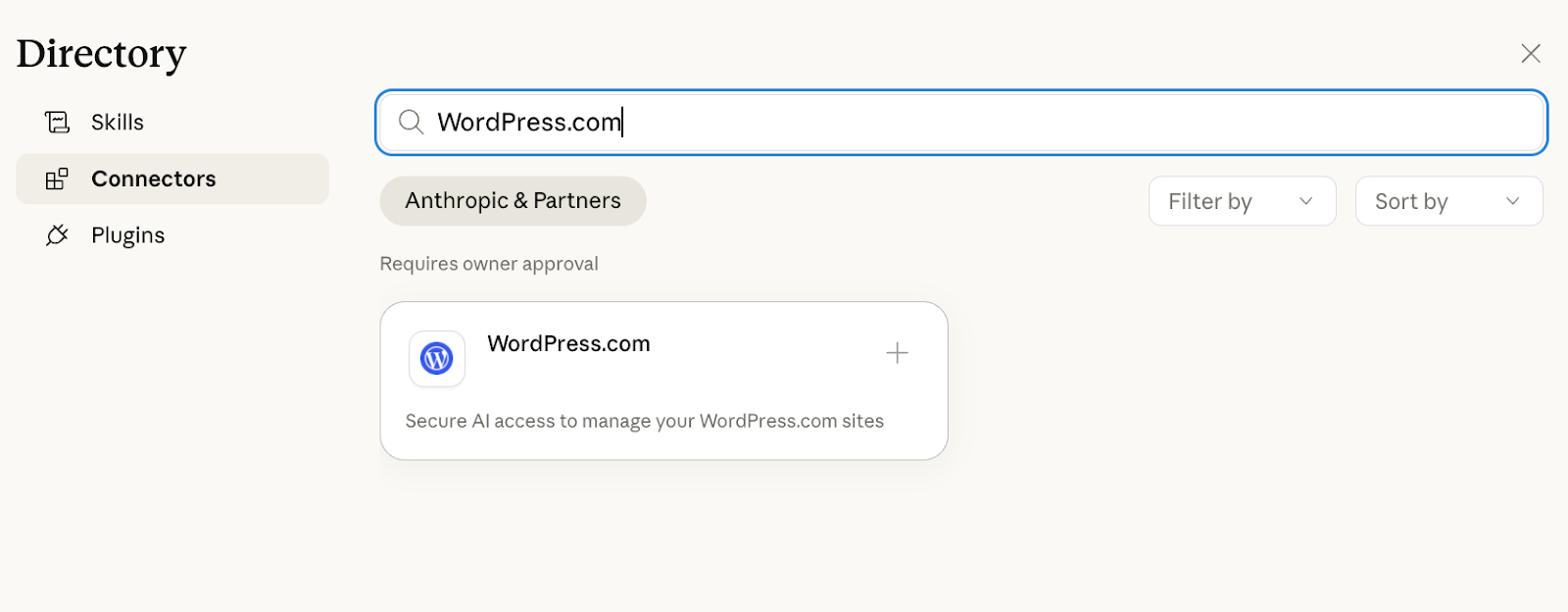
Next, head to your Claude account to enable our official Claude Code connector. Go to Settings → Connectors → Browse Connectors. In the search bar, type “WordPress.com,” and select the + button to initiate a connection with your website.
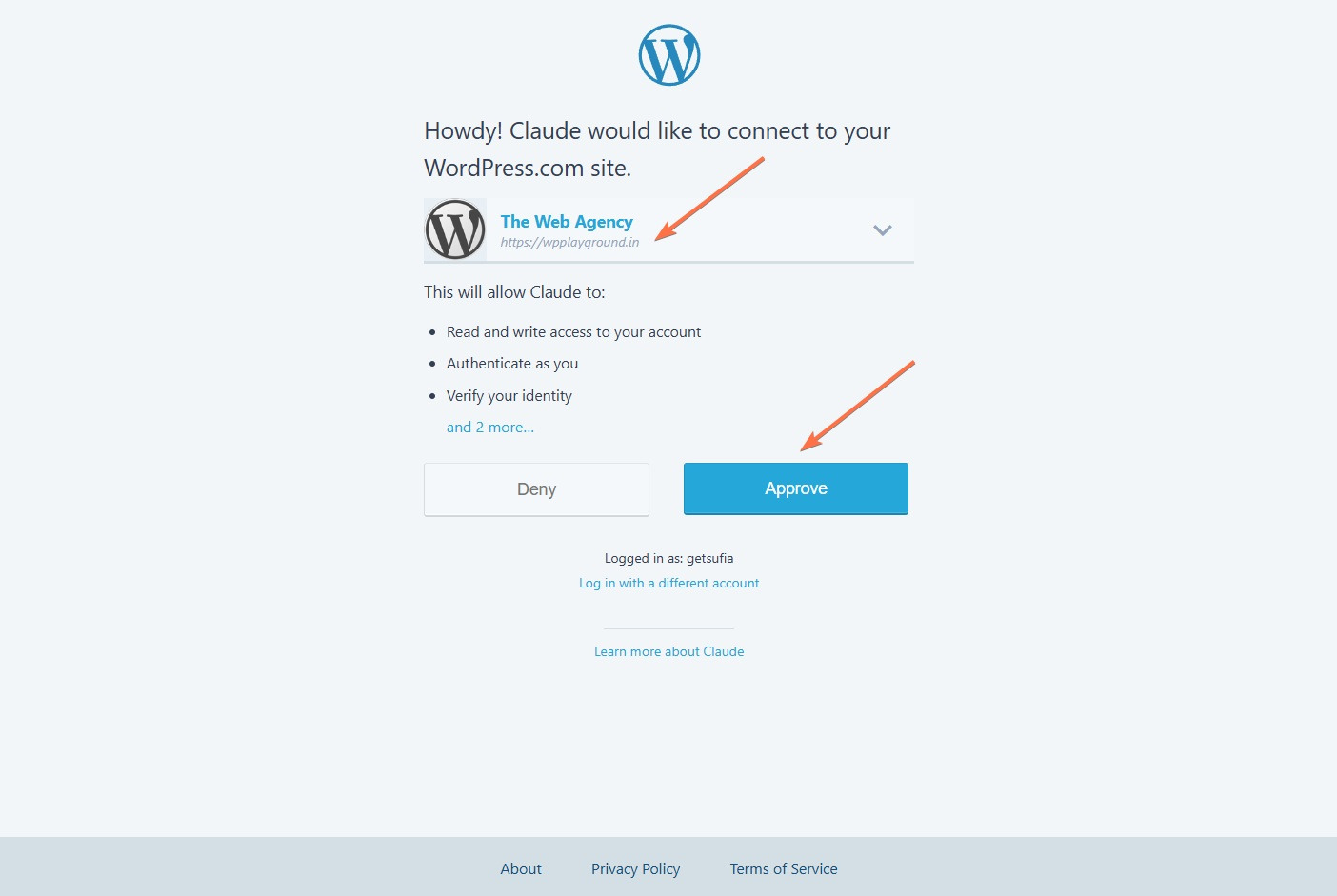
Finally, approve Claude’s access to your website. Select the right website before clicking the Approve button.
Next, ask Claude to scan the website’s existing content and identify missing topics. You can use a prompt similar to the one below and adjust it based on your own context and needs:
1. Find content gaps from existing blog posts
Review my existing posts and identify any unanswered questions on web development and maintenance. Also, analyze user comments to spot recurring questions and interests. And look for traffic insights to understand audience interest. List 20 important missing topics that would interest my visitors.
2. Identify content gaps from competitors
Review existing blog posts on the following competitor websites: https://example.com/blog/, https://example.com/blog/, and https://example.com/blog/. List 20 key topics that aren’t covered on my website.
3. Find and suggest improvements for weak blog posts
Identify posts that appear incomplete or lack useful information. Then, recommend any additional sections or details that could improve the blog posts.
Note: Keep your answers short and easy to navigate.”
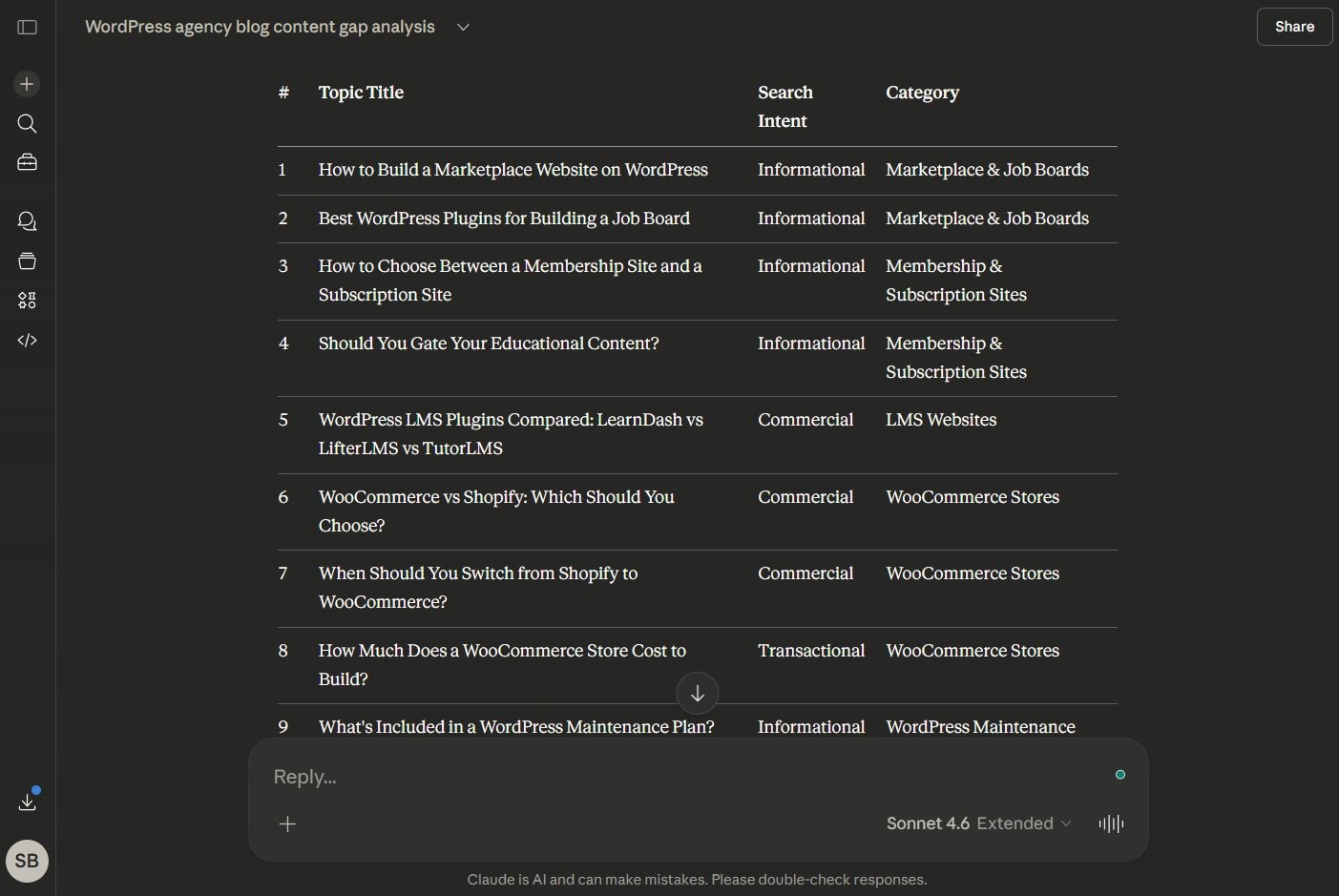
I tried this approach for my own website, and Claude instantly came up with a range of relevant content ideas like “How to build a marketplace website on WordPress” and “How to choose between a membership site and a subscription site.”
Claude also generated recommendations for how to improve existing blog posts on my site. It highlighted articles that were missing key elements like examples and data references, and explained how to add the necessary fixes.
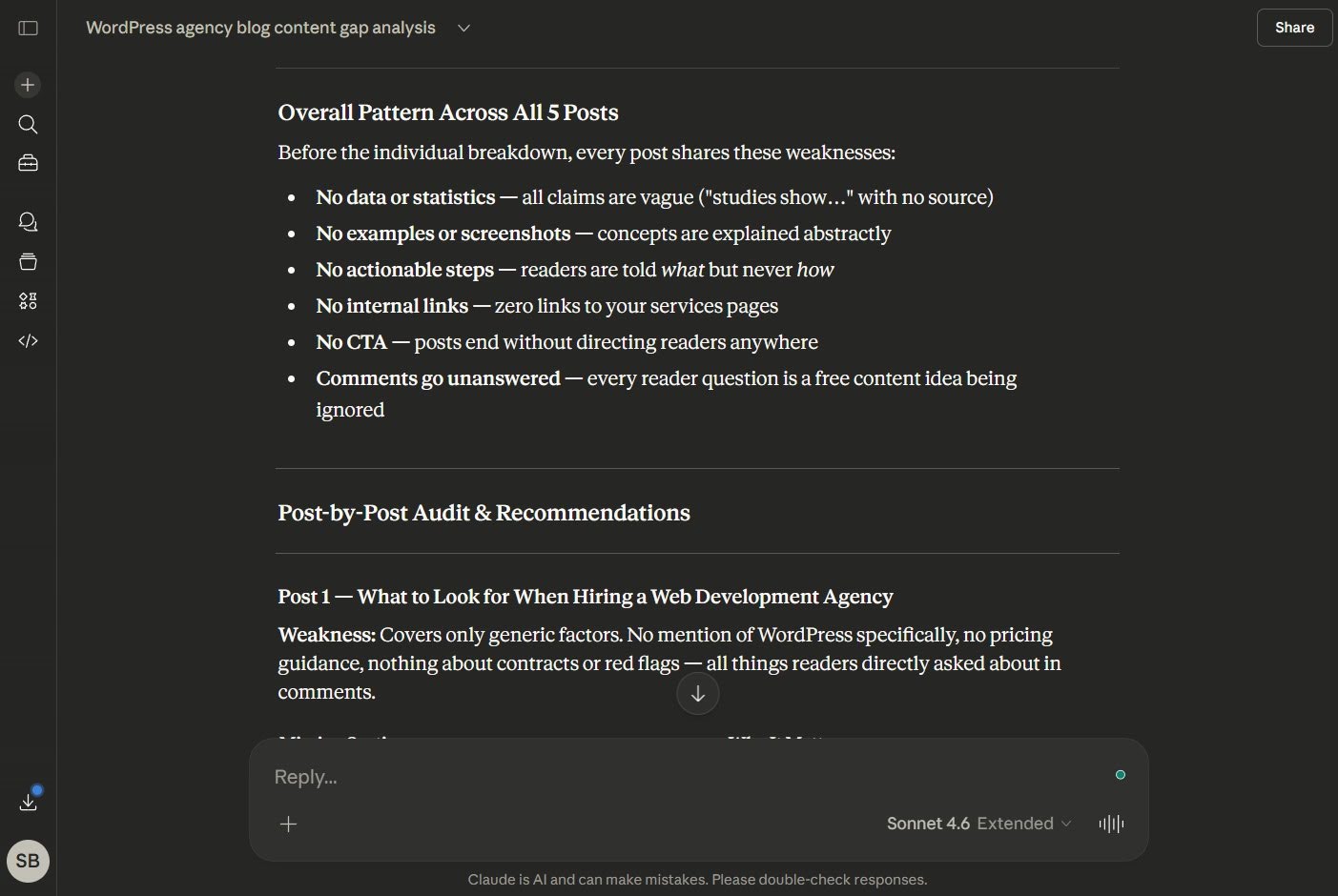
From here, I tested it for other formats such as service pages and FAQs. This workflow is effective for any query related to your site, such as tips on key pages, pricing, case studies, or something else.
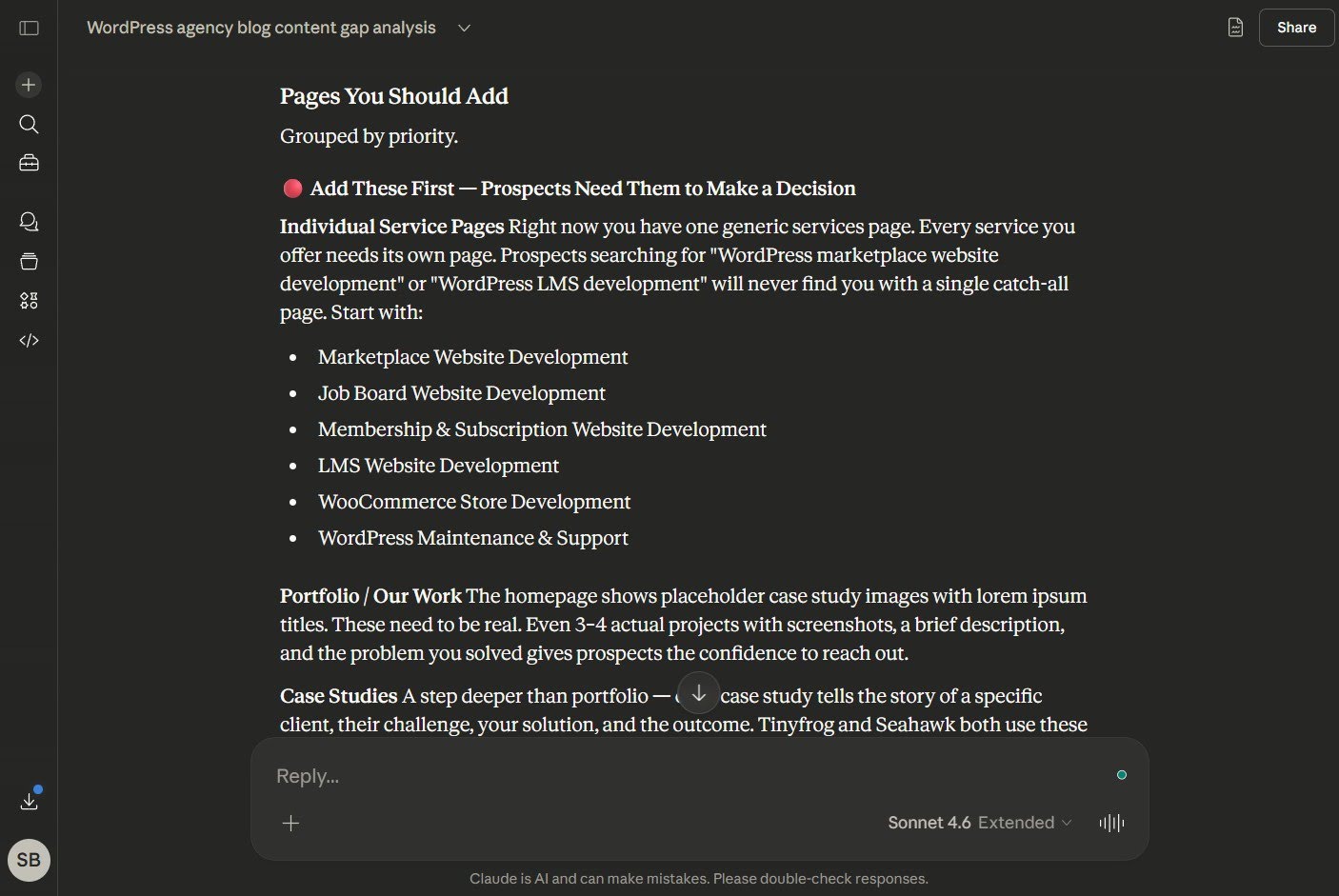
Next, instruct Claude to rank topics based on their potential impact on your business and website. This helps you prioritize your efforts and put together a plan that will genuinely help you get relevant visitors and leads.
I used the following prompt to ask Claude to rank my content topics:
“Prioritize the content topics you suggested earlier based on my goals, which are to:
– Write articles to answer questions that prospects have when evaluating web development services, and
– Write articles that help existing clients get the most out of our services.
I’m trying to decide which articles to write first and how to allocate my resources.”
Claude returned a table, ranking each topic by the value it delivers to prospects and clients:
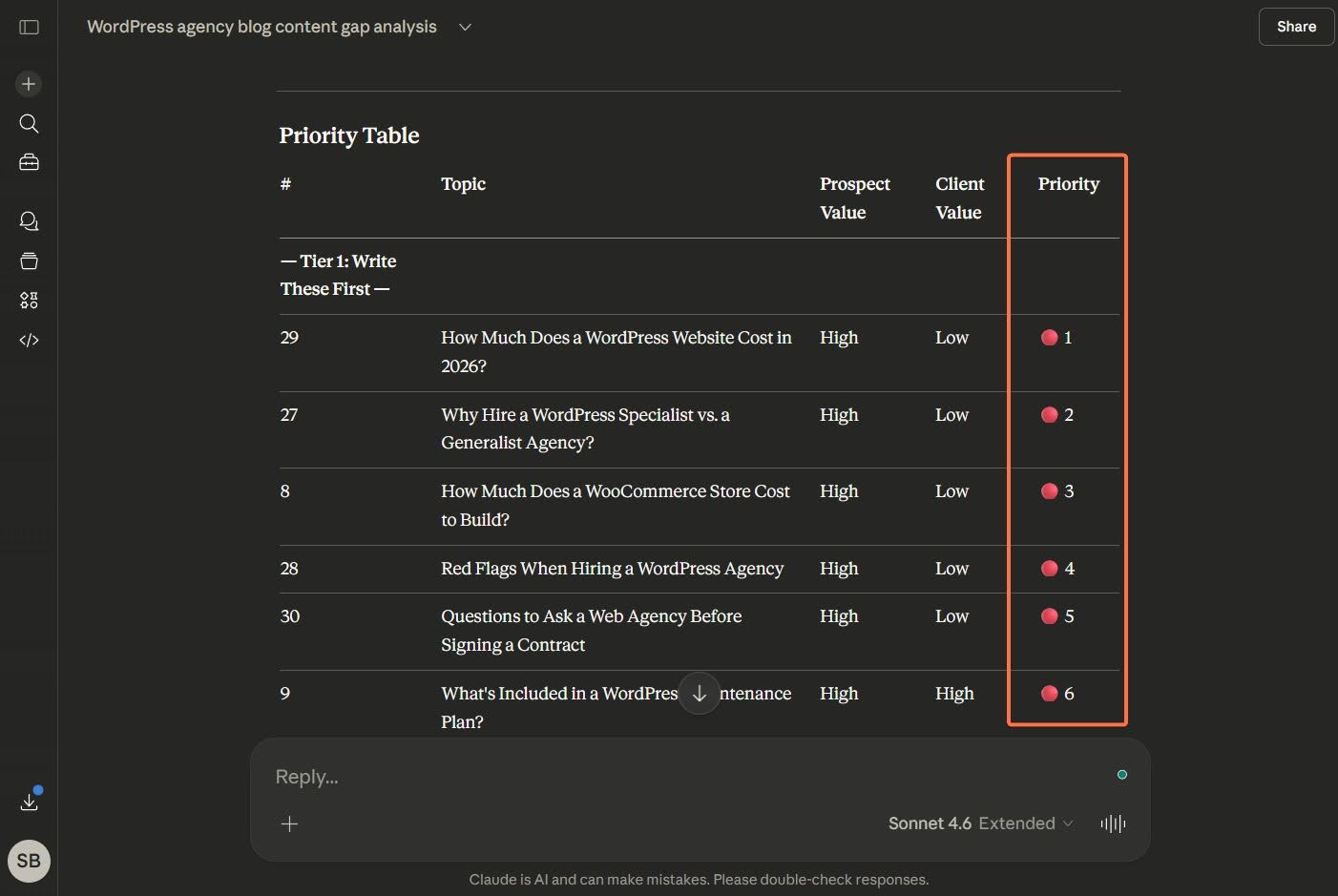
I noticed that Claude weighed topics that targeted prospects higher than those targeting clients. It assumed my blog’s main job is to bring in new business, because that’s the first goal I shared in the prompt.
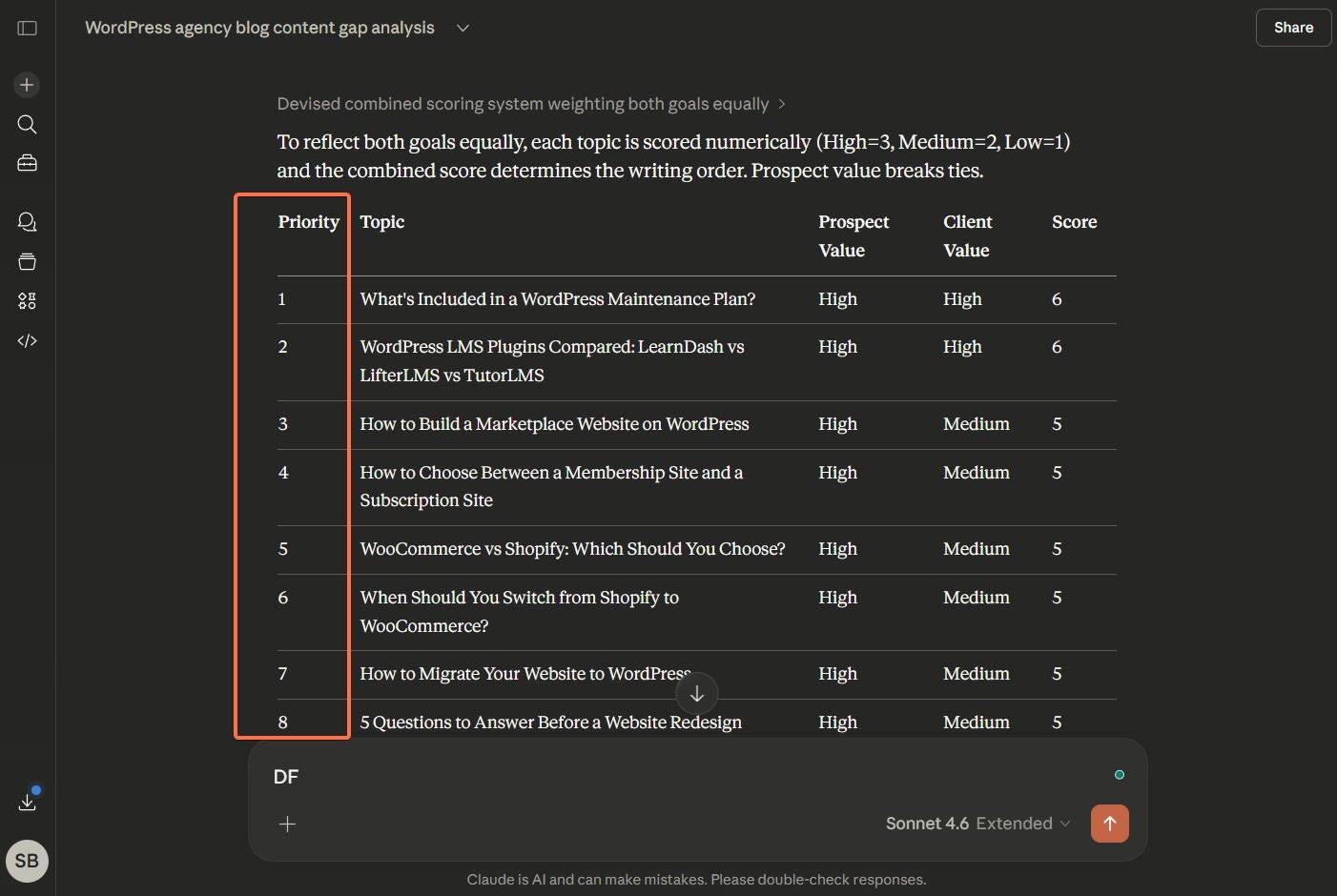
So, I asked Claude for a different approach, and it devised a combined scoring system that weighted both goals equally. The output was better this time:
From here, ask Claude to build a fully operational roadmap for your content. This document will serve as your content calendar, which is essential for planning and effective execution. Here’s the prompt I used:
Consider adding these in the calendar: Timeframe, publication frequency, calendar columns — due date, article title, target audience, content type, content freshness, owner, status, balance prospect-focused and client-focused content, content mix — add different content types like articles, case studies, listicles, comparisons, and add existing blog posts as they need to be updated/refreshed.”
Here’s what it came up with:
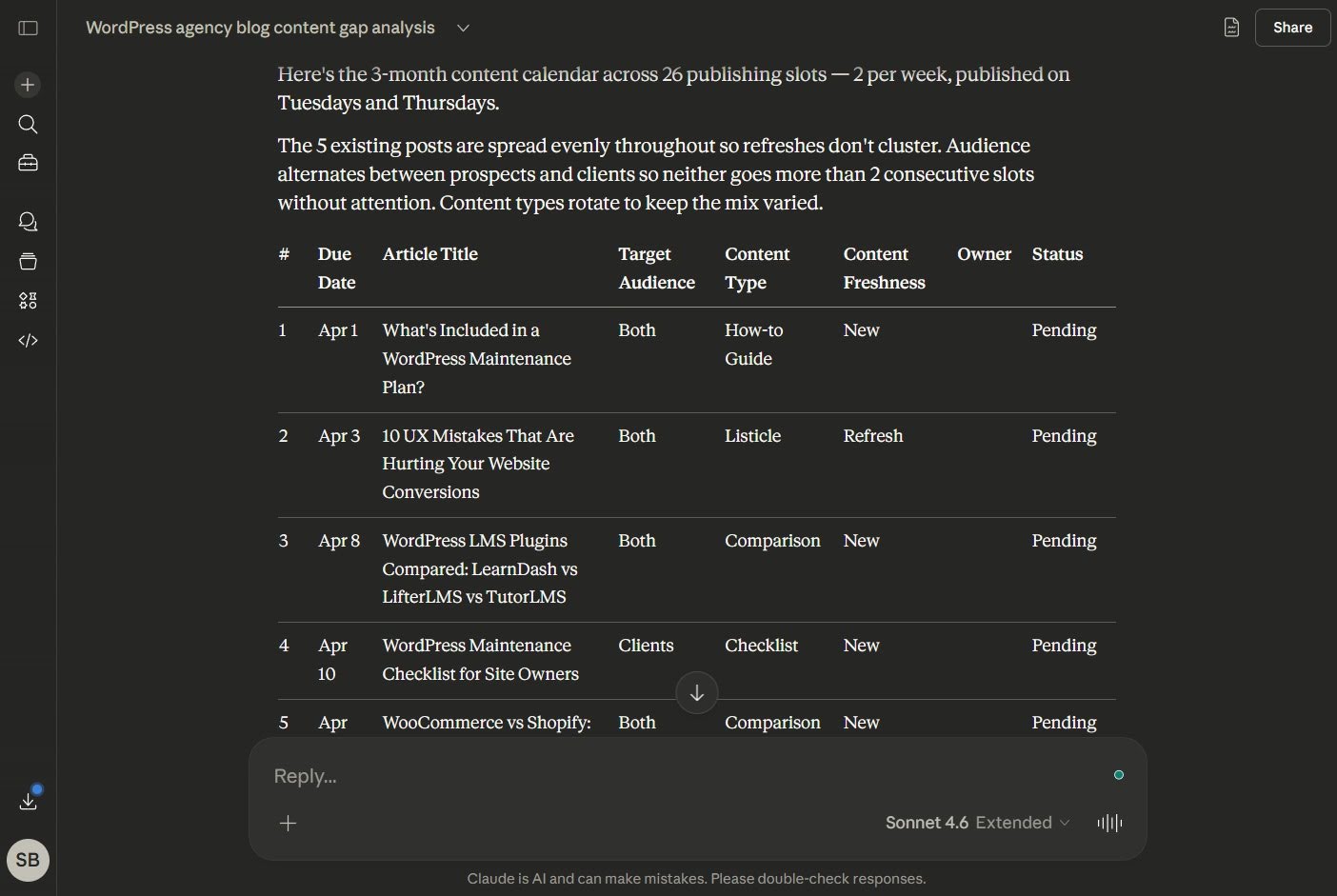
Finally, I asked Claude to convert the calendar into an Excel sheet. It returned two options: download directly or open it on Google Sheets. It’ll need your Google Drive access for the second option.
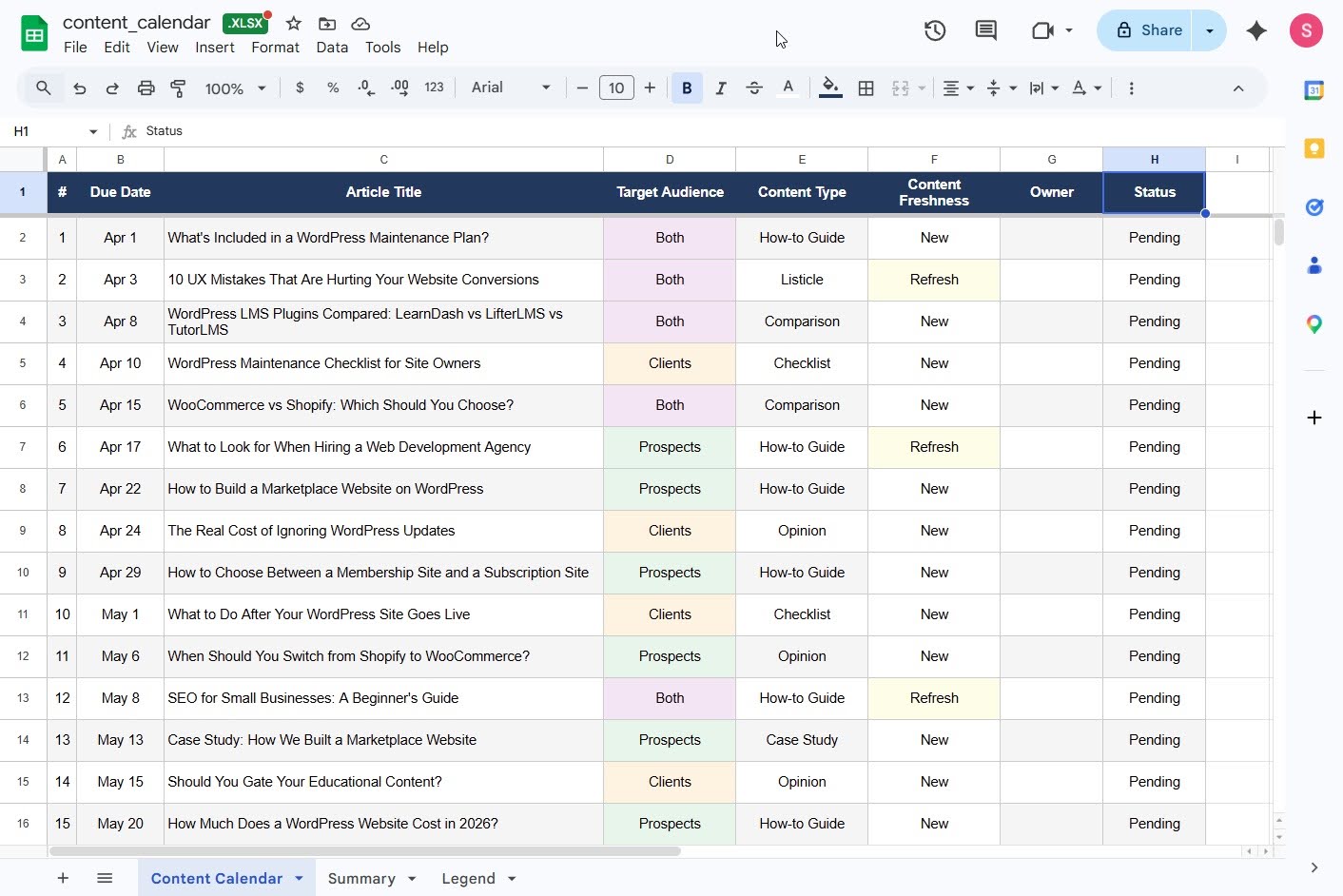
Now, select one of the priority topics, ask Claude to generate an outline, and proceed to create the article.
First, feed Claude all the necessary context (like the article title, goal, and target audience), and it will return a solid outline. Here’s the prompt I used:
Topic: WordPress LMS Plugins ComparedArticle goal: Help readers compare WordPress LMS plugins and choose the right one for their business.
Start by reviewing competitor articles covering the same topic. Then, create an outline for the article containing: an introduction, a TL;DR with a table comparing the tools against various criteria, main sections (H2 headings), supporting subsections (H3 headings), and final thoughts.
Provide instructions on how to naturally highlight relevant services, products, or features of the agency if possible.”
Instantly, I received an outline showing how to cover the introduction and conclusion and what information to include in each subsection of the article.
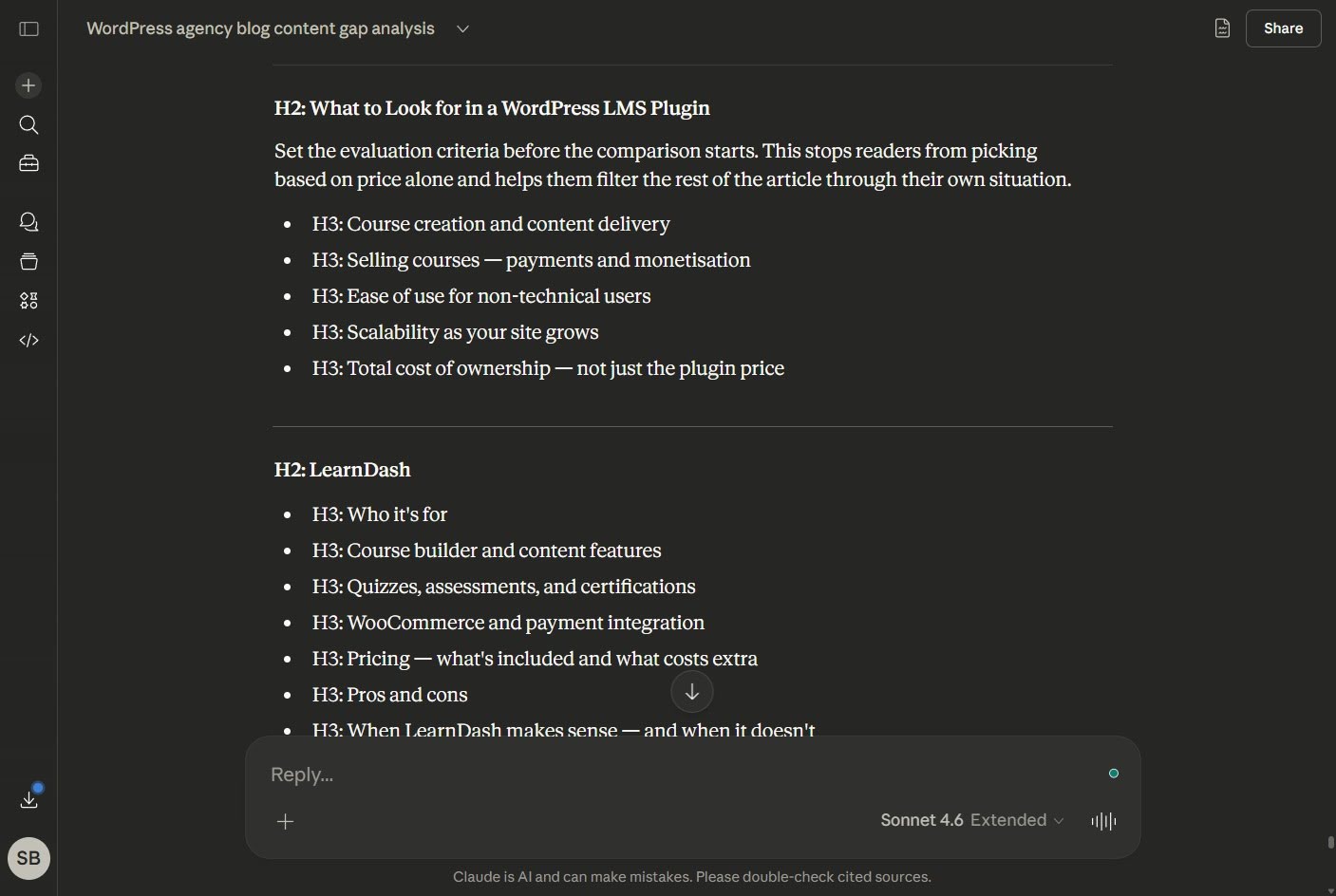
Review the outline carefully and ask Claude to adjust anything before moving forward, such as reordering sections and trying out different subheadings.
From here, you can use the outline as a starting point and draft the article based on your knowledge and expertise.
Once your article is ready, upload it as a PDF or markdown file to Claude, and tell Claude to add it to your WordPress website as a post.
This is the prompt I used to instruct Claude:
“Save this article as a draft on my WordPress website. Add a category and include appropriate tags, write a meta description, suggest where I can link other existing posts and pages throughout the content, and add images from the media library.”
Claude seeks additional confirmation before adding the article to the website. Once you confirm, it creates the post, defines categories and tags, and adds the article to your site.
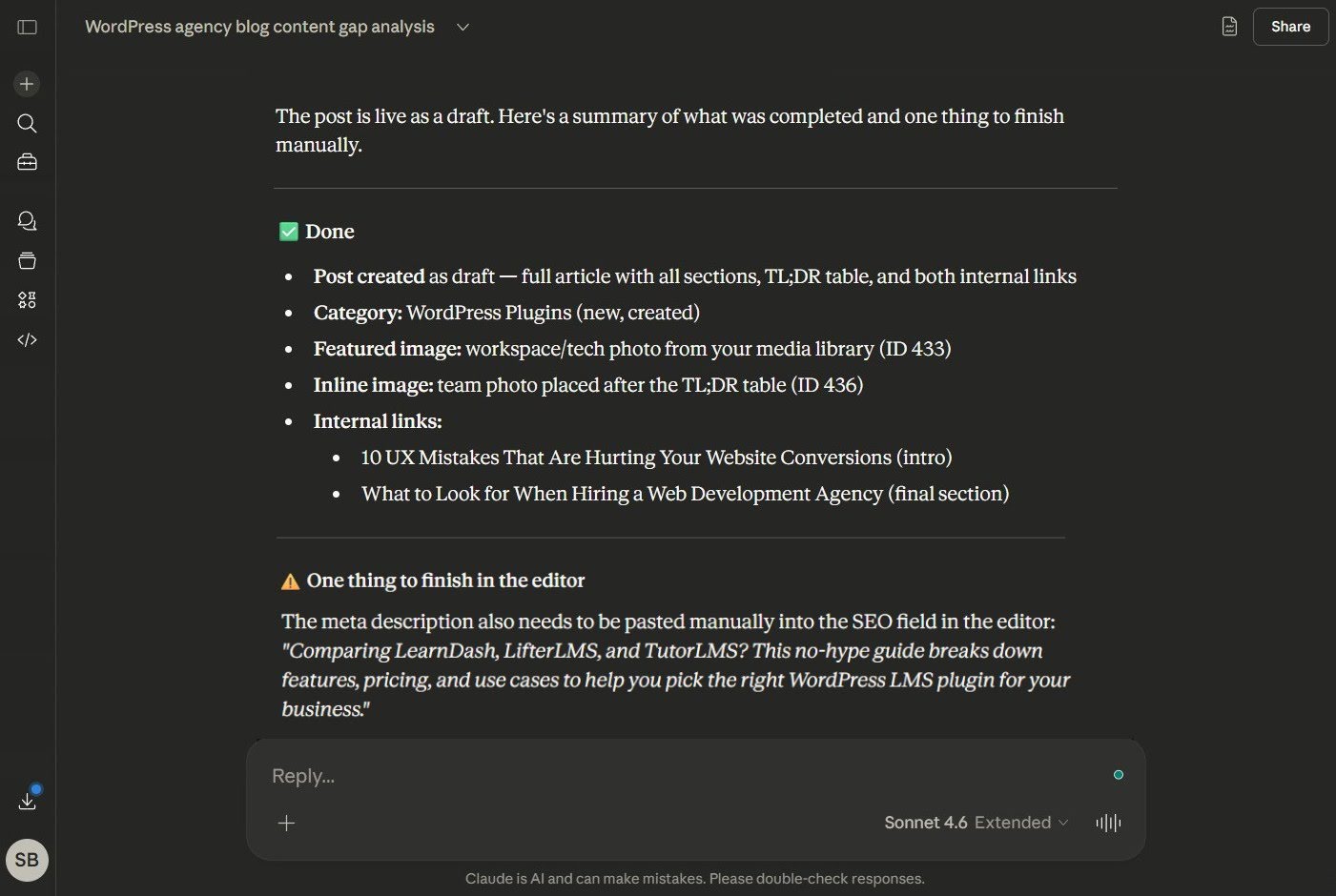
Claude also flags any tasks left undone, like adding the meta description manually.
Open the article on your website and check the categories, tags, images, and interlinks.
If you need to carry out quick edits to the text (like correcting grammatical mistakes and plugging logical holes), use WordPress’s native AI assistant.
Head to your WordPress account → Sites → Settings → AI tools → Enable AI assistant and toggle it on if you’re on a Business or Commerce plan (or if you built your site with our AI website builder).
Then, select the Sparkle option from the toolbar and click “Ask AI Assistant” to add a prompt or make edits like simplifying or summarizing your text.
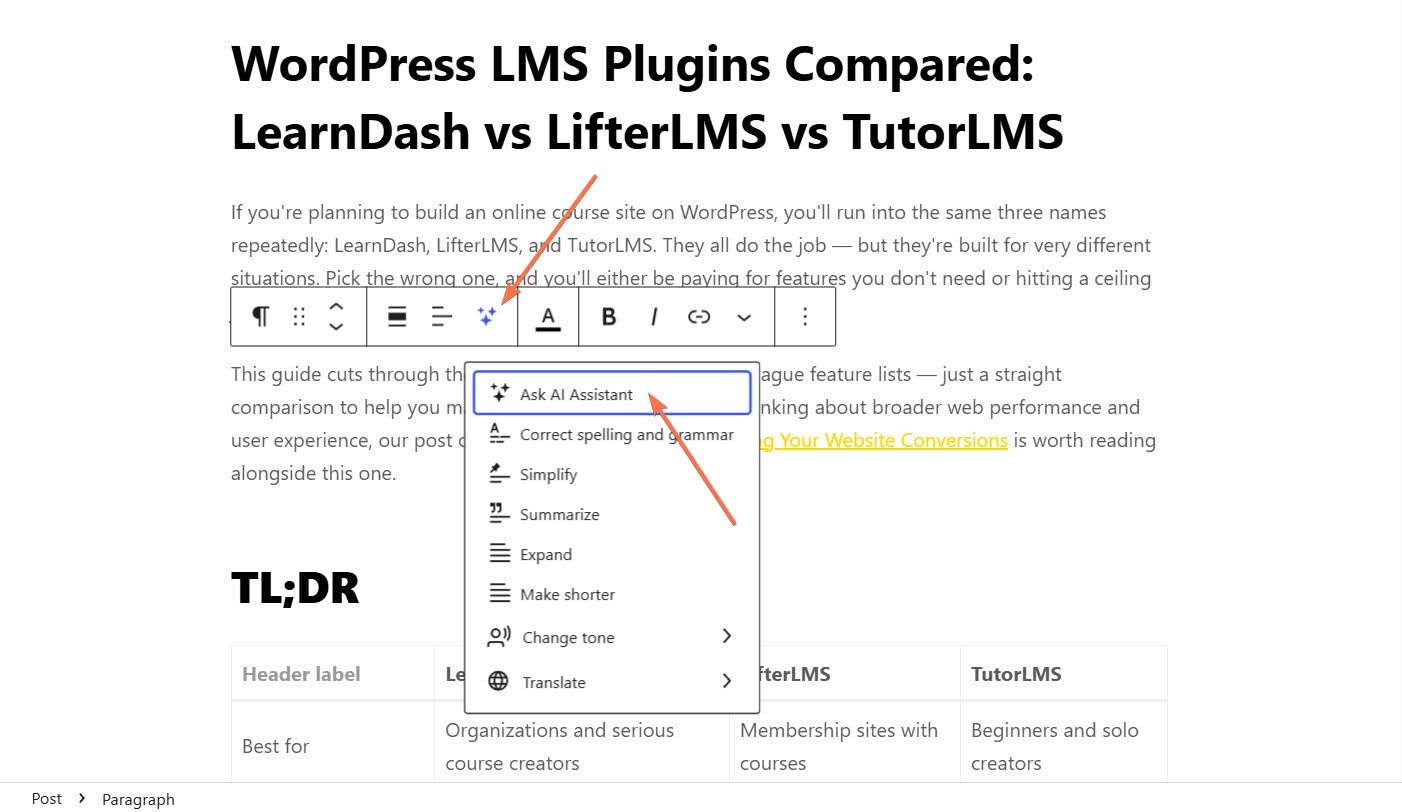
That’s it. The article is now ready for publication.
You now have a repeatable process for identifying content gaps with Claude as well as generating outlines, writing articles, and sending them to your WordPress website.
Connect your website once, and Claude gains access to your posts, pages, comments, and traffic data through secure access via OAuth 2.1.
此内容由惯性聚合(RSS阅读器)自动聚合整理,仅供阅读参考。 原文来自 — 版权归原作者所有。