惯性聚合 高效追踪和阅读你感兴趣的博客、新闻、科技资讯
阅读原文 在惯性聚合中打开

推荐订阅源

博客园 - 叶小钗
爱范儿
爱范儿
WordPress大学
WordPress大学
Last Week in AI
Last Week in AI
博客园 - 聂微东
雷峰网
雷峰网
奇客Solidot–传递最新科技情报
奇客Solidot–传递最新科技情报
博客园 - 三生石上(FineUI控件)
T
Tailwind CSS Blog
博客园 - Franky
酷 壳 – CoolShell
酷 壳 – CoolShell
博客园_首页
OSCHINA 社区最新新闻
OSCHINA 社区最新新闻
博客园 - 司徒正美
月光博客
月光博客
大猫的无限游戏
大猫的无限游戏
钛媒体:引领未来商业与生活新知
钛媒体:引领未来商业与生活新知
freeCodeCamp Programming Tutorials: Python, JavaScript, Git & More
The Cloudflare Blog
让小产品的独立变现更简单 - ezindie.com
人人都是产品经理
人人都是产品经理
宝玉的分享
宝玉的分享
罗磊的独立博客
Jina AI
Jina AI

Runpod Blog.

New Runpod datacenter now live: AP-IN-1 Track GPU spend across your team with Cost Centers The GPU supply supercycle is here. Here’s what AI builders need to know. Community Spotlight: One-click AI image and video generation on Runpod with SwarmUI | Runpod Blog Community Spotlight: LoRA Pilot Data Prep to Inference Introducing the Runpod Assistant: Manage Your Cloud GPU Resources with Natural Language OpenAI's Parameter Golf: Train the Best Language Model That Fits in 16MB on Runpod LLM inference optimization: techniques that actually reduce latency and cost Pruna P-Video and Vidu Q3 public endpoints now available on Runpod Runpod brand spelling guide Quickstart - Runpod Documentation The AI market looks nothing like the narrative Training StyleGAN3 with Vision-Aided GAN on Runpod KoboldAI – The Other Roleplay Front End, And Why You May Want to Use It How to Connect Cursor to LLM Pods on Runpod for Seamless AI Dev Community Spotlight: How AnonAI Scaled Its Private Chatbot Platform with Runpod Prompt Scheduling with Disco Diffusion on Runpod Runpod's Latest Innovation: Dockerless CLI for Streamlined AI Development Run Your Own AI from Your iPhone Using Runpod Introducing Flash: Run GPU workloads on Runpod Serverless: No Docker required Use Claude Code with your own model on Runpod: No Anthropic account required Avoid Errors by Selecting the Proper Resources for Your Pod What hackers built on Runpod at TreeHacks 2026 Easily Back Up and Restore Your Pod with Cloud Sync + Backblaze B2 The Complete Guide to GPU Requirements for LLM Fine-Tuning AI Guides, Tutorials & GPU Infrastructure Insights | Runpod Your first Claude Code project within Runpod: a complete setup guide 10 billion Serverless requests and counting Building for resilience: Runpod’s response to the AWS us-east-1 outage How to Connect Google Colab to Runpod
Creating an Animated GIF from an Existing Image with the ...
Brandon Ikeler · 2023-05-10 · via Runpod Blog.

Many of you have probably seen this tutorial for creating a GIF image from a still artwork. Wondering how to do it with Runpod? Here's how!

Following similar steps, I've used our Stable Diffusion template to animate the river for this still image, but the possibilities are endless. Let's get creative and learn how I did it!
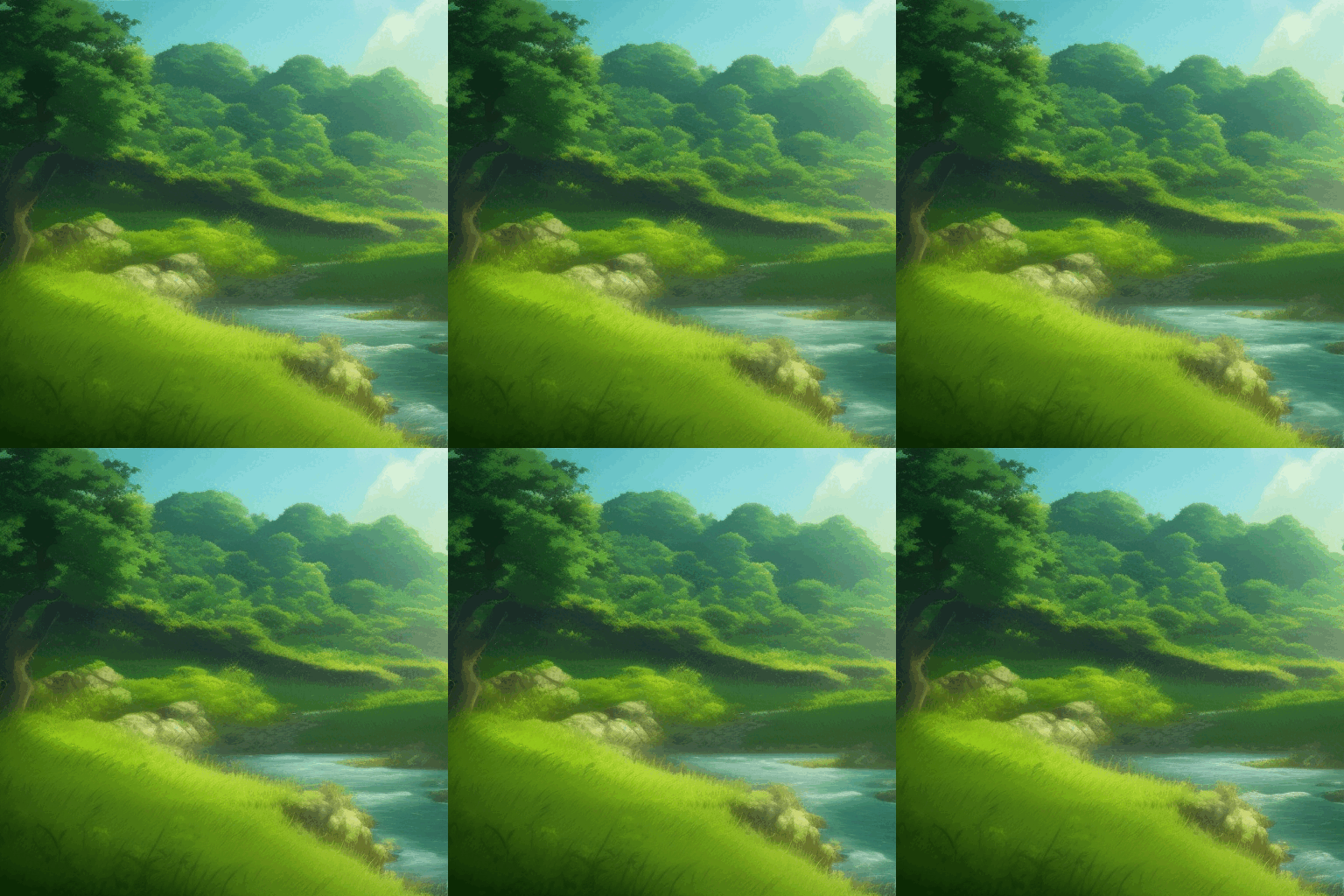
Animated GIF tutorial result preview

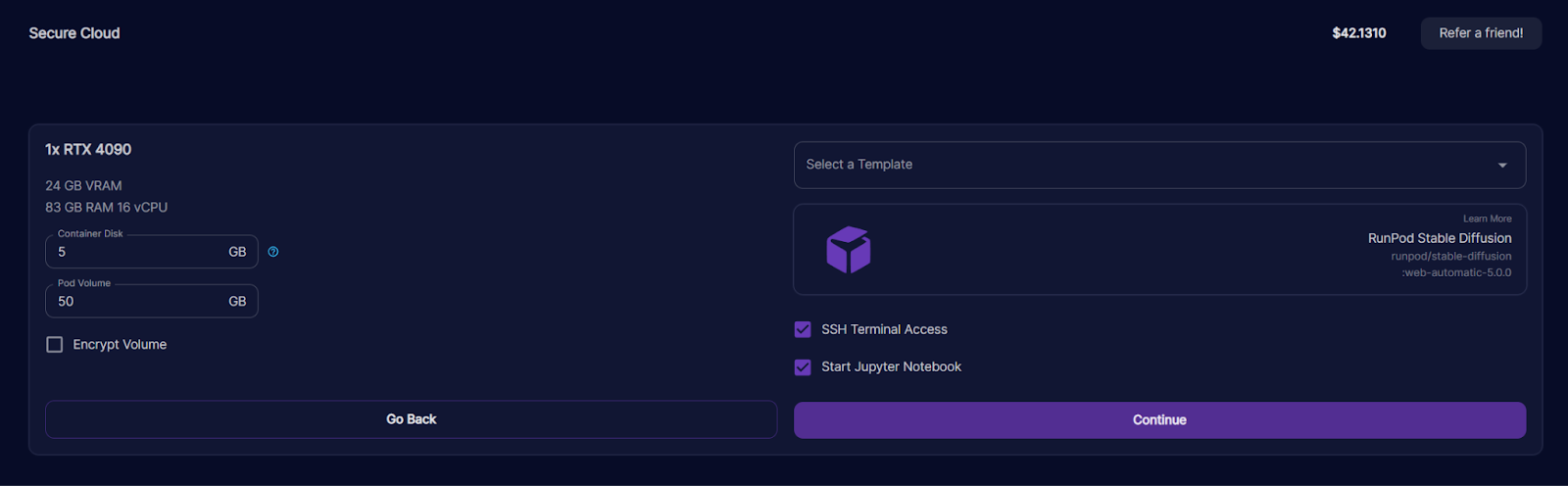
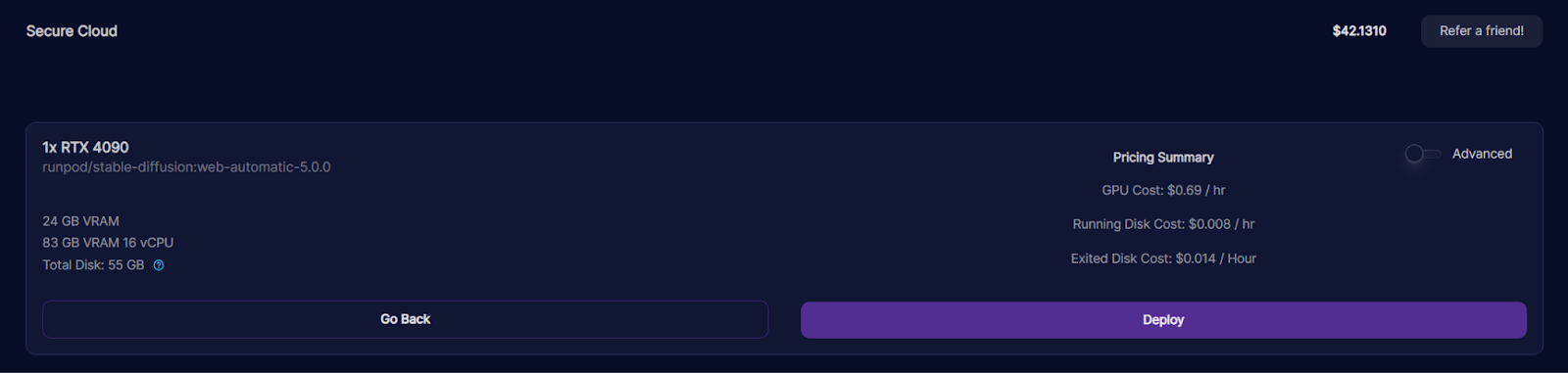
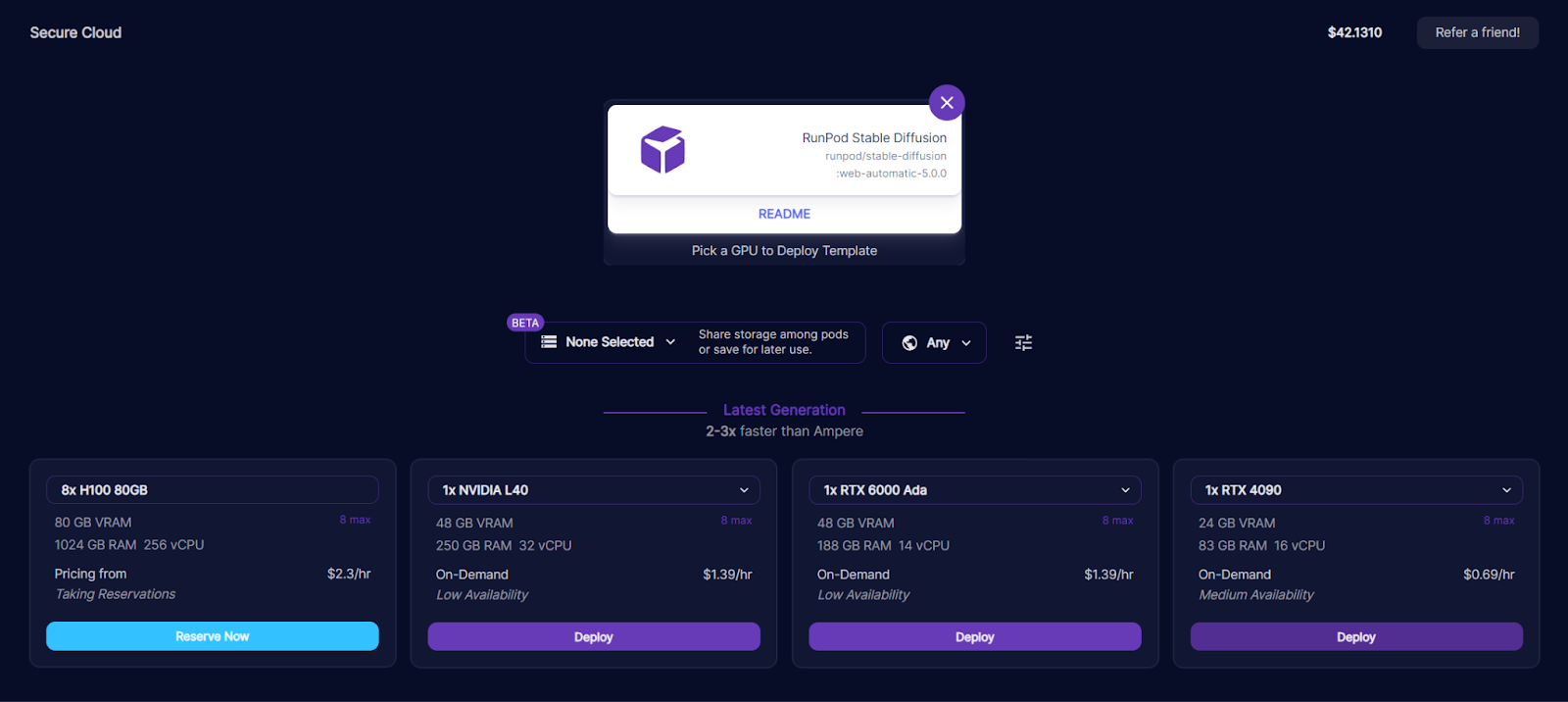
1. If you don't already have a Pod instance with the Stable Diffusion template, select the Runpod Stable Diffusion template from the Runpod templates page and spin up a new Pod.
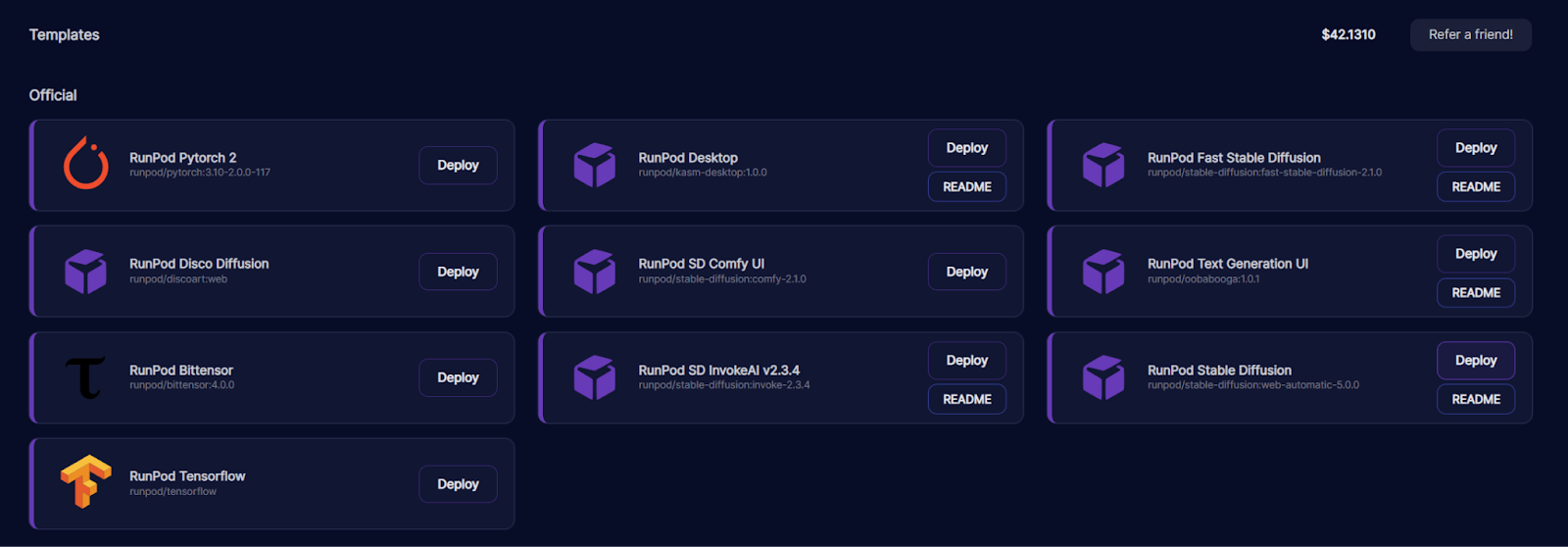
Runpod Templates page listing official templates like PyTorch 2 and Stable Diffusion with Deploy buttons

Runpod Secure Cloud GPU picker for the Stable Diffusion template with H100, L40, RTX 6000 Ada, and RTX 4090 options

Runpod deployment form for an RTX 4090 with Stable Diffusion template, disk sizes, SSH and Jupyter enabled

Runpod pricing summary for an RTX 4090 Stable Diffusion pod with GPU and disk costs and a Deploy button

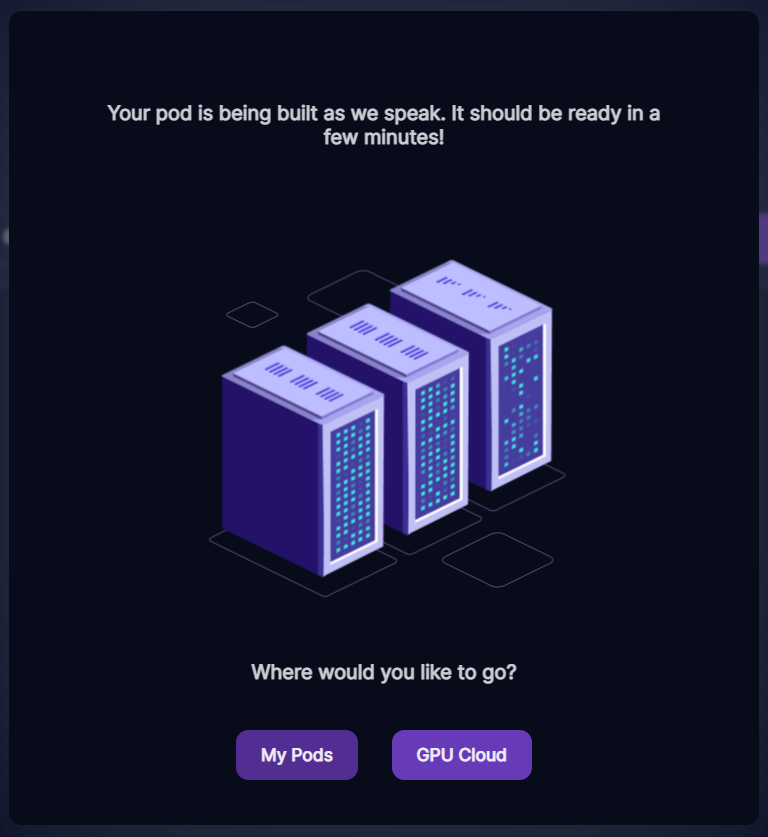
Runpod confirmation screen saying the pod is being built, with My Pods and GPU Cloud buttons

2. Once the Pod is finished being built, select Connect via HTTP. This will take you to the dashboard we'll use to modify our original image and save the frames that will make up our GIF.
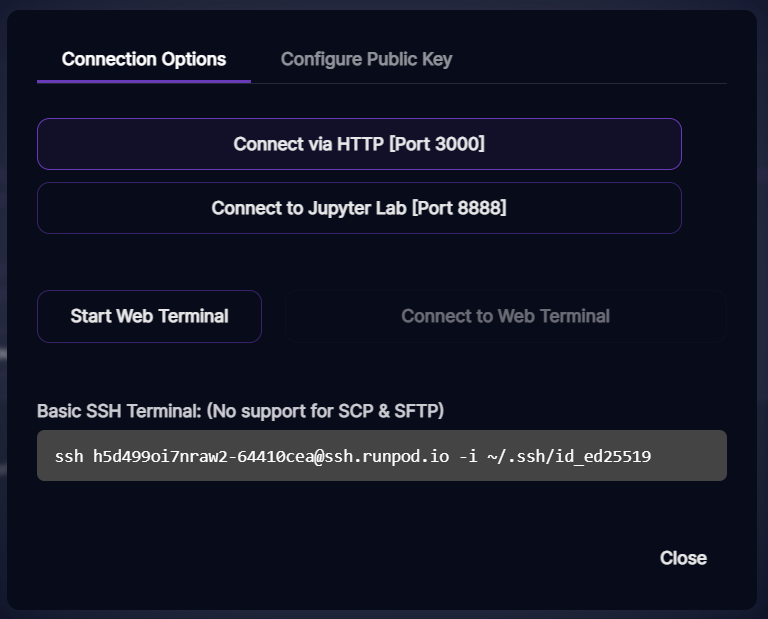
Runpod pod connection options with HTTP, Jupyter Lab, web terminal, and an SSH command

3. If you don't have an image to base your GIF off of yet, you can generate one under the txt2img tab by providing a prompt and clicking Generate.
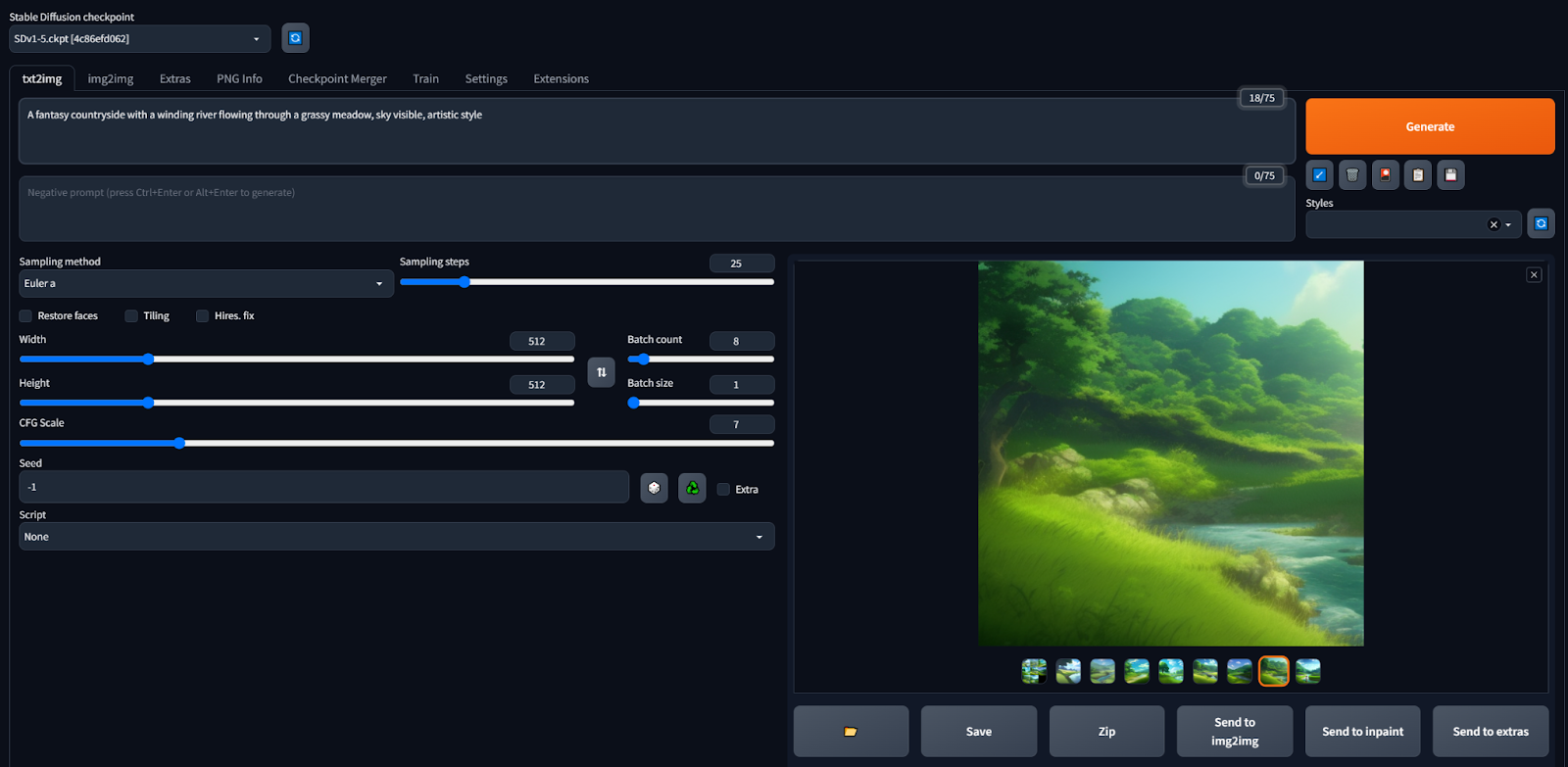
Generated image example from animated GIF tutorial

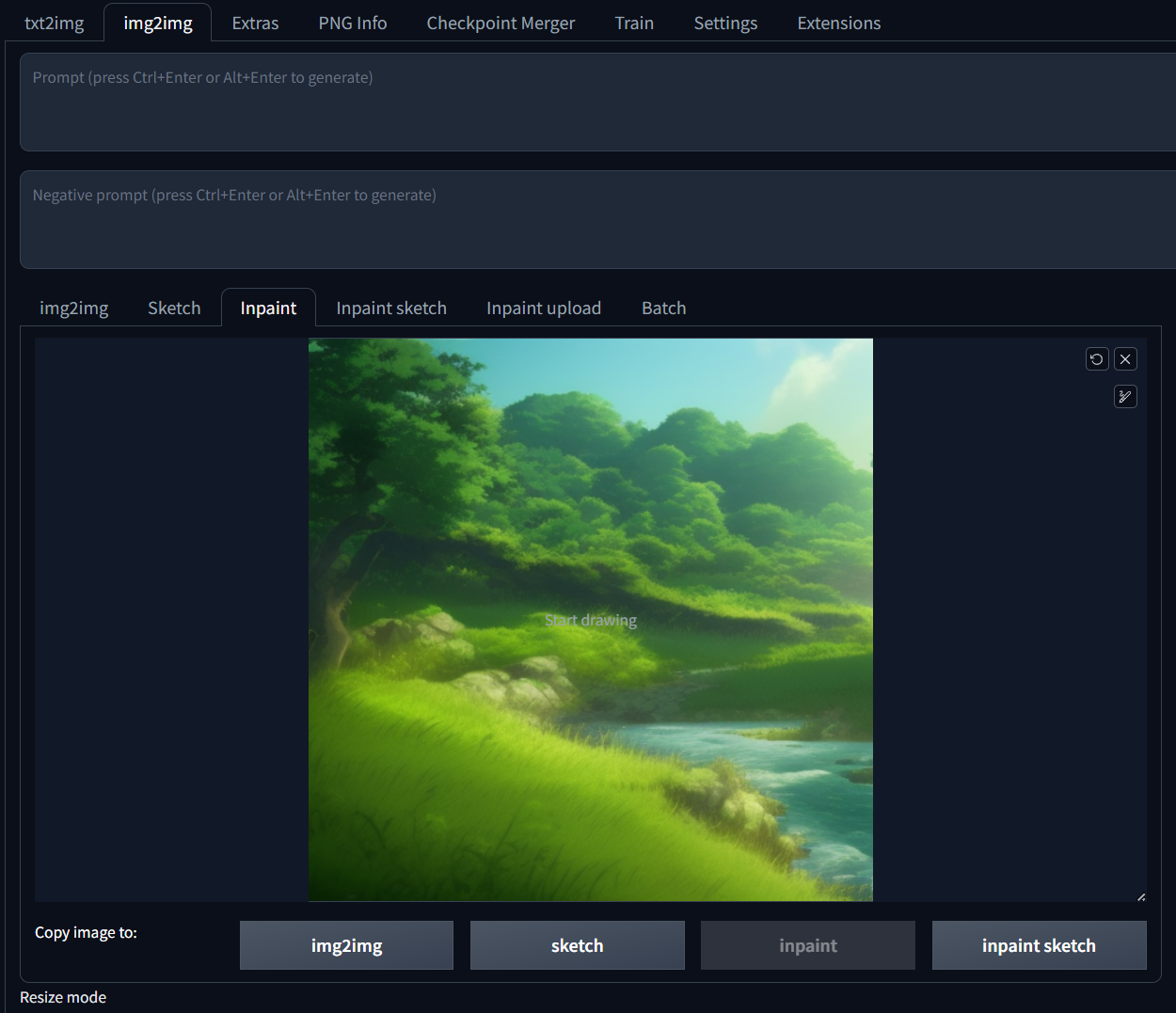
Otherwise, select the img2img tab, choose the inpaint option, and upload your image.
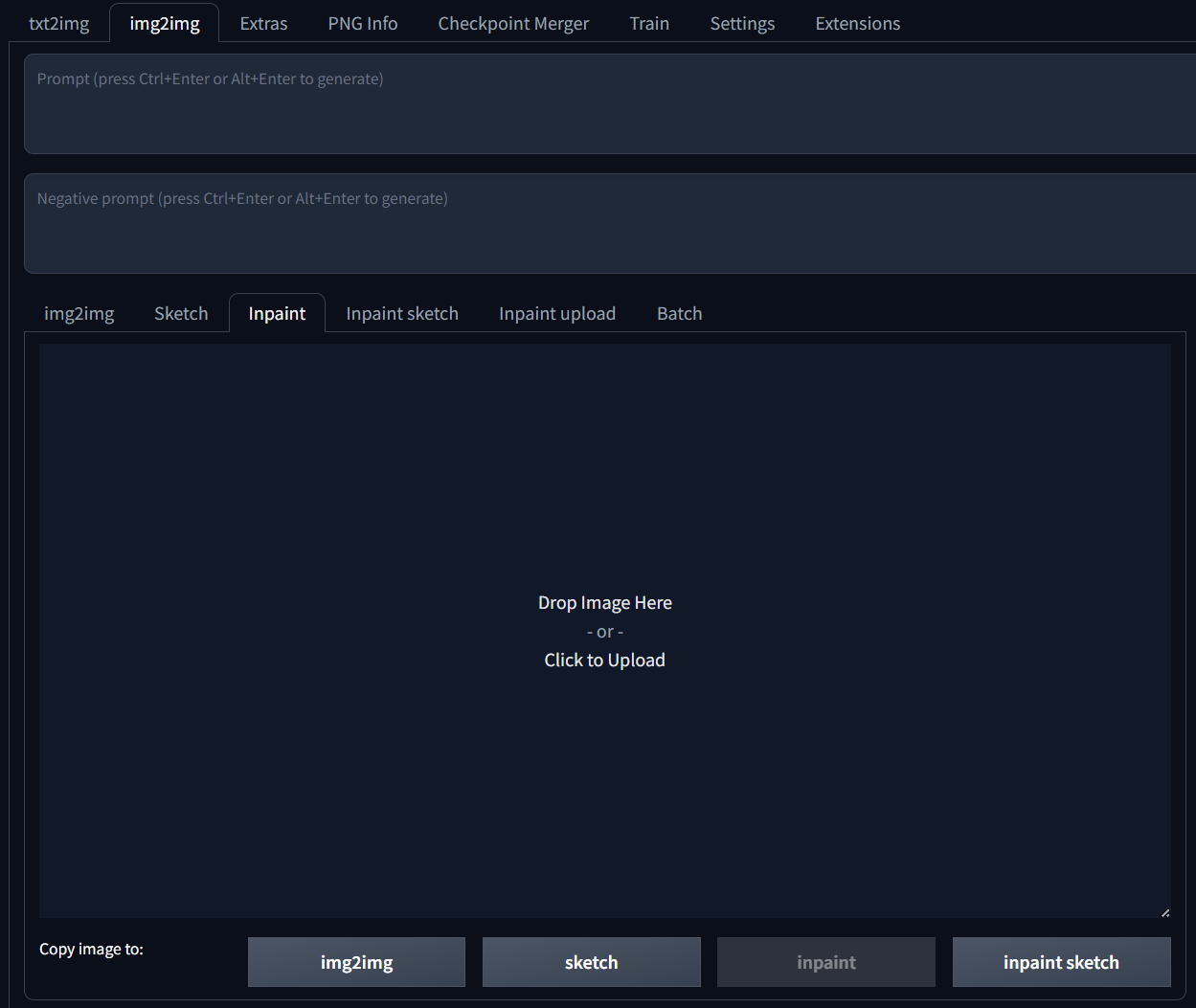
Stable Diffusion web UI img2img tab on Inpaint with an empty drop-image upload area

Stable Diffusion web UI img2img tab with a green forest landscape loaded for inpainting

4. With the inpaint tool, carve out the are you'd like to animate, and type a prompt that Stable Diffusion will use to re-draw the carved out area.
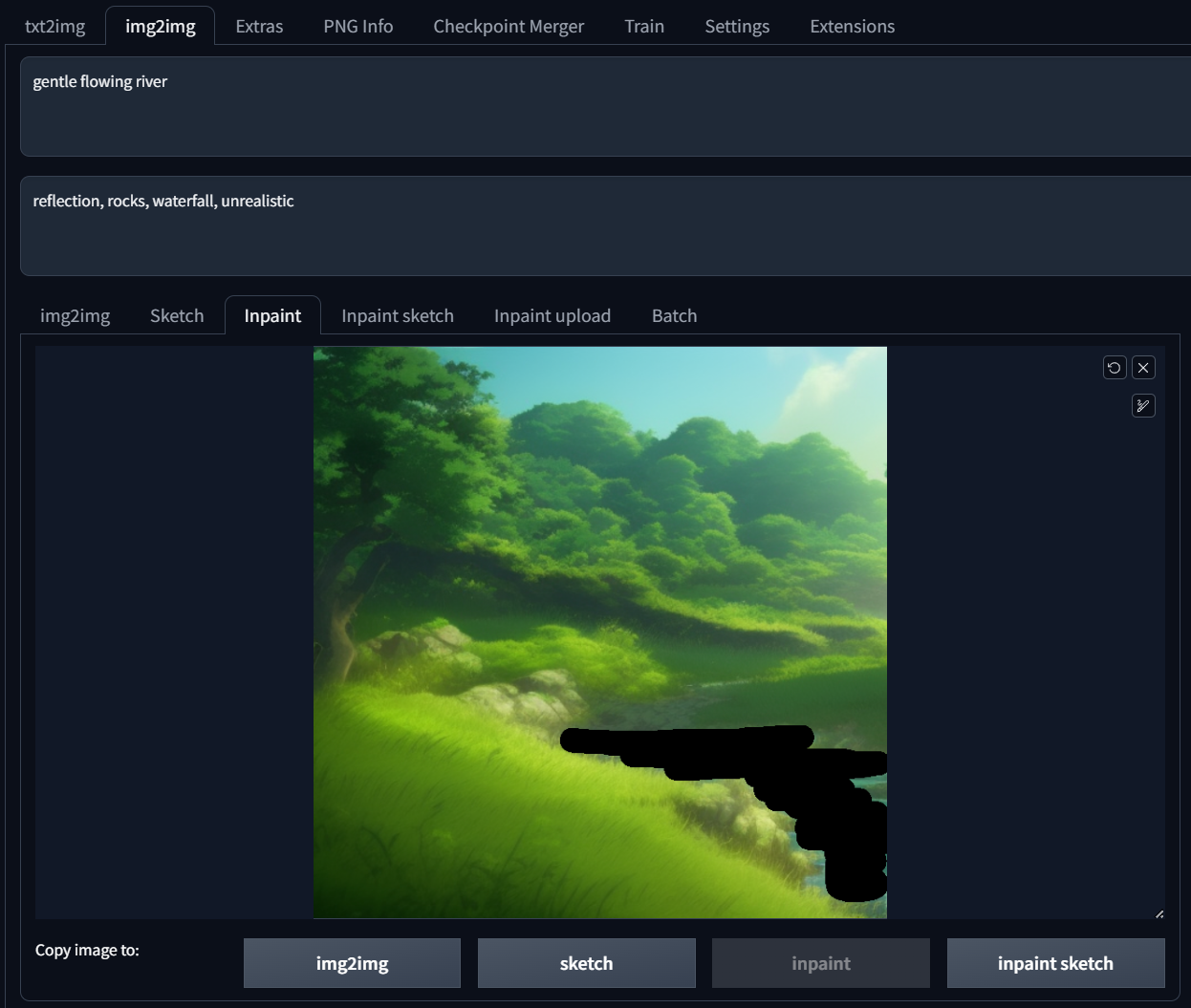
I provided a negative prompt as well, so it would avoid generating things like new rocks in the middle of the river.

I provided a negative prompt as well, so it would avoid generating things like new rocks in the middle of the river.

5. Before you generate, scroll down and make sure to increase the batch size to generate more than one image at a time; that way, you can choose the best of the bunch to go into your GIF.
Like the original tutorial suggests, turning the denoising strength down (below ~0.25) and the CFG scale helps as well; this turns down the "creativity" and makes the output image less different than the original.
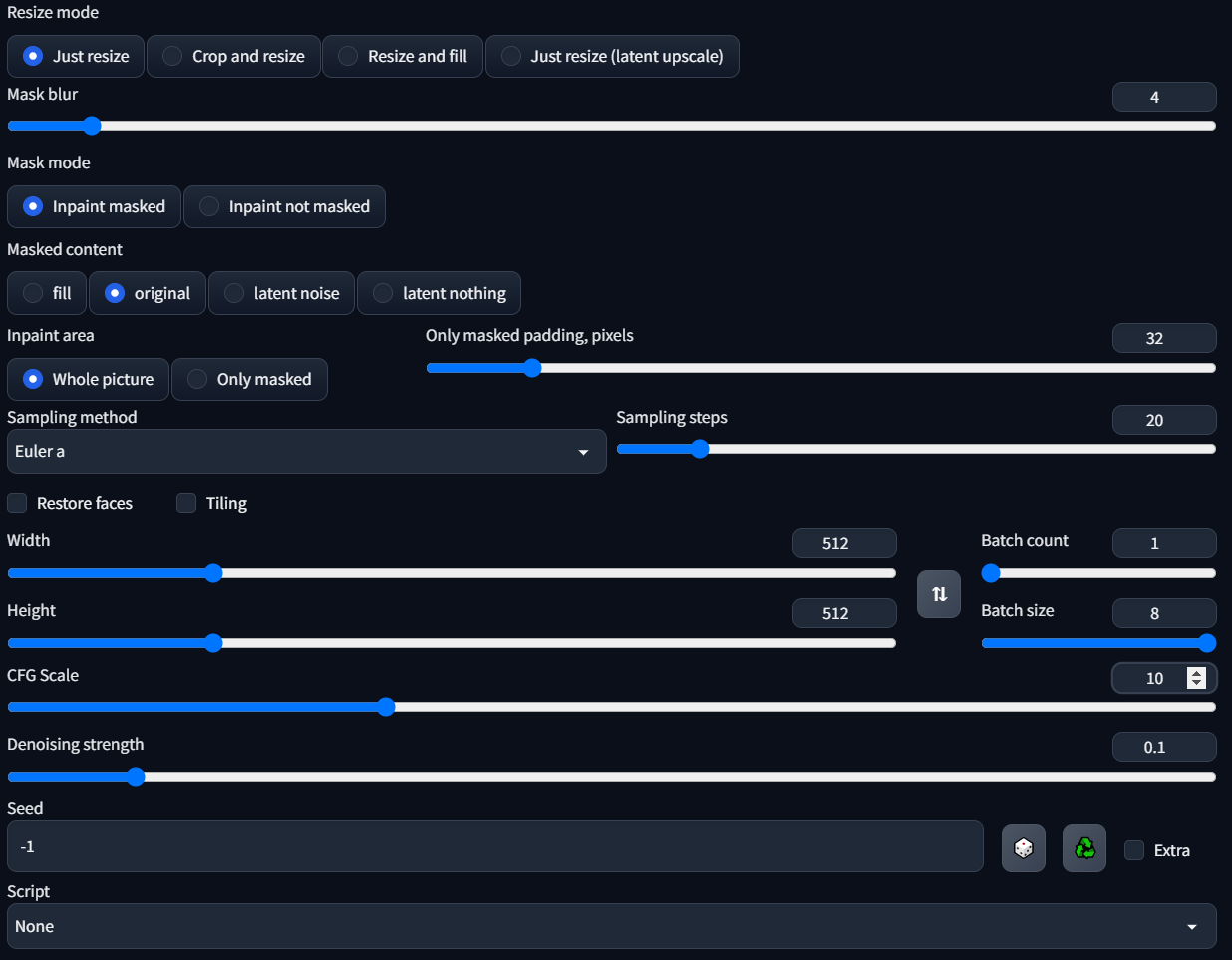
These are the arguments I provided.

These are the arguments I provided.

6. Generate! You may need to generate a few times or tweak the settings to get the exact results you're looking for. When you see a frame you like, select Save and click download to save it to your machine.
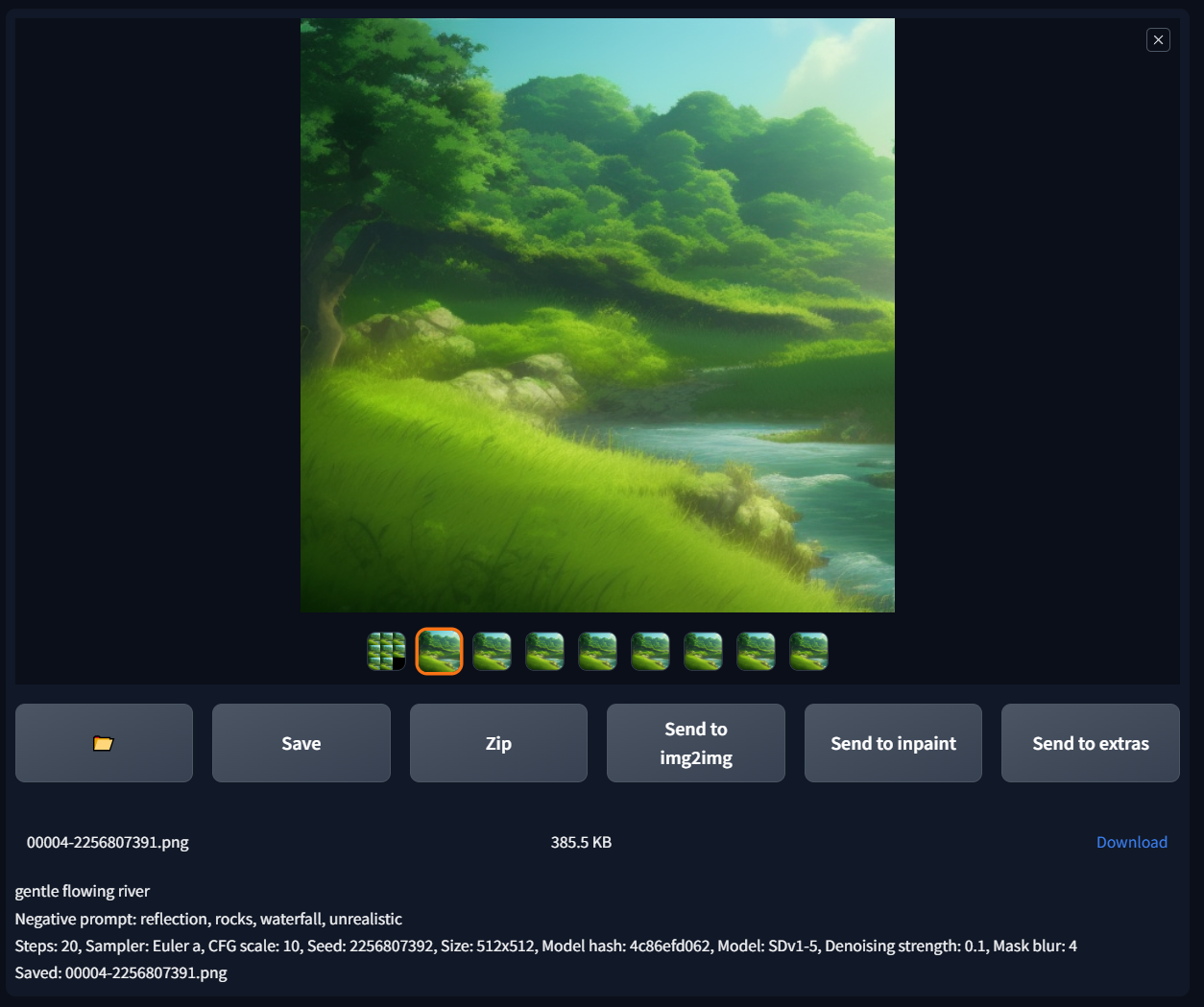
Stable Diffusion web UI output panel showing a generated forest stream image with seed and sampler details

7. Once you have all the frames you want to include for your GIF, all you need to do is stitch them together. I've also used ezgif with these settings to get the job done:
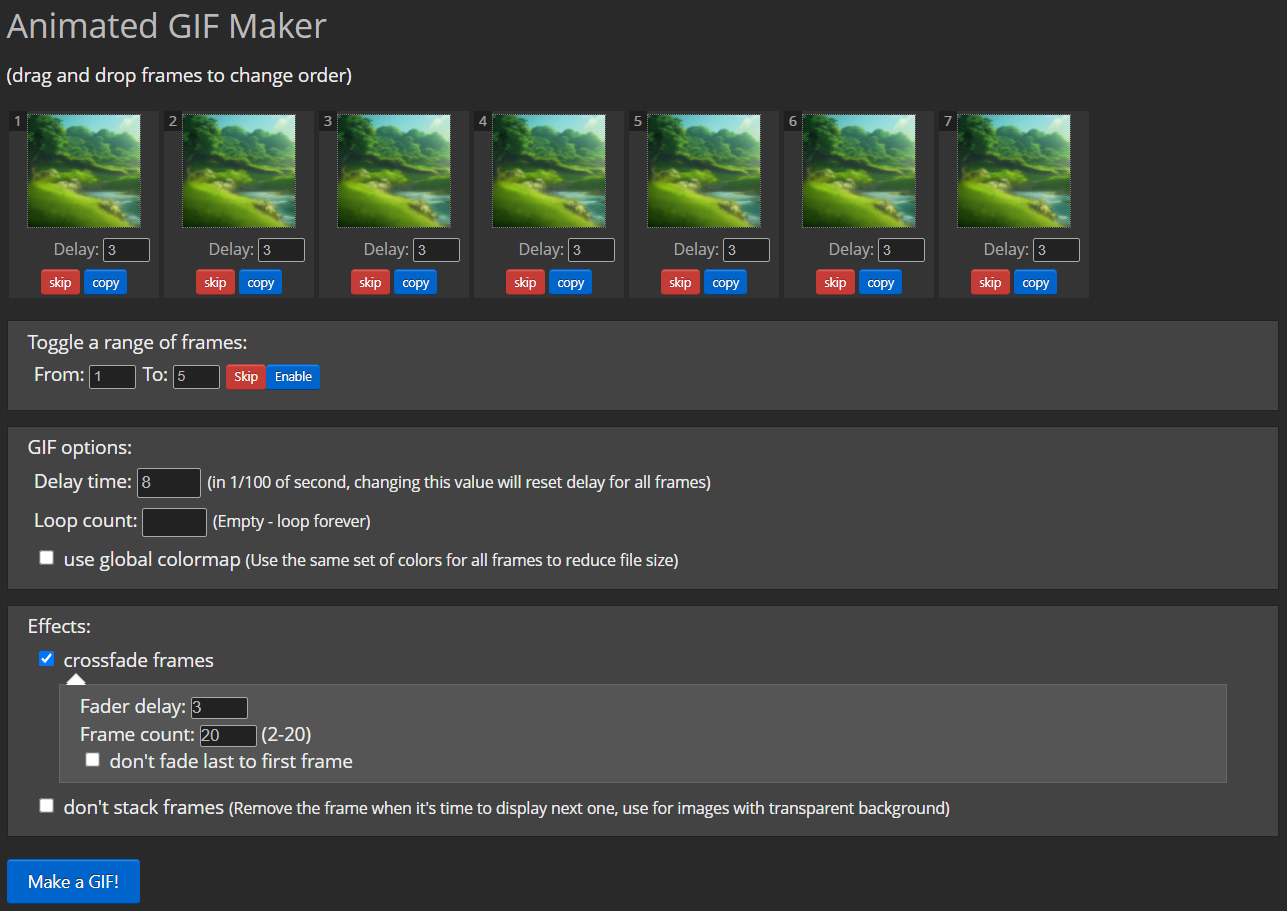
Animated GIF Maker web tool with six landscape frames, delay settings, and a crossfade frames option

And we're done! Here again is my final result:

Animated GIF tutorial result preview

Give it a try, and be creative!

Author profile: Brandon Ikeler