惯性聚合 高效追踪和阅读你感兴趣的博客、新闻、科技资讯
阅读原文 在惯性聚合中打开

推荐订阅源

OSCHINA 社区最新新闻
OSCHINA 社区最新新闻
WordPress大学
WordPress大学
CTFtime.org: upcoming CTF events
小众软件
小众软件
美团技术团队
Attack and Defense Labs
S
Security Archives - TechRepublic
C
Comments on: Blog
腾讯CDC
V
Visual Studio Blog
Help Net Security
Help Net Security
MyScale Blog
MyScale Blog
S
Secure Thoughts
P
Privacy & Cybersecurity Law Blog
I
Intezer
NISL@THU
NISL@THU
T
Tor Project blog
G
Google Developers Blog
罗磊的独立博客
E
Exploit-DB.com RSS Feed
Hugging Face - Blog
Hugging Face - Blog
The Cloudflare Blog
P
Proofpoint News Feed
C
Cisco Blogs
量子位
A
Arctic Wolf
Scott Helme
Scott Helme
Schneier on Security
Blog — PlanetScale
Blog — PlanetScale
I
InfoQ
让小产品的独立变现更简单 - ezindie.com
Stack Overflow Blog
Stack Overflow Blog
T
Troy Hunt's Blog
H
Heimdal Security Blog
云风的 BLOG
云风的 BLOG
N
News and Events Feed by Topic
cs.CL updates on arXiv.org
SecWiki News
SecWiki News
P
Proofpoint News Feed
有赞技术团队
有赞技术团队
B
Blog
C
Check Point Blog
O
OpenAI News
N
News | PayPal Newsroom
www.infosecurity-magazine.com
freeCodeCamp Programming Tutorials: Python, JavaScript, Git & More
L
LINUX DO - 最新话题
L
Lohrmann on Cybersecurity
Hacker News: Ask HN
Hacker News: Ask HN
Security Latest
Security Latest

Runpod Blog.

DeepSeek V4 in the wild, and how to run it on Runpod New Runpod datacenter now live: AP-IN-1 Track GPU spend across your team with Cost Centers The GPU supply supercycle is here. Here’s what AI builders need to know. Community Spotlight: One-click AI image and video generation on Runpod with SwarmUI | Runpod Blog Community Spotlight: LoRA Pilot Data Prep to Inference Introducing the Runpod Assistant: Manage Your Cloud GPU Resources with Natural Language OpenAI's Parameter Golf: Train the Best Language Model That Fits in 16MB on Runpod LLM inference optimization: techniques that actually reduce latency and cost Pruna P-Video and Vidu Q3 public endpoints now available on Runpod Runpod brand spelling guide Build a Basic Runpod Serverless API | Runpod Blog The AI market looks nothing like the narrative Training StyleGAN3 with Vision-Aided GAN on Runpod KoboldAI – The Other Roleplay Front End, And Why You May Want to Use It How to Connect Cursor to LLM Pods on Runpod for Seamless AI Dev Community Spotlight: How AnonAI Scaled Its Private Chatbot Platform with Runpod Prompt Scheduling with Disco Diffusion on Runpod Runpod's Latest Innovation: Dockerless CLI for Streamlined AI Development Introducing Flash: Run GPU workloads on Runpod Serverless: No Docker required Use Claude Code with your own model on Runpod: No Anthropic account required Avoid Errors by Selecting the Proper Resources for Your Pod What hackers built on Runpod at TreeHacks 2026 Easily Back Up and Restore Your Pod with Cloud Sync + Backblaze B2 The Complete Guide to GPU Requirements for LLM Fine-Tuning AI Guides, Tutorials & GPU Infrastructure Insights | Runpod Your first Claude Code project within Runpod: a complete setup guide 10 billion Serverless requests and counting Building for resilience: Runpod’s response to the AWS us-east-1 outage How to Connect Google Colab to Runpod Founder Series #1: The Runpod Origin Story AMD MI300X vs. NVIDIA H100: Mixtral 8x7B Inference Benchmark How to Run the FLUX Image Generator with ComfyUI on Runpod Run Llama 3.1 405B with Ollama on Runpod: Step-by-Step Deployment How to Run FLUX Image Generator with Runpod (No Coding Needed) How to Use 65B+ Language Models on Runpod Deploy Llama 3.1 with vLLM on Runpod Serverless: Fast, Scalable Inference in Minutes Open Source Video & LLM Roundup: The Best of What’s New Run vLLM on Runpod Serverless: Deploy Open Source LLMs in Minutes Introduction to vLLM and PagedAttention New update to Github integration: release rollback! | Runpod Blog A note to the developers who built Runpod with us Deploy ComfyUI as a Serverless API Endpoint Setting up Slurm on Runpod Clusters: A Technical Guide Building an OCR System Using Runpod Serverless From No-Code to Pro: Optimizing Mistral-7B on Runpod for Power Users Lessons While Using Generative Language and Audio For Practical Use Cases Runpod RoundUp 3 – AI Music and Stock Sound Effect Creation New Navigational Changes To Runpod UI | Runpod Blog Use alpha_value To Blast Through Context Limits in LLaMa-2 Models Runpod Roundup 5 – Visual/Language Comprehension, Code-Focused LLMs, and Bias Detection Runpod is Proud to Sponsor the StockDory Chess Engine Runpod Roundup 4 – Open Source LLM Evaluators, 3D Scene Reconstruction, Vector Search | Runpod Blog Meta and Microsoft Release Llama 2 as Open Source SuperHot 8k Token Context Models Are Here For Text Generation How to Manage Funding Your Runpod Account Encrypted Volumes on Runpod: Protect Your Data at Rest How to Run a "Hello World" on Runpod Serverless Runpod AI field notes: December 2025 Faster GitHub Builds: Major Performance Improvements to Our Automated Integration Partnering with Defined AI to Bridge the Data Wealth Gap How to Run Serverless AI and ML Workloads on Runpod How to fine-tune a model using Axolotl Transcribe and translate audio files with Faster Whisper Runpod Achieves SOC 2 Type II Certification: Continuing Our Compliance Journey Orchestrating GPU workloads on Runpod with dstack Exploring Runpod Serverless: Create Workers From Templates DeepSeek V3.1: A Technical Analysis of Key Changes from V3-0324 Deep Cogito Releases Suite of LLMs Trained with Iterative Policy Improvement Wan 2.2 Releases With a Plethora Of New Features Iterative Refinement Chains with Small Language Models The New Runpod.io: Clearer, Faster, Built for What’s Next Introducing Clusters: On-Demand Multi-Node AI Compute Run DeepSeek R1 on Just 480GB of VRAM How Do I Transfer Data Into My Runpod? Spot vs. On-Demand Instances: What’s the Difference? Deploy GitHub Repos to Runpod with One Click Run GGUF Quantized Models Easily with KoboldCPP on Runpod How to Work with GGUF Quantizations in KoboldCPP Introducing Better Forge: Spin Up Stable Diffusion Pods Faster Supercharge Your LLMs with SGLang: Boost Performance and Customization Mastering Serverless Scaling on Runpod: Optimize Performance and Reduce Costs RAG vs. Fine-Tuning: Which Is Best for Your LLM? Run Larger LLMs on Runpod Serverless Than Ever Before – Llama-3 70B (and beyond!) How to Run vLLM on Runpod Serverless (Beginner-Friendly Guide) Embracing New Beginnings: Welcoming Banana.dev Community to Runpod Stable Diffusion + ComfyUI on Runpod: Easy Setup Guide Runpod RoundUp 2 – 32k Token Context LLMs and New StabilityAI Offerings Runpod Roundup: High-Context LLMs, SDXL, and Llama 2 16k Context LLM Models Now Available On Runpod Savings Plans Are Here For Secure Cloud Pods – How To Purchase a Monthly Plan And Save Big Pygmalion-7b from PygmalionAI has been released, and it's amazing Ada Architecture Pods Are Here – How Do They Stack Up Against Ampere? Spin up a Text Generation Pod with Vicuna and Experience a GPT-4 Rival Using OpenPose to Annotate Poses Within Stable Diffusion Set Up a Chatbot with Oobabooga on Runpod Connect VSCode to Your Runpod Instance (Quick SSH Guide) Deploy a Stable Diffusion UI on Runpod in Minutes Google Colab Pro vs. Runpod: Best GPU Cloud for AI Workloads How to Run a GPU-Accelerated Virtual Desktop on Runpod
Run Your Own AI from Your iPhone Using Runpod
Chen Wong · 2026-03-11 · via Runpod Blog.

Cell phones have provided users access to an AI such as iPhone’s Siri. With the emergence of cloud-based open-source LLMs, you can now run a personalized AI on your iPhone with Runpod’s offerings. Runpod allows you to have the resources to run the various (and very large) open source LLMs as well as fine tune them for customized needs.

In this tutorial, you will learn how to deploy a model on Runpod with Ollama and use the Shortcuts app on your iPhone to connect with the model. That’s right, you do not need to code and publish an app. When finished, you’ll be able to open the Shortcuts app, speak to it, and receive the dictated message from your new AI.

Prerequisites

The tutorial assumes you have a Runpod account with credits and a device running iOS 15 or later. No other prior knowledge is needed to complete this tutorial.

Step 1: Start a PyTorch Template on Runpod

You will create a new Pod with the PyTorch template. In this step, you will set overrides to configure Ollama.

  1. Log in to your Runpod account and choose + GPU Pod.
  2. Choose a GPU Pod like A40.
  3. From the available templates, select the latest PyTorch template.
  4. Select Customize Deployment.
    1. Add the port 11434 to the list of exposed HTTP ports. This port is used by Ollama for HTTP API requests.
    2. Add the following environment variable to your Pod to allow Ollama to bind to the HTTP port:
      • Key: OLLAMA_HOST
      • Value: 0.0.0.0
  5. Select Set Overrides, Continue, then Deploy.

This setting configures Ollama to listen on all network interfaces, enabling external access through the exposed port. For detailed instructions on setting environment variables, refer to the Ollama FAQ documentation.

Once the Pod is up and running, you'll have access to a terminal within the Runpod interface.

Step 2: Install Ollama

Now that your Pod is running, you can log in to the web terminal. The web terminal is a powerful way to interact with your Pod.

  1. Select Connect and choose Start Web Terminal.
  2. Make note of the Username and Password, then select Connect to Web Terminal.
  3. Enter your username and password.
  4. To ensure Ollama can automatically detect and utilize your GPU, run the following commands.


  1. Run the following command to install Ollama and send to the background:

This command fetches the Ollama installation script and executes it, setting up Ollama on your Pod. The ollama serve part starts the Ollama server, making it ready to serve AI models. Note that when the web terminal closes, the server will too — so once you're up to speed, you may want to run it in tmux, Jupyter Notebook, or some other method that keeps the server open persistently.

Now that your Ollama server is running on your Pod, add a model.

Step 3: Run an AI Model with Ollama

To run an AI model using Ollama, pass the model name to the ollama run command:

Replace [model name] with the name of the AI model you wish to deploy. For a complete list of models, see the Ollama Library.

This command pulls the model and runs it, making it accessible for inference. You can now begin interacting with the model directly from your iPhone.

On the Runpod interface, you can click Connect for your pod followed by clicking HTTP Service to get the URL (ex: https://cwjcj767dd2auh-11434.proxy.runpod.net) to connect from your iPhone.

Pod connect panel showing an HTTP service on port 11434 with Ready status

Step 4: Interact with Ollama via Shortcuts App

Open the Shortcuts app on your iPhone and follow these steps to build the Shortcut.
  1. Open Shortcuts App. Tap + (top-right) to create a new Shortcut.
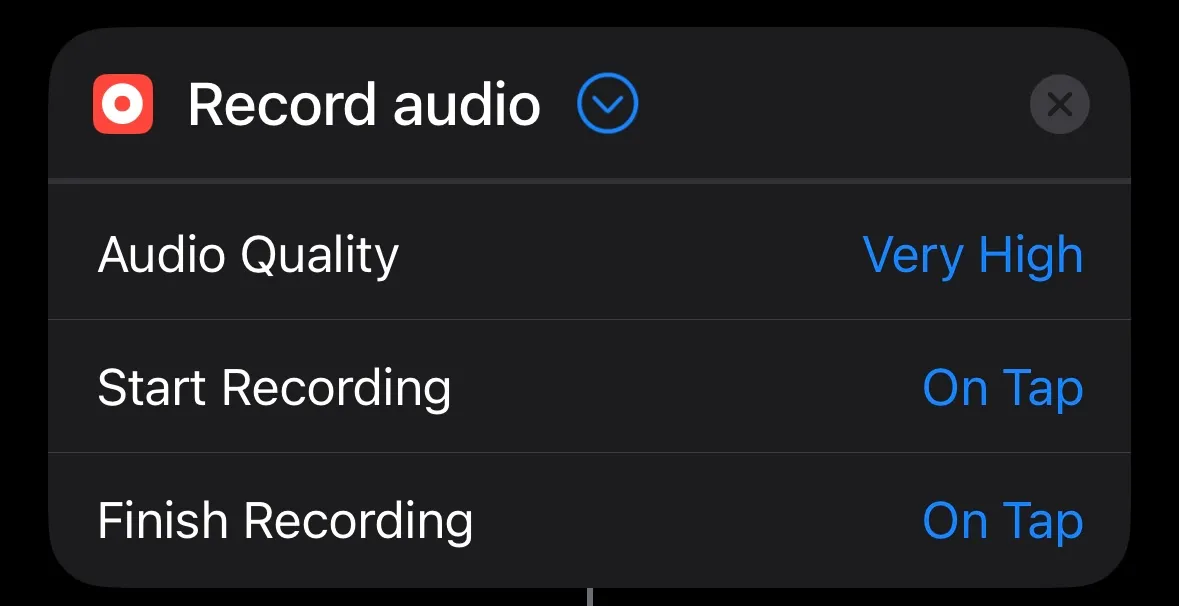
  2. Record Audio: • Search for “Record Audio” and add it.

iOS Shortcuts Record Audio action set to very high quality with recording started and finished on tap

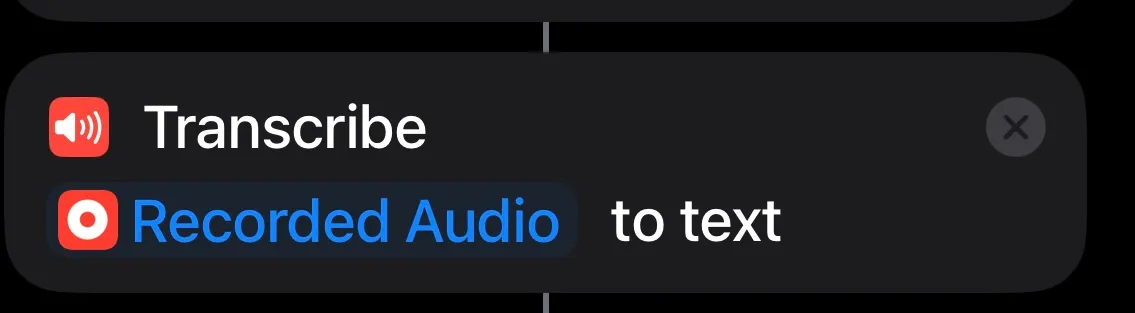
  1. Transcribe Audio: Search for “Transcribe Audio” and add it. Add “Recorded Audio”.

iOS Shortcuts action transcribing recorded audio to text

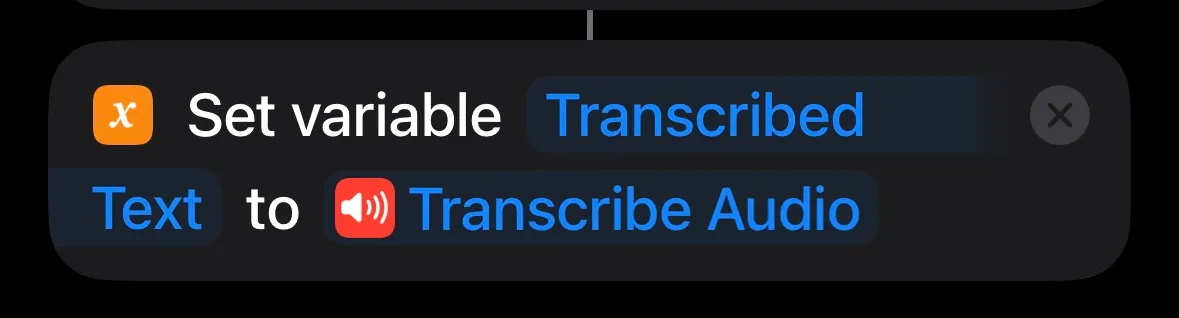
  1. Search for “Set variable”. Add “Transcribed Text” and “Transcribed Audio".

iOS Shortcuts action setting variable Transcribed Text to Transcribe Audio

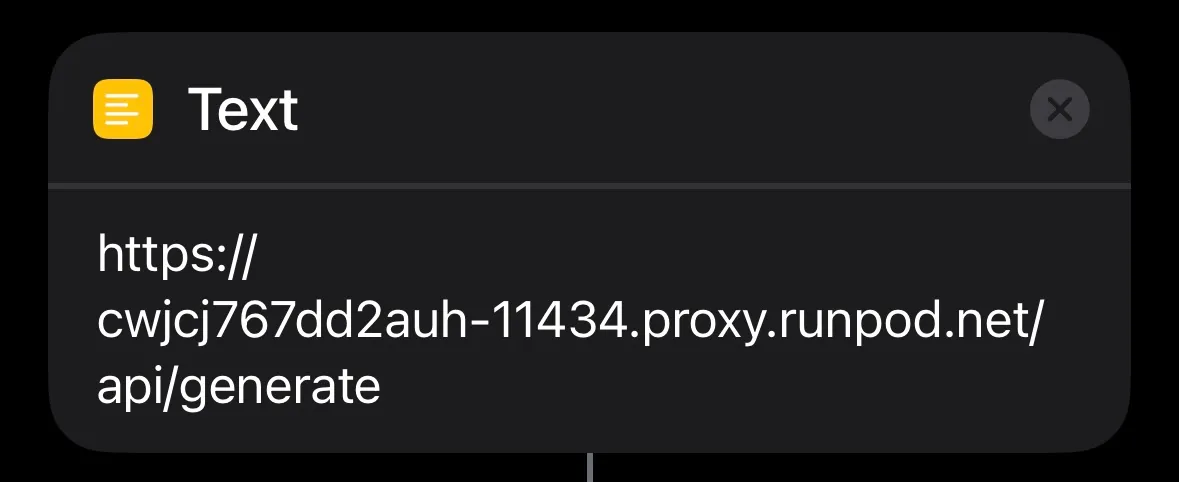
  1. Search for “Text”. Add the url of the pod launched in Runpod and make sure to add /api/generate to the end.

iOS Shortcuts Text action containing a Runpod proxy URL ending in /API/generate

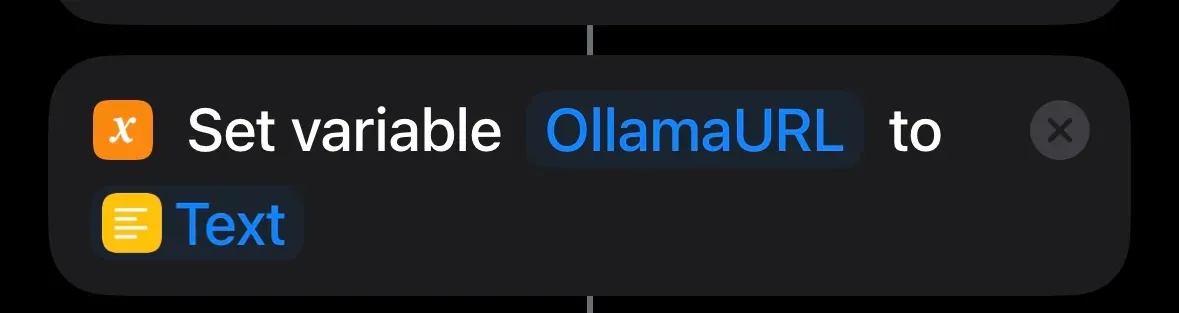
  1. Search for “Set variable”. Add “OllamaURL” and set Text.

iOS Shortcuts action setting variable OllamaURL to the Text value

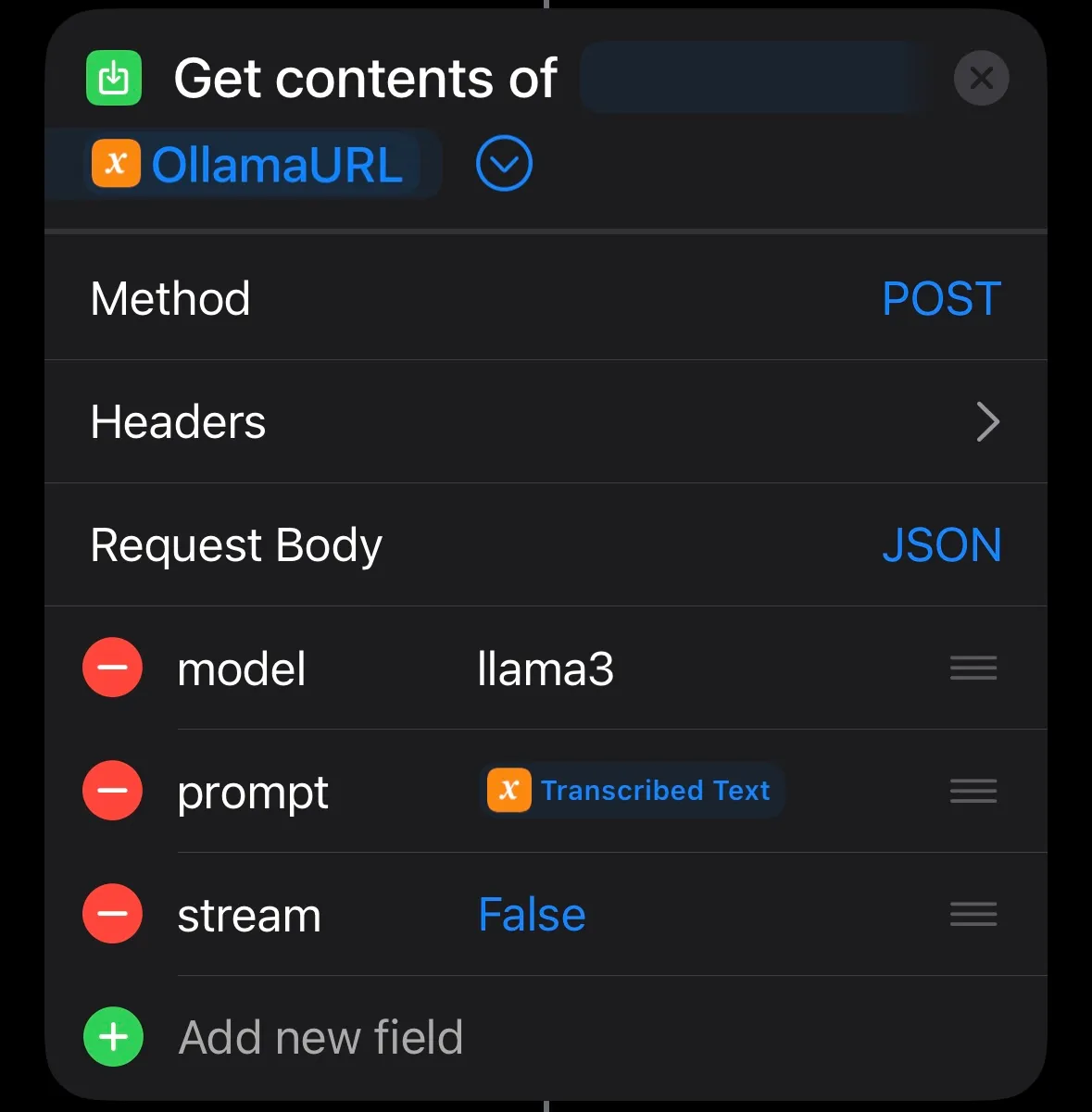
  1. Search for “Get contents of". Add OllamaURL. Set the parameters like shown below. Change the model value to what you are running in your Pod.

iOS Shortcuts Get Contents of URL action posting JSON with model llama3 and the transcribed prompt

iOS Shortcuts action setting variable OllamaURL to the Text value

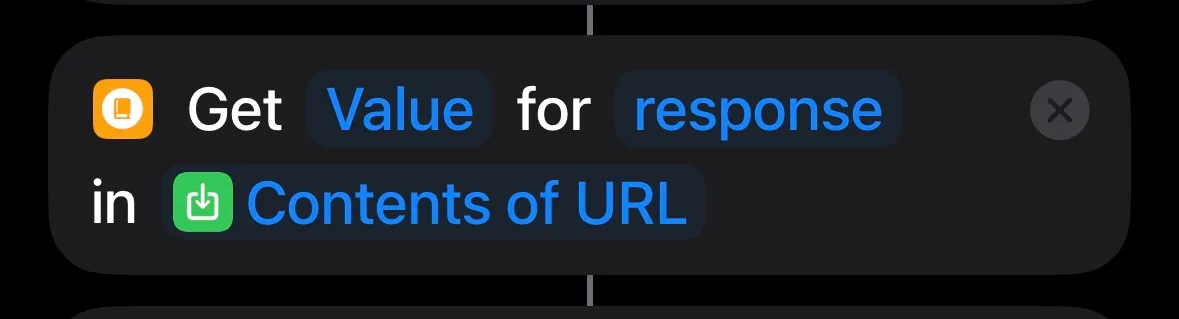
  1. Search for “Get Dictionary Value”. Add Value, response, and Contents of URL.

iOS Shortcuts action getting the response value from Contents of URL

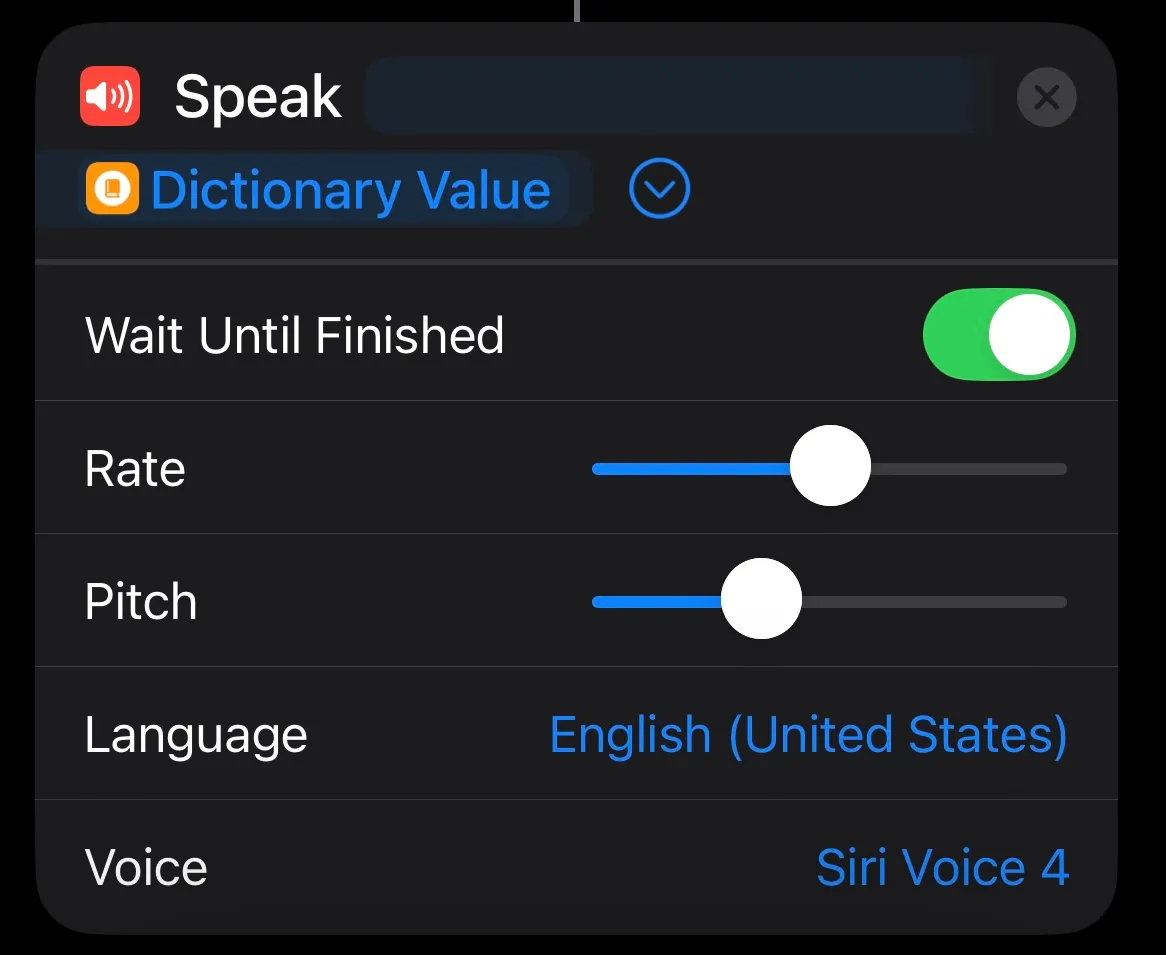
  1. Search for “Speak”. Add Dictionary Value.

iOS Shortcuts Speak action reading the dictionary value aloud with Siri Voice 4

Now you can press Play on the bottom right to start talking to your new AI. Additionally, you can click the info button and add an icon to the Home Screen or even share it with other people.

Conclusion

In this tutorial, you built an AI that you can talk to using your phone without writing any code. You can share it with your friends and family. With Runpod, you can leverage the resources to run models of all different sizes.

Next Steps

Consider enhancing your AI by:

  • Add support for an access token: This adds a layer of security to who can speak to your AI.
  • Try out different models: Runpod offers GPU resources of many sizes to handle models with billions of parameters.
  • Fine tune a model: Teach a model new information, and let it learn what you want.

Author profile: Chen Wong