

惯性聚合 高效追踪和阅读你感兴趣的博客、新闻、科技资讯
阅读原文 在惯性聚合中打开

推荐订阅源

P
Privacy & Cybersecurity Law Blog
Engineering at Meta
Engineering at Meta
Forbes - Security
Forbes - Security
MongoDB | Blog
MongoDB | Blog
Threat Intelligence Blog | Flashpoint
A
About on SuperTechFans
量子位
Exploit-DB.com RSS Feed
雷峰网
雷峰网
腾讯CDC
P
Proofpoint News Feed
S
Schneier on Security
S
Secure Thoughts
V
Visual Studio Blog
Help Net Security
Help Net Security
The Hacker News
The Hacker News
C
Cyber Attacks, Cyber Crime and Cyber Security
P
Privacy International News Feed
SecWiki News
SecWiki News
S
SegmentFault 最新的问题
T
Threatpost
小众软件
小众软件
MyScale Blog
MyScale Blog
F
Fortinet All Blogs
cs.CL updates on arXiv.org
P
Proofpoint News Feed
T
Tailwind CSS Blog
I
Intezer
C
CERT Recently Published Vulnerability Notes
U
Unit 42
V
V2EX
Cyberwarzone
Cyberwarzone
Recorded Future
Recorded Future
O
OpenAI News
Project Zero
Project Zero
有赞技术团队
有赞技术团队
Google DeepMind News
Last Week in AI
Last Week in AI
Hugging Face - Blog
Hugging Face - Blog
Know Your Adversary
Know Your Adversary
C
Cybersecurity and Infrastructure Security Agency CISA
Scott Helme
Scott Helme
V2EX - 技术
V2EX - 技术
博客园 - 叶小钗
S
Securelist
A
Arctic Wolf
The Cloudflare Blog
W
WeLiveSecurity
T
Threat Research - Cisco Blogs
博客园 - Franky

News on Xubuntu

Xubuntu – Xubuntu 26.04 Community Wallpaper Contest Winners Xubuntu – Xubuntu 26.04 Wallpaper Voting Open Xubuntu – Xubuntu Anniversary Wallpaper Contests Xubuntu – Public postmortem of the Xubuntu.org download compromise Xubuntu – Xubuntu 25.10 released! Xubuntu – Xubuntu 25.04 released! Xubuntu – Xubuntu 24.10 released! Xubuntu – Xubuntu 24.04 released! Xubuntu – Xubuntu 23.10 released! Xubuntu – Xubuntu 23.04 released! Xubuntu – Xubuntu 22.10 released! Xubuntu – Xubuntu 22.04 released! Xubuntu – Xubuntu 22.04 Community Wallpaper Contest Winners Xubuntu – Xubuntu 22.04 Community Wallpaper Contest Xubuntu – Xubuntu 21.04 released! Xubuntu – Xubuntu 21.04 Testing Week Xubuntu – Xubuntu 20.10 released! Xubuntu – Xubuntu is now on GitHub! Xubuntu – Xubuntu 20.04 released! Xubuntu – Xubuntu 20.04 Community Wallpaper Contest Winners Xubuntu – Xubuntu 20.04 Testing Week Xubuntu – Xubuntu 20.04 community wallpaper contest Xubuntu – Xubuntu 19.10 released! Xubuntu – Xubuntu 19.04 released! Xubuntu – Xubuntu 18.10 released! Xubuntu – Xubuntu 18.04.1 released! Xubuntu – Xubuntu 17.10 EOL Xubuntu – New Wiki pages for Testers Xubuntu – Xubuntu 18.04 released! Xubuntu – Xubuntu 18.04 Community Wallpaper Contest Winners! Xubuntu – Testing for Xubuntu Xubuntu – Xubuntu 18.04 community wallpaper contest Xubuntu – Xubuntu 17.10.1 Release Xubuntu – Xubuntu 17.04 End Of Life Xubuntu – Xubuntu 17.10 released! Xubuntu – Xubuntu Quality Assurance team is spreading out Xubuntu – Xubuntu 17.04 released! Xubuntu – Winners of the #lovexubuntu Competition! Xubuntu – Introducing the Xubuntu Council Xubuntu – Integrating releases to the website Xubuntu – Presenting the Xubuntu status tracker Xubuntu – Xubuntu 16.10 Released Intel cursor bug fix released Xubuntu – Xubuntu 16.04.1 Release Xubuntu – Looking for memorable and fun Xubuntu stories! Xubuntu – Xubuntu 16.04 released! Xubuntu – Xubuntu 16.04 Wallpaper Competition Winners! Xubuntu – The small details: Wallpapers Xubuntu – My media manager: Other alternatives Xubuntu – The small details: Panel layouts Xubuntu – My media manager: The cloud Xubuntu – The small details: Personal information integration Xubuntu – The small details: Shortcut keys Xubuntu – The small details: Menu editing Xubuntu – The small details: Theme configuration Xubuntu – The Small and the Noisy Xubuntu – Xubuntu 16.04 LTS Beta 2 Xubuntu – Introducing Xubuntu core Xubuntu – Xubuntu 12.04 End of Life Xubuntu – Xubuntu 15.04 released! Xubuntu – Xubuntu 15.04 Beta 2 Xubuntu – Xubuntu 15.04 Beta 1 Xubuntu – Xubuntu at Mexican collection agencies Xubuntu – Xubuntu 14.04.2 released Xubuntu – Help the Community with testing and win Xubuntu stickers Xubuntu – Xubuntu 14.10 released! Xubuntu – Xubuntu 14.10 Beta 2 is released! Xubuntu – Xubuntu 14.10 Beta 1 is released! Xubuntu – Using inxi to detect hardware information Fix available for the black screen on unlock bug Xubuntu – 5 Things to Do After Upgrading from 12.04 to 14.04 Xubuntu – Xubuntu 14.04.1 released Xubuntu – Screen locking in Xubuntu 14.04 Xubuntu – Xubuntu 14.04 QA Recap Xubuntu – Xubuntu 14.04 released! Xubuntu – Xubuntu 14.04 Final Beta Xubuntu – Xubuntu 14.04 Beta 1 Xubuntu – Xubuntu Marketing with StartUbuntu Flyer Xubuntu – Reporting is caring Xubuntu – Xubuntu 12.04.4 released Xubuntu – Xubuntu community wallpaper contest winners Xubuntu – Xubuntu 14.04 Alpha 2 Xubuntu – Xubuntu 14.04 Alpha 1 Xubuntu – Help us test Xubuntu 14.04 LTS Xubuntu – Xubuntu 14.04 Default Wallpapers Xubuntu – Xubuntu Natty Artwork Xubuntu – Xubuntu 11.04 alpha 2 released Xubuntu – Xubuntu 11.04 alpha 1 released Xubuntu – Xubuntu 10.10 released Xubuntu – Xubuntu 10.10 RC released Xubuntu – Xubuntu 10.10 alpha 3 released Xubuntu – Xubuntu 9.10 RC released Xubuntu – Xubuntu 9.10 beta released Xubuntu – Free Xubuntu CDs now available Xubuntu – Xubuntu 9.04 Released Xubuntu – Countdown to Xubuntu 9.04 Xubuntu – Xubuntu 9.04 beta released Xubuntu – Xubuntu 8.10 released Xubuntu – Xubuntu 8.10 Release Candidate now available Xubuntu – Countdown to Xubuntu 8.10
Xubuntu – Window resizing in Xubuntu (and Xfce)
2012-04-13 · via News on Xubuntu

For quite a while now there has been questions about resizing windows in Xfce, especially with theme with narrow window-borders. Usually people would ask for wider window-borders, but there are several methods of resizing a window and the thin borders in Xubuntu’s current default theme Greybird are not as much of a usability issue as some suggest.

The five methods

Method 1: Using the resize grip

Resize grips (usually small triangles) are positioned in the bottom right corner of a window, often as part of a statusbar. Before 12.04 (Precise Pangolin), Ubuntu had patched Gtk2 to add these resize grips to all applications. This would allow people to easily grab each window and resize it, even with theme with thin borders.

Unfortunately, this patch had some regressions; for example, clicking OpenOffice’s resize grip would open the file menu. The regressions made Ubuntu developers drop the feature from 12.04. Starting from 12.04, Gtk2 applications will have to use one of the other resizing methods for applications that don’t have a built-in resize grip. All the Gtk3 applications will have a resize grip in Greybird (Xubuntu’s default theme).

Method 2: Alt + right-click + drag

This is maybe the easiest and most useful way of resizing windows. I’m tempted to say that once you got accustomed to this it’s hard to go back. Simply hold the Alt key, right-click somewhere inside the window and drag to resize. It works intriguingly well and is a very nice complement to the easiest way of moving windows: holding Alt and left-click drag.

Method 3: Keyboard shortcut

Xfwm4, Xfce’s window manager, supports a number of keyboard shortcuts (which can be edited by going to the Settings Manager > Window Manager > Keyboard). One of them is for resizing windows with your keyboard. There is currently no keyboard shortcut set by default, but you can set one in the Window Manager dialog.

As soon as your keyboard-shortcut (in Xfce upstream its Alt+F8) is hit, you can then resize the window by either moving your mouse (no need to click or drag) or use your keyboard arrow keys.

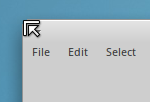
Method 4: Using the top corners of a window

While the resize grip has been removed from Gtk2 in Ubuntu and isn’t present in every application, you can always resize windows by using the two top corners with the mouse. In most Xfwm4 themes the area of the top corners is large enough to easily grab and drag it with the mouse.

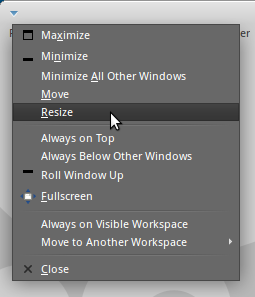
You can also initiate the same action as proposed in Method 3 above via the window-menu. Accessing the window-menu works either by clicking the menu-button in your window-titlebar (if your Xfwm4 theme has one), or by simply right-clicking the titlebar. There’s also a keyboard-shortcut to access the window-menu, but if you only want to resize the window, it’s easier to use the direct shortcut for that (again, see Method 3).

Example images
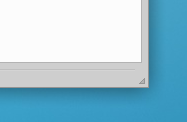
Method 1: Using the resize grip
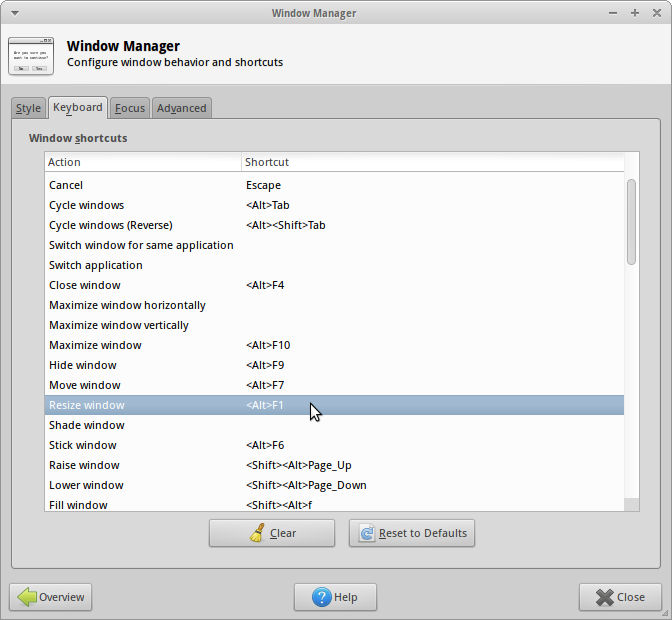
Method 1: Using the resize grip

Method 3: Keyboard shortcut
Method 3: Keyboard shortcut

Method 4: Using the top corners of a window
Method 4: Using the top corners of a window

Method 5: Using the window-menu

Method 5: Using the window-menu

The author of this post is Simon Steinbeiß, who is the Xubuntu Artwork Lead. In addition to Xubuntu, he works extensively on the Shimmer Project and the Xfce Design SIG.