








Howdy, Buttondown readers! I’m Jon 👋 and I’m a big fan of Typora — I think it’s simply the best Markdown editor, scratch pad, and general writing tool around. In fact, I’ve written here on the Buttondown blog before about how to use Typora’s custom image uploading system to get your images up onto Buttondown’s CDN with ease while writing a newsletter. Just paste your image in and it automatically gets the cloud-treatment...
But I’ve since gone further.
Forging a new path
I recently decided to leave social media (thoughts on that here if you’d like) and try something novel instead. Using Buttondown as my delivery system, I want to keep a list of less than one hundred people that I “post” to. I’m using the word ‘post’ specifically because it should be as easy as posting something on Facebook. It’s just.. delivered via email instead. Merits of whether this is a good idea or not aside, most of my friends signed on board and I’ve already sent a couple of these posts!
My hunch was that the key to making this work, and making it sustainable for me, is minimizing friction. Facebook has spent years and millions of dollars finely tuning and constructing their UI and UX to allow its users to contribute content to the platform with absolute ease. I’m instead going to be using a system that’s known by many to not have any ‘ease’ (email).
So I hatched an idea. I already knew that I’d draft my posts (email newsletters) in Typora — I’ve been writing proper newsletters this way for years now. But during those years I’ve always drafted the newsletter in Typora, added the images along the way (which is totally magic), then once finished, copied and pasted the Markdown over to Buttondown. At that point I’d essentially be done with Typora — I could send preview emails to myself and/or make tweaks to the copy directly in Buttondown. Typora gets me 95% of the way with email newsletters, and Buttondown’s own UI covers the rest.
But for Posts I wanted it to be even smoother. I want to be able to draft a post, send myself a preview email to make sure it looks okay, iterate, then even send the final email all from Typora. I don’t want to have to open Buttondown at all. I need absolute minimal friction. It needs to be as easy as making a Facebook post!
The good news is that it’s doable, I’ve done it, it’s awesome, and it’s free.
The desired workflow
All of this ends up running through the Buttondown API, which they’ve had for years, but as of 2025 is now free for all users! 🎉.
Anyway, with all of that preamble out of the way, the root idea on the Typora side is to leverage Typora’s custom export options. These can actually be extremely powerful since they essentially grant you an open slate with which to run a shell command (or multiple) from right within Typora. In our case, we’re going to write and invoke a Ruby script to do some magic.
I’ve got a few objectives for this script. Here’s the list
- If the document hasn’t been pushed to Buttondown before then
- It should create a new email on Buttondown
- It should create that email in draft status (‼️)
- It should set the subject line on that email to some safe default
- It should set the body of that new email to whatever’s in Typora
- It should email me a draft preview automatically
- If the document already represents an email (in draft) in Buttondown, then
- It should update the body of that email to what’s currently in Typora
- It should update the subject line of the email to whatever I prefer
- If I am iterating on a draft
- It should automatically send me another draft preview
- Otherwise, if I’m intending to actually send the email
- It should trigger the send and not email me a preview
Quite a bit! The key here is going to be our old Markdown friend, Front Matter. The workflow will play out like this:
- First, I’ll whip up a new document in Typora and start writing some things or adding some images for my Post.
- At this point, the Post has no front-matter, it’s just a simple document.
- Second, I’ll save the file somewhere as simply
temp.md. The name doesn’t matter, you’ll see why in a moment. - Third, I’ll choose my custom Export option, “Buttondown” and Typora will execute my script
- After my script finishes, I’ll see a few things:
- My file has been renamed to
simply-sullivans-01-28-25.md(a simple format I coded) - My document now has front matter indicating the Buttondown Email ID it maps to, its status (
draft), and its subject line - A preview email in my inbox! And it really is that simple:
- My file has been renamed to
See how the file name changes automatically and the Front Matter pops right in? Beautiful. There’s a preview email waiting in my inbox, too! And the best part? Running the same export again updates the same email on Buttondown’s side rather than creating another.
To top it off, I can simply change the status: draft in the Front Matter to status: about_to_send, run the export again, and I’ll have successfully sent my Post! Friction removed ✅
The code
There are two parts to actually getting this setup running. The first is the Ruby script, the second is setting up the custom Export in Typora. Let’s assume we’re going to name our Ruby script typora-export-to-buttondown-draft.rb and store it in /Users/Shared/. Given that, we’ll configure a new Export type in the Typora settings (of type “Custom”):
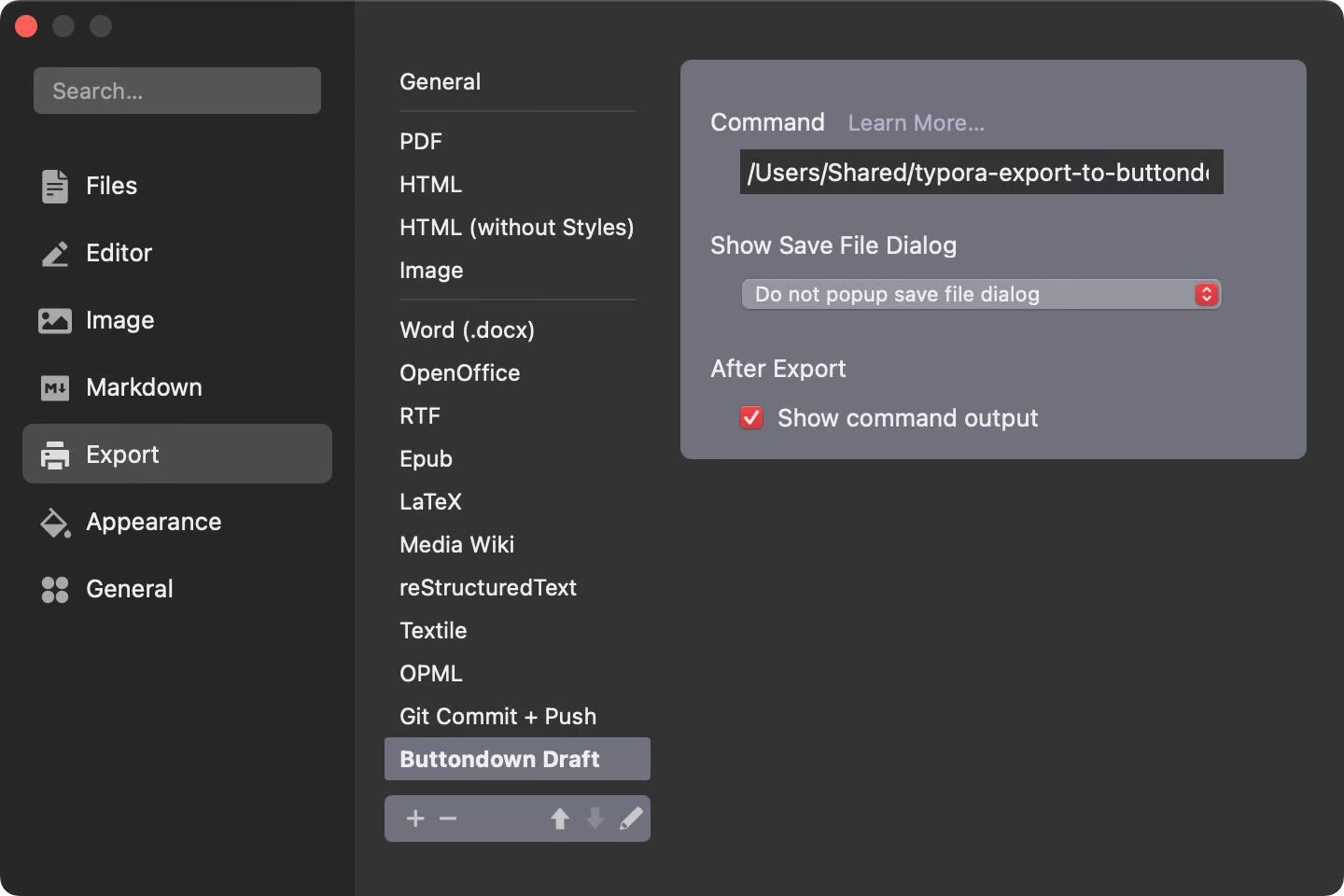
And our command will simply be:
/Users/Shared/typora-export-to-buttondown-draft.rb "${currentPath}"
Essentially just passing the current file over to our script. So let’s see the script!!
Here it is in full:
#!/usr/bin/env -i ruby
require "net/http"
require "json"
require "uri"
require "date"
require "yaml"

BUTTONDOWN_API_KEY = "your-api-key-goes-here-thx"
API_URL = "https://api.buttondown.com/v1/emails"
DEFAULT_SUBJECT_LINE = "Your Default Subject Line For Drafts"
PREVIEW_EMAIL_ADDRESSES = ["you@example.com"]
INTENDED_FILE_NAME = "my-newsletter-#{Date.today.strftime("%m-%d-%Y")}.md"

raise "MUST SAVE FILE FIRST, ONLY 1 ARG, #{ARGV.inspect}" unless ARGV.length == 1 && !ARGV[0].empty?

file_path = ARGV[0]
content = File.read(file_path, encoding: "UTF-8")

front_matter, body = if content =~ /\A---\n(.*?)\n---\n/m
  [YAML.safe_load($1), content.partition(/\A---\n.*?\n---\n/m).last.strip]
else
  [{}, content.strip]
end

front_matter["subject"] ||= DEFAULT_SUBJECT_LINE
front_matter["status"] ||= "draft"

uri = front_matter.key?("id") ? URI("#{API_URL}/#{front_matter["id"]}") : URI(API_URL)
request = front_matter.key?("id") ? Net::HTTP::Patch.new(uri) : Net::HTTP::Post.new(uri)
request["Authorization"] = "Token #{BUTTONDOWN_API_KEY}"
request["Content-Type"] = "application/json"

request.body = {
  subject: front_matter["subject"],
  body: body,
  status: front_matter["status"]
}.to_json

response = Net::HTTP.start(uri.hostname, uri.port, use_ssl: true) { |http| http.request(request) }

if response.code.to_i.between?(200, 299)
  response_body = JSON.parse(response.body)
  front_matter["id"] = response_body["id"]
  front_matter["status"] = response_body["status"]
  # Change the file name to match today's date (feel free to change this logic to use the subject line or etc. too)
  new_filename = File.join(File.dirname(file_path), INTENDED_FILE_NAME)
  File.rename(file_path, new_filename)
  File.write(new_filename, "#{YAML.dump(front_matter).strip}\n---\n\n#{body}", encoding: "UTF-8")

  # Automatically send myself a draft unless I just trigger the full-send
  if front_matter["status"] != "about_to_send"
    sleep 4 # Give Buttondown's servers time to persist the email content change before firing a draft preview
    preview_uri = URI("#{API_URL}/#{front_matter["id"]}/send-draft")
    preview_request = Net::HTTP::Post.new(preview_uri)
    preview_request["Authorization"] = "Token #{BUTTONDOWN_API_KEY}"
    preview_request["Content-Type"] = "application/json"
    preview_request.body = {recipients: PREVIEW_EMAIL_ADDRESSES}.to_json
    preview_response = Net::HTTP.start(preview_uri.hostname, preview_uri.port, use_ssl: true) { |http| http.request(preview_request) }

    raise "Error: Unable to send preview email. HTTP #{preview_response.code} - #{preview_response.body}" unless preview_response.code.to_i.between?(200, 299)

    puts "Preview email sent successfully."
  end

  puts front_matter.key?("id") ? "Draft updated successfully." : "Draft uploaded successfully. Renamed to: #{new_filename}"
else
  raise "Error: Received HTTP #{response.code} - #{response.body}"
end
Now let’s walk through that in chunks and explain what we’re doing here.
First, I’m a Rails developer and I use a Ruby version manager. Since this script is more like a system script and totally outside of the context of any Ruby project / app I might be working on, I actually want to use my system Ruby installation, not my Ruby version manager’s. So this shebang uses -i to get a clean environment, one where your Ruby version manager’s PATH is not loaded. You may not need the -i if you have a global, default Ruby installed and want to run that instead.
require "net/http"
require "json"
require "uri"
require "date"
require "yaml"
A careful selection of packages here — importantly, these are all packaged inside of Ruby’s standard library. At least, they are in my system Ruby version, Ruby v2.6, on macOS 15 (Sequoia). Since I’m using my system Ruby, I don’t want to install extra gems. Keep it portable!
raise "MUST SAVE FILE FIRST, ONLY 1 ARG, #{ARGV.inspect}" unless ARGV.length == 1 && !ARGV[0].empty?
This is actually a little short-circuit that will display the text in Typora if you attempt to run the export on a file you haven’t yet saved! It looks like this:
Note the “MUST SAVE FILE FIRST” message there in the middle
I have a habit of simply hitting Cmd+T (new document/tab) and beginning to write, so this short-circuit is a reminder that I have to actually save the document somewhere on my machine before I can run the export script.
front_matter, body = if content =~ /\A---\n(.*?)\n---\n/m
  [YAML.safe_load($1), content.partition(/\A---\n.*?\n---\n/m).last.strip]
else
  [{}, content.strip]
end
Remember how I said we’re sticking exclusively to Ruby's standard library for dependencies? There are no Markdown gems in that library. So.. manual Front Matter parsing. 🤘
front_matter["subject"] ||= DEFAULT_SUBJECT_LINE
front_matter["status"] ||= "draft"
These are important. These set the defaults for both the subject line and the status, whether it’s a brand new file that hasn’t yet established Front Matter, or an existing file that already has front matter — Ruby’s ||= gives us just the right “set it if it’s not already set” behavior.
After that we make the request to the API then, assuming it came back in a good state, we...
  front_matter["id"] = response_body["id"]
  front_matter["status"] = response_body["status"]
Assign the response ID and status that were returned from the API — if the file is new, these will be printed into the new Front Matter. If the file is existing and we’re PATCH’ing an update, they‘ll match what’s already there anyway.
  new_filename = File.join(File.dirname(file_path), INTENDED_FILE_NAME)
  File.rename(file_path, new_filename)
  File.write(new_filename, "#{YAML.dump(front_matter).strip}\n---\n\n#{body}", encoding: "UTF-8")
The last piece of the magic here is that we actually overwrite the file with itself plus updated Front Matter. If there was no Front Matter there before, it’ll magically pop in! If there was, it’ll simply be updated to the new values. That’s neat!
We finish up by sending ourselves a preview draft to our specified email address(es), but I’ll leave that for you to read as it’s simple web-request code.
That’s all there is to it! Now we can export a brand new Post and see our Front Matter pop right in, know that it’s now an Email (in draft) in Buttondown, and check our inbox for a preview of what it’ll look like in others’ boxes.
Then, once we’re happy with it, we can simply set our status in our Front Matter to about_to_send, save the file, and run the export one last time. about_to_send is the special status that triggers Buttondown to actually prep and send the email; that it’s “ready to go”.
Other ideas
While I didn’t implement both into my script (yet?), there are two other ideas worth mentioning in this Typora-as-Buttondown-front-end setup: scheduled sending, and notes.
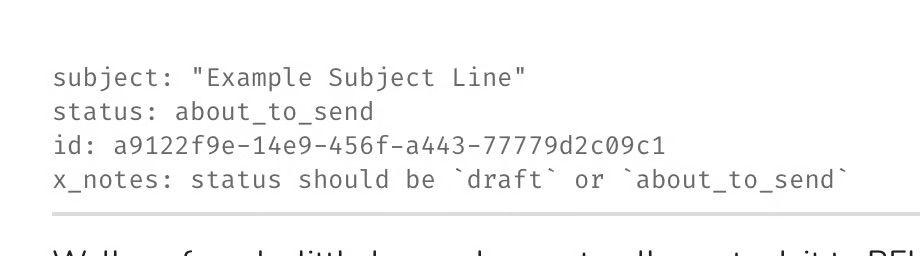
I’ll start with the latter. When I first push up a draft of a new email to Buttondown, Front Matter gets added for me automatically with status: draft. That’s great. But am I going to remember the special status keyword for sending the actual email — about_to_send? Probably not. I need some way of reminding myself what to change that status to!
The great news here is that Front Matter is just YAML. We can add ad-hoc keys without consequence and don’t have to worry about new keys messing up existing keys! As such, we can add another default to our Front Matter entries (the two lines we currently use that ||= syntax to set defaults):
front_matter["x_notes"] ||= "status should be `draft` or `about_to_send`"
And now every time a new draft is created for the first time I’ll be given this x_notes field with which I can do whatever I’d like with. It’s also pre-seeded with the very reminder I’ll probably be looking for: what the status values should be:
Handy!
Going beyond that, Buttondown supports scheduled sending, even in their API. I haven’t implemented it yet (given the context of my use-case, I send emails as soon as I’m happy with them), but we can update our email with a status of scheduled and pass one additional parameter in the request, publish_date, which tells Buttondown that the email is ready to send once that date occurs. The docs for that feature are here but I’ll leave the implementation of that feature as an exercise for the reader.
Buttondown without Buttondown
Ultimately we’ve crafted a neat way to use the Buttondown service entirely without the Buttondown (browser-) front-end! Of course, Buttondown’s browser experience is great... but for my particular purpose (reduce friction as much as possible), skipping the Buttondown UI is the way.
Hope you’re a Typora user too and that this post sparked new ideas in you for your own use-cases.
P.S. One little caveat for fellow macOS users out there — if you commonly save your Markdown files into iCloud Drive-backed folders, Typora may not immediately pick up those changes (the way the Front Matter just ‘pops in’ above) and you may have issues. I could not solve this problem. Files in Git directories are no problem, but something about the way iCloud Drive handles changes and symlinks just doesn’t work well here.