惯性聚合 高效追踪和阅读你感兴趣的博客、新闻、科技资讯
阅读原文 在惯性聚合中打开

推荐订阅源

大猫的无限游戏
大猫的无限游戏
N
News | PayPal Newsroom
cs.AI updates on arXiv.org
P
Palo Alto Networks Blog
P
Privacy & Cybersecurity Law Blog
H
Hacker News: Front Page
Vercel News
Vercel News
阮一峰的网络日志
阮一峰的网络日志
博客园 - 叶小钗
IT之家
IT之家
B
Blog
Google DeepMind News
U
Unit 42
cs.CV updates on arXiv.org
Attack and Defense Labs
美团技术团队
Y
Y Combinator Blog
爱范儿
爱范儿
L
Lohrmann on Cybersecurity
O
OpenAI News
酷 壳 – CoolShell
酷 壳 – CoolShell
W
WeLiveSecurity
Microsoft Azure Blog
H
Help Net Security
T
Threatpost
Application and Cybersecurity Blog
TaoSecurity Blog
TaoSecurity Blog
Simon Willison's Weblog
Security Archives - TechRepublic
M
MIT News - Artificial intelligence
Last Week in AI
Last Week in AI
Apple Machine Learning Research
AWS News Blog
AWS News Blog
D
Darknet – Hacking Tools, Hacker News & Cyber Security
T
Tenable Blog
The GitHub Blog
The GitHub Blog
Google DeepMind News
Help Net Security
Help Net Security
小众软件
小众软件
罗磊的独立博客
B
Blog RSS Feed
S
SegmentFault 最新的问题
L
LINUX DO - 热门话题
Scott Helme
Scott Helme
G
GRAHAM CLULEY
Martin Fowler
Martin Fowler
Exploit-DB.com RSS Feed
The Last Watchdog
The Last Watchdog
P
Proofpoint News Feed
Security Latest
Security Latest

mafeifan 的编程技术分享

mafengwo-mp3-downloader | mafeifan 的编程技术分享 示例页面 | mafeifan 的编程技术分享 mafeifan 的编程技术分享 mafeifan 的编程技术分享 mafeifan 的编程技术分享 mafeifan 的编程技术分享 mafeifan 的编程技术分享 mafeifan 的编程技术分享 mafeifan 的编程技术分享 mafeifan 的编程技术分享 mafeifan 的编程技术分享 查看 default namespace 下的 default service account名称 mafeifan 的编程技术分享 检查日志 | mafeifan 的编程技术分享 bridge fdb show dev flannel.1 mafeifan 的编程技术分享 mafeifan 的编程技术分享 mafeifan 的编程技术分享 mafeifan 的编程技术分享 mafeifan 的编程技术分享 mafeifan 的编程技术分享 mafeifan 的编程技术分享 mafeifan 的编程技术分享 mafeifan 的编程技术分享 mafeifan 的编程技术分享 mafeifan 的编程技术分享 mafeifan 的编程技术分享 mafeifan 的编程技术分享 mafeifan 的编程技术分享 mafeifan 的编程技术分享 数据收集原理分析 | mafeifan 的编程技术分享 mafeifan 的编程技术分享 mafeifan 的编程技术分享 mafeifan 的编程技术分享 mafeifan 的编程技术分享 mafeifan 的编程技术分享 mafeifan 的编程技术分享 mafeifan 的编程技术分享 mafeifan 的编程技术分享 mafeifan 的编程技术分享 mafeifan 的编程技术分享 mafeifan 的编程技术分享 mafeifan 的编程技术分享 mafeifan 的编程技术分享 mafeifan 的编程技术分享 几种方法 | mafeifan 的编程技术分享 mafeifan 的编程技术分享 mafeifan 的编程技术分享 mafeifan 的编程技术分享 mafeifan 的编程技术分享 mafeifan 的编程技术分享 mafeifan 的编程技术分享 mafeifan 的编程技术分享 mafeifan 的编程技术分享 mafeifan 的编程技术分享 mafeifan 的编程技术分享 mafeifan 的编程技术分享 mafeifan 的编程技术分享 mafeifan 的编程技术分享 mafeifan 的编程技术分享 mafeifan 的编程技术分享 mafeifan 的编程技术分享 mafeifan 的编程技术分享 mafeifan 的编程技术分享 mafeifan 的编程技术分享 mafeifan 的编程技术分享 mafeifan 的编程技术分享 mafeifan 的编程技术分享 mafeifan 的编程技术分享 mafeifan 的编程技术分享 mafeifan 的编程技术分享 mafeifan 的编程技术分享 mafeifan 的编程技术分享 mafeifan 的编程技术分享 mafeifan 的编程技术分享 mafeifan 的编程技术分享 mafeifan 的编程技术分享 mafeifan 的编程技术分享 mafeifan 的编程技术分享 mafeifan 的编程技术分享 mafeifan 的编程技术分享 mafeifan 的编程技术分享 mafeifan 的编程技术分享 mafeifan 的编程技术分享 mafeifan 的编程技术分享 mafeifan 的编程技术分享 mafeifan 的编程技术分享 mafeifan 的编程技术分享 mafeifan 的编程技术分享 mafeifan 的编程技术分享 mafeifan 的编程技术分享 mafeifan 的编程技术分享 mafeifan 的编程技术分享 check the export on the very top of this document so we can use $do mafeifan 的编程技术分享 mafeifan 的编程技术分享 mafeifan 的编程技术分享 mafeifan 的编程技术分享 延伸 -- 关于前端路由 xdebug 3 和 2 的区别
mafeifan 的编程技术分享
2026-01-16 · via mafeifan 的编程技术分享

本节通过学习 docker 的 nginx 镜像,容器的使用。以及如何映射文件。

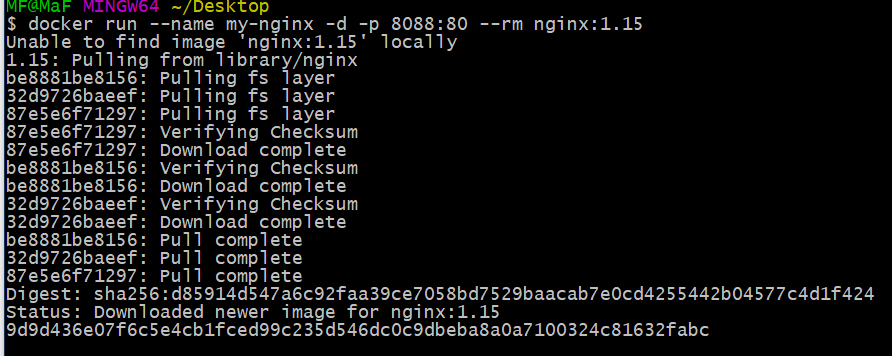
  1. 运行容器 docker run --name my-nginx -d -p 8088:80 --rm nginx:1.15
  • -d:在后台运行
  • -p:容器的80端口映射到 宿主机的 8088 端口
  • --rm:容器停止运行后,自动删除容器文件
  • --name:容器的名字为 my-nginx

image.png

docker run 其实等于 docker create + start 因为tag为 1.15 的 nginx 镜像并不在本地,会先下载再运行

浏览器打开 locahost:8088 就能看到默认页面了

  1. 官方推荐通过 Dockerfile 的方式制作镜像并运行容器

新建static-pages目录,结构如下:

static-pages
   -- index.html
   -- Dockerfile

index.html

Dockerfile

FROM nginx:1.15
COPY . /usr/share/nginx/html

切换到Dockerfile所在路径

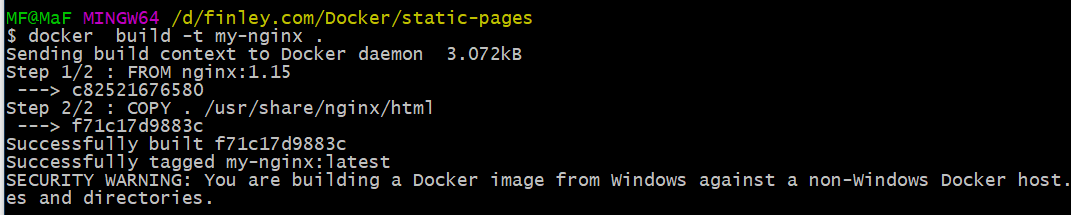
制作镜像 docker build -t my-nginx .,名称为 my-nginx,完整镜像名格式是:name:tag 参见 文档

image.png

根据镜像运行一个容器 docker run --name my-nginx -d -p 8088:80 my-nginx:latest 浏览器打开 locahost:8088 就能看到 hello-world 了

3.如果要修改nginx配置文件,我们把容器里面的 Nginx 配置文件拷贝到本地的当前目录。 执行 docker container cp my-nginx:/etc/nginx . 不要漏掉最后那个点。执行完成后,当前目录应该多出一个nginx子目录。 修改Dockerfile

FROM nginx:1.15
COPY index.html /usr/share/nginx/html
COPY nginx /etc/

然后修改 static-pages\nginx\conf.d\default.conf

server {
  listen       80;
  server_name  ng.test;
}

C:\Windows\System32\drivers\etc\HOSTS 需要添加 127.0.0.10 ng.test 保持和localhost一致即可 重新制作镜像 docker build -t my-nginx:ng-test . 运行容器 docker run -d -p 80:80 my-nginx:ng-test 注意我映射的端口不再是8088,这样本地浏览器就能访问 ng.test 了

细节 ​

  • 停止容器: 先 docker ps 获取容器ID,比如是 934f93002018 然后 docker stop 934f93002018
  • 重启容器docker exec -it <mycontainer> kill -USR2 1