A playful GSAP menu demo exploring how easeReverse makes reversed UI animations feel smoother, snappier, and more intentional.
Some days ago, the GSAP team released an update which introduced a small but very handy addition for reversible animations: easeReverse.
The idea is straightforward: when you reverse a GSAP animation, the easing curve is reversed too. That often makes technical sense, but visually it can feel off. An ease-out animation played backwards becomes an ease-in, which means a UI element that entered smoothly might feel a bit sluggish or awkward when dismissed.
With easeReverse, we can give the reverse direction its own easing behavior. It can reuse the forward ease adaptively, or it can use a completely different ease. This is especially useful for toggleable UI like menus, drawers, modals, tooltips, and other interruptible interactions.
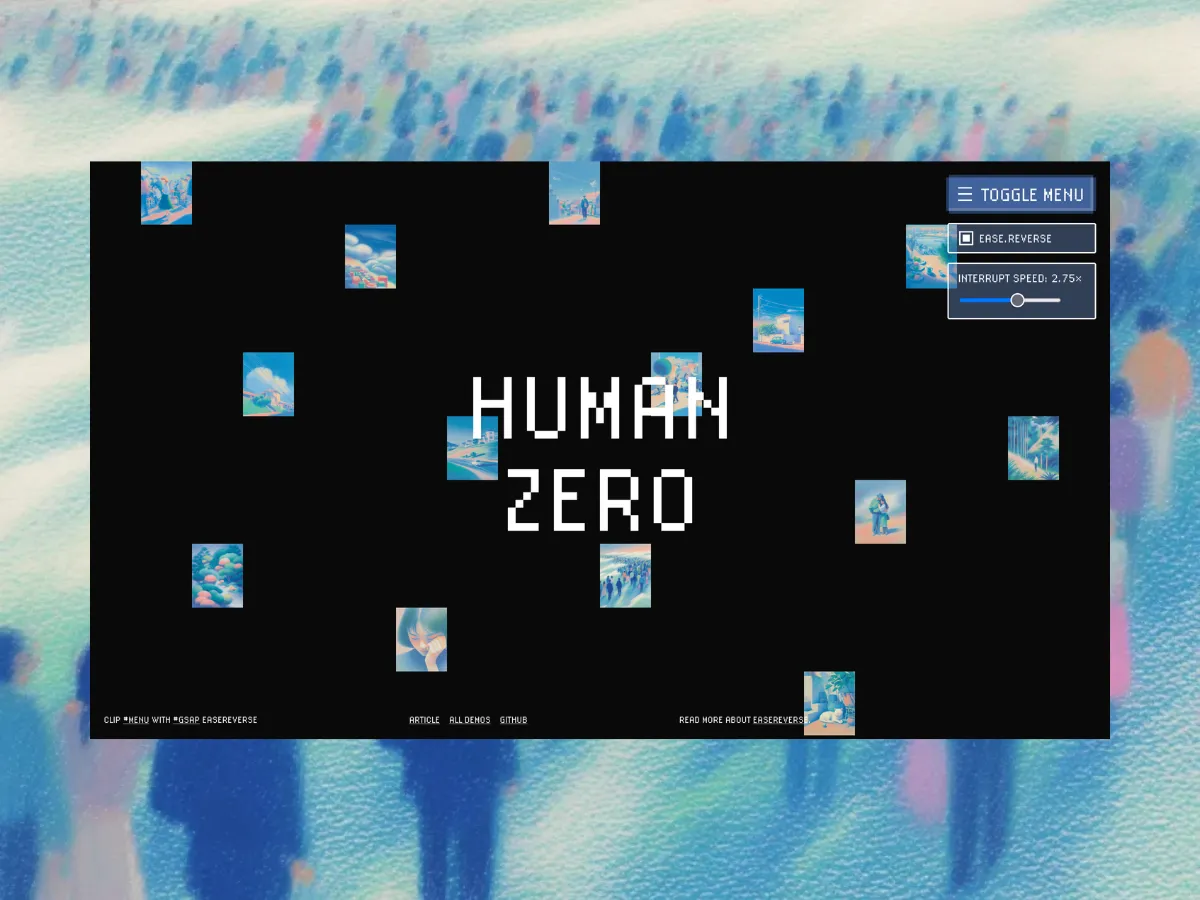
In this demo, we use it for a small (game-inspired) menu interaction.
When the menu opens, a set of cover images scatter outward from the center of the viewport. At the same time, the menu is revealed with a clip-path animation. The interesting part happens when you close the menu: with easeReverse enabled, the returning motion gets its own reverse feel instead of simply playing the original ease backwards:
tl.to(item, {
  x,
  y,
  opacity: 0,
  rotation: gsap.utils.random(-30, 30),
  duration: 0.7,
  ease: 'expo',
  easeReverse: er('elastic.out(0.3)'),
});
So that we can visualize the magic, a small helper lets us switch the feature on and off:
const er = (value) => {
  return easeReverseCheckbox.checked ? value || true : false;
};
So when the checkbox is checked, the tween gets an easeReverse value. When it is unchecked, easeReverse is set to false, letting us compare the previous reverse behavior with the new one.
We also rebuild the timeline whenever the checkbox changes, so each tween is created with the correct reverse easing from the start:
const rebuildMenuTimeline = ({ progress = 0, reverseEase = FULL_CLOSE_EASE_REVERSE } = {}) => {
  const safeProgress = clamp(progress, 0, 1);

  if (menuTimeline) {
    menuTimeline.revert();
  }

  gsap.set(coverItems, {
    x: 0,
    y: 0,
    rotation: 0,
    opacity: 1,
  });

  gsap.set(menu, {
    clipPath: 'polygon(50% 50%, 50% 50%, 50% 50%, 50% 50%)',
  });

  menuTimeline = createMenuTimeline(reverseEase);
  menuTimeline.progress(safeProgress).pause();
};
You’ll also see a “interrupt speed” control in the demo. If you click the toggle again before the opening animation has finished, the timeline reverses immediately. The slider controls that reverse speed using timeScale():
menuTimeline.timeScale(interruptReverseTimeScale).reverse();This makes it easier to compare two things separately: the speed of the reverse motion, and the easing curve used while reversing.
easeReverse is really useful because forward and backward motions can now each have their own character, without needing two entirely separate animations.
We’d love to see how you use it in your own interactions. If you experiment with easeReverse, share it with us on X or LinkedIn (tag GSAP and Codrops).
Hope you enjoy this little demonstration of it!
Find out more about it in the GSAP docs.