惯性聚合 高效追踪和阅读你感兴趣的博客、新闻、科技资讯
阅读原文 在惯性聚合中打开

推荐订阅源

V
V2EX
爱范儿
爱范儿
Martin Fowler
Martin Fowler
T
The Blog of Author Tim Ferriss
B
Blog RSS Feed
博客园 - 聂微东
G
GRAHAM CLULEY
Engineering at Meta
Engineering at Meta
Threat Intelligence Blog | Flashpoint
WordPress大学
WordPress大学
Scott Helme
Scott Helme
AI
AI
S
Security Affairs
T
Threat Research - Cisco Blogs
M
MIT News - Artificial intelligence
T
Troy Hunt's Blog
H
Hackread – Cybersecurity News, Data Breaches, AI and More
人人都是产品经理
人人都是产品经理
AWS News Blog
AWS News Blog
T
Threatpost
Cyberwarzone
Cyberwarzone
www.infosecurity-magazine.com
U
Unit 42
V
Vulnerabilities – Threatpost
J
Java Code Geeks
博客园 - Franky
月光博客
月光博客
Blog — PlanetScale
Blog — PlanetScale
NISL@THU
NISL@THU
D
Docker
小众软件
小众软件
N
News and Events Feed by Topic
Microsoft Security Blog
Y
Y Combinator Blog
A
Arctic Wolf
D
DataBreaches.Net
云风的 BLOG
云风的 BLOG
Forbes - Security
Forbes - Security
量子位
PCI Perspectives
PCI Perspectives
美团技术团队
K
KPMG report finds enterprise disconnect between AI and its ROI | CIO
I
InfoQ
Security Archives - TechRepublic
有赞技术团队
有赞技术团队
腾讯CDC
P
Proofpoint News Feed
S
Security @ Cisco Blogs
G
Google Developers Blog
C
Cisco Blogs

The latest on GitHub Copilot - The GitHub Blog

Better tools made Copilot code review worse. Here's how we actually improved it. Automating cross-repo documentation with GitHub Agentic Workflows Evaluating performance and efficiency of the GitHub Copilot agentic harness across models and tasks I automated my job (and it made me a better leader) How we built an internal data analytics agent Getting more from each token: How Copilot improves context handling and model routing What are git worktrees, and why should I use them? GitHub Copilot CLI for Beginners: Overview of common slash commands How we made GitHub Copilot CLI more selective about delegation Give GitHub Copilot CLI real code intelligence with language servers From one-off prompts to workflows: How to use custom agents in GitHub Copilot CLI GitHub recognized as a Leader in the Gartner® Magic Quadrant™ for Enterprise AI Coding Agents for the third year in a row Take your local GitHub sessions anywhere Building a general-purpose accessibility agent—and what we learned in the process Dungeons & Desktops: Building a procedurally generated roguelike with GitHub Copilot CLI Improving token efficiency in GitHub Agentic Workflows Agent pull requests are everywhere. Here’s how to review them. Validating agentic behavior when “correct” isn’t deterministic GitHub Copilot CLI for Beginners: Interactive v. non-interactive mode Building an emoji list generator with the GitHub Copilot CLI Build a personal organization command center with GitHub Copilot CLI
How GitHub Copilot enables zero DNS configuration for GitHub Pages
Bruno Borges · 2026-07-09 · via The latest on GitHub Copilot - The GitHub Blog

Custom domains make a project feel real. But for many developers, DNS, the last mile, is also the most frustrating: A records, CNAME entries, TTLs, and that long wait where you’re never quite sure if the internet is broken or you are.

In this post, I’ll walk through how I took a project from an empty repository to a live website on a custom domain, secured with HTTPS, in about 14 minutes without manually editing a single DNS record. The trick is to let GitHub Copilot CLI drive the work, with a community Namecheap skill handling the DNS automation through the registrar’s API.

Here’s what you’ll learn how to do:

  • Publish a site with GitHub Pages
  • Register an inexpensive domain
  • Enable your registrar’s API and connect it to Copilot CLI
  • Point the domain at GitHub Pages and verify it end to end

What you’ll need

  • A GitHub account (the free tier works)
  • GitHub Copilot CLI, installed and authenticated with GitHub Copilot
  • A Namecheap account, for buying the domain and using its API

No prior DNS expertise required. That’s the whole point. Let’s get started. ⤵

Step 1: Publish a site with GitHub Pages

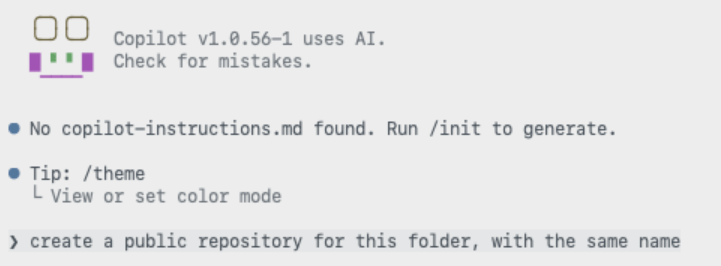
Every deployment needs something to deploy, so start with a home for the site: a new public repository.

Screenshot of Copilot CLI screen that says 'create a public repository for this folder with the same name'
Screenshot showing the public repository has been created.

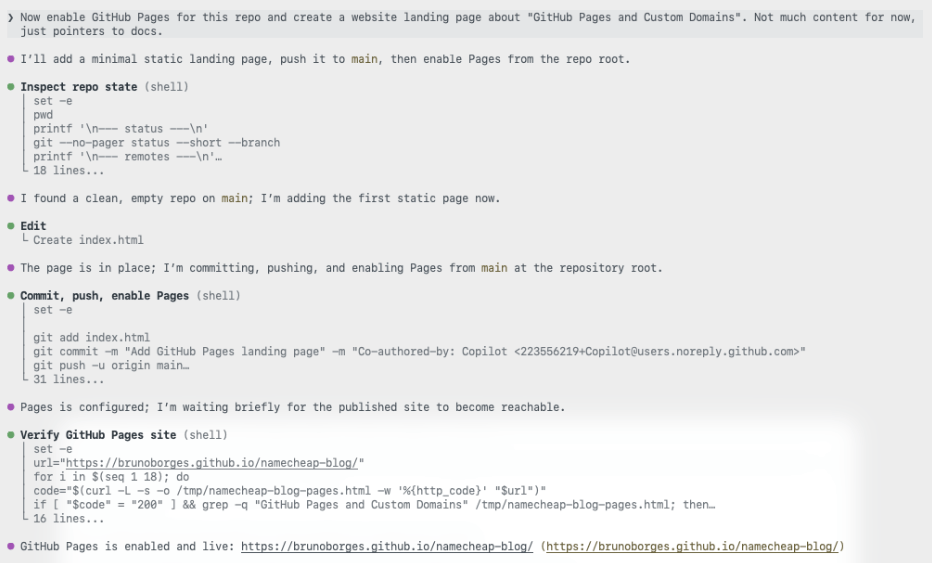
With the repository in place, you don’t have to hand-write an index.html, commit it, and then click through the pages settings yourself. Instead, describe the outcome you want to Copilot CLI and let it create the landing page and enable GitHub Pages for you.

Screenshot showing a prompt to enable GitHub Pages for this repo and create a website landing page about 'GitHub Pages and Custom Domains.'

The site is now live on a github.io URL. That’s a solid start. Now let’s give it a proper address.

Step 2: Register an inexpensive domain

You don’t need a premium .com to ship a side project. For this walkthrough I chose one of the cheapest top-level domains available, .click, and searched for an available name.

ghpagesblog.click was available, so I moved to checkout.

The total came to USD $2.00, or about CAD $2.46. That’s a low-risk price for trying a custom domain on a side project.

Step 3: Connect the domain to GitHub Pages

This is the step developers tend to dread. Here, an AI assistant does the repetitive work while you stay in control of the decisions.

Enable Namecheap API access

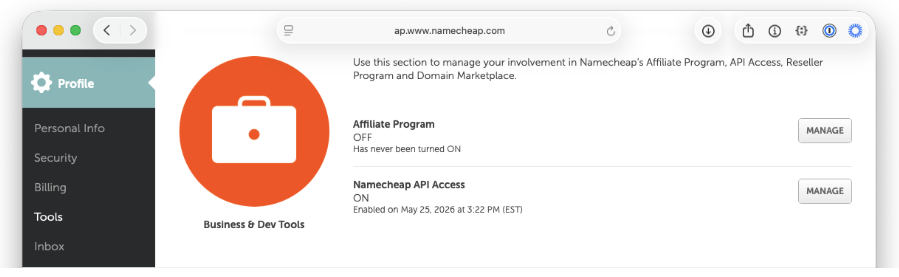
Before Copilot CLI can update your DNS, you need to turn on Namecheap’s API. In your Namecheap account, go to Profile → Tools, scroll to Business & Dev Tools, and select Manage under Namecheap API Access.

Screenshot showing Profile > Tools highlighted.

You can also navigate directly to the API access settings page (note that this URL may change over time).

On that page, complete three steps:

  1. Toggle the API to ON.
  2. Add the public IP of the machine that will call the API to the IP allowlist (Namecheap labels this field Whitelisted IPs).
  3. Copy the API Key and store it somewhere safe. You’ll need it shortly.

For more detail on what the API offers, see Namecheap’s API introduction.

Install the Namecheap skill

Next, give Copilot CLI the ability to talk to Namecheap by installing the Namecheap skill. It’s a single command:

gh skill install github/awesome-copilot namecheap --scope user

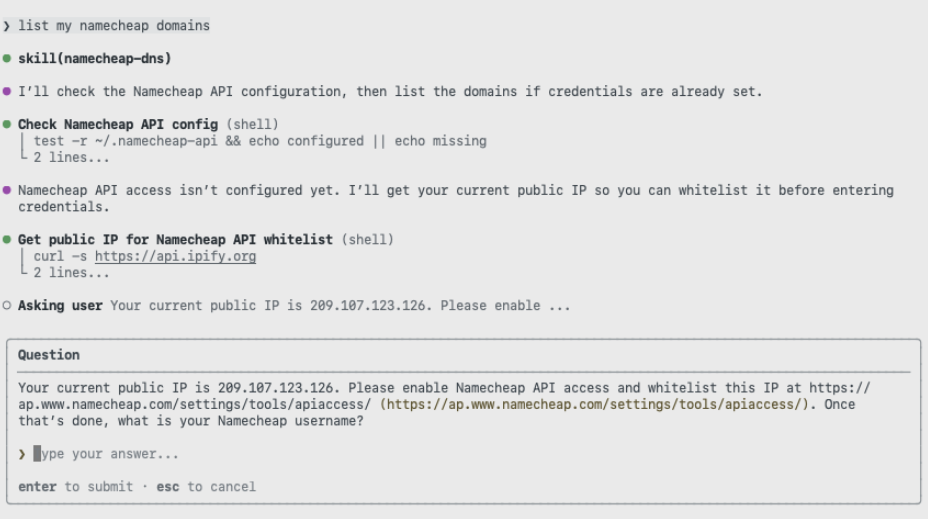
The first time you ask Copilot to do something like “list my Namecheap domains, it confirms the skill is configured and prompts you for your username.

Screenshot showing Copilot CLI prompt 'list my namecheap domains.'

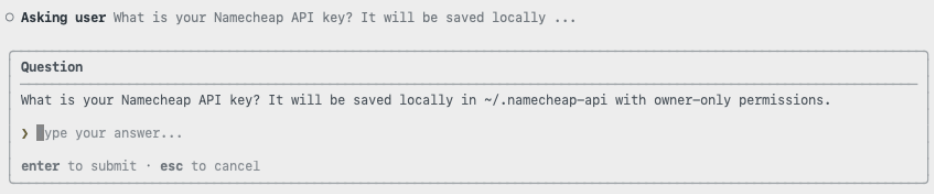
Then it asks for the API key you copied earlier.

Screenshot of Copilot asking the user 'What is your namecheap API key? It will be saved locally...'

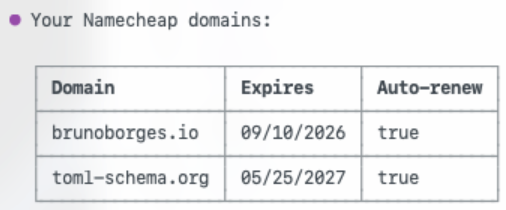
With credentials in place, Copilot returns the list of domains in your account. It’s a quick way to confirm everything is wired up correctly before making any changes.

Screenshot of domains: brunoborges.io and toml-schema.org.

Point the domain at GitHub Pages

Now connect the domain to the site. Ask Copilot to configure the custom domain using the skill.

Screenshot of a prompt asking Copilot to 'Enable this GitHub Pages site with the custom domain ghpagesblog.click registered with namecheap.'

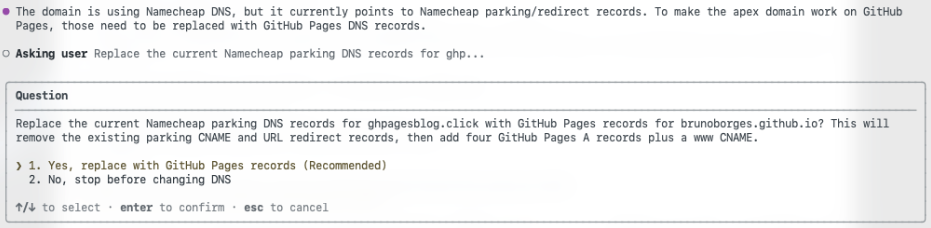
A good automation asks before it acts. The skill pauses to confirm the change before touching any records.

Screenshot of Copilot asking: 'The domain is using Namecheap DNS, but it currently points to Namecheap parking/redirect records. To make the apex domain work on GitHub Pages, those need to be replaced with GitHub Pages DNS records. Asking user: Replace the current Namecheap parking DNS records for ghp...'

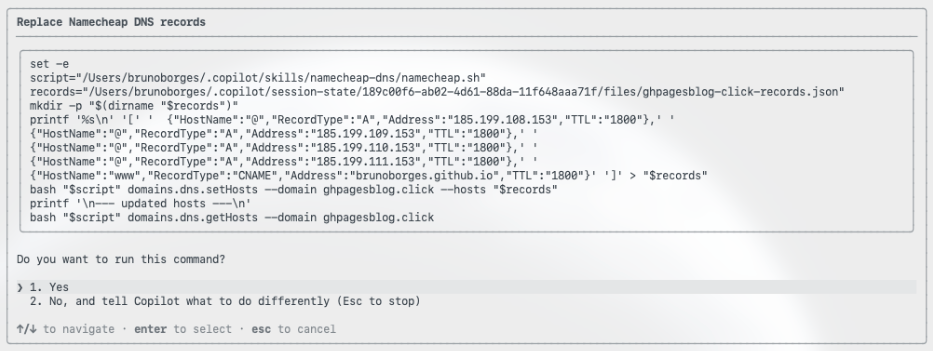
Once you approve, it replaces the existing parking records with the GitHub Pages A records and a CNAME for the WWW subdomain, which is the exact configuration GitHub Pages expects. This matches GitHub’s documented steps for configuring a custom domain for your GitHub Pages site.

Screenshot showing 'Replace Namecheap DNS records.'

It also handles the repository side, committing a CNAME file that tells GitHub Pages which custom domain the site should answer to.

Not using Namecheap? The same approach works with any registrar that offers an API. You don’t need a purpose-built skill: point Copilot CLI at your registrar’s API documentation and ask it to read, understand, and use that API to set the GitHub Pages records for your domain. The registrar changes; the workflow doesn’t.

Step 4: Verify the deployment

Rather than assuming success, Copilot CLI checks its own work. First, it confirms the domain resolves.

Screenshot showing 'Verify custom domain publication (shell).'

Then it confirms that the site returns a healthy HTTP 200 response.

If you’d like to review every prompt and response, the full Copilot CLI session is available as a gist.

Now for the timeline. The domain was purchased at 11:21:27 a.m. ET.

The site was live on the custom domain, served over HTTPS, at around 11:35 a.m. ET. That’s roughly 14 minutes from owning nothing to a fully deployed site, including API setup, skill installation, DNS configuration, propagation, and verification.

Wrapping up

DNS isn’t hard, exactly, but it’s fiddly, easy to get wrong, and slow to give feedback. By pairing GitHub Pages with GitHub Copilot CLI and the Namecheap skill, the repetitive parts of a custom-domain deployment fade into a short conversation: you make the decisions and approve the changes, and the tooling handles the plumbing.

If you’ve been putting off a custom domain because the DNS step feels like a chore, this workflow removes the friction. To go further, explore the GitHub Pages documentation and the guide to configuring a custom domain for your GitHub Pages site, then try it on your next project.

Written by

Bruno Borges

Principal Product Manager

Related posts

Explore more from GitHub

Docs

Docs

Everything you need to master GitHub, all in one place.

Go to Docs

GitHub

GitHub

Build what’s next on GitHub, the place for anyone from anywhere to build anything.

Start building

Customer stories

Customer stories

Meet the companies and engineering teams that build with GitHub.

Learn more

GitHub Universe 2026

GitHub Universe 2026

Join us October 28-29 in San Francisco or online for GitHub Universe, our flagship developer event uniting people, agents, and the world’s code.

Register now