惯性聚合 高效追踪和阅读你感兴趣的博客、新闻、科技资讯
阅读原文 在惯性聚合中打开

推荐订阅源

酷 壳 – CoolShell
酷 壳 – CoolShell
H
Hacker News: Front Page
P
Palo Alto Networks Blog
T
ThreatConnect
Apple Machine Learning Research
博客园_首页
T
True Tiger Recordings
P
Privacy & Cybersecurity Law Blog
B
Blog
IT之家
IT之家
Last Week in AI
Last Week in AI
F
Full Disclosure
Hacker News: Ask HN
Hacker News: Ask HN
C
Comments on: Blog
Microsoft Azure Blog
C
Cybersecurity and Infrastructure Security Agency CISA
Microsoft Security Blog
博客园 - 【当耐特】
N
News and Events Feed by Topic
NISL@THU
NISL@THU
腾讯CDC
雷峰网
雷峰网
Security Latest
Security Latest
李成银的技术随笔
M
Microsoft Research Blog - Microsoft Research
L
LangChain Blog
L
Lohrmann on Cybersecurity
cs.CL updates on arXiv.org
C
Check Point Blog
Y
Y Combinator Blog
Recent Announcements
博客园 - Franky
N
News | PayPal Newsroom
V
V2EX
A
About on SuperTechFans
The Register - Security
月光博客
月光博客
奇客Solidot–传递最新科技情报
奇客Solidot–传递最新科技情报
Google Online Security Blog
MyScale Blog
MyScale Blog
Cisco Talos Blog
Cisco Talos Blog
Vercel News
Vercel News
WordPress大学
WordPress大学
C
Cyber Attacks, Cyber Crime and Cyber Security
The Hacker News
The Hacker News
IntelliJ IDEA : IntelliJ IDEA – the Leading IDE for Professional Development in Java and Kotlin | The JetBrains Blog
爱范儿
爱范儿
A
Arctic Wolf
L
LINUX DO - 最新话题
freeCodeCamp Programming Tutorials: Python, JavaScript, Git & More

Dejavu's Blog

使用 auto-cpufreq 平衡 Linux 性能功耗 哪吒监控面板部署教程 NodeBB 论坛部署教程 Scaleway VPS 安装 Alpine Linux 甲骨文 ARM 实例部署 Gemma 4 模型 Headscale + Tailscale 组建虚拟专用网 在 Linux 上使用 Yubikey OpenPGP 应用 BuyVM VPS 块存储挂载教程 Alpine Linux 服务器配置指南 Alpine Linux 安装 Cloudflared Docker 多容器共享中心数据库 安装 Komari 服务器监控工具 Scaleway VPS 安装 Debian Linux Debian 13 下部署 AsmBB 论坛 使用 Kopia 自动化备份服务器数据 给 Docker 启用 IPv6 支持 Netcup 服务器安装自定义 ISO 镜像 在 Debian 13 上自托管 Mox 邮局 使用 Stalwart 自托管邮局服务 烽火 HG5582A 光猫开启桥接模式 Docker 自托管 Shlink 短链服务 部署 Obsidian LiveSync 实时同步服务指南 我的 2025 年不完全回顾 我的 2025 年度自托管服务报告 Linux 下 Intel 核显驱动配置与硬件加速 Fedora Linux 安装配置记录 2025 年优雅地自托管 RSS 服务 自托管部署 Pocket ID 与 Tinyauth 完全指南 Woodpecker CI 和 Gitea 实现 Hugo 自动部署 Gitea/Forgejo 集成 Woodpecker CI/CD 在 Blinko 中使用 Ollama 作为 AI 供应商 Docker 部署 Gitea/Forgejo Plausible CE 启用城市级地理位置识别 Blinko 开源 AI 知识库 Docker 部署指南 Netcup 免税账号注册及购买服务器全记录 新到手的 Linux 服务器,我这样设置 Docker 自托管 Cloudreve Pro 私有网盘服务 GiffGaff SIM 卡使用体验和注意事项 在 n8n 中使用 Ollama 的本地 LLM 模型 简体中文互联网在变得糟糕吗? 如何低成本申请 S/MIME 证书用于个人邮件服务 迁移到 NameCrane Mail 域名邮箱套件服务 香烟与咖啡 联系我 Now 近况 在 Windows 中使用 Yubikey 的 OpenPGP 应用 Windows 11 IoT LTSC 养老指南 巧用浏览器生成 HAR 文件批量下载所需网页资源 聊聊静态网站的评论系统 在 Hugo 站点中优雅地展示实况照片 使用 snac 部署一个简洁优雅的 ActivityPub 实例 当 25 岁来临的时候 断网的这两年 从 Bitwarden/Vaultwarden 到 KeePassXC 更新日志 也许是 Android 上最好的本地播放器 - 椒盐音乐 2023 半年小结 写一个好玩的 Hugo 货币汇率转换短代码 写一个 Hugo 短代码将不同类别的总字数统计转换为书名显示 海信 Touch Lite 墨水屏音乐阅读器的简单体验 从 Debian 11(bullseye) 无感升级到 Debian 12(bookworm) 使用 GitHub Actions 自动提交 URL 到 IndexNow 批量重写 Git 历史提交记录 使用 cgit 托管小小的也很可爱的 Git 服务器 在 Debian 上使用 stagit 和 Nginx 的简单 Git 服务器 托管简单 Git 服务器的一些尝试 使用 stagit 自托管纯静态 Git 存储库 使用 Docker 快速部署单人 Fediverse 实例 我是如何建立自己的个人博客的? 简单、隐私友好的谷歌分析替代品,Plausible 自托管部署指南 服务器使用 Cloudflare CDN 的最佳实践 甲骨文服务器分配并启用 IPv6 地址 Git 版本控制学习笔记(二) Cloudflare WAF 防护策略简易指南 Mastodon 服务器批量导入自定义表情 低成本自托管 Mastodon 实例简明指南 自托管服务指南──有了服务器可以做什么? 使用 Miniflux + RSSHub 打造个人 RSS 阅读器 构建支持多种 CPU 架构的 Docker 镜像 一个可自托管的静态短链接应用 别了,二〇二二! Duplicacy CLI 进阶使用指南 Duplicacy CLI 备份工具的基本使用 初探 Cloudflare 零信任 - 通过 Docker 部署 Bitwarden 密码管理器 Yubikey 转运日志及上手指南 初探 Cloudflare 零信任 — 通过 Cloudflare Tunnel 搭建 SSH 聊天室 初探 Cloudflare 零信任 - 通过 Cloudflare Tunnel 访问服务 某科学的 PGP 算号指南 版权声明 2022 年的 MacBook Air M1 使用体验及应用推荐 使用 Vercel 和 Supabase 自托管 Cusdis 评论系统 为什么你的搜索引擎不好用? 个人在 Windows 上常用软件清单 macOS 基础开发环境设置指南 在 macOS 上使用 Canokey 的 OpenPGP 应用 提取 Windows UWP 应用商店的安装包以供离线安装 Git 版本控制学习笔记(一) 使用 Notion 管理 GitHub Star 项目 使用 Vercel 免费部署 Giscus 评论系统 将博客评论从 Utterances 无缝迁移到 Giscus
Windows Terminal+PowerShell 7 打造 Windows 下最好用的终端
2021-07-27 · via Dejavu's Blog

简介

Windows Terminal

Windows Terminal 是 Microsoft 在 Build 2019 大会上公布的面向 Windows 10 以上操作系统,用来替代 Windows 控制台主机 的新型终端模拟器。

Build 2019

Windows Terminal 面向命令行工具和 Shell(如 CMD、PowerShell 和适用于 Linux 的 Windows 子系统 (WSL))用户的新式终端应用程序,支持多选项卡/窗口、Unicode 和 UTF-8 字符、GPU 加速文本呈现引擎,用户可以创建自己的主题,自定义文本、颜色、背景和快捷方式

PowerShell 7

PowerShell 7 是一个开源、跨平台(支持 Windows、Linux、macOS)的自动化和配置工具/框架,针对结构化数据(JSON、CSV、XML…)、REST API 和对象模型进行优化

PowerShell 包括一个命令行 Shell、PowerShell 脚本语言和用于处理 cmdlet 的框架,PowerShell 7 是相对 Windows 系统内置的 PowerShell 全新版本,它带来了一些新的特性

  • 使用 ForEach-Object -Parallel 实现管道并行化
  • 新的运算符
    • 三元运算符:a ? b : c
    • 管道链运算符:||&&
    • 空条件运算符:????=
  • 简化且动态的错误视图
  • 兼容层,使用户能够在隐式 Windows PowerShell 会话中导入模块
  • 自动新版本通知
  • 直接从 PowerShell 7 调用 DSC 资源的功能(实验性)

oh-my-posh

oh-my-posh 是一个适用于任何能够使用函数或变量调整字符串的 Shell 提示主题引擎(Promote Theme Engine),它易于配置且完全可自定义

安装

遵循下面的步骤,开始一步步动手打造我们的 PowerShell 7 + Windows Terminal 终端模拟器

Windows Terminal

Windows Terminal 有稳定版与预览版之分,如无特殊需求,我推荐直接从 Windows UWP Store 安装稳定版
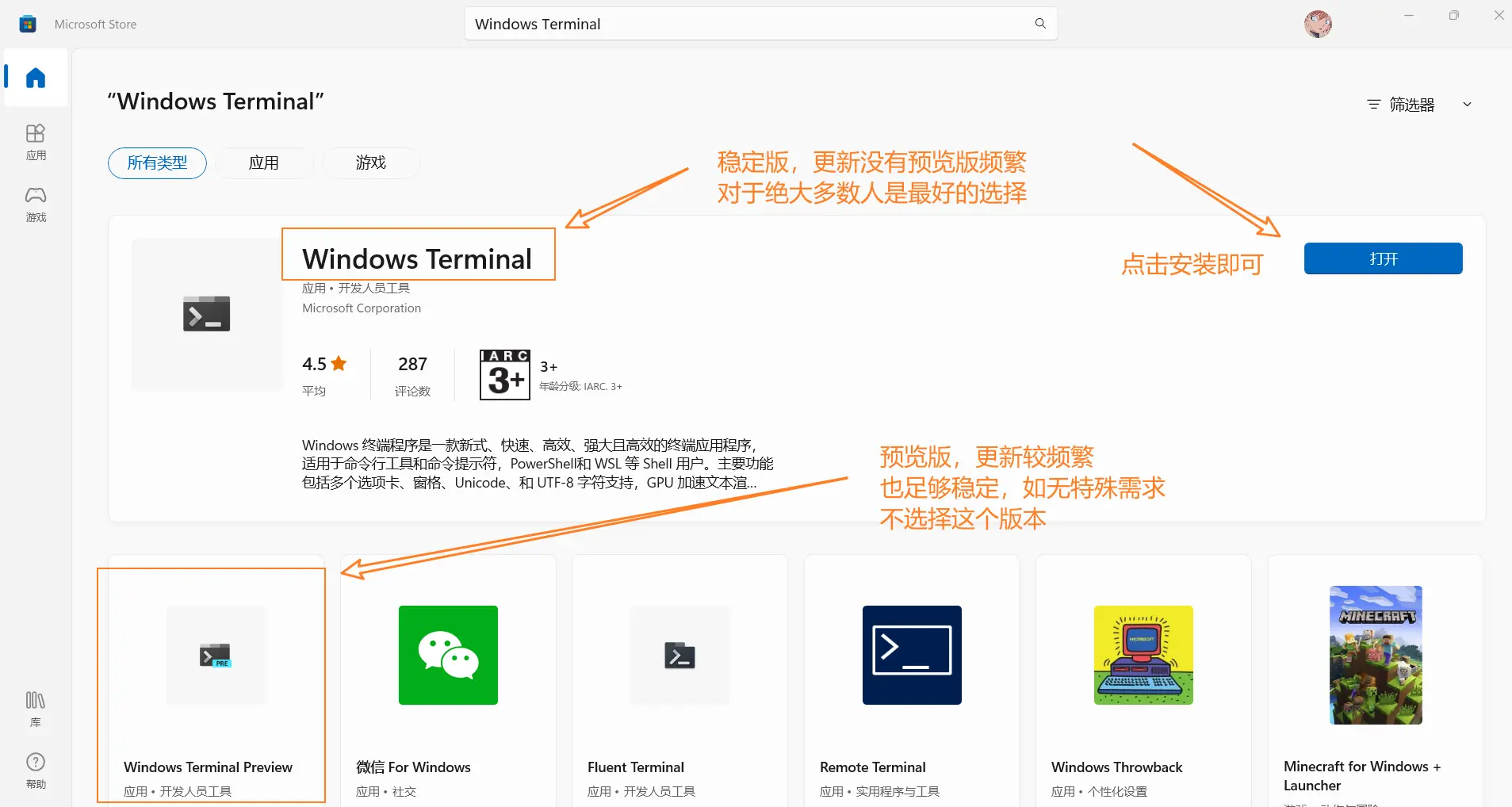
安装 Windows Terminal

PowerShell 7

PowerShell 7 直接在 Releases 页面下载最新正式版 .MSI 格式安装包,运行安装程序,在「Optional Actions」勾选以下三项,分别是
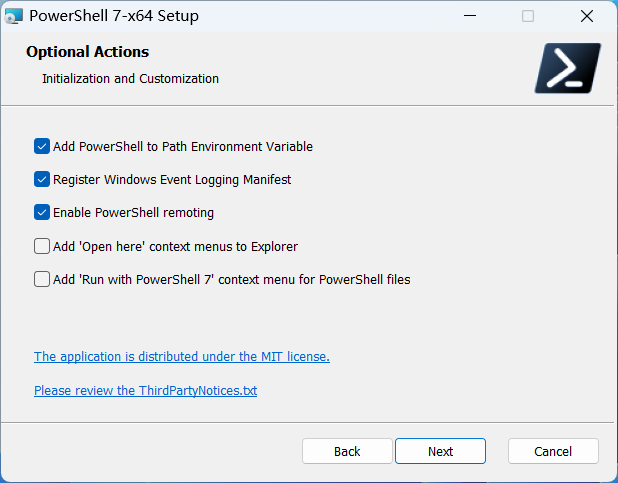
  • 将 PowerShell 7 添加到系统环境变量
  • 注册 Windows 事件日志报表
  • 启用 PowerShell 远程处理

安装 pwsh

下一步选择 PowerShell 更新选项,勾选以下两个选项后续可以通过 Microsoft Update 更新 PowerShell
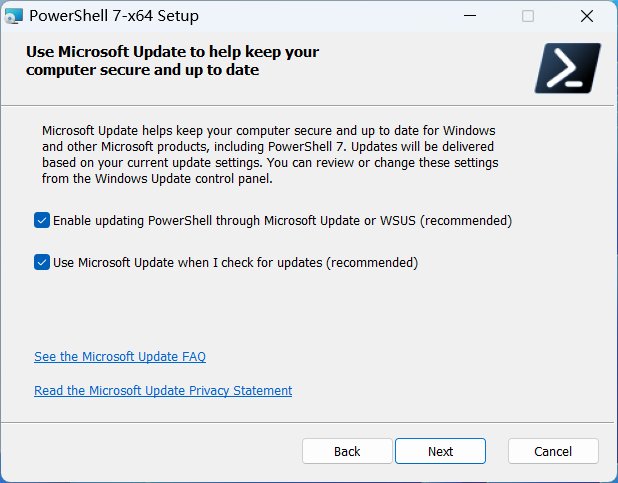
pwsh 更新选项

因为现在 PowerShell 7 更新还是挺频繁的,后续可以通过 Windows 自带的更新直接获取更新
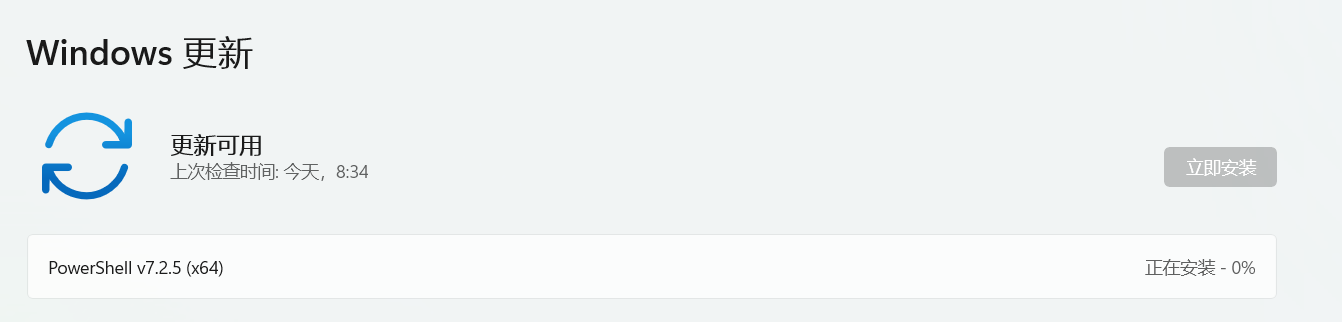
pwsh with windows update

Nerd Fonts 字体

oh-my-posh 内置主题里的一些图标或符号需要安装额外的字体才能完美显示,一些文章推荐的 PowerLine 字体并不适用于 oh-my-posh ,我们这里应该使用 Nerd Fonts 字体,Nerd Fonts 是一个使用大量字形(图标)修补开发人员目标字体的项目
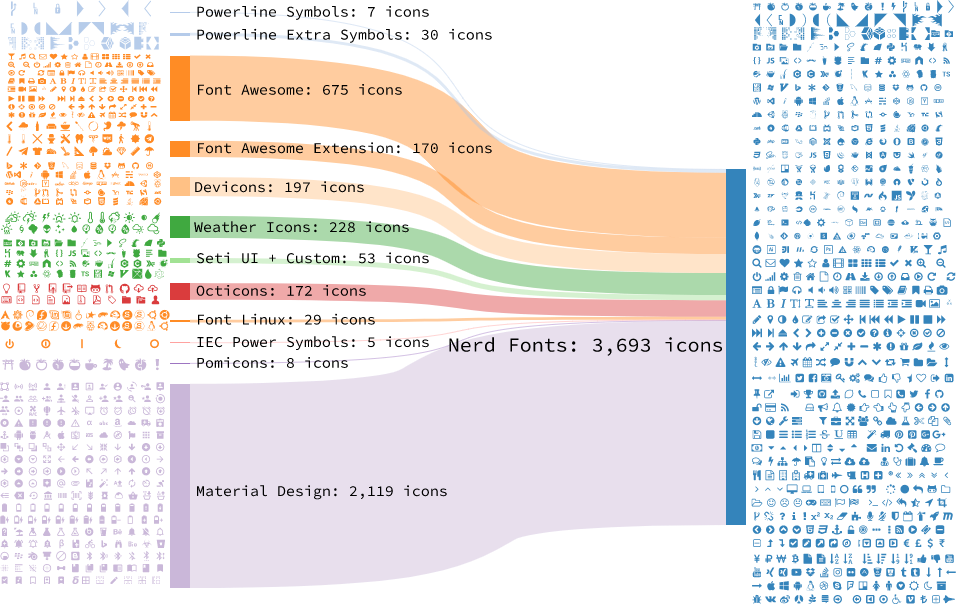
Nerd Font

可以在 Nerd Fonts 官网 上挑选喜欢的字体,或者 在线预览 部分字体,然后在 Releases 页面下载安装字体
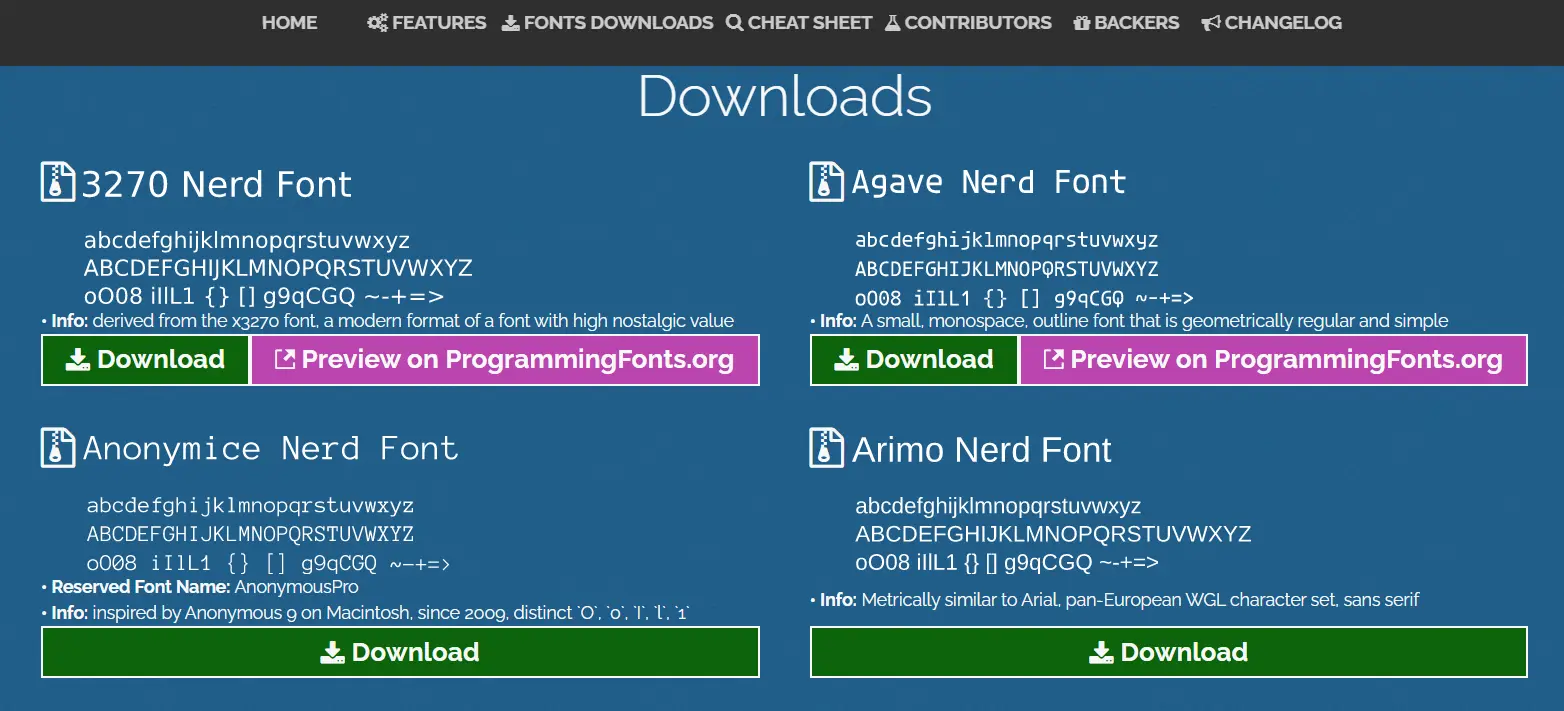
Nerd Fonts 官网

本文中演示使用的是 Nerd Fonts 修补过的 FantasqueSansMono 字体

接下来的部分,我建议使用 Scoop 安装的方式,如果你的系统上还没安装 Scoop,请参考 使用 Scoop 管理 Windows 下的软件和开发环境

PSReadLine

PSReadLine 是一个 PowerShell 模块,可以让 PowerShell 的命令行更好用,这里我们通过 Scoop 安装

# 添加 extras bucket
scoop bucket add extras

# 安装 PSReadLine
scoop install PSReadLine

posh-git

posh-git 是一个 PowerShell 模块,可以让 git 更好用

# 通过 scoop 安装 posh-git
scoop install posh-git

oh-my-posh

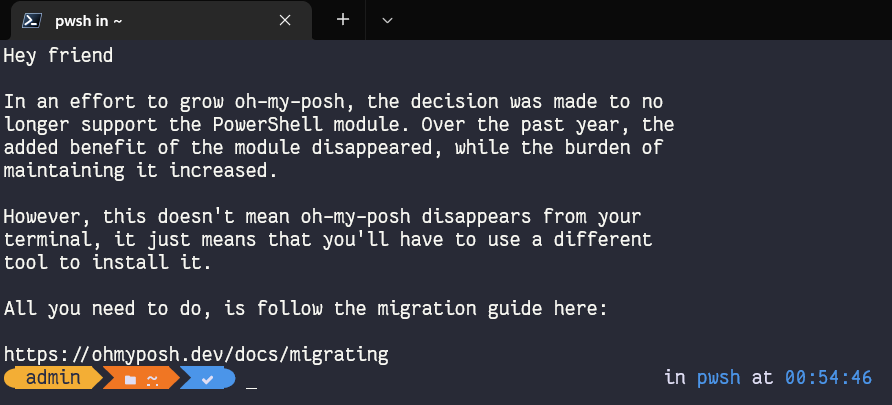
从 2022 年 5 月开始,oh-my-posh 不再是 PowerShell 模块了,现在它作为独立的二进制程序安装( 迁移指南

oh-my-posh 变更提示

对于新的二进制版 oh-my-posh 在 Windows 上的安装方式有三种

  1. 通过 Scoop 安装(本文推荐和使用的方式)
  2. 通过 Winget 安装
  3. 手动安装(不推荐)

这里我们仍然通过 Scoop 安装

scoop install oh-my-posh

winfetch [可选]

winfetch 是一个 PowerShell 命令行脚本,以令人愉悦的样式显示 Windows 计算机的软件和硬件信息,它和 *nix 下的 neofetch/screenfetch 类似

# 使用 Scoop 安装 winfetch
scoop install winfetch

配置

PowerShell 7

使用管理员身份运行 Windows Terminal(PowerShell 7)

# 设置执行策略
Set-ExecutionPolicy RemoteSigned

一般我们不用 Azure 相关服务的话,建议禁用 Azure 账户模块

$env:AZ_ENABLE=$false

使用记事本编辑 PowerShell 配置文件(如果没有该文件会自动新建)

if (!(Test-Path -Path $PROFILE )) { New-Item -Type File -Path $PROFILE -Force } notepad $PROFILE

将下面内容粘贴进去保存即可

# 导入 posh-git 模块
Import-Module posh-git

# 设置 oh-my-posh Shell 提示主题
oh-my-posh init pwsh --config "$(scoop prefix oh-my-posh)\themes\ys.omp.json" | Invoke-Expression

# 启用瞬态提示
# Enable-PoshTransientPrompt

# 设置 Ctrl + Z 为撤销
Set-PSReadLineKeyHandler -Key "Ctrl+z" -Function Undo

# 设置 Tab 键菜单补全
Set-PSReadlineKeyHandler -Key Tab -Function Complete

# 使用 ls 和 ll 查看目录
function ListDirectory {
    (Get-ChildItem).Name
    Write-Host("")
}
Set-Alias -Name ls -Value ListDirectory
Set-Alias -Name ll -Value Get-ChildItem

# 设置向上键为后向搜索历史记录
Set-PSReadLineKeyHandler -Key UpArrow -Function HistorySearchBackward

# 设置向下键为前向搜索历史纪录
Set-PSReadLineKeyHandler -Key DownArrow -Function HistorySearchForward

# 清除 scoop 缓存和软件旧版本 | 别名: scoopwipe
function scoopwipe{sudo scoop cleanup -gk * && sudo scoop cleanup * -g && scoop cache rm * && scoop cleanup * && Write-Host "Scoop 缓存清理完成啦~👌" }

# 启动 Hugo 本地预览服务器(通过局域网可访问)192.168.0.102 是本机局域网 IP | 别名: hugos
#function hugos{hugo server --bind="0.0.0.0" --baseURL http://192.168.0.102}

# GPG for Canokeys: https://blog.dejavu.moe/posts/canokey-openpgp/
# 杀死 gpg agent 进程 | 別名: killgpg
#function killgpg{gpg-connect-agent killagent /bye}

# 启动 gpg agent 进程 | 别名: startgpg
#function startgpg{gpg-connect-agent /bye}

# 查看 gpg 智能卡状态 | 别名: card
#function card{gpg-connect-agent killagent /by && gpg-connect-agent /bye && gpg --card-status}

# 快速获取 yyyy-MM-dd HH:mm:ss 格式的时间 | 别名: time
#function time{Get-Date -Format 'yyyy-MM-dd HH:mm:ss'}

如果要编辑 PowerShell 7 配置文件

# 使用系统自带记事本编辑配置文件
notepad $PROFILE

# 使用 VSCode 编辑配置文件
code $PROFILE

查看 oh-my-posh 所有内置主题样式
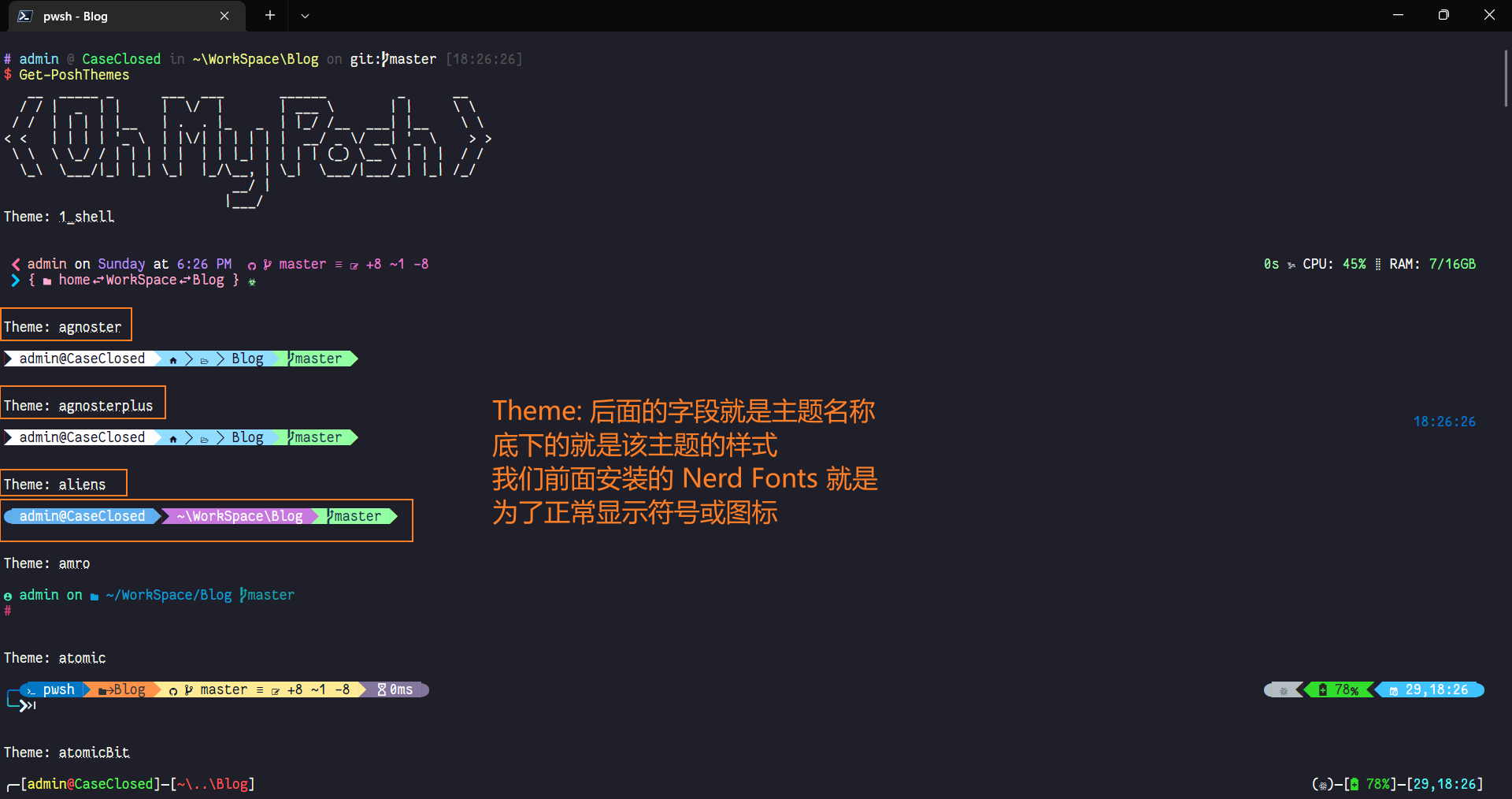
Get-PoshThemes

查看 oh-my-posh 内置主题

如果要修改 oh-my-posh 主题,将 PowerShell 7 配置文件里下面一行的 ys 修改为其他主题名称即可

# 这是 ys 主题
oh-my-posh init pwsh --config "$(scoop prefix oh-my-posh)\themes\ys.omp.json" | Invoke-Expression

# 比如修改为 aliens 主题
oh-my-posh init pwsh --config "$(scoop prefix oh-my-posh)\themes\aliens.omp.json" | Invoke-Expression

更改配置文件后使其立即生效

. $PROFILE

配置 Windows Terminal

打开 Windows Terminal 后,使用快捷键 Ctrl + , 打开设置,然后点击左下角 打开 JSON 文件
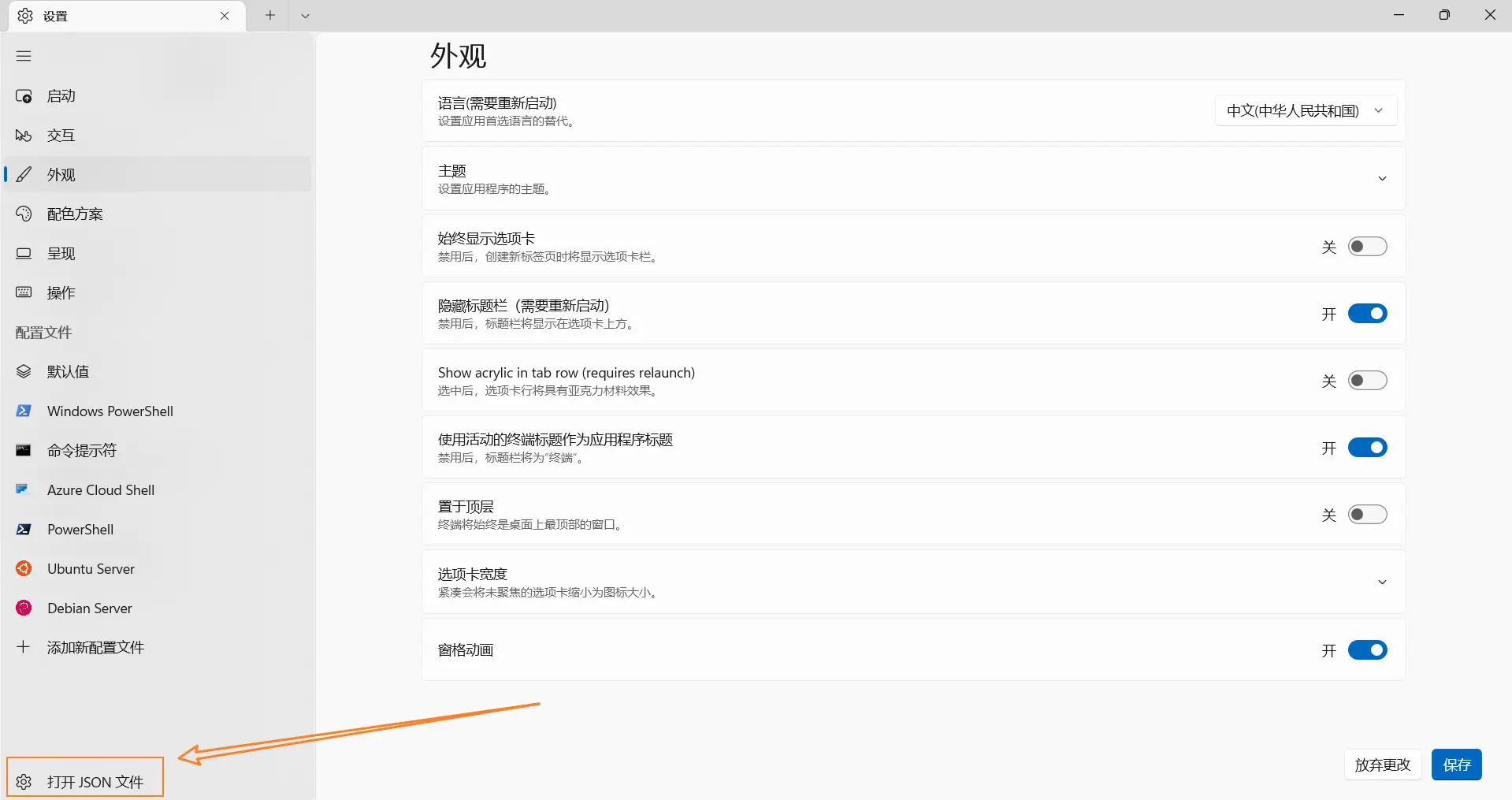
打开 Windows Terminal 配置文件

我提供了一份几乎「开箱即用」的 Windows Terminal 配置文件 ,包含 Windows Terminal 配色生成网站 上的全部终端配色主题,你可以使用它覆盖你的 Windows Terminal 配置文件,然后根据自己的需求稍微修改下,就可以直接用了

winfetch

winfetch 第一次运行名令时会自动生成一个配置文件,路径为

C:\Users\用户名\.config\winfetch\config.ps1

可以参考 winfetch 的 Configuration 文档自由修改显示的样式和信息,也可以直接使用 我的 配置文件 ,效果如下
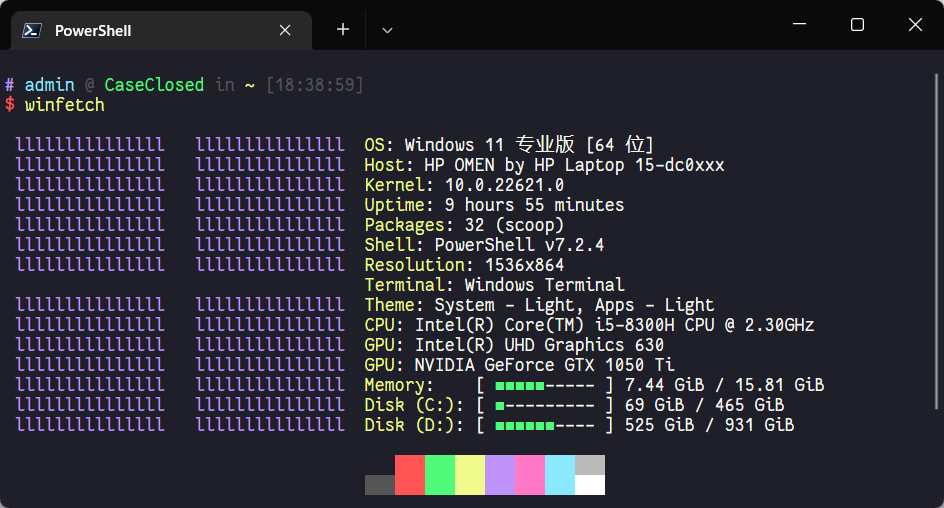
winfetch

到此为止,使用 Windows Terminal+PowerShell 7 打造 Windows 下最好用的终端模拟器就完成啦,后续你还可以自己修改 Windows Terminal 的配色、背景图片、亚克力效果等等