






Do you want to mitigate and reduce the attack surface of supply chain security incidents on npm (and other language ecosystems)? I’ll show you how to setup an isolated Node.js local development environment with VS Code DevContainers and 1Password to keep secrets out of your filesystem.
Recent npm supply-chain attacks (e.g., qix maintainer compromise, and Shai-Hulud worm) showed how quickly malicious packages can steal developer tokens and secrets and then re-publish compromised packages at scale. Coverage from multiple security orgs notes hundreds of packages affected and emphasizes secret theft (npm, GitHub tokens, and cloud keys and API tokens) as a main objective. These campaigns follow earlier incidents like s1ngularity and the Qix compromise.
This guide shows how to:
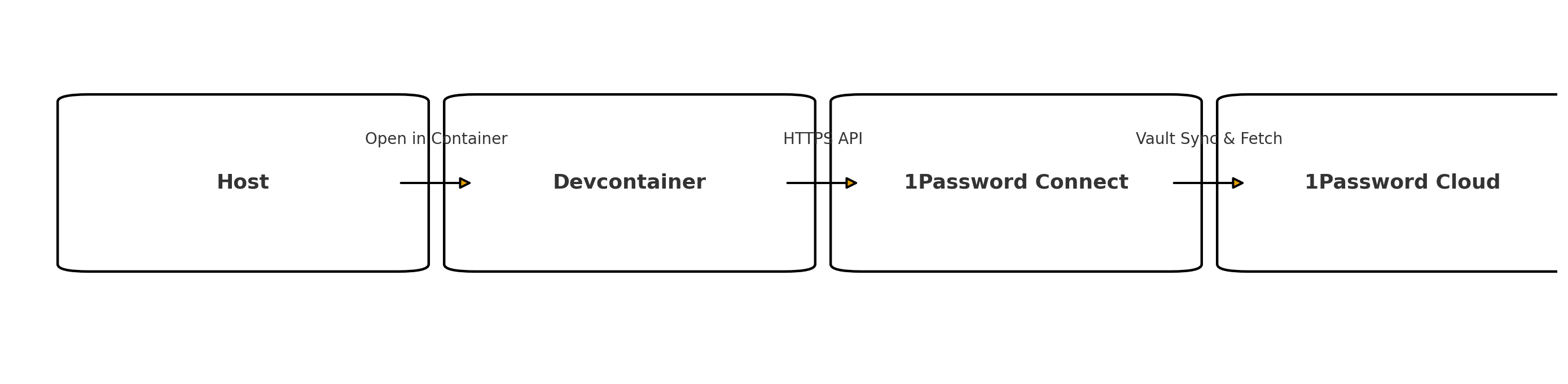
Devcontainers are a Microsoft proposal that lets you open your project inside a container with the right tools and versions preinstalled on it. VS Code on your host machine (e.g: your macOS development environment) reads your devcontainer.json and handles build, create, start, and lifecycle hooks for you. The benefits are that you get reproducibility, consistent toolchains, fast onboarding and, of course, isolation.
The devcontainer is a separate environment from your host. It has its own filesystem, network stack, and process tree. You can mount your project folder into the container and share ports back to your host, but otherwise, it’s isolated. Anything running inside the container can’t see your host’s files or processes unless you explicitly share them.
Essentially you get the following:
postinstall scripts (or dev-time tooling) can’t trivially read your host’s ~/.npmrc, SSH keys, or random .env files if those never enter the container..devcontainer/ folder to your project and start from the TypeScript & Node.js templatedevcontainer.json. You can use lifecycle hooks like initializeCommand (host, pre-create), postCreateCommand (container, first create), and postStartCommand (container, every start)The devcontainer.json file should look as follows:
// For format details, see https://aka.ms/devcontainer.json. For config options, see the
// README at: https://github.com/devcontainers/templates/tree/main/src/typescript-node
{
"name": "Node.js & TypeScript",
// Or use a Dockerfile or Docker Compose file. More info: https://containers.dev/guide/dockerfile
"image": "mcr.microsoft.com/devcontainers/typescript-node:1-22-bookworm",
"features": {
"ghcr.io/itsmechlark/features/1password:1.5.0": {}
},
"runArgs": [
"-e", "OP_CONNECT_HOST=http://host.docker.internal:8082",
"--env-file", "${localWorkspaceFolder}/.env.development"
],
// "postCreateCommand": "op --version",
// the initialize command should use the 1password cli "op read <vault-url-refercen" to populate the OP_CONNECT_HOST and OP_CONNECT_TOKEN as environment variables
"initializeCommand": "echo \"OP_CONNECT_TOKEN=\"$(op --account 123456 read 'op://LocalDev/1Password Token/password')\"\" >> ${localWorkspaceFolder}/.env.development"
// Features to add to the dev container. More info: https://containers.dev/features.
// "features": {},
// Use 'forwardPorts' to make a list of ports inside the container available locally.
// "forwardPorts": [8080]
// Use 'postCreateCommand' to run commands after the container is created.
// "postCreateCommand": "yarn install",
// Configure tool-specific properties.
// "customizations": {},
// Uncomment to connect as root instead. More info: https://aka.ms/dev-containers-non-root.
// "remoteUser": "root"
}
We’ll touch on this configuration more later.
op)I DO NOT RECOMMEND SECRETS IN DOTENV FILES and I’ve written comprehensively and extensively on this topic so I urge you: dDo not use secrets in environment variables and here’s how to do it better](https://www.nodejs-security.com/blog/do-not-use-secrets-in-environment-variables-and-here-is-how-to-do-it-better).
Hardcoding secrets in .env (or saving them long-term on disk) is risky so the 1Password CLI provides:
op://vault/item/field) so code/configs never contain plaintext.op read prints a single secretop run injects multiple secrets as env vars for a subprocessop inject renders templates with secrets into files (useful as a host-side pre-start step) ([1Password Developer][6])For containers and CI, 1Password recommends Connect (or service accounts) instead of relying on a desktop app socket. We’ll use 1Password Connect.
What is 1Password Connect? the 1Password Connect is a small API + sync pair you host. The CLI talks to Connect (with a token) to fetch secrets.
1password-credentials.json (ties the server to your tenant)op connect management commands.There is a clear and easy guide to follow from the 1Password documentation here on setting up 1Password Connect.
To host the 1Password Connect server locally we’re going to use Docker Compose.
Create docker-compose.yml (host side):
version: "3.4"
services:
op-connect-api:
image: 1password/connect-api:latest
ports:
- "8082:8080"
volumes:
- "./1password-credentials.json:/home/opuser/.op/1password-credentials.json"
- "data:/home/opuser/.op/data"
op-connect-sync:
image: 1password/connect-sync:latest
ports:
- "8081:8080"
volumes:
- "./1password-credentials.json:/home/opuser/.op/1password-credentials.json"
- "data:/home/opuser/.op/data"
volumes:
data:
Note, you’ll notice I chose port 8082 which is different from their default of 8080 in the documentation. This is to avoid conflict with the devcontainer’s default Node.js port (8080) or with anything else you have running on your macOS host locally (e.g., another local server or some macOS service).
Anyways, now bring it up:
Verify:
# Health endpoint (no auth required)
curl -sS http://localhost:8082/health
# Example API call (needs the token)
curl -sS -H "Authorization: Bearer $OP_CONNECT_TOKEN" \
http://localhost:8082/v1/vaults | jq .
Tip: Keep 1Password Connect accessible only to trusted networks; the token is a bearer token (possession means access, however note that whoever gets the token needs access to your host-running Connect server to use it). Still, rotate on suspicion of any attack.
Sadly, there’s no official devcontainer feature for 1Password yet, but you can add it easily via the official apt repo if you choose to build your own Dockerfile for devcontainer. Another option is to use a community-contributed devcontainer “feature” (you’ll find it on GitHub) and I referenced an example of it in the earlier devcontainer.json snippet above.
If you choose to use a Dockerfile then it should be as follows (Debian/Ubuntu base):
# Example base; you can also use mcr.microsoft.com/devcontainers/typescript-node
FROM debian:bookworm-slim
# Tools needed to add the official repo
RUN apt-get update && apt-get install -y curl gnupg ca-certificates apt-transport-https && \
rm -rf /var/lib/apt/lists/*
# Add 1Password official repo + key
RUN curl -sS https://downloads.1password.com/linux/keys/1password.asc \
| gpg --dearmor \
| tee /usr/share/keyrings/1password-archive-keyring.gpg >/dev/null && \
echo "deb [arch=amd64 signed-by=/usr/share/keyrings/1password-archive-keyring.gpg] https://downloads.1password.com/linux/debian/amd64 stable main" \
> /etc/apt/sources.list.d/1password.list
# Install the CLI
RUN apt-get update && apt-get install -y 1password-cli && \
rm -rf /var/lib/apt/lists/*
WORKDIR /workspace
This uses the official 1Password apt repo. After build, verify with op --version.
In this step, all we did was to make sure that we have the op CLI inside the devcontainer so that when we want to run npm run dev and access secrets there (without hardcoding them in .env files), we can access them via the 1Password vault. Next, we’ll wire it to Connect.
Now, the thing is that the op CLI doesn’t have support for the native 1Password Desktop app integration via the socket inside containers. There are a few ways to get around it, one is to create a Service Token and another one is to use Connect. We’ll use Connect here as it is a more manageable approach for teams, you can scope tokens to specific vaults, and you can rotate them easily.
If you’re a single dev in a team the you have 1Password Connect on your host (Docker Desktop on macOS/Windows), if that’s the case, use the magic DNS name host.docker.internal to reach your host from inside the container. So your Connect URL will be:
OP_CONNECT_HOST=http://host.docker.internal:8082
Remember, we exposed port 8082 on the host in the earlier Docker Compose step.
That hostname resolves to the host from within containers. Do not use http://localhost:8082 inside the container; localhost there is the container itself.
Note: Don’t forward ports for Connect in the devcontainer. Your devcontainer is a client, not serving Connect. forwardPorts is for exposing container ports out to the host and is unnecessary here. In some setups it can even interfere with outbound requests.
OP_CONNECT_TOKEN without storing plaintext on hostOk so how does the 1Password op CLI inside the container connects to Connect? It needs two environment variables:
OP_CONNECT_HOST (the URL of your Connect server)OP_CONNECT_TOKEN (a bearer token to authenticate)Well, you can set both as environment variables on the host and then just pass them into the container via devcontainer.json runArgs. However, that means you have the token in plaintext on your host which is not ideal. I don’t like it.
We’ll keep the token in 1Password and render it just before the container launches.
When the container starts, it will run an initializeCommand on the host (before the container is created) that will use the host’s op CLI (which can use the desktop app integration) to pull the token from 1Password and render it into a file. Then we’ll pass that file into the container as an env-file.
# Only the token lives here. Host is passed as localEnv (next step).
OP_CONNECT_TOKEN=""
Here is the full example of the script that does this rendering step:
devcontainer.json
{
"name": "node-secure-dev",
"build": { "dockerfile": "Dockerfile" },
// 1) On the HOST, before container create/build: pull token from 1Password
"initializeCommand": [ "bash", "-lc", ".devcontainer/fetch-secrets.sh" ],
// 2) Pass HOST value for OP_CONNECT_HOST; and pass the env-file with the token
"runArgs": [
"-e", "OP_CONNECT_HOST=${localEnv:OP_CONNECT_HOST}",
"--env-file", ".devcontainer/.env.container"
],
// 3) Quick sanity check inside the container
"postCreateCommand": "op --version"
}
How to set OP_CONNECT_HOST on the host (so ${localEnv:...} works):
# macOS shell (zsh/bash)
export OP_CONNECT_HOST="http://host.docker.internal:8082"
# Optionally add to ~/.zshrc if you launch VS Code from a terminal
If you’re concerned about the token data OP_CONNECT_TOKEN being left on disk after the container is created, then you’re right to be. Let’s improve the workflow so that we remove the file once the container is created.
Add the following postStartCommand to your devcontainer.json:
{
// ... other config ...
"postStartCommand": "rm -f .devcontainer/.env.container"
}
Or a more robust config that checks if the file exists first:
// Once the container is created, the env is already set so we can remove the .env.development file that contains the token on-disk
"postStartCommand": "if [ -n \"./.env.development\" ]; then rm -f \"./.env.development\"; fi;"
This way, the token file is cleaned up after the container starts, reducing the risk of leaving sensitive information on disk.
.env.container, .env.development, and anything rendered with op inject should be in .gitignore.chmod 600 for any rendered env file.OP_CONNECT_TOKEN like a password. Revoke/replace if exposed.So here’s what we’ve accomplished:
op run to inject secrets just-in-time, avoiding plaintext storage on disk or in repo.Good luck avoiding the next supply chain incident :-)
此内容由惯性聚合(RSS阅读器)自动聚合整理,仅供阅读参考。 原文来自 — 版权归原作者所有。