




Photo-taking engineers, understanding how photos perform online can provide valuable insights into audience preferences and engagement. In this post, I'll walk you through a Python script I created to analyze the performance of my photos on Unsplash. This script fetches photos, calculates performance scores, identifies outliers, normalizes the scores, and generates a visualization.
You can find the full code in the repository available at lucavallin/uppa.
Here's a high-level overview of what the script does:
Unsplash provides views and downloads statistics for each photo, but these numbers alone are not very meaningful. To gain deeper insights into the performance of my photos, I needed to consider additional factors:
By taking these aspects into account, the script calculates a more comprehensive performance score, allowing me to better evaluate and compare the success of my photos on Unsplash.
To get started, ensure you have Python 3.x installed along with the necessary libraries:
requests: This library is used to make HTTP requests to the Unsplash API to fetch your photos.numpy: This library is used for numerical operations, such as calculating the Interquartile Range (IQR) for identifying outliers and normalizing scores.matplotlib: This library is used to generate a bar chart for visualizing the normalized scores of your photos.You can install the required libraries using pip:
sh
pip install requests numpy matplotlibYou'll also need an Unsplash API access key, which you can get by registering as a developer on the Unsplash website.
Before running the script, set up the environment variables for your Unsplash access key and username.
Add the following lines to your .bashrc or .bash_profile:
sh
export UNSPLASH_ACCESS_KEY='your_unsplash_access_key'
export UNSPLASH_USERNAME='your_unsplash_username'
Then, source the file to apply the changes:
sh
source ~/.bashrc # or source ~/.bash_profileSet the environment variables using the command line or through the System Properties dialog:
sh
setx UNSPLASH_ACCESS_KEY "your_unsplash_access_key"
setx UNSPLASH_USERNAME "your_unsplash_username"Here's the full Python script with explanations:
First, we import the necessary libraries and read the access key and username from environment variables.
python
import os
import requests
import numpy as np
import json
import matplotlib.pyplot as plt

# Read ACCESS_KEY and USERNAME from environment variables
ACCESS_KEY = os.getenv('UNSPLASH_ACCESS_KEY')
USERNAME = os.getenv('UNSPLASH_USERNAME')

# Check if ACCESS_KEY and USERNAME are set
if not ACCESS_KEY or not USERNAME:
    print("Please set the UNSPLASH_ACCESS_KEY and UNSPLASH_USERNAME environment variables.")
    exit()

PHOTOS_FILENAME = 'photos.json'We define a function to fetch photos from the Unsplash API with pagination.
python
def get_unsplash_photos(username, access_key):
    url = f"https://api.unsplash.com/users/{username}/photos"
    all_photos = []
    page = 1
    per_page = 30

    while True:
        params = {
            'client_id': access_key,
            'page': page,
            'per_page': per_page,
            'stats': 'true'
        }
        response = requests.get(url, params=params)
        if response.status_code != 200:
            print(f"Error: {response.status_code}")
            break

        photos = response.json()
        if not photos:
            break

        all_photos.extend(photos)
        page += 1

return all_photosWe create functions to save photos to a JSON file and load them from the file if it exists.
python
def save_photos_to_file(photos, filename):
    with open(filename, 'w') as f:
        json.dump(photos, f, indent=4)

def load_photos_from_file(filename):
    with open(filename, 'r') as f:
return json.load(f)To save on API requests, which can be limited and take time, we first check if a local file (photos.json) exists. If it does, we load the photos from this file. If not, we fetch the photos from Unsplash and save them to the local file for future use.
python
if (os.path.exists(PHOTOS_FILENAME)):
    photos = load_photos_from_file(PHOTOS_FILENAME)
    print("Loaded photos from photos.json")
else:
    photos = get_unsplash_photos(USERNAME, ACCESS_KEY)
    if not photos:
        print("No photos retrieved. Please check your username and access key.")
        exit()
    save_photos_to_file(photos, PHOTOS_FILENAME)
print("Fetched photos from Unsplash API and saved to photos.json")Next, we calculate raw performance scores for each photo. This is done by considering both the number of views and the number of downloads the photo has received, and how long the photo has been online. The formula used here combines views per day and downloads per view to provide a balanced measure of performance.
We focus on photos that have been online for at least 30 days to ensure a meaningful analysis, as very recent photos might not have enough data to provide a reliable performance score.
python
W_v = 1.5
W_d = 0.5
filtered_photos = []

for photo in photos:
    days_online = (np.datetime64('now') - np.datetime64(photo['created_at'])).astype(int) / (24 * 60 * 60)
    if days_online >= 30:
        views = photo['statistics']['views']['total'] or 1  # Avoid division by zero
        downloads = photo['statistics']['downloads']['total']
        raw_score = (views / days_online) * W_v + (downloads / views) * W_d
        photo['days_online'] = days_online
        photo['raw_score'] = raw_score
filtered_photos.append(photo)To ensure that our analysis is not skewed by exceptionally high-performing photos, we identify and filter out these outliers. We use the Interquartile Range (IQR) method to find the upper bound. The IQR is a measure of statistical dispersion and is used here to detect outliers.
By removing photos with scores above this upper bound, we focus on the majority of photos, providing a more accurate representation of typical performance.
python
raw_scores = np.array([photo['raw_score'] for photo in filtered_photos])
Q1 = np.percentile(raw_scores, 25)
Q3 = np.percentile(raw_scores, 75)
IQR = Q3 - Q1
upper_bound = Q3 + 1.5 * IQR

filtered_photos = [photo for photo in filtered_photos if photo['raw_score'] <= upper_bound]After filtering outliers, we normalize the raw scores to a range of 0 to 100. Normalization allows us to compare the performance of photos on a common scale, making it easier to identify top performers.
We first recalculate the minimum and maximum raw scores from the filtered data. Then, we apply the normalization formula to each photo's raw score.
python
filtered_raw_scores = np.array([photo['raw_score'] for photo in filtered_photos])
min_raw = filtered_raw_scores.min()
max_raw = filtered_raw_scores.max()

for photo in filtered_photos:
    photo['normalized_score'] = ((photo['raw_score'] - min_raw) / (max_raw - min_raw)) * 100
photo['days_online'] = int(photo['days_online'])We sort the photos by their normalized scores and print the results. This provides an easy way to see which photos are performing the best.
python
sorted_photos = sorted(filtered_photos, key=lambda x: x['normalized_score'], reverse=True)
for photo in sorted_photos:
    print(f"Photo URL: https://unsplash.com/photos/{photo['id']}, Days Online: {photo['days_online'] }, Views: {photo['statistics']['views']['total']}, Downloads: {photo['statistics']['downloads']['total']}, Normalized Score: {photo['normalized_score']:.2f}")
The output will look something like this:
Photo URL: https://unsplash.com/photos/kEOpys1hHkc, Days Online: 38, Views: 5035, Downloads: 58, Normalized Score: 100.00
Photo URL: https://unsplash.com/photos/wimuq4MFt34, Days Online: 38, Views: 5004, Downloads: 69, Normalized Score: 99.34
Photo URL: https://unsplash.com/photos/fNb_pAywgts, Days Online: 38, Views: 3869, Downloads: 17, Normalized Score: 75.09
Photo URL: https://unsplash.com/photos/D8ZVdmF8glM, Days Online: 114, Views: 11183, Downloads: 97, Normalized Score: 71.92
Photo URL: https://unsplash.com/photos/kHeTz2vhBQM, Days Online: 37, Views: 3395, Downloads: 27, Normalized Score: 67.27
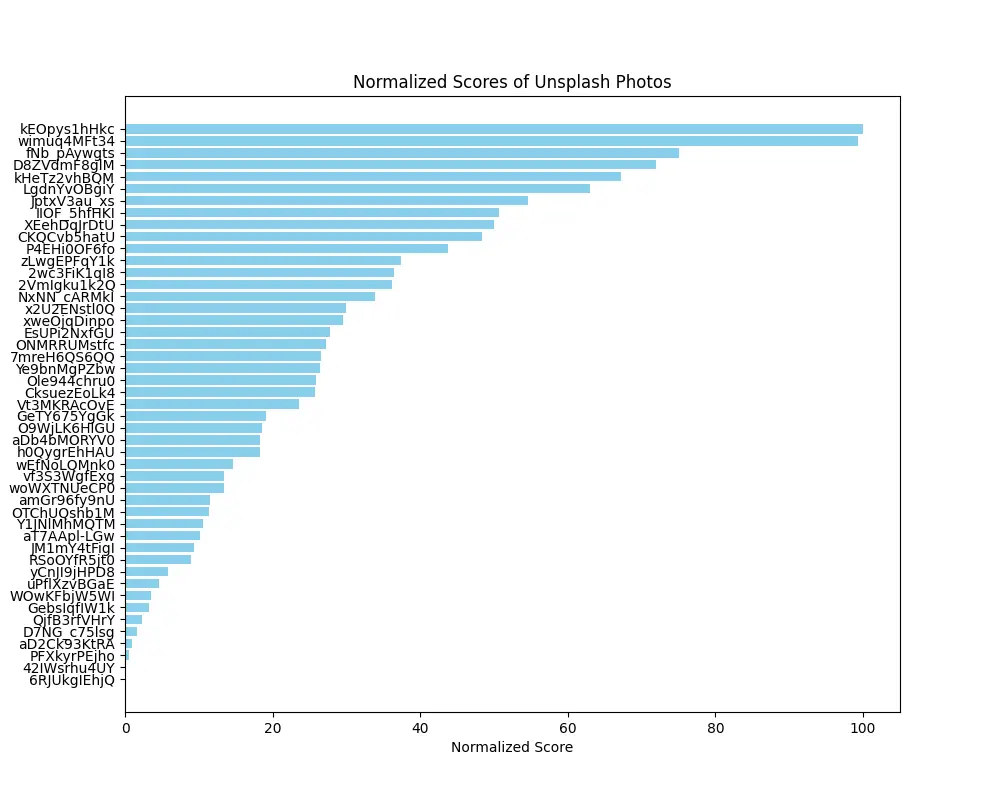
....Finally, we generate a bar chart to visualize the normalized scores of the photos. This helps to quickly identify the top-performing photos.
python
photo_ids = [photo['id'] for photo in sorted_photos]
normalized_scores = [photo['normalized_score'] for photo in sorted_photos]

plt.figure(figsize=(10, 8))
plt.barh(photo_ids, normalized_scores, color='skyblue')
plt.xlabel('Normalized Score')
plt.ylabel('Photo ID')
plt.title('Normalized Scores of Unsplash Photos')
plt.gca().invert_yaxis()  # Invert y-axis to have the highest score at the top
plt.show()
This is one of the charts generated by the script:
To run the script, ensure you have set the environment variables and then execute:
sh
python uppa.pyYou can find the full code in the repository available at lucavallin/uppa.
By analyzing the performance of your photos on Unsplash, you can get extra insights into which photos do best on the website. This script provides a fairly good way (I think?) to check photo performance, helping you make "data-driven" decisions for your photography portfolio.
此内容由惯性聚合(RSS阅读器)自动聚合整理,仅供阅读参考。 原文来自 — 版权归原作者所有。