








Tmux is a terminal multiplexer. It allows you to work with multiple terminal sessions at once.
It is easy to install, and there are many guides already out there, so I won't cover it in this blog post.
So, let us start with the basics.
tmux server (programm) > session > window > pane
The tmux server starts after running tmux. You can work on the attached sessions or detach them so they run in the background. Every server can have multiple sessions, every session can have multiple windows, and we can split a window into multiple panes. The pane is a normal terminal window at the end.
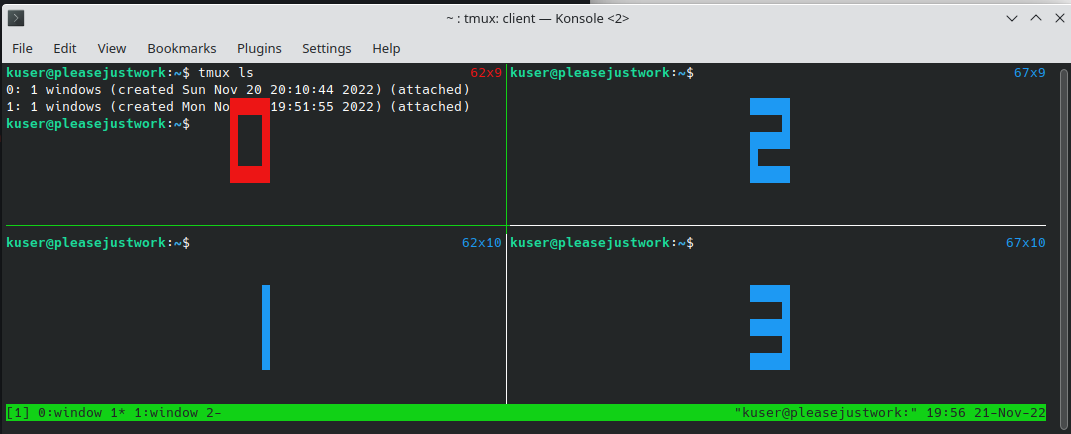
There are a lot of use cases for it. Tmux makes is easy to separate projects in different windows or sessions.
The default prefix (or sometimes called 'lead') is CTRL + b (or C-b) and it is usually the start of a tmux shortcut or to use a tmux command. When you see something like: Prefix + c, press CTRL + b, and then c. I prefer CTRL + s for example. I'll explain how to change it in the next section.
As a side note: you'll find some shortcuts with an M in them. This is the meta-key. It is ALT for Linux, I think CMD in MacOS, and sometimes even ESC. The meta-key is rarely used, but worth looking it up.
You can temporarily change your tmux config by entering the setting:
Prefix + :set -g prefix C-s
This would change the Prefix as we described it before. If you want to make changes permanently, edit the config file. On Linux, the config file is usually in the home directory of the user ~/.tmux.conf. If there is no config file, simply create it, and restart tmux - or reload it (will show in the end of this section). Just put set -g prefix C-s into the config file and tmux will use it after the restart.
There are many ways to customize tmux. Some examples: Vim-like bindings for pane movements, enabling mouse support, setting keyboard shortcuts, and so on.
The easiest way to reload the config file after changes is to use the following tmux command: Prefix + :source-file ~/.tmux.conf (change the path accordingly).
As mentioned before, you can split a window in multiple panes. You can split the window vertically or horizontally as you wish and change it as much as you want. I won't cover everything in this post, but I'll show you the basics.
Prefix + %Prefix + "Prefix + ARROW KEYPrefix + !Prefix + xThere are shortcuts for resizing, moving panes around, and so on, but those aren't that important for this primer.
Side note: I just wrote a separate post about sending input to all panes within a window. Feel free to check it out here.
I prefer to separate my projects with windows instead of sessions, but that is my personal preference.
Prefix + cPrefix + ,Prefix + &Prefix + nPrefix + pPrefix + 0-9Let me start with a shortcut that I just learned recently.
Prefix + wThis gives you a quick overview of all sessions and windows and lets you switch quickly.
tmux lsPrefix + stmux new -s new-session:new -s new-sessionPrefix + $:kill-sessionPrefix + dtmux kill-session -t old-sessiontmux attach -t old-sessionPrefix + )Prefix + (This post hopefully will help you to get started with tmux. I'll cover more topics and features of tmux in the future.
Any notes or questions? - Feel free to reach out.
此内容由惯性聚合(RSS阅读器)自动聚合整理,仅供阅读参考。 原文来自 — 版权归原作者所有。