


Android has a few good settings built right into the platform for debugging under a hidden “Developer Options” menu. You can turn them on via Settings -> About Phone -> Build Number (tap 7 times). The steps will be similar but might vary a bit across OEMs. In older versions of Android, this used to be an explicit option under the Settings tab.
I find the following options to be useful for the development
Don’t keep activities
Android can destroy any activity that is not visible in the foreground at all. The phrase destroy is a bit of a misnomer here since activity will be allowed to preserve its state (via
saveInstanceState). This option allows you to force that on all apps. It is harder to keep this option always on since many badly designed Android apps misbehave and even the good ones have a deteriorated performance due to repeated re-creation. I wish there was a way to force this only on the app under development.
Force RTL layout direction
to test your app’s look & feel in an RTL language like Hebrew or Urdu. This option is useful since it reveals evolving and varied behavior across different versions of Android 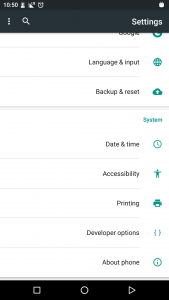
Profile GPU rendering Shows a nice cool graph of the load on the UI thread and when your app fails to render a frame in Android recommends a 16 milliseconds timeframe.

Stay awake [while charging] when you don’t want your screen to turn off while it’s charging [& connected to your laptop for the development]. I wish Google provided a “Stay awake while USB debugging” option.
Verify apps over USB Disable it unless you don’t trust the app you are working on
Pointer Location This option draws a set of perpendicular lines at the point of touch, useful to see if a set of views (like buttons, text fields, etc.) align or not.
Show Layout bounds shows the bounds of all the views, annoying to always keep on but useful for quick testing.
Debug GPU overdraw Google recommends it, but I have rarely seen any benefits of turning this on since due to animation, overdraw is almost always present.
Running services
You can check out your app and see if it is listed and is running some spurious service in the background. 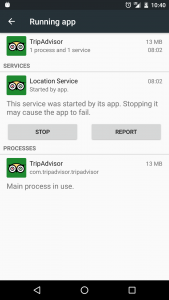
此内容由惯性聚合(RSS阅读器)自动聚合整理,仅供阅读参考。 原文来自 — 版权归原作者所有。