


February 18, 2016
Terminator is a tool to arrange multiple terminals in a single window, structured on a customizable grid. When I started using Terminator on Ubuntu, I missed two key features that I had with Guake: an hide/show shortcut, and the possibility to hide its icon from the alt-tab list of running applications.
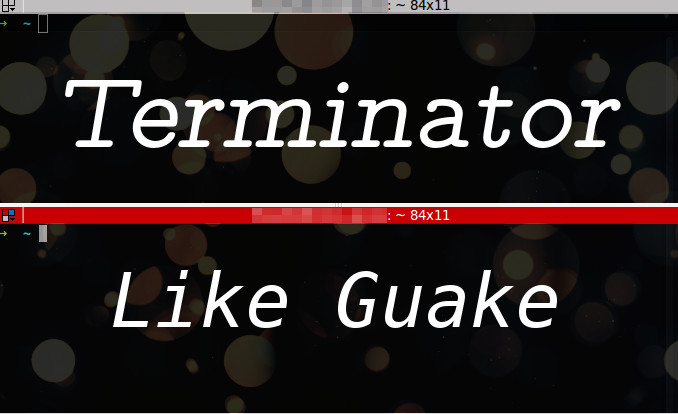
Hide/Show Terminator like Guake
This solution has been proposed on StackOverflow (see references). I will just copy the code with its attributions and some minor changes.
-
Install xdotool and wmctrl:
sudo apt-get install xdotool wmctrl - Create a file
/usr/bin/launch_focus_min.sh. -
Add the following content to the file:
#!/bin/bash # # This script does this: # launch an app if it isn't launched yet, # focus the app if it is launched but not focused, # minimize the app if it is focused. # # by desgua - 2012/04/29 # modified by olds22 - 2012/09/16 # - customized to accept a parameter # - made special exception to get it working with terminator # First let's check if the needed tools are installed: tool1=$(which xdotool) tool2=$(which wmctrl) if [ -z $tool1 ]; then echo "Xdotool is needed, do you want to install it now? [Y/n]" read a if [[ $a == "Y" || $a == "y" || $a = "" ]]; then sudo apt-get install xdotool else echo "Exiting then..." exit 1 fi fi if [ -z $tool2 ]; then echo "Wmctrl is needed, do you want to install it now? [Y/n]" read a if [[ $a == "Y" || $a == "y" || $a = "" ]]; then sudo apt-get install wmctrl else echo "Exiting then..." exit 1 fi fi # check if we're trying to use an app that needs a special process name # (because it runs multiple processes and/or under a different name) app=$1 if [[ $app == terminator ]]; then process_name=usr/bin/terminator else process_name=$app fi # Check if the app is running (in this case $process_name) #pid=$(pidof $process_name) # pidof didn't work for terminator pid=$(pgrep -f $process_name) # If it isn't launched, then launch if [ -z $pid ]; then $app else # If it is launched then check if it is focused foc=$(xdotool getactivewindow getwindowpid) if [[ $pid == $foc ]]; then # if it is focused, then minimize xdotool getactivewindow windowminimize else # if it isn't focused then get focus wmctrl -x -R $app fi fi exit 0 -
Make the script executable:
sudo chmod +x /usr/bin/launch_focus_min.sh -
Assign the script to a keyboard shortcut. You can do it on Ubuntu using the Keyboard settings:
Keyboard > Shortcuts > Customized Shortcuts
From there, you can now add the following custom command:
/usr/bin/launch_focus_min.sh terminatorNote that the launch_focus_min.sh script can be also used with applications other than terminator.
-
Download CompizConfig Settings Manager and the compiz-plugins-extra package
sudo apt-get install compizconfig-settings-manager compiz-plugins-extra - Open CompizConfig Settings Manager.
- Click on Manage Windows.
- Tick the box next to Window Rules to enable them.
- Click on Window Rules.
-
Fill in the Skip Taskbar and Skip Pager fields with the following:
(name=terminator) & class=Terminator
NOTE: Here is the meaning of the two fields we filled:
| Skip taskbar | These windows will not show up on the task bar (the list of buttons you click on to switch between open windows). |
| Skip pager | These windows will not show up on the desktop pager (the applet you click on to switch to desktops/workspaces/viewports). |
Terminator should now disappear from the Alt-Tab menu.