


So here’s the thing. I’ve paid for VPN subscriptions before. ExpressVPN, Mullvad, the usual suspects. They’re fine, but every time I look at the renewal email I think about the fact that I’m paying $10 a month to route my traffic through a company that, ultimately, I have to trust on faith. Worse, when I just need a tunnel for a single afternoon, paying for a year of a VPN feels silly.
sshuttle is the tool I reach for instead. It turns any SSH server you already have into a working VPN. Five minutes to set up, $0/month if you have an existing VPS, and you’re routing your traffic through a machine you actually control.
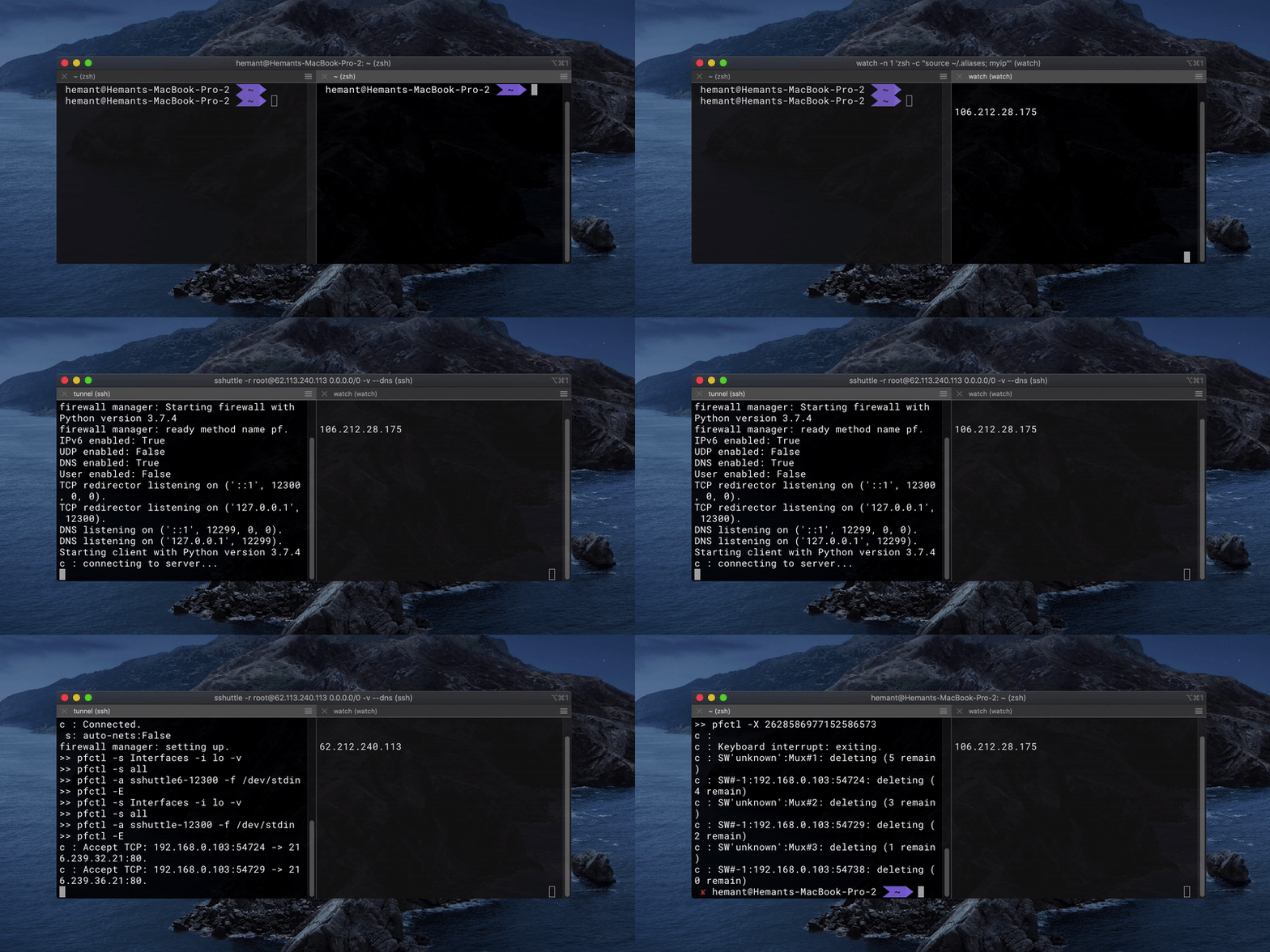
TL;DR: install
sshuttleon your laptop, runsshuttle -r user@your-vps 0.0.0.0/0 --dns, done. Your laptop’s traffic now exits at the VPS.
What sshuttle actually does (and what it doesn’t)
sshuttle is a transparent proxy that runs on your laptop, captures outbound TCP connections (and optionally DNS), and forwards them through an SSH tunnel to a remote machine where they exit to the internet. From a user perspective, it behaves like a VPN: every site you visit sees the IP address of the SSH server, not your laptop. The connection itself is encrypted because it’s riding over SSH.
What it isn’t: a layer-3 VPN. sshuttle doesn’t route arbitrary IP traffic, it specifically forwards TCP and DNS. UDP and ICMP don’t go through the tunnel by default (recent versions can forward UDP with --udp, but it’s slower than a real VPN). For 95% of normal use (HTTPS, SSH, IMAP, DNS), this is invisible. For online gaming, voice calls, or BitTorrent, you’ll want a real VPN like WireGuard.
What you get in exchange for the limitations:
- Zero server-side install. As long as Python 3 is on the remote,
sshuttleworks. No daemon to set up, no firewall holes to punch. - No root on the remote.
sshuttleonly needs root locally to install the routing rules; the remote side runs as whatever user you SSH in as. - Cross-platform clients: Linux, macOS, FreeBSD. Windows works via WSL.
- Per-subnet routing. You can tunnel only specific subnets (e.g. just your office network), leaving the rest of your traffic on the local route.
The full list of advantages and the source code is on the sshuttle GitHub repo, maintained by Avery Pennarun and a healthy crowd of contributors.
Installing sshuttle on your laptop
The package is in every major distro and on Homebrew. Pick whichever line matches your OS.
# Ubuntu / Debian
sudo apt install sshuttle

# macOS
brew install sshuttle

# Arch Linux
sudo pacman -S sshuttle

# Fedora
sudo dnf install sshuttle

# NixOS
nix-env -iA nixos.sshuttle

# Or via pip if you want the latest from PyPI
sudo pip3 install sshuttle

# From source (if you want the bleeding edge)
git clone https://github.com/sshuttle/sshuttle.git
cd sshuttle
sudo ./setup.py install
Verify the install: sshuttle --version. The remote side needs nothing pre-installed beyond Python 3 (which ships on every modern Linux server, every macOS, and every BSD). sshuttle ships its server-side code over the SSH connection on first run.
Connecting and routing all traffic
The simplest, most useful command is this:
sshuttle -r user@your-vps-ip 0.0.0.0/0 --dnsWhat each part means:
-r user@your-vps-ip: the SSH connection string. Just likessh user@host. If you have a~/.ssh/configentry for the host, you can use the short name.0.0.0.0/0: the subnet to route through the tunnel.0.0.0.0/0means “everything”, i.e. full VPN mode. You can pass multiple subnets to route only specific traffic.--dns: also tunnel DNS queries. Without this, your laptop’s DNS still goes through your local resolver (your ISP), which leaks the names of every site you visit. Almost always include this flag.
You’ll be prompted for sudo because sshuttle needs root locally to install routing rules. Once the tunnel is up, run curl ifconfig.me and you should see your VPS’s public IP, not your laptop’s.
# Before sshuttle is running
$ curl -s ifconfig.me
203.0.113.42      # ← your home IP

# After sshuttle is connected
$ curl -s ifconfig.me
198.51.100.7      # ← your VPS's IP
To stop the tunnel, hit Ctrl-C in the terminal where it’s running. sshuttle cleans up its routing rules on exit.
The flags I actually use
The man page has dozens of flags. These are the four I touch regularly.
# Verbose output (great for debugging)
sshuttle -r user@vps 0.0.0.0/0 --dns -v

# Run in the background (daemon mode)
sshuttle -D -r user@vps 0.0.0.0/0 --dns

# Tunnel only specific subnets (everything else stays on your local route)
sshuttle -r user@vps 10.0.0.0/8 192.168.50.0/24

# Exclude a subnet (useful if you want everything BUT your local LAN tunneled)
sshuttle -r user@vps 0.0.0.0/0 -x 192.168.0.0/16 --dns
The -x (exclude) flag is the one I use most. With 0.0.0.0/0 -x 192.168.0.0/16, all my internet traffic goes through the VPS but my laptop can still reach my home server, printer, and Pi at their LAN addresses. Without this, those local devices become unreachable while the VPN is active.
For daemon mode, -D runs sshuttle in the background and writes its PID to /var/run/sshuttle.pid. To stop it: sudo kill $(cat /var/run/sshuttle.pid).
Making it one keystroke: an alias
If you use the same VPN endpoint regularly, dropping the full command into your shell config is the obvious quality-of-life upgrade.
# In ~/.zshrc or ~/.bashrc
alias vpn='sudo sshuttle -r user@vps 0.0.0.0/0 -x 192.168.0.0/16 --dns -v'
Now vpn (and your sudo password) is all it takes to get tunneled. I’ve had this aliased on every laptop I’ve owned for the last four years.
A second alias I keep, for travel: a “vpn-status” check that confirms my exit IP and DNS are actually going through the tunnel.
alias vpn-status='echo "Public IP: $(curl -s ifconfig.me)"; echo "DNS resolver: $(dig +short whoami.akamai.net @resolver1.opendns.com)"'If the public IP is the VPS’s and the DNS resolver IP is also from the VPS region, the tunnel is working as expected.
Where to host the SSH endpoint
You need a server somewhere. Three sensible options.
A free-tier cloud VM. AWS, Google Cloud, and Oracle Cloud all offer always-free instances with enough monthly bandwidth (15GB-100GB) to use sshuttle casually. I’ve covered the Google Cloud free-tier setup before; the same VM you use for a blog can double as your VPN endpoint.
A cheap VPS. LowEndBox tracks deals across small VPS providers; you can find KVM instances with 1GB RAM, 2TB bandwidth, and a public IPv4 for around $25/year. That’s $2/month for a machine you fully control. Pay with crypto if you care about not being linkable to the IP.
Your own home server. The catch here is that your “VPN” is just routing your laptop’s traffic through your home internet, which doesn’t help if you’re trying to bypass geo-blocking or hide your home IP. But if your goal is access to your home network from a coffee shop, this is the perfect setup. SSH home, sshuttle your laptop’s traffic to your home LAN, done.
I love sshuttle, but it’s not a universal answer.
Use a real VPN if: you need UDP forwarding for games or VoIP; you need split-tunneling controlled by a config file rather than command-line subnets; you’re routing a whole household’s traffic, not a single laptop; or you’re operating somewhere sshuttle’s SSH-based traffic patterns might be flagged (some restrictive networks DPI-detect long-lived SSH sessions).
Use Tor if: anonymity is the actual goal. sshuttle hides your traffic from your local network, but the VPS operator (and your VPS provider) can still see what you’re doing. Tor adds layers of indirection that no VPN replaces.
Use a proxy if: you only need to tunnel a single application. Most browsers, IDEs, and dev tools accept SOCKS proxies natively. ssh -D 1080 user@vps opens a SOCKS5 proxy on localhost:1080 with no extra software. Set your browser to use it. Done.
For everything else, like the “I’m at a coffee shop and want my traffic to exit somewhere I trust” case, sshuttle is hard to beat.
Frequently asked questions
Is sshuttle as secure as a real VPN?
For confidentiality against a local network attacker, yes; SSH’s encryption is well-established and the tunnel is end-to-end. For privacy from the SSH server’s operator (you, presumably), exactly as much as your VPS provider lets it be. WireGuard or OpenVPN run in kernel space and have a smaller attack surface than sshuttle’s userspace approach, but neither difference matters for typical “I want to use public Wi-Fi safely” use cases.
Does it work on Windows?
Not natively. The userspace approach to packet capture relies on Linux/macOS-specific networking primitives. The official answer is “use WSL2 with the Linux build”. For native Windows VPN, look at WireGuard or Tailscale instead.
Can I run sshuttle on a phone?
No, and this is the gap that keeps me using a real VPN occasionally. If your goal is mobile-device coverage, run WireGuard on the same VPS and let the phone speak that protocol. Use sshuttle for the laptop, WireGuard for the phone, both pointing at the same server. That’s my actual setup.
Why doesn’t my LAN work after I connect sshuttle?
Because 0.0.0.0/0 includes your local LAN subnet, so traffic to your home printer or NAS goes out the tunnel and gets dropped. Add -x 192.168.0.0/16 (or whatever your home subnet is) to exclude it.
How much bandwidth does sshuttle add?
The SSH overhead is roughly 5-10% on top of your traffic, mostly from packet framing. The bigger limit in practice is your VPS’s network speed and bandwidth allowance. A $25/year VPS with 2TB monthly bandwidth handles weeks of full-time use without coming close to the cap. If you’re heavy on streaming video, double-check the VPS’s listed transfer cap before you commit to a year.
Will my ISP know I’m using a VPN?
They’ll see SSH traffic going to your VPS’s IP. They won’t see what’s inside the tunnel. To a casual observer (and most ISPs at typical residential service levels), the traffic looks like a long-running SSH session, which is unremarkable for anyone who works in tech. Sophisticated DPI can flag long-lived encrypted tunnels, but even then they can’t see the content. If your threat model is “ISP shouldn’t see which sites I visit”, sshuttle solves it; if it’s “ISP shouldn’t even know I’m tunneling”, you want something obfuscated like Shadowsocks or a Tor bridge.
If sshuttle got you most of the way, the headless Raspberry Pi setup shows you how to turn a $35 Pi into your own home-side endpoint, and the common Linux commands for system monitoring cover what to run on the VPS when something feels slow.
- tb
Last updated: September 2024