


Great UX isn’t only the result of big research projects or major redesigns. It’s often shaped by the small habits designers practice every day.
Tiny workflow decisions, such as how you structure frames, build components, or organize your canvas, can dramatically affect how quickly you iterate, how clearly teams collaborate, and how easily developers implement your designs.
Here are some small design habits that consistently create big UX improvements.
1. Iterating Without Deleting Artboards
One of the easiest habits to adopt in design is keeping iterations instead of deleting them.
When an idea doesn’t work, the instinct is often to delete the frame or rework over the previous idea and move on. But keeping earlier explorations can be incredibly useful.
Benefits include:
A visible design history - Keeps every iteration visible so you can track decisions and revisit what worked (or didn’t)
Faster branching for new ideas - Makes it easy to spin off new directions without starting from scratch
Stronger team communication - Keeps past ideas in view so it’s easier to show why certain directions didn’t make the cut
Easy fallback options - Lets you quickly return to a previous version if a new direction falls short
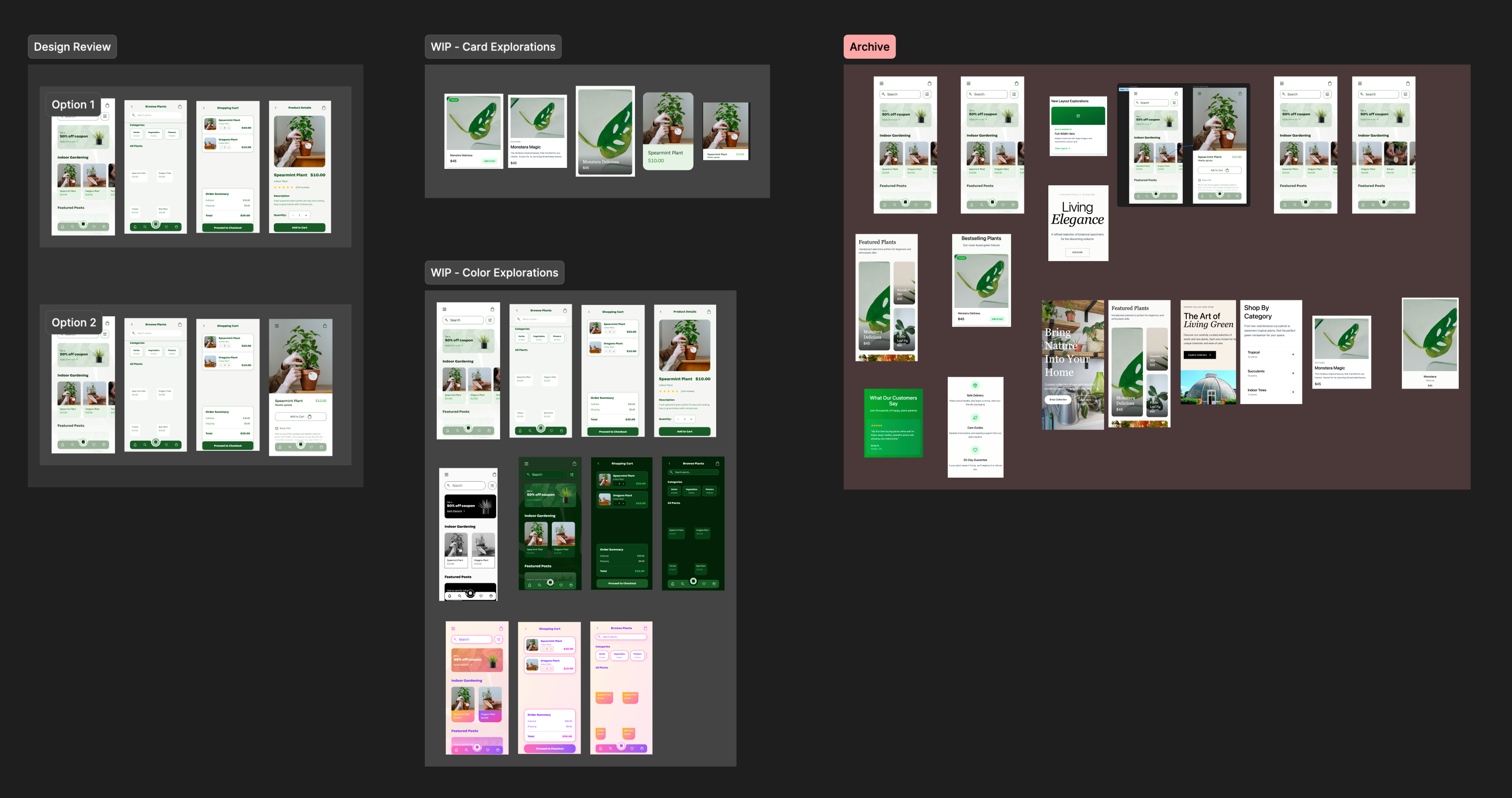
Design is messy, and duplicating artboards can make it feel even messier. One simple habit is to maintain a personal “archive” on the same page while you design. This lets you clear space without deleting work. Once a design direction becomes clearer, you can move older explorations to a dedicated archive page and label them by project. This keeps your current workspace focused while still preserving past ideas for reference or iteration later.
2. Organizing Your File Like a Workspace
Figma’s infinite canvas is powerful, but it can quickly become chaotic without some structure. A simple habit is to organize your canvas intentionally as you work. Use section labels to group related work and make it clear what stage each area is in.
This makes it much easier for teammates to scan your file and understand what’s exploratory, what’s in progress, and what’s ready. It also makes it easier to move work into the right pages later on.
For example, you might organize sections like:
Explorations
Early concepts
Current designs
Final flows
Component testing
Archive
As your file grows, your page structure becomes just as important as your canvas. Keeping pages organized helps teams navigate quickly and understand where to find things without digging.
A simple approach is to separate work by purpose or stage. For example:
Final designs
Work in progress
Components
Archive
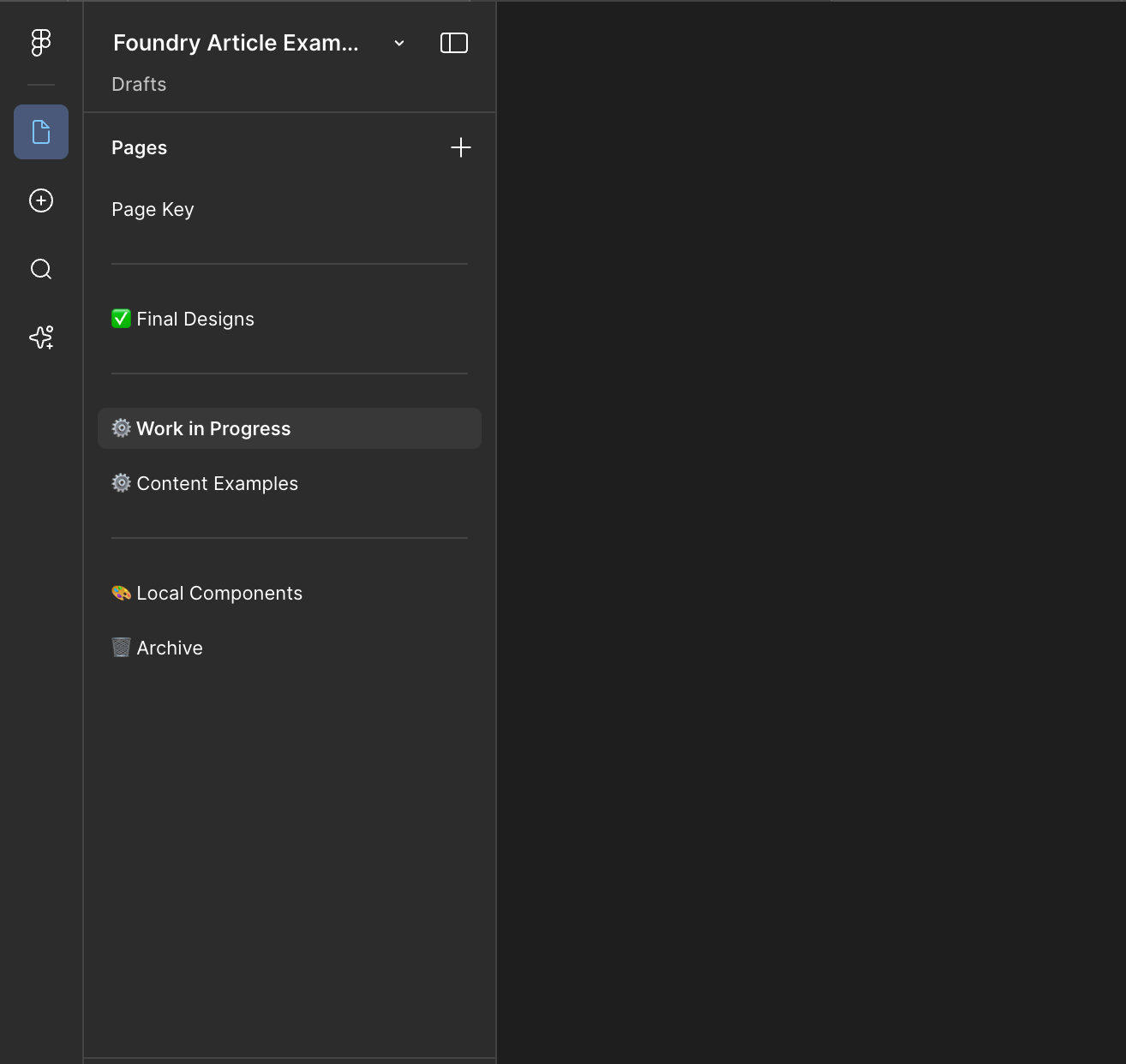
When your sections are already organized on the canvas, moving them into the right pages becomes quick and painless. By combining personal workspace habits with clear file organization, you make your Figma file both manageable for you and useful for your team.
3. Using Auto Layout from the Start
Many designers apply Auto Layout only when preparing files for handoff. But building with Auto Layout from the beginning makes it easier to update and adjust your designs without things falling apart.
Benefits:
Faster iteration when content changes - Text, images, or data updates won’t break your layout, so you can make changes quickly without constant resizing
Components behave closer to real UI and code - Designs respond more like the final product, making it easier to think through edge cases and interactions early
Less cleanup before development handoff - Your files stay structured as you go, so there’s less last-minute fixing and fewer surprises for developers
Easier responsive adjustments - Layouts naturally adapt to different screen sizes, making it simpler to design across breakpoints without rebuilding screens
I see new designers struggle to learn this habit, so I suggest starting small. For example, instead of manually positioning a button label inside a rectangle, create a button frame with Auto Layout and padding. Now changing the label automatically resizes the button.
Over time, this habit dramatically reduces maintenance work. What would have taken hours before to adjust grids across multiple pages can be done in minutes with padding adjustments in Auto Layout frames.
You can take this even further by using design tokens with Figma variables from the start. We’ll dig into that more in habit #6.
4. Creating Components Earlier Than You Think
A useful rule in Figma: If you copy something more than twice, it should probably be a component. Early component creation can help designers iterate much faster. It takes out build time and leaves more room for UX ideation.
While I am still deciding on design direction, I will create variant versions of my components. This allows me to play with look and feel on a more global scale. I can implement my component into multiple use cases and swap between design directions to find what works best across the entire system or platform.
5. Designing with Realistic Content
Placeholder text hides real UX issues.
In Figma, it’s easy to drop in more realistic content early, which reveals problems like:
text overflow
awkward wrapping
hierarchy issues
layout breaking under longer content
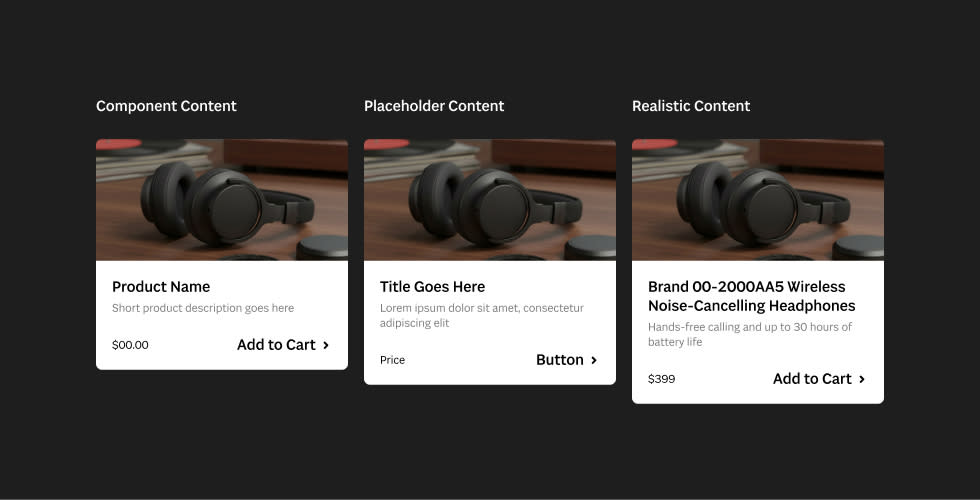
Now, you might be saying this is a little idealistic, but I’m not asking your content teams to just work faster. Even rough content like real product names or realistic sentences can make layouts much more reliable. In this example below, I show how realistic content can help us predict the heights of product cards:
This also plays into testing our components for edge cases. Designers often keep component testing areas in their files. These frames include things like extra long text, short text, multiple component states, and extreme edge cases.
Example tests:
Button with very long label
Card with missing image
Empty state
Overflow content
This helps ensure components are resilient before they spread across dozens of screens.
6. Using a Consistent Spacing System
One subtle but powerful habit is committing to a spacing system. For example, many teams follow an 8px grid system, where spacing increments are based on multiples of eight:
4 / 8 / 16 / 24 / 32 / 40 / 48
This improves:
visual rhythm
alignment
developer implementation
overall UI polish
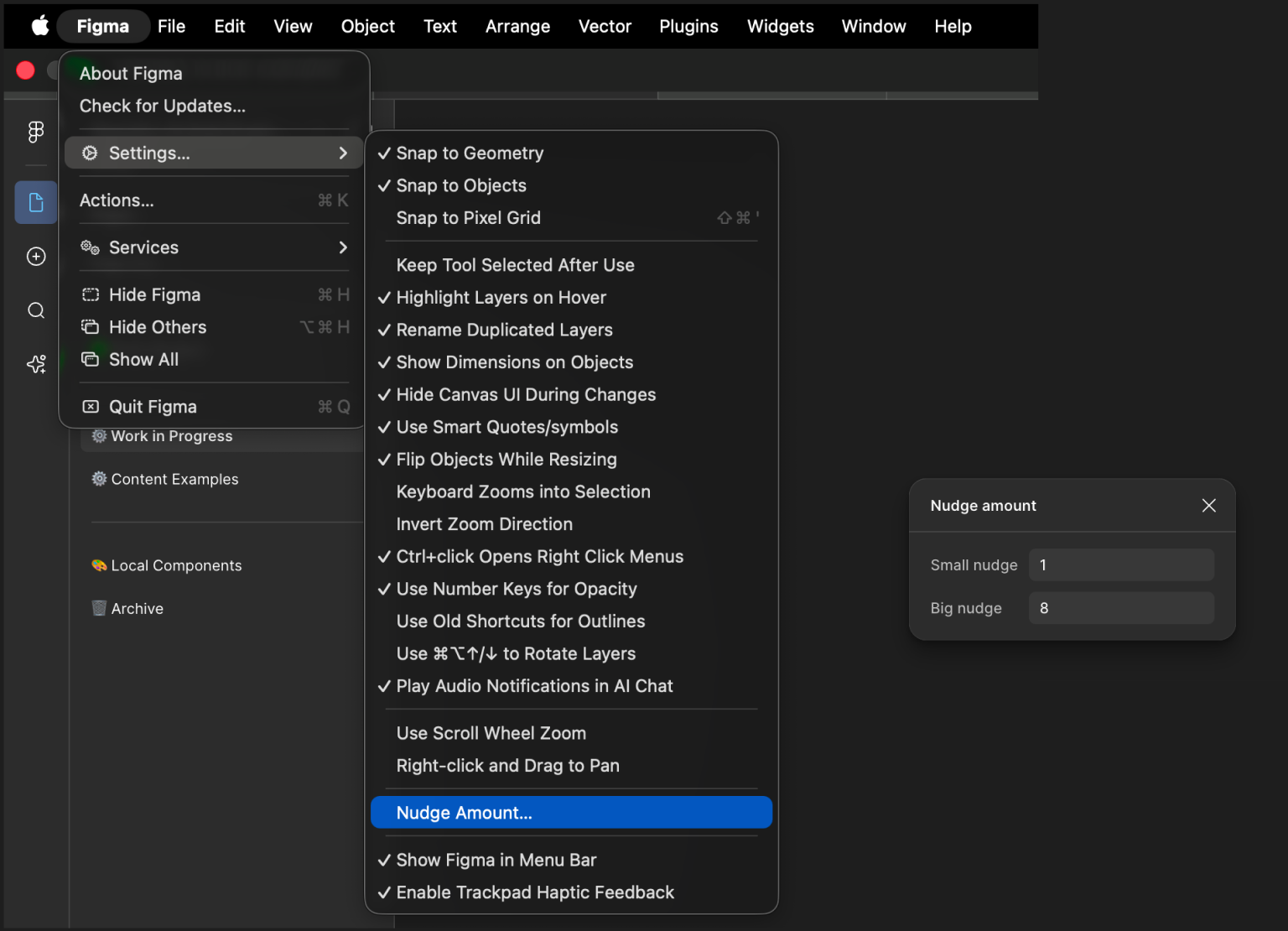
In Figma, designers can customize their nudge values to match their spacing system, and Auto Layout makes spacing systems especially easy. We can take this one step further by having a template file with a spacing system added to the variables. Duplicating this file, instead of starting from scratch, can allow us to be one step ahead. If you decide to switch to a different spacing system for that design, you can quickly adjust your variables and see the changes cascade throughout the work.
Final Thoughts
Strong UX design isn’t just about creativity, it’s also about workflow discipline. Small habits in Figma, like preserving iterations, using Auto Layout from the start, and building components early, may seem minor at first, but they keep files clean, speed up iteration, and make collaboration smoother.
For example, developers can easily find the final components, understand why design decisions were made, and implement interfaces without confusion. Keeping your files tidy also cuts down on clutter and slow load times, so anyone on the team can jump in and work without getting lost.
That level of clarity doesn’t just help the team, it directly benefits the client. Faster workflows mean quicker turnaround times, more consistent execution, and fewer costly revisions. When design and development stay aligned, projects ship with fewer errors, a more polished user experience, and a product that performs better in the hands of real users.
The best designers do not just design interfaces. They design systems and workflows that scale.