惯性聚合 高效追踪和阅读你感兴趣的博客、新闻、科技资讯
阅读原文 在惯性聚合中打开

推荐订阅源

S
Securelist
腾讯CDC
L
LangChain Blog
aimingoo的专栏
aimingoo的专栏
Cyber Security Advisories - MS-ISAC
博客园_首页
CTFtime.org: upcoming CTF events
云风的 BLOG
云风的 BLOG
P
Proofpoint News Feed
罗磊的独立博客
爱范儿
爱范儿
freeCodeCamp Programming Tutorials: Python, JavaScript, Git & More
H
Help Net Security
Vercel News
Vercel News
MyScale Blog
MyScale Blog
博客园 - 叶小钗
The Register - Security
钛媒体:引领未来商业与生活新知
钛媒体:引领未来商业与生活新知
量子位
Y
Y Combinator Blog
C
Cyber Attacks, Cyber Crime and Cyber Security
NISL@THU
NISL@THU
GbyAI
GbyAI
SecWiki News
SecWiki News
M
MIT News - Artificial intelligence
Engineering at Meta
Engineering at Meta
P
Privacy International News Feed
月光博客
月光博客
奇客Solidot–传递最新科技情报
奇客Solidot–传递最新科技情报
C
Check Point Blog
博客园 - 聂微东
Project Zero
Project Zero
让小产品的独立变现更简单 - ezindie.com
Latest news
Latest news
V
Vulnerabilities – Threatpost
T
The Blog of Author Tim Ferriss
cs.CL updates on arXiv.org
D
Darknet – Hacking Tools, Hacker News & Cyber Security
T
Tor Project blog
F
Fortinet All Blogs
Recorded Future
Recorded Future
IT之家
IT之家
D
Docker
The GitHub Blog
The GitHub Blog
V
Visual Studio Blog
MongoDB | Blog
MongoDB | Blog
T
Threat Research - Cisco Blogs
Hugging Face - Blog
Hugging Face - Blog
C
CXSECURITY Database RSS Feed - CXSecurity.com
V
V2EX

TrueNAS – Open Enterprise Storage

What We Heard at NAB 2026 | TrueNAS - Open Enterprise Storage TrueNAS V160 Launched: High Performance, No All-Flash Tax TrueNAS 26 Is Here: What's New in This Major Release TrueNAS Connect: Enterprise Features on Your Own Hardware TrueNAS Immutability: Multi-Layered Data Protection & Ransomware Defense TrueNAS CEO Note to Community: We Are All TrueNAS TrueNAS 25.10.2 Goldeye: 100+ Fixes & What's New TrueNAS Names Brett Davis CEO for Enterprise Growth TrueNAS Plans for 2026: TrueNAS 26 & OpenZFS 2.4 Roadmap TrueNAS Connect Plus Now Available for All Community Users TrueNAS R60: High-Speed NVMe Storage for AI Workloads Introducing TrueNAS WebShare: Secure Web-Based File Sharing TrueNAS 25.10.1: Goldeye Matures, Performs, and Connects TrueNAS & Veeam v13: Turnkey Cyber‑Resilient Backups Customer Advantages of the TrueNAS Open Core Model TrueNAS Named Data Storage Company of the Year 2025 TrueNAS 25.10: Smarter, Streamlined Updates & Tools TrueNAS F-Series Shines at IBC with Two “Best of Show” Awards TrueNAS 25.10 “Goldeye”: NVMe‑oF, Unified, Simplified Storage Introducing TrueNAS Connect: Secure Monitoring & Alerts The ESG Advantage of Open Enterprise Architecture: Why TrueNAS Is the Sustainable Choice | TrueNAS - Open TrueNAS 25.10-RC1: New Features, Fixes & OpenZFS 2.3.4 Seamless Setup: Exploring TrueNAS Web-Driven Installation | TrueNAS - Open Enterprise Storage TrueNAS 25.10 “Goldeye” BETA is Available TrueNAS 25.10 “Goldeye” Highlights TrueNAS 25.04.2: Fangtooth restores Virtualization iXsystems Rebrands as TrueNAS to Reflect Market Momentum in Enterprise Storage | TrueNAS - Open Enterprise June 1 - Apps Migration Deadline for TrueNAS 24.04 and 23.10 TrueNAS 25.04.1: Fangtooth Unification Gains Momentum TrueNAS 24.10.2.2 Prepares for IP Addressing of Apps TrueNAS H30 and F100 add Fast Dedup with TrueNAS 25.04 Meet TrueNAS Community Edition – The Future of Open Storage TrueNAS Apps Made Easy with Electric Eel & Fangtooth TrueNAS H30 Secures Two ‘Best of Show’ Honors at NAB 2025 | TrueNAS - Open Enterprise Storage TrueNAS H30 Wins Best of Show Awards at NAB 2025 TrueNAS 25.04: Fangtooth is RELEASED Slash Your Virtualization Costs with TrueNAS Storage TrueCommand 3.1 Enhances Management and Monitoring TrueNAS 25.04: Fangtooth Unification Begins with New Features Fangtooth Unification Begins | TrueNAS iXsystems Experiences Record Growth in TrueNAS Enterprise Storage, Spins Off Server Business to Amaara TrueNAS Delivers Record Growth in 2024, Plans Strategic Expansions in 2025 | TrueNAS - Open Enterprise Storage The TrueNAS H30 is the Swiss Army Knife of Storage TrueNAS 24.10.2: Electric Eel Shines Brightly The new TrueNAS H30 brings NVMe Performance to the Edge | TrueNAS - Open Enterprise Storage Ransomware Protection & Immutable Backup with TrueNAS TrueNAS Fangtooth includes OpenZFS 2.3.0 Fangtooth Unifies the TrueNAS Community TrueNAS Electric Eel Performance Sizzles | TrueNAS - Open Enterprise Storage TrueNAS 24.10.1: RAIDZ, Docker & NVMe Storage Upgrades TrueNAS Wins TrustRadius 2025 Buyer's Choice Award for Exceptional Value and Customer Experience | TrueNAS 24.10 “Electric Eel” Powers Up Your Storage TrueNAS Electric Eel: First to Integrate OpenZFS 2.3 Features Electric Eel RC1 Feature Complete | TrueNAS Enhanced Data Migration in Electric Eel | TrueNAS Immutable Backup & Enterprise Storage Security Features | TrueNAS 2024 TrueNAS Electric Eel Emerges TrueNAS Launches “Powered by TrueNAS” with First Partner HexOS The Benefits of Expanding from One to Multiple TrueNAS Systems TrueNAS SCALE Dragonfish Reaches its Second Major Milestone TrueNAS Dragonfish Performance Breathes Fire TrueNAS CORE 13.3 BETA is now Available iXsystems Brings Flagship Data Platform to Market with Production Release of TrueNAS SCALE 24.04 | TrueNAS - Open Enterprise Storage TrueNAS Enterprise H-Series Adds Versatility to Storage TrueNAS SCALE Dragonfish Major Release TrueNAS Delivers Dramatic Quality Improvements The Future of the TrueNAS Community TrueNAS CORE 13.3 Plans TrueNAS SCALE Dragonfish SMB Services and Performance TrueNAS Named a Customers Choice in the North American Region TrueNAS SCALE 23.10.2 Delivers Enterprise Quality Gartner Peer Insights Primary Storage Customers’ Choice New Survey Ranks Top Hypervisor Options as Users Seek VMware Alternatives Beyond VMware: Exploring Virtualization Alternatives Donation of Fast Dedup to OpenZFS and TrueNAS Fast Dedup is a Valentines Gift to the OpenZFS and TrueNAS Communities | TrueNAS - Open Enterprise Storage TrueNAS SCALE Dragonfish Reaches BETA Why Traditional Storage is So Expensive How TrueNAS Delivers Unbeatable Value | TrueNAS - Open Enterprise Storage TrueNAS Year in Review: Top Stories of 2023 TrueCommand 3.0 Manages ZFS Replication | TrueNAS - Open Enterprise Storage TrueNAS SCALE 23.10 has the Fastest Growth Ever TrueNAS 13.0-U6.1 is the Final Update Release Black Friday Special Offer for US Only! 5% Off on TrueNAS Mini R! The New Performance Flagship: TrueNAS F-Series iXsystems Introduces TrueNAS Enterprise F-Series All-NVMe Appliances and TrueNAS SCALE 23.10 TrueNAS SCALE 23.10 is RELEASED with SMB Features iXsystems Invests in Leadership as TrueNAS GrowsiXsystems Invests in Leadership as Enterprise Adoption of OpenZFS Summit highlights Fast Dedup and RAIDZ Expansion TrueNAS SCALE Cobia Has a New WebUI TrueNAS SCALE 23.10-RC.1 introduces dRAID Coffee and Open Source with Kris Moore and Isaac Levin Improves Data Mobility and Furthers Data Freedom TrueNAS SCALE Cobia Has Reached BETA Enterprise Data Protection Solutions & NVMe Secure Storage TrueNAS SCALE “Bluefin” adds SMB Multichannel and Quality iXsystems Named Gartner Peer Insights™ Customers’ Choice Newsletter: Huge iX-Storj giveaway TrueNAS Core-13.0-u5-release and more | TrueNAS - Open Enterprise Storage iXsystems Named a North America Customers Choice in Gartner Peer Insights™ Affordable Cloud Storage with iX-Storj Starter | TrueNAS
How to Set Up and Install TrueNAS CORE
iX Team · 2024-04-05 · via TrueNAS – Open Enterprise Storage

*Updated March 2024

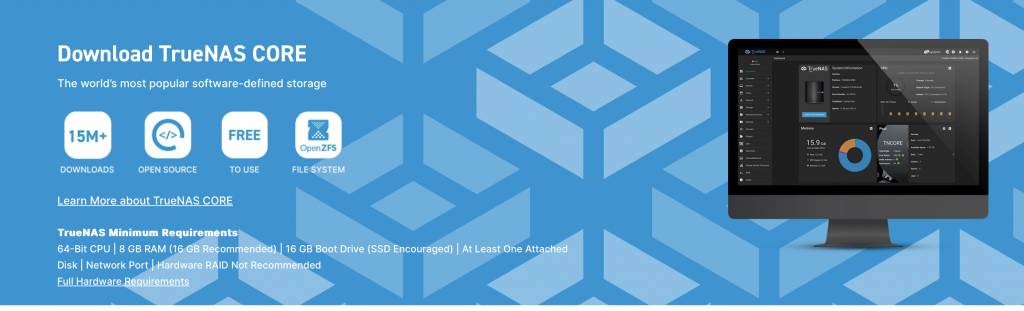
We’re going to walk you through the basic requirements to run the TrueNAS CORE storage operating system, creating the installation media, and installing it onto your system.

Minimum Requirements

Here are the basics of what you’ll need to run TrueNAS:
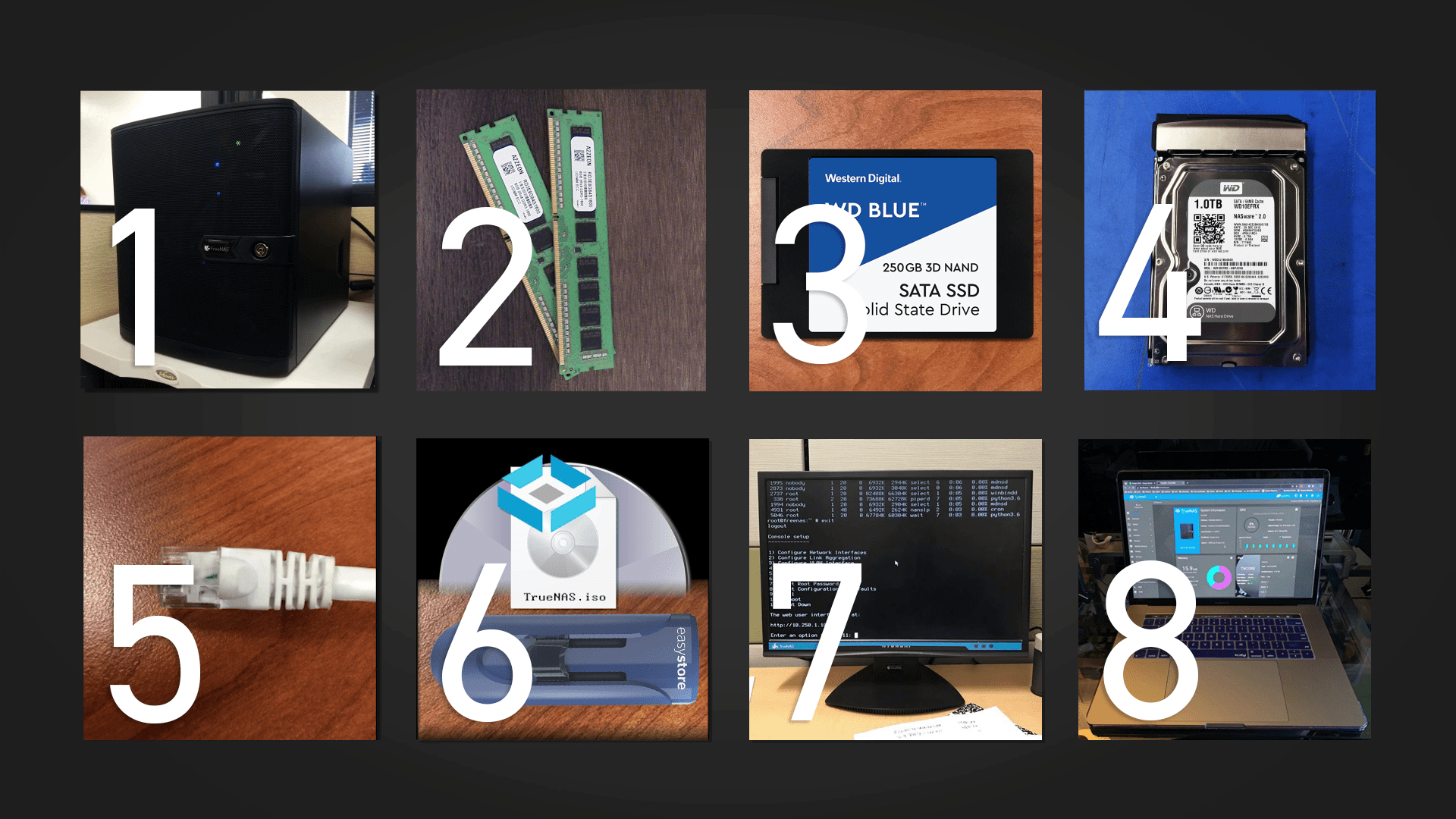
  1. 64-bit system: Used solely for TrueNAS CORE. TrueNAS is NOT dual-boot friendly, so make sure you’re only using the system for TrueNAS.
  2. Minimum 8 GB of RAM: Use more if you’re installing virtual machines or plugins.
  3. Boot device (SSD or HDD): Also known as the boot drive. At least 16 GB of storage capacity is required to serve as the boot device for TrueNAS. An SSD is an ideal choice for longevity; keep in mind that the entire disk will be used for the TrueNAS operating system. USB sticks are no longer recommended, due to the high amount of write tasks on TrueNAS.
  4. Storage drives (SSDs or HDDs): At least one hard drive for storage of files, but multiple drives of the same capacity can be easily bundled together to provide redundancy if a drive fails. Western Digital drives are a great choice for data storage, but as with any vendor, make sure to avoid drives using SMR (Shingled Magnetic Recording) technology in ZFS applications.
  5. Ethernet cord: To connect your system to the network, through a router or modem. There is no wireless support in TrueNAS.
  6. Blank DVD or USB stick: Required to create the TrueNAS installation media. The TrueNAS ISO image exceeds 700 MB so CDs will not work. Your USB stick should be at least 1 GB. Please note that the installation media is not the same as the boot device.
    To access the latest TrueNAS image: https://www.truenas.com/download-truenas-core/
  7. Monitor & keyboard: After the setup is complete and you’ve written down your TrueNAS system’s IP address, the monitor can be disconnected.
  8. Computer or laptop & internet browser: To access the GUI and administer your TrueNAS system.

Creating the Installation Media and Operating System Device for TrueNAS

It’s important to understand that TrueNAS needs two devices during the installation process, the install media and the operating system device (boot device). The install media is used to install TrueNAS to the operating system device on a computer.
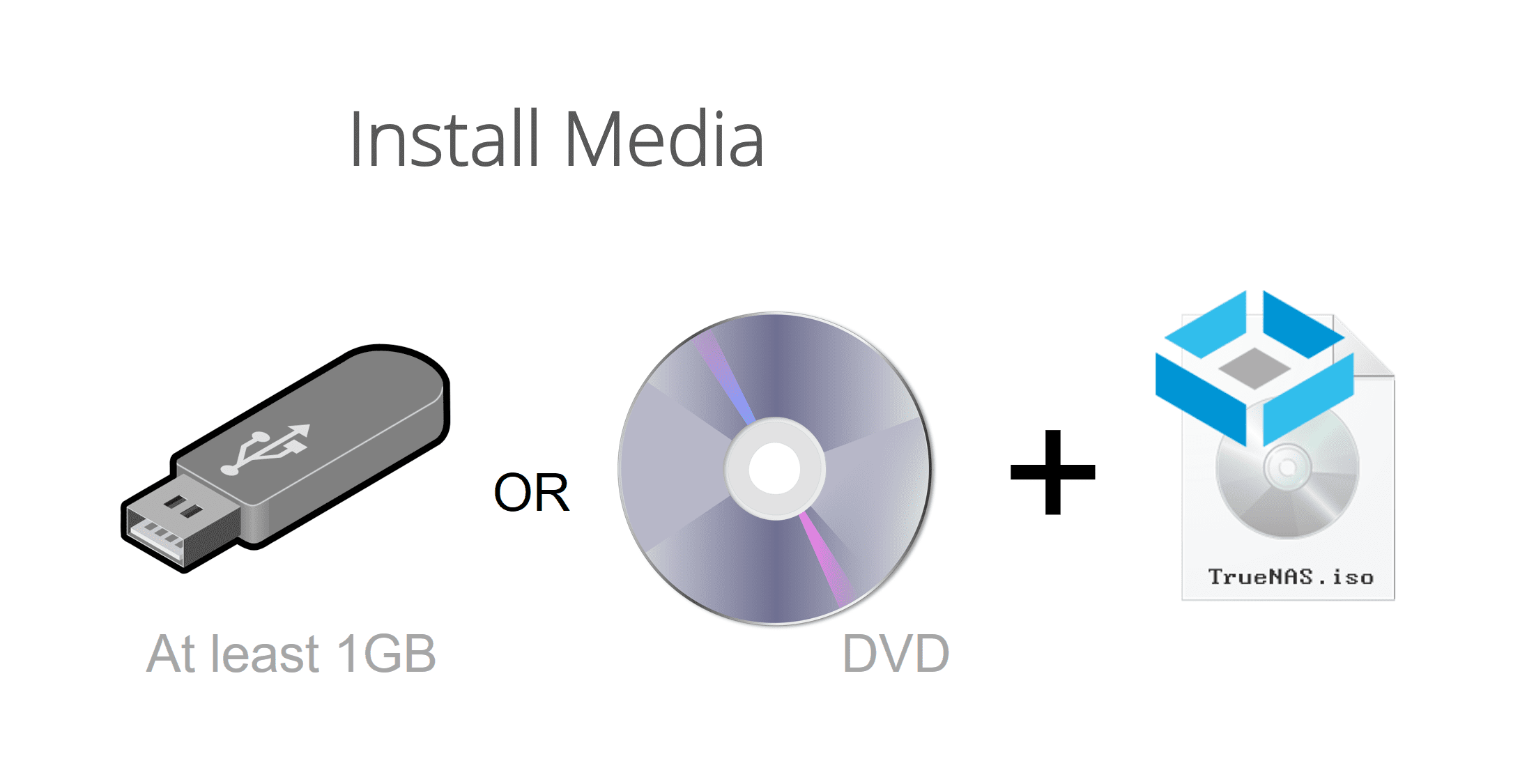

A USB stick or DVD can be used as the install media. In this tutorial, we will be using an 8 GB USB stick as our install media. The minimum size required is 1 GB.
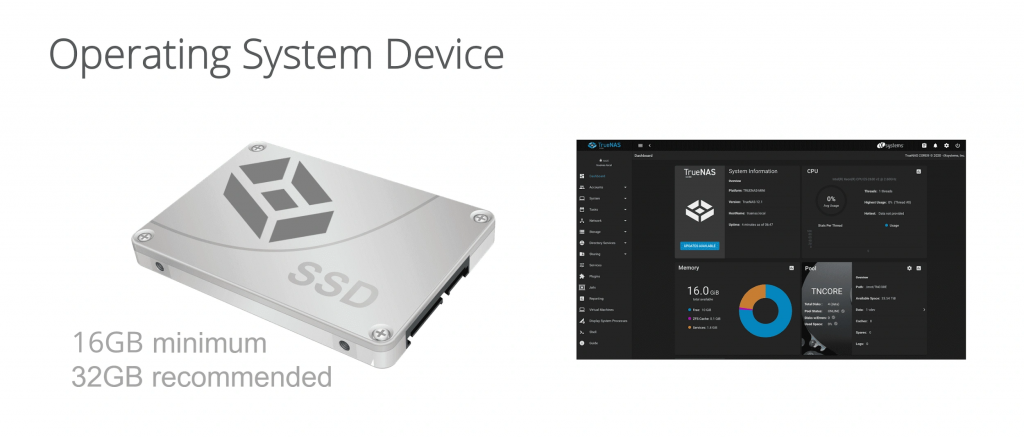
The TrueNAS CORE operating system device can be an SSD or hard drive. The operating system device must have at least 16 GB of space, but we recommend 32 GB or more for operating system device storage capacity to provide room for logging, operating system environments, and future upgrades. An SSD is recommended to improve overall responsiveness as well as the speed of installing further upgrades.

Note that the entire operating system device will be used for the TrueNAS operating system. The drive cannot be used for sharing data through TrueNAS.

TrueNAS reads and writes to the operating system device, so reliability counts. Using a small SSD or hard drive will provide the best longevity. Due to the high write tasks in TrueNAS CORE, USB sticks are not very reliable over the long term. With TrueNAS CORE scheduled to receive continued updates for stability and security, choosing a quality, reliable boot device is the first step towards a well-built TrueNAS system.
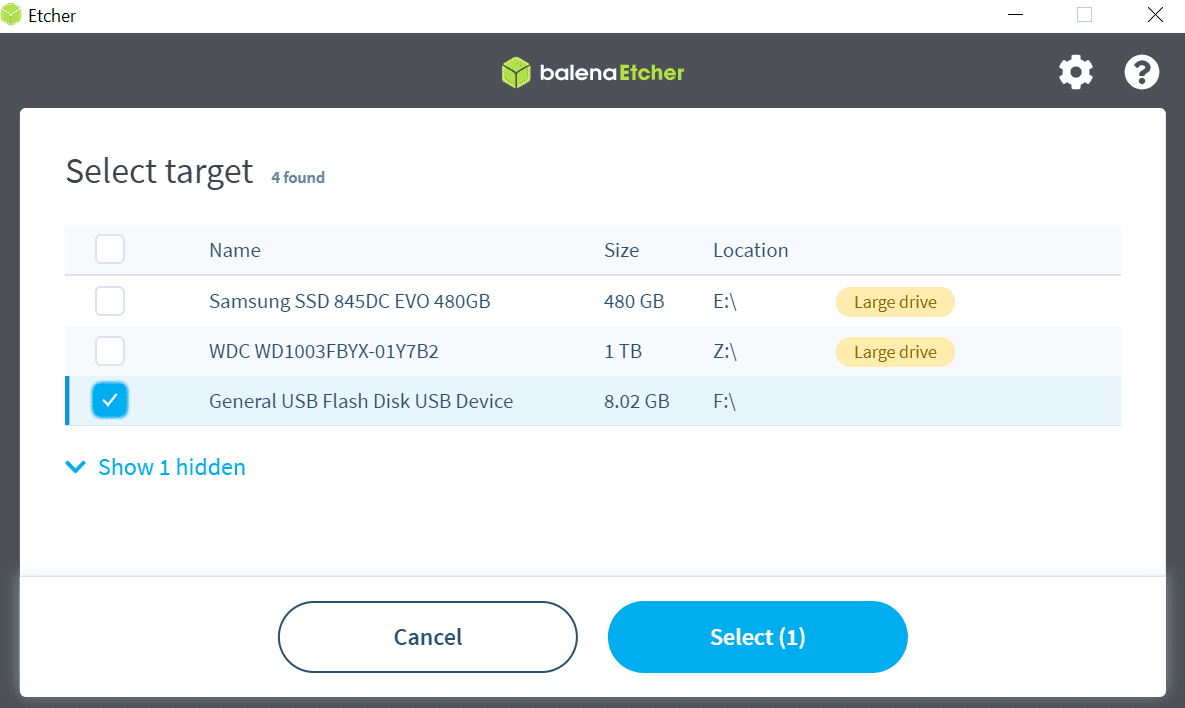
For this example, we will be using a tool called balenaEtcher also known as Etcher. Scroll down the web page and click on the Download button for Etcher. Download, install, and run Etcher.

Now insert your USB stick into your machine. Verify the drive letter by going to “This PC”.
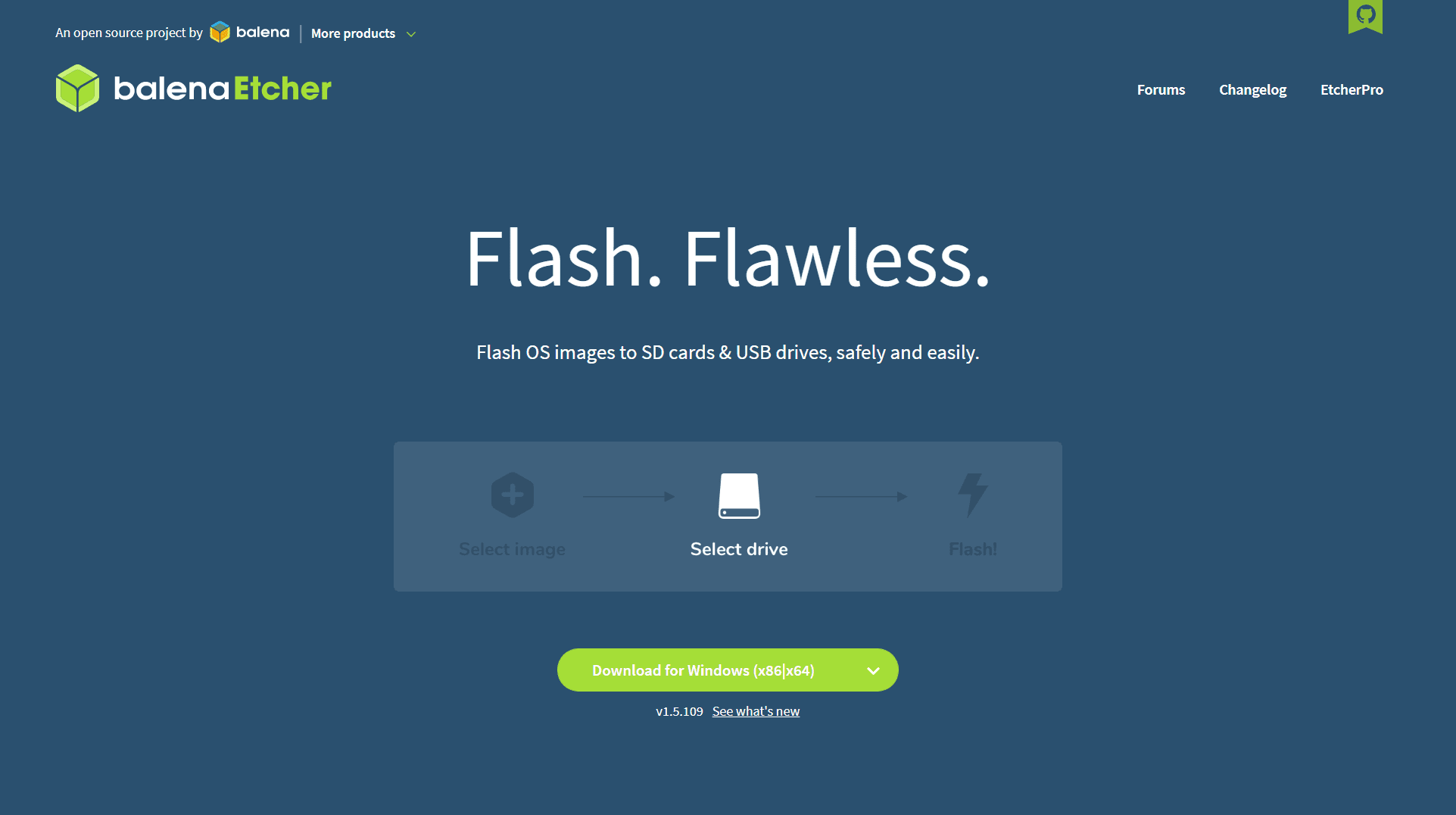
For this example, we will be using a tool called balenaEtcher also known as Etcher. Scroll down the web page and click on the Download button for Etcher. Download, install, and run Etcher.

Now insert your USB stick into your machine. Verify the drive letter by going to “This PC”.
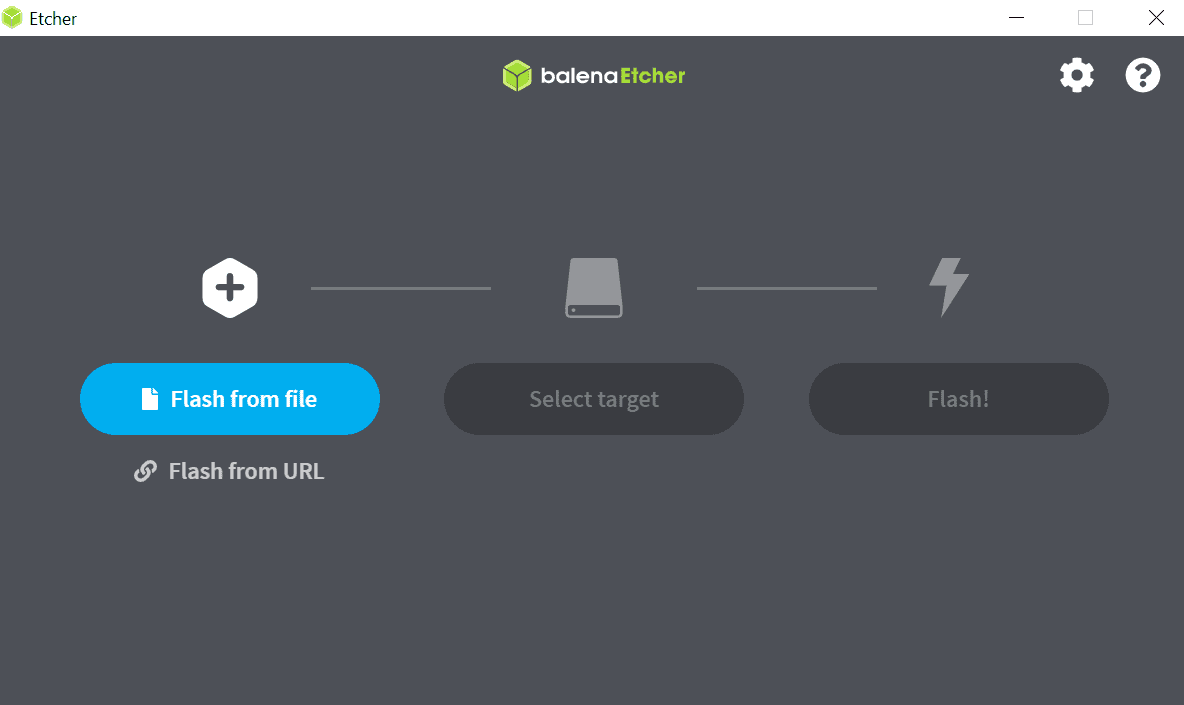


In the Etcher application, click “Flash from file” and browse to the TrueNAS .iso file that you downloaded earlier. If your USB stick is not already selected, click “Select Target” and choose the drive to use as the install media. Remember, this is the install media, not the operating system device. Now, click “Flash!” It takes a few minutes to write the image to the disk. A “Flash Complete!” message is shown when done.
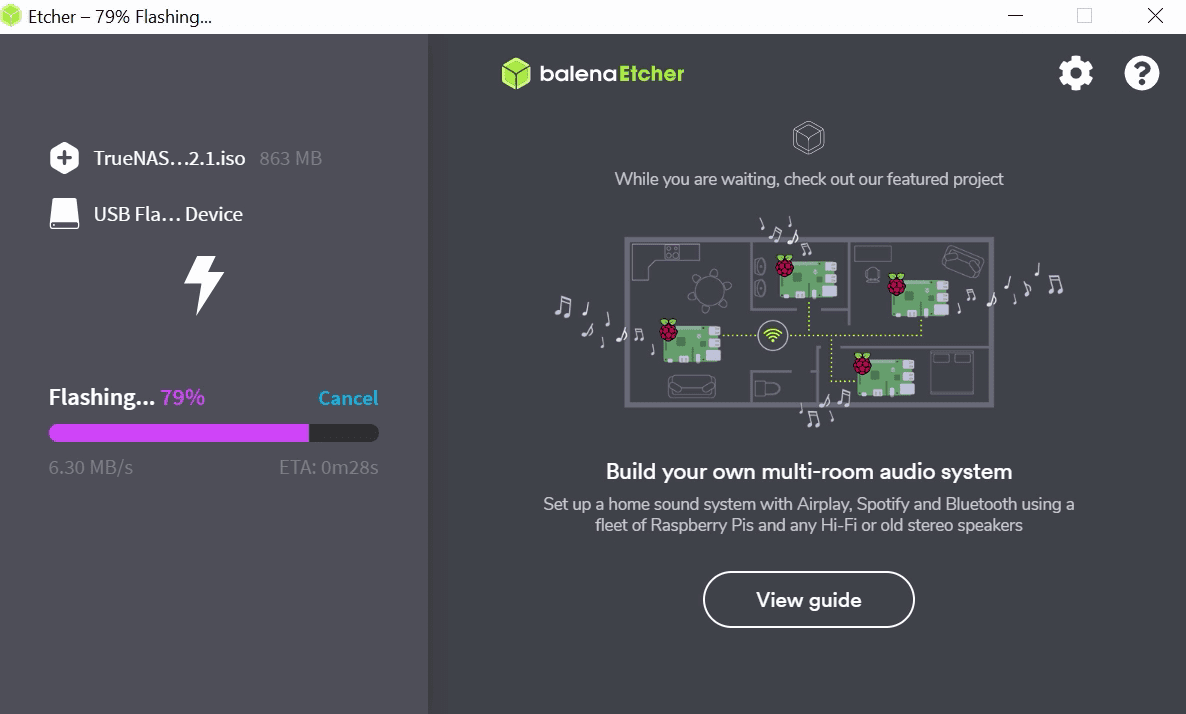

After the installer file has been written to the install media, you’re ready to install TrueNAS.

Installing TrueNAS

Now that we’ve gone through the basics of what you need to get started, let’s begin the installation of TrueNAS.
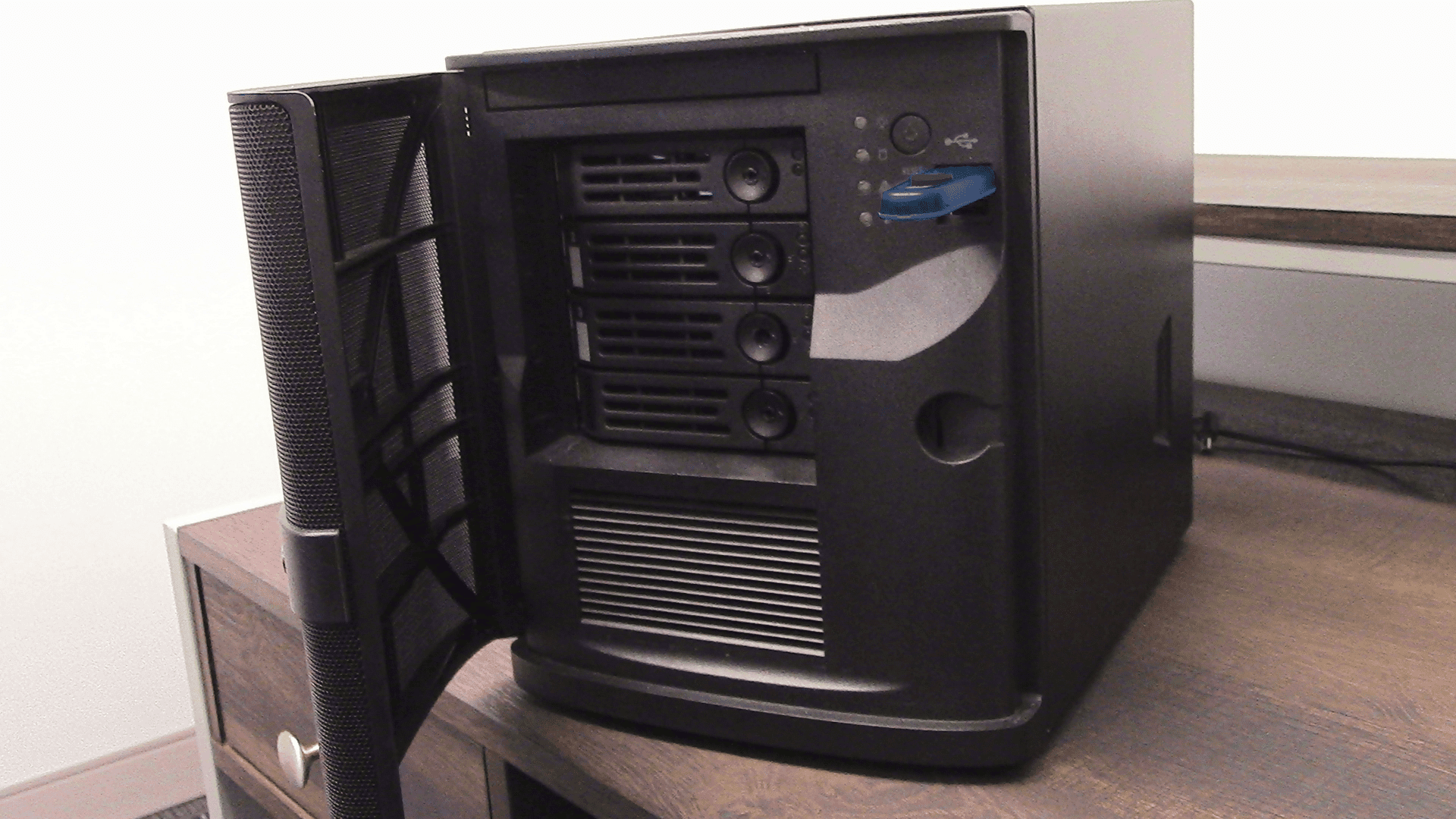

Make sure that both the boot device and the TrueNAS installation media are inserted in the machine that you chose to run TrueNAS.
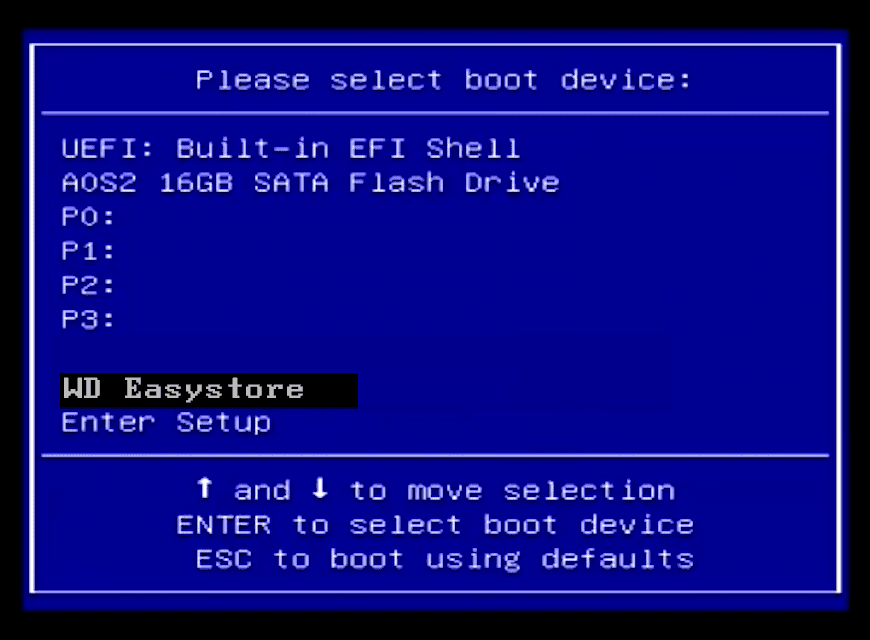

Boot into the BIOS of the system and double-check that your system is set to boot from the device that contains the TrueNAS installation media that you created earlier. After confirming, reboot the system.
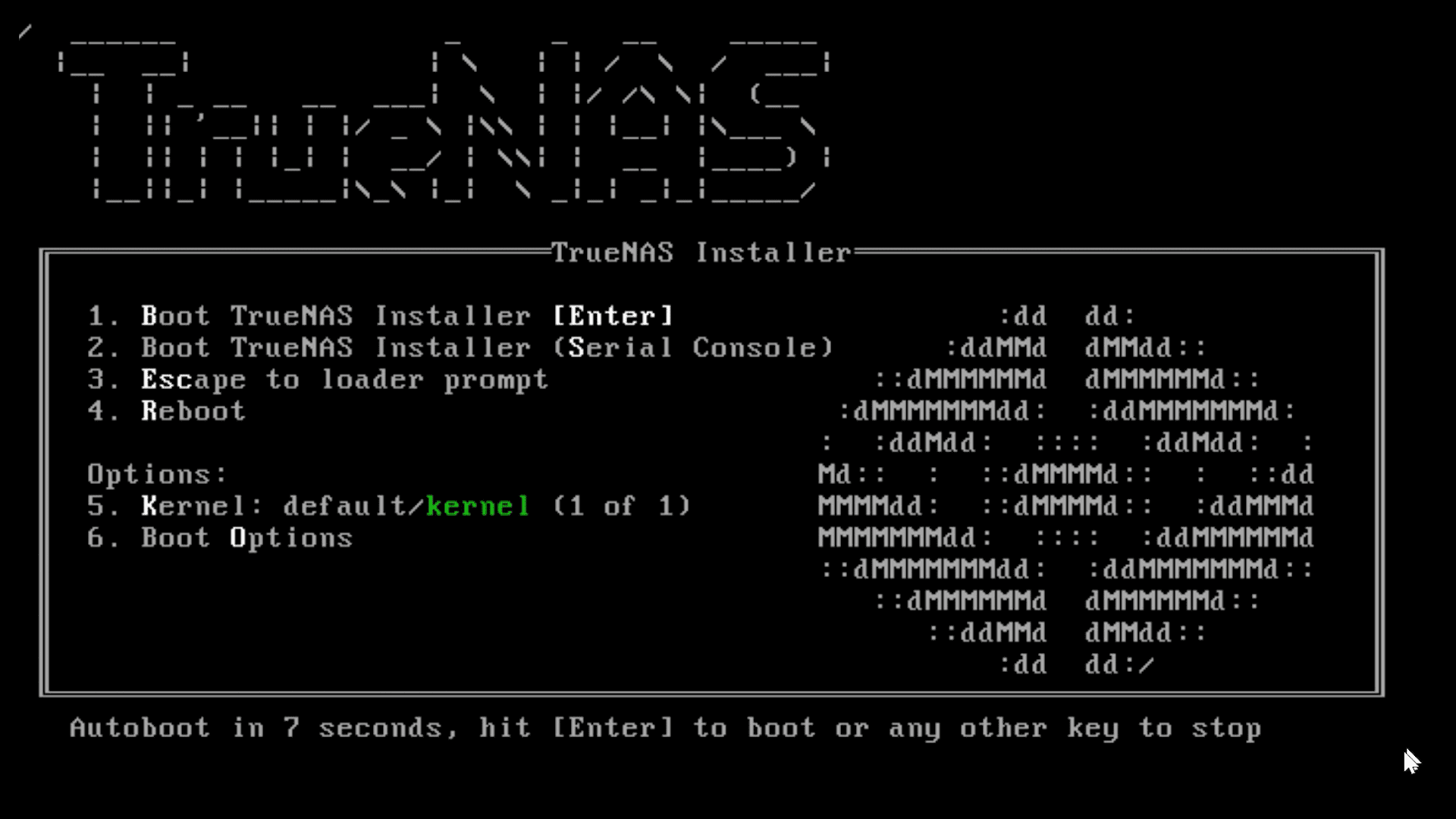
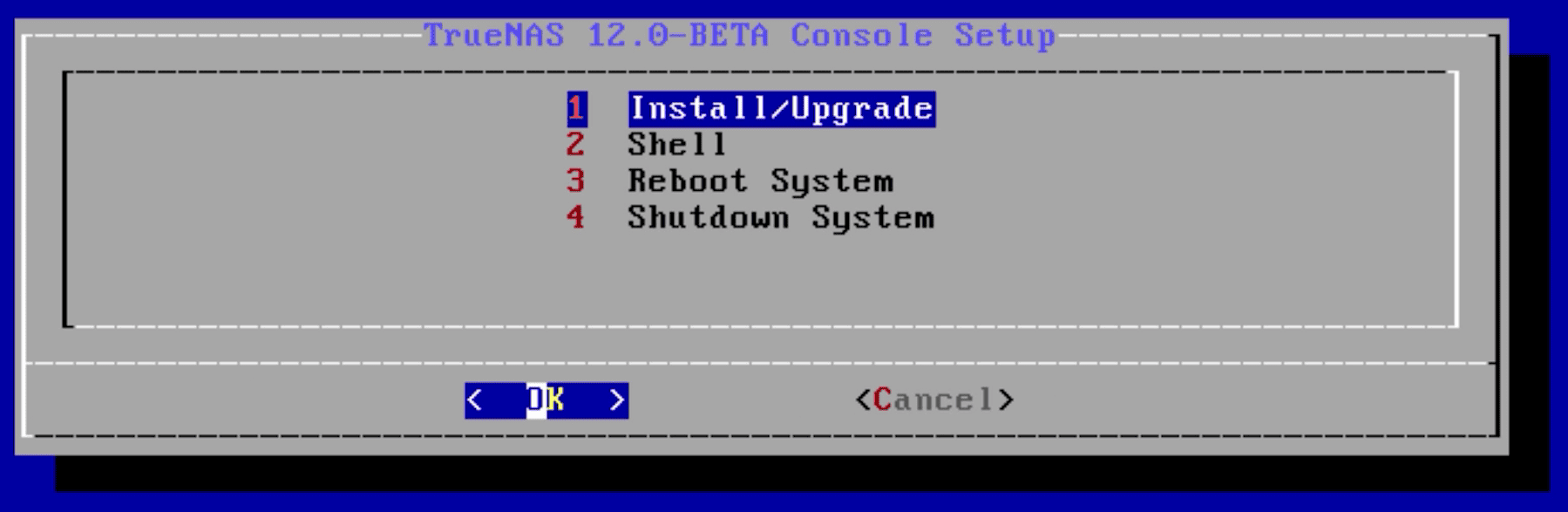

The TrueNAS install menu will be displayed. Choose option 1 on the menu to begin the TrueNAS installation. This will load the Console Setup menu. Hit enter to choose the “Install/Upgrade” option.
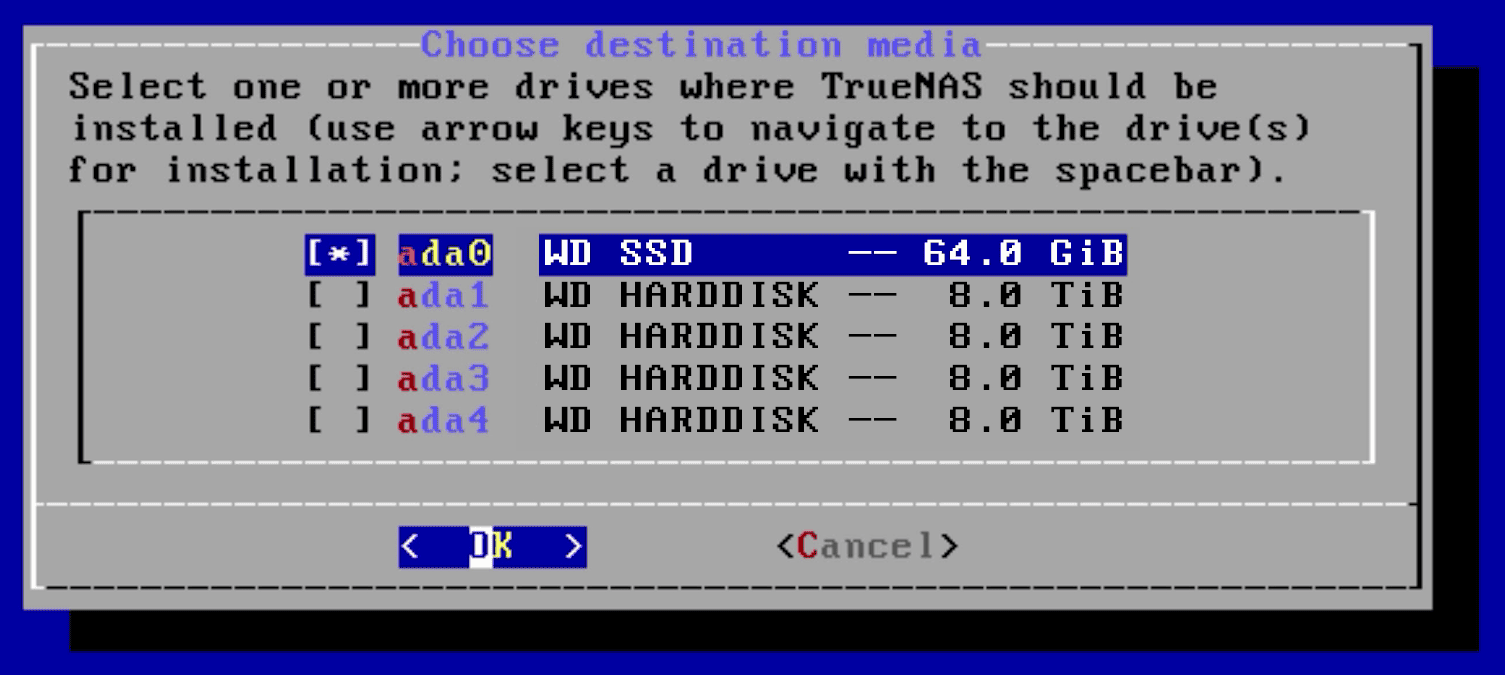

The next menu asks which drive should be used for TrueNAS. Make sure to select the boot device and not the storage disk. This menu will show the size of the disks to make it easier to determine the boot device, which is generally a smaller size than the storage disks (which will be larger). The one you want will likely be the smallest on the list. Note that the names of your drives will be different.
Press the arrow keys to select a drive, and press the spacebar to designate it as the drive you wish to use.
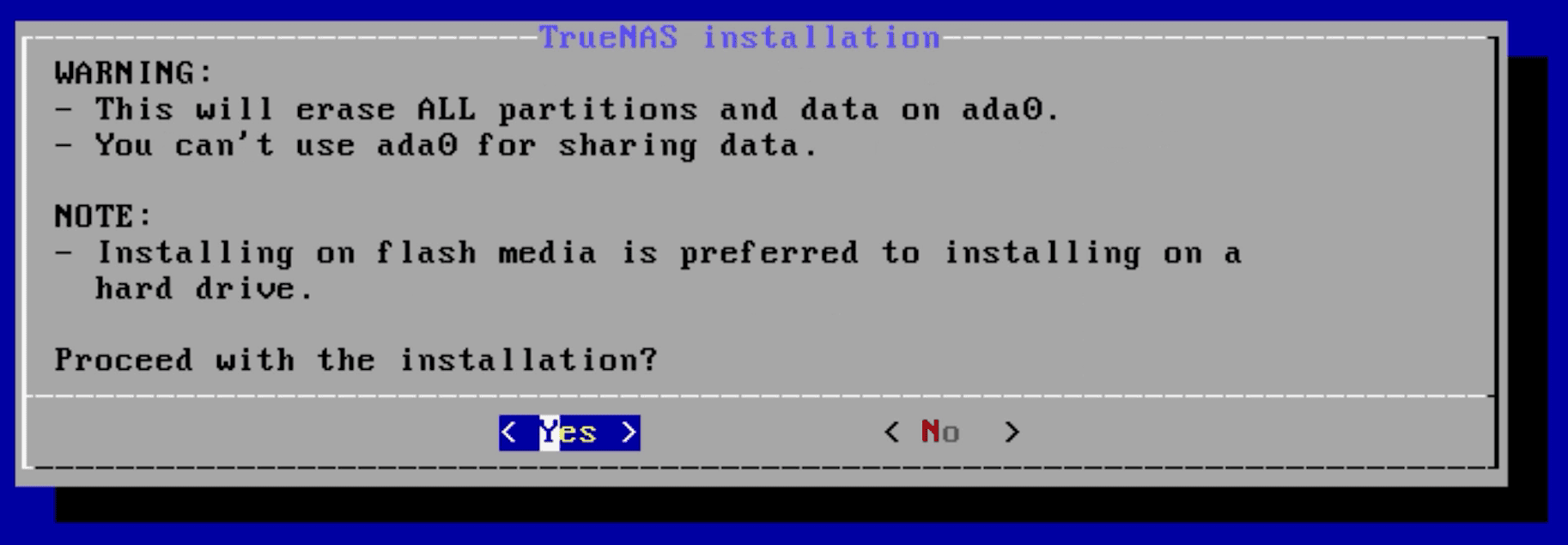

The boot device cannot be used for anything other than the operating system itself. Press OK, then YES, to proceed.
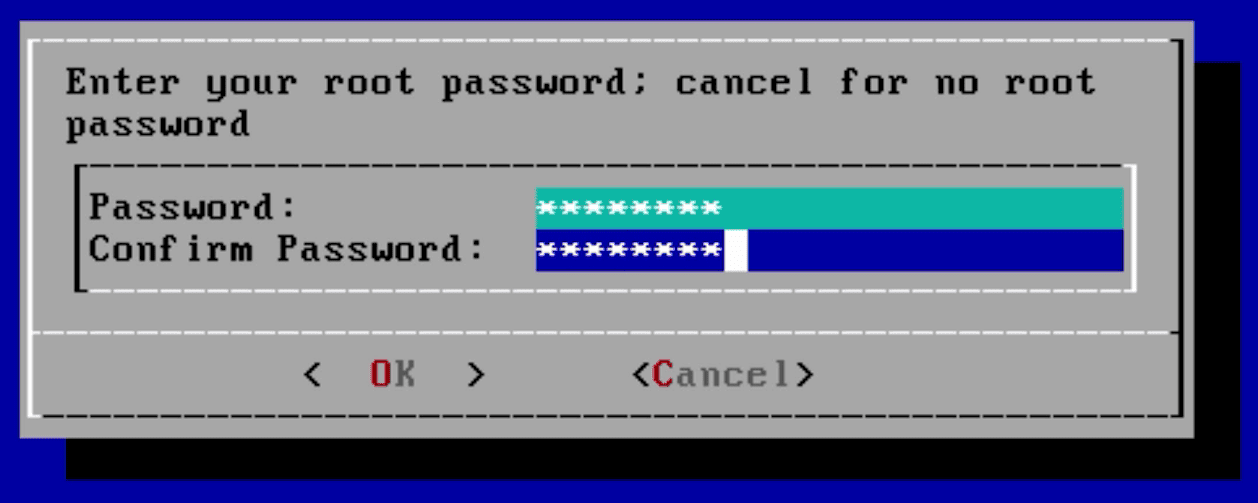

Next, type in and confirm the password that will be used to login to TrueNAS.
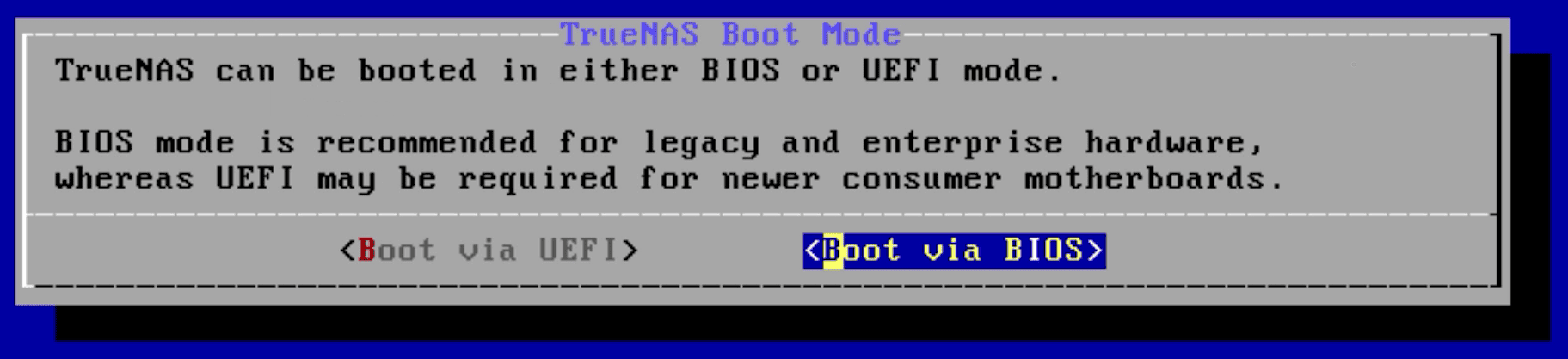

TrueNAS can be booted in either BIOS or UEFI mode. For the purposes of this video, I’ll be choosing BIOS. BIOS works for almost all motherboards and is typically the option to choose for older hardware. Choosing UEFI will require that your motherboard is more modern and UEFI capable.
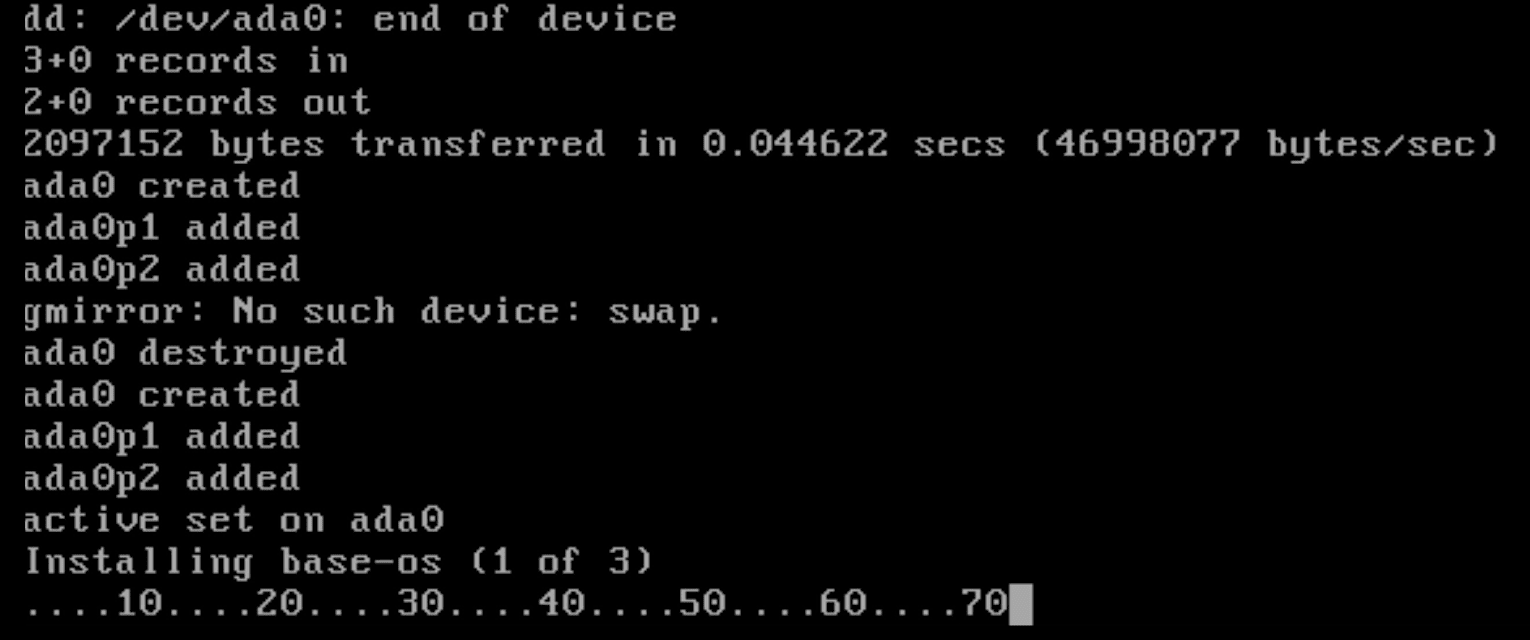

Once chosen, your installation will begin. Wait for a bit, all those commands popping up on the screen are perfectly normal. It should take a few minutes.


A message will appear saying to reboot and remove the installation media. Choose OK to reboot. Remove the installation media from your system. As the system reboots, double-check the BIOS to make sure the boot order now defaults to the boot device.

Fire up TrueNAS

When the system boots from the boot device, messages will appear as the TrueNAS operating system loads. When it is done loading you will see the “Console setup” menu. At the bottom of this screen, an IP address will be listed.
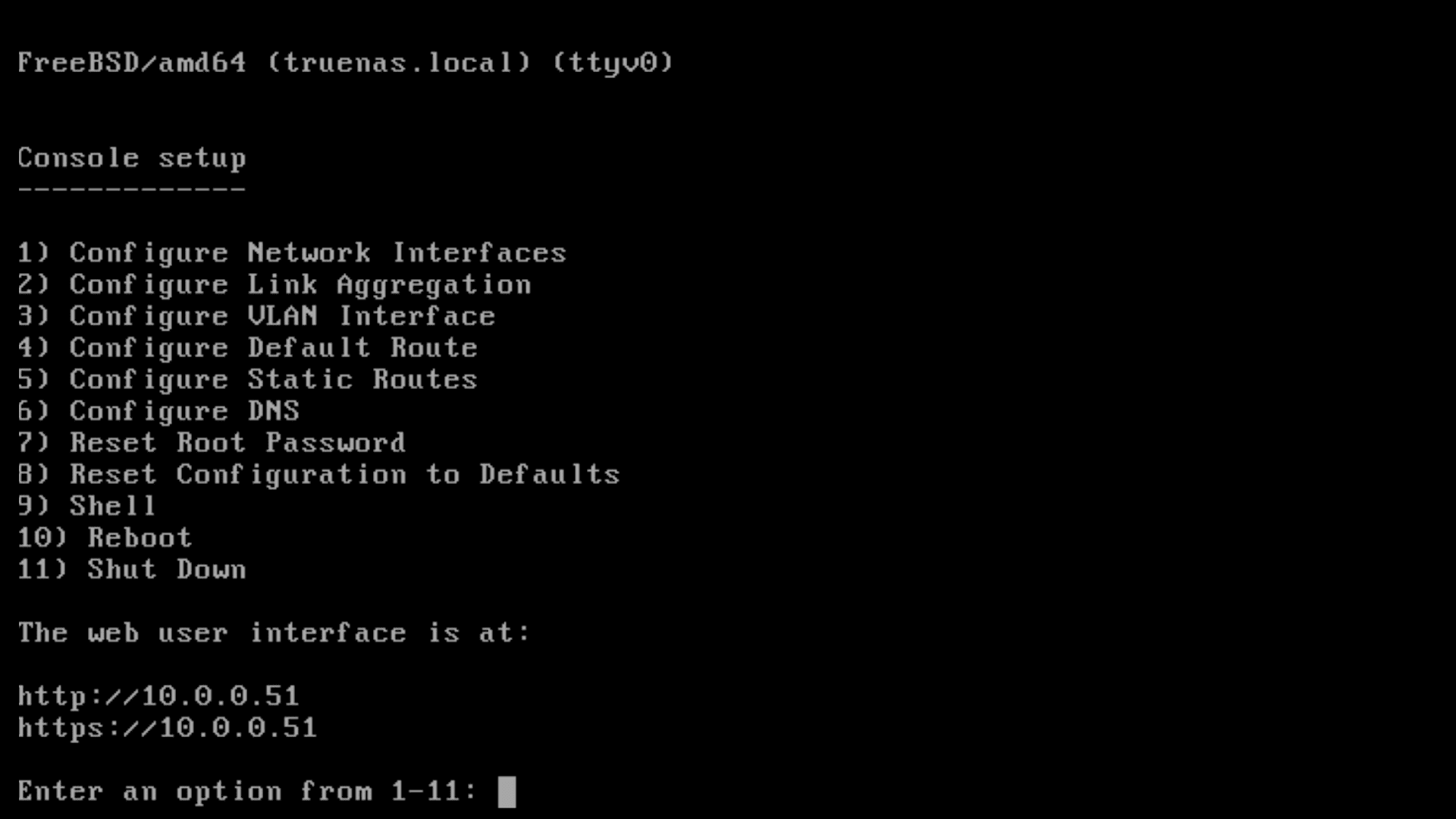

From a separate computer that is connected to the same network, open a web browser and type in that address. If it instead shows “0.0.0.0”, check if the network cable is plugged in, and that the network has a DHCP server.
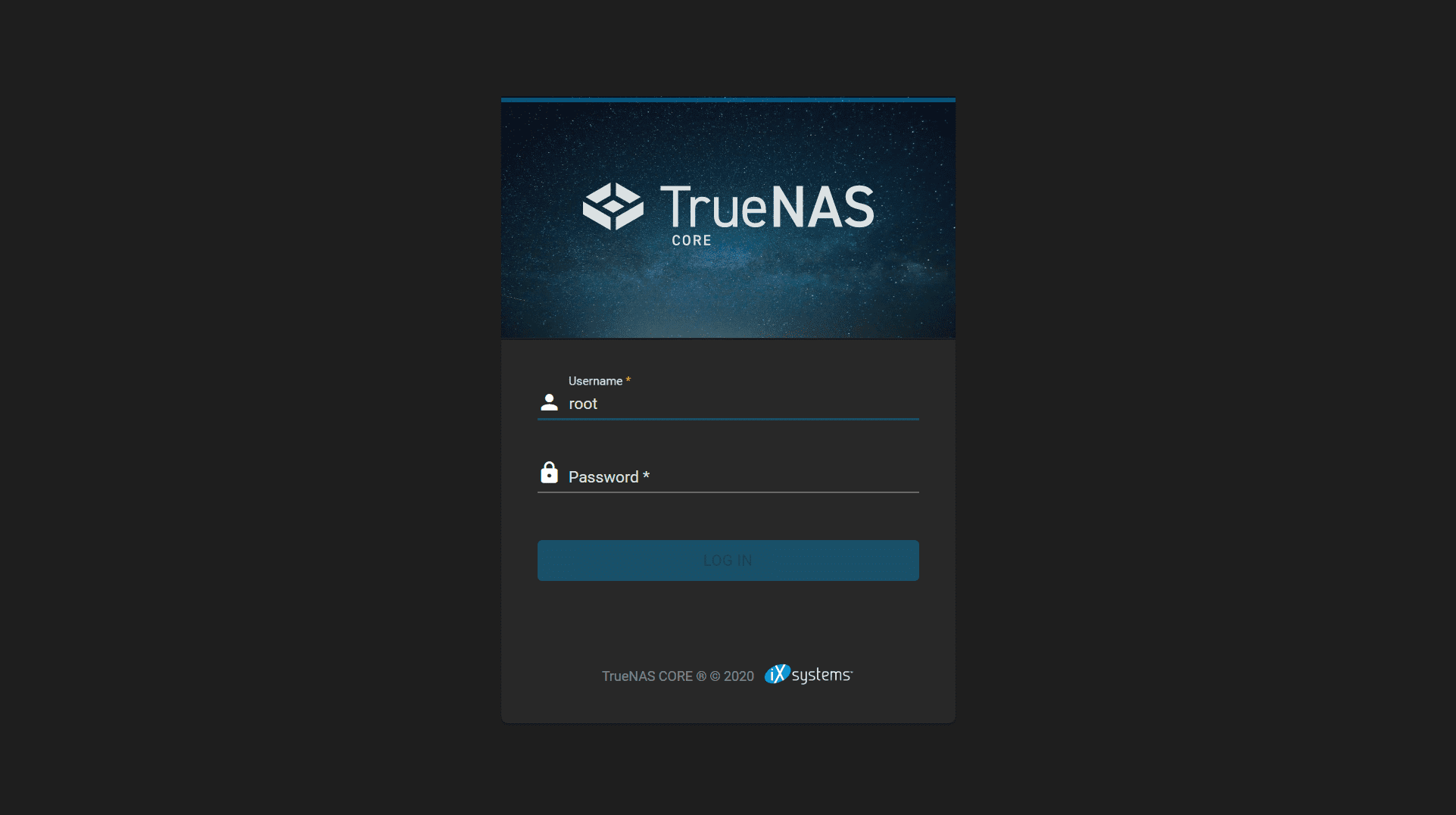

The TrueNAS login menu will appear once the bootup is complete. Type in root for the username and the password you created during the installation.
Once you are logged in, you will have access to the TrueNAS web interface which is used to manage your storage disks, configure access to the stored data, and view the status of the system.
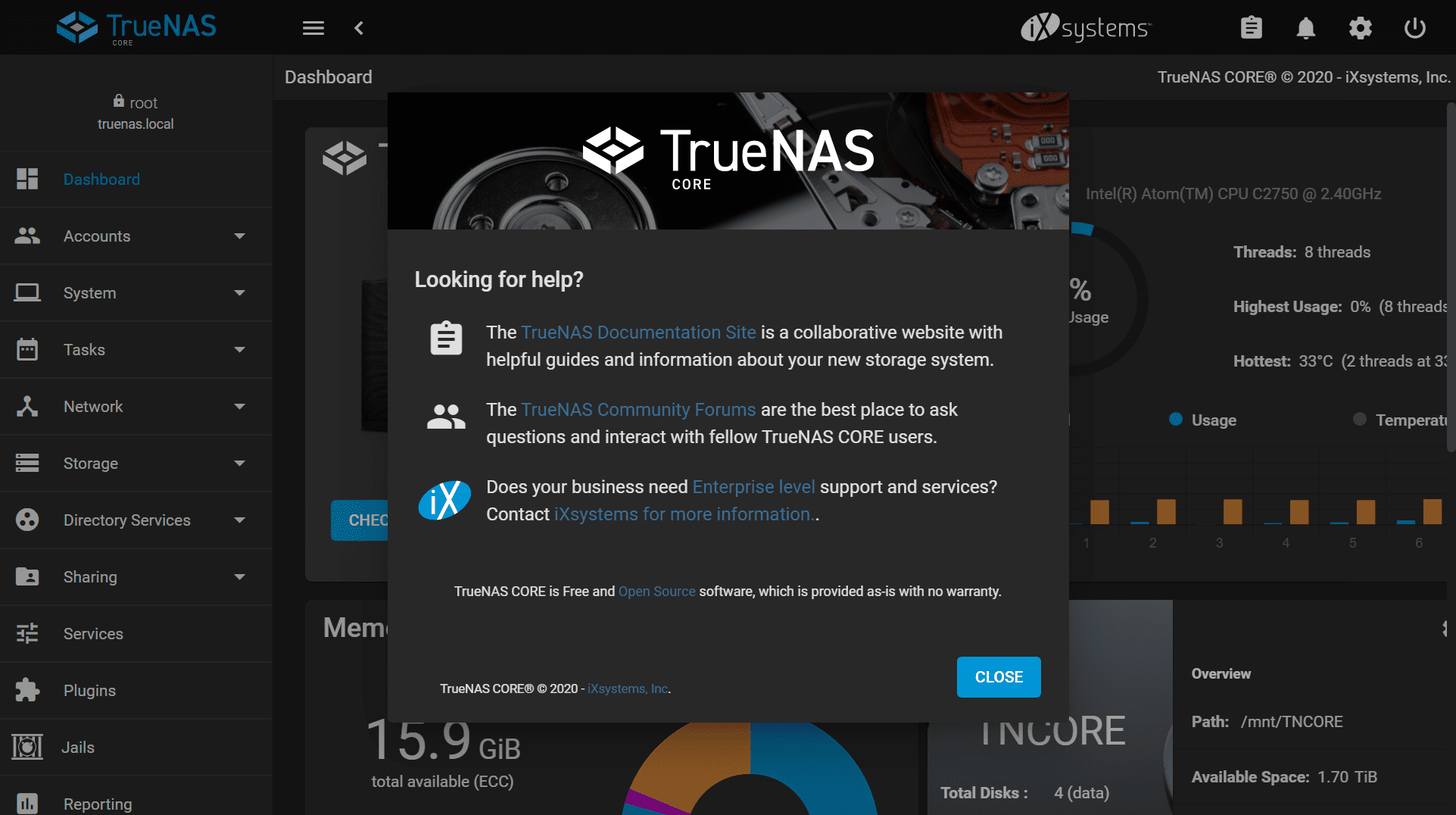

Congratulations! You have just installed TrueNAS. Be sure to check out our other tutorials and videos to learn more about configuring and using TrueNAS.
For comprehensive information on configuring TrueNAS, visit docs.truenas.com.