惯性聚合 高效追踪和阅读你感兴趣的博客、新闻、科技资讯
阅读原文 在惯性聚合中打开

推荐订阅源

WordPress大学
WordPress大学
B
Blog
M
MIT News - Artificial intelligence
OSCHINA 社区最新新闻
OSCHINA 社区最新新闻
P
Proofpoint News Feed
C
Check Point Blog
H
Hackread – Cybersecurity News, Data Breaches, AI and More
J
Java Code Geeks
博客园 - 叶小钗
S
SegmentFault 最新的问题
Last Week in AI
Last Week in AI
T
The Blog of Author Tim Ferriss
Microsoft Security Blog
小众软件
小众软件
钛媒体:引领未来商业与生活新知
钛媒体:引领未来商业与生活新知
博客园 - 【当耐特】
腾讯CDC
博客园 - Franky
博客园 - 聂微东
V
Visual Studio Blog
GbyAI
GbyAI
Martin Fowler
Martin Fowler
罗磊的独立博客
Y
Y Combinator Blog

TrueNAS – Open Enterprise Storage

What We Heard at NAB 2026 | TrueNAS - Open Enterprise Storage TrueNAS V160 Launched: High Performance, No All-Flash Tax TrueNAS 26 Is Here: What's New in This Major Release TrueNAS Connect: Enterprise Features on Your Own Hardware TrueNAS Immutability: Multi-Layered Data Protection & Ransomware Defense TrueNAS CEO Note to Community: We Are All TrueNAS TrueNAS 25.10.2 Goldeye: 100+ Fixes & What's New TrueNAS Names Brett Davis CEO for Enterprise Growth TrueNAS Plans for 2026: TrueNAS 26 & OpenZFS 2.4 Roadmap TrueNAS Connect Plus Now Available for All Community Users TrueNAS R60: High-Speed NVMe Storage for AI Workloads Introducing TrueNAS WebShare: Secure Web-Based File Sharing TrueNAS 25.10.1: Goldeye Matures, Performs, and Connects TrueNAS & Veeam v13: Turnkey Cyber‑Resilient Backups Customer Advantages of the TrueNAS Open Core Model TrueNAS Named Data Storage Company of the Year 2025 TrueNAS 25.10: Smarter, Streamlined Updates & Tools TrueNAS F-Series Shines at IBC with Two “Best of Show” Awards TrueNAS 25.10 “Goldeye”: NVMe‑oF, Unified, Simplified Storage Introducing TrueNAS Connect: Secure Monitoring & Alerts The ESG Advantage of Open Enterprise Architecture: Why TrueNAS Is the Sustainable Choice | TrueNAS - Open TrueNAS 25.10-RC1: New Features, Fixes & OpenZFS 2.3.4 Seamless Setup: Exploring TrueNAS Web-Driven Installation | TrueNAS - Open Enterprise Storage TrueNAS 25.10 “Goldeye” BETA is Available TrueNAS 25.10 “Goldeye” Highlights TrueNAS 25.04.2: Fangtooth restores Virtualization iXsystems Rebrands as TrueNAS to Reflect Market Momentum in Enterprise Storage | TrueNAS - Open Enterprise June 1 - Apps Migration Deadline for TrueNAS 24.04 and 23.10 TrueNAS 25.04.1: Fangtooth Unification Gains Momentum TrueNAS 24.10.2.2 Prepares for IP Addressing of Apps
How to Set Up Windows SMB Shares on FreeNAS | TrueNAS - O...
iX Team · 2020-03-12 · via TrueNAS – Open Enterprise Storage

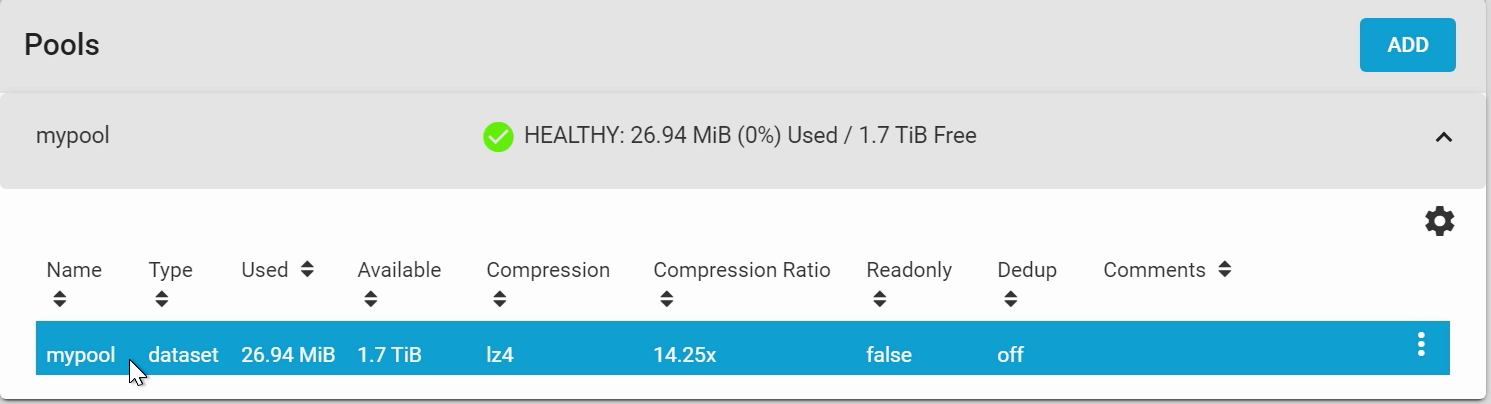
In this tutorial, we are going to show you how to set up an SMB share on your FreeNAS machine. To share data with Windows clients, FreeNAS uses CIFS, also known as SMB or Samba. SMB shares are also compatible with macOS offering great flexibility for client operating systems. Before you get started, you should already have a pool configured in FreeNAS. To learn how to configure a pool, see our FreeNAS ZFS Pools Overview tutorial.
Setting up a FreeNAS User Account
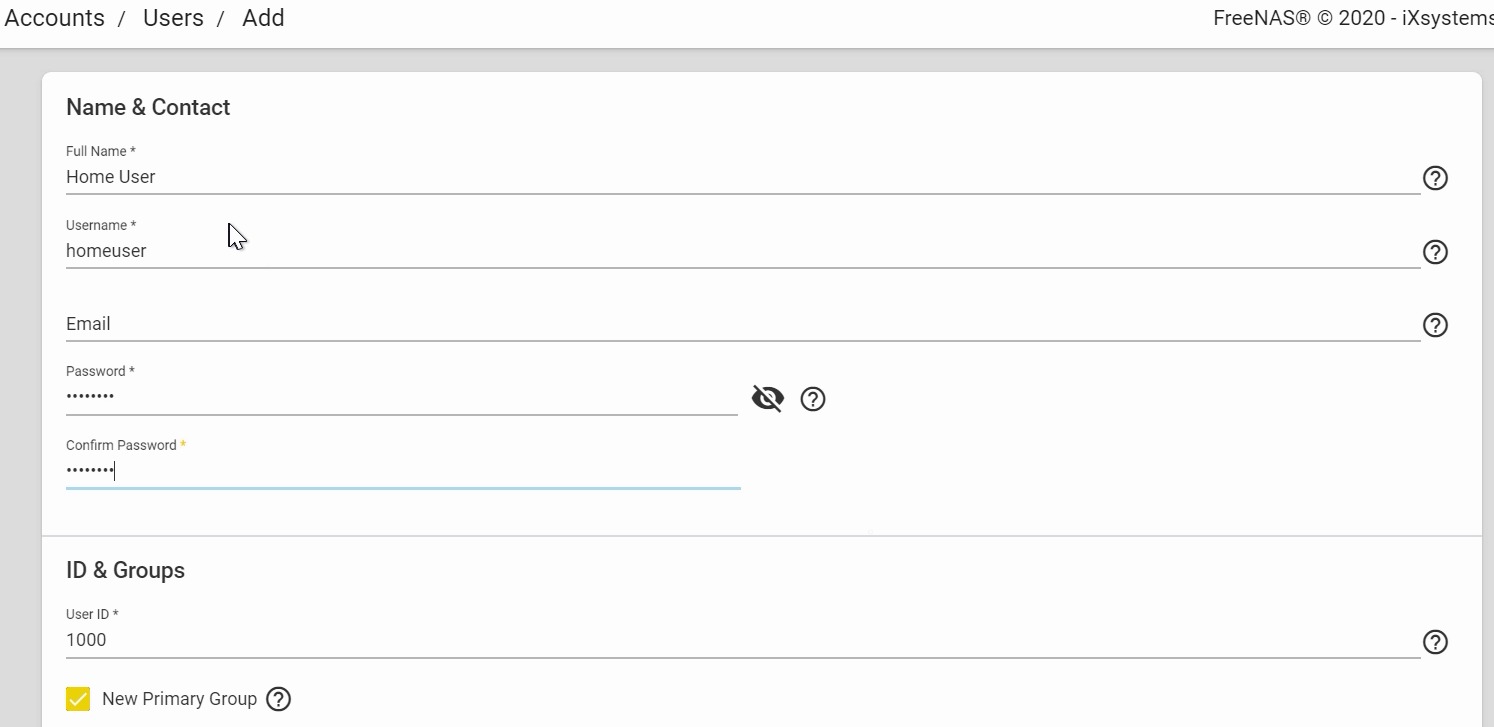
First, we will go ahead and set up a FreeNAS user account, which allows you to securely access your shares. Go to “Accounts” then “Users” on the left menu. I’ll be creating a new user called “homeuser” and adding a new primary group with it. I’ll be configuring the new share to use this user and group, but be sure to substitute your own users and groups as needed.
Setting up a Windows (SMB) Share
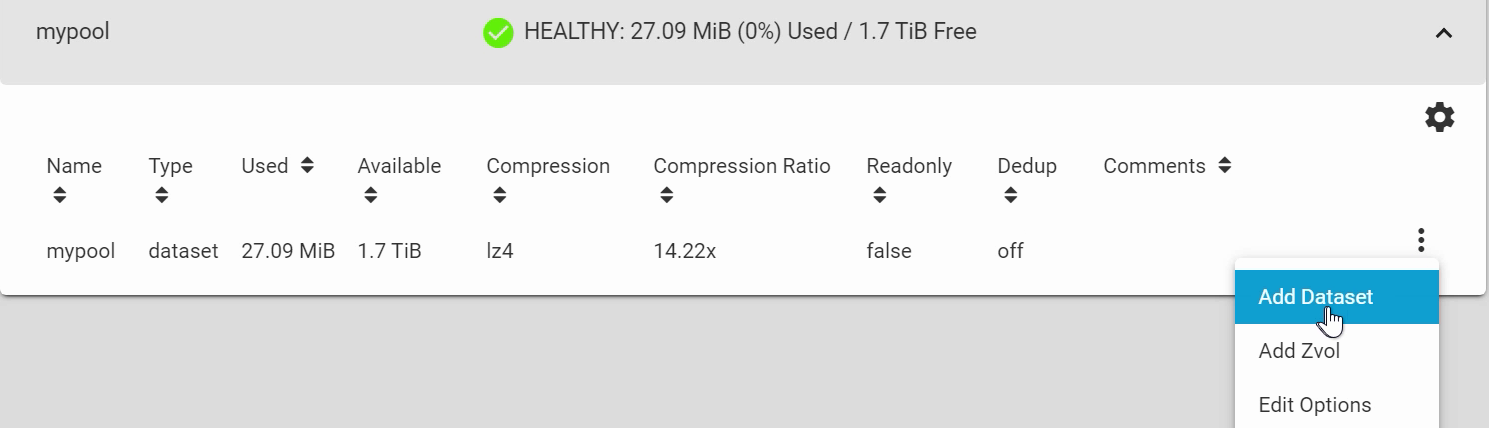
Go to “Storage” then “Pools” on the left hand side. Open the pool options by clicking the 3 dots on the right of the pool then, “Add Dataset

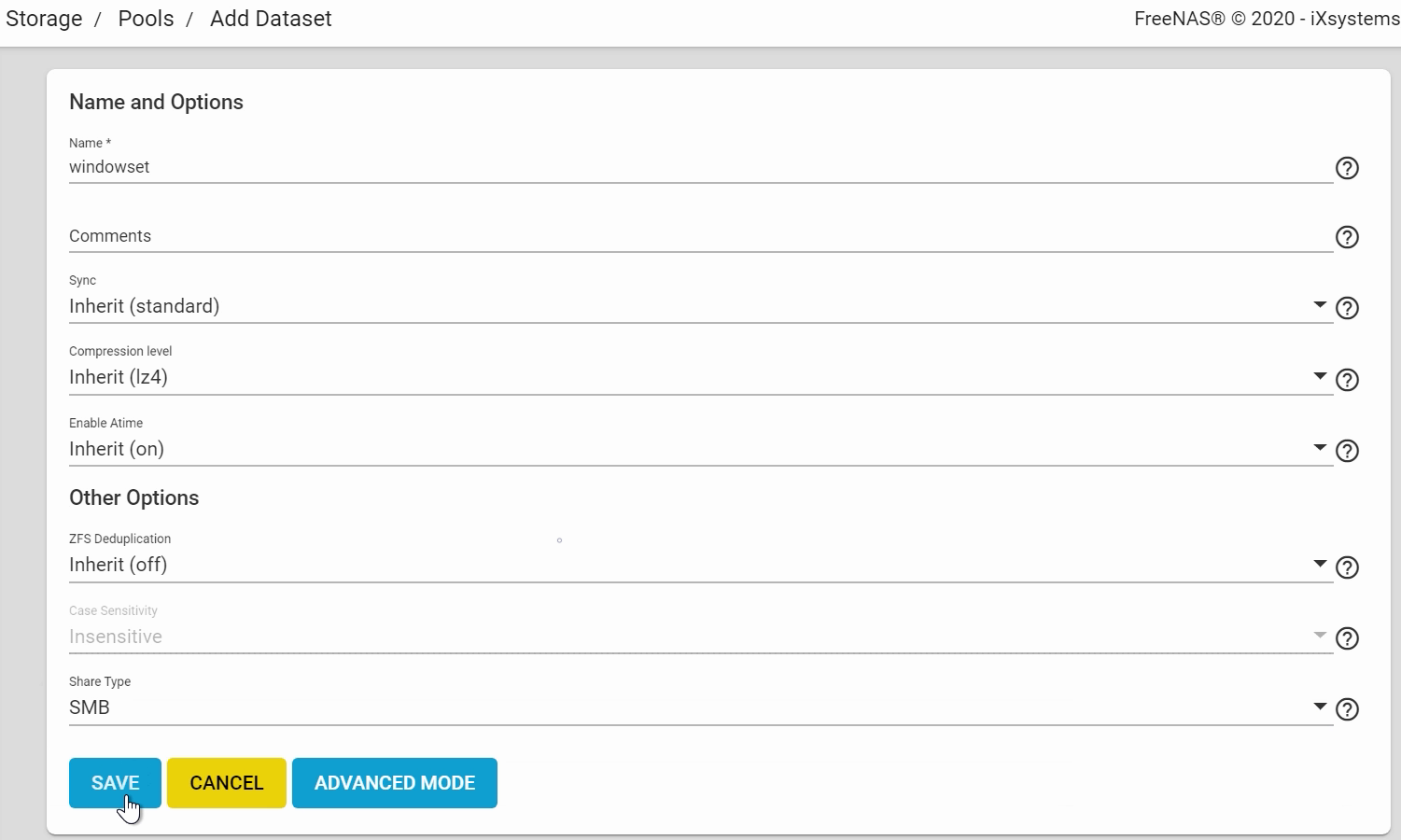
  • I’m calling this ‘windowset’ and setting the share type to ‘SMB’. Click “SAVE” when done.


Next, we’ll create the Windows Share. Go to “Sharing”, and “Windows Shares (SMB)”.
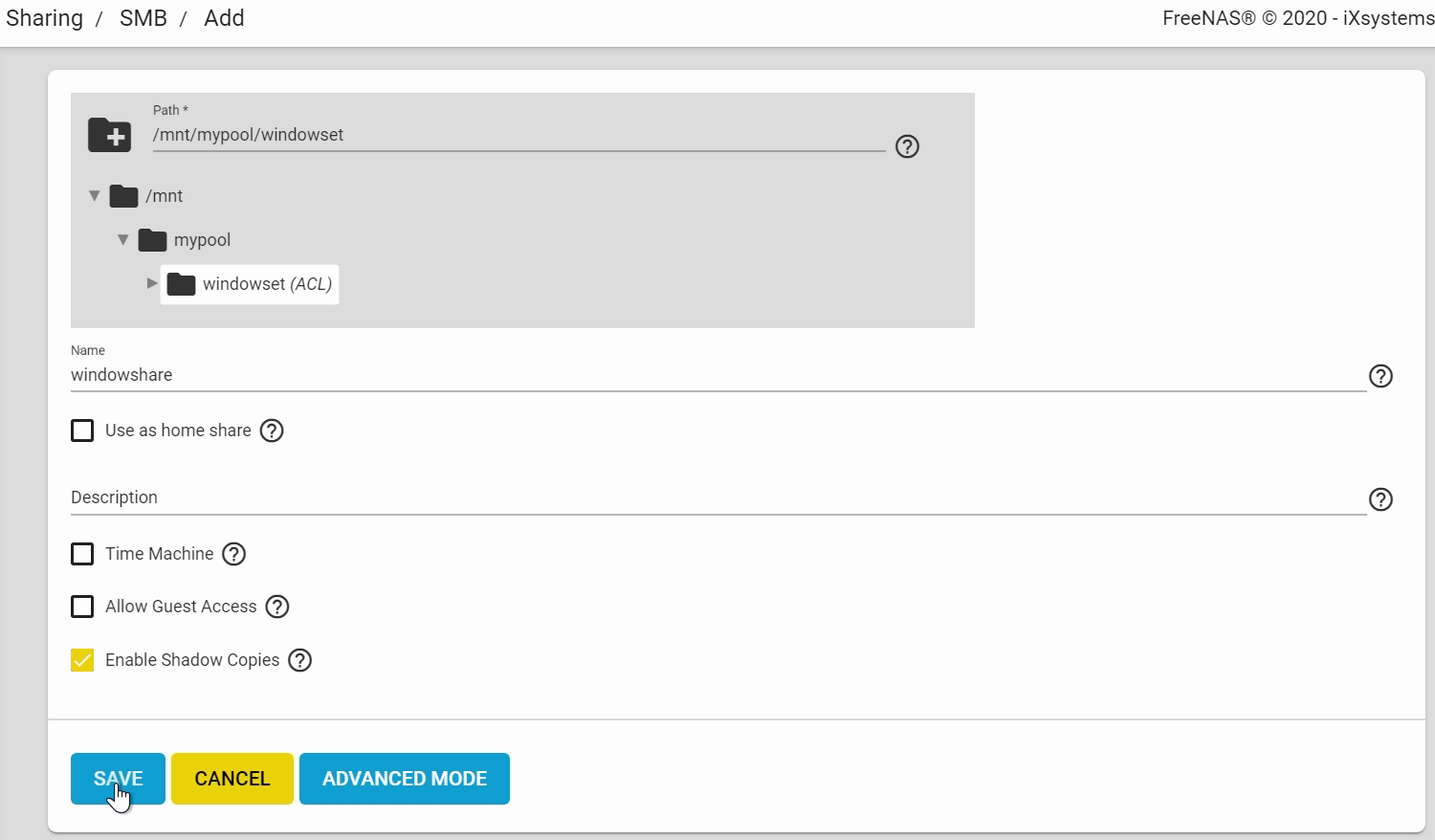
  • Click “ADD
  • Click the folder icon, and browse to the path of the dataset you want to share, which was “windowset
  • Give your share a name. Let’s call this one “windowshare
  • Select Allow Guest Access if you would like guests to view your files without a password *Note that some Windows 10 and Server systems have Guest Access disabled by default, and on MacOS you will need to set the “Connect as:” option to “Guest”.
  • Click “SAVE” when done. It will ask you to “Enable Service” for the SMB protocol.


Editing ACLs
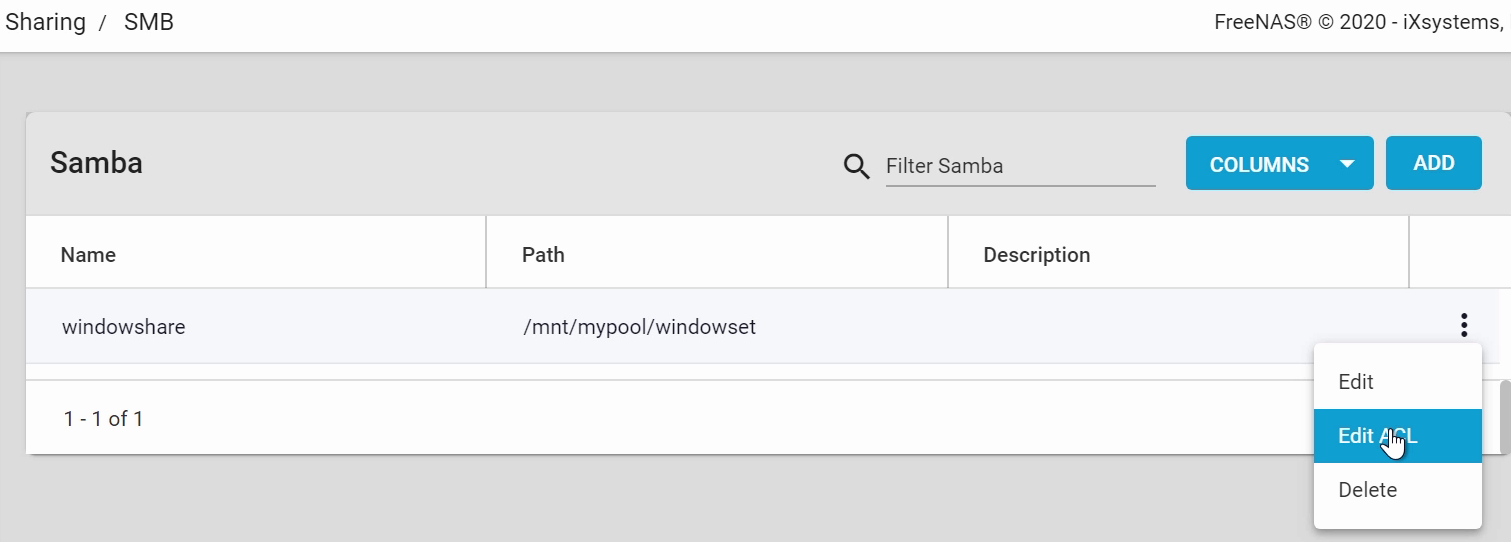
For this next step, we’ll need to assign the user we created earlier with the Share. From the SMB window, open the share options by clicking the 3 dots on the right, and “Edit ACL”.
On the left side, leave “root” and “wheel” as the original owners of the dataset. To give another user ownership permissions, click “Add ACL Item”, then choose “User” for the “Who” field, and “homeuser” for the “User” field. You may copy the same settings as the ACL items above.
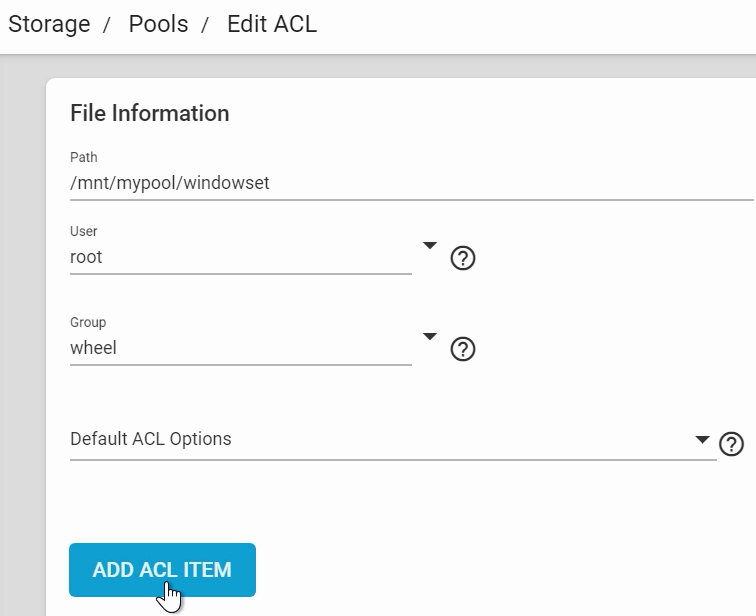
These settings on the right side allow you to configure the dataset’s Access Control List according to your network and security needs. Note that when we set the Share Type to “SMB” earlier, the ACL options will default to that specific configuration, which is shown there. Refer to the FreeNAS documentation for configuration recommendations for ACLs.
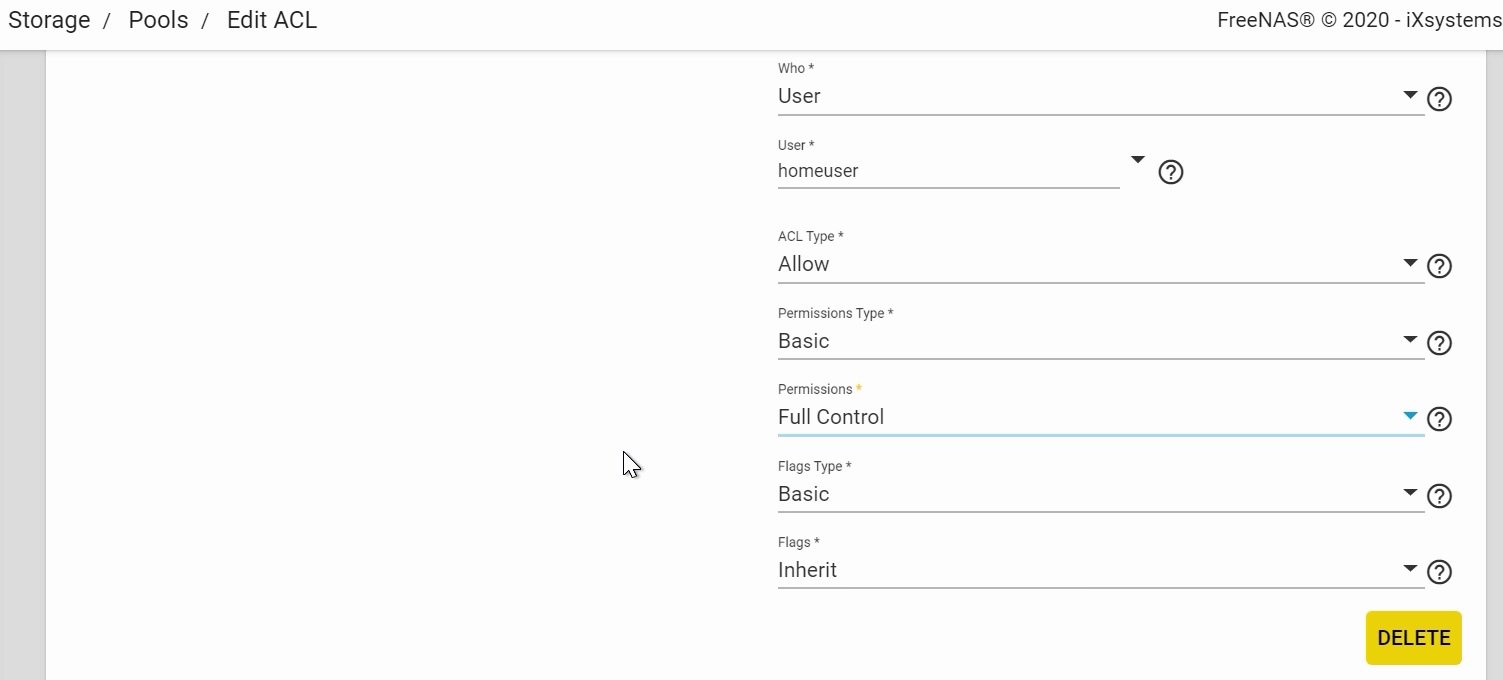
Click “SAVE” when that is done.

Enabling SMB Services
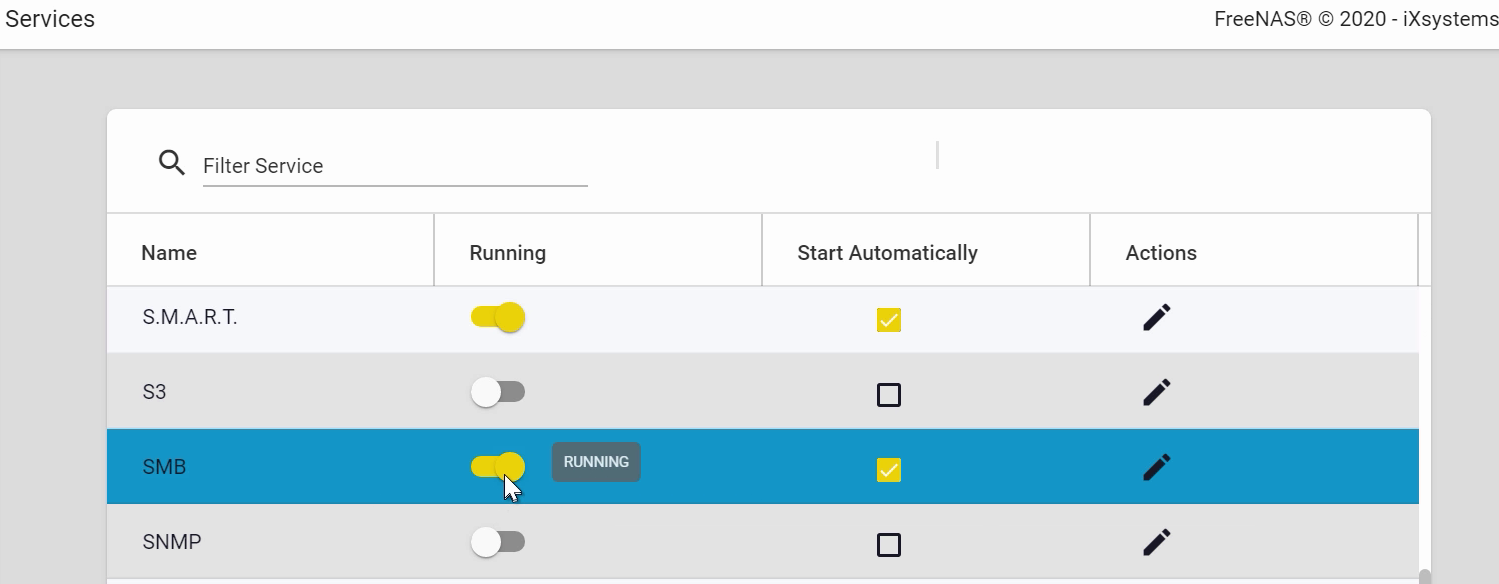
Go to the Services page, and make sure “Running” is enabled next to SMB. To ensure that SMB is always running after FreeNAS reboots, check “Start Automatically”. For additional options to configure the SMB service, you can click the “Edit” icon here. More information about these options can be found in the documentation, but the default values will work fine.
Accessing SMB Share from Windows
Head on over to your Windows machine.
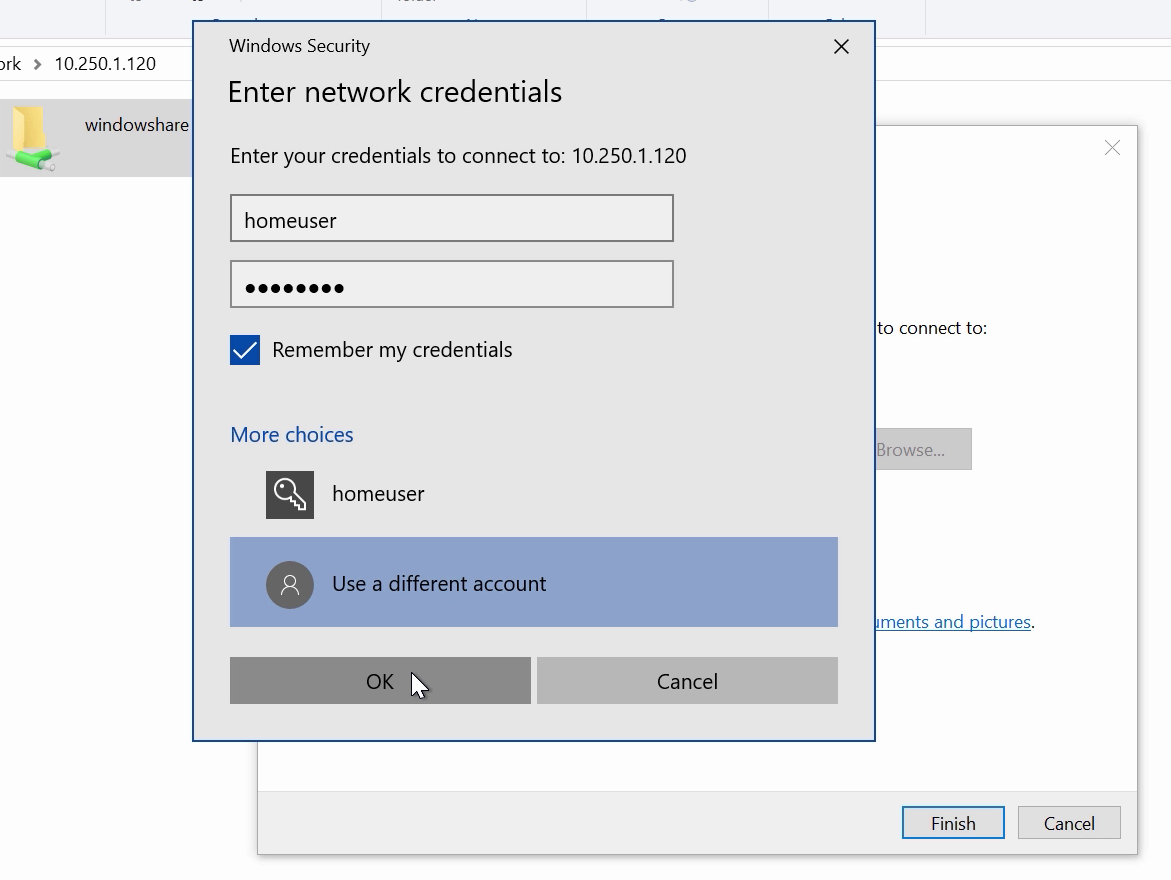
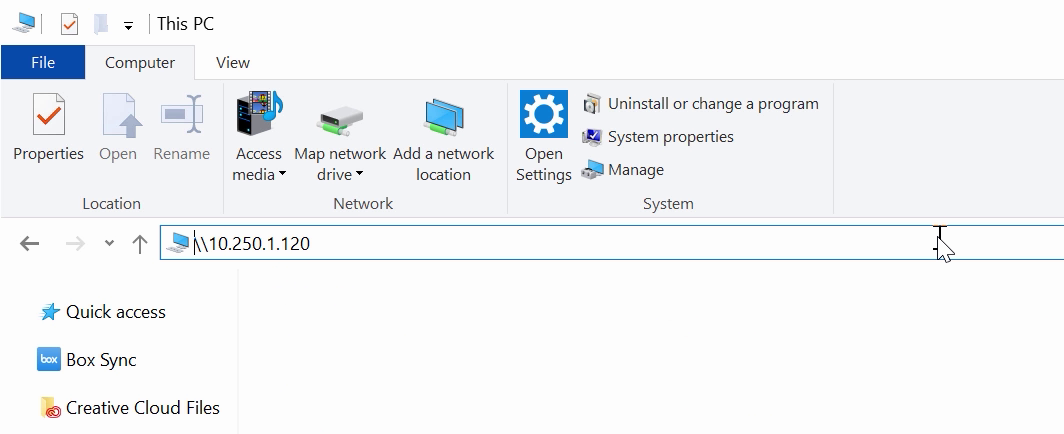
  • Open up File Explorer, and type in “\\” followed by your FreeNAS IP address
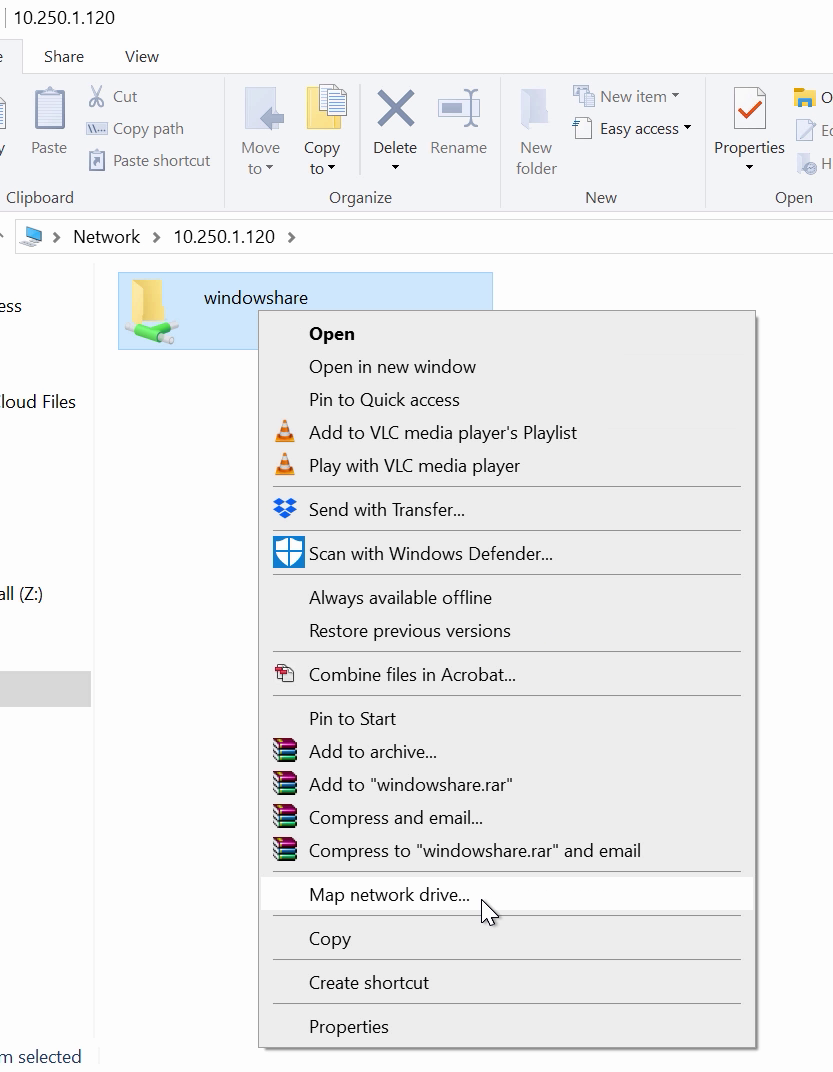
  • You should be able to see your share here.
  • Right click that shared folder and click “Map Network Drive”.
  • Check the box “Connect using different credentials” then click “Finish”.
  • Enter the login details of the account you created in the beginning, which was “homeuser”.
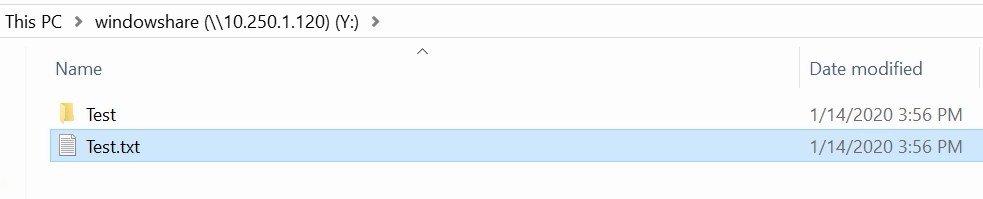
  • You should now be able to add, delete, and create files or folders.


Thank you for reading this tutorial! Be sure to check out our other tutorials and videos on our YouTube channel.