







This is a guest post by Dr. Ashish Bamania. He’s an AI engineer and author of multiple newsletters including Into AI and Into Quantum.
OpenClaw is one of the craziest AI tools launched this year. It became so popular that people started hoarding Mac minis to run it, and its founder, Peter Steinberger, was hired by OpenAI.
If you haven’t yet heard of it, OpenClaw is a free and open-source autonomous AI agent that can complete tasks for you. It can read your inbox, send emails, manage your calendar, and check you in for flights, all from WhatsApp, Telegram, or any chat app that you already use. (That’s how the official website describes it.)
A large audience believes that OpenClaw could be AGI. This is one of the reasons (besides my genuine curiosity about disassembling its components) why I decided to rebuild a simple version of it and teach you everything from scratch.
Let’s build “Tiny-Openclaw”!
Before we begin, we need to know what the real OpenClaw can do.
It can run on any Mac/ Windows/ Linux machine and use proprietary or local LLMs.
One can talk to it using any chat app.
It remembers your conversations and preferences (this means that it has persistent memory).
It can browse the internet, fill forms, and extract data from websites.
It has full access to all the files on your computer.
It can use Skills (either built by you or the community), which are simply bundles of instructions, scripts, and resources that help an AI agent to complete a specific task.
Similarly, our tiny version of OpenClaw, called “Tiny-OpenClaw”:
Runs on a Mac/ Windows/ Linux machine
Can browse the internet, fill forms, and gather data from websites
Uses Skills
Has persistent memory
One can use Telegram to communicate with it
Tiny-OpenClaw does not have full system access on a machine, as it poses significant security risks, and this tutorial is not intended for creating an AI bot for production use.
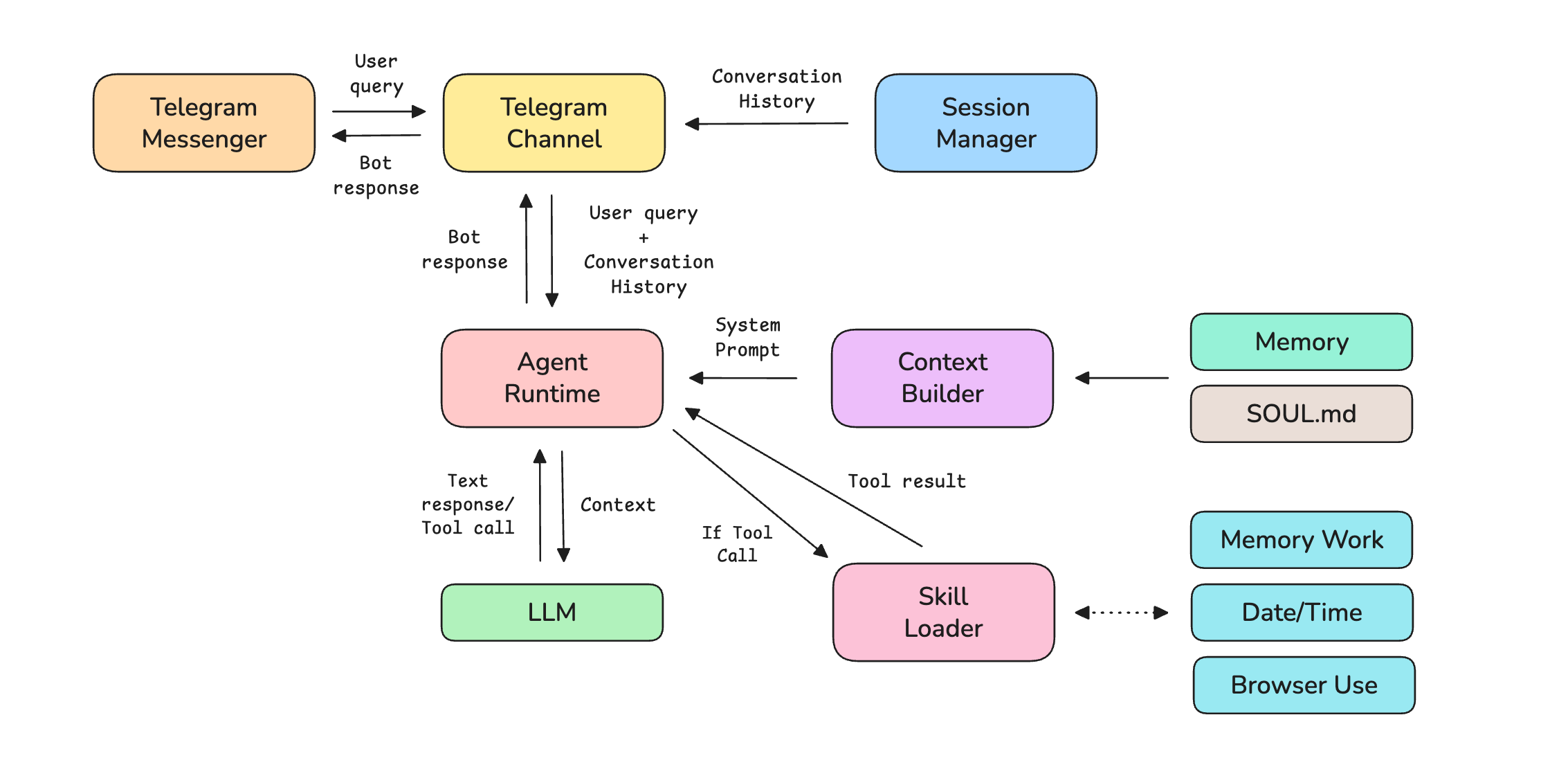
Before we start coding, let’s understand the 8 components that make up Tiny-OpenClaw.
Telegram Channel: This is an adapter specific to the messaging platform that translates messages from the platform’s format to a standard format that OpenClaw can work with.
Session Manager: This manages separate sessions and conversation histories per user.
Agent runtime: This is a loop that sends prompt and context to an LLM agent, runs tools if needed, and returns a final answer.
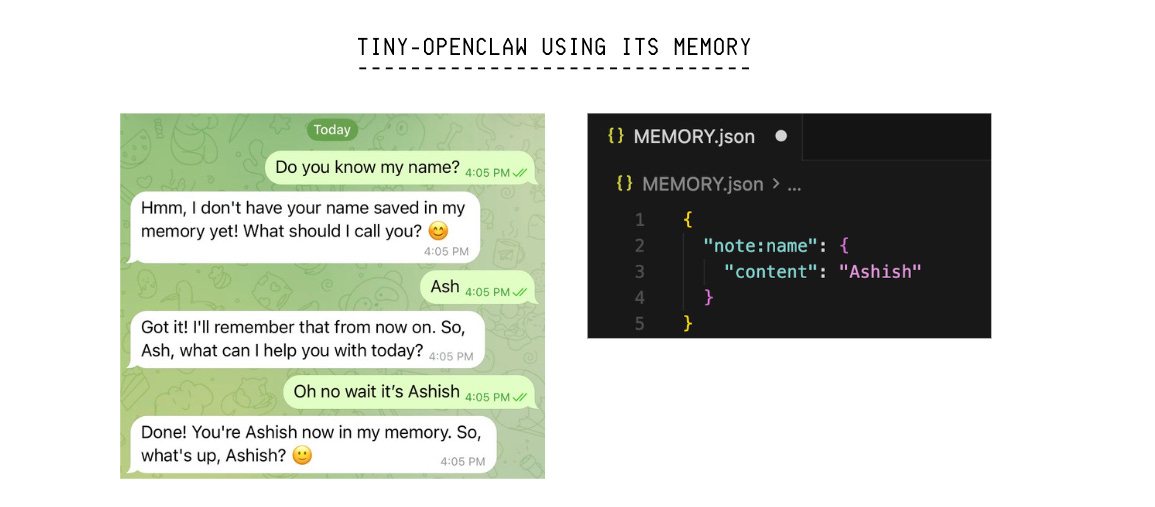
Memory: This is the storage that helps persist a user’s data across different chat sessions.
SOUL.md: This markdown file defines the agent’s personality and operating rules.
Skills: These are folders containing instructions, scripts, and resources to help complete a specific task.
Skills loader: This looks for the available Skills at startup, reads each Skill’s description and tools, and routes tool calls from the LLM to the right handler.
Context builder: This combines the following and returns context for the LLM:
SOUL.md
Skill descriptions
Saved memory about the user
Current time
We will build these one by one.
The following diagram shows how these components connect together.
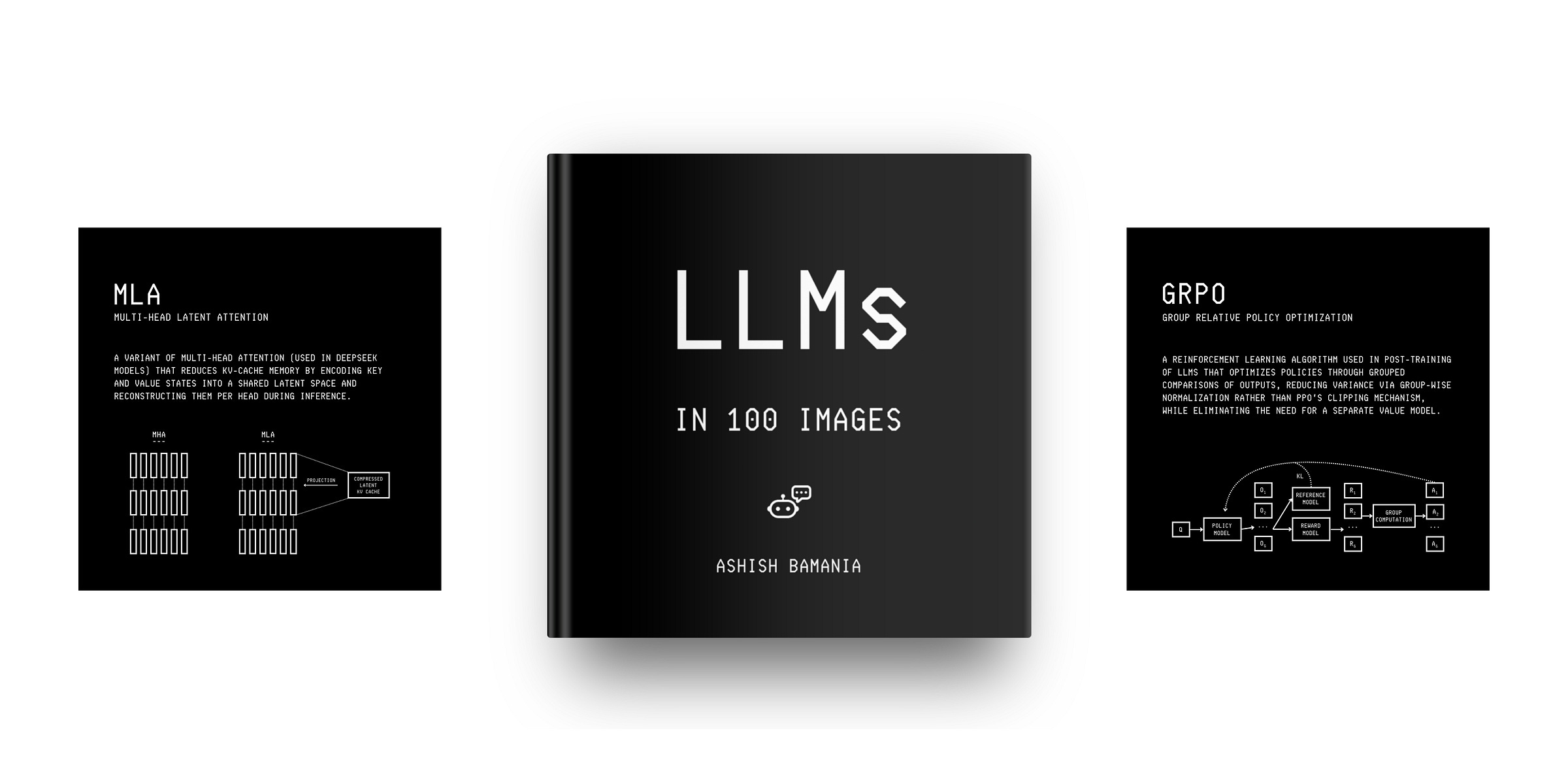
Before we start, I want to introduce you to my book, LLMs In 100 Images, which is a collection of 100 easy-to-follow visuals that explain the most important concepts you need to master to understand LLMs today.
Let’s move forward!
Start by typing the following bash commands in your terminal to create the scaffold for the project.
Next, create a virtual environment and install all the dependencies using uv as follows.
Tiny-OpenClaw’s memory is a simple key-value store (dictionary) that persists data as a JSON file on disk. It is used to store user preferences and facts for the LLM agent to retrieve later.
(Feel free to use an in-memory database like Redis if you prefer it over the simple dictionary we are using here.)
The Session manager’s job is to create and track a separate conversation history for each user. It works like this:
When a user connects to Tiny-Openclaw, it creates a session using their client ID and channel (which could look like telegram:123) to keep their conversations separate.
All messages (from the user and the LLM assistant) are added to that session’s history. This history is sent to the LLM as context on every turn, so that it knows what the user has been chatting about.
Sessions are saved to disk as a JSON file (SESSIONS.json) so that the conversations aren’t lost when the system restarts.
A sample SESSION.json file is shown below to show what it stores.
Skills give Tiny-OpenClaw the ability to solve specific tasks. Each Skill is implemented as a folder with two files:
SKILL.md: A Markdown file that contains the name and short description of the Skill. These are appended to the System prompt so the LLM knows this Skill exists and when to use it.
handler.py: The code that executes when the LLM decides to use a particular Skill
What’s interesting is that instead of hardcoding the logic, we let Tiny-OpenClaw know which Skills it has access to and let it figure out on its own whether to use them or not during a conversation turn.
We will be building three Skills for this project as follows:
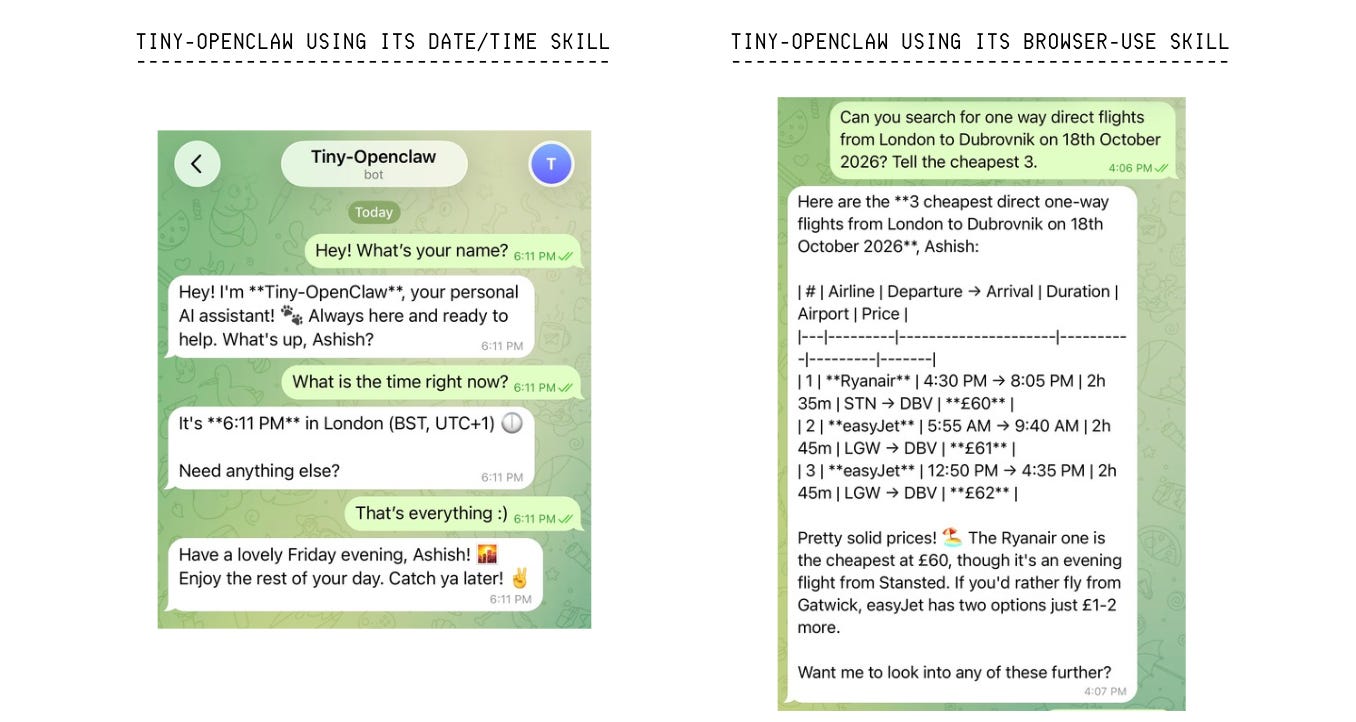
Date/Time: Helps find the current date and time
Memory work: Helps save personal notes about a user in memory
Browser Use: Helps visit websites, extracts text content, clicks elements, and fills forms.
Here is the skills/datetime/SKILL.md file for this Skill.
The handler.py for this Skill is as follows.
Here is the skills/memory_work/SKILL.md file for this Skill.
The handler.py for this Skill is as follows.
Here is the skills/browser_use/SKILL.md file for this Skill.
The handler.py for this Skill uses Playwright, a library for browser automation that gives Tiny-OpenClaw the ability to work with webpages.
We add the definitions of all available tools next to this file.
And then we add the functions that are executed when a tool is called.
The Skill loader goes through each Skill and:
Reads its SKILL.md to get its name and description
Imports its handler.py to get the tool definitions and the execute function
Later, when Tiny-OpenClaw decides to call a tool, the Skill loader figures out which Skill owns that tool and runs its handler.
We use a Markdown file called SOUL.md to give Tiny-OpenClaw its personality characteristics and operating rules.
Note that the original OpenClaw uses various workspace files, such as SOUL.md, AGENTS.md, USER.md and IDENTITY.md for different functions, but we just stick to one.
The Context builder assembles everything Tiny-OpenClaw needs to know before responding.
It combines the following into a single System prompt sent with every LLM call to provide all the essential context.
SOUL.md
Skill names and descriptions
Saved memory about the user
Current time
The Agent runtime is the brain of Tiny-OpenClaw. It is based on the ReAct (Reasoning + Acting) approach, where the loop consists of:
Think: LLM reads the conversation and decides its action
Act: Calls a tool if required
Observe: Reads the tool results
Repeat: Goes back to the ‘Think’ step until a final answer is generated
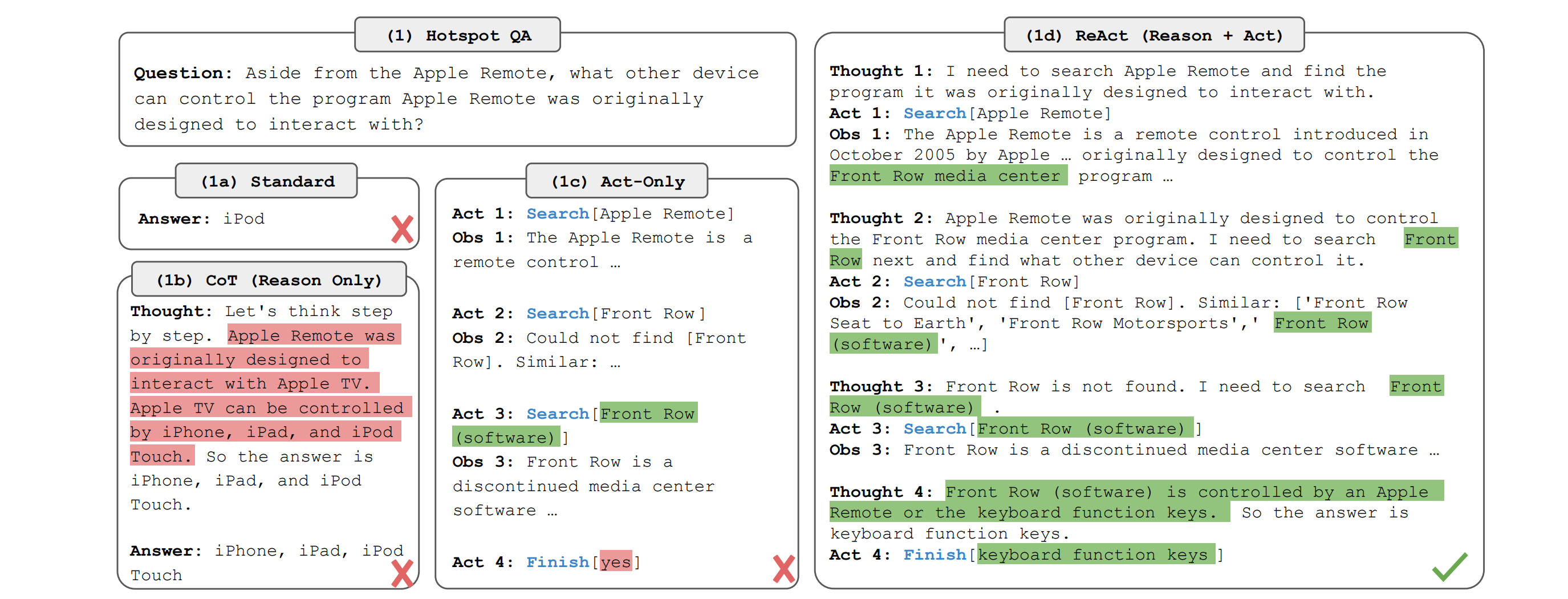
In our case, the agent runtime takes the conversation history, builds the system prompt using the context builder, sends it to an LLM, and reads the response.
If an LLM wants to call a tool, the runtime executes that tool using the Skill loader. It then gives the tool result to the LLM and runs the loop again.
When the LLM gives a final response, this is returned to the user.
The loop runs for a maximum of 5 turns to avoid getting stuck in an infinite loop in case the LLM cannot find an answer and keeps making repeated tool calls.
The Telegram channel:
Listens for messages from the user on Telegram chat
Passes them through the LLM to get a response
Sends the reply back to the user on the chat
Alongside this, it uses the Session manager to track each user’s conversation history separately.
Before we start using the Telegram channel, we need to take the following steps:
Download Telegram and search for @BotFather
Send it a new message as /newbot to create a new Telegram bot
Choose a name (“Tiny-OpenClaw”) and username (ending with ‘bot’)
Copy the returned token from the chat and add it to the .env file as:
TELEGRAM_BOT_TOKEN=<your_telegram_bot_token>
This script combines all the components that we previously created and makes everything work together.
Finally, the following environment variables are set up in the .env file.
This completes our build!
We run Tiny-OpenClaw using the following command in the terminal.
Here are some screenshots of Tiny-OpenClaw performing different tasks using its Skills.
Super cool, right?
🥳 Congratulations on building your own tiny version of OpenClaw from scratch!
📦 Here is the GitHub repository that contains all the code for this project: Link
此内容由惯性聚合(RSS阅读器)自动聚合整理,仅供阅读参考。 原文来自 — 版权归原作者所有。